Page 63 of 172
NEW VEHICLE BREAK-IN
The performance and long life of your Subaru are dependent on how you handle and care
for your Subaru while it is new.
Follow these instructions during the first 1,000 miles:
• Do not race the engine.
• Do not allow the engine speed to exceed 4,000 rpm except in an emergency.
•
Do not drive at one consistent engine or vehicle speed for a long time, either fast or slow.
• Avoid starting suddenly and rapid acceleration, except in an emergency.
• Avoid hard braking, except in an emergency.
ENGINE OIL
Use 0W-20 synthetic, with one of the following specifications:
• API classification SN with the words “RESOURCE CONSERVING”or SN PLUS with the
words “RESOURCE CONSERVING”.
• ILSAC GF-5, which can be identified with the ILSAC certification mark (Starburst mark).
ENGINE OIL CAPACITY
Engine Capacity (during oil and filter change)
2.5L Model 4.4 US quarts
2.4L Model 4.8 US quarts
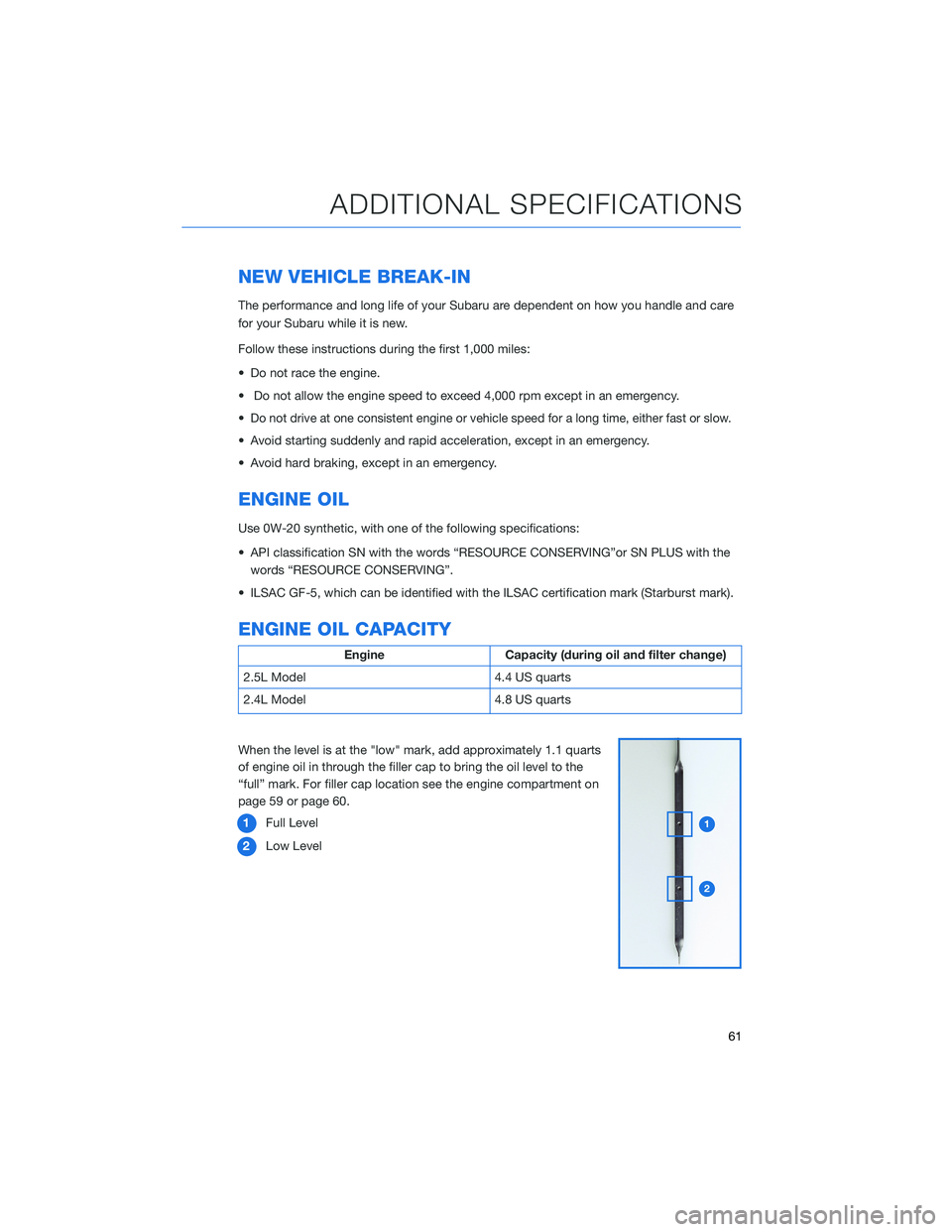
When the level is at the "low" mark, add approximately 1.1 quarts
of engine oil in through the filler cap to bring the oil level to the
“full” mark. For filler cap location see the engine compartment on
page 59 or page 60.
1Full Level
2Low Level
ADDITIONAL SPECIFICATIONS
61
Page 64 of 172

ROOF RAIL CAPACITY
Cross Bars
DynamicRoof Rails
DynamicRoof Rails
StaticRope
Hooks
Outback
(Except
Wilderness)150 Pounds 176 Pounds 176 Pounds —
Outback
(Wilderness)150 Pounds 220 Pounds 700 Pounds 176 Pounds
For more information, please refer to “Driving Tips” in your Owner’s Manual.
TRAILER TOWING CAPACITY
2.5L Models
Maximum total trailer weight* Maximum tongue weight*
2,700 pounds 270 pounds
2.4L Models
Maximum total trailer weight* Maximum tongue weight*
3,500 pounds 350 pounds
*Towing a trailer with brakes.
NOTE:
• For models equipped with the BSD (Blind Spot Detection) and RCTA (Rear Cross Traffic
Alert) driving support systems, when towing a trailer, it may be necessary to select
“BSD/RCTA” to deactivate the system. The system may not operate as expected due to
obstruction of the radar waves. For details about how to turn BSD/RCTA off, refer to
page 114 in this Getting Started Guide and/or “Starting and Operating” in your Owner’s
Manual.
• For models equipped with the RAB (Reverse Automatic Braking) driving support system,
when towing a trailer, it may be necessary to press the RAB button to deactivate the
system. The system may not operate as expected due to obstruction of the sonar
waves. For details about the RAB button, refer to page 115 in this Getting Started Guide
and/or “Starting and Operating” in your Owner’s Manual.
Please refer to “Driving Tips” in your Owner’s Manual for complete details, especially if
you plan to use this vehicle for regular towing.
ADDITIONAL SPECIFICATIONS
62
Page 68 of 172
OVERVIEW OF YOUR MULTIMEDIA SYSTEM
SUBARU STARLINK®Multimedia combines the radio along with the ability to connect your
phone* through Bluetooth®to the multimedia system for making calls, sending text
messages and listening to your favorite songs on your phone.
As part of routine maintenance and continuous improvement, Subaru releases updates to
the firmware and software in your vehicle. Following the installation of these updates, the
screens and menus in your vehicle may differ from what appears in this guide.
For the most current information, please visitwww.subaru.com/owners,
www.subaru.com/customer-support, or contact your Subaru Retailer. Refer to page 4
for details on these resources.
* Compatible smartphone and application required. For applications to operate, latest version of each
application required. Data provided by smartphone is displayed on the Touchscreen. Some state laws
prohibit the operation of handheld electronic devices while operating a vehicle. Smartphone apps
should only be launched when vehicle is safely parked. Your wireless carrier’s rates may apply.
Various Systems
Depending on your model and trim level there are several types of SUBARU STARLINK®
Multimedia systems. Some of the functions described in this guide will vary by system.
• Dual 7.0-inch Multimedia
• 11.6-inch Multimedia Plus
• 11.6-inch Multimedia Navigation
STARLINK OVERVIEW
66
Page 69 of 172
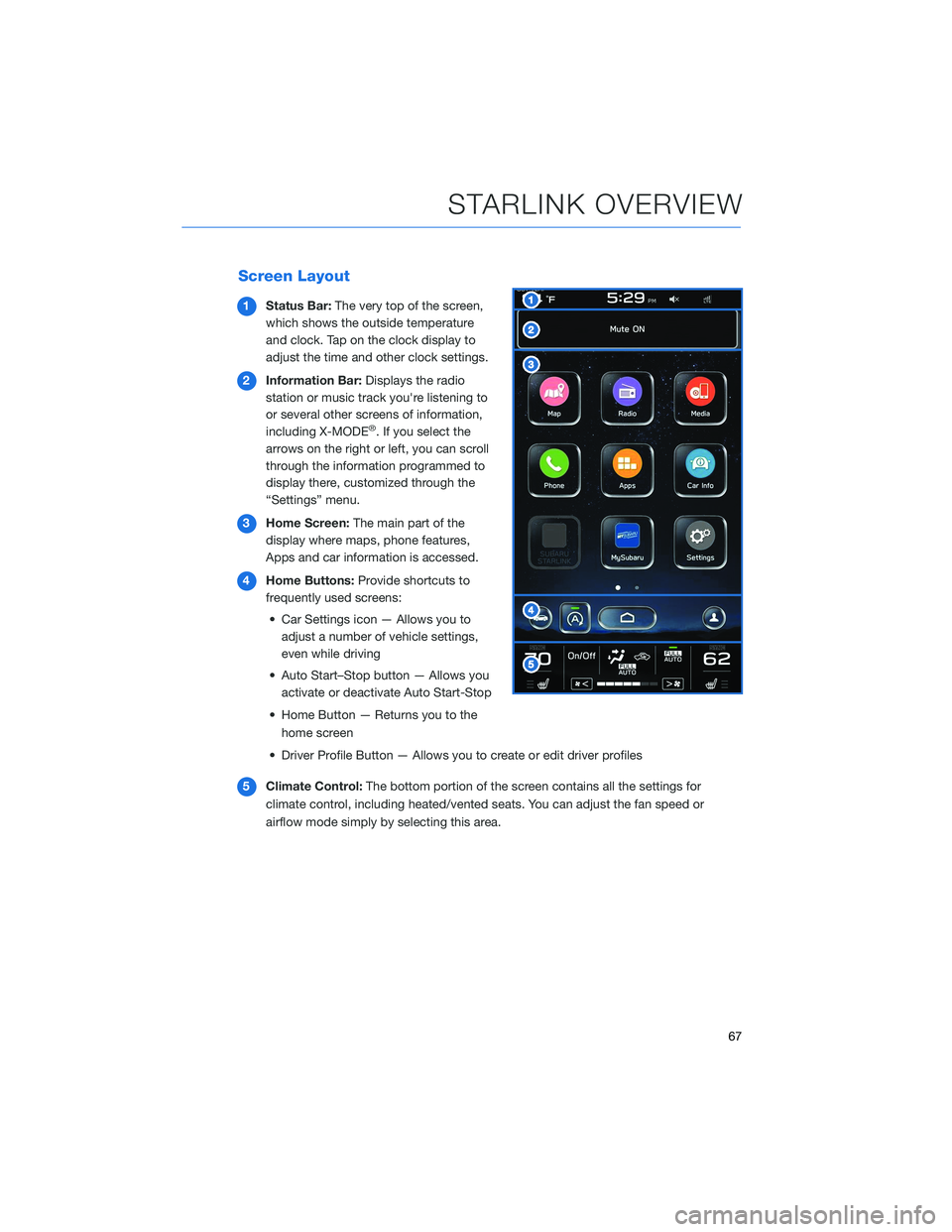
Screen Layout
1Status Bar:The very top of the screen,
which shows the outside temperature
and clock. Tap on the clock display to
adjust the time and other clock settings.
2Information Bar:Displays the radio
station or music track you're listening to
or several other screens of information,
including X-MODE
®. If you select the
arrows on the right or left, you can scroll
through the information programmed to
display there, customized through the
“Settings” menu.
3Home Screen:The main part of the
display where maps, phone features,
Apps and car information is accessed.
4Home Buttons:Provide shortcuts to
frequently used screens:
• Car Settings icon — Allows you to
adjust a number of vehicle settings,
even while driving
• Auto Start–Stop button — Allows you
activate or deactivate Auto Start-Stop
• Home Button — Returns you to the
home screen
• Driver Profile Button — Allows you to create or edit driver profiles
5Climate Control:The bottom portion of the screen contains all the settings for
climate control, including heated/vented seats. You can adjust the fan speed or
airflow mode simply by selecting this area.
STARLINK OVERVIEW
67
Page 72 of 172
STEERING WHEEL CONTROLS
1Presets/Skip:Press to toggle through
your presets or change a track or media
file. Press and hold to fast-forward or
rewind.
2Volume:Press the volume switch up or
down to increase or decrease the
volume.
3Source:Press the source button to
change the audio sources between radio
modes and media modes.
4Voice Recognition:Press to initiate the
built-in voice recognition system. If you
have an Android or Apple device paired,
press and hold to start the Apple
CarPlay
®/Android Auto™ voice recognition function.
5Call/End:Press to receive or end a call without taking your hands off of the steering
wheel.
Starlink Audio Controls
STARLINK OVERVIEW
70
Page 73 of 172
VOICE RECOGNITION
With SUBARU STARLINK®, simple voice commands can control
features like navigation, entertainment, phone calls, and, on select
models, climate control. A microphone is located in the overhead
console. You do not need to speak directly into it.
Visit www.subaru.com/owners/starlink/multimedia.html for
more information.
Press the voice recognition switch to start the voice recognition
system. Press and hold the switch to cancel it.
For help with what you can say with voice recognition, press the “Help” button on the
screen or press the voice recognition button and say “Help”.
Tips
The system may not recognize the voice command due to various types of interference.
Some causes for voice command interference are:
• The command is spoken too quickly or at a low or high volume.
• The command is incorrect or unclear.
• The window is open, the climate control system is set on high, or the ventilation is
directed toward the microphone.
• Passengers are talking while the command is spoken.
NOTE: The system is designed to recognize a variety of commands, but certain words,
accents or speech patterns may be difficult for the system to recognize.
STARLINK OVERVIEW
71
Page 76 of 172
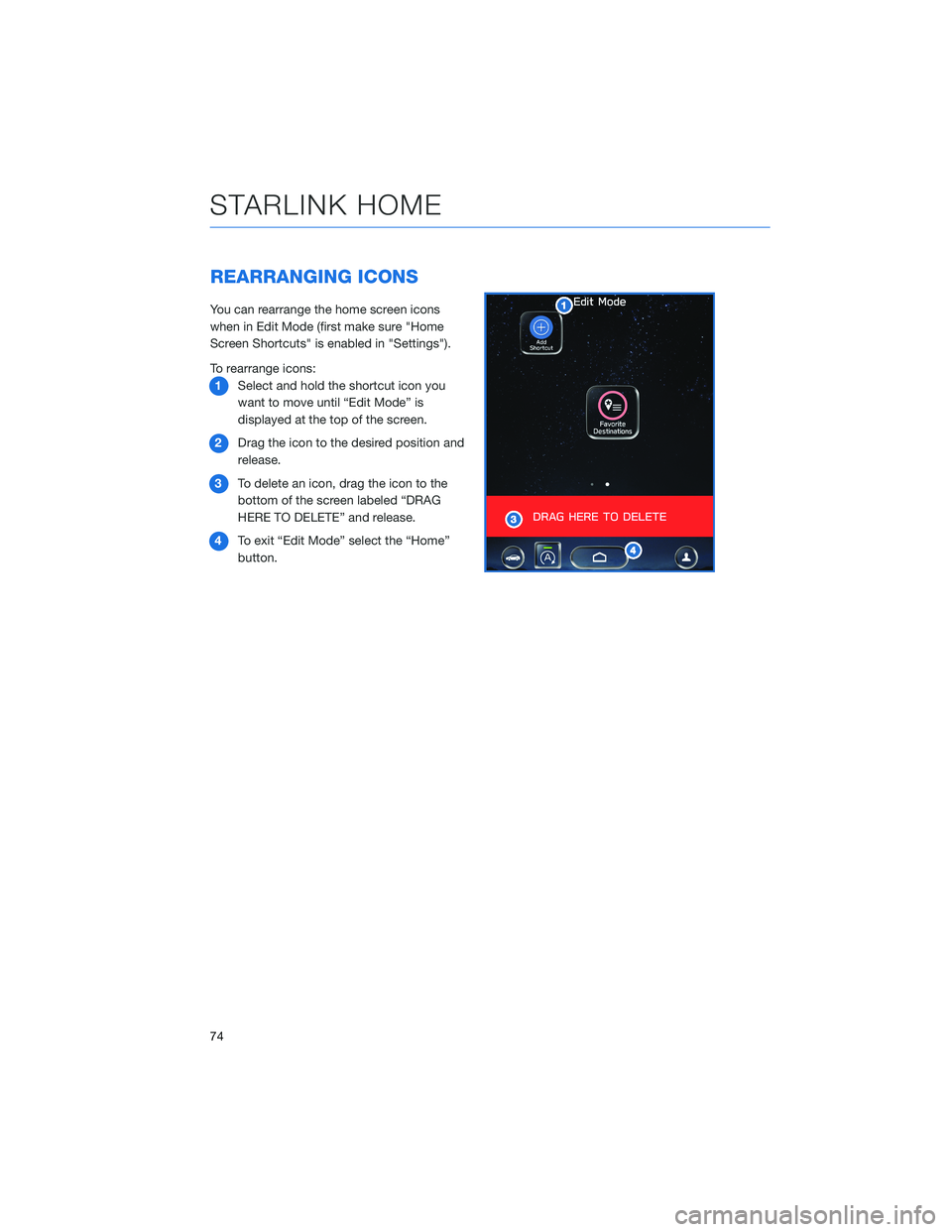
REARRANGING ICONS
You can rearrange the home screen icons
when in Edit Mode (first make sure "Home
Screen Shortcuts" is enabled in "Settings").
To rearrange icons:
1Select and hold the shortcut icon you
want to move until “Edit Mode” is
displayed at the top of the screen.
2Drag the icon to the desired position and
release.
3To delete an icon, drag the icon to the
bottom of the screen labeled “DRAG
HERE TO DELETE” and release.
4To exit “Edit Mode” select the “Home”
button.
STARLINK HOME
74
Page 94 of 172
SAFETY AND SECURITY OVERVIEW
STARLINK®Safety and Security services* are designed to help in your time of need. These
include Advanced Automatic Collision Notification, SOS Emergency Assistance, Enhanced
Roadside Assistance, Stolen Vehicle Recovery, the added convenience of Remote Engine
Start with Climate Control, and so much more.
With the SUBARU STARLINK
®system integrated into your vehicle, advanced safety and
security technology is just a button press away. The SUBARU STARLINK®experience
includes in-vehicle call center support, maintenance and diagnostic alerts as well as
remote services that keep you connected to your Subaru vehicle.
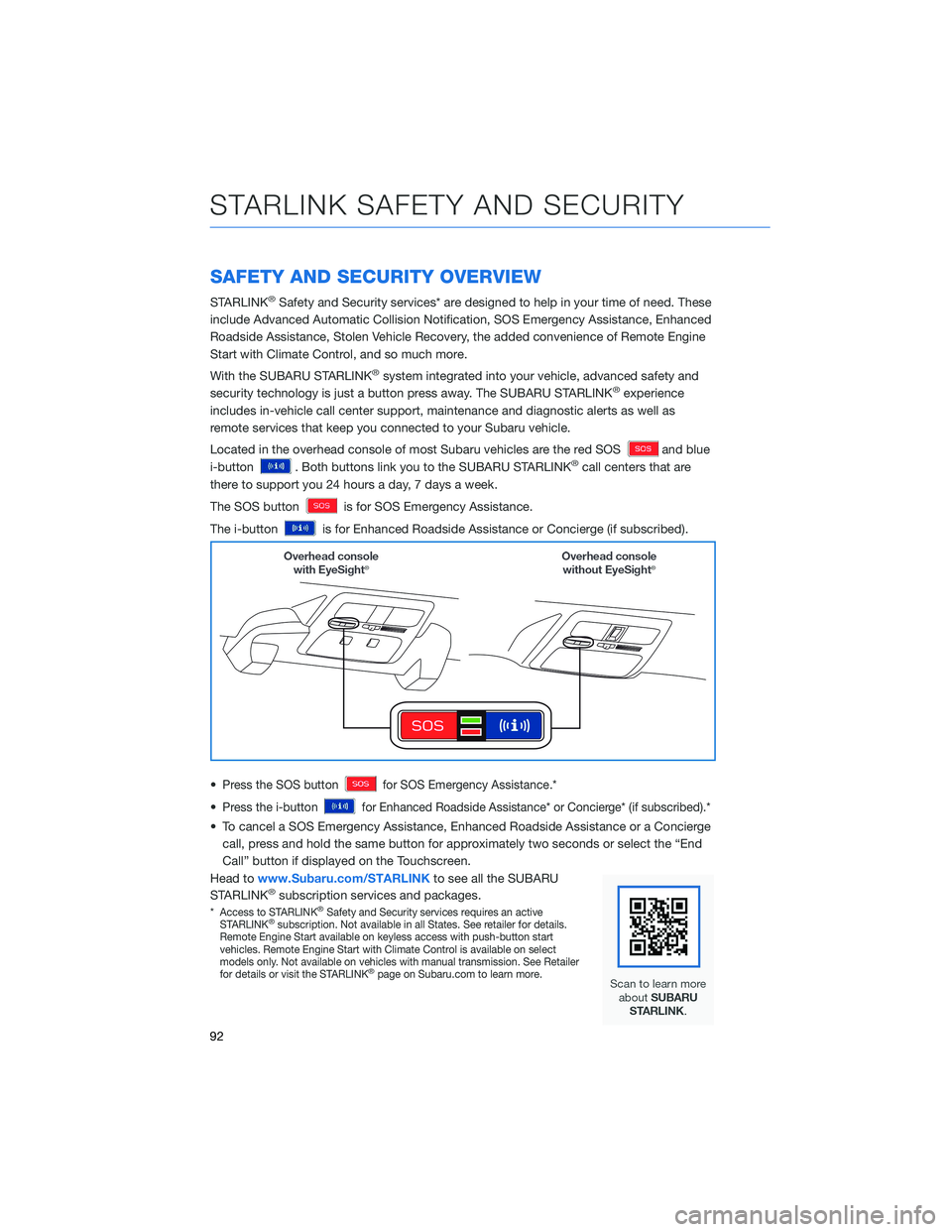
Located in the overhead console of most Subaru vehicles are the red SOS
and blue
i-button
. Both buttons link you to the SUBARU STARLINK®call centers that are
there to support you 24 hours a day, 7 days a week.
The SOS button
is for SOS Emergency Assistance.
The i-button
is for Enhanced Roadside Assistance or Concierge (if subscribed).
•
Press the SOS buttonfor SOS Emergency Assistance.*
•Press the i-buttonfor Enhanced Roadside Assistance* or Concierge* (if subscribed).*
• To cancel a SOS Emergency Assistance, Enhanced Roadside Assistance or a Concierge
call, press and hold the same button for approximately two seconds or select the “End
Call” button if displayed on the Touchscreen.
Head towww.Subaru.com/STARLINKto see all the SUBARU
STARLINK
®subscription services and packages.
*Access to STARLINK®Safety and Security services requires an active
STARLINK®subscription. Not available in all States. See retailer for details.
Remote Engine Start available on keyless access with push-button start
vehicles. Remote Engine Start with Climate Control is available on select
models only. Not available on vehicles with manual transmission. See Retailer
for details or visit the STARLINK
®page on Subaru.com to learn more.
STARLINK SAFETY AND SECURITY
92