2022 PEUGEOT 308 fuel
[x] Cancel search: fuelPage 24 of 260
22
Instruments
► Then select Safety > Diagnostics.
The following information is displayed on the
instrument panel:
–
T
yre pressures.
–
Engine oil level (depending on engine).
–
Next service due.
–
Driving range associated with the
AdBlue® and
the SCR system (BlueHDi
Diesel).
–
Current alerts.
This information is also displayed automatically every time the ignition is
switched on.
Total distance recorder
The total distance recorder measures the total
distance travelled by the vehicle since its initial
registration.
With the ignition on, the total distance is
displayed at all times. It remains displayed for
30
seconds after switching off the ignition. It is
displayed when the driver's door is opened, and
when the vehicle is locked or unlocked.
When travelling abroad, you may have to
change the distance units (miles or km):
the displayed speed must be in the local
country’s official unit (mph or km/h).
The unit is changed via the screen's
configuration application, with the vehicle
stationary.
Rechargeable hybrid vehicles
The total distance recorder is only
accessible from the trip computer.
For more information on the Trip computer,
refer to the corresponding section.
Lighting dimmer
Used to manually adjust the brightness of the
instruments and controls to suit the exterior light
level.
It is configured in the Settings >
Brightness touch screen application.
►
In the "
Cockpit" category, press or move the
slider to the desired setting.
Trip computer
Displays information related to the current trip
(range, fuel consumption, average speed, etc.).
Data displayed on the
instrument panel
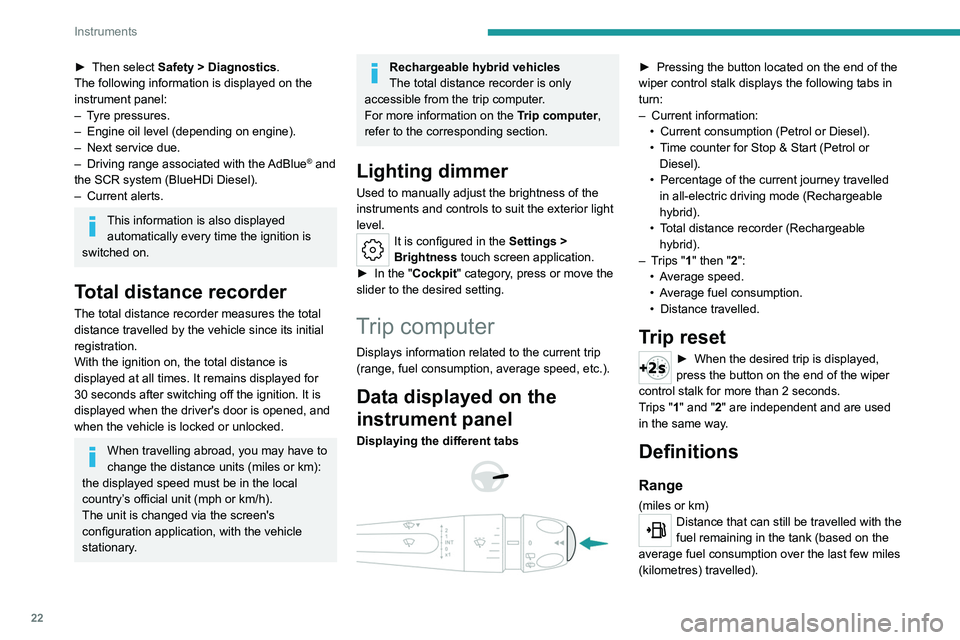
Displaying the different tabs
► Pressing the button located on the end of the
wiper control stalk displays the following tabs in
turn:
–
Current information:
•
Current consumption (Petrol or Diesel).
•
T
ime counter for Stop & Start (Petrol or
Diesel).
•
Percentage of the current journey travelled
in all-electric driving mode (Rechargeable
hybrid).
•
T
otal distance recorder (Rechargeable
hybrid).
–
T
rips "1" then "2":
•
A
verage speed.
•
A
verage fuel consumption.
•
Distance travelled.
Trip reset
► When the desired trip is displayed,
press the button on the end of the wiper
control stalk for more than 2
seconds.
Trips "1" and "2" are independent and are used
in the same way.
Definitions
Range
(miles or km)Distance that can still be travelled with the
fuel remaining in the tank (based on the
average fuel consumption over the last few miles
(kilometres) travelled).
Page 25 of 260

23
Instruments
1This value may vary following a change in driving
style or terrain, leading to a significant change in
current fuel consumption.
When the range falls below 19 miles (30 km),
dashes are displayed.
After filling with at least 5 litres of fuel, the range
is recalculated and is displayed if it exceeds 62
miles (100
km).
Dashes appearing permanently in place of
numbers while driving indicates a malfunction.
Consult a PEUGEOT dealer or a qualified
workshop.
Current consumption
(mpg or l/100 km or km/l)Calculated during the last few seconds.
This function is only displayed at speeds above
19 mph (30
km/h).
Average consumption
(mpg or l/100 km or km/l)Calculated since the last trip computer
reset.
Average speed
(mph or km/h)Calculated since the last trip computer
reset.
Distance travelled
(miles or km)
Calculated since the last trip computer
reset.
Stop & Start time counter
(minutes/seconds or hours/minutes)
If your vehicle is fitted with the Stop & Start
function, a time counter calculates the time spent
in STOP mode during a journey.
The time counter is reset each time the ignition is
switched on.
10-inch touch screen
This system gives access to the following elements:
–
T
ime and exterior temperature.
–
Heating/air conditioning system controls and
reminders of settings.
–
Settings for driving aid functions, comfort and
safety functions, audio equipment and digital
instrument panel.
–
Settings of functions specific to rechargeable
hybrid vehicles.
–
Display of visual manoeuvring aid functions.
–
Interactive handbook.
–
V
ideo tutorials (e.g. screen management,
driving aids, voice recognition).
–
Audio equipment and telephone controls with
display of
associated information.
–
Connected services and display of associated
information.
– Navigation system controls and display
of associated information (depending on
equipment).
–
V
oice recognition (depending on equipment).
For safety reasons, always stop the
vehicle before performing operations
that require sustained attention.
Some functions are not accessible while
driving.
Recommendations
These recommendations are valid for the touch
screen and for the i-Toggles (depending on
equipment).
The touch screen and the i-Toggles screen are
capacitive touch screens.
Do not use pointed objects on the touch screen.
Do not touch the touch screen with wet hands.
►
Use a soft, clean cloth to clean the touch
screen.
Main controls
Access to one of the home pages Return to the first home page
Direct access to the Climate application
Direct access to the Shortcuts for
driving aids
►
Swipe down from the upper edge of the touch
screen to access a list of quick settings (e.g.
Brightness
, Diagnostics).
Page 26 of 260

24
Instruments
► Depending on the pages displayed on the
screen, with or without the context menu, scroll
the text by swiping with your finger
, as with a
smartphone.
Show/Hide context menu
Return to the previous page
►
T
o change the status of a function, press the
description for the corresponding line (change
confirmed by the slider moving to the right/left:
function activated/deactivated).
Access additional information on the function
Access to function parameters
Adding/Removing shortcuts
Short press, ignition off: system on/off.
Short press, ignition on: mute/restore
sound.
Long press, ignition on: start standby mode
(mute sound, screens and clock display off).
Rotation: volume adjustment.
Applications
From the home page, press this button to
access the applications wall.
From any page, press the touch screen
with three fingers to display the
applications wall. To obtain information about the other
applications not listed here, refer to the sections
describing the audio and telematic systems.
ADAS
Activation/Deactivation and configuration
of the driving aid functions.
Climate
Settings for temperature, air flow, etc.
For more information on Dual-zone automatic
air conditioning , refer to the corresponding
section.
Activation/Deactivation of the heated steering
wheel.
For more information on the Heated steering
wheel, refer to the corresponding section.
Seat Options
Activation/Deactivation and configuration
of the seat comfort functions (heating and
massages).
For more information on the Heated seats
or on the Multi-point massages, refer to the
corresponding section.
Settings
Main settings for the audio system, touch
screen and digital instrument panel.
Activation/Deactivation and configuration of
the exterior lighting, vehicle access and safety
functions.
Energy
Access to the rechargeable hybrid system
features (energy flow, consumption statistics,
deferred charging, e
- SAVE function).
Energy application
Energy Flow
The page shows the operation of the
rechargeable hybrid system in real time.
1.Active driving mode
2. Petrol engine
3. Electric motor
4. Traction battery charge level
The energy flows have a specific colour for each
type of driving:
–
Blue: 100% electrical energy
.
–
White: energy from the petrol engine.
–
Green: energy recovery
.
Statistics
This page shows electrical energy and fuel
consumption statistics.
Page 27 of 260

25
Instruments
11. Average electrical consumption for the current
trip (kWh/100 km) and historical values:
–
Blue graph: energy consumed directly from
the traction battery
.
–
Green graph: energy regenerated during
deceleration and braking phases to recharge the
battery
.
2. Average fuel consumption for the current trip
(l/100
km) and historical values (orange graph).
Charging
This page allows you to programme deferred
charging.
For more information on Charging the traction
battery (Rechargeable hybrid), refer to the
corresponding section.
e-SAVE
The e-SAVE function makes it possible to
reserve all or part of the electrical energy of the
traction battery to be used later during a journey
(e.g.
passing through an urban area or an area
reserved for electric vehicles).
►
Select the electric range to be reserved ( 6
miles (10 km)
, 12 miles (20 km) or the full
range MAX) then activate the function.
Activation of the function is confirmed by the lighting of this indicator lamp on the
instrument panel and the
indication of the energy
reserve in miles or kms.
►
T
o use the energy reserve, choose the
Electric driving mode in the mode selector.
If the requested range exceeds the
available range (not recommended), the
internal combustion engine starts to recharge
the traction battery up to the requested
threshold. This leads to excessive fuel
consumption.
i-Toggles
This system is an additional touch screen
associated with the PEUGEOT i-Connect
Advanced. It is designed to provide a
personalised display of shortcuts to applications
or presets.
By default, it directs you to the main applications:
Media, Climate, Navigation, Phone, Mirror
Screen, etc.
The shortcuts can be replaced by: radio preset,
temperature preset, pre-selected destination,
pre-selected contact, pre-selected smartphone,
etc.
For more information on
Personalisation -
i-T
oggles, refer to the corresponding section for
the Audio equipment and telematics systems.
If the vehicle is exposed to sunlight for an
extended period, the touch screen can
become very hot.
Wait a few minutes before using the system.
Remotely operable
additional functions
(Rechargeable hybrid)
The following functions are
available from the MYPEUGEOT
APP application, which is
accessible from a smartphone:
–
Managing the traction battery charging
(deferred charging).
–
Managing the temperature pre-conditioning.
–
V
iewing the state of charge and range of the
vehicle.
Installation procedure
► Download the MYPEUGEOT APP app from
the appropriate online store for your smartphone.
►
Create an account.
►
Enter the vehicle’
s VIN (code beginning with
"VF" on the vehicle registration certificate).
For more information on Identification
markings, refer to the corresponding section.
Network coverage
In order to be able to use the various
remotely operable features, ensure that your
vehicle is located in an area covered by the
mobile network.
A lack of network coverage may prevent
communication with the vehicle (for example,
Page 29 of 260
27
Access
2Remote control / Key
Remote control function
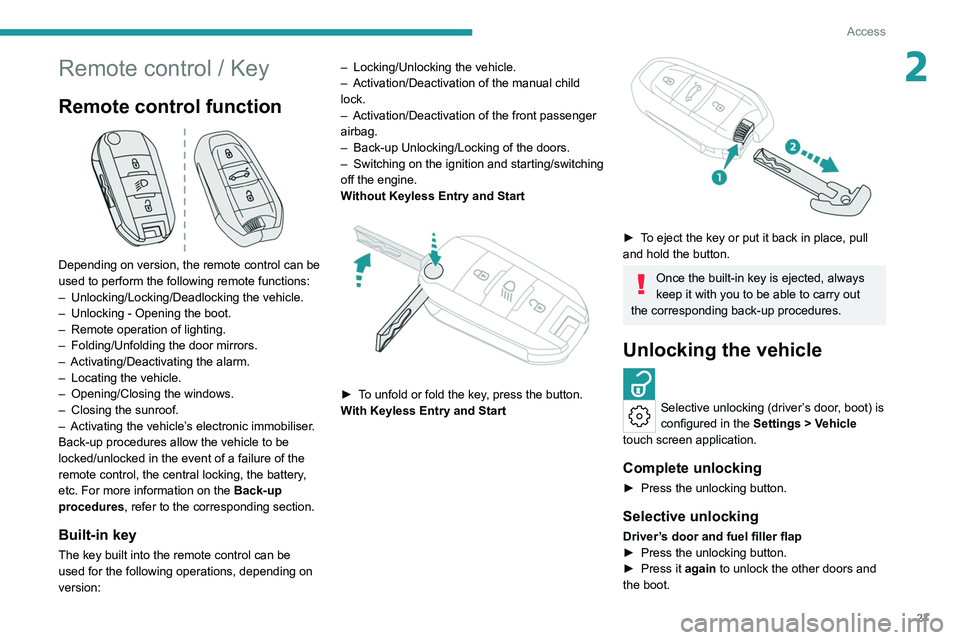
Depending on version, the remote control can be
used to perform the following remote functions:
–
Unlocking/Locking/Deadlocking the vehicle.
–
Unlocking - Opening the boot.
–
Remote operation of lighting.
–
Folding/Unfolding the door mirrors.
–
Activating/Deactivating the alarm.
–
Locating the vehicle.
–
Opening/Closing the windows.
–
Closing the sunroof.
–
Activating the vehicle’
s electronic immobiliser.
Back-up procedures allow the vehicle to be
locked/unlocked in the event of a failure of the
remote control, the central locking, the battery,
etc. For more information on the Back-up
procedures, refer to the corresponding section.
Built-in key
The key built into the remote control can be
used for the following operations, depending on
version: –
Locking/Unlocking the vehicle.
–
Activation/Deactivation of the manual child
lock.
–
Activation/Deactivation of the front passenger
airbag.
–
Back-up Unlocking/Locking of the doors.
–
Switching on the ignition and starting/switching
off the engine.
W
ithout Keyless Entry and Start
► To unfold or fold the key, press the button.
With Keyless Entry and Start
► To eject the key or put it back in place, pull
and hold the button.
Once the built-in key is ejected, always
keep it with you to be able to carry out
the corresponding back-up procedures.
Unlocking the vehicle
Selective unlocking (driver’s door, boot) is
configured in the Settings
> Vehicle
touch screen application.
Complete unlocking
► Press the unlocking button.
Selective unlocking
Driver’s door and fuel filler flap
► Press the unlocking button.
►
Press it
again to unlock the other doors and
the boot.
Page 30 of 260
28
Access
The charging nozzle can be unplugged on the
second press.
Complete or selective unlocking, and alarm
deactivation (depending on version), is confirmed
by the flashing of the direction indicators and the
lighting of the daytime running lamps.
Depending on version, the door mirrors unfold.
Opening the windows
►
T
o open the windows, press the unlocking
button for more than 3 seconds (depending on
version).
►
Press again to stop the windows opening.
Selective unlocking and opening of
the tailgate
By default, selective unlocking of the tailgate
is deactivated and its motorised operation is
activated.
► Press and hold this button to unlock
the boot and, depending on version,
trigger the motorised opening of the tailgate.
When selective unlocking of the tailgate is
activated, the doors and the fuel filler flap remain
locked.
If selective unlocking of the tailgate is
deactivated, pressing the button unlocks the
whole vehicle.
If motorised operation of the tailgate is
deactivated, pressing the button partially
opens the tailgate.
To lock the vehicle, it is necessary to close
the tailgate again.
Locking the vehicle
Normal locking
► Press the locking button.
The locking, and the activation of the alarm
depending on version,
is confirmed by the
lighting of the direction indicators and the
daytime running lamps.
Depending on version, the door mirrors fold.
An access (door or boot) that is not properly closed prevents locking of the
vehicle. However, if the vehicle is fitted with
an alarm, it will be activated after 45
seconds.
If the vehicle is unlocked but the doors or boot
are not subsequently opened,
the vehicle
will automatically lock itself again after about
30
seconds. If the vehicle is fitted with an
alarm, it will be reactivated automatically.
Deadlocking
Deadlocking renders the interior door
controls inoperative. It also deactivates
the central locking buttons.
The horn remains operational.
Never leave anyone inside the vehicle
when it is deadlocked.
► Press the locking button again within 3
seconds to deadlock the vehicle (confirmed by
the temporary lighting of the direction indicators).
Closing the windows and sunroof
An audible signal sounds before the start of the
movement.
►
T
o completely close the windows and,
depending on version, the sunroof, press the
locking button for more than 2 seconds.
►
Press again to stop closing.
Ensure that no person or object could
prevent the correct closing of the
windows and sunroof.
If, on versions with alarm, you want to
leave the windows and/or sunroof partially
open, you must first deactivate the interior
volumetric alarm protection.
For more information on the Alarm, refer to
the corresponding section.
Locating the vehicle
Helps you to locate your vehicle from a distance,
with the vehicle locked:
–
The direction indicators flash for approximately
10 seconds.
–
The door mirror spotlamps come on.
–
The courtesy lamps come on.
► Press this button.
Page 32 of 260
30
Access
Unlocking the vehicle
Selective unlocking (driver’s door, boot) is
configured in the Settings
> Vehicle
touch screen application.
Complete unlocking
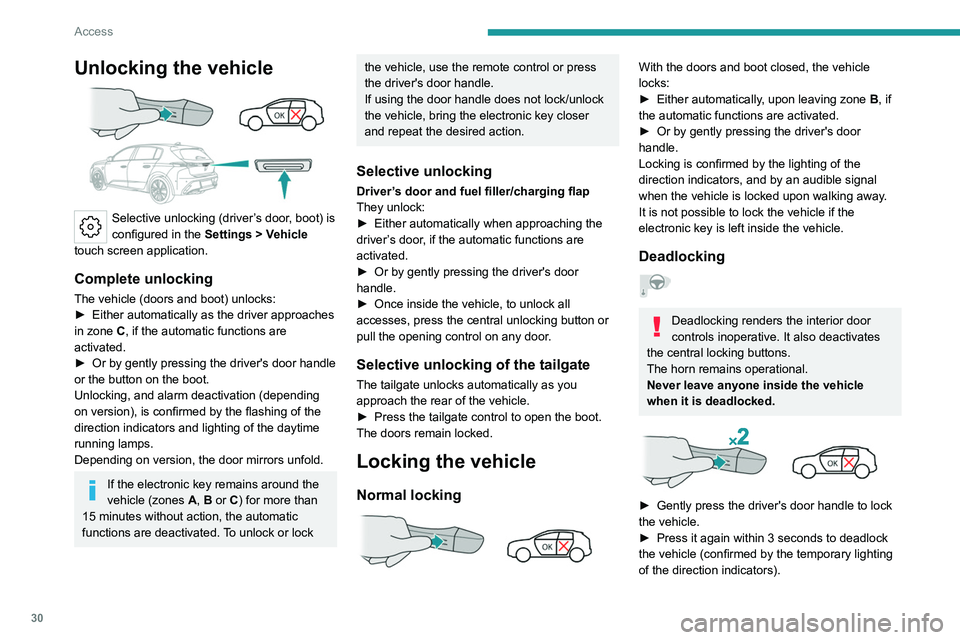
The vehicle (doors and boot) unlocks:
► Either automatically as the driver approaches
in zone
C, if the automatic functions are
activated.
►
Or by gently pressing the driver's door handle
or the button on the boot.
Unlocking, and alarm deactivation (depending
on version), is confirmed by the flashing of the
direction indicators and lighting of the daytime
running lamps.
Depending on version, the door mirrors unfold.
If the electronic key remains around the
vehicle (zones A, B or C) for more than
15 minutes without action, the automatic
functions are deactivated. To unlock or lock
the vehicle, use the remote control or press
the driver's door handle.
If using the door handle does not lock/unlock
the vehicle, bring the electronic key closer
and repeat the desired action.
Selective unlocking
Driver’s door and fuel filler/charging flap
They unlock:
►
Either automatically when approaching the
driver
’s door, if the automatic functions are
activated.
►
Or by gently pressing the driver's door
handle.
►
Once inside the vehicle, to unlock all
accesses, press the central unlocking button or
pull the opening control on any door
.
Selective unlocking of the tailgate
The tailgate unlocks automatically as you
approach the rear of the vehicle.
►
Press the tailgate control to open the boot.
The doors remain locked.
Locking the vehicle
Normal locking
With the doors and boot closed, the vehicle
locks:
►
Either automatically
, upon leaving zone B, if
the automatic functions are activated.
►
Or by gently pressing the driver's door
handle.
Locking is confirmed by the lighting of the
direction indicators, and by an audible signal
when the vehicle is locked upon walking away
.
It is not possible to lock the vehicle if the
electronic key is left inside the vehicle.
Deadlocking
Deadlocking renders the interior door
controls inoperative. It also deactivates
the central locking buttons.
The horn remains operational.
Never leave anyone inside the vehicle
when it is deadlocked.
► Gently press the driver's door handle to lock
the vehicle.
►
Press it again within 3
seconds to deadlock
the vehicle (confirmed by the temporary lighting
of the direction indicators).
Page 82 of 260
80
Safety
Operation of the system
– Upon switching on the ignition, the indicator
lamp lights up for a few seconds and then goes
out: the system is operating correctly
.
–
The indicator lamp flashes red: emergency
battery is flat.
This will be recharged after a few
minutes' driving.
–
The indicator lamp is fixed red: system
malfunction.
The emergency and assistance call
services may not work.
–
If the indicator lamp does not light up when
the ignition is turned on, this is also a system
malfunction.
If the problem persists, contact a qualified
workshop as soon as possible.
The malfunction of the system does not prevent the vehicle from driving.
When an onboard system update is
being performed, the eCall (SOS)
function is not available.
Data processing
All processing of personal data by
the eCall (SOS) function complies with
the framework for protection of personal
information established by Regulation
2016/679 (General Data Protection
Regulation - GDPR) and Directive 2002/58/
EC of the European Parliament and the
Council, and in particular, seeks to protect
the vital interests of the data subject, in
accordance with Article 6 (1) d) GDPR.
The processing of personal data is strictly
limited to the purpose of handling the eCall
(SOS) function used with the “112” single
European emergency call number.
The eCall (SOS) function is only able to
collect and process the following data
relating to the vehicle: vehicle identification
number, vehicle type (passenger vehicle or
light commercial vehicle), fuel type or power
source, three most recent locations and
direction of travel, number of passengers
and a timestamped log file of the automatic
activation of the system and its timestamp.
The recipients of the processed data are the
emergency call handling centres designated
by the relevant national authorities in the
territory in which they are located, enabling
priority routing and handling of calls to the
“112” emergency number.
Data storage
Data contained in the system’s memory
is not accessible from outside the system until
a call is made. The system is not traceable
and is not continuously monitored in its
normal operating mode.
The data in the system's internal memory is
automatically and continuously erased. Only
the vehicle’s three most recent locations,
necessary for the normal functioning of the
system, are stored.
When an emergency call is triggered, the data
log is stored for no more than 13 hours.
Access to data
You have the right of access to data and
as appropriate to request the rectification,
erasure or restriction of processing of any
personal data not processed in accordance
with the provisions of GDPR. Third parties
to which data has been disclosed shall
be notified of any rectification, erasure or
restriction carried out in compliance with
GDPR, unless it proves impossible or
involves a disproportionate effort.
You also have the right to lodge a complaint
with the respective data protection
supervisory authority.
If you want to claim your above-mentioned
rights please contact us per email at:
[email protected].
For more information regarding our contact
details please take a look at our Privacy &
Cookies Policy on the brand's website.