Page 277 of 316
9-89
Edit Home Widgets
You can edit the types and arrangement of home widgets.0000
A
For more information:
> see "Editing the widgets on the Home screen (Type1)."
Edit Home Icons
You can edit the arrangement of home icons.
0000
A
For more information:
> see "Editing the icons on the Home screen (Type1)."
Split Screen
You can specify the items to display on the Split Screen.
0000A
The screen may differ depending on the vehicle model and specifications.
0000
A
This option is only available when the display supports Split Screen.
0000
A
On the screen list, press
on the right and drag the item to reposition.
Media Change Notifications
You can set to briefly display media information at the top of screen while playing the next
item when you move from the media player screen to another.
Page 278 of 316
9-90
Extend Rear Camera Use
You can set to display the rear camera display even when you change the shift position other
than "R" (Reverse) after reversing.0000
A
When you shift to "P" (Park) or drive at a predetermined speed or faster, the rear view
display disappears to display the previous screen.
Reset
You can initialize all display settings such as brightness.
Configuring the display settings (Type2)
You can change the system display settings such as display brightness.
1 On the All Menus screen, press Setup >
Display.
The display settings screen appears.
2 Configure the settings required:
0000
A
Press >
Search for Settings or press and enter a keyword to search for a
setting item. You can also search for a setting item by voice.
0000
A
If you press Display Off at the top of the screen, the screen is switched off. To switch the
screen back on, press the screen or briefly press the power button.
Page 280 of 316
9-92
Illumination (if equipped)
\225Link to Cluster Illumination Control: The display brightness is automatically adjusted
based on the cluster illumination.
\225Daylight: You can set the display brightness when Daylight is selected under Mode.
Uncheck
Link to Cluster Illumination Control and then set to the desired brightness.
\225Night: You can set the display brightness when Night is selected under Mode. Uncheck
Link to Cluster Illumination Control and then set to the desired brightness.
0000
A
To reset all screen brightness settings to the default values, press Reset.
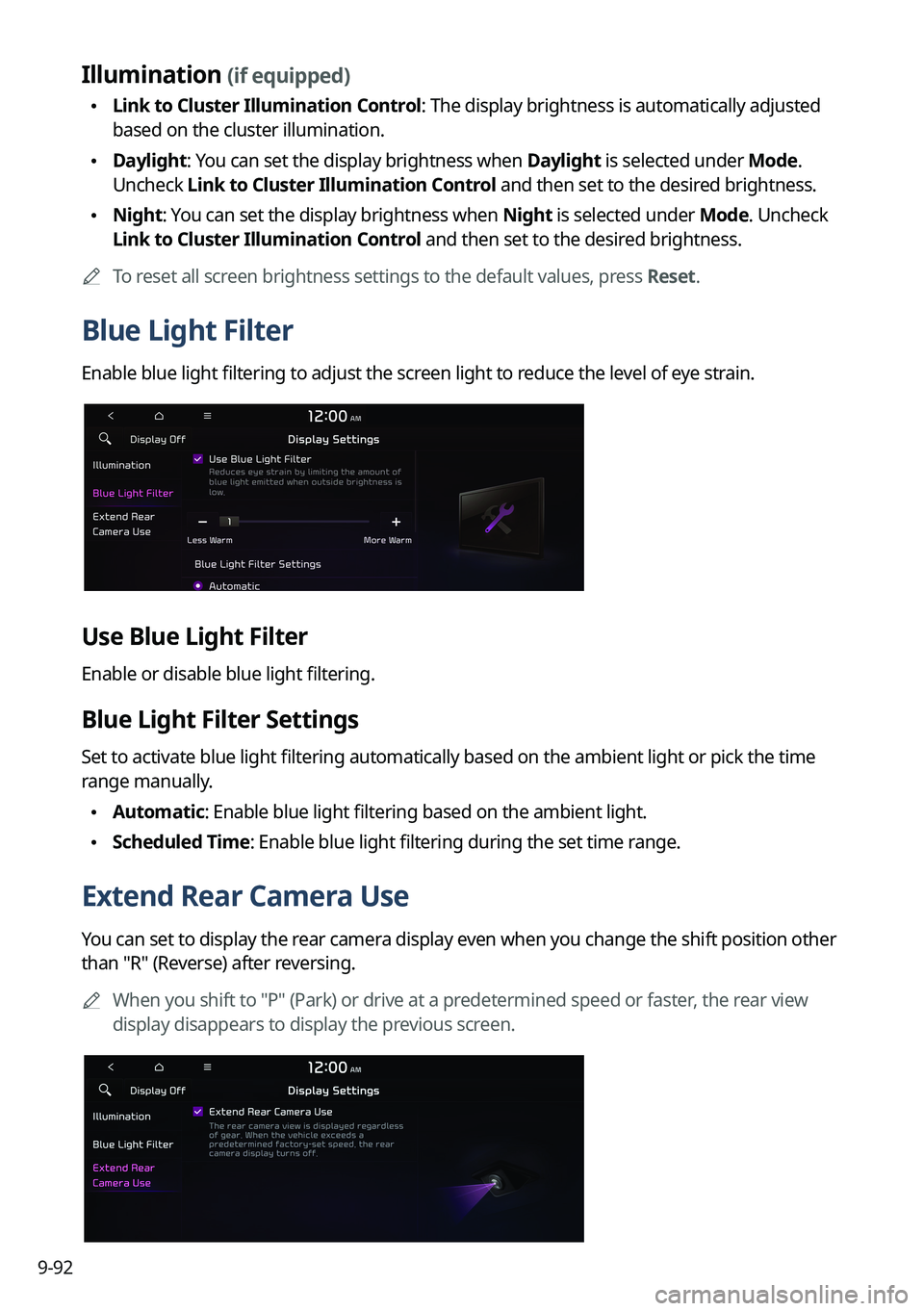
Blue Light Filter
Enable blue light filtering to adjust the screen light to reduce the level of eye strain.
Use Blue Light Filter
Enable or disable blue light filtering.
Blue Light Filter Settings
Set to activate blue light filtering automatically based on the ambient light or pick the time
range manually.
\225Automatic: Enable blue light filtering based on the ambient light.
\225Scheduled Time: Enable blue light filtering during the set time range.
Extend Rear Camera Use
You can set to display the rear camera display even when you change the shift position other
than "R" (Reverse) after reversing.
0000
A
When you shift to "P" (Park) or drive at a predetermined speed or faster, the rear view
display disappears to display the previous screen.
Page 282 of 316
9-94
Split Screen (if equipped)
You can specify the items to display on the Split Screen.
0000AThe screen may differ depending on the vehicle model and specifications.
0000
A
This option is only available when the display supports Split Screen.
0000
A
On the screen list, press
on the right and drag the item to reposition.
Media Change Notifications (if equipped)
You can set to briefly display media information at the top of screen while playing the next
item when you move from the media player screen to another.
Page 283 of 316
9-95
Configuring the media settings (Type1)
(if equipped)
Set to receive a notification when the information changes during playback or to include sub-
folders when playing a folder on repeat.
1 On the All Menus screen, press Setup >
Media.
The media settings screen appears.
2 Configure the settings required:
Media Change Notifications
You can set to briefly display media information at the top of screen while playing the next
item when you move from the media player screen to another.
Repeat Folder
You can set to include sub-folders when playing a folder on repeat.
Page 284 of 316
9-96
How to Update the Map and Software for
your Infotainment System
To ensure you are maximizing the full potential of your navigation system, we advise
updating the map and software annually. To update, visit the map update website and install
the Navigation Updater program onto your PC. Use the program to download and install the
latest map, points of interest, and software. Alternatively, you can visit your local dealership
to update.
\334\334Caution
\225It may take a while (tens of minutes) to finish the system update depending on the
amount of data.
\225Never turn off the system or remove the storage before finishing the system update.
When the system is turned off or the storage device is removed from the system while
updating, it may cause data or system damage.
0000
A
After update is completed, the system automatically restarts and the SW Info/Update
screen displays the updated version.
0000
A
During update, you cannot use the navigation system, UVO service, camera, and
infotainment system.
0000
A
For assistance concerning the update, contact the Customer Center at 800\
-333-4
KIA(4542).
0000
A
Changes are not applied to the map after creation of all update files. For this reason, road
names, POI names, speed limits, or other map information displayed, may \
not be the
latest values due to the creation time of the update files.
Updating via a USB device
Install the Navigation Updater on your PC and then download the latest data to a USB device
for update to the navigation map and infotainment system.
Installing Navigation Updater
On your PC, visit the website at http://update.kia.com/us to download and
install the Navigation Updater software.
0000
A
For system requirements for installing the program and details on how to install it, visit
the website.
Page 285 of 316
9-97
Updating the software and map
1 Connect a USB device to the computer and run Navigation Updater for
downloading the update files.
2 Follow the instructions on the screen to download the update files.
3 Remove the USB device from the computer and then connect it to the
USB port in your vehicle.
4 Start the vehicle to turn on the system.
0000
A
You can perform update without starting the vehicle by simply locating the start
switch to "ON".
\334\334Caution
\225Perform update with the start switch "ON" when the battery is sufficiently charged
by driving the vehicle. When the battery is discharged while updating, the system
may get damaged with the update stopped.
-Note that the battery may be discharged easily in winter.
-The battery may also be discharged easily when the vehicle is not used for a long
time. Caution is required.
\225
When you start the vehicle while updating with the start switch "ON", po\
wer supply
to the system may be cut off.
5 On the All Menus screen, press Setup >
General >
SW Info/Update.
0000
A
After the system is turned on, press Yes when a pop-up window appears whether
to proceed with update. In this case, the screen changes to allow you to select the
update method.
[ Updating immediately
You can finish the update quickly.
1 On the SW Info/Update screen, press Update.
2 Press
Update Now.
3 Press OK.
The update is performed immediately after the system reboots.
Page 296 of 316

10-8
Navigation system operation
SymptomPossible causeSolution
The destination is
not searched. Outdated map data
Update the map to the latest version.
> See "How to Update the Map and Software for
your Infotainment System."
Route guidance
of the navigation
system does not
match the actual
road conditions. Outdated map data
Update the map to the latest version.
> See "How to Update the Map and Software for
your Infotainment System."
There have been
changes in the road
after a map update. Route guidance of the navigation system
may not match the actual road conditions
even after the map is updated to the latest
version because the update depends on the
creation date. Be sure to drive according to
actual road conditions and regulations.
Guidance is made
by bypassing the
route or the speed
camera alerts are
not followed. The update for the
system and map
data is required.
Update the map to the latest version.
> See "
How to Update the Map and Software for
your Infotainment System."
The real-time traffic
information is not
received. Poor signal
reception \225
Reception of traffic information may
not be made smoothly in mountain and
island areas. Check the reception status
again in a region with strong signals.
\225If the problem persists, contact your
place of purchase or dealer.


