Page 261 of 316
9-73
Link Bluetooth Devices
You can connect any registered Bluetooth device. > See "Connecting a Bluetooth device."
Reset User Account
You can initialize all account settings.
Configuring the user profile settings (Type2)
You can additionally set profiles for each driver after First Run Setup.
1 On the All Menus screen, press Setup >
User Profile.
2 Press the user to change its profile.
The User Profile Settings screen appears.
0000
A
Press
>
Search for Settings or press and enter a keyword to search for a
setting item. You can also search for a setting item by voice.
0000
A
Press Change User to switch to another user's profile.
0000
A
When you log in as guest, you cannot set the profile items additionally. To set a different
profile, select another user.
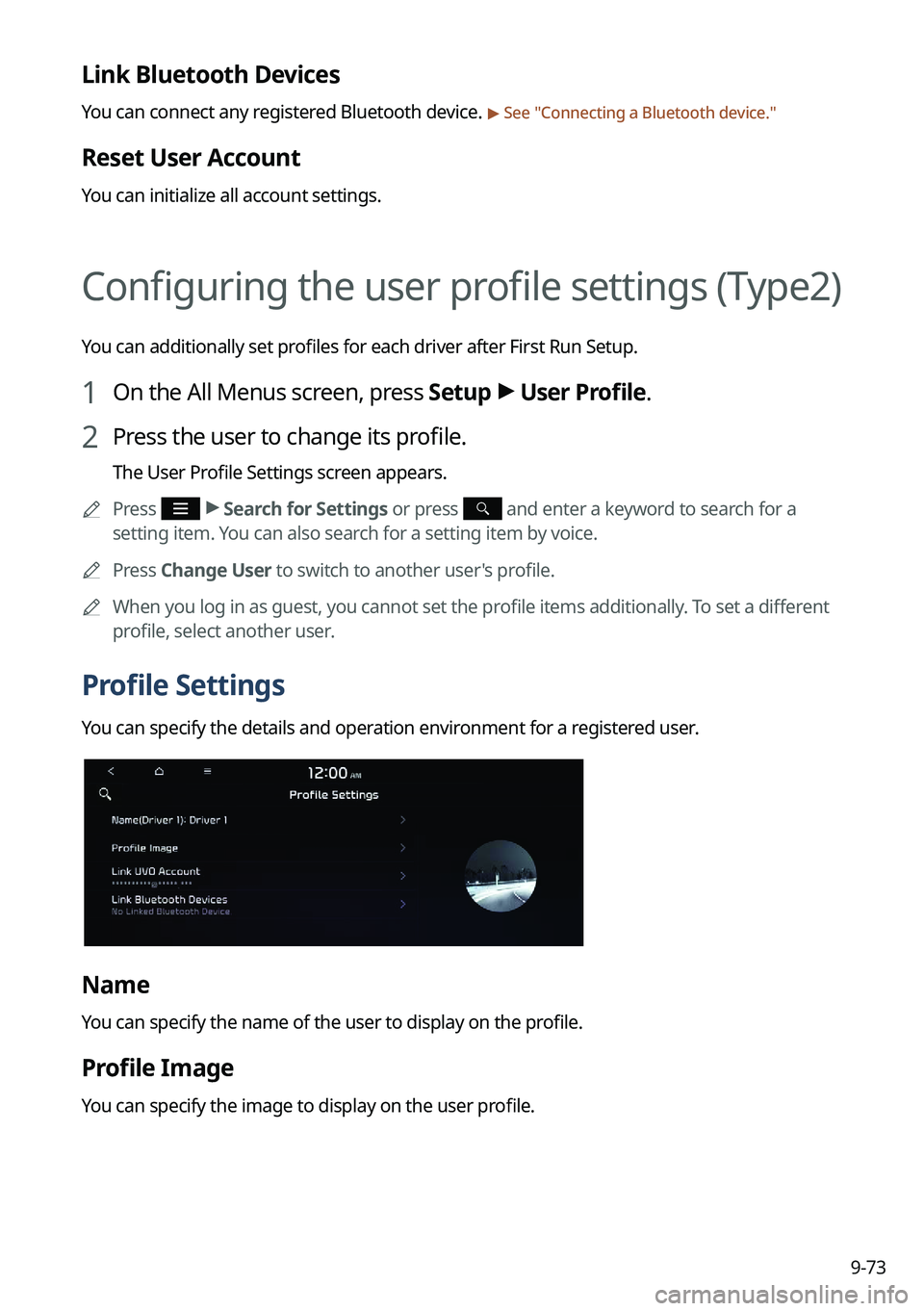
Profile Settings
You can specify the details and operation environment for a registered user.
Name
You can specify the name of the user to display on the profile.
Profile Image
You can specify the image to display on the user profile.
Page 265 of 316
9-77
GPS Time
After receiving the time from GPS, it sets the system date and time automatically.0000
A
To manually set the date and time, uncheck GPS Time, press the current date and time
below GPS Time, and then set the date and time.
24 Hours
The system time is displayed in the 24-hour format.
Daylight Saving Time
Displays the system time in the format of Daylight Saving Time.
Language
You can set the system display language.
0000
A
Once the language has been changed, it takes a while to apply the new language to the
system. The notification pop-up window appears as soon as the new language is applied
to the system. When you wait a while or press anywhere outside the pop-up window, the
window automatically disappears.
0000
A
When you change the system language, it does not affect the display of other unique
data such as MP3 music file name.
0000
A
Depending on the system language, the Bluetooth phone message view and voice
recognition may not be supported.
Page 266 of 316
9-78
Keyboard
You can change the keyboard type for each language to use when entering the text.
English Keyboard
You can select the keyboard type to use when entering the English text.
Default Keyboard
You can select the default keyboard type.
Units (if equipped)
You can specify the units to display on the system screen.
Distance and Speed
You can select the units for distance and vehicle speed to display on the\
screen.
Temperature
You can select the temperature unit to display on the screen.
Fuel Efficiency
You can select the unit for fuel economy to display on the screen.
Tire Pressure
You can select the unit for tire pressure to display on the screen.
Page 269 of 316
9-81
Date/Time
You can set the system date and time automatically or manually. You can also set the time
display mode.
GPS Time
After receiving the time from GPS, it sets the system date and time automatically.0000
A
To manually set the date and time, uncheck GPS Time, press the current date and time
below GPS Time, and then set the date and time.
Time Format
Change the system time display format.
Daylight Saving Time
Displays the system time in the format of Daylight Saving Time.
Page 270 of 316
9-82
Language
You can set the system display language.
0000
A
Once the language has been changed, it takes a while to apply the new language to the
system. The notification pop-up window appears as soon as the new language is applied
to the system. When you wait a while or press anywhere outside the pop-up window, the
window automatically disappears.
0000
A
When you change the system language, it does not affect the display of other unique
data such as MP3 music file name.
0000
A
Depending on the system language, the Bluetooth phone message view and voice
recognition may not be supported.
Keyboard
You can change the keyboard type for each language to use when entering the text.
English-Latin Keyboard Type
You can select the keyboard type to use when entering the English text.
Default Keyboard
You can select the default keyboard type.
Page 272 of 316
9-84
Media Options (if equipped)
You can set the media player not to start automatically when starting the\
engine or set it to
notify you of any information changes during media playback.
0000
A
The screen may differ depending on the vehicle model and specifications.
No Radio/Media if Vehicle Off
You can set the media player not to start automatically when starting the\
engine.
Display Media Change Notifications
You can set the system to briefly display media information at the top of the screen if the
current song or channel changes when not on the main media screen.
Reset
You can initialize all system settings.
0000
A
You can also initialize all settings of the login profile.
\334\334Caution
\225When initialization is performed, all user data in the system including the location data is
deleted.
\225When phone projection is active, you cannot reset the system settings. To reset the
settings, remove the USB cable from your system.
Page 274 of 316
9-86
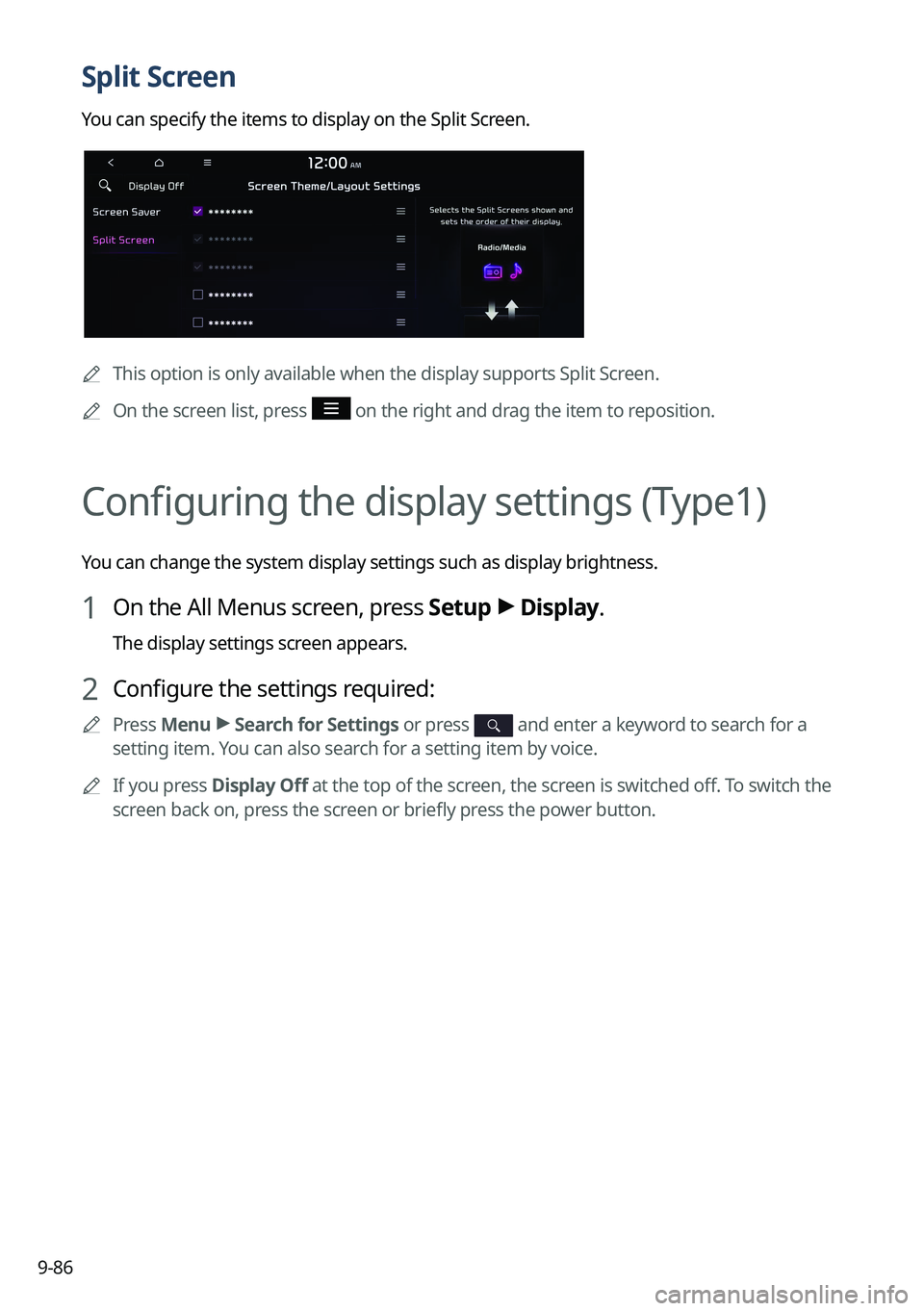
Split Screen
You can specify the items to display on the Split Screen.
0000
A
This option is only available when the display supports Split Screen.
0000
A
On the screen list, press
on the right and drag the item to reposition.
Configuring the display settings (Type1)
You can change the system display settings such as display brightness.
1 On the All Menus screen, press Setup >
Display.
The display settings screen appears.
2 Configure the settings required:
0000
A
Press Menu >
Search for Settings or press and enter a keyword to search for a
setting item. You can also search for a setting item by voice.
0000
A
If you press Display Off at the top of the screen, the screen is switched off. To switch the
screen back on, press the screen or briefly press the power button.
Page 276 of 316
9-88
Use Blue Light Filter
Enable or disable blue light filtering.
Blue Light Filter Settings
Set to activate blue light filtering automatically based on the ambient light or pick the time
range manually.
\225Automatic: Enable blue light filtering based on the ambient light.
\225Scheduled Time: Enable blue light filtering during the set time range.
Screen Saver
You can select the items to display on the screen saver in standby mode.
None
Displays nothing on the system screen saver.
Digital Clock
Displays the digital clock on the system screen saver.
Analog Clock
Displays the analog clock on the system screen saver.
0000
A
Press
to choose the Analog Clock to show on the screen.
Home Screen
You can change the layout of the Home screen.


You can set the media player not to start automatically when starting the\
engine or set it to
notify you of any information changes during media playback.
0000
A
Th")