2022 HYUNDAI ELANTRA HYBRID infotainment
[x] Cancel search: infotainmentPage 232 of 529
05
5-85
Sunroof Inside Air Recirculation (if equipped)
When the sunroof is opened, outside
(fresh) air will be automatically selected.
At this time, if you press the air intake
control button, recirculated air position
will be selected but will change back
to outside (fresh) air after 3 minutes.
When the sunroof is closed, the air
intake position will return to the original
position that was selected.
Auto Comfort Control
(for driver’s seat) (if equipped)
The temperature of the driver’s seat
warmer, air ventilation seat and
heated steering wheel is automatically
controlled depending on the inside and
outside temperature of the vehicle when the engine is running.
To use this function, it must be
activated from the Settings menu in the
Infotainment system screen. Select: - All menus → Setup → Vehicle → Heated
/ Ventilated Features
For more details on Auto Comfort
Control, refer to “Seat warmers and
air ventilation seat” in chapter 3, and
“Heated steering wheel” in chapter 5
Automatic Ventilation (if equipped)
The system automatically selects the
fresh mode when the climate control
system operates over a certain period of
time (approximately 30 minutes) in low
temperature with the recirculation mode
selected.
To cancel or reactivate the
Automatic Ventilation
When the air conditioning system is on,
select Face Level
mode and press the
air recirculation mode button at least 5
times within 3 seconds while pressing
the A/C button.
When the automatic ventilation is
canceled, the indicator blinks 3 times.
When the automatic ventilation is
activated, the indicator blinks 6 times.
climate cOntROl aDDitiOnal featuReS
Page 236 of 529
05
5-89
CAUTION
To prevent damage to the Power
Outlets: • Use the power outlet only when the
engine is running and remove the
accessory plug after use. Using the
accessory plug for prolonged periods
of time with the engine off could
cause the battery to discharge.
• Only use 12V electric accessories
which are less than 15A in electric
capacity.
• Adjust the air-conditioner or heater
to the lowest operating level when
using the power outlet.
• Close the cover when not in use.
• Some electronic devices can
cause electronic interference
when plugged into a vehicle’s
power outlet. These devices may
cause excessive audio static and
malfunctions in other electronic
systems or devices used in your
vehicle.
• Push the plug in as far as it will go. If
good contact is not made, the plug
may overheat and the fuse may open.
• Plug in battery equipped electrical/
electronic devices with reverse
current protection. The current
from the battery may flow into the
vehicle’s electrical/electronic system
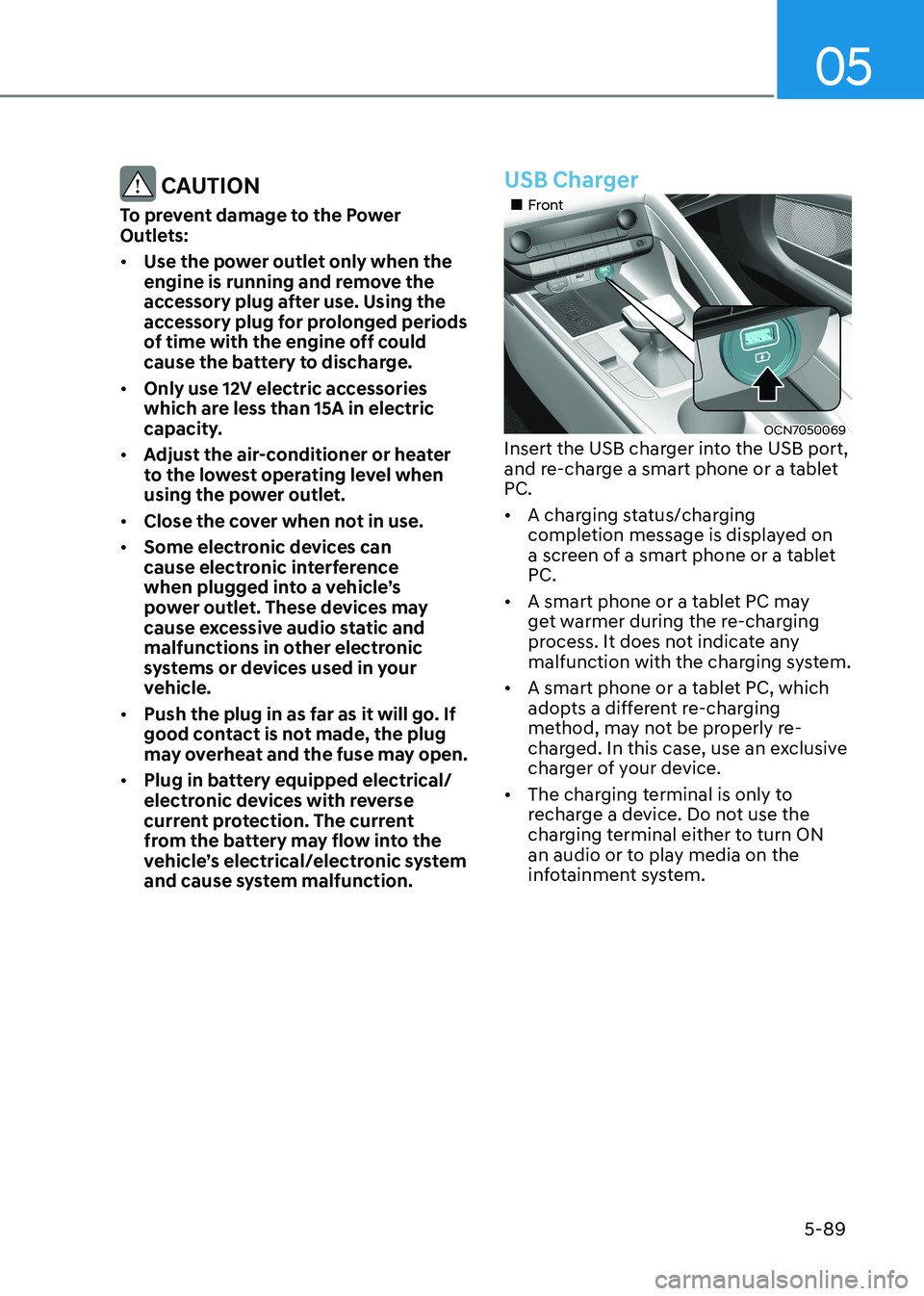
and cause system malfunction.USB Charger
„„Front
OCN7050069
Insert the USB charger into the USB port,
and re-charge a smart phone or a tablet
PC. • A charging status/charging
completion message is displayed on
a screen of a smart phone or a tablet
PC.
• A smart phone or a tablet PC may
get warmer during the re-charging
process. It does not indicate any
malfunction with the charging system.
• A smart phone or a tablet PC, which
adopts a different re-charging
method, may not be properly re-
charged. In this case, use an exclusive
charger of your device.
• The charging terminal is only to
recharge a device. Do not use the
charging terminal either to turn ON
an audio or to play media on the
infotainment system.
Page 240 of 529
05
5-93
infOtainment SyStem
NOTICE
• If you install an aftermarket HID
head lamp, your vehicle’s audio and
electronic devices may not function
properly.
• Prevent chemicals such as perfume,
cosmetic oil, sunscreen, hand
cleaner, and air freshener from
contacting the interior parts
because they may cause damage or
discoloration.
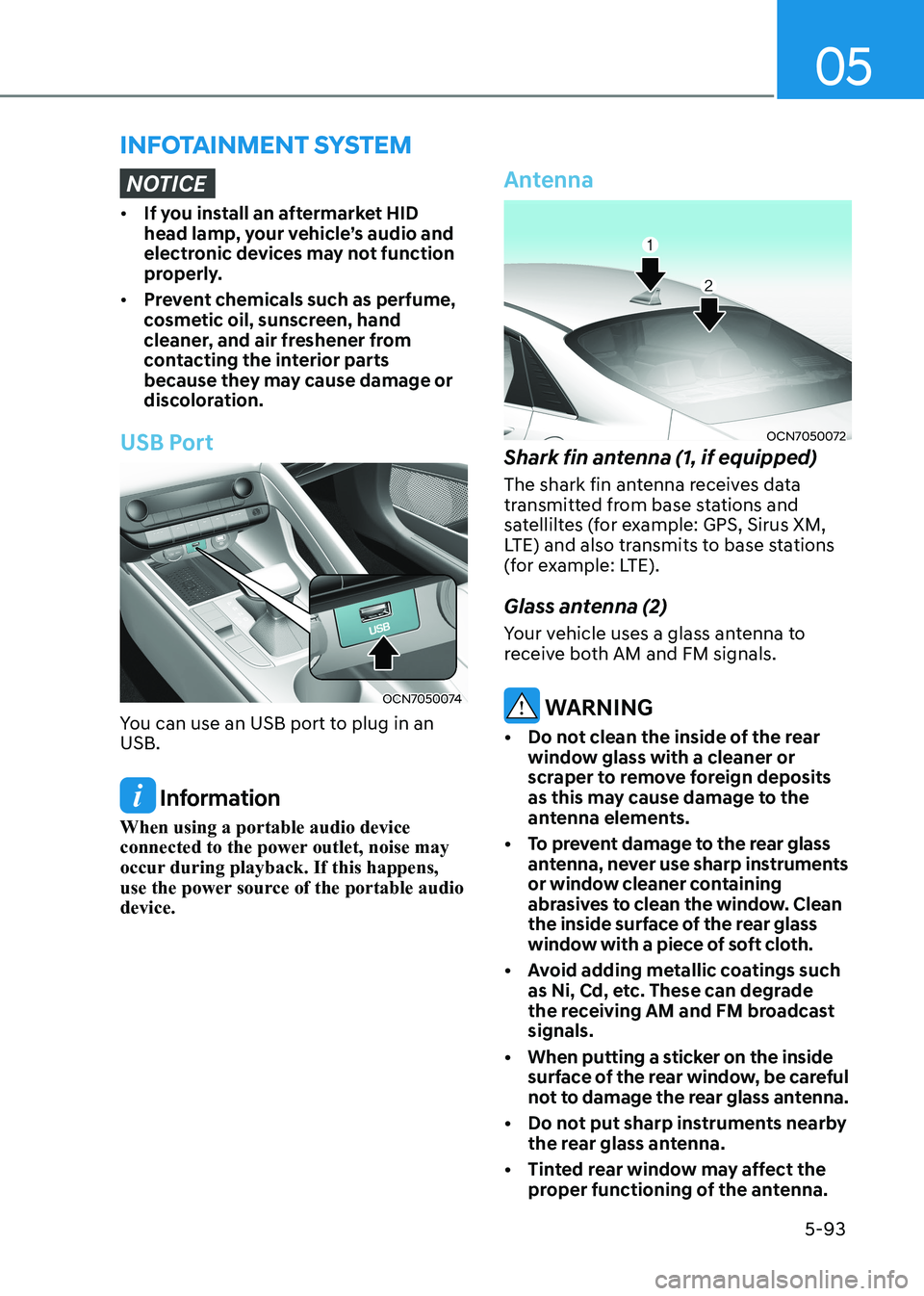
USB Port
OCN7050074
You can use an USB port to plug in an USB.
Information
When using a portable audio device
connected to the power outlet, noise may
occur during playback. If this happens,
use the power source of the portable audio device.
Antenna
OCN7050072
Shark fin antenna (1, if equipped)
The shark fin antenna receives data
transmitted from base stations and
satelliltes (for example: GPS, Sirus XM,
LTE) and also transmits to base stations
(for example: LTE).
Glass antenna (2)
Your vehicle uses a glass antenna to
receive both AM and FM signals.
WARNING
• Do not clean the inside of the rear window glass with a cleaner or
scraper to remove foreign deposits
as this may cause damage to the
antenna elements.
• To prevent damage to the rear glass antenna, never use sharp instruments
or window cleaner containing
abrasives to clean the window. Clean
the inside surface of the rear glass
window with a piece of soft cloth.
• Avoid adding metallic coatings such as Ni, Cd, etc. These can degrade
the receiving AM and FM broadcast signals.
• When putting a sticker on the inside surface of the rear window, be careful
not to damage the rear glass antenna.
• Do not put sharp instruments nearby the rear glass antenna.
• Tinted rear window may affect the proper functioning of the antenna.
Page 242 of 529
05
5-95
Infotainment System (if equipped)
If your vehicle is equipped with
additional navigation, please refer to the
infotainment system manual separately supplied.
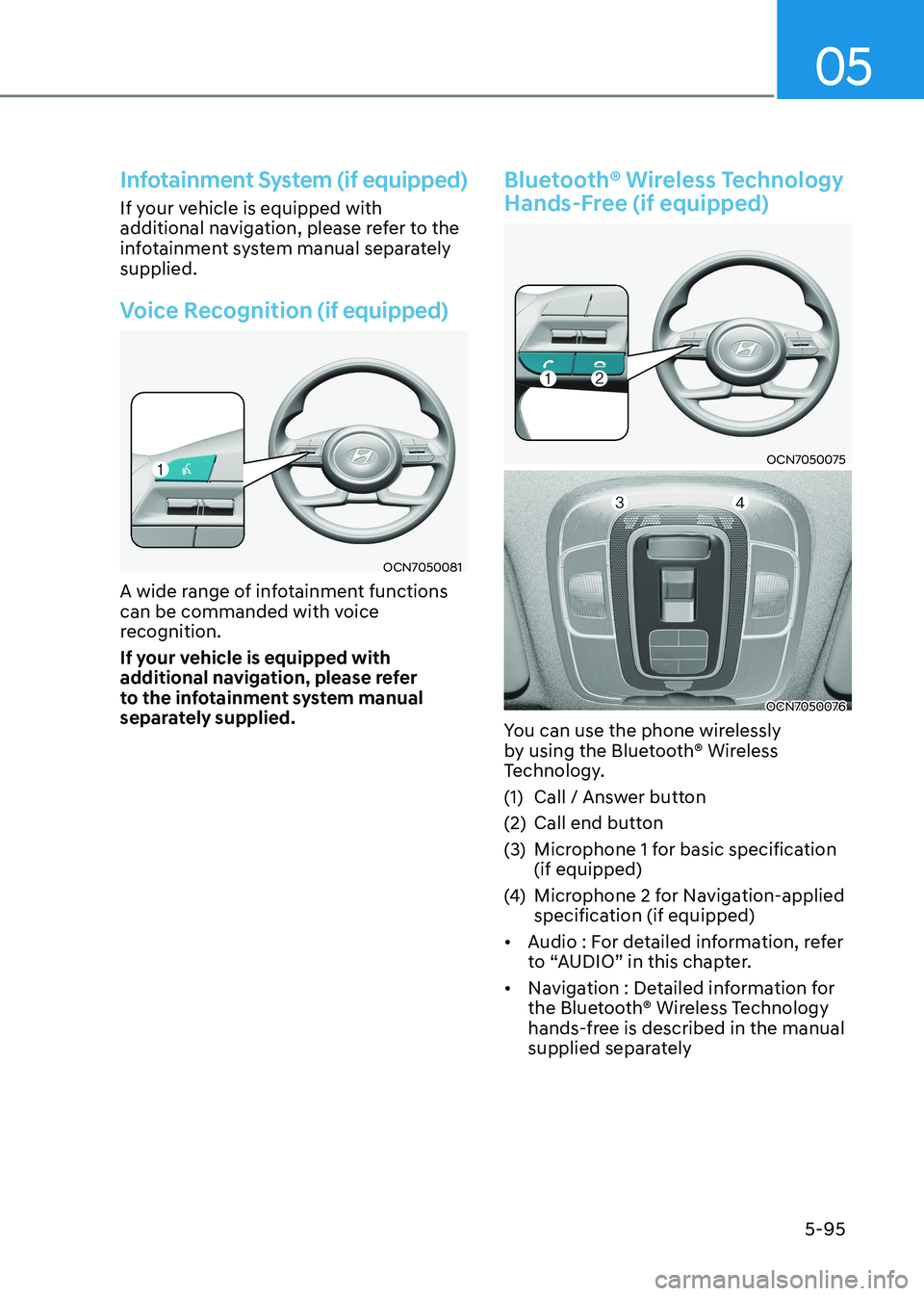
Voice Recognition (if equipped)
OCN7050081
A wide range of infotainment functions
can be commanded with voice
recognition.
If your vehicle is equipped with
additional navigation, please refer
to the infotainment system manual
separately supplied.
Bluetooth® Wireless Technology
Hands-Free (if equipped)
OCN7050075
OCN7050076
You can use the phone wirelessly
by using the Bluetooth® Wireless
Technology.
(1) Call / Answer button
(2) Call end button
(3) Microphone 1 for basic specification (if equipped)
(4) Microphone 2 for Navigation-applied
specification (if equipped)
• Audio : For detailed information, refer
to “AUDIO” in this chapter.
• Navigation : Detailed information for
the Bluetooth® Wireless Technology
hands-free is described in the manual
supplied separately
Page 330 of 529
07
7-33
WARNINg
• The steering wheel may not be
assisted if the steering wheel is held
very tight or the steering wheel is
steered over a certain degree.
• Lane Keeping Assist does not operate
at all times. It is the responsibility of
the driver to safely steer the vehicle
and to maintain the vehicle in its lane.
• The hands–off warning message
may appear late depending on road
conditions. Always have your hands
on the steering wheel while driving.
• If the steering wheel is held very
lightly, the hands–off warning
message may appear because the
system may not recognize that the
driver has their hands on the steering wheel.
• If you attach objects to the steering
wheel, the hands-off warning may
not work properly. Information
• For more details on setting the functions in the infotainment system,
refer to “Vehicle Settings” section in
chapter 4.
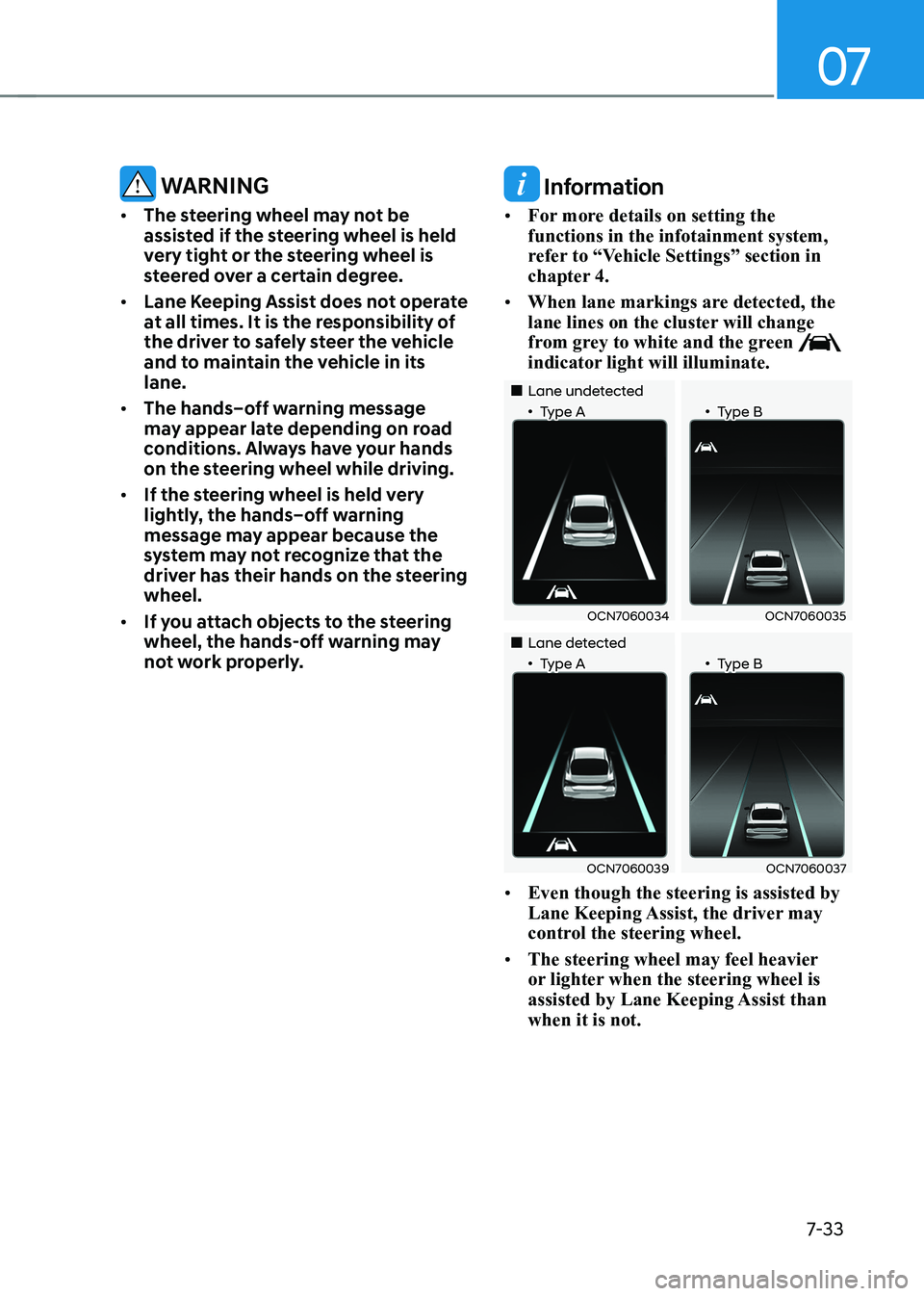
• When lane markings are detected, the
lane lines on the cluster will change
from grey to white and the green
indicator light will illuminate.
„„Lane undetected
„•Type A „•Type B
OCN7060034OCN7060035
„„Lane detected
„•Type A „•Type B
OCN7060039OCN7060037
• Even though the steering is assisted by
Lane Keeping Assist, the driver may
control the steering wheel.
• The steering wheel may feel heavier
or lighter when the steering wheel is
assisted by Lane Keeping Assist than when it is not.
Page 354 of 529
07
7-57
• The driver’s attention level is displayed
on the scale of 1 to 5. The lower the
level is, the more inattentive the driver is.
• The level decreases when the driver
does not take a break for a certain
period of time.
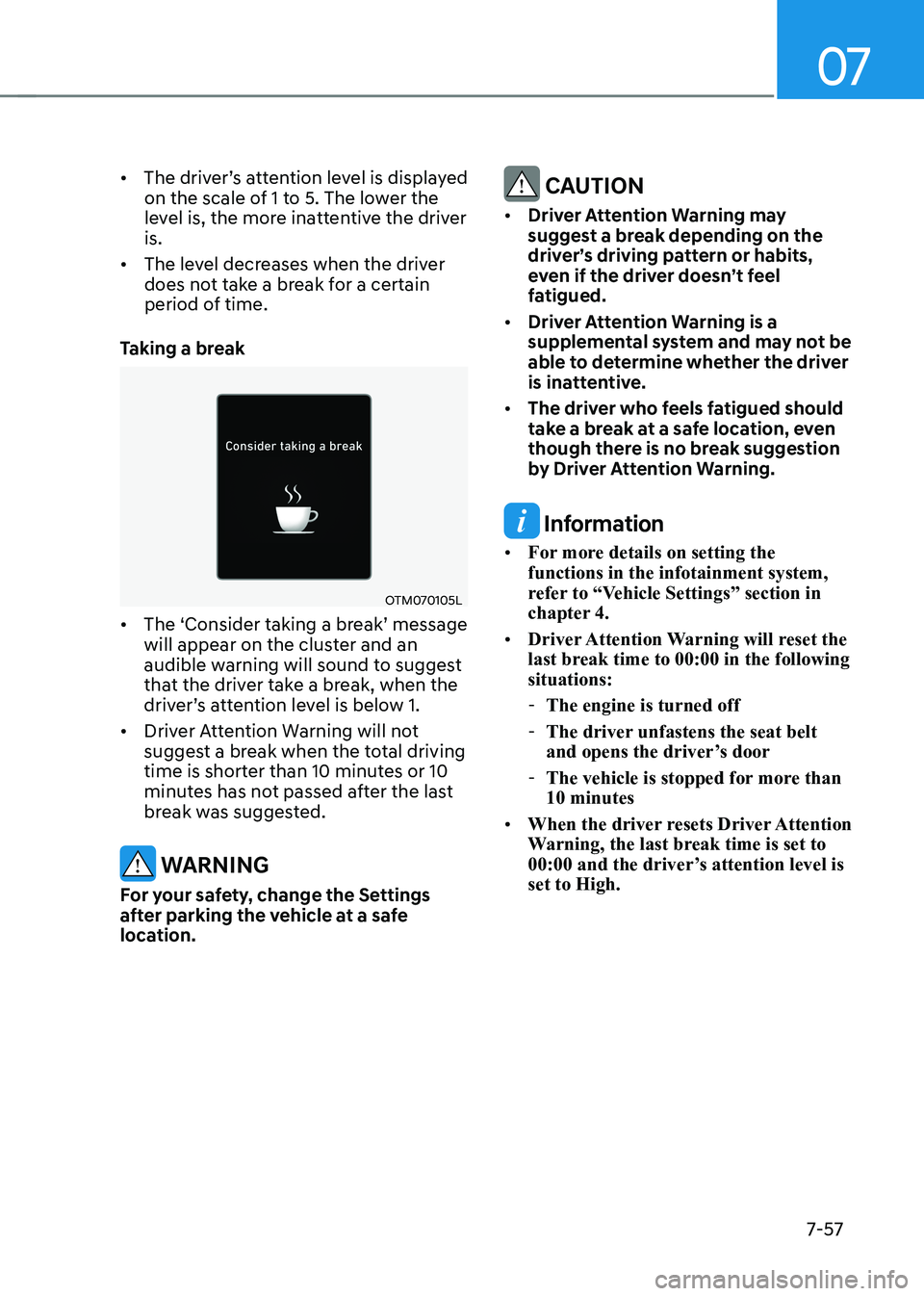
Taking a break
OTM070105L
• The ‘Consider taking a break’ message will appear on the cluster and an
audible warning will sound to suggest
that the driver take a break, when the
driver’s attention level is below 1.
• Driver Attention Warning will not
suggest a break when the total driving
time is shorter than 10 minutes or 10
minutes has not passed after the last
break was suggested.
WARNINg
for your safety, change the Settings
after parking the vehicle at a safe
location.
CAUTION
• Driver Attention Warning may
suggest a break depending on the
driver’s driving pattern or habits,
even if the driver doesn’t feel
fatigued.
• Driver Attention Warning is a
supplemental system and may not be
able to determine whether the driver
is inattentive.
• The driver who feels fatigued should
take a break at a safe location, even
though there is no break suggestion
by Driver Attention Warning.
Information
• For more details on setting the functions in the infotainment system,
refer to “Vehicle Settings” section in
chapter 4.
• Driver Attention Warning will reset the
last break time to 00:00 in the following situations:
- The engine is turned off
- The driver unfastens the seat belt
and opens the driver’s door
- The vehicle is stopped for more than 10 minutes
• When the driver resets Driver Attention
Warning, the last break time is set to
00:00 and the driver’s attention level is set to High.
Page 382 of 529
07
7-85
Limitations of Navigation-Based
Smart Cruise Control
Navigation-based Smart Cruise Control
may not operate properly under the
following circumstances: •
The navigation is not working properly
• Speed limit and road information in
the navigation is not updated
• The map information and the actual
road is different because of real-time
GPS data or map information error
• The navigation searches for a route while driving
• GPS signals are blocked in areas such as a tunnel
• The navigation is updated while driving
• Map information is not transmitted
due to infotainment system's
abnormal operation
• A road that divides into two or more
roads and joins again
• The driver goes off course the route
set in the navigation
• The route to the destination is
changed or canceled by resetting the
navigation •
The vehicle enters a service station or
rest area
• The speed limit of some sections
changes according to the road
situations
• Android Auto or Car Play is operating
• The navigation cannot detect the
current vehicle position (for example,
elevated roads including overpass
adjacent to general roads or nearby
roads exist in a parallel way)
• The navigation is being updated while driving
• The navigation is being restarted while driving
• There is bad weather, such as heavy
rain, heavy snow, etc.
• Driving on a road under construction
• Driving on a road that is controlled
• Driving on a road that is sharply
curved
Page 388 of 529
07
7-91
Information
• You may change settings from the
instrument cluster (User Settings) or
infotainment system (Vehicle Settings),
whichever option that is provided with
your vehicle. For more details, see
"User Settings" section in chapter 4, or
"Vehicle Settings" section in supplied Infotainment Manual.
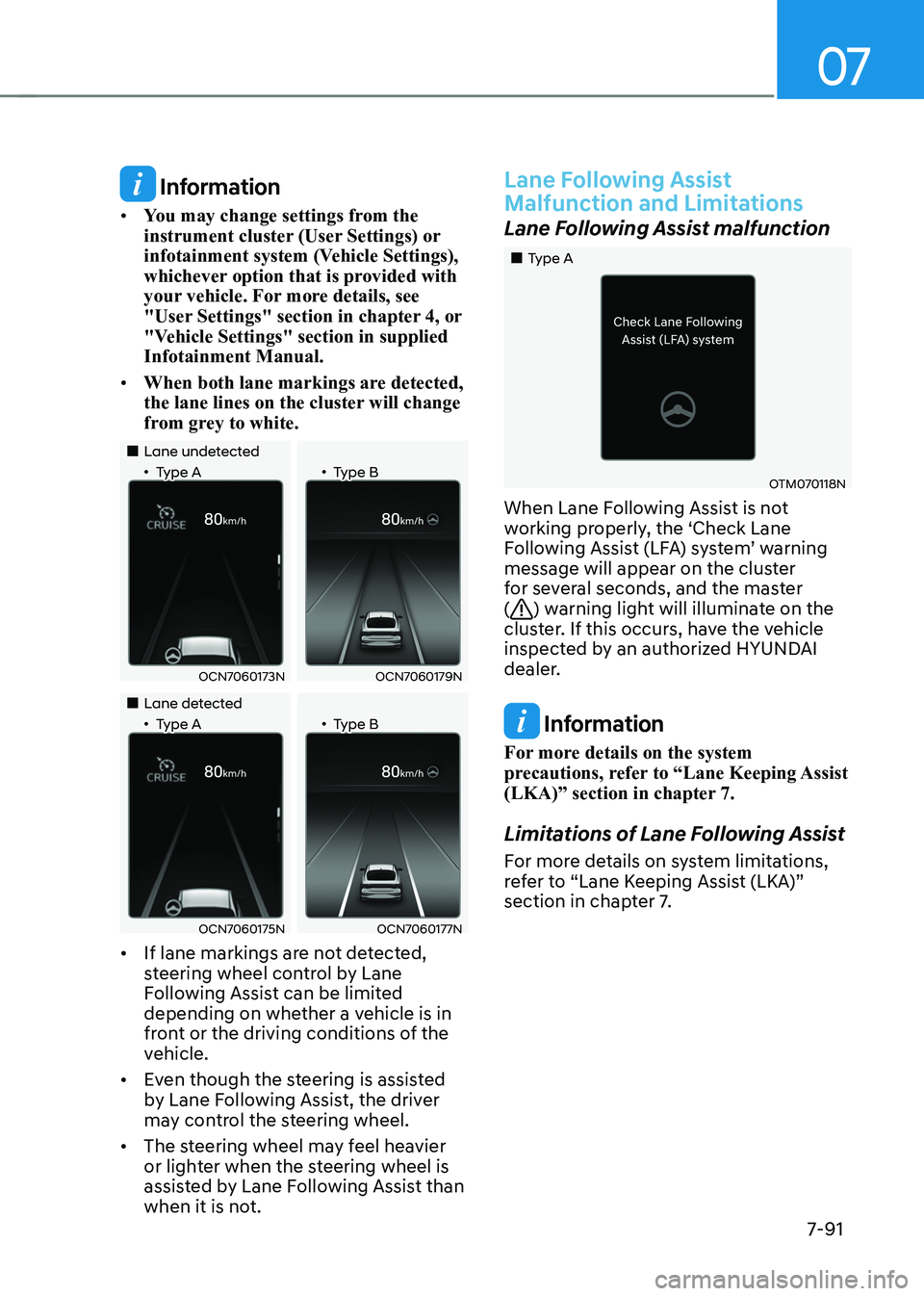
• When both lane markings are detected,
the lane lines on the cluster will change
from grey to white.
„„Lane undetected
„•Type A „•Type B
OCN7060173NOCN7060179N
„„Lane detected
„•Type A „•Type B
OCN7060175NOCN7060177N
• If lane markings are not detected,
steering wheel control by Lane
Following Assist can be limited
depending on whether a vehicle is in
front or the driving conditions of the
vehicle.
• Even though the steering is assisted
by Lane Following Assist, the driver
may control the steering wheel.
• The steering wheel may feel heavier
or lighter when the steering wheel is
assisted by Lane Following Assist than
when it is not.
Lane following Assist
Malfunction and Limitations
Lane Following Assist malfunction
„„Type A
OTM070118N
When Lane Following Assist is not
working properly, the ‘Check Lane
Following Assist (LFA) system’ warning
message will appear on the cluster
for several seconds, and the master (
) warning light will illuminate on the
cluster. If this occurs, have the vehicle
inspected by an authorized HYUNDAI
dealer.
Information
For more details on the system
precautions, refer to “Lane Keeping Assist
(LKA)” section in chapter 7.
Limitations of Lane Following Assist
For more details on system limitations,
refer to “Lane Keeping Assist (LKA)”
section in chapter 7.