2022 CHEVROLET MALIBU instrument cluster
[x] Cancel search: instrument clusterPage 95 of 351
Chevrolet Malibu Owner Manual (GMNA-Localizing-U.S./Canada-
14584249) - 2021 - CRC - 11/9/20
94 Instruments and Controls
Adaptive Cruise Control Light
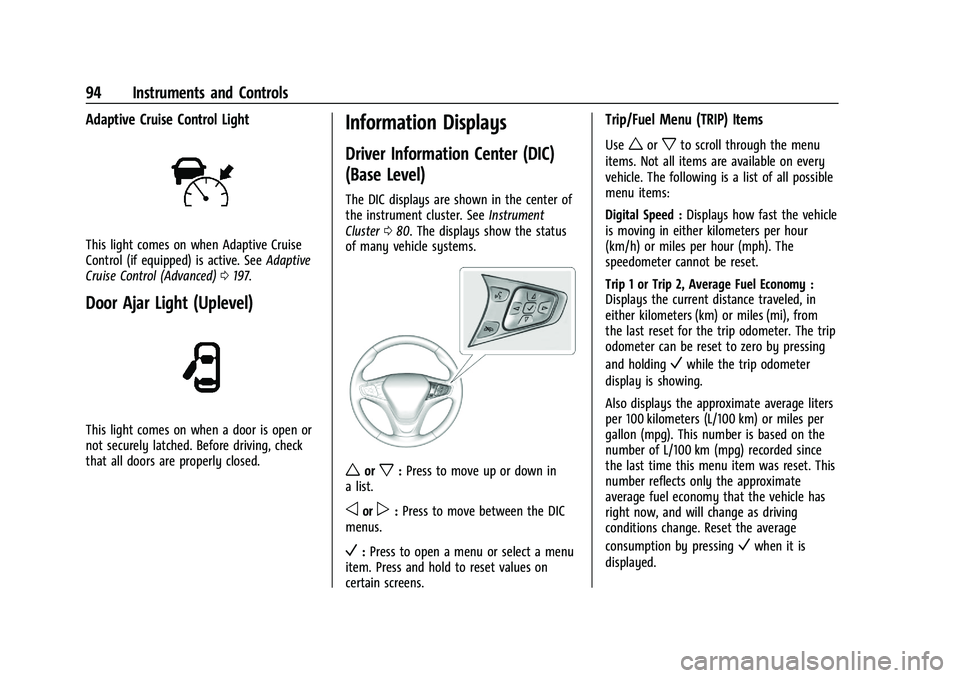
This light comes on when Adaptive Cruise
Control (if equipped) is active. SeeAdaptive
Cruise Control (Advanced) 0197.
Door Ajar Light (Uplevel)
This light comes on when a door is open or
not securely latched. Before driving, check
that all doors are properly closed.
Information Displays
Driver Information Center (DIC)
(Base Level)
The DIC displays are shown in the center of
the instrument cluster. See Instrument
Cluster 080. The displays show the status
of many vehicle systems.
worx: Press to move up or down in
a list.
oorp: Press to move between the DIC
menus.
V: Press to open a menu or select a menu
item. Press and hold to reset values on
certain screens.
Trip/Fuel Menu (TRIP) Items
Useworxto scroll through the menu
items. Not all items are available on every
vehicle. The following is a list of all possible
menu items:
Digital Speed : Displays how fast the vehicle
is moving in either kilometers per hour
(km/h) or miles per hour (mph). The
speedometer cannot be reset.
Trip 1 or Trip 2, Average Fuel Economy :
Displays the current distance traveled, in
either kilometers (km) or miles (mi), from
the last reset for the trip odometer. The trip
odometer can be reset to zero by pressing
and holding
Vwhile the trip odometer
display is showing.
Also displays the approximate average liters
per 100 kilometers (L/100 km) or miles per
gallon (mpg). This number is based on the
number of L/100 km (mpg) recorded since
the last time this menu item was reset. This
number reflects only the approximate
average fuel economy that the vehicle has
right now, and will change as driving
conditions change. Reset the average
consumption by pressing
Vwhen it is
displayed.
Page 97 of 351
Chevrolet Malibu Owner Manual (GMNA-Localizing-U.S./Canada-
14584249) - 2021 - CRC - 11/9/20
96 Instruments and Controls
Tire Pressure :Displays a vehicle with the
approximate pressures of all four tires. Tire
pressure is displayed in either
kilopascal (kPa) or in pounds per square
inch (psi). See Tire Pressure Monitor System
0 268 and
Tire Pressure Monitor Operation 0269.
Battery Voltage : Displays the current
battery voltage, if equipped. Battery voltage
changes are normal while driving. See
Charging System Light 086. If there is a
problem with the battery charging system,
the DIC will display a message.
Coolant Temperature : Shows the engine
coolant temperature in either degrees
Celsius (°C) or degrees Fahrenheit (°F).
Speed Warning : This display is used to set
the vehicle speed at which the speed
warning chime sounds and the alert is
displayed. The speed can be set by pressing
Vwhile the speed warning display is
showing.
Units : Move
worxto change between
Metric or US when the Unit display is active.
Press
Vto confirm the setting. This will
change the displays on the DIC to the type
of measurements you select.
ECO Drive Assist Menu (ECO) Items
Useworxto scroll through the menu
items. Not all items are available on every
vehicle.
Best Average Fuel Economy : The bottom
displays the best average fuel economy
(AFE) that is achieved for a selected
distance. The top displays a running average
of fuel economy for the most recently
traveled selected distance. The center bar
graph displays the instantaneous fuel
economy. Quickly press
Vto change the
settings for the distance options.
When viewing best AFE, a several second
press and hold of
Vwill reset the best
value. The best value will show “- - -“until
the selected distance has been traveled.
The display provides feedback on how
current driving behavior in the bar graph
affects the running average in the top
display and how well recent driving
compares to the best that has been
achieved.
Driver Information Center (DIC)
(Uplevel)
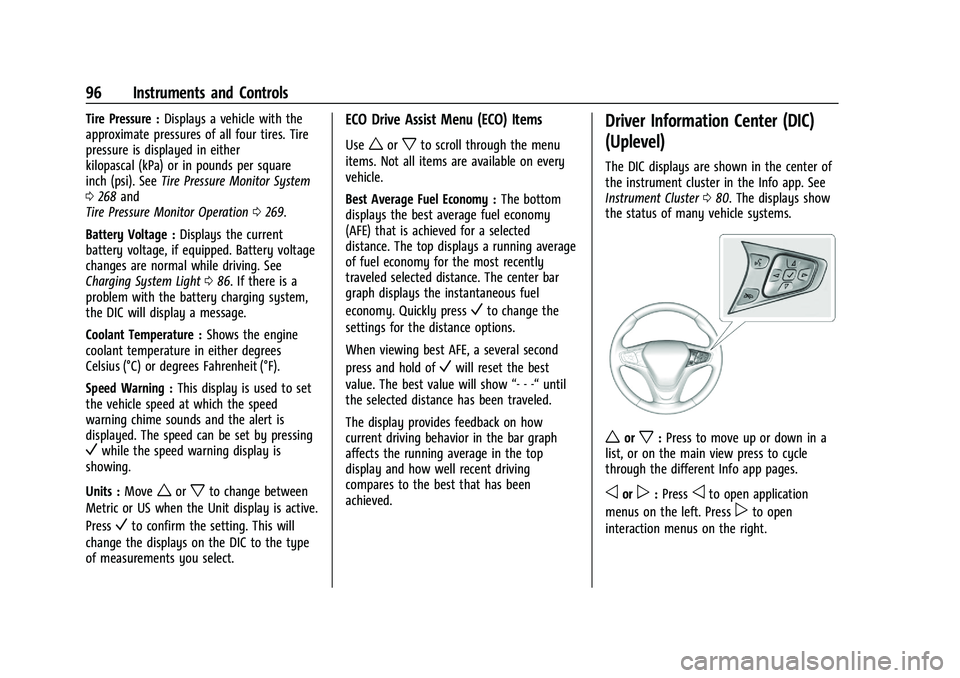
The DIC displays are shown in the center of
the instrument cluster in the Info app. See
Instrument Cluster 080. The displays show
the status of many vehicle systems.
worx: Press to move up or down in a
list, or on the main view press to cycle
through the different Info app pages.
oorp: Pressoto open application
menus on the left. Press
pto open
interaction menus on the right.
Page 98 of 351
Chevrolet Malibu Owner Manual (GMNA-Localizing-U.S./Canada-
14584249) - 2021 - CRC - 11/9/20
Instruments and Controls 97
V:Press to select a menu item. Press and
hold to reset values on certain screens,
or on the main view reset info pages to the
original setting.
DIC Info Page Options
The info pages on the DIC can be turned on
or off through the Settings menu.
1. Press
oto access the cluster
applications.
2. Press
worxto scroll to the Settings
application.
3. Press
Vto enter the Settings menu.
4. Scroll to Info Pages and press
p.
5. Press
worxto move through the list
of possible information displays.
6. Press
Vwhile an item is highlighted to
select or deselect that item. When an
item is selected, a checkmark will appear
next to it.
DIC Info Pages
The following is the list of all possible DIC
info page displays. Some may not be
available for your particular vehicle. Some
items may not be turned on by default but can be turned on through the Settings app.
See
“DIC Info Page Options” earlier in this
section.
Speed : Shows the vehicle speed in either
kilometers per hour (km/h) or miles per
hour (mph).
Trip A or Trip B : Shows the current distance
traveled, in either kilometers (km) or
miles (mi), since the trip odometer was last
reset.
This also shows the approximate average
liters per 100 kilometers (L/100 km) or miles
per gallon (mpg). This number is calculated
based on the number of L/100 km (mpg)
recorded since the last time this menu item
was reset. This number reflects only the
approximate average fuel economy that the
vehicle has right now, and will change as
driving conditions change.
Press and hold
Vwhile this display is active
to reset the trip odometer and the average
fuel economy. Trip A and Trip B can also be
reset by pressing
pand choosing reset.
Fuel Range : Shows the approximate
distance the vehicle can be driven without
refueling. LOW will be displayed when the
vehicle is low on fuel. The fuel range
estimate is based on an average of the vehicle's fuel economy over recent driving
history and the amount of fuel remaining in
the fuel tank.
Instantaneous Fuel Economy :
Displays the
current fuel economy in liters per
100 kilometers (L/100 km) or miles per
gallon (mpg). This number reflects only the
approximate fuel economy that the vehicle
has right now and changes frequently as
driving conditions change. This display
cannot be reset.
Oil Life : Shows an estimate of the oil's
remaining useful life. If REMAINING OIL LIFE
99% is displayed, that means 99% of the
current oil life remains.
When the remaining oil life is low, the
CHANGE ENGINE OIL SOON message will
appear on the display. The oil should be
changed as soon as possible. See Engine Oil
0 234. In addition to the engine oil life
system monitoring the oil life, additional
maintenance is recommended in the
Maintenance Schedule. See Maintenance
Schedule 0304.
The Oil Life display must be reset after each
oil change. It will not reset itself. Do not to
reset the Oil Life display at any time other
than when the oil has just been changed.
Page 105 of 351
Chevrolet Malibu Owner Manual (GMNA-Localizing-U.S./Canada-
14584249) - 2021 - CRC - 11/9/20
104 Lighting
Lighting
Exterior Lighting
Exterior Lamp Controls . . . . . . . . . . . . . . . . 104
Exterior Lamps Off Reminder . . . . . . . . . . 105
Headlamp High/Low-Beam Changer . . . 105
Flash-to-Pass . . . . . . . . . . . . . . . . . . . . . . . . . . . 105
Daytime Running Lamps (DRL) . . . . . . . . 106
Automatic Headlamp System . . . . . . . . . . 106
Hazard Warning Flashers . . . . . . . . . . . . . . 106
Turn and Lane-Change Signals . . . . . . . . . 107
Interior Lighting
Instrument Panel IlluminationControl . . . . . . . . . . . . . . . . . . . . . . . . . . . . . . 107
Courtesy Lamps . . . . . . . . . . . . . . . . . . . . . . . 107
Dome Lamps . . . . . . . . . . . . . . . . . . . . . . . . . . 107
Reading Lamps . . . . . . . . . . . . . . . . . . . . . . . . 108
Lighting Features
Entry Lighting . . . . . . . . . . . . . . . . . . . . . . . . . 108
Exit Lighting . . . . . . . . . . . . . . . . . . . . . . . . . . . 109
Battery Load Management . . . . . . . . . . . . 109
Battery Power Protection . . . . . . . . . . . . . . 109
Exterior Lighting Battery Saver . . . . . . . . 109
Exterior Lighting
Exterior Lamp Controls
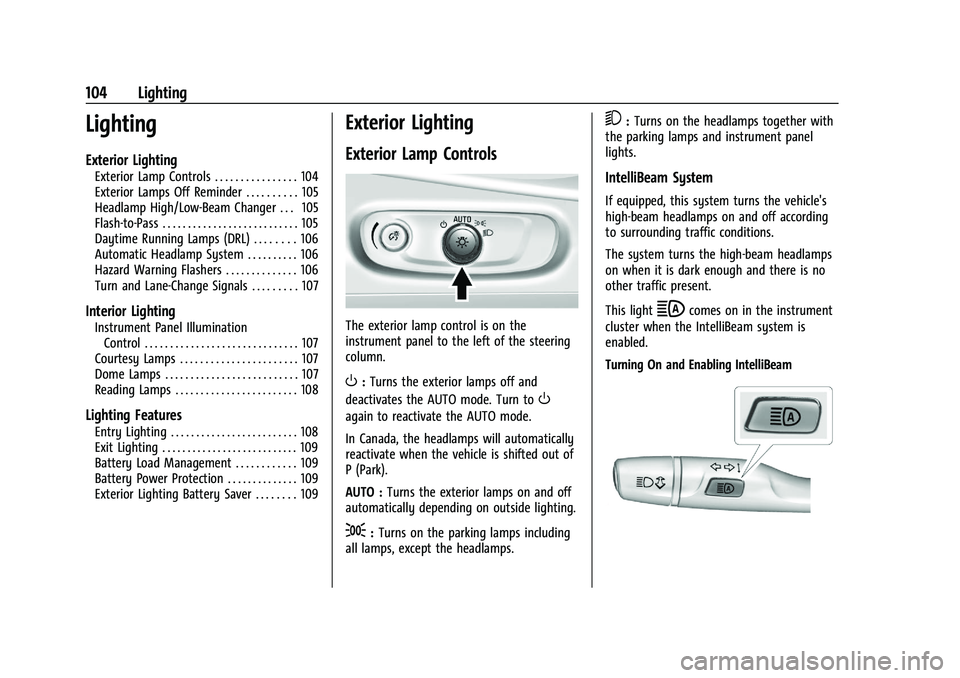
The exterior lamp control is on the
instrument panel to the left of the steering
column.
O: Turns the exterior lamps off and
deactivates the AUTO mode. Turn to
O
again to reactivate the AUTO mode.
In Canada, the headlamps will automatically
reactivate when the vehicle is shifted out of
P (Park).
AUTO : Turns the exterior lamps on and off
automatically depending on outside lighting.
;: Turns on the parking lamps including
all lamps, except the headlamps.
5: Turns on the headlamps together with
the parking lamps and instrument panel
lights.
IntelliBeam System
If equipped, this system turns the vehicle's
high-beam headlamps on and off according
to surrounding traffic conditions.
The system turns the high-beam headlamps
on when it is dark enough and there is no
other traffic present.
This light
bcomes on in the instrument
cluster when the IntelliBeam system is
enabled.
Turning On and Enabling IntelliBeam
Page 106 of 351
Chevrolet Malibu Owner Manual (GMNA-Localizing-U.S./Canada-
14584249) - 2021 - CRC - 11/9/20
Lighting 105
To enable the IntelliBeam system, press
bon the turn signal lever when the
exterior lamp control is in the AUTO or
5
position.
Driving with IntelliBeam
The system only activates the high beams
when driving over 40 km/h (25 mph).
The blue high-beam on light appears on the
instrument cluster when the high beams
are on.
There is a sensor near the top center of the
windshield that automatically controls the
system. Keep this area of the windshield
clear of debris to allow for best system
performance.
The high-beam headlamps remain on, under
the automatic control, until one of the
following situations occurs:
.The system detects an approaching
vehicle's headlamps.
.The system detects a preceding vehicle's
taillamps.
.The outside light is bright enough that
high-beam headlamps are not required.
.The vehicle's speed drops below 20 km/h
(12 mph).
.The IntelliBeam system is disabled by the
button on the turn signal lever. If this
happens, press
bon the turn signal
lever when the exterior lamp control is in
the AUTO or
5position. The instrument
cluster light will come on to indicate the
IntelliBeam system is reactivated.
The high beams may not turn off
automatically if the system cannot detect
another vehicle's lamps because of any of
the following:
.The other vehicle's lamps are missing,
damaged, obstructed from view,
or otherwise undetected.
.The other vehicle's lamps are covered
with dirt, snow, and/or road spray.
.The other vehicle's lamps cannot be
detected due to dense exhaust, smoke,
fog, snow, road spray, mist, or other
airborne obstructions.
.The vehicle's windshield is dirty, cracked,
or obstructed by something that blocks
the view of the light sensor.
.The vehicle is loaded such that the front
end points upward, causing the light
sensor to aim high and not detect
headlamps and taillamps.
.Driving on winding or hilly roads. The IntelliBeam system may need to be
disabled if any of the above conditions exist.
Exterior Lamps Off Reminder
A warning chime sounds if the driver door is
opened while the ignition is off and the
exterior lamps are on.
Headlamp High/Low-Beam
Changer
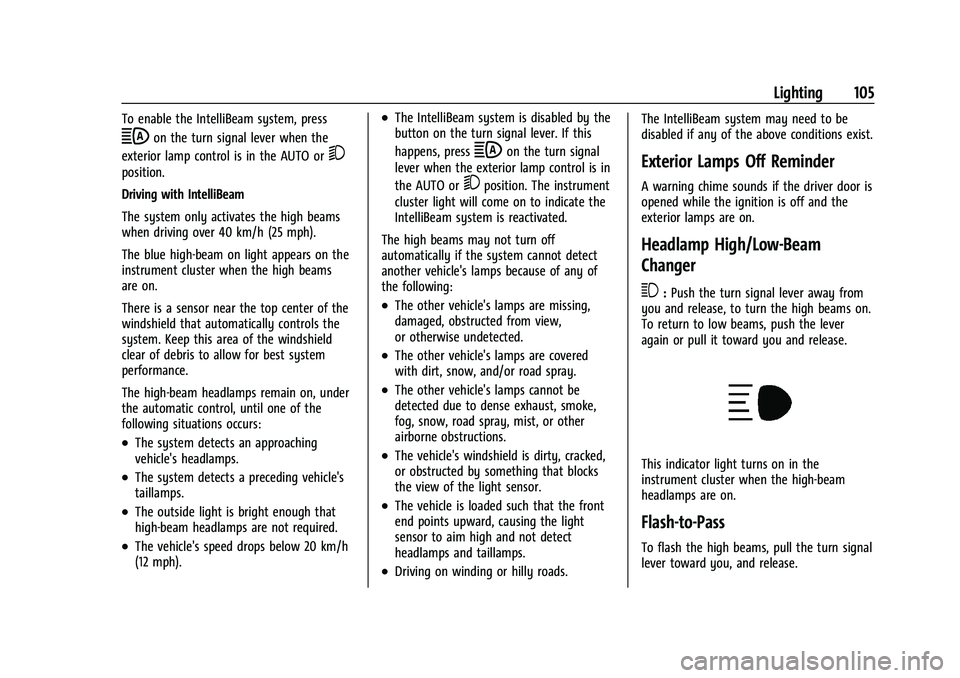
3:
Push the turn signal lever away from
you and release, to turn the high beams on.
To return to low beams, push the lever
again or pull it toward you and release.
This indicator light turns on in the
instrument cluster when the high-beam
headlamps are on.
Flash-to-Pass
To flash the high beams, pull the turn signal
lever toward you, and release.
Page 108 of 351
Chevrolet Malibu Owner Manual (GMNA-Localizing-U.S./Canada-
14584249) - 2021 - CRC - 11/9/20
Lighting 107
The hazard warning flashers turn on
automatically if the airbags deploy.
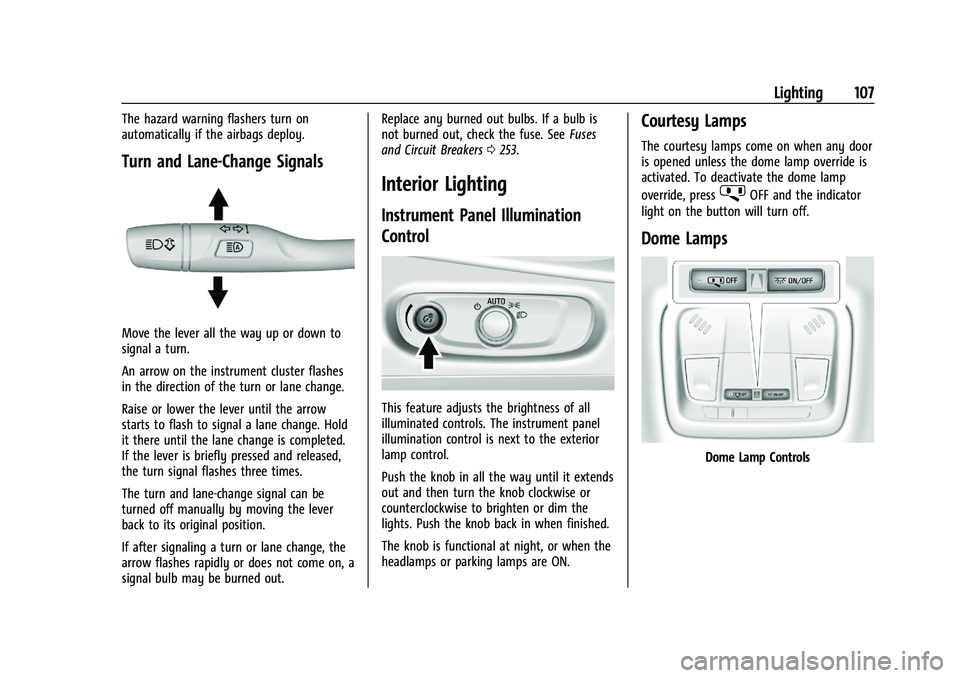
Turn and Lane-Change Signals
Move the lever all the way up or down to
signal a turn.
An arrow on the instrument cluster flashes
in the direction of the turn or lane change.
Raise or lower the lever until the arrow
starts to flash to signal a lane change. Hold
it there until the lane change is completed.
If the lever is briefly pressed and released,
the turn signal flashes three times.
The turn and lane-change signal can be
turned off manually by moving the lever
back to its original position.
If after signaling a turn or lane change, the
arrow flashes rapidly or does not come on, a
signal bulb may be burned out.Replace any burned out bulbs. If a bulb is
not burned out, check the fuse. See
Fuses
and Circuit Breakers 0253.
Interior Lighting
Instrument Panel Illumination
Control
This feature adjusts the brightness of all
illuminated controls. The instrument panel
illumination control is next to the exterior
lamp control.
Push the knob in all the way until it extends
out and then turn the knob clockwise or
counterclockwise to brighten or dim the
lights. Push the knob back in when finished.
The knob is functional at night, or when the
headlamps or parking lamps are ON.
Courtesy Lamps
The courtesy lamps come on when any door
is opened unless the dome lamp override is
activated. To deactivate the dome lamp
override, press
jOFF and the indicator
light on the button will turn off.
Dome Lamps
Dome Lamp Controls
Page 111 of 351
Chevrolet Malibu Owner Manual (GMNA-Localizing-U.S./Canada-
14584249) - 2021 - CRC - 11/9/20
110 Infotainment System
Infotainment System
Introduction
Introduction . . . . . . . . . . . . . . . . . . . . . . . . . . . 110
Overview . . . . . . . . . . . . . . . . . . . . . . . . . . . . . . . 111
Steering Wheel Controls . . . . . . . . . . . . . . . 112
Using the System . . . . . . . . . . . . . . . . . . . . . . 113
Software Updates . . . . . . . . . . . . . . . . . . . . . . 116
Radio
AM-FM Radio . . . . . . . . . . . . . . . . . . . . . . . . . . 116
HD Radio Technology . . . . . . . . . . . . . . . . . . 117
Radio Data System (RDS) . . . . . . . . . . . . . . 118
Satellite Radio . . . . . . . . . . . . . . . . . . . . . . . . . 118
Radio Reception . . . . . . . . . . . . . . . . . . . . . . . . 119
Backglass Antenna . . . . . . . . . . . . . . . . . . . . . 119
Multi-Band Antenna . . . . . . . . . . . . . . . . . . . 120
Audio Players
Avoiding Untrusted Media Devices . . . . 120
USB Port . . . . . . . . . . . . . . . . . . . . . . . . . . . . . . 120
Auxiliary Jack . . . . . . . . . . . . . . . . . . . . . . . . . . 123
Bluetooth Audio . . . . . . . . . . . . . . . . . . . . . . . 123
OnStar System
OnStar System . . . . . . . . . . . . . . . . . . . . . . . . 124
Navigation
Using the Navigation System . . . . . . . . . . 124
Maps . . . . . . . . . . . . . . . . . . . . . . . . . . . . . . . . . . 127
Navigation Symbols . . . . . . . . . . . . . . . . . . . 128Destination . . . . . . . . . . . . . . . . . . . . . . . . . . . . 129
OnStar System . . . . . . . . . . . . . . . . . . . . . . . . 134
Global Positioning System (GPS) . . . . . . . 135
Vehicle Positioning . . . . . . . . . . . . . . . . . . . . . 135
Problems with Route Guidance . . . . . . . . 135
If the System Needs Service . . . . . . . . . . . 136
Map Data Updates . . . . . . . . . . . . . . . . . . . . 136
Database Coverage Explanations . . . . . . . 136
Voice Recognition
Voice Recognition . . . . . . . . . . . . . . . . . . . . . . 136
Phone
Bluetooth (Overview) . . . . . . . . . . . . . . . . . . 141
Bluetooth (Pairing and Using a
Phone) . . . . . . . . . . . . . . . . . . . . . . . . . . . . . . . 142
Apple CarPlay and Android Auto . . . . . . 146
Settings
Settings . . . . . . . . . . . . . . . . . . . . . . . . . . . . . . . 147
Teen Driver . . . . . . . . . . . . . . . . . . . . . . . . . . . . 153
Trademarks and License Agreements
Trademarks and License Agreements . . . . . . . . . . . . . . . . . . . . . . . . . . 156
Introduction
Read the following pages to become familiar
with the features.
{Warning
Taking your eyes off the road for too
long or too often while using any
infotainment feature can cause a crash.
You or others could be injured or killed.
Do not give extended attention to
infotainment tasks while driving. Limit
your glances at the vehicle displays and
focus your attention on driving. Use voice
commands whenever possible.
The infotainment system has built-in
features intended to help avoid distraction
by disabling some features when driving.
These features may gray out when they are
unavailable. Many infotainment features are
also available through the instrument cluster
and steering wheel controls.
Page 113 of 351
Chevrolet Malibu Owner Manual (GMNA-Localizing-U.S./Canada-
14584249) - 2021 - CRC - 11/9/20
112 Infotainment System
.USB/Bluetooth: Press to seek to
the beginning of the current or
previous track. Press and hold to
quickly reverse through a track.
Release to return to playing speed.
SeeUSB Port 0120 or
Bluetooth Audio 0123.
3.O(Power)
.Press to turn the power on.
.Press and hold to turn the
power off.
.Press to mute/unmute the system
when on.
.When the power is on and the
system is not muted, a quick
status pane will display when
Ois
pressed. Pressing
Owill mute the
system and trigger this pane to
show a long press is required to
actually power down the system.
.Turn to decrease or increase the
volume.
4.6
.Radio: Press and release to go to
the next station or channel. Press
and hold to fast seek the next
strongest station or channel.
.USB/Bluetooth: Press to seek the
next track. Press and hold to fast
forward through a track. Release to
return to playing speed. See USB
Port 0120 or
Bluetooth Audio 0123.
5.SBACK
.PressSBACK to return to the
previous display in a menu.
Home Page
The Home Page is where vehicle application
icons are accessed. Some applications are
disabled when the vehicle is moving.
Swipe left or right across the display to
access the pages of icons.
Managing Home Page Icons 1. Touch and hold any of the Home Page icons to enter edit mode.
2. Continue holding the icon and drag it to the desired position.
3. Release your finger to drop the icon in the desired position.
4. To move an application to another page, drag the icon to the edge of the display
toward the desired page. 5. Continue dragging and dropping
application icons as desired.
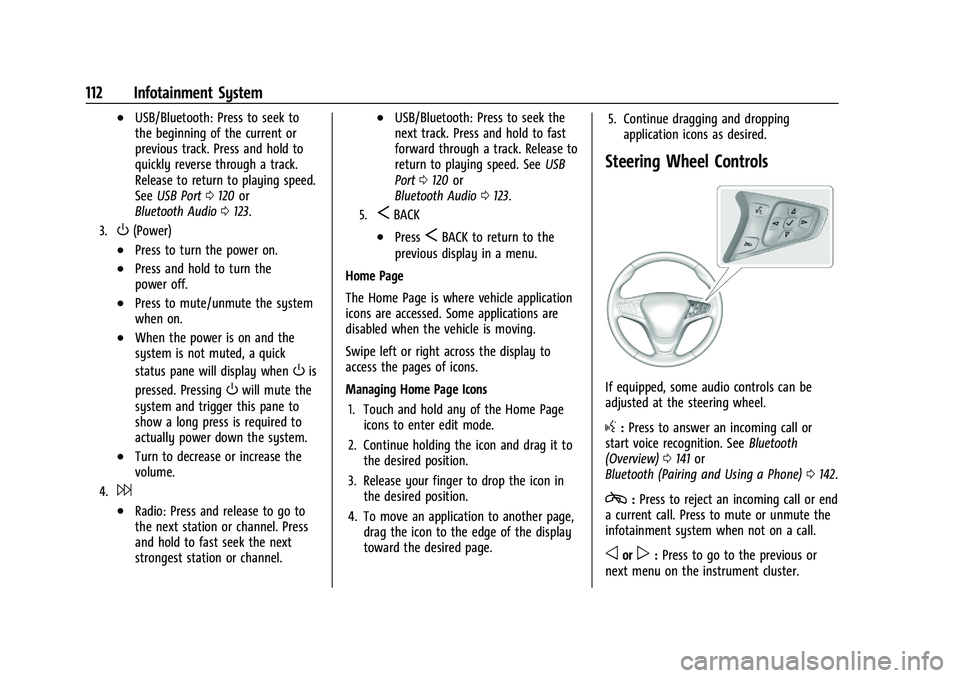
Steering Wheel Controls
If equipped, some audio controls can be
adjusted at the steering wheel.
g:Press to answer an incoming call or
start voice recognition. See Bluetooth
(Overview) 0141 or
Bluetooth (Pairing and Using a Phone) 0142.
c:Press to reject an incoming call or end
a current call. Press to mute or unmute the
infotainment system when not on a call.
oorp: Press to go to the previous or
next menu on the instrument cluster.