Page 176 of 244
9-8
Drive Mode Change Alert (if equipped)
You can set how to display the notification message when the
drive mode is changed.
�Detailed Alert
: Displays a detailed notification message along
with the vehicle image when the drive mode is changed.
� Simple Alert: Displays the notification at the top or on the
split screen when the drive mode is changed.
�Off: When the drive mode changes, no notification is
provided.
Reset ECO/NORMAL/SPORT (EV only)
You can reset the drive mode settings to the default values.
A
A
The display may differ depending on the vehicle model and
specifications.
A
A
See how to improve ECO potential by pressing the Help
button from an EV(Electric Vehicle). In most cases, a vehicle
can travel a longer distance when its ECO potential score is
higher (EV only).
ECO (EV only)
This is a drive mode for increasing the vehicle's fuel efficiency.
You can change the climate control mode, the active coast energy
regeneration level, and speed limit settings.
NORMAL (EV only)
This is a drive mode focused on the driver and passenger's
comfort. You can change the climate control mode and the active
coast energy regeneration level.
SPORT (EV only)
This drive mode enables a more dynamic driving performance.
You can change the climate control mode and the active coast
energy regeneration level.
Page 177 of 244

9-9
Automatic Ventilation (if equipped)
You can set to prevent condensation inside and keep inside air
pleasant using this feature.
�Auto Dehumidify: Once the inside air circulation mode has
been used for a long time, it is switched to the outside air
inflow mode to prevent condensation.
Defog/Defrost Options (if equipped)
You can set to enable the defogger to secure driver visibility.
�Auto Defog: When the sensor detects fog on the windshield,
the automatic ventilation is run for defogging.
Climate Features (if equipped)
You can set or change the settings for the climate system.
�Rear Climate Controls: Used to move to the climate control
screen for the rear seat. You can check or set the climate
status for the rear seat.
A
A
For more information about controlling the rear-seat
climate control system:
> see “Using the rear-seat climate
control system (if equipped)”
Climate (if equipped)
You can configure the operation environment for climate control
system.
A
A
The screen may differ depending on the vehicle model and
specifications.
Recirculate Air (if equipped)
You can set to keep the inside air pleasant by blocking inflow of
outside air.
�Activate upon Washer Fluid Use: Sets to automatically
switch to the inside air circulation mode to prevent inflow of
washer fluid scent when spraying washer fluid.
Page 178 of 244
9-10
Lights (if equipped)
You can configure the settings for vehicle lights.
A
A
The screen may differ depending on the vehicle model and
specifications.
Ambient Light (if equipped)
You can set the brightness and color of the ambient light.
One Touch Turn Signal (if equipped)
You can set the number of turn signal lamp flashes when the
lamp lever is operated.
Headlight Delay (if equipped)
You can set to turn off the taillights and headlights in 15 seconds
after turning off the vehicle to ensure visibility.
High Beam Assist (if equipped)
You can set to automatically control the high beam when an
oncoming vehicle is approaching to decrease the high beam
glare.
Door (if equipped)
You can configure the operation environment for the trunk and
doors.
Auto Lock (if equipped)
You can set the time to automatically lock all doors.
Auto Unlock (if equipped)
You can set the time to automatically unlock all doors.
Page 179 of 244
9-11
2 Press Unlock (if equipped)
You can set to unlock all doors by pressing the door unlock button
twice.A
A
When you press the door unlock button once, only the driver’s
seat door is unlocked.
Smart Trunk (if equipped)
Opens the trunk automatically when approaching the trunk with
the smart key.
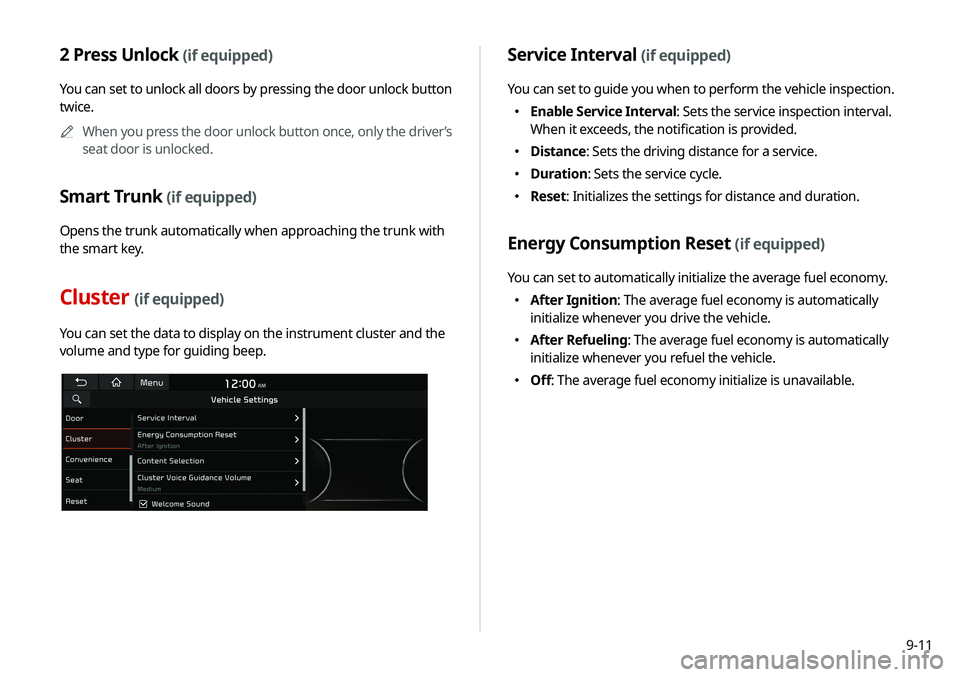
Cluster (if equipped)
You can set the data to display on the instrument cluster and the
volume and type for guiding beep.
Service Interval (if equipped)
You can set to guide you when to perform the vehicle inspection.
�Enable Service Interval: Sets the service inspection interval.
When it exceeds, the notification is provided.
�Distance: Sets the driving distance for a service.
�Duration: Sets the service cycle.
�Reset: Initializes the settings for distance and duration.
Energy Consumption Reset (if equipped)
You can set to automatically initialize the average fuel economy.
�After Ignition: The average fuel economy is automatically
initialize whenever you drive the vehicle.
�After Refueling: The average fuel economy is automatically
initialize whenever you refuel the vehicle.
�Off: The average fuel economy initialize is unavailable.
Page 180 of 244
9-12
Content Selection (if equipped)
You can set the content to display on the instrument cluster.
�Gear Position Pop-up: When the gear is shifted, the
information pop-up appears.
�Wiper/Lights Display
: When the wiper or light lever operates,
the operation mode appears.
� Traffic Signs: Displays the road information such as speed
bumps and speed limits.
�Icy Road Warning: When the outside temperature drops
below 4 °C (39 °F), the possibility of road icing appears.
Cluster Voice Guidance Volume (if equipped)
You can adjust the volume of guiding beep.
Welcome Sound (if equipped)
You can set to generate the notification sound when turning on
or off the instrument cluster.
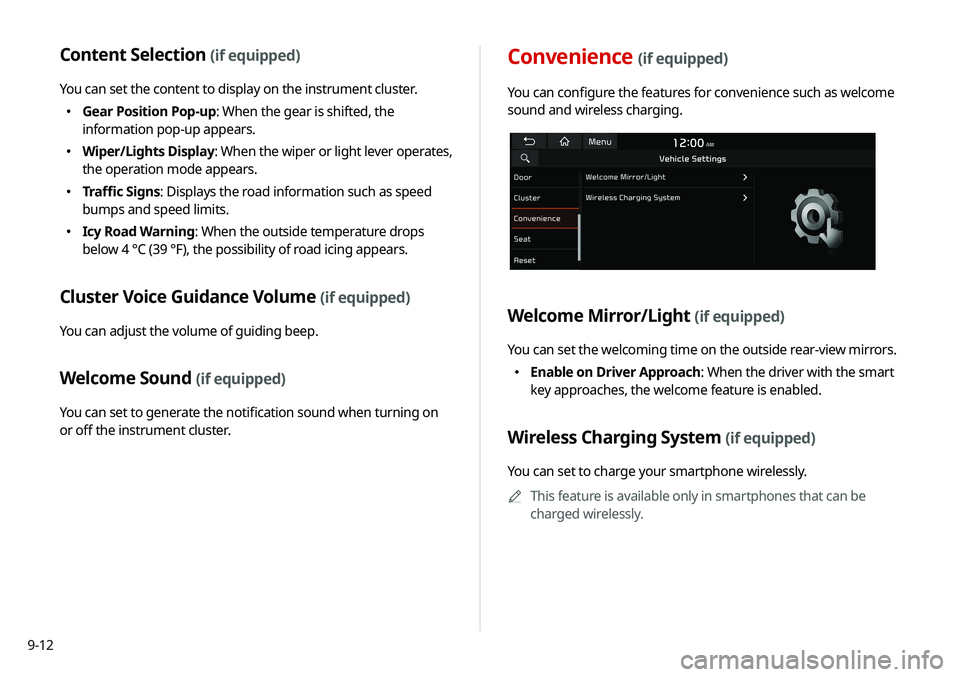
Convenience (if equipped)
You can configure the features for convenience such as welcome
sound and wireless charging.
Welcome Mirror/Light (if equipped)
You can set the welcoming time on the outside rear-view mirrors.
�Enable on Driver Approach: When the driver with the smart
key approaches, the welcome feature is enabled.
Wireless Charging System (if equipped)
You can set to charge your smartphone wirelessly.
A
A
This feature is available only in smartphones that can be
charged wirelessly.
Page 181 of 244
9-13
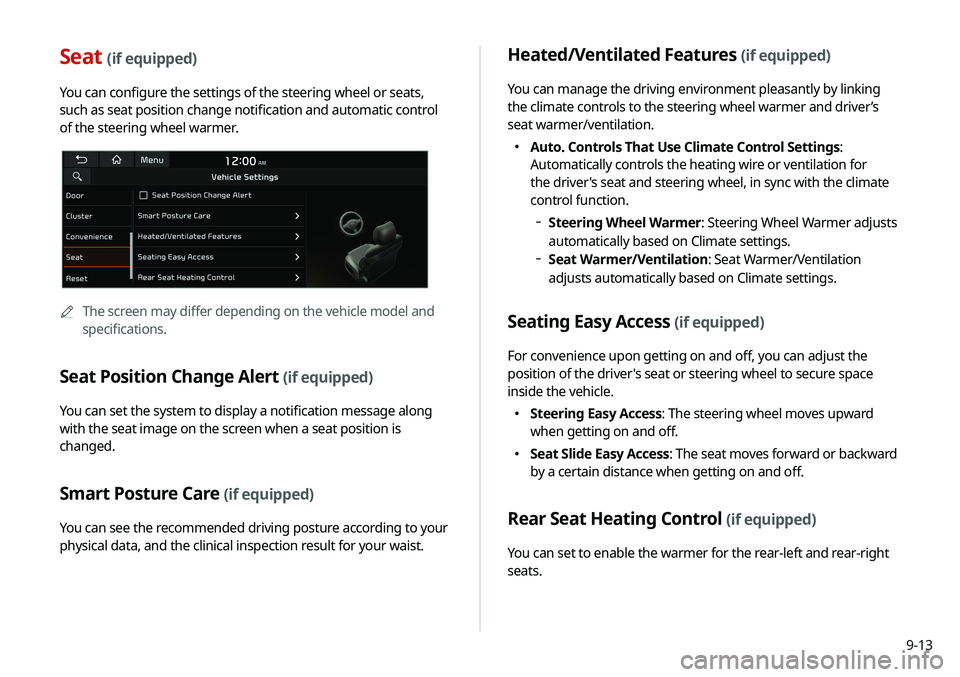
Seat (if equipped)
You can configure the settings of the steering wheel or seats,
such as seat position change notification and automatic control
of the steering wheel warmer.
A
A
The screen may differ depending on the vehicle model and
specifications.
Seat Position Change Alert (if equipped)
You can set the system to display a notification message along
with the seat image on the screen when a seat position is
changed.
Smart Posture Care (if equipped)
You can see the recommended driving posture according to your
physical data, and the clinical inspection result for your waist.
Heated/Ventilated Features (if equipped)
You can manage the driving environment pleasantly by linking
the climate controls to the steering wheel warmer and driver’s
seat warmer/ventilation.
�Auto. Controls That Use Climate Control Settings:
Automatically controls the heating wire or ventilation for
the driver's seat and steering wheel, in sync with the climate
control function.
Steering Wheel Warmer: Steering Wheel Warmer adjusts
automatically based on Climate settings.
Seat Warmer/Ventilation: Seat Warmer/Ventilation
adjusts automatically based on Climate settings.
Seating Easy Access (if equipped)
For convenience upon getting on and off, you can adjust the
position of the driver's seat or steering wheel to secure space
inside the vehicle.
� Steering Easy Access: The steering wheel moves upward
when getting on and off.
�Seat Slide Easy Access: The seat moves forward or backward
by a certain distance when getting on and off.
Rear Seat Heating Control (if equipped)
You can set to enable the warmer for the rear-left and rear-right
seats.
Page 182 of 244
9-14
Reset (if equipped)
You can initialize all system settings in the vehicle.
A
A
The required features cannot be initialize.
Configuring the device
connection settings
You can manage Bluetooth devices or configure their operation
settings. You can also activate the phone projection so that you
can control the smartphone applications on the system screen
after connecting the smartphone to the system.
1 On the All Menus screen, press Setup >
Device
Connections.
The device connection settings screen appears.
2 Configure the settings required:
A
A
Press Menu >
Search for Settings or press and enter a
keyword to search for a setting item. You can also search for a
setting item by voice.
Page 183 of 244
9-15
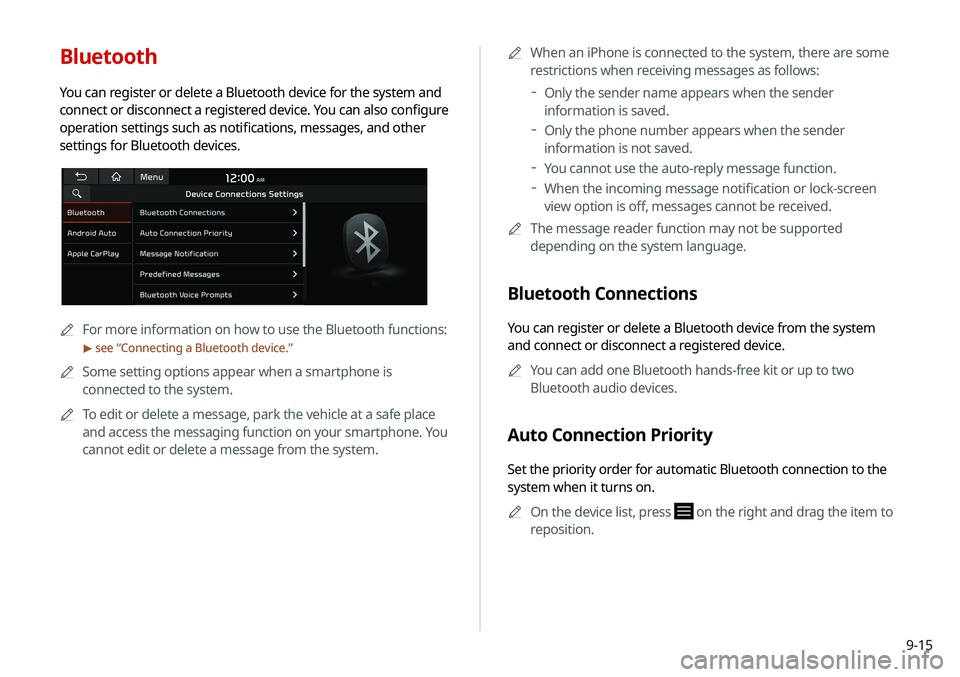
Bluetooth
You can register or delete a Bluetooth device for the system and
connect or disconnect a registered device. You can also configure
operation settings such as notifications, messages, and other
settings for Bluetooth devices.
A
A
For more information on how to use the Bluetooth functions:
> see “Connecting a Bluetooth device.”
A
A
Some setting options appear when a smartphone is
connected to the system.
A
A
To edit or delete a message, park the vehicle at a safe place
and access the messaging function on your smartphone. You
cannot edit or delete a message from the system. A
A
When an iPhone is connected to the system, there are some
restrictions when receiving messages as follows:
Only the sender name appears when the sender
information is saved.
Only the phone number appears when the sender
information is not saved.
You cannot use the auto-reply message function.
When the incoming message notification or lock-screen
view option is off, messages cannot be received.
A
A
The message reader function may not be supported
depending on the system language.
Bluetooth Connections
You can register or delete a Bluetooth device from the system
and connect or disconnect a registered device.
A
A
You can add one Bluetooth hands-free kit or up to two
Bluetooth audio devices.
Auto Connection Priority
Set the priority order for automatic Bluetooth connection to the
system when it turns on.
A
A
On the device list, press
on the right and drag the item to
reposition.

