2021 AUDI Q2 park
[x] Cancel search: parkPage 166 of 364

Speech dialogue system
Speech dialogue system
How to use the speech
dialogue system
Applies to: vehicles with speech dialogue system
You
can operate many infotainment functions
conveniently by voice.
Important: The ignition and the MMI system
must be switched on
^>page
152, you must not
be talking on the phone, and the parking aid
must not be active.
•
To switch on: Briefly press the
0
button (J)
^>page
17, Fig. 12/(3)
^>page
18, Fig. 14 on
the multi-function steering wheel and give a
spoken command after the beep signal.
*•
To switch off: Press and hold the
0
button for
several seconds. Or: Press the
0
button.
•
To pause: Say the command Pause. To end the
pause,
press the
S
button.
•
To make a correction: Say the command Cor
rection.
Input help
The system guides you through the input routine
with cues and messages.
- Input help messages on screen: After the
speech dialogue system is switched on, a selec
tion of possible commands will be shown. The
command display can be switched on or off as
required.
Select:
|MENU|
button
>
Settings >
left control button > MMI settings
>
Speech
dialogue system.
- Spoken input help
cues:
To have the system
play the commands currently possible, switch
on the speech dialogue system and say Help.
How to help the system understand you
Speak clearly in a normal volume. Speak louder if
you are driving fast.
Speak in a normal tone without long pauses.
Close doors, windows and sun roof* to reduce
background noise. Make sure that passengers are
not talking when you say a command.
Keep the air outlets of the air distribution system
pointed away from the microphone, which is fit
ted in the vicinity of the front interior lights in
the headliner.
The system should only be operated by the driv
er, since the handsfree microphone is directed
towards the driver.
Other settings
Refer to
^>page
262.
© No
-The dialogue is paused when an incoming
telephone call is received; you can continue
the dialogue by ignoring the
call.
If
you
an
swer the
call,
the dialogue will be cancelled.
- No navigation cues* or traffic announce
ments are played when a dialogue is
run
ning.
- You can select an entry from a list both via
the speech dialogue system and using the
rotary pushbutton.
- The speech dialogue system does not sup
port commands in Arabic, Norwegian or
Hungarian.
Notes on the overviews
of commands
Applies to: vehicles with speech dialogue system
The following overviews show you the commands
that you can give to operate the MMI via the
speech dialogue system. •
A WARNING
- Please direct your full attention to the road
at all times! As the driver, you have full re
sponsibility for the safety of the vehicle and
other road users.
For
this reason, you should
only use the functions in a manner that al
lows you to maintain control of the vehicle
in all situations - accident risk!
- The speech dialogue system must not be
used in cases of emergency, since the voice
changes in stressful situations. This could
result in a failed or delayed telephone
con
nection.
Always dial emergency numbers
manually!
164
Page 168 of 364
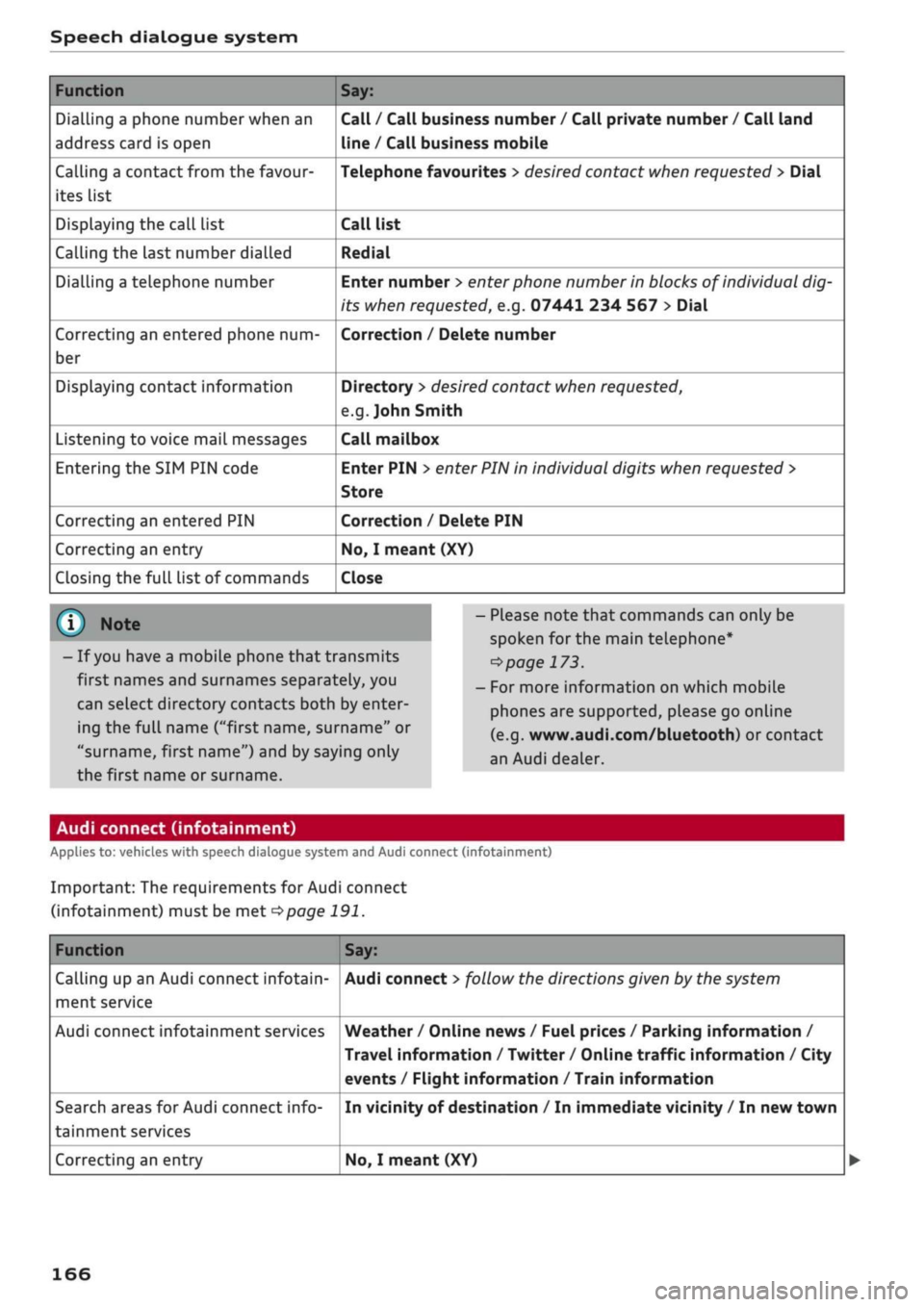
Speech dialogue system
Function
Dialling a phone number when an
address card is open
Calling a contact from the favour
ites list
Displaying the call list
Calling the last number dialled
Dialling a telephone number
Correcting an entered phone num
ber
Displaying contact information
Listening to voice mail messages
Entering the SIM PIN code
Correcting an entered PIN
Correcting an entry
Closing the full List of commands
Say:
Call / Call business number / Call private number / Call land
line / Call business mobile
Telephone favourites
>
desired contact when requested
>
Dial
Call list
Redial
Enter number
>
enter phone number in blocks of individual dig
its when requested, e.g. 07441 234
567
> Dial
Correction / Delete number
Directory
>
desired contact when requested,
e.g.
John Smith
Call mailbox
Enter PIN
>
enter PIN in individual digits when requested >
Store
Correction / Delete PIN
No,
I meant (XY)
Close
© Note
- If
you
have a mobile phone that transmits
first names and surnames separately, you
can select directory contacts both by enter
ing the full name
("first
name, surname" or
"surname, first name") and by saying only
the first name or surname.
- Please note that commands can only be
spoken for the main teLephone*
^>page
173.
- For more information on which mobile
phones are supported, please go online
(e.g.
www.audi.com/bluetooth) or contact
an Audi dealer.
Audi connect (infotainment)
Applies to: vehicles with speech dialogue system and Audi connect (infotainment)
Important: The requirements for Audi connect
(infotainment) must be met
^>page
191.
Function
Calling up an Audi connect infotain
ment service
Audi connect infotainment services
Search areas for Audi connect info
tainment services
Correcting an entry
Say:
Audi connect
>
follow the directions given by the system
Weather / Online news / Fuel prices / Parking information /
Travel information / Twitter / Online traffic information / City
events / Flight information / Train information
In vicinity of destination / In immediate vicinity / In new town
No,
I meant (XY)
166
Page 170 of 364

Speech dialogue system
Function
Calling up a list of recent navigation
destinations
Calling up the favourites
Calling up your home address
Entering an address with assistance
from the system
Individual commands for entering a
destination
Making corrections while entering a
destination
Navigating to a contact
Navigating to a specific address
stored for a contact
Navigating to favourites
Starting route guidance when an ad
dress card is open
Entering a new
destination/stop
over while route guidance is active
Starting route guidance after enter
ing a destination
Cancelling the active route guidance
Calculating alternative routes
Entering a special destination with
search area with assistance from
the system
Categories for entering special des
tinations
Search areas for entering special
destinations
Entering an online destination*
Correcting an entry
Closing the full List of commands
Say:
Last destinations
Navigation favourites
Home address or Drive home
Enter address > follow the directions given by the system
Enter country / Enter town / Enter post code / Enter street /
Enter house number
Correction
Drive me to (XY) or Navigate to (XY), e.g. Drive me to John
Smith
Navigate to (XY) business / private,
e.g.
"Navigate to John Smith private"
Navigation favourites > Line (XY) / line content
>
start route
guidance when requested
Navigate / Navigate to private address / Navigate to business
address
Enter address
>
desired address when requested
>
confirm new
destination/stopover when requested
Start route guidance
Stop route guidance
Calculate alternative routes
Special destination > Change search area > enter desired cate
gory or subcategory when requested, e.g. "Restaurant"
Audi Service / Railway station / Airport / Hotel / Hospital /
Parking space / Service area / Restaurant / Filling station etc.
In immediate vicinity / In vicinity of route / In vicinity of desti
nation / In vicinity of stopover / In new town / In new country
Online destination (XY), e.g. "Online destination Palace Hotel"
No,
I meant (XY)
Close
Important: The Navigation or Map menu must
be open. You can say the following commands to
make additional navigation settings: •
168
Page 173 of 364

Speech dialogue system
CO
â
rN
IN
rN
•-i
•H
00
The ignition and the MMI system must be switch
ed on.
You must not be speaking on the phone.
The parking aid and the Audi speech dialogue sys
tem must not be active.
A mobile phone must be connected to the MMI
system via the Handsfree profile
Opage
173.
The mobile phone connected must feature a
speech dialogue function that can be controlled
externally.
•
To switch
on:
Press and hold the
S
button on
the multi-function steering wheel* and give a
spoken command after the external speech dia
logue system has been activated.
•
To continue/restart a dialogue: After
a
dia
logue has been ended, the system remains ac
tive for
a
short period during which you can
start a new external dialogue at any time. If
necessary, press
the S
button and say a new
command.
Or: SeLect and confirm Continue on
the MMI control console.
•
To switch off: Press and hold the
\2*\
button for
several seconds. Or: Select and confirm Cancel
on the MMI control console.
© Note
- No navigation cues* or traffic announce
ments* are played when a dialogue is active.
-Thisfunction
depends on the mobile phone
you are using. For further information re
garding your mobile phone, contact your
mobile network service provider or refer to
the operating instructions
for
your mobile
phone.
- AUDI AG only enables you to access your
mobile phone's speech dialogue system and
accepts no responsibility for the content
and commands of the external speech dia
logue system.
171
Page 200 of 364

Audi connect (infotainment)
•
Select:
|MENU|
button
>
Audi connect
>
Data
plans.
The following functions are available:
Current data plans
An overview of your current data plans, including
the plan period and data volume, is shown on the
infotainment display.
Purchase data plan
- Select and confirm the desired data plan from
the list.
- Confirm your purchase of the selected data
plan.
Delete SIM owner
You can delete the SIM owner at any time in the
vehicle, for instance when selling the vehicle.
This will delete the SIM owner in the vehicle, and
you will not be able to purchase any data plans.
Support
You can
call
the support hotline if
you
require as
sistance or have any questions regarding data
plans.
© CAUTION
- Please note that, when using your own SIM
card,
you will be unable to use any current
data plans or purchase any new ones.
- Please always observe the information
<=>©
in Wi-Fi hotspot on page 202.
© Note
- Please note that any vehicle passenger can
delete the SIM owner.
- Please note that any passenger can pur
chase data plans at the SIM owner's ex
pense when the in-car data plan purchases
function is activated. You can set
a
purchase
limit in the mobiLe network provider's cus
tomer portal.
- When selling your vehicle, you should de
lete the vehicle in the network provider's
customer portal to prevent any further pur
chases at your expense.
-The vehicle and the associated VIN which
are stored in the network provider's custom
er portal are not be deleted automatically
when you delete the SIM owner in the
vehi
cle.
This must be done separately in the cus
tomer
portal.
- For journeys abroad, you will need to pur
chase appropriate data plans.
Parking information
Applies
to: vehicles with Audi connect (infotainment)
Information on places to park and parking fees in
the search area seLected (e.g. In immediate vi
cinity).
•
Select and confirm Parking information.
You can use the right control button to sort the
car parks by distance or by availability.
Travel information
Applies
to: vehicles with Audi connect (infotainment)
Information on landmarks in the search area se
lected.
•
SeLect an confirm a Landmark to have details
displayed.
Fuel prices
Applies
to: vehicles with Audi connect (infotainment)
Information on filling stations with the cheapest
prices for your vehicle in the search area selected.
•
Select and confirm Fuel prices.
You can use the right control button to sort the
fuel prices by price or by distance.
Weather
Applies
to: vehicles with Audi connect (infotainment)
Information on the current weather and weather
forecasts for the search area selected.
•
Select and confirm Weather.
You can also have the current weather displayed,
e.g.
on the map.
•
Select: left control button > an
entry.
198
Page 205 of 364

Navigation
(D Business navigation destination
(4) Private navigation destination
- SeLect and confirm a postal address or
a
naviga
tion destination. If
you
select
a
navigation des
tination,
route guidance is started immediate-
iy.
- If
you
select a postal address, you can check the
address details again.
- You can then select and confirm Start route
guidance.
Further directory functions in the navigation sys
tem can be found on
<^>page
216.
- Addresses which you have imported from
your mobiLe phone into the MMI can also be
used as navigation destinations.
- If
a
directory contact is greyed out, no
navi
gation destination/postal address has yet
been added for the contact.
Point of interest search (special
destinations)
Applies
to: vehicles with navigation system
Navigation: enter destination
Search area
Find entry
Select category
Ç myAudi special destinations
H
Petrol station
P parking facilities
in vicinity of destination
Fig.
175 Example: Searching for a special destination
•
Press the |NAV/MAP| button repeatedly until
the Enter destination menu is displayed
•=>
page 207, Fig. 172.
*-
Select: left control button > Special destina
tions.
- To change the search area: Select and confirm
Search area and then a search area from the
list.
The following search categories are available:
In immediate vicinity: You can select special des
tinations from different categories. The special
destinations are displayed in a list, starting with
destinations in the immediate vicinity and going
up to destinations within a radius of 200 km.
In vicinity of route: Special destinations along
the route can only be selected when the route
guidance function is active. The special destina
tions are located directly on or in the immediate
vicinity of your route. You can also select special
destinations from different categories. For exam
ple,
you can look for
a
hotel or
a
car park at the
destination.
In vicinity of destination/In vicinity of stopover:
Special destinations near the
destination/stop
over can only be selected when the route
guid
ance function is active. You can also select special
destinations from different categories. For exam
ple,
you can look for
a
hotel or
a
car park at the
destination.
In new town: SeLect
a
country or search in a new
town.
Enter the name of the desired town. You
can select special destinations from different cat
egories. You can use this function to find special
destinations in any town irrespective of the desti
nation currently set or the vehicle position.
- To find the name of
a
special destination in
the selected search area: Enter the name of the
special destination.
- To search for a special destination in a specific
category: Choose Select category. SeLect and
confirm a category, for example Restaurant.
myAudi special
destinations*1525
In myAudi special destinations, you can find per
sonal special destinations which you have added
in your myAudi account and imported to the MMI
using an SD card or online*
^>page
224.
- To add further myAudi special destinations:
Select the right control button > Import •
CO
<
O
rN
IN
rN
t-H
o
<
^
Important: You must have created a myAudi account at
my.audi.com,
added a vehicle to the account and stored a
destination.
2)
This function is not available in the Mexican market.
211
Page 215 of 364

Navigation
(D Business navigation destination
(4) Private navigation destination
- SeLect and confirm a postal address or
a
naviga
tion destination. If
you
select
a
navigation des
tination,
route guidance is started immediate-
iy.
- If
you
select a postal address, you can check the
address details again.
- You can then select and confirm Start route
guidance.
Further directory functions in the navigation sys
tem can be found on
<^>page
216.
- Addresses which you have imported from
your mobiLe phone into the MMI can also be
used as navigation destinations.
- If
a
directory contact is greyed out, no
navi
gation destination/postal address has yet
been added for the contact.
Point of interest search (special
destinations)
Applies
to: vehicles with navigation system
Navigation: enter destination
Search area
Find entry
Select category
Ç myAudi special destinations
H
Petrol station
P parking facilities
in vicinity of destination
Fig.
175 Example: Searching for a special destination
•
Press the |NAV/MAP| button repeatedly until
the Enter destination menu is displayed
•=>
page 207, Fig. 172.
*-
Select: left control button > Special destina
tions.
- To change the search area: Select and confirm
Search area and then a search area from the
list.
The following search categories are available:
In immediate vicinity: You can select special des
tinations from different categories. The special
destinations are displayed in a list, starting with
destinations in the immediate vicinity and going
up to destinations within a radius of 200 km.
In vicinity of route: Special destinations along
the route can only be selected when the route
guidance function is active. The special destina
tions are located directly on or in the immediate
vicinity of your route. You can also select special
destinations from different categories. For exam
ple,
you can look for
a
hotel or
a
car park at the
destination.
In vicinity of destination/In vicinity of stopover:
Special destinations near the
destination/stop
over can only be selected when the route
guid
ance function is active. You can also select special
destinations from different categories. For exam
ple,
you can look for
a
hotel or
a
car park at the
destination.
In new town: SeLect
a
country or search in a new
town.
Enter the name of the desired town. You
can select special destinations from different cat
egories. You can use this function to find special
destinations in any town irrespective of the desti
nation currently set or the vehicle position.
- To find the name of
a
special destination in
the selected search area: Enter the name of the
special destination.
- To search for a special destination in a specific
category: Choose Select category. SeLect and
confirm a category, for example Restaurant.
myAudi special
destinations*1525
In myAudi special destinations, you can find per
sonal special destinations which you have added
in your myAudi account and imported to the MMI
using an SD card or online*
^>page
224.
- To add further myAudi special destinations:
Select the right control button > Import •
CO
<
O
rN
IV
rN
t-H
o
<
^
Important: You must have created a myAudi account at
my.audi.com,
added a vehicle to the account and stored a
destination.
2)
This function is not available in the Mexican market.
211
Page 218 of 364

Navigation
Route criteria: Refer to
^>page
217, Route crite
ria.
Show location on map: Important: You must
have seLected a destination from the results list.
The destination entered will be shown on the
map.
Parking
at
this location*: Important: You must
have seLected a destination from the results list.
All the parking facilities near the location selec
ted are shown on the infotainment display.
Delete: The selected entry will be deleted. You
can delete individual entries or all the entries
(e.g.
favourites or last destinations).
Audi connect at this location*: Important: You
must have selected a destination from the re
sults list. This allows you to search for e.g. travel
information in the vicinity of the seLected loca
tion.
Online traffic data*: The online traffic informa
tion
tapage
226 can be switched
on/off.
Add destination to contact: Refer to
^>page
216.
Store as favourite: Refer to
<^page
216.
Voice guidance: Refer to
^page
218.
Navigation settings: Refer to
<=>page
217.
(T)
Note
Information on online traffic data* can be
found on the Internet at www.audi.com.
Personal route assist
Applies
to: vehicles with navigation system and personal
route
assist
Your MMI system can memorise routes
that
you
frequently follow and suggest them based on
your vehicle's current location (e.g. the daily
route
to
your workplace and back).
yi
::
Fig.
177 Example: Personal route display
Fig.
178 Personal route tip
•
Press the |NAV/MAP| button repeatedly until
the Enter destination menu is displayed
^page
207, Fig. 172.
*•
Select: right control button > Personal route
assist.
When the function is activated
fcTÎ,
the MMI re
cords routes you frequently follow (even if
you
do
not enter the destinations and start route
guid
ance).
If route guidance is not active, your personal
routes are listed below the home address in the
Enter destination menu and marked with the
symbol^®
^>Fig.
177. This symbol is displayed
in the status line on the infotainment display
while the personal route assist function is switch
ed on and the navigation menu is active. •
214