2021 AUDI E-TRON radio
[x] Cancel search: radioPage 5 of 308

4KE012721BF
Table of contents
High-voltage system............. 108
General information................. 108
Charging the high-voltage battery...... 109
Charging equipment................. 117
Trailer ROwilne is «i wows «seas gs eeees 126
Driving witha trailer................. 126
Assist systems................... 129
ASSIST SYSTCINIS§ 65 6 i onws 5 can so oe 129:
General information................. 129
Surrounding area detection............ 130
Switching the systems on and off....... 132
Driving information.............. 134
Speed warning system..............-- 134
Camera-based traffic sign recognition... 134
Traffic light information.............. 136
Nightivision aSSiSti=x = «wm : » ase y s eon 137
Integrated Toll Module............... 139
Driver assistance................. 141
Cruise control system............00-5 141
Efficiency assist.............02.-000. 142
Adaptive cruise assist................ 144
Distance warning ..............00005. 154
Lane departure warning............... 155
Audi presense...........0 cece eee 156
Sid@vassist sews: = s sexs = 2 sews & e Ae & ne 160
EXIE Warning sire x 6 cera oo were @ @ eee os 162
Intersection assistant................ 163
Emergency assist... ....:seeceeeevees 164
Parking and maneuvering....... 166
IMEROUWECION « = ems x y ses 5 o were 2 x ews 166
Parking‘aid plus « sissies avis oe aretes so aoe 166
Rearview camera and peripheral cameras. 168
Rear cross-traffic assist............... 173
Infotainment system............ L75
Telephone....................005- t75
INtROGUCtION « 2 sees » y sees 9 2 gees s 5 aes 175
SOLUP scsvine a 6 sssnase 2 0 soeaam + 6 oewoan © 6 coesern < 175
Using the Audi phone box............. 177
Using the telephone..............0005 179
SOUS cass os awusse oo means o & seanoe @ seeMaRD & 182
Messages .............0 000200 e eee 183
ThOubLESHOOtING ices s weces s eeee ss pee 185
PRCT COMMBCE 's. cosves 5 6 sivas 6 6 snes 8 oo 186
General information................- 186
Audi connect Infotainment............ 186
Using a Wi-Fi hotspot................ 187
Audi connect Infotainment services..... 187
Functions on demand................ 188
Audi connect vehicle control services.... 188
Settings............. 0.0.00 002 eee 189
TRGUBIESHOOLING sass ¢ scm s 3 Hae 5 tee 190
Emergency call................... 191,
Overview... 12.0... eee eee eee 191
Emergenicy'call « css s sees 6 s gems © + eeu 191
Online roadside assistance............ 192
NaViGGationtc: « « meus « & seu sc poms + «oe 194
Opening navigation............0..005 194
myAudi navigation...............000. 194
Entering a destination................ 195
Stopping route guidance.............. 198
Map... .. see cece eee eee 199
Alternative
routes.............2-.00. 201
Additional functions................. 201
Satellite map.......... 2.0... ee eee 202
Electric:ranGe ccs «2 was ss eee ys ees 202
Map update’: « snes os anes 2s oiws oo ews 202
Traffic incidents ........ 0.0... cece eee 204
Settings............0..0 0.0202 205
Radio...... 02... eee eee ee 207
Generalinformation................. 207
Radio functions sas ss sees ss peee ss Hews 208
Online radiObi. «sacs x x sere @ armen 6 one 211
Options and settings................. 212
Troubleshooting zass x s eae s 3 come & a aw 213
Media........... 0. cece eee ee 215
General information................. 215
DVDidrive « sisi 2 5 semen 2 6 were 2 8 women 2 oe 215
Bluetooth audio player............... 216
Amazon Alexa.........0..:ee eee ee eee 216
Multimedia connections.............. 217
Playing media. ....... 0. cece ee eee eee 218
Options and settings................. 222
Supported media and file formats...... 223
Troubleshooting...............-.0005 224
Page 14 of 308
Instrument cluster
Operating
eH) Oe
2/17/2019
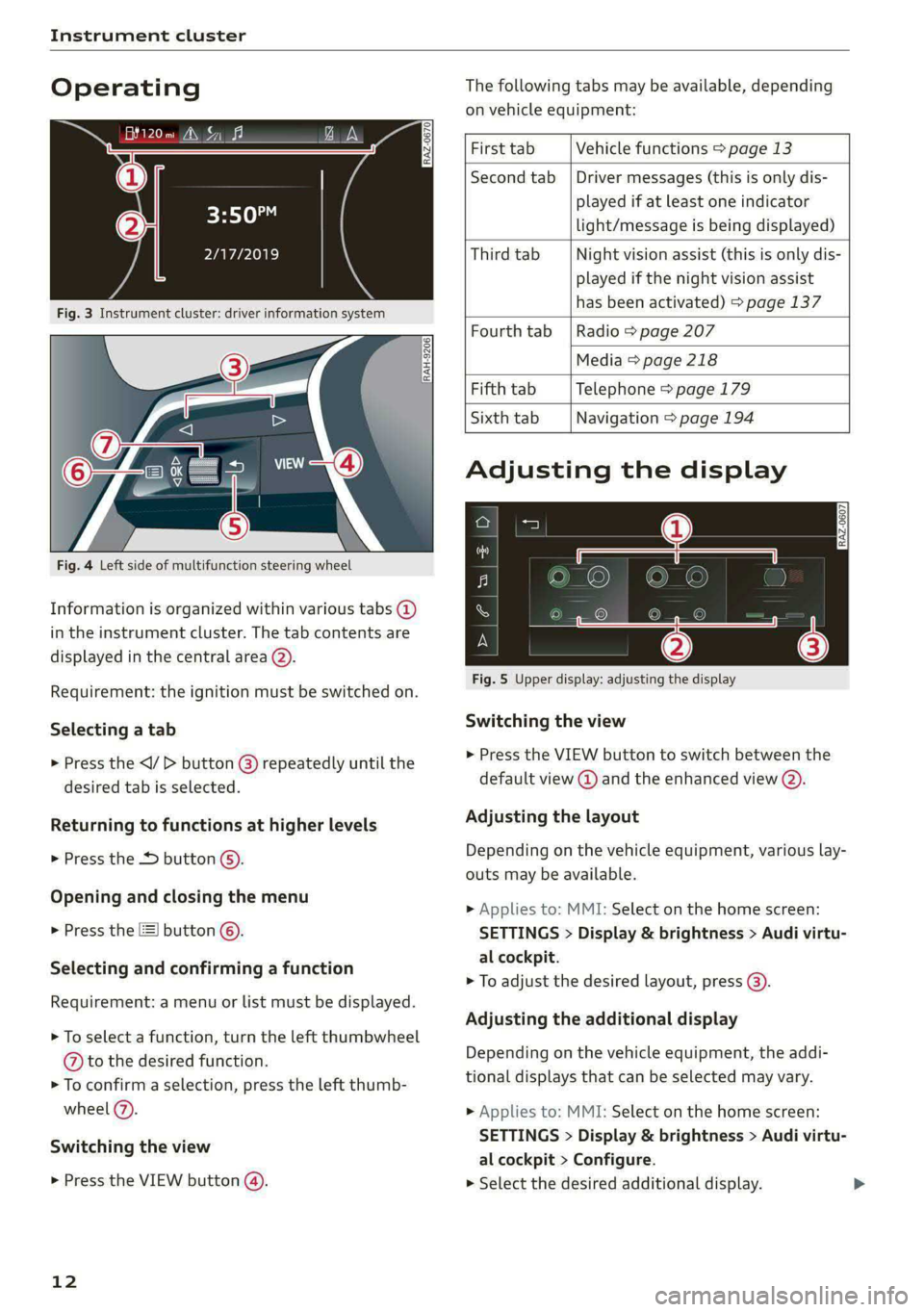
Fig. 3 Instrument cluster: driver information system
The following tabs may be available, depending
on vehicle equipment:
RAH-9206|
Fig. 4 Left side of multifunction steering wheel
Information is organized within various tabs (2)
in the instrument cluster. The tab contents are
displayed in the central area (2).
Requirement: the ignition must be switched on.
Selecting a tab
> Press the button @) repeatedly until the
desired tab is selected.
Returning to functions at higher levels
> Press the D button ©).
Opening and closing the menu
> Press the [=] button ©.
Selecting and confirming a function
Requirement: a menu or list must be displayed.
> To select a function, turn the left thumbwheel
@ to the desired function.
> To confirm a selection, press the left thumb-
wheel (2).
Switching the view
> Press the VIEW button (@).
12
First tab Vehicle functions > page 13
Second tab | Driver messages (this is only dis-
played if at least one indicator
light/message is being displayed)
Third tab Night vision assist (this is only dis-
played if the night vision assist
has been activated) > page 137
Fourth tab | Radio > page 207
Media > page 218
Fifth tab Telephone > page 179
Sixth tab Navigation > page 194
Adjusting the display
S| 3|
wea Ny S|
ce|
Fig. 5 Upper display: adjusting the display
Switching the view
>» Press the VIEW button to switch between the
default view @ and the enhanced view (2).
Adjusting the layout
Depending on the vehicle equipment, various lay-
outs may be available.
> Applies to: MMI: Select on the home screen:
SETTINGS > Display & brightness > Audi virtu-
al cockpit.
> To adjust the desired layout, press (@).
Adjusting the additional display
Depending on the vehicle equipment, the addi-
tional displays that can be selected may vary.
> Applies to: MMI: Select on the home screen:
SETTINGS > Display & brightness > Audi virtu-
al cockpit > Configure.
> Select the desired additional display.
Page 21 of 308
4KE012721BF
Touch displays
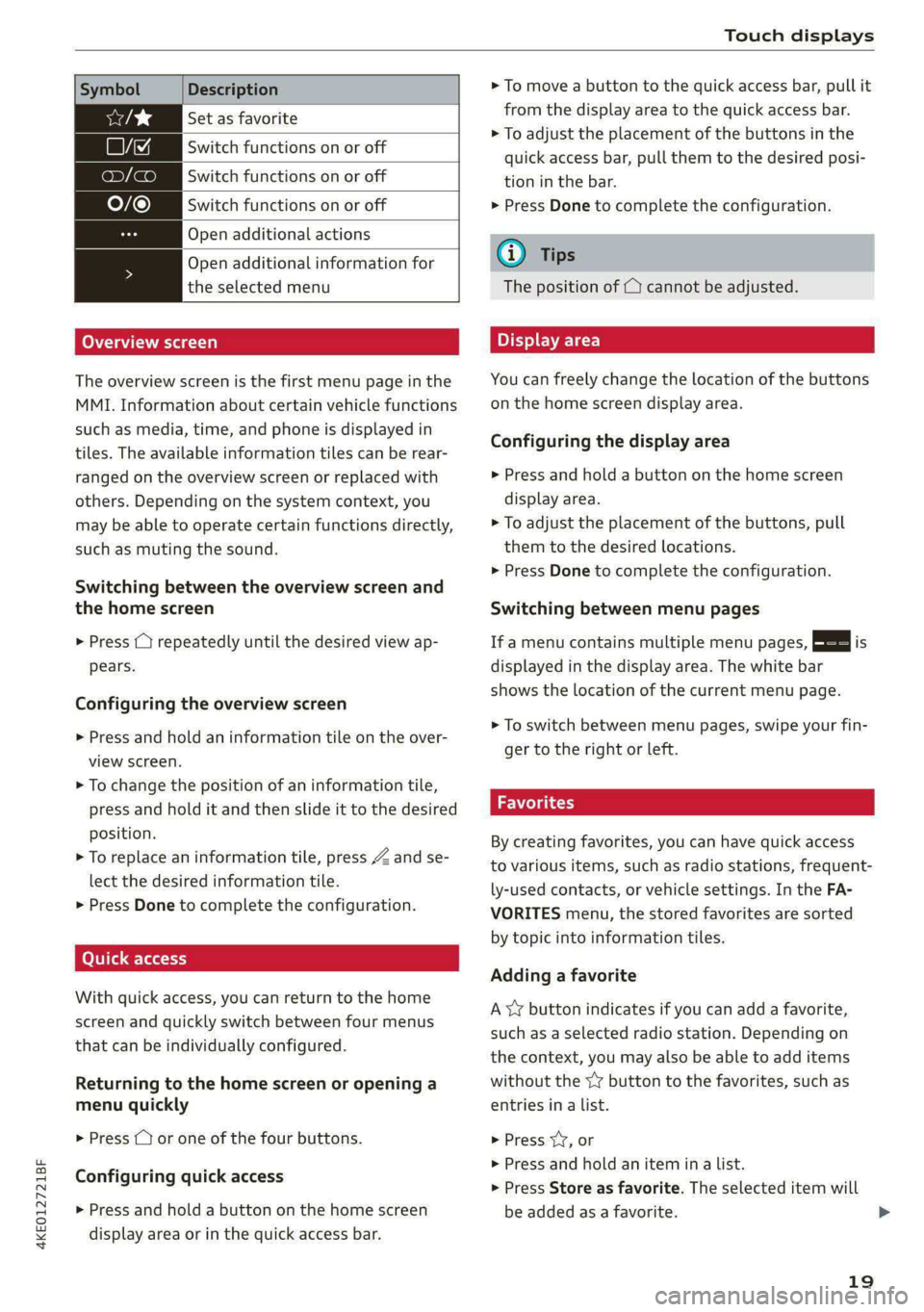
Description
Set as favorite
Switch functions on or off
Switch functions on or off
Switch functions on or off
Open additional actions
Open additional information for
the selected menu
Overview screen
The overview screen is the first menu page in the
MMI. Information about certain vehicle functions
such as media, time, and phone is displayed in
tiles. The available information tiles can be rear-
ranged on the overview screen or replaced with
others. Depending on the system context, you
may be able to operate certain functions directly,
such as muting the sound.
Switching between the overview screen and
the home screen
> Press (1) repeatedly until the desired view ap-
pears.
Configuring the overview screen
> Press and hold an information tile on the over-
view screen.
> To change the position of an information tile,
press and hold it and then slide it to the desired
position.
> To replace an information tile, press Z and se-
lect the desired information tile.
> Press Done to complete the configuration.
With quick access, you can return to the home
screen and quickly switch between four menus
that can be individually configured.
Returning to the home screen or opening a
menu quickly
> Press ( or one of the four buttons.
Configuring quick access
> Press and hold a button on the home screen
display area or in the quick access bar.
> To move a button to the quick access bar, pull it
from the display area to the quick access bar.
> To adjust the placement of the buttons in the
quick access bar, pull them to the desired posi-
tion in the bar.
> Press Done to complete the configuration.
@) Tips
The position of © cannot be adjusted.
Display area
You can freely change the location of the buttons
on the home screen display area.
Configuring the display area
> Press and hold a button on the home screen
display area.
> To adjust the placement of the buttons, pull
them to the desired locations.
> Press Done to complete the configuration.
Switching between menu pages
If a menu contains multiple menu pages, Es] is
displayed in the display area. The white bar
shows the location of the current menu page.
> To switch between menu pages, swipe your fin-
ger to the right or left.
Wel ei at)
By creating favorites, you can have quick access
to various items, such as radio stations, frequent-
ly-used contacts, or vehicle settings. In the FA-
VORITES menu, the stored favorites are sorted
by topic into information tiles.
Adding a favorite
A YY button indicates if you can add a favorite,
such as a selected radio station. Depending on
the context, you may also be able to add items
without the YY button to the favorites, such as
entries in a list.
> Press YY, or
> Press and hold an item ina list.
> Press Store as favorite. The selected item will
be added as a favorite.
19
Page 22 of 308
Touch displays
Using favorites
> Applies to: MMI: Select on the home screen:
FAVORITES. The stored favorites will be dis-
played.
> To access a stored favorite, press that favorite.
Stored favorites can only be deleted or config-
ured in the corresponding menu (such as RADIO).
Arranging information tiles
» Applies to: MMI: Select on the home screen:
FAVORITES.
> Press and hold the desired information tile.
> Pull the information tile into the desired posi-
tion.
> Press Done to confirm the configuration.
Of OB o8
O88 o@ af
O88 o8 of ef
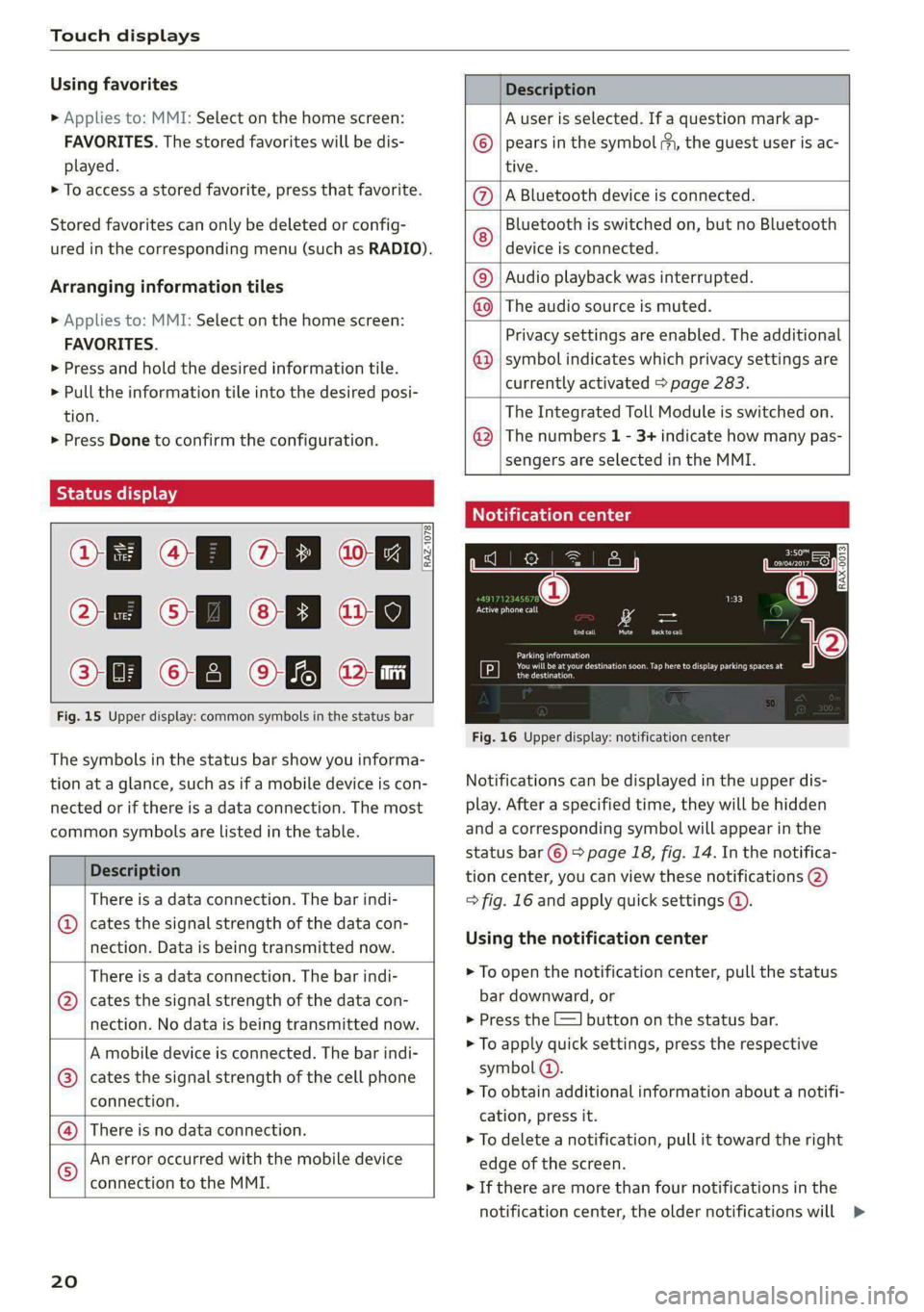
Fig. 15 Upper display: common symbols in the status bar
[RAZ-1078,
The symbols in the status bar show you informa-
tion at a glance, such as if a mobile device is con-
nected or if there is a data connection. The most
common symbols are listed in the table.
Description
There is a data connection. The bar indi-
cates the signal strength of the data con-
nection. Data is being transmitted now.
@
There is a data connection. The bar indi-
cates the signal strength of the data con-
nection. No data is being transmitted now.
A mobile device is connected. The bar indi-
cates the signal strength of the cell phone
connection.
There is no data connection. ®
An error occurred with the mobile device
connection to the MMI. ©
20
Description
A user is selected. If a question mark ap-
pears in the symbol ;\, the guest user is ac-
tive.
A Bluetooth device is connected.
Bluetooth is switched on, but no Bluetooth
device is connected. ©
|Q|
©
Audio playback was interrupted.
The audio source is muted. ©|©
Privacy settings are enabled. The additional
symbol indicates which privacy settings are
currently activated > page 283.
©
The Integrated Toll Module is switched on.
The numbers 1 - 3+ indicate how many pas-
sengers are selected in the MMI.
®
Notification center
ales)
en
RAX-0013
Om ) fo) oO
rice 4
Ceres
Cer Tue)
Sen se ear her ea eee
econ
My
fr}
Fig. 16 Upper display: notification center
Notifications can be displayed in the upper dis-
play. After a specified time, they will be hidden
and a corresponding symbol will appear in the
status bar © > page 18, fig. 14. In the notifica-
tion center, you can view these notifications @
= fig. 16 and apply quick settings @.
Using the notification center
> To open the notification center, pull the status
bar downward, or
> Press the =] button on the status bar.
> To apply quick settings, press the respective
symbol @).
> To obtain additional information about a notifi-
cation, press it.
> To delete a notification, pull it toward the right
edge of the screen.
> If there are more than four notifications in the
notification center, the older notifications will >
Page 23 of 308
4KE012721BF
Touch displays
be hidden. To display the older notifications,
drag
your finger upward on the screen.
Setting which content is displayed
You can set whether some notifications should be
displayed.
> To set the displayed content, press &S, or
» Applies to MMI: Select on the home screen:
SETTINGS > Notifications.
> Select and confirm which notifications should
be displayed.
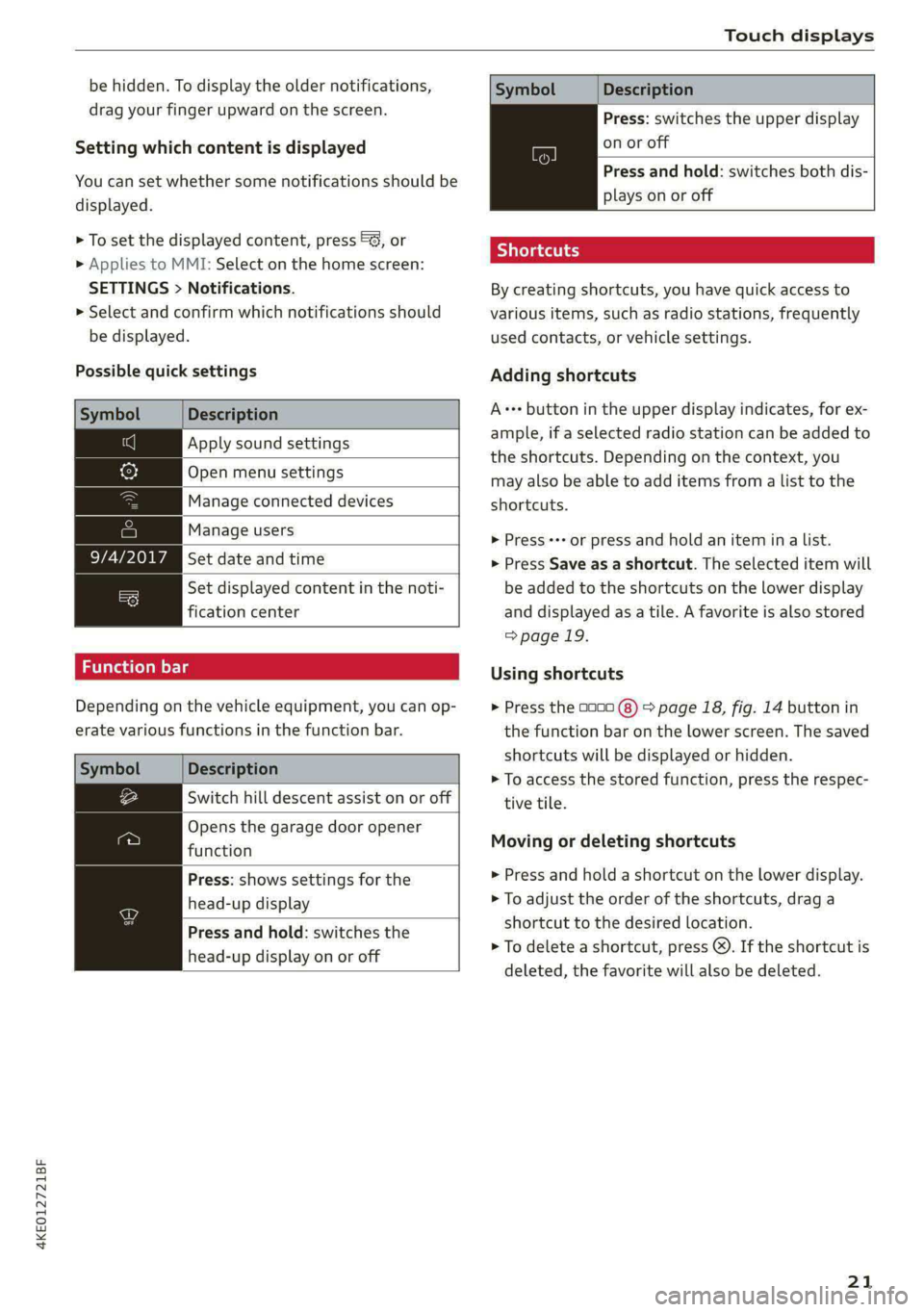
Possible quick settings
Symbol Description
Apply sound settings
Open menu settings
Manage connected devices
Manage users
Set date and time
=: Set displayed content in the noti-
fication center
Depending on the vehicle equipment, you can op-
erate various functions in the function bar.
Description
Switch hill descent assist on or off
Opens the garage door opener
function
Press: shows settings for the
head-up display
Press and hold: switches the
head-up display on or off
Symbol
Description
Press: switches the upper display
on or off
Press and hold: switches both dis-
plays on or off
Shortcuts
By creating shortcuts, you have quick access to
various items, such as radio stations, frequently
used contacts, or vehicle settings.
Adding shortcuts
A+++ button in the upper display indicates, for ex-
ample, if a selected radio station can be added to
the shortcuts. Depending on the context, you
may also be able to add items from a list to the
shortcuts.
> Press ++ or press and hold an item ina list.
> Press Save as a shortcut. The selected item will
be added to the shortcuts on the lower display
and displayed as a tile. A favorite is also stored
> page 19.
Using shortcuts
> Press the 0000 (8) > page 18, fig. 14 button in
the function bar on the lower screen. The saved
shortcuts will be displayed or hidden.
> To access the stored function, press the respec-
tive tile.
Moving or deleting shortcuts
> Press and hold a shortcut on the lower display.
> To adjust the order of the shortcuts, drag a
shortcut to the desired location.
> To delete a shortcut, press ®. If the shortcut is
deleted, the favorite will also be deleted.
21
Page 31 of 308
4KE012721BF
Personalization
Personalization
Users
General information
Applies to: vehicles with personalized user settings
Depending on vehicle equipment and your coun-
try, your vehicle may be able to manage various
users in the MMI. Each user will be assigned the
settings that they last used.
Before you begin driving, you can select a user in
the MMI and load personalized Infotainment and
vehicle settings.
Possible users in the MMI:
— myAudi user: as a myAudi user, you can use
Audi connect services that require a myAudi ac-
count. Certain settings are transferred online to
your myAudi account. If you log into your
myAudi account in another vehicle, you can
load your settings in the other vehicle.
— Local user: as a local user, you can only store
settings in the current vehicle. Your settings
cannot be transferred to other vehicles. Audi
connect services that can only be used with a
myAudi account will not be available.
— Guest user: as a guest user, you can store set-
tings in the vehicle without changing the set-
tings for other users. Audi recommends only
using the guest user temporarily, because set-
tings can be overwritten by other users.
Depending on vehicle equipment, the following
options may be used to detect the active user so
that the user settings can be loaded automatical-
ly before you start driving.
— Vehicle key
Requirement: the driver's door has been opened.
The detected user must be shown in the MMI.
Confirm the user shown, select another user
= page 29, or add another user > page 29.
ZA WARNING
It may not be possible to load Infotainment
and vehicle settings, or they may only load
partially. The driver is always responsible for
the Infotainment and vehicle settings in order
to reduce the risk of an accident.
@) Tips
— Certain Infotainment and vehicle settings
(such as mirrors, last radio stations) may be
stored, depending on vehicle equipment.
You can find additional information in the
MMI. Select on the home screen: SETTINGS
> General > Legal notes > About Audi con-
nect.
— Applies to: myAudi users: The stored set-
tings can only be transferred to vehicles
that are capable of receiving the transmit-
ted information. There may be restrictions
that prevent this, particularly in other coun-
tries.
— Applies to: myAudi users: The settings can
only be transferred and loaded when there
is coverage from the applicable mobile
phone service provider.
— Applies to: myAudi users with PIN protec-
tion switched on: If the MMI displays a de-
tected user but you simply start driving or
wait without entering the 4-digit PIN, then
the guest user will be selected. Some set-
tings for the detected myAudi user will be
transferred to the guest user.
OTe e le (ta 4
Applies to: vehicles with user management
Opening user management
Applies to: MMI
> Press USER on the home screen.
Selecting a user
Applies to: MMI
> Press on the desired user.
> Enter the 4-digit myAudi PIN, if necessary.
Adding myAudi users
Applies to MMI and Audi connect
Requirement: you must have successfully regis-
tered at my.audi.com and have created a 4-digit
myAudi PIN.
> Press Add user.
> Press Log in now to log in with your myAudi
credentials.
> Follow the system instructions.
29
Page 116 of 308

High-voltage system
charging ports at the same time, because — Remove ice and snow in the charging unit
this could damage the charging equipment. using a hand brush and solvent-free deicing
Gy Tips
spray.
— The vehicle radio and TV systems may have
— If the parking brake is set, it could create limited reception when charging the vehicle.
noises when the charging connector is con-
nected.
Charging display
The charging display is an LED light on the charg- informs you about the various displays. The fol-
ing unit @) that indicates the charging status. A lowing table explains the displays.
label on the charging unit @) > page 112, fig. 84
LED on the charging unit Meaning
Off
Vehicle charging system is in sleep mode. A timer may be active,
but charging has not started yet.
Charging process is interrupted.
White Pulsing
Connection between the power source and the vehicle is being
established.
Pulsing The high-voltage battery is charging.
Green Flashing A timer is active, but charging has not started yet.
On High-voltage battery charging process is completed.
On
Yellow
When using the Audi charging system, make sure the power
plug is inserted in the power socket > page 119. No power sup-
ply was recognized even though the charging cable is plugged
in. Have the power supply or power supply system inspected.
When using the Audi charging system, check the status displays
on the unit > table on page 120. See an authorized Audi dealer
or authorized Audi Service Facility for assistance if necessary.
Flashing
The vehicle is not secured from rolling away. Check if “P” is se-
lected and the parking brake is set. If the LED continues to
flash, see an authorized Audi dealer or authorized Audi Service
Facility for assistance.
114
Page 183 of 308
4KE012721BF
Telephone
— The contacts in the local MMI memory are
always visible and can be accessed by other
users.
— After switching off the ignition and exiting
the vehicle, the mobile device directory will
be loaded when the MMI is started again if
the mobile device is within range and the
Bluetooth function is switched on in the mo-
bile device and the MMI.
— Only the contacts in the local MMI memory
can be deleted.
Opening business cards
Applies to: vehicles with telephone
The business card shows you details about a con-
tact.
> To open a business card, press on a contact in
the directory, or
> Press © in the call list ©) > page 179, fig. 130.
Possible options in the business card:
> Call: press on a phone number.
> Storing a favorite: press W.
> Deleting a favorite: press W.
> Sending a text message: press {1.
>» Starting navigation: press on an address.
> Sending an e-mail: press on an e-mail address.
> Send contact: you can select Text message or
E-mail > page 183.
» Save as a shortcut > page 21, Shortcuts.
Listening to voicemail
Applies to: vehicles with telephone
> Applies to: MMI: Select on the home screen:
PHONE > Voicemail.
Requirement: there must be no voicemail num-
ber stored.
> Entering the voicemail number: enter the de-
sired number. Press OK.
Requirement: a voicemail number must be stor-
ed.
> Dialing the voicemail number: press Voice-
mail. The call begins immediately.
@) Tips
This service must be set up and activated by
the mobile phone service provider.
Dialing a telephone number
Applies to: vehicles with telephone
Depending on the vehicle equipment, you may
have the following options for dialing a phone
number:
— Using text input in the MMI > page 22.
— Using voice operation > page 25.
Call options
Applies to: vehicles with telephone
> To accept or end a call, press the @ button on
the multifunction steering wheel. Operating
=> page 12 and > page 28.
Depending on your mobile device, the following
options may be available in the MMI when there
is an incoming call:
— Answer
— Decline
— Message
If you exit the vehicle during a phone call, the
Bluetooth connection will be disconnected. De-
pending on your mobile device, phone calls in
progress may be automatically transferred from
the MMI to your mobile device.
G) Tips
The radio or media playback is muted during a
phone call.
PTT Tae RW urea]
Applies to: vehicles with telephone
Depending on your mobile device and the type of
connection, the following options may be availa-
ble during a call:
— End call
— Mute
181