2021 AUDI E-TRON radio
[x] Cancel search: radioPage 215 of 308
4KE012721BF
Radio
Depending on the selected source and vehicle
equipment, the following functions may be avail-
able.
— Store as favorite > page 210.
— Radio text > page 210.
— Save podcast > page 212, Podcast favorites.
— Save as a shortcut > page 21, Shortcuts.
Related content
Channels, artists, and shows related to the con-
tent that is currently playing.
> Applies to: MMI: Select on the home screen:
RADIO > ©}.
Depending on the vehicle equipment, the follow-
ing settings may be available:
FM HD Radio
You can switch HD Radio reception on or off.
SiriusXM Tune Start
If you play a Smart Favorite when this function is
switched on, the song currently playing on the
channel will play from the beginning.
SiriusXM subscription status
This option is available when your subscription is
about to expire or has already expired. The expi-
ration date for your license is displayed.
Call SiriusXM: the telephone number and radio
ID of your satellite radio provider are displayed.
To call your satellite radio provider using the
MMI, press Call SiriusXM.
Online additional data
Requirement: the MMI must be connected to the
Internet. A data plan must be available
=> page 190.
Troubleshooting
The information that follows lists some trouble-
shooting options. They depend on the equip-
ment.
When the function is switched on, additional in-
formation (such as album cover, artist, track) will
be loaded depending on the availability from the
different providers.
Online station tracking
Requirement: the MMI must be connected to the
Internet. A data plan must be available
= page 190. A station provides information in
the background for its online station alternative
and is identified with the E™} symbol.
During reception loss in the FM frequency band,
the radio tuner can establish a data connection
and switch to an online station alternative, if it is
available. If available, you can receive your local
radio stations in every region of your country on-
line. This may result in additional costs >@®. The
symbol indicates a station that is currently be-
ing received online.
— Automatic/Off: activates or deactivates auto-
matic switching to online station alternatives.
— With request: switching to online station alter-
natives must be confirmed manually.
Preferred online radio data rate
Depending on the selected radio station, you may
be able to adjust the data rate for Internet radio
= page 211 and for the Online station tracking.
For optimal sound playback, press High. To re-
duce data usage, press Low.
CG) Note
Read the information about Audi connect, and
be sure to note the connectivity costs section
=@ in General information on page 186.
@) Tips
Delays may occur when switching automati-
cally between normal frequency bands and
online radio.
213
Page 216 of 308

Radio
A station is no longer displayed in the sta- | Store the station as a preset in advance. Access the pre-
tion list. sets using the presets list > page 210.
Online radio: no playback from online ra-_ | Check if a data plan has been purchased for the applicable
dio. country and it is available > page 190.
214
Page 220 of 308
Media
Never leave mobile devices in the vehicle in
extremely high or low temperatures.
@) Tips
— Always follow the information found in
=> page 78.
— When you switch the ignition off, the USB
ports are still supplied with power until the
energy management intervenes.
— Do not use an additional adapter cable or
USB extension cable to connect mobile devi-
ces to the Audi music interface that already
have a cable or that must be connected with
a USB adapter cable (> page 217, fig. 146).
Using an additional adapter or US extension
cable may impair functionality.
— Functionality is not guaranteed for mobile
devices that do not conform to the USB 2.0
specification.
— USB hubs are not supported.
— Video playback through the Audi music in-
terface is not supported on Apple devices
and MTP devices (such as smartphones).
— iPod touch or iPhone malfunctions also af-
fect the operation of the MMI. Reset your
mobile device in these situations.
— Audi recommends updating the iPod touch
or iPhone software to the latest version. Re-
fer to your mobile device owner's manual
for more information.
— The USB adapter on the Audi music inter-
face will support iPod touch or iPhone devi-
ces from the 5th generation or newer with
the lightning connector.
—Aselection of supported devices can be
found in the database for tested mobile de-
vices at www.audi.com/mp3.
Playing media
The following sources can be selected depending
on the vehicle equipment:
— Amazon Alexa > page 216.
— USB device > page 217.
— DVD © page 216.
218
— External device: you can connect external devi-
ces via Bluetooth and use the Bluetooth audio
player > page 216, or you can connect an exter-
nal device directly to the Audi music interface
> page 217.
Accessing media
Playing media files using the MMI
> Applies to: MMI: Select on the home screen:
MEDIA > Source > a source. Depending on the
connected device, the symbol for a source may
change. The device name may be displayed (for
example: myPhone).
> Select a track from the categories in the media
center > page 219.
Playing media files using the multifunction
steering wheel
Requirement: a media source must contain me-
dia files > page 218.
> Select the radio/media tab in the instrument
cluster.
> Turn the left thumbwheel to display the play-
list.
> To switch to a different source, press the
button.
> To select a media file or a source, turn and
press the left thumbwheel.
> To switch between radio and media, select in
the instrument cluster: the EE] button > Switch
to radio/Switch to media.
G) Tips
— For safety reasons, the video image is only
displayed when the vehicle is stationary. On-
ly the sound from the video plays while driv-
ing.
— Applies to: multifunction steering wheel:
Depending on the selected function, opera-
tion through the MMI may be required.
Page 221 of 308
![AUDI E-TRON 2021 Owners Manual 4KE012721BF
Media
Cel Me staieig
Teco Re is
a] | 3
| x 2
ES
Fig. 147 Upper display: media center
There are various categories available in the me-
dia center. You can also search for](/manual-img/6/57622/w960_57622-220.png "AUDI E-TRON 2021 Owners Manual 4KE012721BF
Media
Cel Me staieig
Teco Re is
a] | 3
| x 2
ES
Fig. 147 Upper display: media center
There are various categories available in the me-
dia center. You can also search for")
4KE012721BF
Media
Cel Me staieig
Teco Re is
a] | 3
| x 2
ES
Fig. 147 Upper display: media center
There are various categories available in the me-
dia center. You can also search for media files
across sources. The current music track continues
playing while you search the MMI.
Opening the media center
> Applies to: MMI: Select on the home screen:
MEDIA > Source > a source > a category.
@ Source symbol
The symbol for the source that is currently in use
is displayed. Depending on the connected device,
the symbol for the source may change. As an ex-
ample, a USB stick is shown connected to the
Audi music interface.
@ Source device name
The device name of the source that is currently in
use is displayed.
@® Categories
The media center will display categories depend-
ing on the connected device, the selected source
content, and the connection type.
Last played tracks
The last played media file will be played.
Artists
All available artists are displayed.
> Select: an artist > an album > a song.
Playlists
All playlists and smart playlists in the source are
displayed.
> Select: a playlist > a song.
Smart playlists
Last played tracks: the tracks that were dis-
played last are displayed.
Most played tracks: the tracks that are played
most frequently are displayed.
Folders
The folder structure or track/chapter list is dis-
played.
> Select: a folder > a song.
Compilations
You can control your compilations through the
MMI.
> Select: a compilation > a song.
Composers
All available composers are displayed.
> Select: ad composer > an album > a song.
iTunes Radio
>» Press on a radio station.
Audio books
You can control your audio books on the MMI.
> Press on an audio book.
Podcasts
You can control your podcasts through the MMI.
> Select: a podcast > a podcast episode.
Genres
All available genres are displayed.
>» Select: a genre > an artist > an album > a song.
Videos
All available video files are displayed.
> Press on a video.
Tracks
All available tracks are displayed.
> Press ona track.
219
Page 222 of 308
Media
Albums
All available albums are displayed.
> Select: an album > a track.
@ Note
Applies to: vehicles with Audi connect Infotainment
— Cloud services and the iTunes radio category
always require an Internet connection.
— Read the information about Audi connect,
and be sure to note the connectivity costs
section >@ in General information on
page 186.
G@) Tips
— Only the categories supported by the medi-
um are available.
ele mitaraatelary
— For safety reasons, the video image is only
displayed when the vehicle is stationary. On-
ly the sound from the video plays while driv-
ing.
—When synchronizing a portable device with
Cloud services, playlists may display incor-
rectly
in the MMI. Use the media center in
the device.
— Applies to: iPod touch/iPhone: Note the in-
formation about the Audi music interface
and the supported devices > page 217.
[RAX-0206)
Bona ascit)
Ca
BUT la aCe)
aise)
eer)
Pn
eT iac)
nc
@
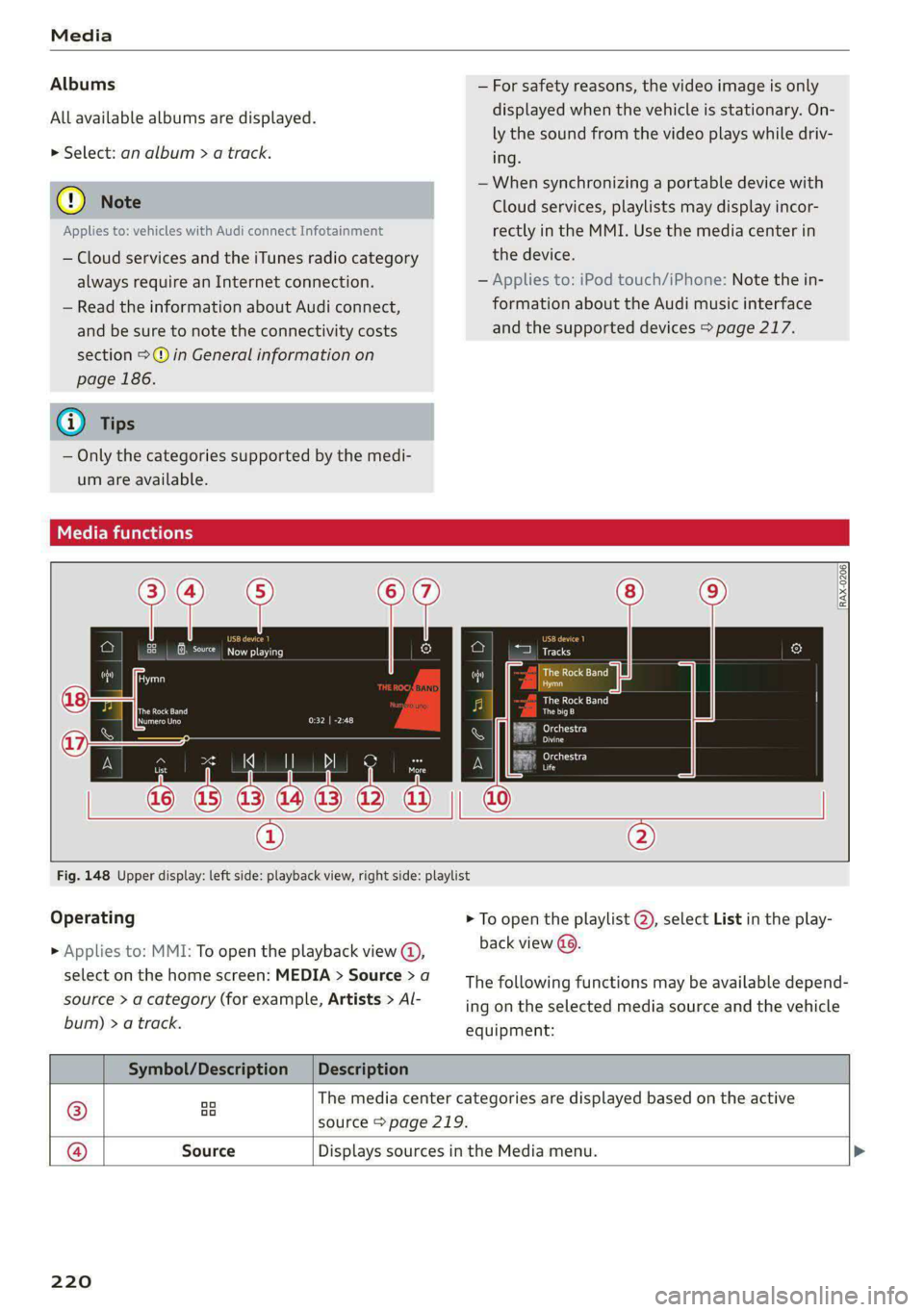
Fig. 148 Upper display: left side: playback view, right side: playlist
Operating
> Applies to: MMI: To open the playback view @,
select on the home screen: MEDIA > Source > a
source > a category (for example, Artists > Al-
bum) > a track.
> To open the playlist @, select List in the play-
back view @..
The following functions may be available depend-
ing on the selected media source and the vehicle
equipment:
Symbol/Description | Description
® aa The media center categories are displayed based on the active
source > page 219.
@ Source Displays sources in the Media menu.
220
Page 234 of 308

Additional information
Additional information
Brands and licenses
This manual does not contain any symbols, such
as ® or ™, to identify trademarks or registered
trademarks. However, the absence of these sym-
bols does not constitute a waiver of any rights as-
sociated with these names.
Apple, iPhone, iPod touch, Apple CarPlay, Light-
ning, and iTunes Radio are trademarks of Apple
Inc.
10S is a trademark or, in the USA and other coun-
tries, a registered trademark of Cisco and is used
under license.
Other product and manufacturer names may be
trademarks of their respective owners.
232
Page 246 of 308

Wheels
Glossary of tire and loading
terminology
Accessory weight
means the combined weight (in
excess of those standard items
which may be replaced) of auto-
matic transmission, power steer-
ing, power brakes, power win-
dows, power seats, radio, and
heater, to the extent that these
items are available as factory-in-
stalled equipment (whether in-
stalled or not).
Aspect ratio
means the ratio of the height to
the width of the tire in percent.
Numbers of 55 or lower indicate a
low sidewall for improved steer-
ing response and better overall
handling on dry pavement.
Bead
means the part of the tire that is
made of steel wires, wrapped or
reinforced by ply cords and that is
shaped to fit the rim.
Bead separation
means a breakdown of the bond
between components in the bead.
244
Cord
means the strands forming the
plies in the tire.
Cold tire inflation pressure
means the tire pressure recom-
mended by the vehicle manufac-
turer for a tire of a designated
size that has not been driven for
more than a couple of miles (kilo-
meters) at low speeds in the three
hour period before the tire pres-
sure is measured or adjusted.
Curb weight
means the weight of a motor ve-
hicle with standard equipment in-
cluding the maximum capacity of
fuel, oil, and coolant, air condi-
tioning and additional weight of
optional equipment.
Extra load tire
means a tire designed to operate
at higher loads and at higher in-
flation pressures than the corre-
sponding standard tire. Extra load
tires may be identified as “XL”,
“xl”, “EXTRA LOAD”, or “RF” on
the sidewall.
Page 270 of 308
Emergency assistance
ZA\ WARNING
— Please note that the tire mobility kit cannot
be used in all situations, and that it may on-
ly be used temporarily.
— The tire sealant must not come in contact
with skin, eyes, or clothing.
— If tire sealant comes into contact with your
eyes or your skin, thoroughly rinse the af-
fected area immediately with clean water.
— Do not inhale the fumes.
— If you swallow any of the tire sealant, thor-
oughly rinse your mouth immediately and
drink a lot of water. Do not induce vomiting.
Seek medical attention immediately.
— Change your clothing immediately if it
comes into contact with tire sealant.
— If an allergic reaction occurs, seek medical
attention immediately.
— Keep the tire sealant away from children.
@ Tips
— If sealant leaks, allow it to dry in place. You
can then peel it off like a sticker.
— Note the expiration date on the sealant bot-
tle. Replace the tire sealant at an authorized
Audi dealer or authorized Audi Service Fa-
cility.
— Radio reception can be interrupted when
operating the compressor.
— Follow the legal regulations that are appli-
cable in the country where you are operating
the vehicle.
2) The compressor may look different. However, the way it is
operated is generally the same.
268
Repairing tires
Applies to: vehicles with tire mobility kit
RAZ-0213|
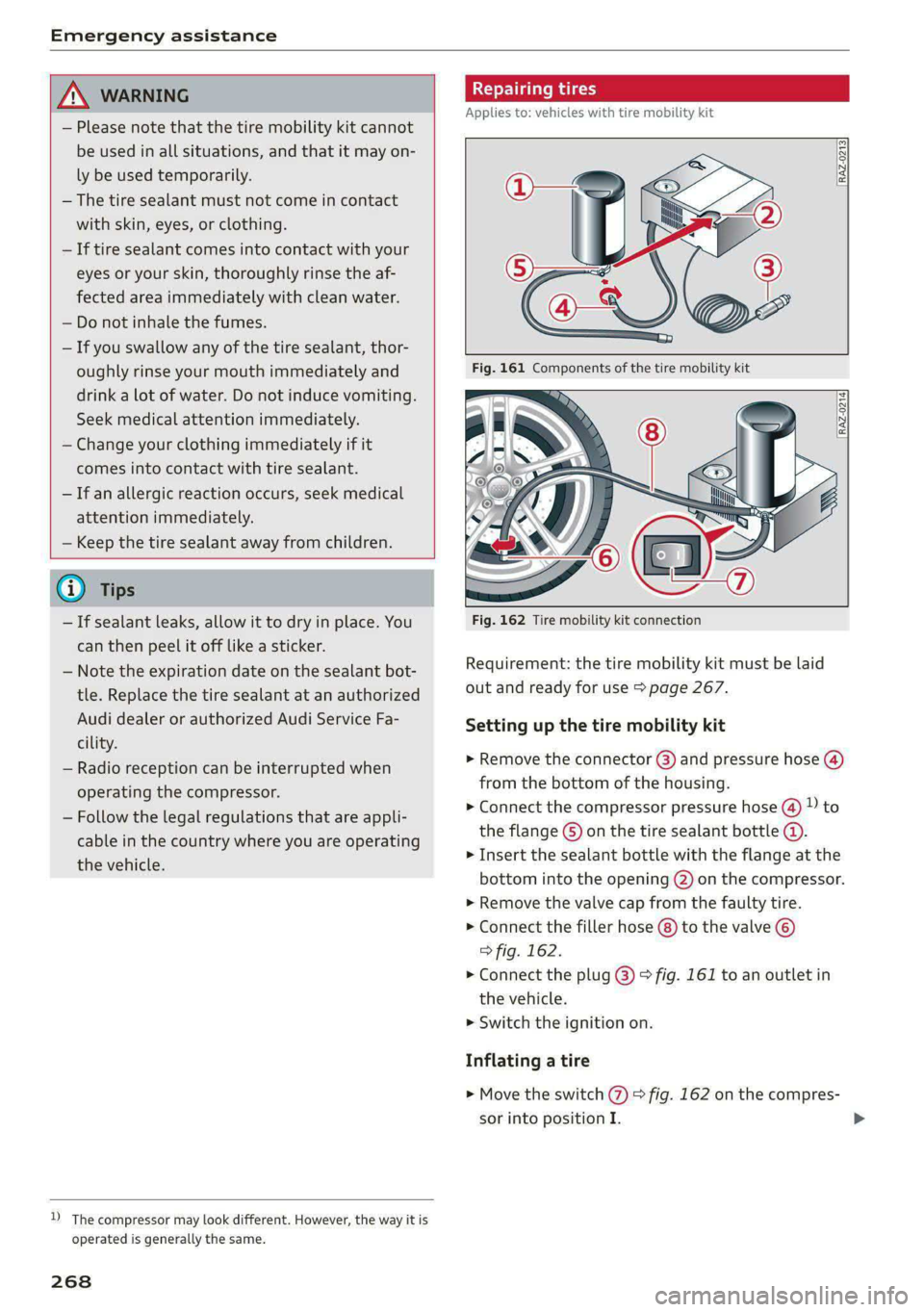
Fig. 162 Tire mobility kit connection
Requirement: the tire mobility kit must be laid
out and ready for use > page 267.
Setting up the tire mobility kit
> Remove the connector (3) and pressure hose (4)
from the bottom of the housing.
> Connect the compressor pressure hose ®@ D to
the flange © on the tire sealant bottle ©.
> Insert the sealant bottle with the flange at the
bottom into the opening (2) on the compressor.
> Remove the valve cap from the faulty tire.
> Connect the filler hose (8) to the valve ©)
> fig. 162.
> Connect the plug @) > fig. 161 to an outlet in
the vehicle.
> Switch the ignition on.
Inflating a tire
> Move the switch (%) > fig. 162 on the compres-
sor into position I.