2020 PEUGEOT PARTNER TEPEE ad blue
[x] Cancel search: ad bluePage 162 of 216
160
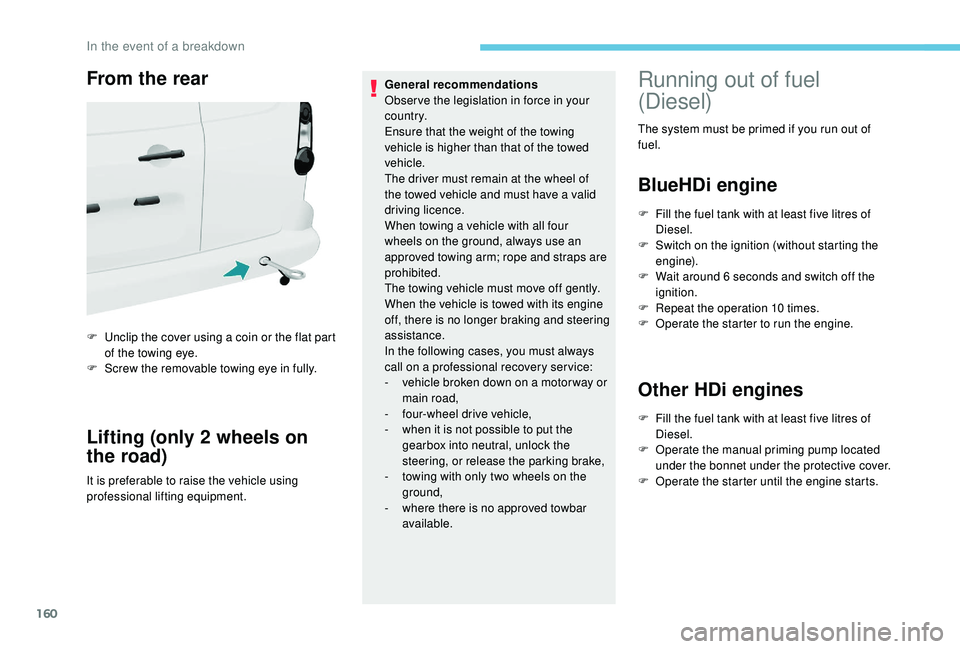
From the rear
F Unclip the cover using a coin or the flat part of the towing eye.
F
S
crew the removable towing eye in fully.
Lifting (only 2 wheels on
the road)
It is preferable to raise the vehicle using
professional lifting equipment. General recommendations
Obser ve the legislation in force in your
c o u nt r y.
Ensure that the weight of the towing
vehicle is higher than that of the towed
vehicle.
The driver must remain at the wheel of
the towed vehicle and must have a valid
driving licence.
When towing a vehicle with all four
wheels on the ground, always use an
approved towing arm; rope and straps are
prohibited.
The towing vehicle must move off gently.
When the vehicle is towed with its engine
off, there is no longer braking and steering
assistance.
In the following cases, you must always
call on a professional recovery ser vice:
-
v
ehicle broken down on a motor way or
main road,
-
f
our-wheel drive vehicle,
-
w
hen it is not possible to put the
gearbox into neutral, unlock the
steering, or release the parking brake,
- t owing with only two wheels on the
ground,
-
w
here there is no approved towbar
available.
Running out of fuel
(Diesel)
The system must be primed if you run out of
fuel.
BlueHDi engine
F Fill the fuel tank with at least five litres of Diesel.
F
S
witch on the ignition (without starting the
engine).
F
W
ait around 6 seconds and switch off the
ignition.
F
R
epeat the operation 10 times.
F
O
perate the starter to run the engine.
Other HDi engines
F Fill the fuel tank with at least five litres of Diesel.
F
O
perate the manual priming pump located
under the bonnet under the protective cover.
F
O
perate the starter until the engine starts.
In the event of a breakdown
Page 165 of 216

163
Diesel engines/weights
Five seats
EnginesGearboxEngine oil capacity with
filter replacement (litres) Unbraked trailer (kg)Recommended nose
weight (kg)
1.6 HDi 75 hp Manual 5-speed -600 70
1.6 HDi 75 hp PF Manual 5-speed -715 70
BlueHDi 75 hp Euro 6 Manual 5-speed -720 70
1.6 HDi 90 hp Manual 5-speed 3.75735 70
1.6 HDi 92 hp PF Manual 5-speed 3.75715 70
1.6 e- HDi 92 hp PF Manual 5-speed 3.75690 70
1.6 BlueHDi 100 hp Euro 6 Manual 5-speed 3.75600 70
1.6 BlueHDi 100 S&S Manual 5-speed
3.75600
70
Electronic 6-speed 60070
1.6 HDi 115 hp PF Manual 5-speed 3.75735 70
1.6 BlueHDi 120 hp Euro 6 Manual 6-speed 3.75600 70
PF: particle filter.
e-HDi: model fitted with Stop & Start.
9
Technical data
Page 166 of 216

164
Seven seats
EnginesGearboxEngine oil capacity with
filter replacement (litres) Unbraked trailer (kg)Recommended nose
weight (kg)
1.6 HDi 92 hp PF Manual 5-speed 3.75750 70
1.6 BlueHDi 100 hp Euro 6 Manual 5-speed 3.75600 70
1.6 BlueHDi 100 hp Euro
6 S&S Manual 5-speed
3.75600 70
1.6 HDi 115 hp PF Manual 5-speed 3.75750 70
1.6 BlueHDi 120 hp Euro 6 Manual 6-speed 3.75600 70
PF: particle filter.
e-HDi: model fitted with Stop & Start.
Technical data
Page 177 of 216

1
7-inch touch screen
GPS satellite navigation –
Multimedia audio system –
Bluetooth
® telephone
Contents
First steps
1
S
teering mounted controls
2
M
enus
3
N
avigation
4
Radio
7
DAB (Digital Audio Broadcasting) radio
8
M
edia 9
Settings
11
Connected services
1
2
Telephone
1
4
Frequently asked questions
1
7The system is protected in such a way that
it will only operate in your vehicle.
For safety reasons, the vehicle must
always be stationary for the driver to
perform operations that require close
attention.
The display of the energy economy mode
message signals that the system is about
to go into standby. Refer to the Energy
Economy Mode section.
First steps
Use the buttons provided above the touch
screen to access the menu carousel, then
press the virtual buttons in the touch screen.
Each menu is displayed in one or two pages
(primary page and secondary page).
In very hot conditions, the system may
go into standby (screen and sound
completely off) for a minimum period of
5
minutes.
Short-cuts: using the virtual buttons in the
upper band of the touch screen, it is the
possible to go directly to the selection of audio
source, the list of stations (or titles, depending
on the source).
Selecting the audio source (depending on
version):
.
7-inch touch screen
Page 178 of 216

2
* Depending on equipment. Press Menu to display the menu
carousel.
Volume adjustment (each source is
independent, including traffic announcements
(TA) and navigation instructions). Increase volume.
Decrease volume.
Mute by pressing the volume increase and
decrease buttons simultaneously. In very hot conditions, the volume may be
limited to protect the system. The return to
normal takes place when the temperature
in the passenger compartment drops.
The screen is of the "resistive" type, it is
necessary to press firmly, particularly for
"flick" gestures (scrolling through a list,
moving the map, etc.). A simple swipe will
not be enough. Pressing with more than
one finger is not recognised.
The screen can be used with gloves. This
technology allows use at all temperatures.
To clean the screen, use a soft non-
abrasive cloth (spectacles cloth) without
any additional product.
Do not use sharp objects on the screen.
Do not touch the screen with wet hands.
-
F
M/DAB*/AM* radio stations.
-
U
SB stick.
-
S
martphone via MirrorLink
TM or CarPlay®.
- T
elephone connected via Bluetooth®*
and Bluetooth® multimedia broadcast*
(streaming).
-
M
edia player connected via the auxiliary
socket (jack, cable not supplied). Restore the sound by pressing one of the two
volume buttons.
Steering mounted controls
Radio: select previous/next preset
station.
Media: select the genre/artist/
folder from the list depending on
classification.
Select the previous/next item in a
menu.
Radio: automatic search for a higher
frequency.
Media: select the next track.
Media, press and hold: fast for ward.
Skip in the list.
Change the audio source.
Confirm a selection.
Pick up/hang up the telephone.
Press for more than 2
seconds:
access the telephone menu.
Radio: automatic search for a lower
frequency.
Media: select the previous track.
Media, press and hold: rewind.
Skip in the list.
7-inch touch screen
Page 179 of 216
3
Increase volume.
Decrease volume.
Mute on: cut the sound by
simultaneously pressing the volume
up and down buttons.
Mute off: press one of the two
volume buttons.
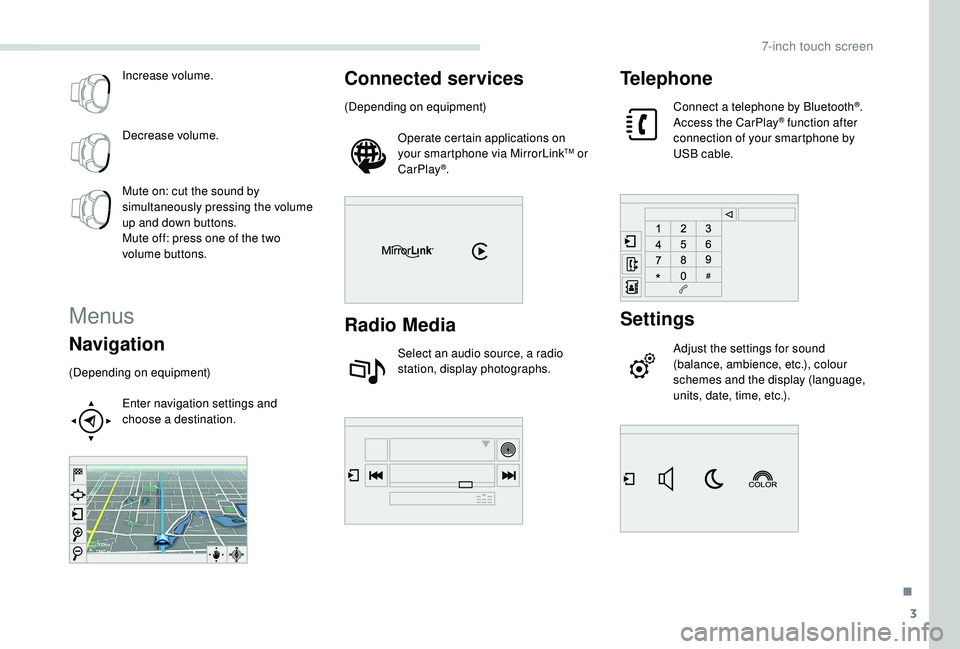
Menus
Navigation
(Depending on equipment)Enter navigation settings and
choose a destination.
Connected services
(Depending on equipment)Operate certain applications on
your smartphone via MirrorLink
TM or
CarPlay®.
Radio Media
Select an audio source, a radio
station, display photographs.
Telephone
Connect a telephone by Bluetooth®.
Access the CarPlay® function after
connection of your smartphone by
USB cable.
Settings
Adjust the settings for sound
(balance, ambience, etc.), colour
schemes and the display (language,
units, date, time, etc.).
.
7-inch touch screen
Page 186 of 216
10
Connect the portable device (MP3 player, etc.)
to the jack socket using an audio cable (not
supplied).
First adjust the volume of your portable device
(to a high level). Then adjust the volume of your
audio system.
Operation of controls is via the portable device.
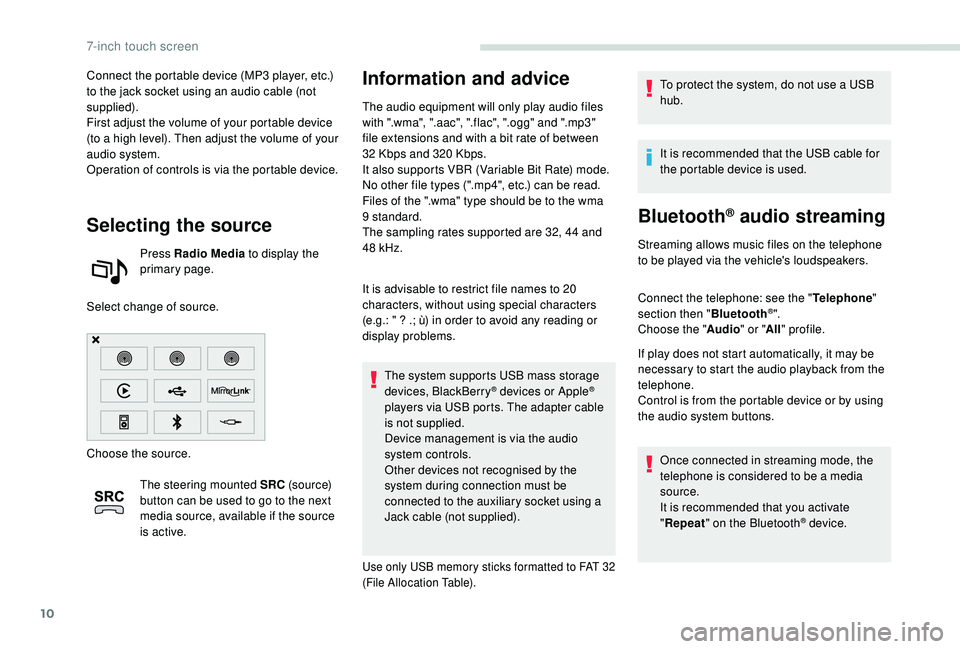
Selecting the source
Press Radio Media to display the
primary page.
Select change of source.
Choose the source. The steering mounted SRC (s o u r c e)
button can be used to go to the next
media source, available if the source
is active.
Information and advice
The audio equipment will only play audio files
with ".wma", ".aac", ".flac", ".ogg" and ".mp3"
file extensions and with a bit rate of between
32
Kbps and 320 Kbps.
It also supports VBR (Variable Bit Rate) mode.
No other file types (".mp4", etc.) can be read.
Files of the ".wma" type should be to the wma
9 standard.
The sampling rates supported are 32, 44 and
48
kHz.
It is advisable to restrict file names to 20
characters, without using special characters
(e.g.: " ? .; ù) in order to avoid any reading or
display problems. The system supports USB mass storage
devices, BlackBerry
® devices or Apple®
players via USB ports. The adapter cable
is not supplied.
Device management is via the audio
system controls.
Other devices not recognised by the
system during connection must be
connected to the auxiliary socket using a
Jack cable (not supplied).
Use only USB memory sticks formatted to FAT 32
(File Allocation Table).
To protect the system, do not use a USB
hub.
It is recommended that the USB cable for
the portable device is used.
Bluetooth® audio streaming
Streaming allows music files on the telephone
to be played via the vehicle's loudspeakers.
Connect the telephone: see the " Telephone"
section then " Bluetooth
®".
Choose the " Audio" or "All" profile.
If play does not start automatically, it may be
necessary to start the audio playback from the
telephone.
Control is from the portable device or by using
the audio system buttons.
Once connected in streaming mode, the
telephone is considered to be a media
source.
It is recommended that you activate
"Repeat " on the Bluetooth
® device.
7-inch touch screen
Page 189 of 216
13
The synchronisation of a smartphone
allows users to display the smartphone's
applications adapted to the
MirrorLink
TM technology on the vehicle
sc
reen.
The principles and standards
are constantly changing, for the
communication process between the
smartphone and the system to operate,
it is essential that the smartphone is
unlocked; update the operating system of
the smartphone as well as the date and
time of the smartphone and the system.
For the list of supported smartphones, go
to the brand's website in your country.
As a safety measure, some applications
can only be viewed with the vehicle
stationary; display is interrupted once the
vehicle is moving.
Please note:
-
i
f your smartphone is supported, to
make it "MirrorLink
TM" compatible,
some phone manufacturers
nevertheless invite you to first
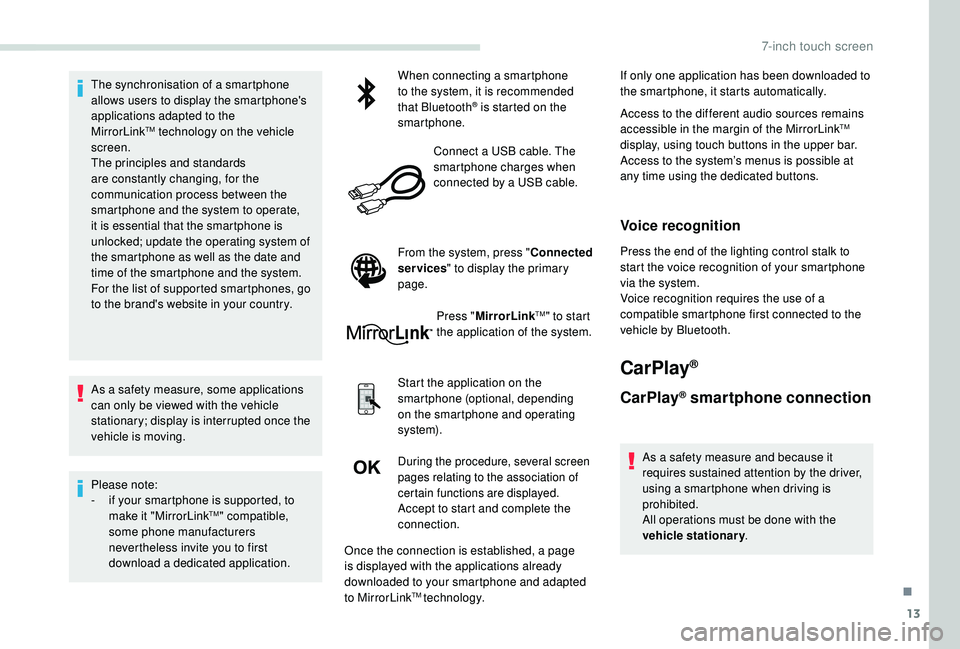
download a dedicated application. When connecting a smartphone
to the system, it is recommended
that Bluetooth
® is started on the
smartphone.
Connect a USB cable. The
smartphone charges when
connected by a USB cable.
From the system, press " Connected
services " to display the primary
page.
Press "MirrorLink
TM" to start
the application of the system.
Start the application on the
smartphone (optional, depending
on the smartphone and operating
syste m).
During the procedure, several screen
pages relating to the association of
certain functions are displayed.
Accept to start and complete the
connection. If only one application has been downloaded to
the smartphone, it starts automatically.
Access to the different audio sources remains
accessible in the margin of the MirrorLink
TM
display, using touch buttons in the upper bar.
Access to the system’s menus is possible at
any time using the dedicated buttons.
Voice recognition
Press the end of the lighting control stalk to
start the voice recognition of your smartphone
via the system.
Voice recognition requires the use of a
compatible smartphone first connected to the
vehicle by Bluetooth.
CarPlay®
CarPlay® smartphone connection
As a safety measure and because it
requires sustained attention by the driver,
using a smartphone when driving is
prohibited.
All operations must be done with the
vehicle stationary .
Once the connection is established, a page
is displayed with the applications already
downloaded to your smartphone and adapted
to MirrorLink
TM technology.
.
7-inch touch screen