2020 FORD EXPLORER warning
[x] Cancel search: warningPage 237 of 555

When you shift into neutral (N), the system
only provides visual indication if your
vehicle is moving at a speed of
approximately 5 mph (8 km/h) or below,
for example, your vehicle is moving on a
slope, and the system detects an object
moving toward your vehicle. When you
stop your vehicle, visual indication stops
after four seconds.
SIDE SENSING SYSTEM
(IF
EQUIPPED) WARNING:
The system may not
detect objects with surfaces that absorb
reflection. Always drive with due care
and attention. Failure to take care may
result in a crash. WARNING:
The system may not
detect small or moving objects,
particularly those close to the ground. WARNING:
To help avoid personal
injury, always use caution when in
reverse (R) and when using the sensing
system. WARNING:
The parking aid system
can only assist you to detect objects
when your vehicle is moving at parking
speeds. To help avoid personal injury you
must take care when using the parking
aid system.
Note: Keep the sensors free from snow, ice
and large accumulations of dirt.
Note: Do not cover up the sensors.
Note: Do not clean the sensors with sharp
objects.
Note: If your vehicle sustains damage
leaving the sensors misaligned, this may
cause inaccurate measurements or false
alerts. Note:
If you switch traction control off, the
side sensing system also turns off.
Note: Some accessories, for example large
trailer hitches or bike or surfboard racks can
cause reduced performance or false alerts.
Note: The system does not detect an object
that is moving toward the side of your
vehicle, for example another vehicle moving
at low speed, if it does not pass a front or
rear sensor.
The system uses the front and rear
outermost parking aid sensors to detect
objects that are near to the sides of your
vehicle. The system displays them on a
virtual map in the information display as
your vehicle moves past them.
The sensors are on the front and rear
bumpers.
The system may not function if:
• You switch the ignition on, off and back
on within a few seconds.
• Your vehicle remains stationary for over
two minutes.
• The anti-lock brake system activates.
• The traction control system activates.
To reinitialize the system, you may have to
drive your vehicle approximately 10 ft
(3 m). 234
Explorer (CTW) Canada/United States of America, enUSA, Edition date: 201902, Third-Printing- Parking AidsE190458
Page 238 of 555

The sensor coverage area is up to 24 in
(60 cm) from the side of your vehicle.
When the system detects an object within
the coverage area and the driving path of
your vehicle, an audible warning sounds.
As the object moves closer to your vehicle,
the rate of the tone increases.
Object Distance Indicator (If Equipped) The system provides object distance
indication through the information display.
•
As the distance to the object
decreases, the indicator blocks
illuminate and move toward the vehicle
icon.
• If there is no object detected, the
distance indicator blocks are gray.
When you shift into reverse (R), the system
provides audible warnings and visual
indication when detected objects are
within
24 in (60 cm) and are inside the
driving path of your vehicle. When you stop
your vehicle, the audible warnings turn off
after two seconds. When you shift into any forward gear, the
system provides audible warnings and
visual indication when your vehicle is
moving at a speed of approximately 5 mph
(8 km/h)
or below and the system detects
an object within the detection zone. When
you stop your vehicle, the audible warnings
turn off after two seconds and visual
indication turns off after four seconds.
When you shift into neutral (N), the system
only provides visual indication if your
vehicle is moving at a speed of
approximately
5 mph (8 km/h) or below.
For example, your vehicle is moving on a
slope, and the system detects an object
moving toward your vehicle. When you
stop your vehicle, visual indication turns
off after four seconds.
If the system is not available, the side
distance indicator blocks do not display.
ACTIVE PARK ASSIST
(IF
EQUIPPED) WARNING:
You must remain in
your vehicle when the system turns on.
At all times, you are responsible for
controlling your vehicle, supervising the
system and intervening, if required.
Failure to take care may result in the loss
of control of your vehicle, serious
personal injury or death. WARNING:
The sensors may not
detect objects in heavy rain or other
conditions that cause interference.
235
Explorer (CTW) Canada/United States of America, enUSA, Edition date: 201902, Third-Printing- Parking AidsE190459
Page 239 of 555

WARNING: You are responsible for
controlling your vehicle at all times. The
system is designed to be an aid and does
not relieve you of your responsibility to
drive with due care and attention. Failure
to follow this instruction could result in
the loss of control of your vehicle,
personal injury or death.
The system assists parking into and out of
parking spaces. Sensors are used to detect
parking spaces. The system then steers,
accelerates, brakes and shifts gear as
required to maneuver into or out of a
parking space.
Using Active Park Assist The parking button is near the
transmission selector on the
center console.
Press the parking button to bring up full
screen notifications. Press either the
parking button or the soft keys on the
display screen to switch between Parallel
Park In, Perpendicular Park In or Parallel
Park Out parking modes.
Driving into a Parking Space
Note: The system detects other vehicles
and curbs to find a parking space.
Note: The system does not recognize
parking space lines and centers your vehicle
between objects.
Note: When parking perpendicularly, the
system backs your vehicle into parking
spaces.
1. Press the active park assist button.
Note: The system searches for parallel
parking spaces on the passenger side. Press
the active park assist button again to make
the system search for perpendicular spaces. 2. Use the direction indicator lever to
search for a parking space on the driver
or passenger side of your vehicle.
3. Drive your vehicle approximately 3 ft
(1 m) away from and parallel to the
other parked vehicles when searching
for a parking space.
Note: A tone sounds and a message
appears in the information display when
active park assist finds a suitable parking
space.
4. Press and hold the brake pedal.
5. Release the steering wheel and shift into neutral (N).
6. Press and hold the active park assist button.
7. Release the brake pedal to allow the vehicle to park.
Note: When parallel parking between
objects, the system parks closer to the
object in front of your vehicle to allow easier
access to your luggage compartment.
Note: When perpendicular parking, the
system aligns the front end of your vehicle
with the object next to it.
Note: When perpendicular parking, if the
system detects only one object, it allows
enough distance to open the door on either
side.
Note: You can slow down your vehicle at
any time by pressing the brake pedal.
Note: When parking is complete the vehicle
shifts into park (P).
Leaving a Parking Space
The system assists leaving only parallel
parking spaces.
1. Press the active park assist button.
2. Use the direction indicator lever to choose the direction to leave.
3. Press and hold the brake pedal.
236
Explorer (CTW) Canada/United States of America, enUSA, Edition date: 201902, Third-Printing- Parking AidsE146186
Page 241 of 555
Possible Cause
Symptom
You recently disconnected or replaced the battery. After
you reconnect the battery you must drive your vehicle
on a straight road for a short period of time.
An irregular curb along the parking space prevents the
system from correctly aligning your vehicle.
The system does not correctly
position your vehicle in a
parking space.
Vehicles or objects bordering the space may not be
correctly parked.
Your vehicle stopped too far past the parking space.
The tires may not be correctly installed or maintained.
For example, not inflated correctly, improper size, or of
different sizes.
A repair or alteration changes the detection capabilities.
A parked vehicle has a high attachment. For example,
a salt sprayer, snowplow or moving truck bed.
The parking space length or position of parked objects
changes after your vehicle passes the space.
You are using a spare tire or a tire that is significantly
worn more than the other tires.
The temperature around your vehicle quickly changes.
For example, driving from a heated garage into cold
outside temperature, or after leaving a car wash.
REAR VIEW CAMERA WARNING: The rear view camera
system is a reverse aid supplement
device that still requires the driver to use
it in conjunction with the interior and
exterior mirrors for maximum coverage. WARNING:
Objects that are close
to either corner of the bumper or under
the bumper, might not be seen on the
screen due to the limited coverage of the
camera system. WARNING:
Reverse your vehicle
slowly. Failure to follow this instruction
could result in the loss of control of your
vehicle, personal injury or death. WARNING:
Use caution when the
rear cargo door is ajar. If the rear cargo
door is ajar, the camera will be out of
position and the video image may be
incorrect. All guidelines disappear when
the rear cargo door is ajar. Failure to
follow this instruction could result in
personal injury.
238
Explorer (CTW) Canada/United States of America, enUSA, Edition date: 201902, Third-Printing- Parking Aids
Page 242 of 555
WARNING: Use caution when
turning camera features on or off when
the transmission is not in park (P). Make
sure your vehicle is not moving.
Note: Some vehicles may not come
equipped with guidelines.
The rear view camera system provides a
video image of the area behind your
vehicle.
During operation, lines appear in the
display which represent your vehicle ’s path
and proximity to objects behind your
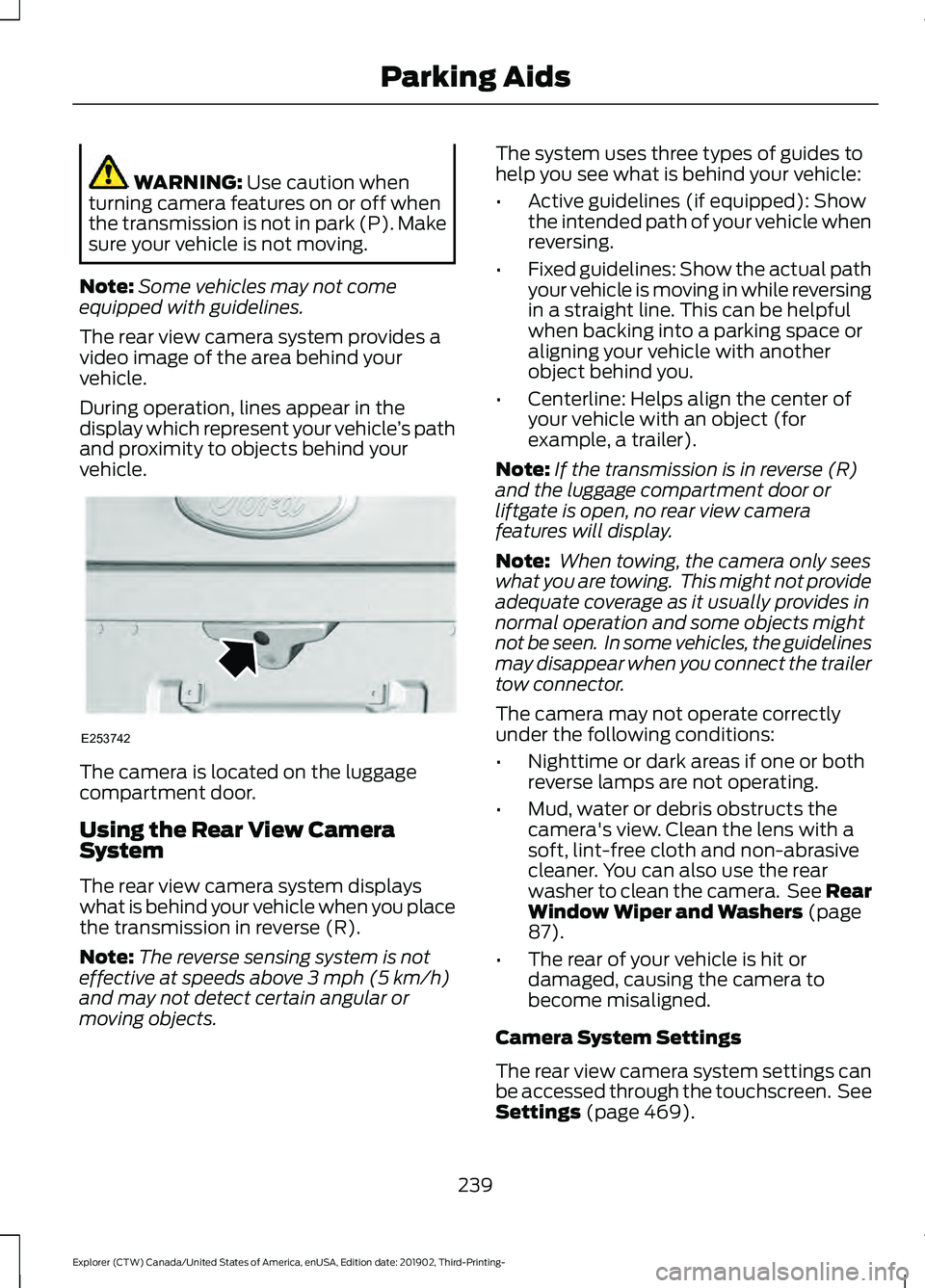
vehicle. The camera is located on the luggage
compartment door.
Using the Rear View Camera
System
The rear view camera system displays
what is behind your vehicle when you place
the transmission in reverse (R).
Note:
The reverse sensing system is not
effective at speeds above
3 mph (5 km/h)
and may not detect certain angular or
moving objects. The system uses three types of guides to
help you see what is behind your vehicle:
•
Active guidelines (if equipped): Show
the intended path of your vehicle when
reversing.
• Fixed guidelines: Show the actual path
your vehicle is moving in while reversing
in a straight line. This can be helpful
when backing into a parking space or
aligning your vehicle with another
object behind you.
• Centerline: Helps align the center of
your vehicle with an object (for
example, a trailer).
Note: If the transmission is in reverse (R)
and the luggage compartment door or
liftgate is open, no rear view camera
features will display.
Note: When towing, the camera only sees
what you are towing. This might not provide
adequate coverage as it usually provides in
normal operation and some objects might
not be seen. In some vehicles, the guidelines
may disappear when you connect the trailer
tow connector.
The camera may not operate correctly
under the following conditions:
• Nighttime or dark areas if one or both
reverse lamps are not operating.
• Mud, water or debris obstructs the
camera's view. Clean the lens with a
soft, lint-free cloth and non-abrasive
cleaner. You can also use the rear
washer to clean the camera. See Rear
Window Wiper and Washers
(page
87).
• The rear of your vehicle is hit or
damaged, causing the camera to
become misaligned.
Camera System Settings
The rear view camera system settings can
be accessed through the touchscreen. See
Settings
(page 469).
239
Explorer (CTW) Canada/United States of America, enUSA, Edition date: 201902, Third-Printing- Parking AidsE253742
Page 244 of 555
Manual Zoom
WARNING: When manual zoom is
on, the full area behind your vehicle may
not show. Be aware of your surroundings
when using the manual zoom feature.
Note: Manual zoom is only available when
the transmission is in reverse (R).
Note: When you enable manual zoom, only
the centerline is shown.
Selectable settings for this feature are
Zoom in (+) and Zoom out (-). Press the
symbol in the camera screen to change the
view. The default setting is Zoom OFF.
This allows you to get a closer view of an
object behind your vehicle. The zoomed
image keeps the bumper in the image to
provide a reference. The zoom is only
active while the transmission is in reverse
(R).
Rear Camera Delay
Selectable settings for this feature are ON
and OFF.
The default setting for the rear camera
delay is OFF.
When shifting the transmission out of
reverse (R) and into any gear other than
park (P), the camera image remains in the
display until:
• Your vehicle speed reaches
approximately
5 mph (8 km/h).
• You shift your vehicle into park (P). 360 DEGREE CAMERA
(IF
EQUIPPED) WARNING:
The 360 degree
camera system still requires the driver
to use it in conjunction with looking out
of the windows, and checking the interior
and exterior mirrors for maximum
coverage. WARNING:
Objects that are close
to either corner of the bumper or under
the bumper, might not be seen on the
screen due to the limited coverage of the
camera system. WARNING:
Use caution when
turning camera features on or off when
the transmission is not in park (P). Make
sure your vehicle is not moving. WARNING: You are responsible for
controlling your vehicle at all times. The
system is designed to be an aid and does
not relieve you of your responsibility to
drive with due care and attention. Failure
to follow this instruction could result in
the loss of control of your vehicle,
personal injury or death.
Note: Use caution using the 360 view when
any of the doors are ajar. If a door is ajar, the
camera becomes out of position and the
video image could be incorrect.
The 360 degree camera system consists
of front, side and rear cameras. The
system:
• Allows you to see what is directly in
front or behind your vehicle.
• Provides cross traffic view in front and
behind your vehicle.
241
Explorer (CTW) Canada/United States of America, enUSA, Edition date: 201902, Third-Printing- Parking Aids
Page 245 of 555
•
Allows you to see a top-down view of
the area outside your vehicle, including
the blind spots.
• Provides you with visibility around your
vehicle in parking maneuvers such as:
•Centering in a parking space.
• Obstacles near the vehicle.
• Parallel parking. The front camera enable button
is near the display screen and
turns on the front camera when
your vehicle is not in reverse (R).
Using the System
Note: The 360 degree camera system turns
off when your vehicle is in motion at low
speed, except when in reverse (R).
The front and rear cameras have multiple
screens which consist of normal view with
360, normal view, and split view. When in
park (P), neutral (N) or drive (D), only the
front images display when you press the
button. When in reverse (R), only the rear
images display. Press to access the different
camera views.
Normal + 360 view: Contains
the normal camera view next to
a 360 degree camera view. Normal view:
Provides an
image of what is directly in front
or behind your vehicle. Split view:
Provides an
extended view of what is in front
or behind your vehicle. Zooms in on the image. Keep Out Zone
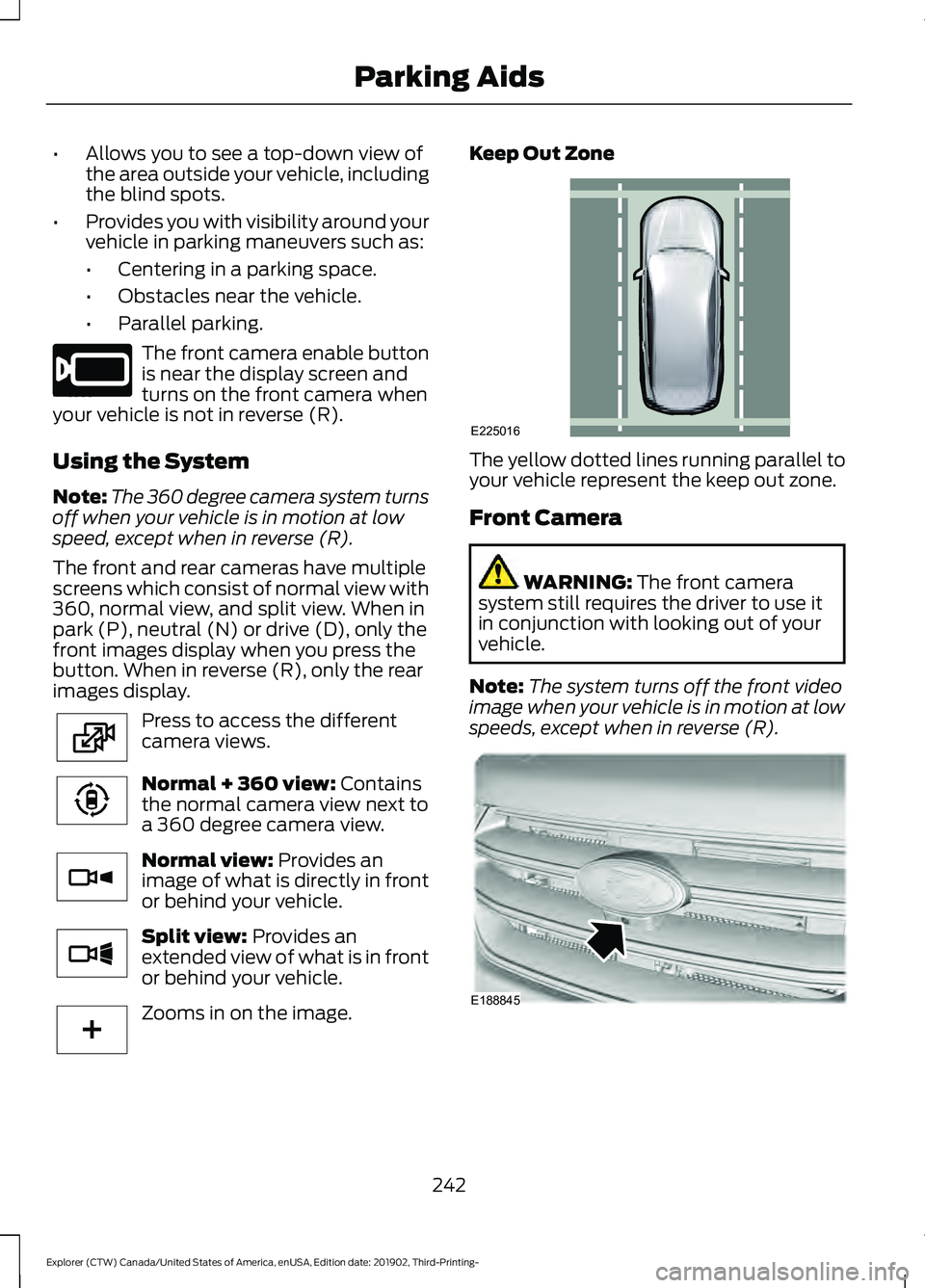
The yellow dotted lines running parallel to
your vehicle represent the keep out zone.
Front Camera
WARNING:
The front camera
system still requires the driver to use it
in conjunction with looking out of your
vehicle.
Note: The system turns off the front video
image when your vehicle is in motion at low
speeds, except when in reverse (R). 242
Explorer (CTW) Canada/United States of America, enUSA, Edition date: 201902, Third-Printing- Parking AidsE205884 E224483 E224783 E224784 E224785 E224485 E225016 E188845
Page 247 of 555
WHAT IS CRUISE CONTROL
Cruise control lets you maintain a set
speed without keeping your foot on the
accelerator pedal. You can use cruise
control when your vehicle speed is greater
than 20 mph (30 km/h).
SWITCHING CRUISE CONTROL
ON AND OFF WARNING:
Do not use cruise
control on winding roads, in heavy traffic
or when the road surface is slippery. This
could result in loss of vehicle control,
serious injury or death.
The cruise controls are on the steering
wheel. See
Cruise Control (page 83).
Switching Cruise Control On Press to set the system in
standby mode.
Switching Cruise Control Off Press the button when the
system is in standby mode.
The system also turns off when you switch
the ignition off.
Note: The set speed erases when you
switch the system off. SETTING THE CRUISE
CONTROL SPEED WARNING:
When you are going
downhill, your vehicle speed could
increase above the set speed. The
system does not apply the brakes.
Drive to the speed you prefer. Press the toggle button upward
or downward to set the current
speed.
Take your foot off the accelerator pedal.
Note: The indicator changes color in the
information display.
Changing the Set Speed Press and release the toggle
button upward to increase the
set speed in small increments.
Press and hold the toggle button upward
to accelerate. Release the button when
you have reached your preferred speed. Press and release the toggle
button downward to decrease
the set speed in small
increments.
Press and hold the toggle button
downward to decelerate. Release the
button when you have reached your
preferred speed.
Note: If you accelerate by pressing the
accelerator pedal, the set speed does not
change. When you release the accelerator
pedal, your vehicle returns to the speed that
you previously set.
244
Explorer (CTW) Canada/United States of America, enUSA, Edition date: 201902, Third-Printing- Cruise ControlE71340 E71340