2020 DODGE CHARGER change time
[x] Cancel search: change timePage 351 of 412
MULTIMEDIA349
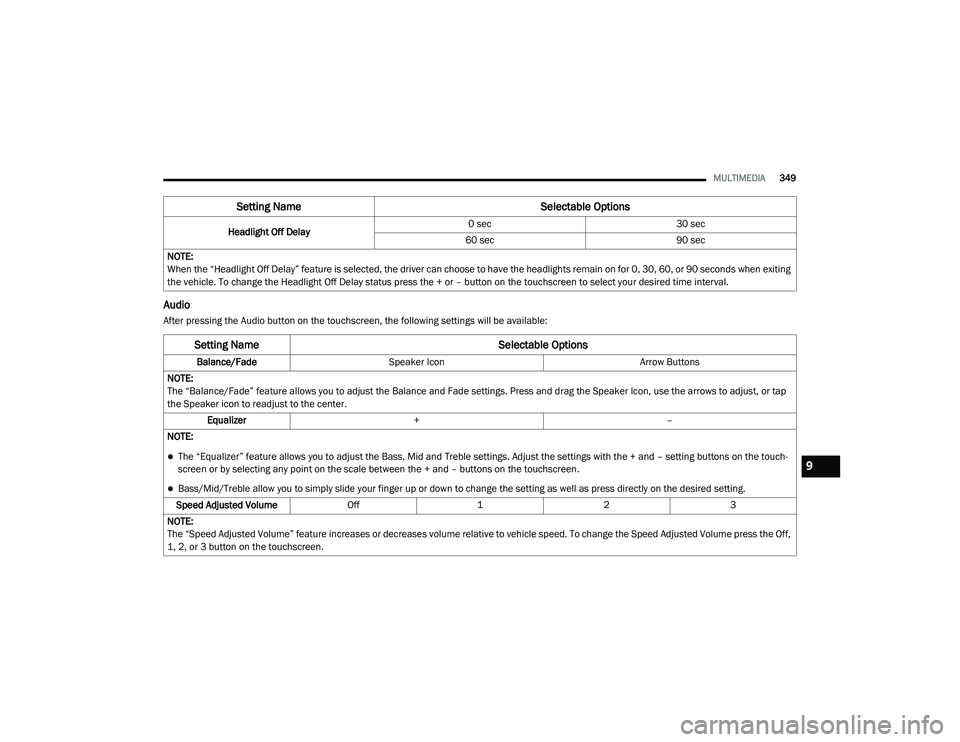
Audio
After pressing the Audio button on the touchscreen, the following settings will be available:Headlight Off Delay
0 sec
30 sec
60 sec 90 sec
NOTE:
When the “Headlight Off Delay” feature is selected, the driver can choose to have the headlights remain on for 0, 30, 60, or 90 seconds when exiting
the vehicle. To change the Headlight Off Delay status press the + or – button on the touchscreen to select your desired time interval.
Setting Name Selectable Options
Setting NameSelectable Options
Balance/FadeSpeaker Icon Arrow Buttons
NOTE:
The “Balance/Fade” feature allows you to adjust the Balance and Fade settings. Press and drag the Speaker Icon, use the arrows to adjust, or tap
the Speaker icon to readjust to the center. Equalizer + –
NOTE:
The “Equalizer” feature allows you to adjust the Bass, Mid and Treble settings. Adjust the settings with the + and – setting buttons on the touch -
screen or by selecting any point on the scale between the + and – buttons on the touchscreen.
Bass/Mid/Treble allow you to simply slide your finger up or down to change the setting as well as press directly on the desired setting.
Speed Adjusted Volume Off123
NOTE:
The “Speed Adjusted Volume” feature increases or decreases volume relative to vehicle speed. To change the Speed Adjusted Volume press the Off,
1, 2, or 3 button on the touchscreen.
9
20_LD_OM_EN_USC_t.book Page 349
Page 358 of 412

356MULTIMEDIA
Drag & Drop Menu Bar
The Uconnect features and services in the main
menu bar are easily changed for your
convenience. Simply follow these steps:
Uconnect 4 Main Menu
1. Press the Apps button to open the App screen.
2. Press and hold, then drag the selected App to replace an existing shortcut in the main
menu bar.
The new app shortcut, that was dragged down
onto the main menu bar, will now be an active
App/shortcut.
NOTE:
This feature is only available if the vehicle is in
PARK.
RADIO MODE
Radio Controls
The radio is equipped with the following modes:
AM
FM
SiriusXM® Satellite Radio – If Equipped
Press the Radio button on the touchscreen,
bottom left corner, to enter the Radio Mode. The
different tuner modes, AM, FM, and SXM, can
then be selected by pressing the corresponding
buttons in the Radio mode.
Volume/Power Control
Push the Volume/Power control knob to turn off
the screen and mute the radio. Push the
Volume/Power control knob a second time to
turn the screen back on and unmute the radio.
The electronic volume control turns
continuously (360 degrees) in either direction,
without stopping. Turning the Volume/Power
control knob clockwise increases the volume,
and counterclockwise decreases it. Tune/Scroll Control
When the audio system is turned on, the sound
will be set at the same volume level as last played.
Turn the rotary Tune/Scroll control knob
clockwise to increase or counterclockwise to
decrease the radio station frequency. Push the
Enter/Browse button to choose a selection.
Screen Close
The X button on the touchscreen at the top right,
provides a means to close the Direct Tune
Screen. The Direct Tune Screen also auto
closes if no activity occurs within a few seconds.
Seek And Direct Tune Functions
The Seek Up and Down functions are activated
by pressing the double arrow buttons on the
touchscreen to the right and left of the radio
station display or by pressing the left Steering
Wheel Audio Control up or down.
Seek Up
Press and release the Seek Up button on the
touchscreen to tune the radio to the next
listenable station or channel. During a Seek Up
function, if the radio reaches the starting station
after passing through the entire band two times,
the radio will stop at the station where it began.
20_LD_OM_EN_USC_t.book Page 356
Page 360 of 412

358MULTIMEDIA
Preset Selection From List
A Preset can be selected by pressing any of the
listed Presets or by pushing the ENTER/
BROWSE button on the TUNE/SCROLL knob to
select the currently highlighted Preset.
When selected, the radio tunes to the station
stored in the Preset and returns to the main
radio screen.
Deleting Presets
A Preset can be deleted in the Presets Browse
screen by pressing the Trash Can icon for the
corresponding Preset.
Return To Main Radio Screen
You can return to the Main Radio Screen, by
pressing the X button on the touchscreen when
in the Browse Presets screen.
SiriusXM® Satellite Radio Mode —
If Equipped
SiriusXM® Satellite Radio uses direct
satellite-to-receiver broadcasting technology to
provide clear, coast-to-coast radio content.
SiriusXM® is a subscription based service. SiriusXM® All Access Package
All satellite radio-equipped vehicles come with a
one-year trial to the SiriusXM® All Access
package, providing over 160 channels of the best
programming for all the places life takes you.
In your vehicle — You’ll get every channel
available on your radio, including all the
premium programming like Howard Stern,
every NFL® game, every MLB® game, every
NASCAR® race, Oprah Radio, and more.
On the go — With a SiriusXM® Internet Radio
subscription included with the All Access trial,
you’ll get SiriusXM® on your computer,
smartphone, or tablet. Including:
A huge On Demand catalog
Xtra Channels featuring SiriusXM®
Latino – a collection of Spanish-language
channels
MySXM – allowing you to personalize
your favorite music channels
Go to siriusxm.com/getallaccess for more
information
SiriusXM® services require subscriptions, sold
separately after the 12-month trial included
with the new vehicle purchase. If you decide to continue your service at the end of your trial
subscription, the plan you choose will
automatically renew and bill at then-current
rates until you call SiriusXM® at 866-635-2349
to cancel. See SiriusXM® Customer Agreement
for complete terms at www.siriusxm.com. All
fees and programming subject to change. Our
satellite service is available only to those at
least 18 and older in the 48 contiguous USA
and D.C. Our SiriusXM® satellite service is also
available in PR (with coverage limitations). Our
Internet radio service is available throughout
our satellite service area and in AK. © 202
1
SiriusXM® Radio Inc. Sirius, XM and all related
marks and logos are trademarks of SiriusXM®
Radio Inc. Service available in Canada; see
www.siriusxm.ca.
This functionality is only available for radios
equipped with a Satellite receiver. In order to
receive satellite radio, the vehicle needs to be
outside with a clear view to the sky.
If the screen shows Acquiring Signal, you might
have to change the vehicle’s position in order to
receive a signal. In most cases, the satellite
radio does not receive a signa l in underground
parking garages or tunnels.
20_LD_OM_EN_USC_t.book Page 358
Page 367 of 412
MULTIMEDIA365
Browse
Press the Browse button on the touchscreen to
display the browse window. The left side of the
browse window displays a list of ways you can
browse through the contents of the USB device/
iPod®. If supported by the device, you can
browse by Folders, Artists, Playlists, Albums,
Songs, etc. Press the desired button on the left
side of the screen. The center of the browse
window shows items and its sub-functions,
which can be scrolled by pressing the Up and
Down buttons to the right. The Tune/Scroll knob
can also be used to scroll.
Media Mode
Press the Media button on the touchscreen to
select the desired audio source: USB.
Repeat
Press the Repeat button on the touchscreen to
toggle the repeat functionality. The Repeat
button on the touchscreen is highlighted when
active. The Radio will continue to play the current
track, repeatedly, as long as the repeat is active.
Press the Repeat button on the touchscreen a
second time to turn this feature off.
Shuffle
Press the Shuffle button on the touchscreen to
play the selections on the USB/iPod® device in
random order to provide an interesting change of
pace. Press the Shuffle button on the touchscreen
a second time to turn this feature off.
Info
Press the Info button on the touchscreen to
display the current track information. Press the
Info button on the touchscreen a second time to
cancel this feature.
Tracks
Press the Tracks button on the touchscreen to
display a pop-up with the Song List. The
currently playing song is indicated by an arrow
and lines above and below the song title. When
in the Tracks List screen, you can rotate the
Tune/Scroll knob to highlight a track (indicated
by the line above and below the track name)
and then push the Enter/Browse knob to start
playing that track.
Pressing the Tracks button on the touchscreen
while the pop-up is displayed will close the
pop-up.Audio
Refer to “Radio Mode” for adjusting the audio
settings.
AUX Mode
Overview
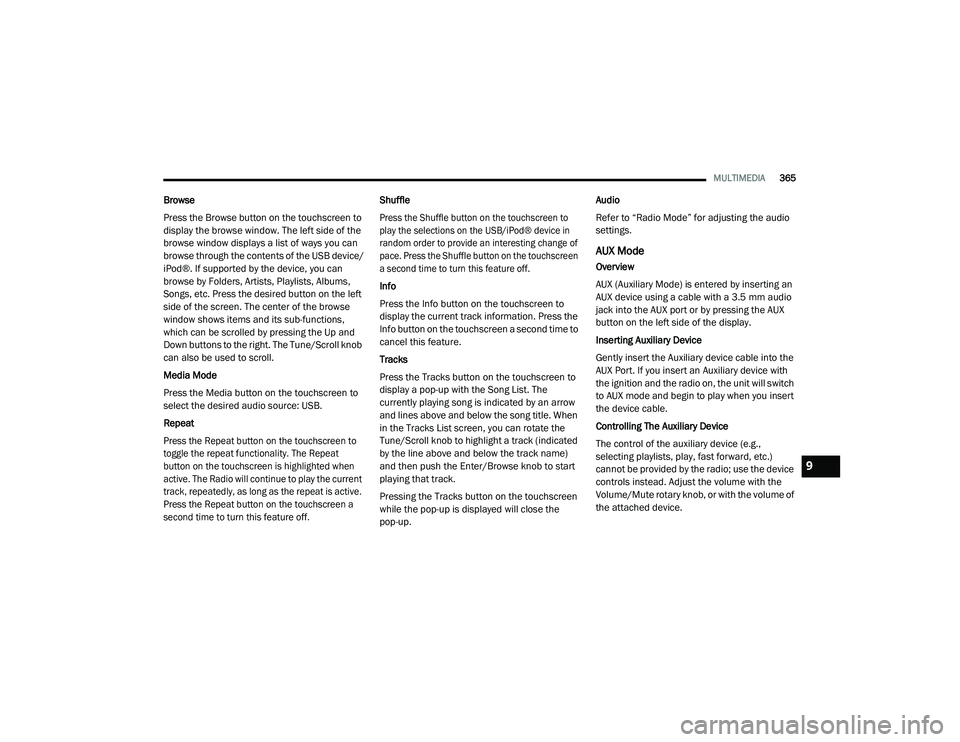
AUX (Auxiliary Mode) is entered by inserting an
AUX device using a cable with a 3.5 mm audio
jack into the AUX port or by pressing the AUX
button on the left side of the display.
Inserting Auxiliary Device
Gently insert the Auxiliary device cable into the
AUX Port. If you insert an Auxiliary device with
the ignition and the radio on, the unit will switch
to AUX mode and begin to play when you insert
the device cable.
Controlling The Auxiliary Device
The control of the auxiliary device (e.g.,
selecting playlists, play, fast forward, etc.)
cannot be provided by the radio; use the device
controls instead. Adjust the volume with the
Volume/Mute rotary knob, or with the volume of
the attached device.
9
20_LD_OM_EN_USC_t.book Page 365
Page 369 of 412
MULTIMEDIA367
number of its apps onto the touchscreen radio
display. Android Auto™ automatically brings you
useful information, and organizes it into simple
cards that appear just when they are needed.
Android Auto™ can be used with Google's
best-in-class speech technology, the steering
wheel controls, the knobs and buttons on your
radio faceplate, and the radio display’s
touchscreen to control many of your apps. To
use Android Auto™, follow the following
procedure:
1. Download the Android Auto™ app from the
Google Play store on your
Android™-powered smartphone.
2. Connect your Android™-powered smartphone to one of the media USB ports
in your vehicle. If the Android Auto™ app
was not downloaded, the first time you plug
your device in, the app will begin to
download.
NOTE:
Be sure to use the factory-provided USB cable
that came with your phone, as aftermarket
cables may not work.
3. Once the device is connected and recognized, the “Phone” icon on the drag & drop menu bar
changes to the Android Auto™ Icon.
Once Android Auto™ is up and running on your
Uconnect system, the following features can be
utilized using your smartphone’s data plan:
Google Maps™ for navigation
Google Play Music, Spotify, iHeart Radio, etc.
for music
Hands-free Calling and Texting for communi -
cation
Hundred of compatible apps
NOTE:
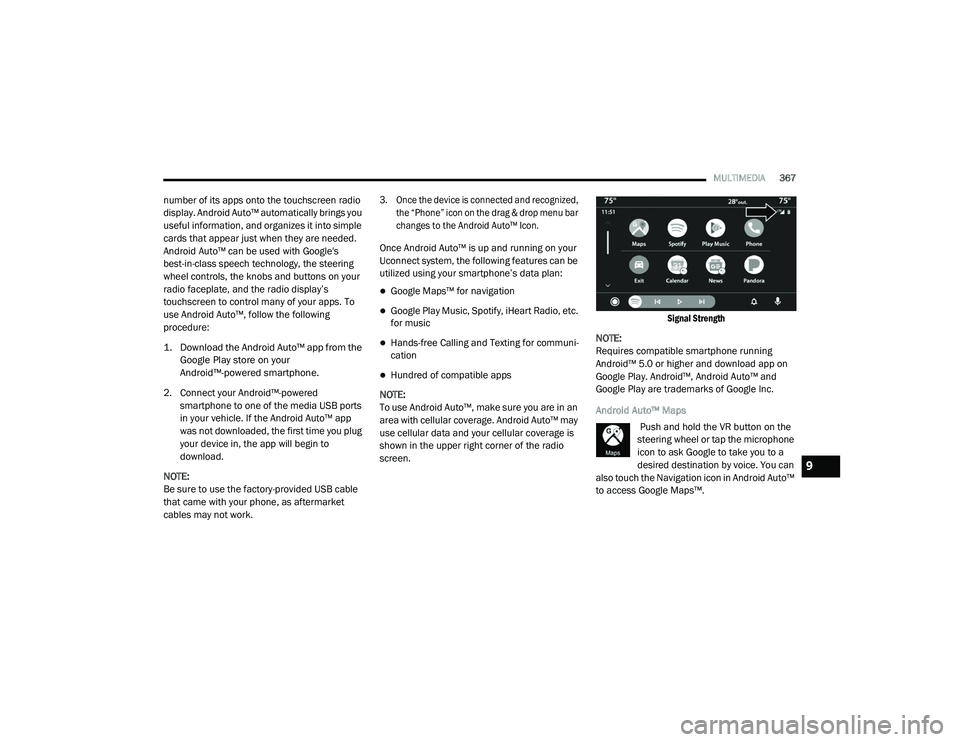
To use Android Auto™, make sure you are in an
area with cellular coverage. Android Auto™ may
use cellular data and your cellular coverage is
shown in the upper right corner of the radio
screen.
Signal Strength
NOTE:
Requires compatible smartphone running
Android™ 5.0 or higher and download app on
Google Play. Android™, Android Auto™ and
Google Play are trademarks of Google Inc.
Android Auto™ Maps Push and hold the VR button on the
steering wheel or tap the microphone
icon to ask Google to take you to a
desired destination by voice. You can
also touch the Navigation icon in Android Auto™
to access Google Maps™.
9
20_LD_OM_EN_USC_t.book Page 367
Page 371 of 412

MULTIMEDIA369
Apple CarPlay® Integration
NOTE:
Feature availability depends on your carrier and
mobile phone manufacturer. Some Apple
CarPlay® features may or may not be available
in every region and/or language.
Uconnect works seamlessly with Apple
CarPlay®, the smarter, more secure way to use
your iPhone® in the car, and stay focused on
the road. Use your Uconnect Touchscreen
display, the vehicle's knobs and controls, and
your voice with Siri to get access to Apple
Music®, Maps, Messages, and more.
To use Apple CarPlay®, make sure you are
using iPhone® 5 or later, have Siri enabled in
Settings, ensure your iPhone® is unlocked for
the very first connection only, and then use the
following procedure:
1. Connect your iPhone® to one of the media
USB ports in your vehicle.
NOTE:
Be sure to use the factory-provided Lightning
cable that came with your phone, as after -
market cables may not work.
2. Once the device is connected and recognized, the “Phone” icon on the drag & drop menu bar
changes to the Apple CarPlay® Icon.
Apple CarPlay®
Once Apple CarPlay® is up and running on your
Uconnect system, the following features can be
utilized using your iPhone’s® data plan:
Phone
Music
Messages
Maps NOTE:
To use Apple CarPlay® make sure that cellular
data is turned on, and that you are in an area
with cellular coverage. Your data and cellular
coverage is shown on the left side of the radio
screen.
NOTE:
Requires compatible iPhone®. See dealer for
phone compatibility. Data plan rates apply.
Vehicle user interface is a product of Apple®.
Apple CarPlay® is a trademark of Apple® Inc.
iPhone® is a trademark of Apple® Inc., regis
-
tered in the US and other countries. Apple®
terms of use and privacy statements apply.
Apple CarPlay® Phone
With Apple CarPlay®, push and hold
the VR button on the steering wheel to
activate a Siri voice recognition
session. You can also press and hold
the Home button within Apple CarPlay® to start
talking to Siri. This allows you to make calls or
listen to voice mail as you normally would using
Siri on your iPhone®.
9
20_LD_OM_EN_USC_t.book Page 369
Page 373 of 412
MULTIMEDIA371
USB connections to function, and the
connected device will be unavailable to other
devices when connected using Android Auto™.
Multiple Devices Connecting To The Uconnect
System
It is possible to have multiple devices
connected to the Uconnect system. For
example, if using Android Auto™/Apple
CarPlay®, the connected device will be the one
that will be used to place hands-free phone calls
or send hands-free text messages. However,
another device can also be paired to the
Uconnect system, via Bluetooth®, as an audio
source, so the passenger can stream music.
NOTE:
If using a Samsung device, every time it is
connected to a media USB, and there is
another device plugged in, you will need to
manually change the configuration of the
USB connection in order for the Samsung
device to send data.
The Uconnect 4 built-in media functions will
be unavailable when Android Auto™/Apple
CarPlay® are in use.
PHONE MODE
Overview
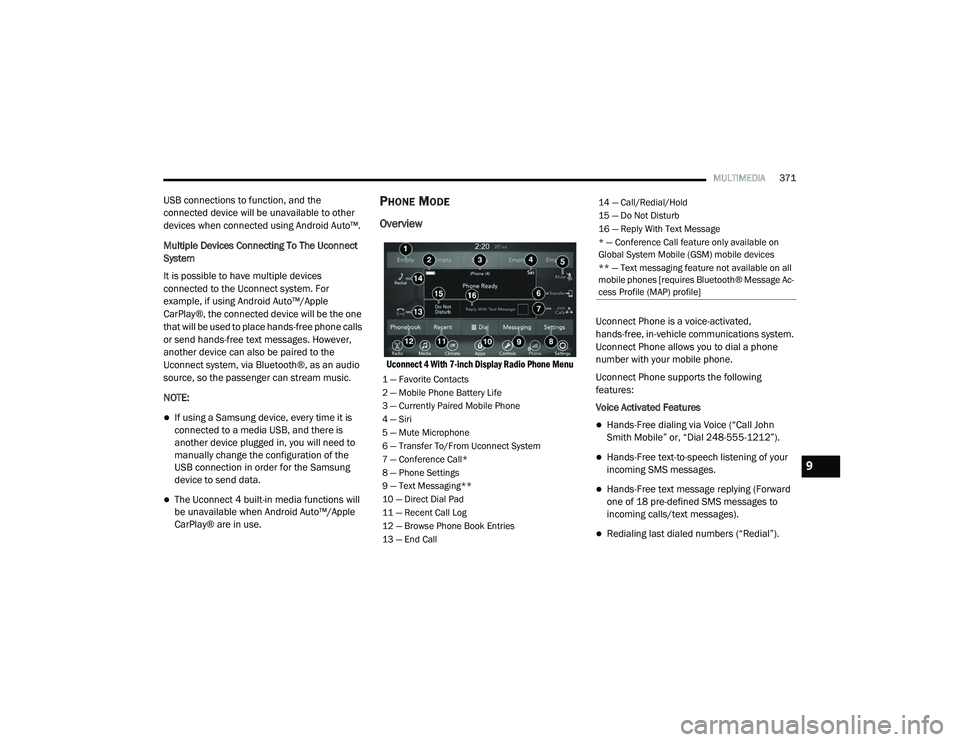
Uconnect 4 With 7-inch Display Radio Phone Menu
Uconnect Phone is a voice-activated,
hands-free, in-vehicle communications system.
Uconnect Phone allows you to dial a phone
number with your mobile phone.
Uconnect Phone supports the following
features:
Voice Activated Features
Hands-Free dialing via Voice (“Call John
Smith Mobile” or, “Dial 248-555-1212”).
Hands-Free text-to-speech listening of your
incoming SMS messages.
Hands-Free text message replying (Forward
one of 18 pre-defined SMS messages to
incoming calls/text messages).
Redialing last dialed numbers (“Redial”).
1 — Favorite Contacts
2 — Mobile Phone Battery Life
3 — Currently Paired Mobile Phone
4 — Siri
5 — Mute Microphone
6 — Transfer To/From Uconnect System
7 — Conference Call*
8 — Phone Settings
9 — Text Messaging**
10 — Direct Dial Pad
11 — Recent Call Log
12 — Browse Phone Book Entries
13 — End Call
14 — Call/Redial/Hold
15 — Do Not Disturb
16 — Reply With Text Message
* — Conference Call feature only available on
Global System Mobile (GSM) mobile devices
** — Text messaging feature not available on all
mobile phones [requires Bluetooth® Message Ac -
cess Profile (MAP) profile]
9
20_LD_OM_EN_USC_t.book Page 371
Page 378 of 412

376MULTIMEDIA
Pair A Bluetooth® Streaming Audio Device
1. Press the Media button on the
touchscreen to begin.
2. Change the Source to Bluetooth®.
3. Press the Bluetooth® button on the touchscreen to display the Paired Audio
Devices screen.
4. Press the Add Device button on the touchscreen.
NOTE:
If there is no device currently connected with
the system, a pop-up will appear.
5. Search for available devices on your Bluetooth®-enabled audio device. When
prompted on the device, enter the PIN
shown on the Uconnect screen.
6. Uconnect Phone will display an in-process screen while the system is connecting.
7. When the pairing process has successfully completed, the system will prompt you to
choose whether or not this is your favorite
device. Selecting “Yes” will make this device the highest priority. This device will take
precedence over other paired devices
within range.
NOTE:
For devices which are not made a favorite, the
device priority is determined by the order in
which it was paired. The latest device paired will
have the higher priority.
You can also use a following VR command to
bring up a list of paired audio devices:
“Show Paired Phones” or
“Connect My Phone”
Connecting To A Particular Mobile Phone Or
Audio Device After Pairing
Uconnect Phone will automatically connect to
the highest priority paired phone and/or Audio
Device within range. If you need to choose a
particular phone or Audio Device follow these
steps:
1. Press the Phone Settings button on the touchscreen.
2. Press the Paired Phones or Paired Audio Sources button on the touchscreen. 3. Press to select the particular Phone or the
particular Audio Device. A pop-up menu will
appear, press “Connect Phone”.
4. Press the X button to exit out of the Settings screen.
Disconnecting A Phone Or Audio Device
1. Press the Phone Settings button on the touchscreen.
2. Press the Paired Phones or Paired Audio Devices button on the touchscreen.
3. Press the Settings button located to the right of the device name.
4. The option’s pop-up will be displayed.
5. Press the Disconnect Device button on the touchscreen.
6. Press the X button to exit out of the Settings screen.
Deleting A Phone Or Audio Device
1. Press the Phone Settings button on the touchscreen.
2. Press the Pair Phones or Paired Audio Devices button on the touchscreen.
20_LD_OM_EN_USC_t.book Page 376