8S1012721BB
Media
Information — The protection levels for the Parental con-
trol are based on the US standards from the
Motion Picture Association of America
(MPAA). Note that the age levels for video
DVDs in European countries may differ.
— Password entry for Parental control will be
Aspect ra-
tio
4:3 The image is set to the 4:3 picture
format. Black bars are shown on
the sides of the Infotainment sys-
tem display.
16:9 The image is set to the 16:9 picture
format. Black bars are shown in the
upper and lower edges of the Info-
tainment system display.
locked for approximately one minute if you
enter the incorrect password three times in
a row. The password can only be reset by an
authorized Audi dealer.
G) Tips
— Not all video DVDs have parental control.
Supported media and file formats
LO TaV TN]
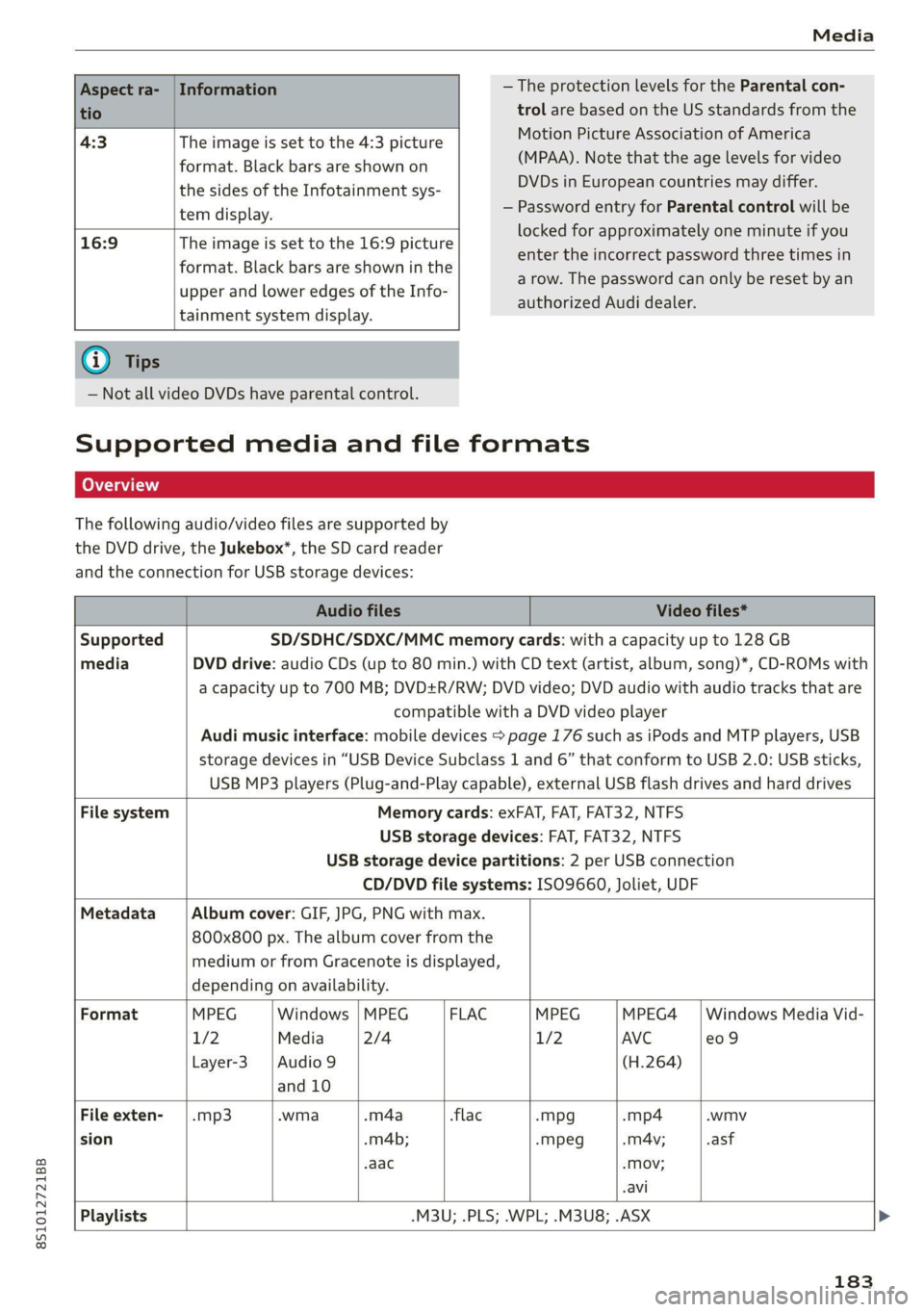
The following audio/video files are supported by
the DVD drive, the Jukebox*, the SD card reader
and the connection for USB storage devices:
Audio files Video files*
Supported SD/SDHC/SDXC/MMC memory cards: with a capacity up to 128 GB
media DVD drive: audio CDs (up to 80 min.) with CD text (artist, album, song)*, CD-ROMs with
a capacity up to 700 MB; DVD+R/RW; DVD video; DVD audio with audio tracks that are
compatible with a DVD video player
Audi music interface: mobile devices > page 176 such as iPods and MTP players, USB
storage devices in “USB Device Subclass 1 and 6” that conform to USB 2.0: USB sticks,
USB MP3 players (Plug-and-Play capable), external USB flash drives and hard drives
File system Memory cards: exFAT, FAT, FAT32, NTFS
USB storage devices: FAT, FAT32, NTFS
USB storage device partitions: 2 per USB connection
CD/DVD file systems: ISO9660, Joliet, UDF
Metadata Album cover: GIF, JPG, PNG with max.
800x800 px. The album cover from the
medium or from Gracenote is displayed,
depending on availability.
Format MPEG Windows | MPEG FLAC MPEG MPEG4 | Windows Media Vid-
1/2 Media 2/4 1/2 AVC e09
Layer-3 |Audio 9 (H.264)
and 10
File exten- | .mp3 .wma -m4a flac -mpg -mp4 .wmv
sion -m4b; -mpeg -mA4v; .asf
aac -Mov;
.avi
Playlists -M3U; .PLS; .WPL; .M3U8; .ASX
183
Checking and Filling
Service interval display
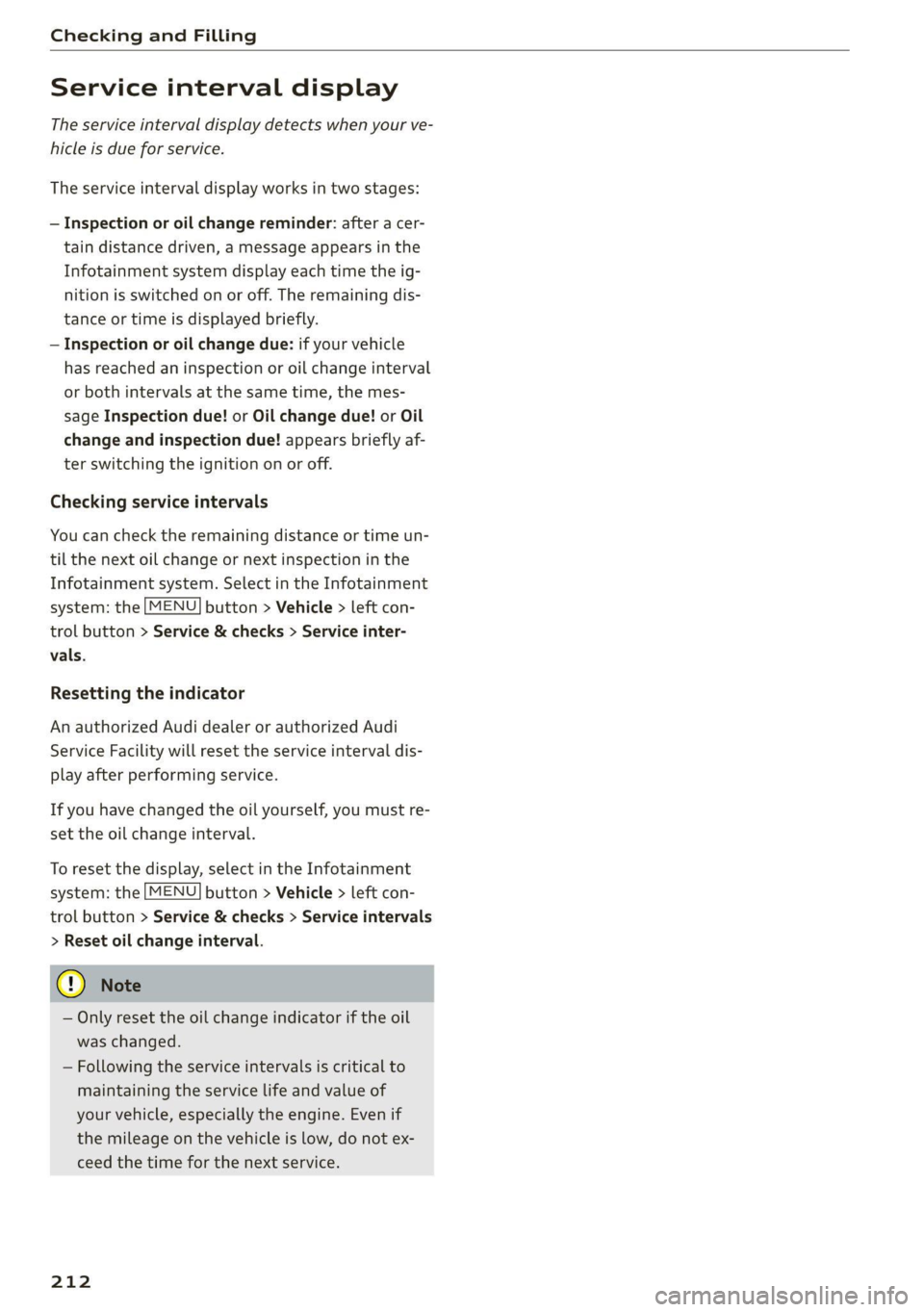
The service interval display detects when your ve-
hicle is due for service.
The service interval display works in two stages:
— Inspection or oil change reminder: after a cer-
tain distance driven, a message appears in the
Infotainment system display each time the ig-
nition is switched on or off. The remaining dis-
tance or time is displayed briefly.
— Inspection or oil change due: if your vehicle
has reached an inspection or oil change interval
or both intervals at the same time, the mes-
sage Inspection due! or Oil change due! or Oil
change and inspection due! appears briefly af-
ter switching the ignition on or off.
Checking service intervals
You can check the remaining distance or time un-
til the next oil change or next inspection in the
Infotainment system. Select in the Infotainment
system: the [MENU] button > Vehicle > left con-
trol button > Service & checks > Service inter-
vals.
Resetting the indicator
An authorized Audi dealer or authorized Audi
Service Facility will reset the service interval dis-
play after performing service.
If you have changed the oil yourself, you must re-
set the oil change interval.
To reset the display, select in the Infotainment
system: the [MENU] button > Vehicle > left con-
trol button > Service & checks > Service intervals
> Reset oil change interval.
@ Note
— Only reset the oil change indicator if the oil
was changed.
— Following the service intervals is critical to
maintaining the service life and value of
your vehicle, especially the engine. Even if
the mileage on the vehicle is low, do not ex-
ceed the time for the next service.
212