2020 AUDI A8 lights
[x] Cancel search: lightsPage 172 of 360

Driver assistance
sensors > page 156, fig. 117 and try to turn on
the systems again later.
If the malfunction remains, drive to an author-
ized Audi dealer or authorized Audi Service Facili-
ty immediately to have the malfunction correct-
ed.
ZA\ WARNING
— Follow the safety precautions and note the
limits of the assist systems, sensors, and
cameras > page 154.
— Pay attention to traffic and the area around
your vehicle when predictive control is
switched on. The driver is always responsible
for assessing the traffic situation.
— The system does not consider “right of way”
rules and does not respond to traffic lights,
so lack of driver attention in these situations
can increase the risk of an accident.
— The speed when driving through curves may
be different from what you as a driver would
do or may not be suitable for the weather
and road conditions. If necessary, apply the
brakes and reduce the selected speed to be
maintained in the Adjustment to curves
along route setting to reduce the risk of an
accident.
G) Tips
— Predictive control can exceed or drop below
the maximum permitted speed. The driver
is responsible for adhering to the permitted
speed limit.
— The traffic signs on the road always take pri-
ority over the display. The driver is always
responsible for adhering to the regulations
applicable in the country where the vehicle
is being operated.
—If a speed limit is detected, the marking @
of the set speed limit will be adjusted even
if the adaptive cruise assist is not actively
regulating.
— Control by the system depends on which
adaptive cruise assist driving program is set
or on the selected Audi drive select* mode.
YD In certain countries
170
— After switching on the ignition and first
driving onto a freeway or similar road with-
out a speed limit, the system will regulate
the speed to 80 mph (130 km/h). Then
the system adjusts to the last speed set by
the driver.
— There is no adaptation to speed limits when
driving through highway interchanges and
when driving on or off the expressway.
— The system can fail to provide control or the
control may be faulty if the values from the
camera-based traffic sign recognition* are
incorrect or the navigation system map data
is outdated.
— When route guidance is switched on, the
system adapts to the route provided by the
navigation system. Driving without route
guidance or leaving a route can result in
faulty control.
— Certain settings are stored automatically in
the active personal profile.
Adaptive cruise assist
General information
Applies to: vehicles with adaptive cruise assist
Depending on the vehicle equipment, the adap-
tive cruise assist may consist of the following
functions:
Within the limits of the system, the adaptive
speed and distance control assists the driver in
controlling the speed and the set distance to the
vehicle driving ahead. If the system detects a ve-
hicle driving ahead, the adaptive cruise assist can
brake and accelerate your vehicle within the lim-
its of the system. On open roads with no traffic, it
functions like a cruise control system. The stored
speed is maintained. When approaching a vehicle
driving ahead, the adaptive cruise assist auto-
matically brakes to match that vehicle's speed
and then maintains the set distance as much as
possible. As soon as the system does not detect a
vehicle driving ahead, adaptive cruise assist ac-
celerates up to the set speed.
Page 174 of 360

Driver assistance
— The adaptive cruise assist does not respond to
people, animals, or objects that are crossing or
approaching from the opposite direction.
Z\ WARNING
Follow the safety precautions and note the
limits of the assist systems, sensors, and
cameras > page 154.
Display overview
Applies to: vehicles with adaptive cruise assist
3] S|
me Ny Iz G3
Fig. 128 Instrument cluster: driver assistance display
Indicator lights and messages in the speedome-
ter @ -@) inform you about the driving situation
and the settings. In the Driver assistance display
@- ©, you can find more detailed information
about the system. The displays depend on the
country and equipment.
Display in the speedometer
The display in the speedometer is not available in
all layouts*.
@ Marking for the set speed
@ Current vehicle speed
@® Available speed range for adaptive cruise as-
sist (example)
172
Image in the Driver assistance display
The display only appears when the Driver assis-
tance display is open in the on-board computer
=> page 16.
Messages and settings
Detected vehicle driving ahead
Set target distance
If you fall below the set distance, the dis-
tance bars turn red from the bottom upward.
Your vehicle
©®
CO©®
Availability of lane departure warning
= page 180 and lane guidance
© Lane guidance for adaptive cruise assist is ac-
tive 1 or not active
Indicator lights
A - The speed/distance control is active. No
vehicles were detected ahead. The stored speed
is maintained.
Ba - The speed/distance control is active. A vehi-
cle was detected ahead. The adaptive cruise as-
sist controls the speed and distance from the ve-
hicle driving ahead, and accelerates and brakes
automatically.
A - The speed/distance control is active but the
vehicle is not ready to drive. A vehicle was de-
tected ahead. Your vehicle is stationary and will
not start driving automatically.
BS - The speed/distance control is active but the
vehicle is not ready to drive. No vehicles were de-
tected ahead. Your vehicle is stationary and will
not start driving automatically.
aA - The automatic braking is not enough to
maintain a sufficient distance to a vehicle driving
ahead. You must intervene > page 177, Driver in-
tervention request.
& This indicator light appears if steering activity
is no longer detected. Always keep your hands on
the steering wheel so you can be ready to steer at
any time. The indicator light will also turn off, for
example if the steering power from the system is
not sufficient and adaptive cruise assist is can-
celed > page 175.
Page 177 of 360

4N0012721BD
Driver assistance
— The driver's hands are not on the steering
wheel
Steering intervention request
If no steering activity is detected or the steering
power is not sufficient, the driver steering inter-
vention request will alert the driver using audio
and visual signals. Take over the steering and
keep your hands on the steering wheel so that
you will be ready to steer at any time. The system
will become inactive after a short time and will
only be active again later.
If the driver does not take over steering, adaptive
cruise assist will be canceled. If the vehicle is
equipped with emergency assist and it is ready to
function, it will be activated > page 190.
ZA WARNING
Follow the safety precautions and note the
limits of the assist systems, sensors, and
cameras > page 154.
@ Tips
— Always keep your hands on the steering
wheel. The driver is always responsible for
adhering to the regulations applicable in
the country where the vehicle is being oper-
ated.
— It is recommended to only switch on lane
guidance on well-constructed roads.
— Certain settings are stored automatically in
the active personal profile.
—The & fig. 131 button switches lane guid-
ance availability and the lane departure
warning on or off simultaneously, if lane
guidance is preset in the adaptive cruise as-
sist settings.
Setting the distance
Applies to: vehicles with adaptive cruise assist
B4M-0234
Fig. 132 Operating lever: setting the distance
If you adjust the speed, you must also change the
time gap to the vehicle driving ahead. The higher
the speed, the greater the distance that is need-
ed.
> Tap the rocker switch to display the distance
that is currently set.
> To increase or decrease the distance in incre-
ments, tap the switch again toward G) or ().
The newly-set distance will be shown briefly, for
example with the indicator light. In the Driv-
er assistance display, a graphic display is shown
instead of the indicator lights > page 172,
fig. 128. The display matches the functions of
the indicator lights.
When approaching a vehicle driving ahead, the
adaptive cruise assist brakes to the set speed and
then maintains the set distance. If the vehicle
driving ahead accelerates, then the adaptive
cruise assist will also accelerate up to the speed
that you have set.
The following distances can be set:
175
Page 182 of 360

Driver assistance
Lane departure warning
(erreur laced)
Applies to: vehicles with lane departure warning
The lane departure warning can detect lane
marker lines within the limits of the system. If
you are approaching a detected lane marker and
it appears likely that you will leave the lane, the
system can warn you with corrective steering and
a steering wheel vibration, if necessary.
The system functions in the speed range of ap-
proximately 40 mph - 155 mph (65 km/h -
250 km/h).
Applies to: vehicles with lane departure warning
and without side assist: The system will not warn
you before crossing a lane marker line if you have
activated the turn signal. In this case, it assumes
that you are changing lanes intentionally.
Applies to: vehicles with lane departure warning
combined with side assist: A noticeable corrective
steering movement will occur briefly before the
vehicle exits the lane if the turn signal is activat-
ed, the lane departure warning is ready, anda
lane change has been classified as critical by the
system due to vehicles traveling beside you or
due to approaching vehicles. This will attempt to
keep your vehicle in the lane.
ZA\ WARNING
Follow the safety precautions and note the
limits of the assist systems, sensors, and
cameras > page 154.
YD In certain countries
180
Applies to: vehicles with lane departure warning
B8V-0692
Fig. 138 Turn signal lever: switching the lane departure
warning on and off
RAZ-0107
Fig. 139 Instrument cluster: driver assistance display
Switching the lane departure warning on and
off
The lane departure warning switches on auto-
matically once the ignition is switched on )).
> To switch the system on or off, press the button
> fig. 138. The respective indicator light in the
instrument cluster will turn off or on.
Display and warning
The availability and readiness to provide warn-
ings will be indicated with the HL Hi indicator
lights.
Corrective steering will be indicated with the Hi
indicator light. If the lane departure warning
must intervene for a long period of time, a mes-
sage will request the driver to drive in the center
of the lane.
You can also open the Driver assistance display in
the on-board computer > page 16. The display
matches the functions of the indicator lights. >
Page 222 of 360
Audi connect
You can control the climate control in your vehi-
cle remotely using these services.
— Start or stop climate control
— Program the timer
— Deactivate or activate the timer
For additional information, see > page 108.
Geofencing Alert
Requirement: a key user must be set in the vehi-
cle > page 42.
This service allows you to set permitted and for-
bidden zones for your vehicle as well as set time
limits for these zones. If your vehicle leaves a
permitted zone or enters a forbidden zone, you
will be notified with a push notification and/or an
e-mail.
Speed Alert
Requirement: a key user must be set in the vehi-
cle > page 42.
You can set up to two speed limits for your vehi-
cle using this service. If your vehicle exceeds a set
speed limit, you will be notified with a push noti-
fication and/or e-mail.
Valet Alert
Requirement: a key user must be set in the vehi-
cle > page 219.
If you give your vehicle to a parking service, you
can set a zone and a speed limit using the myAu-
di app. If the vehicle leaves the zone or exceeds
the speed limit, you will be notified with a push
notification and/or e-mail.
ZA\ WARNING
— Do not ignore messages and warning or indi-
cator lights that turn on in the vehicle be-
cause of the information in the vehicle sta-
tus report. This could lead to break downs in
on the road, accidents and serious injuries.
— Applies to: vehicles with plug-in hybrid drive
Only perform the climate control functions
if your vehicle was shut off correctly and the
ignition is switched off.
— Applies to: vehicles with plug-in hybrid drive
Only perform charging functions on the
220
high-voltage battery if the vehicle is shut off
correctly, is connected to a suitable socket
and if the ignition is switched off.
G) Tips
For some services, you can select if you would
like to be notified with a push notification
and/or an e-mail.
Settings
Cell phone network
> Applies to: MMI: Select on the home screen:
SETTINGS > Connection settings > Mobile
phone network.
Depending on the country, vehicle equipment,
and connection type, the following functions may
be available:
Data connection settings
Using the Data connection settings menu, you
can set when the system should connect to the
Internet. The Internet connection disconnects
automatically once the requested Audi connect
Infotainment service no longer requires any data.
— Data roaming: data roaming is switched off at
the factory. To use a data connection outside of
the country, data roaming must be switched
on. The setting is stored for the current SIM
card or the mobile device that is currently con-
nected.
— Allow MMI online services: when this function
is switched on, a data connection is automati-
cally established in order to use Audi connect
Infotainment services.
— Allow Audi tablet online services: when this
function is switched on, a data connection is
automatically established in order to use Audi
connect Infotainment services on the Audi tab-
let.
— Allow Wi-Fi devices: when this function is
switched on, you can permit or deny mobile de-
vices to connect to the Internet on the Wi-Fi
hotspot.
Page 253 of 360
4N0012721BD
Media
— Always store data carriers in a protective
sleeve and do not expose them to direct
sunlight
— Do not use damaged, dirty, or laminated da-
ta carriers
— Do not use single CDs/DVDs with an 8 cm
diameter, non-circular CDs/DVDs (shaped
CDs), cleaning CDs, and protective rings
— Never force CDs/DVDs into the drive. Discs
are pulled in automatically.
@ Tips
The thermal protection switch stops playback
temporarily when outside temperatures are
too high.
Pe Rela)
Applies to: vehicles with a DVD drive
——
Fig. 172 Glove compartment: DVD drive
[RAH-9153|
Loading a CD/DVD
> Slide the CD/DVD straight into the DVD slot @
with the label facing up. The CD/DVD will be au-
tomatically pulled in.
Ejecting a CD/DVD
> Press the button (2).
The CD/DVD is pulled in again automatically if it
is not removed from the DVD slot within approxi-
mately ten seconds after ejecting it.
The DVD drive is accessed and operated through
the MMI > page 255.
@) Tips
— Playback cannot be guaranteed with media
files that have a high data rate.
— Always read the chapter > page 250, Gener-
al information.
DVD changer
Applies to: vehicles with DVD changer
RAH-7925|
Fig. 173 Between the rear seat backrests: DVD changer
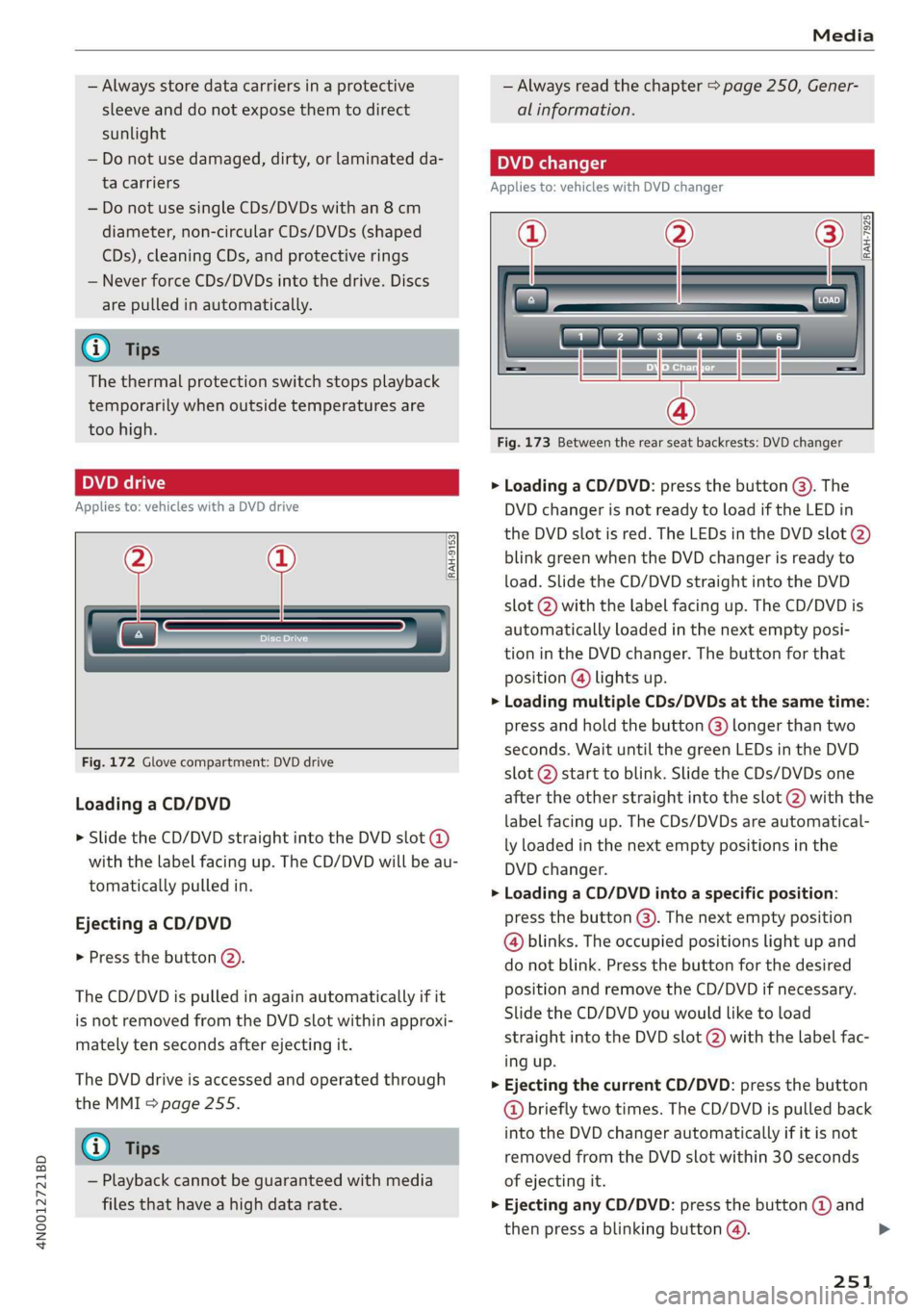
> Loading a CD/DVD: press the button @). The
DVD changer is not ready to load if the LED in
the DVD slot is red. The LEDs in the DVD slot (2)
blink green when the DVD changer is ready to
load. Slide the CD/DVD straight into the DVD
slot @ with the label facing up. The CD/DVD is
automatically loaded in the next empty posi-
tion in the DVD changer. The button for that
position @) lights up.
> Loading multiple CDs/DVDs at the same time:
press and hold the button @) longer than two
seconds. Wait until the green LEDs in the DVD
slot @) start to blink. Slide the CDs/DVDs one
after the other straight into the slot (2) with the
label facing up. The CDs/DVDs are automatical-
ly loaded in the next empty positions in the
DVD changer.
> Loading a CD/DVD into a specific position:
press the button @). The next empty position
@ blinks. The occupied positions light up and
do not blink. Press the button for the desired
position and remove the CD/DVD if necessary.
Slide the CD/DVD you would like to load
straight into the DVD slot @) with the label fac-
ing up.
>» Ejecting the current CD/DVD: press the button
@ briefly two times. The CD/DVD is pulled back
into the DVD changer automatically if it is not
removed from the DVD slot within 30 seconds
of ejecting it.
>
Ejecting any CD/DVD: press the button @ and
then press a blinking button @). >
251
Page 260 of 360
Media
tele miardatelary
Sa evar
Ke
Vera
RAX-0098
The Rock Band
Hymn
BUR la acre)
ait E)
ei)
Pr
NI Fe 7" Geers
Fig. 176 Upper display: left side: playback view, right side: playlist
Operating
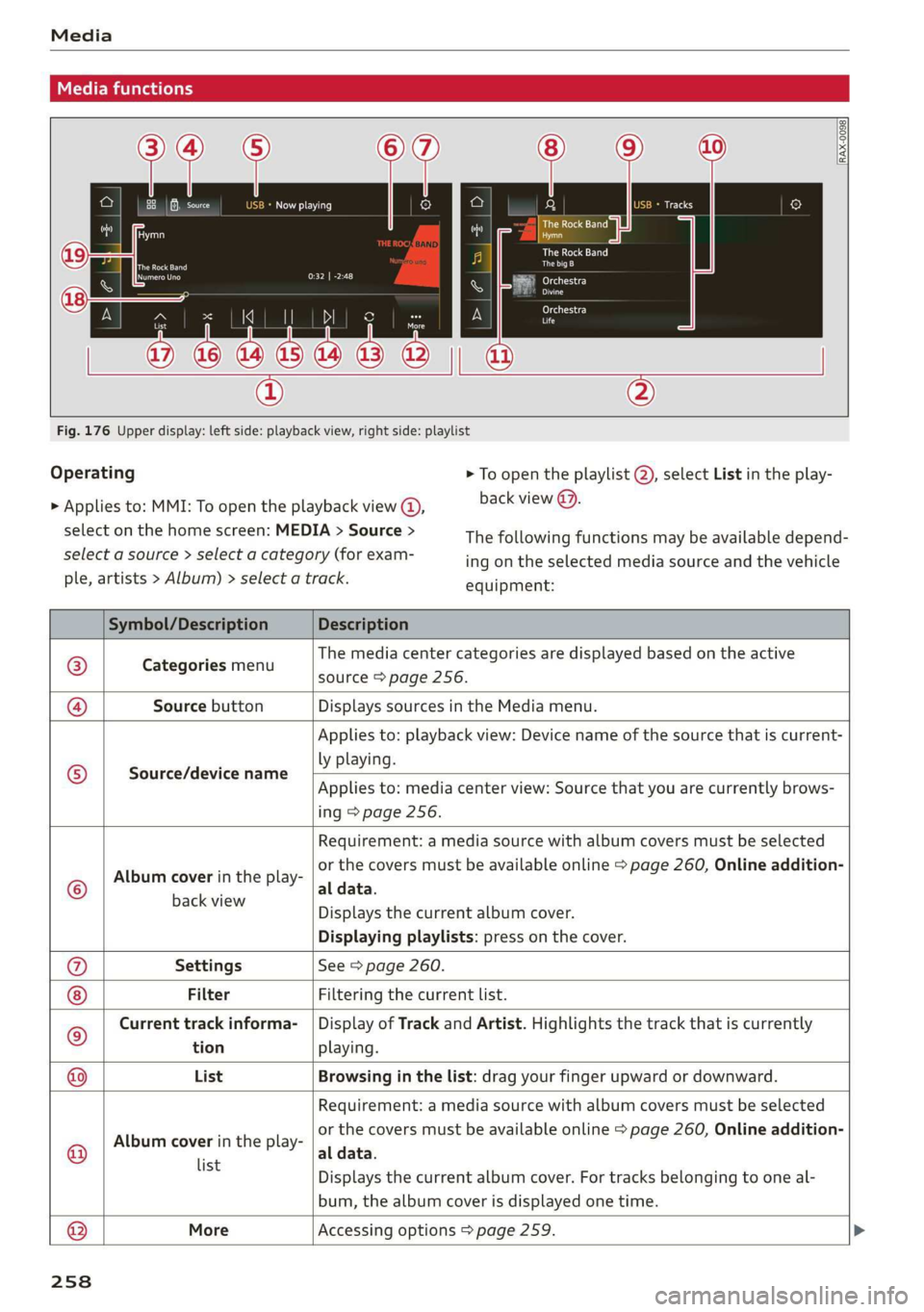
> Applies to: MMI: To open the playback view @,
select on the home screen: MEDIA > Source >
select a source > select a category (for exam-
ple, artists > Album) > select a track.
> To open the playlist @, select List in the play-
back view @.
The following functions may be available depend-
ing on the selected media source and the vehicle
equipment:
Symbol/Description Description
® Categories menu
The media center categories are displayed based on the active
source > page 256.
@ Source button Displays sources in the Media menu.
Source/device name
Applies to: playback view: Device name of the source that is current-
ly playing.
Applies to: media center view: Source that you are currently brows-
ing > page 256.
©
Album cover in the play-
Requirement: a media source with album covers must be selected
or the covers must be available online > page 260, Online addition-
al data.
BaGkview Displays the current album cover.
Displaying playlists: press on the cover.
®@ Settings See > page 260.
Filter Filtering the current list.
ro) Current track informa- | Display of Track and Artist. Highlights the track that is currently
tion playing.
List Browsing in the list: drag your finger upward or downward.
©
Album cover in the play-
Requirement: a media source with album covers must be selected
or the covers must be available online > page 260, Online addition-
al data.
i Displays the current album cover. For tracks belonging to one al-
bum, the album cover is displayed one time.
® More Accessing options > page 259.
258
Page 310 of 360

Wheels
changing or replacing a tire on your vehicle
=> page 308. The tire pressure monitoring system
only monitors the tire pressure you have stored.
Refer to the tire pressure label for the recom-
mended tire pressure for your vehicle
=> page 299, fig. 192.
Tire tread circumference and vibration character-
istics can change and cause a tire pressure warn-
ing if:
— The tire pressure in one or more tires is too low
— The tires have structural damage
— The tire was replaced or the tire pressure was
changed and it was not stored > page 308
— Tires that are only partially used are replaced
with new tires
Indicator lights
® - Loss of pressure in at least one tire > A\.
Check the tires and replace or repair if necessary.
Check and correct the pressures of all four tires
and store the pressure again > page 308.
is (Tire Pressure Monitoring System) Tire pres-
sure: malfunction! See owner's manual. If fi
appears after switching the ignition on or while
driving and the @ indicator light in the instru-
ment cluster blinks for approximately one minute
and then stays on, there is system malfunction.
Try to store the correct tire pressures
= page 308. In some cases, you must drive for
several minutes after storing the pressures until
the indicator light turns off. If the indicator light
does turn off or turns on again after a short peri-
od of time, drive to an authorized Audi dealer or
authorized Audi Service Facility immediately to
have the malfunction corrected.
ZA WARNING
— If the tire pressure indicator appears in the
display, reduce your speed immediately and
avoid any hard steering or braking maneu-
vers. Stop as soon as possible and check the
tires and their pressure.
— The driver is responsible for maintaining the
correct tire pressure. You must check the
tire pressure regularly.
— Under certain conditions (such as a sporty
driving style, winter conditions, or unpaved
308
roads), the tire pressure monitoring system
indicator may be delayed.
@ Tips
—The tire pressure monitoring system can al-
so stop working when there is an ESC mal-
function.
— Using snow chains may result in a system
malfunction.
—The tire pressure monitoring system in your
Audi was calibrated with “Audi Original
Tires” > page 296. Using these tires is rec-
ommended.
Storing tire pressures
Applies to: vehicles with Tire Pressure Monitoring System
If the tire pressure changes or a tire is replaced,
it must be confirmed in the MMI.
> Before storing the tire pressures, make sure the
tire pressures in all four tires meet the speci-
fied values and are adapted to the load
=> page 299.
> Switch the ignition on.
> Applies to: MMI: Select on the home screen:
VEHICLE > Settings & Service > Tire pressure
monitoring > Store tire pressure > Yes, store
now.
@ Tips
Do not store the tire pressures if snow chains
are installed.