2020 AUDI A3 service
[x] Cancel search: servicePage 190 of 400

Audi connect
If driving out of the country, applicable data
plans must be purchased.
Always follow the information found in > AV
in General information on page 182.
Always follow the information found in > © in
General information on page 182.
Troubleshooting
Applies to: vehicles with Audi connect Infotainment
The information that follows lists some trouble-
shooting options. They depend on the equip-
ment.
Audi connect Infotainment serv- | Some Audi connect Infotainment services must be activated or
ices: individual Audi connect Info- | configured through your personal myAudi account before using
tainment services are grayed out or | them for the first time. You can find detailed information online
not available. at my.audi.com.
Wi-Fi hotspot: it is not possible to | Check if Wi-Fi is activated in the MMI > page 187.
connect through Wi-Fi. Delete all existing Wi-Fi connections on your mobile device and
restart it.
188
Page 203 of 400

8V2012721BK
Navigation
Depending on the selected function, the follow-
ing settings can be selected:
Map colors
Day/Night: the map is displayed with a light/
dark background.
Automatic: the map display adapts to the light-
ing conditions (for example, changing from Day
to Night when driving through a tunnel).
Map display
Standard: > page 199, fig. 175.
Satellite map): > page 202.
Plug-in hybrid drive: Electric range: > page 201.
Map orientation
Destination map: the map indicates the destina-
tion and is oriented to the north.
2D heading-up map/2D north-up map: the cur-
rent vehicle position is displayed. The map is ori-
ented in the direction of travel or to the north.
3D heading-up map”: the current vehicle posi-
tion is shown on a three-dimensional map and is
aligned to the direction of travel. At a scale of 62
mi (100 km) and larger, the map orientation is to
the north.
Overview map: the entire route from the vehicle
position to the destination or the next stopover is
displayed on the map. The map scale depends on
the length of the route and adapts automatically.
The map is oriented to the north.
Route information
The display of route information, such as the cur-
rent street being driven on or points of interest
along the current route, can be switched on/off
or can be minimized on the display of upcoming
maneuvers.
Automatic zoom
On: the map scale is adapted automatically de-
pending on the type of road being traveled (ex-
D) AUDI AG provides access to services from third party pro-
viders. Permanent availability cannot be guaranteed, be-
cause that depends on the third party provider.
pressway, highway, other roads) so that you al-
ways have an optimal overview of the road ahead.
The scale will also be automatically adapted
when there are upcoming maneuvers to provide a
better detailed view.
Intersection: when route guidance is active, the
map temporarily zooms in to a detailed scale
when there are upcoming maneuvers so that you
can see the street or turn better.
Off: the map scale you have chosen is main-
tained.
Map content
Map content such as weather, traffic information
or favorites can be displayed or hidden.
The weather forecast* is displayed on a 3 mile (5
km) scale on the map > page 197, fig. 172.
Electric range
Applies to: vehicles with navigation system and plug-in hybrid
drive
Fig. 176 Infotainment system: electric range display
The electric range shows the maximum distance
that can be driven using electric power. Informa-
tion such as the type of road, speeds, and alti-
tude will be taken into account.
> Press the [NAV/MAP] button repeatedly until
the map is displayed > page 199, fig. 175.
> Select: right control button > Map settings >
Map display > Electric range.
> Press the [BACK] button to return to the map
view.
201
Page 204 of 400

Navigation
You can read the electric range of your vehicle
based on the border (2).
The map scale will automatically adjust to the
range.
Satellite map
Applies to: vehicles with a navigation system and Audi con-
nect Infotainment
S Figueroa St
W Washington Blvd D 3
Los Angeles
Fig. 177 Infotainment system: satellite map
You can display the navigation map with satellite
images.
Requirement: the requirements for Audi connect
Infotainment must be met > page 182.
> Press the LNAV/MAP] button repeatedly until
the map is displayed.
> Select: right control button > Map settings >
Map display > Satellite map).
The map view is based on data packets received
from the Internet in the form of satellite images,
which are then combined with the roadways from
the Standard map view. There are two gigabytes
of memory space in the MMI memory that can be
used to temporarily store the map or navigation
data that was received. This is roughly the
amount required for the map/navigation data for
a 2,485 mile (4,000 km) route. As long as the
satellite images loaded for route guidance are
stored, you can use them without having an ac-
tive data connection.
2) AUDI AG provides access to services from third party pro-
viders. Permanent availability cannot be guaranteed, be-
cause that depends on the third party provider.
202
@) Note
Read the information about Audi connect, and
be sure to note the connectivity costs section
=> page 182.
@) Tips
—The stored satellite map data) can be de-
leted under Factory settings > Navigation
and online memory > page 231.
—The satellite map) is updated regularly
whenever the function is opened. The proc-
ess may take several seconds.
— When the satellite map display” is switched
on with the 3D position map, the map dis-
play automatically switches to the 2D map
type when driving through tunnels.
— For additional information, visit www.
audiusa.com.
Map update
Applies to: vehicles with navigation system
There are multiple options available for updating
your map material:
— Map updates through the online map update*
=> page 203.
— Import map updates from the SD card* to your
MMI. You can find additional information on-
line at my.audi.com.
— Map update at an authorized Audi dealer or au-
thorized Audi Service Facility. This can result in
additional costs.
Page 205 of 400

8V2012721BK
Navigation
Online map update
Applies to: vehicles with a navigation system and Audi con-
nect Infotainment
Recommended regions —> Confirmation
You have chosen to download 109 MB of data
Please be aware of your mobile data
allowance. Would you like to continue?
@
Start download
Fig. 178 Infotainment system: display of a new online
map update
Online Update > Recommended regions
RAH-8984 | Recommended regions: |
eta) w
3 botany (2)
Fig. 179 Infotainment system: country package selection
Using the online map update, you can update the
map material in your navigation system directly
from your vehicle.
Requirement: the requirements for Audi connect
Infotainment services must be met > page 183.
You must have a myAudi account and have as-
signed your vehicle to it.
Using your vehicle position, the MMI identifies
regions which you are frequently in. Based on
this, the MMI suggests update packages for
these regions, if they are available.
Accessing an online map update
> Select and confirm @ Start download if the
message for a new map update appears in the
Infotainment system display, or:
> Select [MENU] button > Settings > left control
button > System maintenance > System up-
date > Online update.
A selection with the available update packages
appears in the Infotainment system display.
Selecting the online map update
> Select an update package from the list (4) @.
> Confirm your selection with the [BACK] button
and go back to the selection.
The number and amount of data for the selected
update package are now displayed in the Info-
tainment system.
Starting the download
> Select and confirm Start download.
> Confirm the security prompt by selecting Start
download again.
The update packages begin to download and the
status of the download progress is shown in the
Infotainment system display.
Installation of online map updates
The downloaded map material installs after you
stop your vehicle. The new update packages in-
stall only after you switch off the ignition. After
restarting the MMI, the Infotainment system dis-
play indicates if the updates installed successful-
ly. >
Confirm the successful update with OK.
The new map material can now be used for navi-
gation.
@) Note
Read the information about Audi connect, and
be sure to note the connectivity costs section
=> page 182.
@) Tips
The amount of available online map updates
in the vehicle is limited. To update more re-
gions, use the map update via SD card at my.
audi.com.
203
Page 206 of 400

Navigation
Accessing traffic
information
COT eee adele)
Applies to: vehicles with a navigation system and Audi con-
nect Infotainment
RAH-8979) Reece t eye Ce ml)
> G5) Northbound
J
@5) Nogales St, Northbound
(2) . LINE
Fig. 180 Infotainment system: online traffic information
display* without better route
The MMI can receive real-time online traffic infor-
mation about congestion, accidents, road con-
struction, and other incidents.
Requirement: the requirements for Audi connect
Infotainment must be met > page 182.
Accessing online traffic information
> Press the LNAV/MAP] button repeatedly until
the map is displayed.
> Select: left control button > Traffic messages.
An overview of all the traffic messages is dis-
played in the Infotainment system. Traffic inci-
dents on your route are shown in the upper sec-
tion of the list, sorted according to distance ©.
Colored markings indicate the flow of traffic
=> page 204.
Turning on traffic information online
> Press the right control button and turn on On-
line traffic data (MY). The [ONLINE] symbol is
shown in the Infotainment system display @).
You can also display the online traffic informa-
tion on the satellite map!) > page 202.
Traffic information display
Color-coded markings along the route indicate
the traffic flow:
2) AUDI AG provides access to services from third party pro-
viders. Permanent availability cannot be guaranteed, be-
cause that depends on the third party provider.
204
Green: traffic is flowing freely.
Orange: stop-and-go traffic
Red: congestion.
Shaded markings indicate the length of the area
with congestion.
Colored warning symbols: there is a traffic inci-
dent immediately ahead on the route.
Grayed out warning symbols: traffic incidents
that are not on your route.
Red warning symbols: all warning symbols will
be red when route guidance is not active.
The display of colored markings, warning sym-
bols, etc. can be set in the Map content menu
=> page 201.
Traffic information is switched on at the factory.
You can switch off the reception of online traffic
information at any time > page 204.
@) Note
Read the information about Audi connect, and
be sure to note the connectivity costs section
=> page 182.
G) Tips
— Having the Online traffic data function
switched on provides the most accurate re-
ports of traffic situations as well as traffic
forecasting. Your vehicle transmits and
processes its anonymous, encrypted posi-
tion information at regular intervals to the
traffic data provider. If you do not want to
use this, you can switch off the online traf-
fic information function at any time.
— The online traffic information network is
currently not available in all countries, and
the coverage is not nationwide. For addi-
tional information, visit www.audiusa.com.
Page 217 of 400
8V2012721BK
Media
Requirement: the Wi-Fi function on your media
player must be switched on. The myAudi app or a
UPnP server app is installed on your media play-
er, or your media player has an integrated UPnP/
DLNA server.
— Connecting a media player: press the [MEDIA
button. Press the left control button until the
sources overview > page 219 is displayed. Se-
lect and confirm Wi-Fi audio player 7)
=> page 219, fig. 192.
— If necessary, select and confirm Wi-Fi turned
off > Turn on Wi-Fi to activate Wi-Fi in the
MMI. Select Wi-Fi settings, if necessary. Select
the same settings on the wireless media player
that are used for the Wi-Fi hotspot.
— Starting the Wi-Fi audio player: start the
myAudi app or a UPnP server app, or set media
permissions on your media player.
Operating the media player: the media player is
operated through the MMI.
— Press the left control button repeatedly until
the Folders menu item appears. Select and con-
firm
Folders.
— Playing music from the media player: select
and confirm Media center.
Web radio: see > page 215.
ZA\ WARNING
— As the driver, do not allow usage of the Wi-
Fi hotspot to distract you from driving, as
this could increase the risk of an accident.
—To reduce the risk of an accident, only use
Audi connect services and the Wi-Fi hotspot
only if the traffic situation permits it. Read
and follow the guidelines provided in
=> page 146, Traffic safety information.
— It is only safe to use tablets, laptops, mobile
devices and other similar devices when the
vehicle is stationary because, like all loose
objects, they could be thrown around the in-
side of the vehicle in a crash and cause seri-
ous injuries. Store these types of devices se-
curely while driving. Also read the warnings
in the chapter > page 257, Front airbags.
CG) Note
Always follow the information found in >@ in
General information on page 182.
@) Tips
— Always read the chapter > page 182, Audi
connect.
— Please note that a Wi-Fi connection does
not automatically make it possible to use
the Internet. For additional information,
see > page 182.
—To avoid interruptions during playback, de-
activate the power saving function on the
media player or connect it to a charger.
—The loading times for the audio data depend
on the media player used and the number of
files
that it contains.
—A maximum of 2,000 entries per directory
are displayed in the MMI.
— Songs downloaded for offline use using mu-
sic streaming services are stored on your
mobile device (such as a smartphone) and
may be DRM protected. The Wi-Fi audio
player will not play DRM protected files.
— Contact an authorized Audi dealer or au-
thorized Audi Service Facility for additional
information on the Wi-Fi audio player.
Online media and
Internet radio
Applies to: vehicles with Audi connect Infotainment
sh
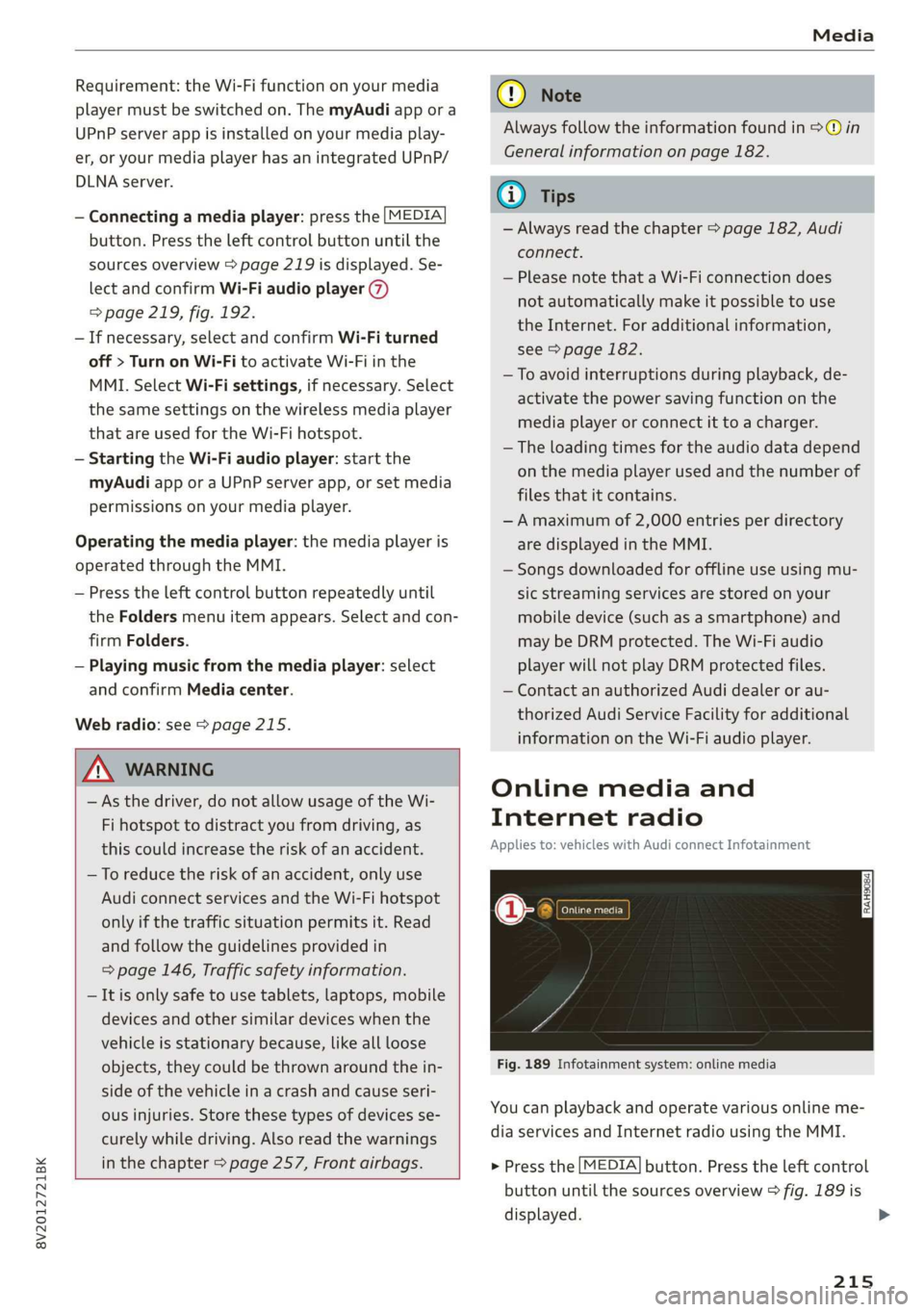
Fig. 189 Infotainment system: online media
You can playback and operate various online me-
dia services and Internet radio using the MMI.
> Press the [MEDIA] button. Press the left control
button until the sources overview > fig. 189 is
displayed.
215
>
Page 218 of 400
Media
Applies to: online media and Internet radio usage
Requirement:
— The myAudi app must be installed and open on
your mobile device.
— You must be logged in to your myAudi account
in the myAudi app and you must have selected
your vehicle.
— The Wi-Fi function on the mobile device and on
the MMI must be switched on.
— If necessary, check in the connection manager
=> page 231 if the mobile device you connected
is selected under the MMI connect app (™).
—The MMI must be connected to the network.
— The symbol for the Online media source (@ is
shown in the MMI.
Applies to: online media usage
Additional requirement:
— A supported online media service must be avail-
able in the country where the vehicle is being
operated.
— You must have an account with a supported on-
line media service.
— Depending on the online media service, you
may need to install and open an app on your
mobile device.
Starting Online media
— Press the [MEDIA] button. Press the left control
button until the sources overview > page 219 is
displayed.
— Select and confirm an online media service.
Starting Internet radio
— Press the [MEDIA] button. Press the left control
button until the sources overview > page 219 is
displayed.
— Select and confirm Internet radio. The Internet
radio browser or the last station that was play-
ing is shown.
— Selecting the station: if necessary, select and
confirm a category in the Internet radio Brows-
er > a station.
Online media and Internet radio: additional op-
tions
— Press the right control button.
216
The following options may be available, depend-
ing on the information shown (such as the sta-
tion/track that is currently playing):
— Sound settings: see > page 234.
— Wi-Fi settings: see > page 187, Wi-Fi settings.
— Connection manager: see > page 231.
— Additional options may be available, depending
on the active online media service or Internet
radio.
ZA WARNING
—To reduce the risk of an accident, only use
Audi connect services and the Wi-Fi hotspot
only if the traffic situation permits it. Read
and follow the guidelines provided in
=> page 146, Traffic safety information.
— It is only safe to use tablets, laptops, mobile
devices and other similar devices when the
vehicle is stationary because, like all loose
objects, they could be thrown around the in-
side of the vehicle in a crash and cause seri-
ous injuries. Store these types of devices se-
curely while driving. Also read the warnings
in the chapter > page 257, Front airbags.
@) Note
— Always follow the information found in >®
in General information on page 182.
— There generally are additional costs when
using an online media service account, espe
cially when it is used internationally.
(i) Tips
— Depending on the Internet connection and
network traffic, the connection may discon-
nected when online media sources are play-
ing.
— Online media and Internet radio usage de-
pends on the service availability of the third
party provider.
— Audi AG simply makes the access to online
media services possible through the MMI
and does not take any responsibility for the
contents of the online media services.
— Always read the chapter > page 182, Audi
connect.
Page 219 of 400
8V2012721BK
Media
— Depending on the mobile device being used,
there may be interruptions during media
playback and when using the myAudi app.
To prevent interruptions when using a mo-
bile device, do not lock the screen on your
mobile device and keep the myAudi app in
the foreground.
— Contact an authorized Audi dealer or au-
thorized Audi Service Facility for additional
information about online media.
Multimedia connections
USB adapter for Audi music interface
oe ®
S2
<&
7
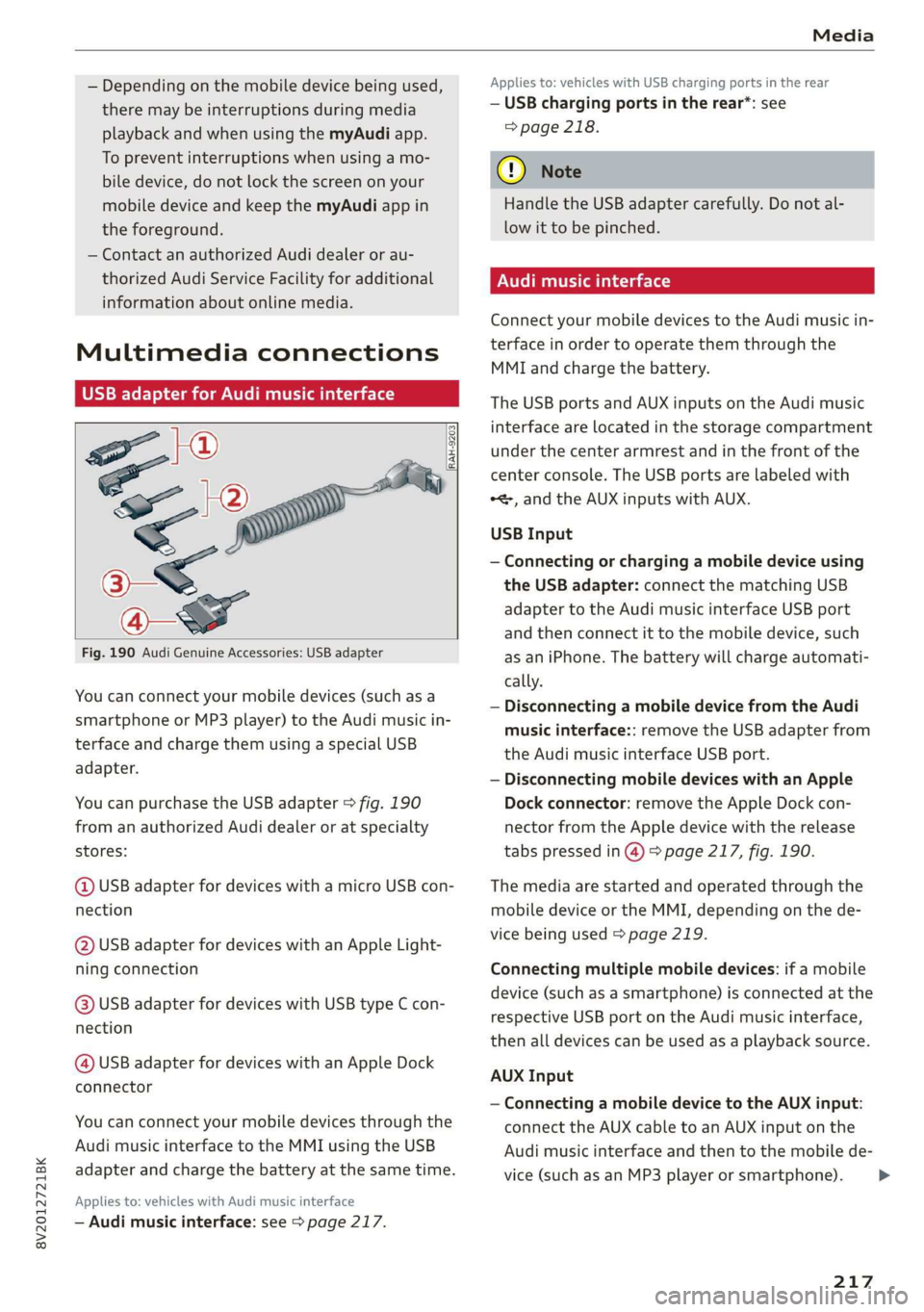
Fig. 190 Audi Genuine Accessories: USB adapter
[RAH-9203]
You can connect your mobile devices (such as a
smartphone or MP3 player) to the Audi music in-
terface and charge them using a special USB
adapter.
You can purchase the USB adapter > fig. 190
from an authorized Audi dealer or at specialty
stores:
@ USB adapter for devices with a micro USB con-
nection
@ USB adapter for devices with an Apple Light-
ning connection
@ USB adapter for devices with USB type C con-
nection
@ USB adapter for devices with an Apple Dock
connector
You can connect your mobile devices through the
Audi music interface to the MMI using the USB
adapter and charge the battery at the same time.
Applies to: vehicles with Audi music interface
— Audi music interface: see > page 217.
Applies to: vehicles with USB charging ports in the rear
— USB charging ports in the rear*: see
=> page 218.
@) Note
Handle the USB adapter carefully. Do not al-
low it to be pinched.
Audi music interface
Connect your mobile devices to the Audi music in-
terface in order to operate them through the
MMI and charge the battery.
The USB ports and AUX inputs on the Audi music
interface are located in the storage compartment
under the center armrest and in the front of the
center console. The USB ports are labeled with
*<, and the AUX inputs with AUX.
USB Input
— Connecting or charging a mobile device using
the USB adapter: connect the matching USB
adapter to the Audi music interface USB port
and then connect it to the mobile device, such
as an iPhone. The battery will charge automati-
cally.
— Disconnecting a mobile device from the Audi
music interface:: remove the USB adapter from
the Audi music interface USB port.
— Disconnecting mobile devices with an Apple
Dock connector: remove the Apple Dock con-
nector from the Apple device with the release
tabs pressed in @) > page 217, fig. 190.
The media are started and operated through the
mobile device or the MMI, depending on the de-
vice being used > page 219.
Connecting multiple mobile devices: if a mobile
device (such as a smartphone) is connected at the
respective USB port on the Audi music interface,
then all devices can be used as a playback source.
AUX Input
— Connecting a mobile device to the AUX input:
connect the AUX cable to an AUX input on the
Audi music interface and then to the mobile de-
vice (such as an MP3 player or smartphone).
217