Page 308 of 657
Continued307
uuAudio System Basic Operation uAndroid Auto
Features
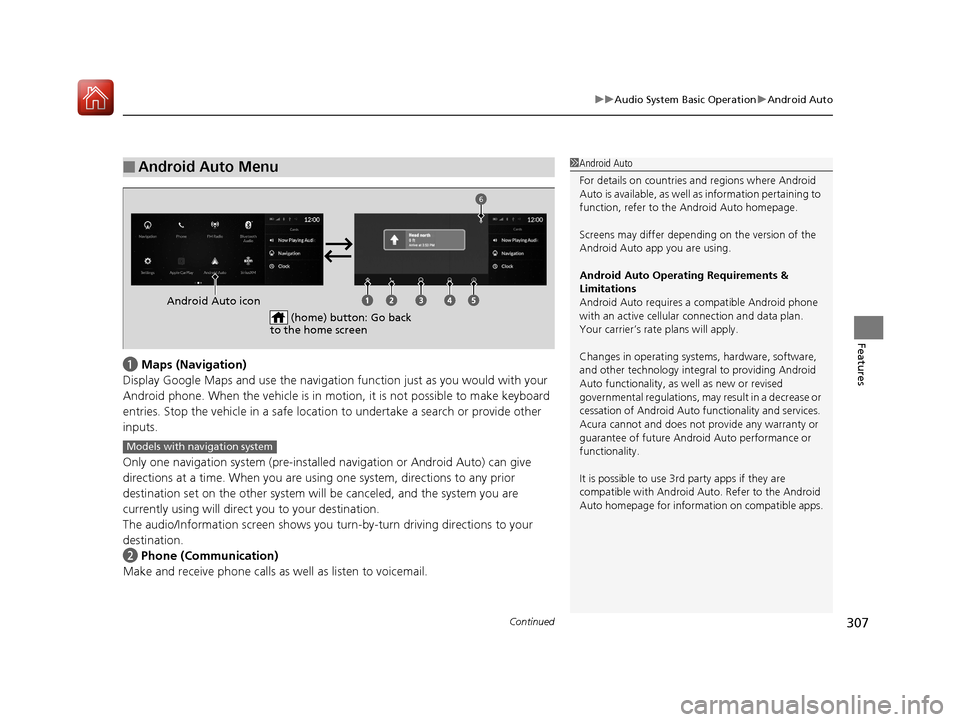
a Maps (Navigation)
Display Google Maps and use the navigation function just as you would with your
Android phone. When the vehicle is in motion, it is not possible to make keyboard
entries. Stop the vehicle in a safe locati on to undertake a search or provide other
inputs.
Only one navigation system (pre-installed navigation or Android Auto) can give
directions at a time. When you are using one system, directions to any prior
destination set on the other system will be canceled, and the system you are
currently using will direct you to your destination.
The audio/Information screen shows you turn-by-turn dr iving directions to your
destination.
b Phone (Communication)
Make and receive phone calls as well as listen to voicemail.
■Android Auto Menu1Android Auto
For details on c ountries and regions where Android
Auto is available, as well as information pertaining to
function, refer to the Android Auto homepage.
Screens may differ depending on the version of the
Android Auto app you are using.
Android Auto Operating Requirements &
Limitations
Android Auto requires a compatible Android phone
with an active cellular connection and data plan.
Your carrier’s rate plans will apply.
Changes in operating systems, hardware, software,
and other technology integral to providing Android
Auto functionality, as well as new or revised
governmental regulations, may result in a decrease or
cessation of Android Auto functionality and services.
Acura cannot and does not provide any warranty or
guarantee of future Android Auto performance or
functionality.
It is possible to use 3r d party apps if they are
compatible with Android Auto. Refer to the Android
Auto homepage for informat ion on compatible apps.
(home) button: Go back
to the home screen
Android Auto icon
6
Models with navigation system
20 ACURA RDX-31TJB6111.book 307 ページ 2020年2月11日 火曜日 午後2時6分
Page 314 of 657

313
Features
General Information on the Audio System
SiriusXM® Radio Service
1.You need your radio ID ready before regist ering for subscription. To see the ID in
the screen, select channel up/down icons to Ch.0.
2. Have your radio ID ready, and either call or visit the SiriusXM® website to
subscribe.
Switch to the SiriusXM ® mode by using the audio remote controls on the steering
wheel, or through the audio/information screen, and stay in this mode for about 30
minutes until the service is activated. Make sure your vehicle is in an open area with
good reception.
Channel **** not subscribed. Call SiriusXM to subscribe.
*1
You are not subscribed to the channel selected.
Subscription updated:
SiriusXM ® radio is receiving informati on update from the network.
Channel Not Available:
No such channel exits, or the artist or title information is unavailable.
No Signal:
The signal is too weak in the current location.
Check Tuner:
There is a problem with the SiriusXM ® tuner. Contact a dealer.
Check Antenna:
There is a problem with the SiriusXM ® antenna. Contact a dealer.
*1 : ****part is variable characters, and w ill change depending upon where an subscribe.
■Subscribing to SiriusXM® Radio
■Receiving SiriusXM ® Radio
■SiriusXM ® Radio Display Messages
1 Subscribing to SiriusXM ® Radio
Contact Information for SiriusXM ® Radio:
•US: SiriusXM ® Radio at
www.siriusxm.com/subscribenow or 1-866-635-
2349
•Canada: SiriusXM ® Canada at
www.siriusxm.ca/subscribe-now , or 1-877-209-
0079
1 Receiving SiriusXM ® Radio
The SiriusXM ® satellites are in orbit over the equator;
therefore, objects south of the vehicle may cause
satellite reception interruptions. Sa tellite signals are
more likely to be blocked by tall buildings and
mountains the farther north you travel from the
equator.
You may experience rece ption problems under the
following circumstances:
•In a location with an obstruction to the south of
your vehicle.
•In tunnels
•On the lower level of a multi-tiered road•Large items carried on the roof rack
20 ACURA RDX-31TJB6111.book 313 ページ 2020年2月11日 火曜日 午後2時6分
Page 315 of 657
314
uuGeneral Information on the Audio System uCompatible iPod, iPad, iPhone, and USB Flash Drives
Features
Compatible iPod, iPad, iPhone, and USB Flash Drives
■iPod, iPad, and iPhone Model Compatibility
Model
iPod nano (7th generation) (launch in 2012)
iPod touch (5th to 6th generation) released between 2012 and 2015
iPhone 4s/iPhone 5/iPhone 5c/iPhone 5s/i Phone 6/iPhone 6 Plus/iPhone 6s/iPhone
6s Plus/iPhone SE/iPhone 7/iPhone 7 Plus
iPad 2/iPad (3rd generation)/iPad (4th generation)
iPad Pro (9.7-inch)/iPad Pr o (12.9-inch) 1st Generation
iPad Air/iPad Air 2
iPad mini/iPad mini 2/iPad mini 3/iPad mini 4
1iPod, iPad, and iPhone Model Compatibility
This system may not work with all software versions
of these devices.
20 ACURA RDX-31TJB6111.book 314 ページ 2020年2月11日 火曜日 午後2時6分
Page 336 of 657
335Continued
Features
Customized Features
Use the audio/information screen to customize certain features.
■How to customize
With the power mode in ON, select Settings, then select a setting item.
1Customized Features
When you customize settings:
•Make sure that the vehicle is at a complete stop.
•Put the transmission into (P.
To customize features detail, refer to the following. 2 Customization flow P. 336
2 List of customizable options P. 342
Audio/Information Screen
20 ACURA RDX-31TJB6111.book 335 ページ 2020年2月11日 火曜日 午後2時6分
Page 338 of 657
337
uuCustomized Features u
Continued
FeaturesOptionsBluetooth
+ Connect New Device
(Saved Devices)
Change Mode
(Available Networks/N etwork Information)
Wi-Fi
Connections
(Saved Devices)
AcuraLink Assist
Allow Apple CarPlay
Delete
Apple CarPlay
Advanced OptionsLocation Access
Events and
reminders
Interruption Mode
Calls
Interruptions
Messages
Calls/messages from
(Saved Devices)Android Auto
20 ACURA RDX-31TJB6111.book 337 ページ 2020年2月11日 火曜日 午後2時6分
Page 339 of 657
338
uuCustomized Features u
Features
Memory Position Link
“Trip B” Reset Timing
Seat Position Movement at Entry/Exit
Adjust Outside Temp Display
“Trip A” Reset Timing
Meter Setup
Vehicle
Driving Position Setup
Reverse Shift Position Beep
Auto Idle Stop Display
Adjust Alarm Volume
Turn by Turn Display*
Road Departure Mitigation Setting
Forward Collision Warning Distance
ACC Forward Vehicle Detect Beep
Lane Keeping Assist Suspend Beep
Blind Spot Information*
Driver Assist System
Setup
Night Mode
Day Mode
BrightnessDisplay
Contrast
Black Level
More Settings
Display Off
* Not available on all models
20 ACURA RDX-31TJB6111.book 338 ページ 2020年2月11日 火曜日 午後2時6分
Page 340 of 657
339
uuCustomized Features u
Continued
Features
Key and Remote Unlock Mode
Auto Door Lock
Auto Door Unlock
Door Setup
Keyless Lock Answer Back
Security Relock Timer
Interior Light Dimming Time
Headlight Auto Off Timer
Auto Interior Illu mination Sensitivity
Auto Headlight On with Wiper On
Auto Light Sensitivity*
Lighting Setup
Auto Folding Door Mirror*
Power Tailgate Keyless Open Mode
Power Tailgate Open by Outer Handle
Hands Free Access Power Tailgate*
Power Tailgate Setup
Door Unlock Mode
Keyless Access Beep Volume
Keyless Access Light Flash
Keyless Access Beep
Remote Start System On/Off*
Walk Away Auto Lock
Keyless Access Setup
* Not available on all models
20 ACURA RDX-31TJB6111.book 339 ページ 2020年2月11日 火曜日 午後2時6分
Page 341 of 657
340
uuCustomized Features u
Features
Guidelines
Cross Traffic Monitor*
Guidelines
Cross Traffic Monitor
Rear Camera*Camera
Surround View Camera*
Show after Shifting from Reverse
(Select Reset Items)Maintenance Information
Reset All Due
* Not available on all models
20 ACURA RDX-31TJB6111.book 340 ページ 2020年2月11日 火曜日 午後2時6分


