2019 TOYOTA SUPRA lock
[x] Cancel search: lockPage 84 of 456
84
Supra Owner's Manual3-1. CONTROLS
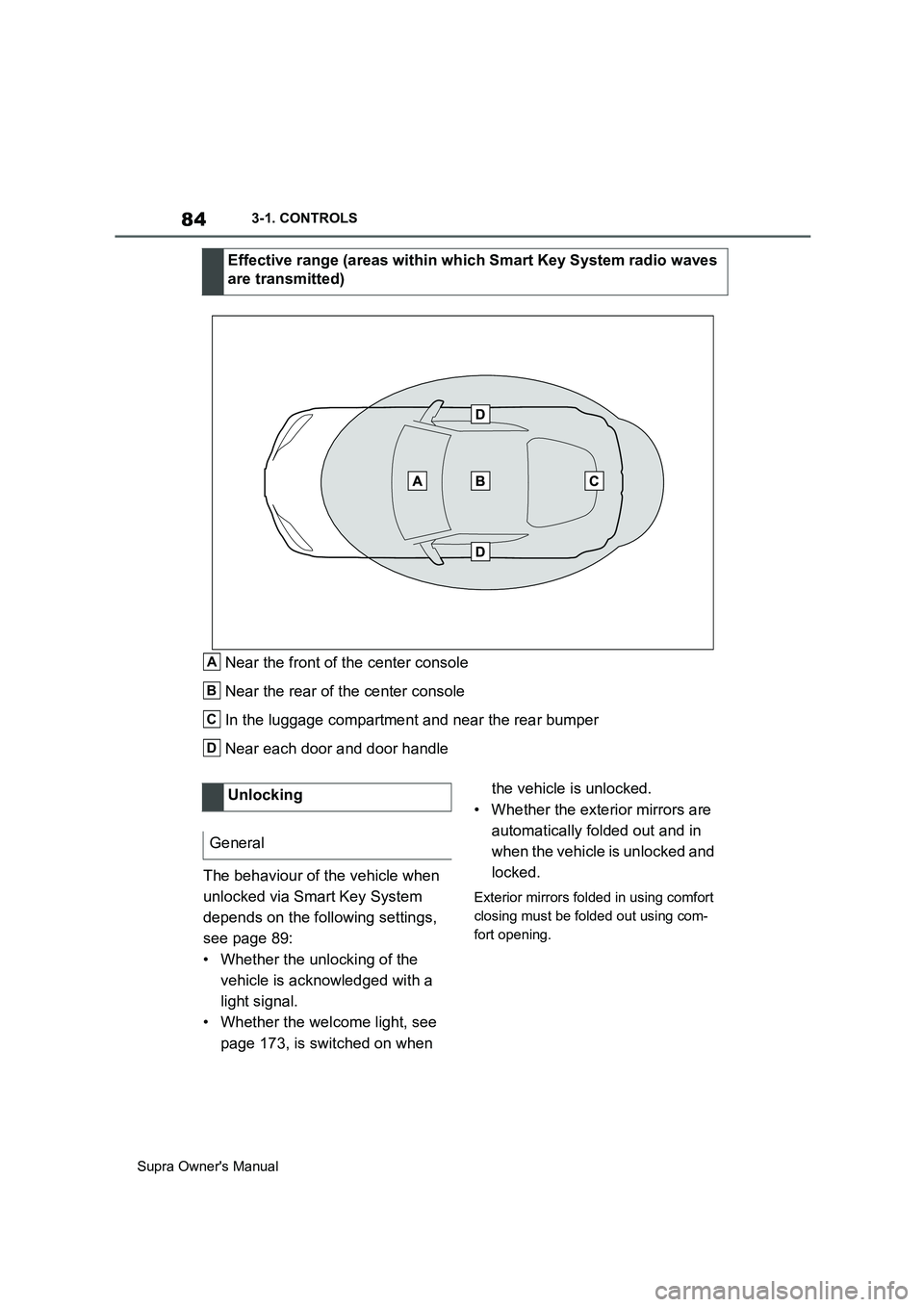
Near the front of the center console
Near the rear of the center console
In the luggage compartment and near the rear bumper
Near each door and door handle
The behaviour of the vehicle when
unlocked via Smart Key System
depends on the following settings,
see page 89:
• Whether the unlocking of the
vehicle is acknowledged with a
light signal.
• Whether the welcome light, see
page 173, is switched on when the vehicle is unlocked.
• Whether the exterior mirrors are
automatically folded out and in
when the vehicle is unlocked and
locked.
Exterior mirrors folded in using comfort
closing must be folded out using com-
fort opening.
Effective range (areas within which Smart Key System radio waves
are transmitted)
A
B
C
D
Unlocking
General
Page 85 of 456
85
3
Supra Owner's Manual3-1. CONTROLS
CONTROLS
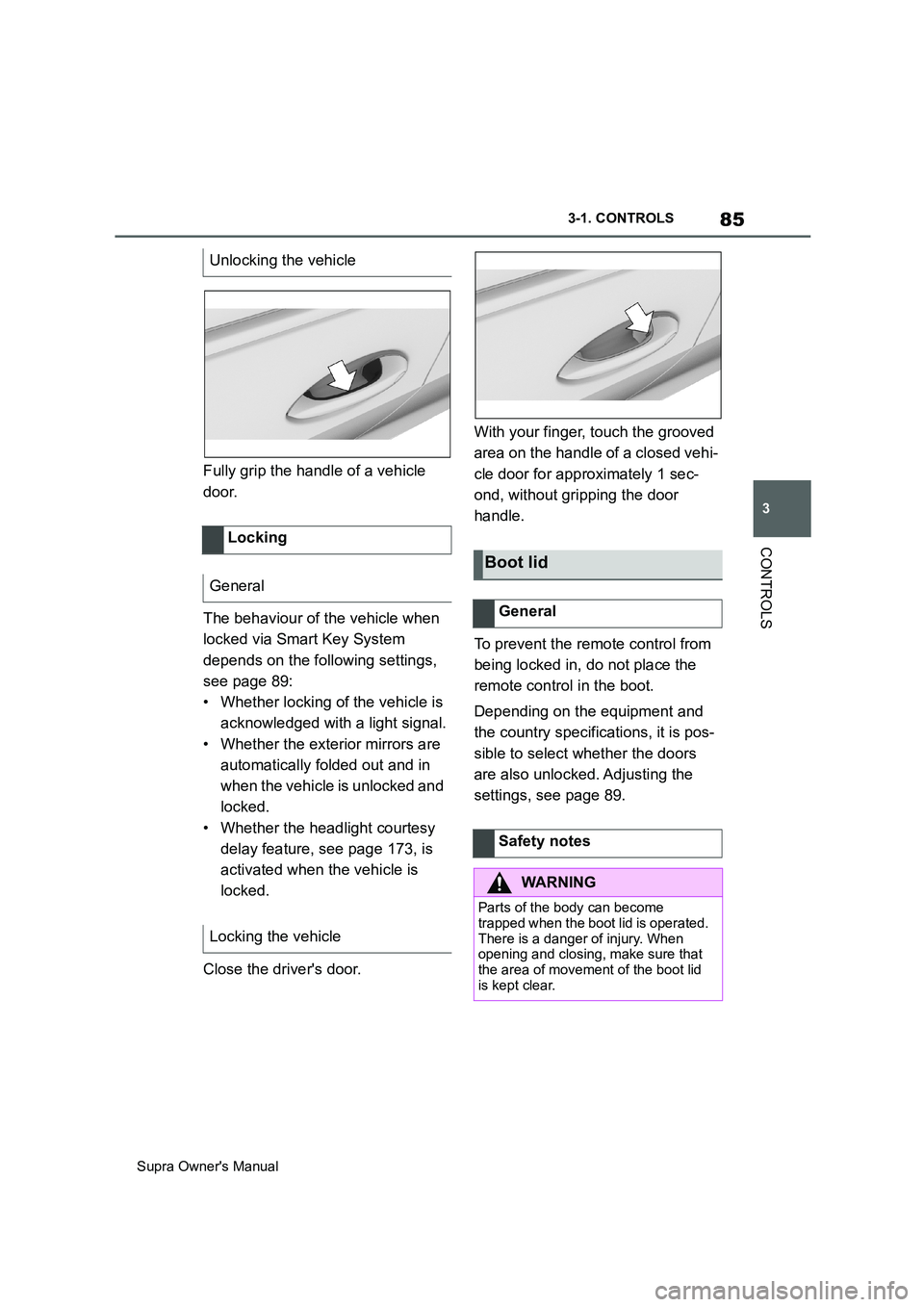
Fully grip the handle of a vehicle
door.
The behaviour of the vehicle when
locked via Smart Key System
depends on the following settings,
see page 89:
• Whether locking of the vehicle is
acknowledged with a light signal.
• Whether the exterior mirrors are
automatically folded out and in
when the vehicle is unlocked and
locked.
• Whether the headlight courtesy
delay feature, see page 173, is
activated when the vehicle is
locked.
Close the driver's door.With your finger, touch the grooved
area on the handle of a closed vehi-
cle door for approximately 1 sec-
ond, without gripping the door
handle.
To prevent the remote control from
being locked in, do not place the
remote control in the boot.
Depending on the equipment and
the country specifications, it is pos-
sible to select whether the doors
are also unlocked. Adjusting the
settings, see page 89. Unlocking the vehicle
Locking
General
Locking the vehicle
Boot lid
General
Safety notes
WARNING
Parts of the body can become
trapped when the boot lid is operated.
There is a danger of injury. When
opening and closing, make sure that
the area of movement of the boot lid
is kept clear.
Page 86 of 456
86
Supra Owner's Manual3-1. CONTROLS
• Press and hold the button
on the remote control for approx-
imately 1 second.
If applicable, the doors are also
unlocked. Opening with remote control,
see page 77.
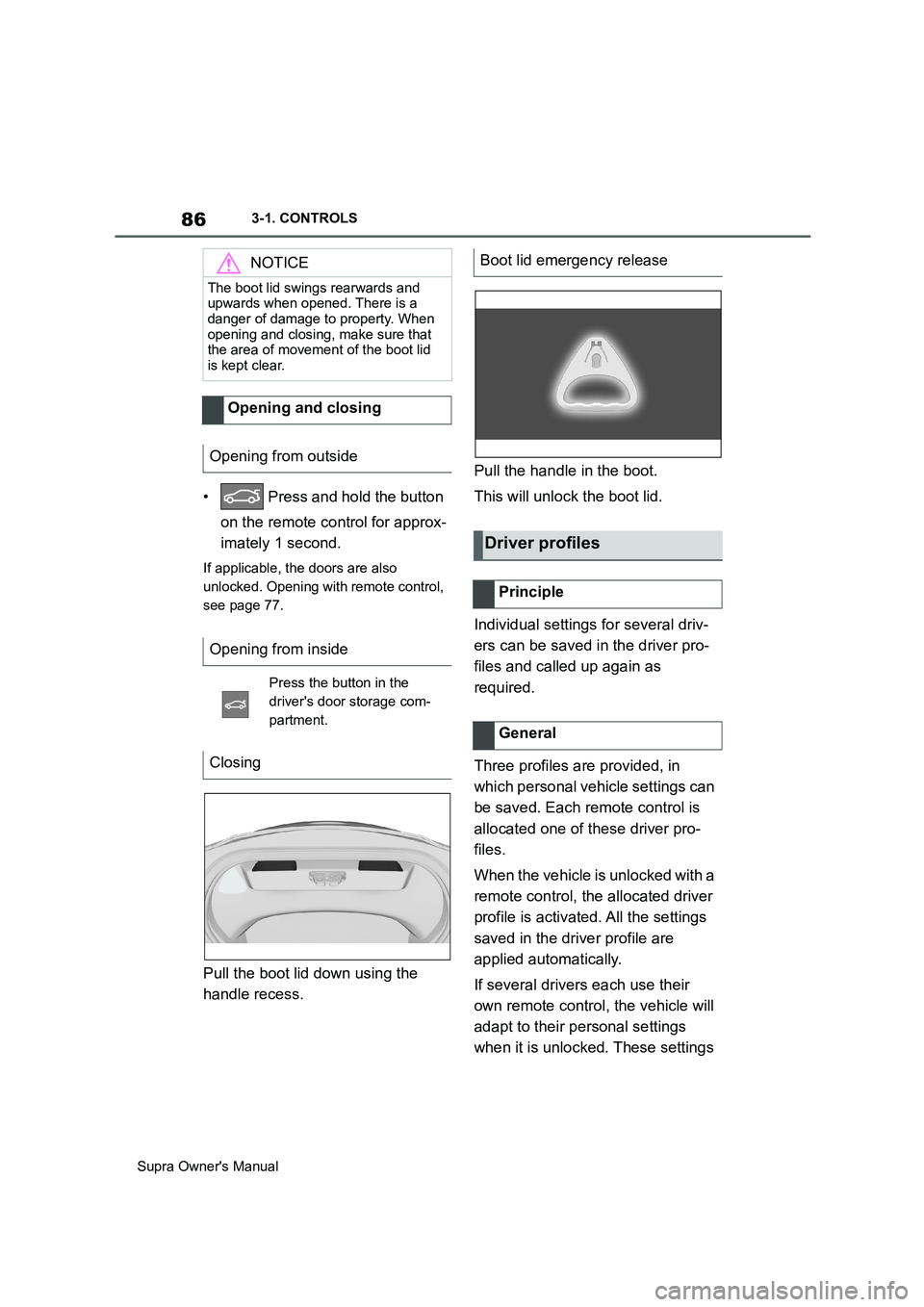
Pull the boot lid down using the
handle recess.Pull the handle in the boot.
This will unlock the boot lid.
Individual settings for several driv-
ers can be saved in the driver pro-
files and called up again as
required.
Three profiles are provided, in
which personal vehicle settings can
be saved. Each remote control is
allocated one of these driver pro-
files.
When the vehicle is unlocked with a
remote control, the allocated driver
profile is activated. All the settings
saved in the driver profile are
applied automatically.
If several drivers each use their
own remote control, the vehicle will
adapt to their personal settings
when it is unlocked. These settings
NOTICE
The boot lid swings rearwards and
upwards when opened. There is a
danger of damage to property. When
opening and closing, make sure that
the area of movement of the boot lid
is kept clear.
Opening and closing
Opening from outside
Opening from inside
Press the button in the
driver's door storage com-
partment.
Closing
Boot lid emergency release
Driver profiles
Principle
General
Page 87 of 456
87
3
Supra Owner's Manual3-1. CONTROLS
CONTROLS
are also restored if the vehicle is
used in the intervening period by
someone with a different remote
control.
Changes to settings are saved
automatically in the currently used
driver profile.
If a different driver profile is
selected via Toyota Supra Com-
mand, the settings saved there are
automatically applied. The new
driver profile is allocated to the
remote control currently used.
A guest profile is also available
which is not allocated to any remote
control. It can be used to perform
settings on the vehicle without
changing the personal driver pro-
files.
To ensure that the correct driver
profile can be set, the system must
be able to allocate the detected
remote control uniquely to the
driver.
This is ensured if the following con-
ditions are met:
• The driver is only carrying their
own remote control.
• The driver unlocks the vehicle.
• The driver enters the vehicle
through the driver's door.
The name of the currently used
driver profile is displayed when the Control Display is switched on.
Select a driver profile, see page 88.
As soon as the engine is started or
any button pressed, the display
selected last is shown on the Con-
trol Display.
To cancel the welcome screen via
Toyota Supra Command: "OK"
Settings for the following systems
and functions are saved in the cur-
rently used driver profile. Which
settings can be saved depends on
the country and equipment.
• Unlocking and locking.
•Lights.
• Air conditioning.
• Radio.
• Instrument cluster.
• Favourites buttons.
• Volumes, sound.
• Control Display.
• Navigation.
• Parking Sensors.
• Rear-view camera.
• Head-Up Display.
•Sport mode switch.
• Seat position, exterior mirror
position
The positions set via the seat memory
and the last position set are saved.
• Cruise Control.
• Toyota Supra Safety. Operating requirements
Currently used driver profile
Settings
Page 88 of 456
88
Supra Owner's Manual3-1. CONTROLS
Regardless of which remote control
is currently being used, it is possi-
ble to call up a different driver pro-
file. This enables the personal
vehicle settings to be called up,
even if the vehicle was not
unlocked with the driver's own
remote control.
Via Toyota Supra Command:
1"My Vehicle"
2"Driver profiles"
3Select a driver profile.
4"OK"
• The settings saved in the
selected driver profile are
applied automatically.
• The selected driver profile is allo-
cated to the currently used
remote control.
• If the driver profile has already
been allocated to another remote
control, this driver profile then
applies to both remote controls.
With the guest profile, individual
settings can be performed that are
not saved in any of the three driver
profiles.
Via Toyota Supra Command:
1"My Vehicle"
2"Driver profiles"3"Drive off (guest)"
4"OK"
The guest profile cannot be
renamed. It is not allocated to the
currently used remote control.
To avoid mixing up driver profiles, it
is possible to assign a personal
name to the currently used driver
profile.
Via Toyota Supra Command:
1"My Vehicle"
2"Driver profiles"
3Select a driver profile.
The driver profile marked with this
symbol can be renamed.
4"Change driver profile name"
5Enter a profile name.
6 Select the symbol.
The settings of the active driver
profile are reset to factory settings.
Via Toyota Supra Command:
1"My Vehicle"
2"Driver profiles"
3Select a driver profile.
The driver profile marked with this
symbol can be reset.
4"Reset driver profile"
5"OK" Profile management
Selecting a driver profile
Guest profile
Renaming the driver profile
Resetting the driver profile
Page 89 of 456
89
3
Supra Owner's Manual3-1. CONTROLS
CONTROLS
Most of the settings of the currently
used driver profile can be exported.
Exporting can be useful for backing
up and calling up personal settings,
for example before taking the vehi-
cle into a workshop. Once backed
up, the driver profiles can be taken
into a different vehicle.
Via Toyota Supra Command:
1"My Vehicle"
2"Driver profiles"
3Select a driver profile.
The driver profile marked with this
symbol can be exported.
4"Export driver profile"
5Select a medium for exporting
the driver profile.
• "USB device"
If necessary, select the USB storage
medium, see page 69.
The existing settings of the cur-
rently used driver profile are over-
written by the settings of the
imported driver profile.
Via Toyota Supra Command:
1"My Vehicle"
2"Driver profiles"
3Select the driver profile to be
overwritten.
The driver profile marked with this
symbol can be overwritten.
4"Import driver profile"5Select a medium for importing
the driver profile.
• USB storage medium: "USB
device"
If necessary, select the USB storage
medium.
6Select the driver profile to be
imported.
It is not always possible to allocate
a remote control uniquely to a
driver. This may be the case in the
following scenarios:
• The front passenger unlocks the
vehicle with their remote control,
but another person is driving.
• The driver unlocks the vehicle
using Smart Key System and is
carrying a number of remote
controls.
• If there is a change of driver with-
out the vehicle being locked and
unlocked.
• If a number of remote controls
are located in the area outside of
the vehicle.
Various settings are possible for the
remote control functions depend-
ing on the equipment and the coun-
try specifications.
These settings are saved for the
currently used driver profile. Exporting a driver profile
Importing a driver profile
System limits
Settings
General
Page 90 of 456

90
Supra Owner's Manual3-1. CONTROLS
Via Toyota Supra Command:
1"My Vehicle"
2"Vehicle settings"
3"Doors/Key"
4"Driver's door" or "All
doors"
5Select the desired setting:
• "Driver's door only"
Only the driver's door and fuel filler flap
are unlocked. Pressing again unlocks
the entire vehicle.
• "All doors"
The entire vehicle is unlocked.
Depending on the equipment and
the country specifications, these
settings may not be available.
Via Toyota Supra Command:
1"My Vehicle"
2"Vehicle settings"
3"Doors/Key"
4 "Tailgate" or "Tailgate
and door(s)"
5Select the desired setting:
•"Tailgate"
Boot lid is opened.
• "Tailgate and door(s)"
Boot lid is opened and the doors are
unlocked.
Via Toyota Supra Command:
1"My Vehicle"
2"Driver profiles"
3Select a driver profile.
The setting can be made for the
driver profile marked with this symbol.
4"Last seat position automatic"
When the vehicle is unlocked, the
driver's seat and exterior mirrors
are adjusted to their last set posi-
tions.
The last position setting is inde-
pendent of the positions saved via
the seat memory.
Via Toyota Supra Command:
1"My Vehicle"
2"Vehicle settings"
3"Doors/Key"
4"Flash for lock/unlock"
Unlocking is acknowledged by flashing
twice, locking by flashing once.
Via Toyota Supra Command:
1"My Vehicle"
2"Vehicle settings"
3"Doors/Key"
4Select the desired setting:
• "Relock automatically" Unlocking
Doors
Boot lid
Setting the last seat and mirror
position
Acknowledgement signals of
the vehicle
Automatic locking
Page 91 of 456
91
3
Supra Owner's Manual3-1. CONTROLS
CONTROLS
The vehicle is automatically locked
again after a short while if no door is
opened after unlocking.
• "Lock after pulling away"
On driving off, the vehicle is locked
automatically.
Via Toyota Supra Command:
1"My Vehicle"
2"Vehicle settings"
3"Doors/Key"
4"Unlock at end of journey"
After the drive-ready state has been
switched off by pressing the start/stop
button, the locked vehicle is automati-
cally unlocked.
Via Toyota Supra Command:
1"My Vehicle"
2"Vehicle settings"
3"Doors/Key"
4"Fold mirrors in when locked"
When locking, the exterior mirrors are
automatically folded in, and when
unlocking they are automatically folded
out.
Via Toyota Supra Command:
1"My Vehicle"
2"Vehicle settings"
3"Doors/Key"4"Switch off after door opening"
Idle state, see page 44, is established
when the front doors are opened.
The alarm system responds to the
following changes when the vehicle
is locked:
• A door, the bonnet or the boot lid
is opened.
• Movements in the interior.
• The vehicle's incline changes, for
instance if an attempt is made to
jack it up and steal the wheels or
to raise it prior to towing away.
• There is an interruption in the
power supply from the battery.
• Improper use of the socket for
on-board diagnosis OBD.
The alarm system indicates the fol-
lowing changes visually and audi-
bly:
• Audible alarm: Depending on
local regulations, the acoustic
alarm may be suppressed.
• Visual alarm: By flashing the
exterior lights.
The alarm system is switched on
and off at the same time as the
vehicle is unlocked and locked via
the remote control or Smart Key
System. Automatic unlocking
Folding the mirrors automati-
cally
Establishing idle state after
opening the front doors
Alarm system
General
Switching on/off