2019 MERCEDES-BENZ GLE COUPE service
[x] Cancel search: servicePage 363 of 697
#
Select Suggestions settings .#
Toswitch suggestions display on/off:
switch Allow destination suggestions ,Allow
music suggestions andAllow contact sugges-
tions on or off.
If an option is switched on, suggestions for
navigation de stinations, media sources, radio
st ations or con tacts are shown.
If th e option is switched off, no suggestions
are shown. #
Todeactivate the learn function for one
da y:activate Deact. learn. for 24h .
Fo r24 hours no new actions will be trained
and no data recorded forth e active profile.
Suggestions will continue tobe shown. The
re maining time is shown next toDeact.
learn. for 24h .
Before the time runs out, a messa geis
shown that the multimedia sy stem will con‐
tinue the learn function shortl y.
Example: if the option is switched on and a
ro ute toa new destination has been calcula‐
te d, this destination would not be take n into
account forth e learn function. #
Toreset the suggestion his tory:select
Reset suggestion history.
% This process cannot be reve rsed. #
Select Yes. #
Toprotect settings with a PIN: switchon
PIN protection.
If PIN pr otection is switched on, you must
en terth e Mercedes me PIN toset the sug‐
ge stions. This PIN will be set in the Mercedes
me por talfo rth e personalisation service to
pr otect your personal settings.
Re naming suggestions
Only navigation destinations can be renamed. #
Tap on the© symbol in the media displa y.
The home screen is shown. #
Swipe up until theSUGGESTIONS menu is
shown. #
Highlight a navigation destination and press
until theOPTIONS menu is shown. #
Select Rename. #
Ente rth e name. #
Toconfirm the entr y:select Yes. Deleting a suggestion #
Tap on © inthe media displa y.
The home screen is shown. #
Swipe up until theSUGGESTIONS menu is
shown. #
Highlight a suggestion and press until the
OPTIONS menu is shown. #
Select Delete.
The query as towhe ther the suggestion is
dele tedte mp orarily or permanent lyappears. #
Ifth e suggestion should be shown again
at a later time: selectNot now. #
Ifth e suggestion should not be shown
again: selectNever. Favo
urites Overview of
favo urites
Fa vourites of feryo uqu ick access tofrequently
used applications. It is possible tocrea te20
fa vo urites in tota l.
Yo u can select favo urites from categories or you
add favo urites direct lyfrom an application. 360
MBUX multimedia sy stem
Page 365 of 697
#
Swipe up until FAVOURITESis shown.#
Press on a favo urite until theOPTIONS menu
is shown. #
Select Move. #
Movethefa vo urite tothe new position. #
Tap on ø.
Moving thefa vo urites menu in the personali‐
sation #
Tap on © inthe media displa y.
The home screen is shown. #
Swipe up until Set new orderis shown.#
Select Set new order. #
MoveFavourites tothe new position. #
Tap on ø.
Deleting favo urites #
Tap on © inthe media displa y.
The home screen is shown. #
Swipe up until FAVOURITESis shown.#
Press on a favo urite until theOPTIONS menu
is shown. #
Select Delete. #
Select Yes. No
tifications Centre Overvi
ewoftheNo tifications Centre
The following communications are collec ted in
th e Notifications Centre:
R Communications which are generated bythe
ve hicle or from multimedia sy stem.
R Communications which are recei vedth ro ugh
th e use of services.
The following notification types are available for
yo u:
R Navigable destinations and routes
R Messages (t ext messa ges)
R Calendar entries and reminders, e.g. from In-
Car Of fice
This function is not available in all countries.
R System information, e.g. Important software
update available. R
Other notifications, e.g. from additional
online services that can be subsc ribed to
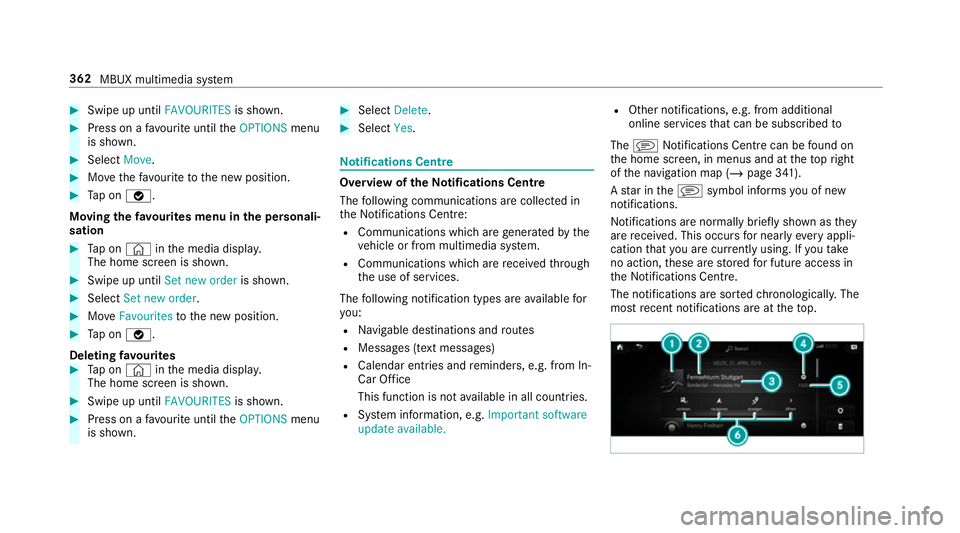
The j Notifications Centre can be found on
th e home screen, in menus and at theto pright
of the navigation map (/ page 341).
A star in thej symbol informs you of new
notifications.
Notifications are no rmally brief lyshown as they
are recei ved. This occurs for nearly everyappli‐
cation that you are cur rently using. If youta ke
no action, these are stored for future access in
th e Notifications Centre.
The notifications are sor tedchro nological ly. The
most recent notifications are at theto p. 362
MBUX multimedia sy stem
Page 366 of 697
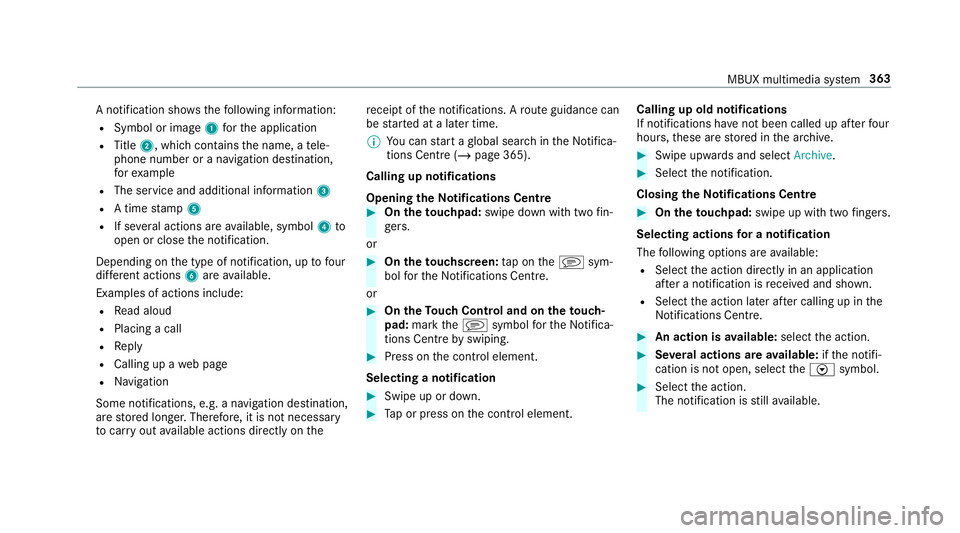
A notification sho
wsthefo llowing information:
R Symbol or image 1forth e application
R Title 2, which contains the name, a tele‐
phone number or a navigation destination,
fo rex ample
R The service and additional information 3
R A time stamp 5
R If se veral actions are available, symbol 4to
open or close the notification.
Depending on the type of notification, up tofour
dif fere nt actions 6are available.
Examples of actions include:
R Read aloud
R Placing a call
R Reply
R Calling up a web page
R Navigation
Some notifications, e.g. a navigation destination,
are stored longer. Therefore, it is not necessary
to car ryout available actions direct ly onthe re
cei ptofthe notifications. A route guidance can
be star ted at a later time.
% You can start a global sear chintheNoti fica‐
tions Centre (/ page 365).
Calling up notifications
Opening theNo tifications Centre #
On the touchpad: swipe down with two fin‐
ge rs.
or #
On theto uchscreen: tap on thej sym‐
bol forth e Notifications Centre.
or #
On theTo uch Control and on theto uch‐
pad: mark thej symbol forth eNoti fica‐
tions Centre byswiping. #
Press on the control element.
Selecting a notification #
Swipe up or down. #
Tap or press on the control element. Calling up old notifications
If notifications ha
venot been called up af terfo ur
hours, these are stored in the ar chive. #
Swipe upwards and select Archive. #
Select the notification.
Closing theNo tifications Centre #
On the touchpad: swipe up with two fingers.
Selecting actions for a notification
The following options are available:
R Select the action directly in an application
af te r a notification is recei ved and shown.
R Select the action later af ter calling up in the
Noti fications Centre. #
An action is available: selectthe action. #
Several actions are available: ifth e notifi‐
cation is not open, select theV symbol. #
Select the action.
The notification is still available. MBUX multimedia sy
stem 363
Page 367 of 697
#
IfAdditional information isavailable, select
th e action.
Ad ditional information is shown in a window
as text, ima geortext and ima ge. #
Toclose the windo w:select OK.
Editing notifications #
Call up the Notifications Centre
(/ page 363). #
Tomake settings: selectZ.
% If no settings can be made, a messa ge
appears. #
Select the service. #
Switch the options on or off.
The following options are available:
R Allow notifications
R Display in notification centre
R Show notifications
R Acoustic feedback
When Allow notifications is switched on, the
ot her options cannot be selected. #
Todel ete: touch a message on the
to uchsc reen and slide tothe left or right.
or #
Select there cycle bin. #
Select Delete orDelete all.
Delete deletes a single notification.
Delete all deletes all notifications cur rently
shown. #
With O you will exit dele temode. Global sear
ch Global sear
chove rview
Yo u can use theglobal sear chinthe home
screen and in the notifications.
The global sear chprov ides sear chresults forthe
fo llowing categories and their sub-categories:
R Navigation
R Media
R Telephone, social media, In-Car Of fice
In-Car Of fice is not available in all countries.
R User inter face and Digi tal Owner's Manual R
Internet
This enables youto sear chforto wns, roads and
to urist att ractions wi th the navigation sy stem,
fo rex ample.
% You can also sear chfor 3 wordaddresses
(/ page 391).
When you en ter a 3 wordaddress in the
gl obal sear ch, separate each of thewo rds
with a space or a full stop.
During the entry process the most likely sugges‐
tions are shown beneath the sear chfield. When
yo u en ter "S", "Stuttgart", "S teak" and "Sandra"
are shown, forex ample. If you select "Stuttgart",
yo ure cei vethe suggestions "S tarbuc ks", "S teak"
and "City railw ay",forex ample.
The sear chresults in the list are shown, sor ted
according tocatego ry. Next tothe category is
th e number of results. You will be shown the
best results from each categor y.Ad ditional
re sults can be found af ter selecting there spec‐
tive categor y.
If yo u confirm an entry with OK, all categories
and the number of results will be shown in a
summar y.After selecting a category you can 364
MBUX multimedia sy stem
Page 385 of 697
single-use password sent
to you via the
Mercedes me connect online por talto reset the
PIN pr otection. #
Select Unblock PIN. #
Ente rth e single-use password.
PIN pr otection is reset, and you can set a
new PIN. Software upda
teInformation on software upda
tes
A software upda teconsi sts of thre esteps:
R Downloading or copying of the data requ ired
fo r ins tallation
R Installation of the update
R Activation of the update byrestarting the
sy stem
The multimedia sy stem pr ovides a message
when an update is available.
Depending on the source, you can per form vari‐
ous updates: Software updates Source of
the
update Up
date type
Interne tN avigation map, sys‐
te m updates, Digital
Owner's Manual
External storage
medium, e.g. USB
fl ash drive Na
vigation maps %
Installation can take several minutes and
cancellation is not possible. If you do not
ins tallth e software updates then thest atus
of your vehicle will not be up-to-date. During
th e ins tallation, individual functions or con‐
trol elements are not available or on lyavaila‐
ble toa limited deg ree.
Ad vantages of updating software
Software updates ensure your vehicle's tech nol‐
ogy is up-to-date.
In order toimpr oveth equ ality of our services
yo u will recei vefuture updates foryo ur multime‐
dia sy stem, the Mercedes me connect services and
your vehicle's communication module.
These will con veniently be sent to you via the
mobile phone connection in your vehicle and, in
many cases, ins talled automaticall y.Yo u can
monitor thest atus of your updates at any time
on the Mercedes me por tal and find information
about po tential inno vations.
Yo ur advantages at a glance:
R con veniently recei vesoftware update s via
th e mobile phone network
R impr ovesth equ ality and availability of
Mercedes me connect services
R keeps your multimedia sy stem and communi‐
cation module up-to-date
Fu rther information about software updates can
be found at http://me.mercedes-benz.com
Pe rforming a software upda te
Requ irements:
R For online updates: an Internet connection
is es tablished (/ page 466).
R For automatic online updates: your vehicle
has a permanently ins talled communication
module. 382
MBUX multimedia sy stem
Page 389 of 697
•
To show Traffic
• To show Parking
• To show Motorway information
• ViaAdvanced optionstouse View ,
Announcements andRoute
% The options are not available in all countries.
% You can en ter 3 wordaddresses in the online
sear ch (/page 391). This option is not
av ailable in all countries. Destination ent
ryNote
s on destination entry &
WARNING Risk of di stra ction from oper‐
ating integrated communication equip‐
ment while theve hicle is in motion
If yo u operate communication equipment
integrated in theve hicle when driving, you
will be distracted from the tra ffic situation.
This could also cause youto lose control of
th eve hicle. #
Only operate this equipment when the
traf fic situation permits. #
Ifyo u cannot be sure of this, stop the
ve hicle whilst paying attention toroad
and traf fic conditions and ope rate the
equipment with theve hicle stationar y. Yo
u must obse rveth e legal requirements forthe
country in whi chyou are cur rently driving when
operating the multimedia sy stem.
Entering a POI or addre ss &
WARNING Risk of di stra ction from infor‐
mation sy stems and communications
equipment
If yo u operate information and communica‐
tion equipment integ rated in theve hicle
when driving, you will be distracted from the
traf fic situation. This could also cause youto
lose control of theve hicle. #
Only operate this equipment when the
traf fic situation permits. #
Ifyo u cannot be sure of this, stop the
ve hicle whilst paying attention toroad
and traf fic conditions and ope rate the
equipment with theve hicle stationar y. Yo
u must obse rveth e legal requirements forthe
country in whi chyou are cur rently driving when
operating the multimedia sy stem.
Re quirements:
R For the online sear ch:Me rcedes me con‐
nect is available.
R You ha veset up a user account in the
Mercedes me por tal.
R The vehicle has been activated for use of
Mercedes me connect and you ha veaccep‐
te dth ete rm s and conditions forth e service.
Fu rther information can be found at: http://
www.mercedes.me
R The service has been activated. 386
MBUX multimedia sy stem
Page 391 of 697
R
POI categories, e.g. Filling station
R Town, POI name
R Telephone number, if this is available for
th e POI
R Contact name
Example of quick address ent ry:
R Ifyo u are sear ching forKö nigsstraße in
St utt gart,fo rex ample, you can en ter
ST UT and KÖN.
R Ifyo u are sear ching for a POI in theUn i‐
te d Kingdom, forex ample, you can en ter
THE SHARD.
If yo uwo uld like totry out bo thexamples,
yo u may also need tochange the count ry. #
Alternati vely, use voice input 8. #
Toswitch tohandwriting recognition:
select 6. #
Write thech aracter on theto uchpad. The let‐
te rs can be written next toeach other or
abo veeach other (/ page 368). #
Toreturn toentry using theke yboard:
select _. or #
Press theto uchpad. #
Todel ete an entr y:select 4.
The characters are dele ted individually.
or #
Ifch aracters ha vebeen entered in 2, select
£ nexttothe input line.
The comple teentry is dele ted. #
Toswitch toupper-case or lo wer-case let‐
ters :select B. #
Toswitch todigits, special characters
and symbols: selectA.
123 changes toABC.
Displ ayB changes to#+=. #
Select Band switch toadditional special
ch aracters. #
Toenter a space: select7. #
Toset the language: select9. #
Select the language.
% This function is useful for countries in which
se veralch aracter sets are suppo rted. An ex
ample is Russia, which uses Cyrillic and
Latin characters. #
Tochange the count ry:select country indi‐
cator 1. #
Enter the count ryindicator, e.g. Ffo rFr ance.
The list is filtered. #
Select the count ryon list 3.
The destination can be entered. #
Toaccept a destination: selectthe destina‐
tion in list 3. #
Ifth e destination is ambiguous, select the
destination in the list.
The destination address is shown. The route
can be calculated.
Using online sear ch
% Requirements: the media display sho wsan
In te rn et connection wi tha double-ar row
symbol in thest atus line.
Online sear chis not available in all countries.
De stination ent ryuses online map services. If
th e on-board sear chfinds no suitable de stina‐
tions or if youch ange countries, the online
sear chisavailable. 388
MBUX multimedia sy stem
Page 392 of 697
Fo
rth e destination you can en ter an addre ss, a
POI or a 3 wordaddress.
% Enter a 3 wordaddress (/ page 391). #
Select country indicator 1.#
Select the pr ovider forth e online service
from the count ries list.
or #
Ifth e on-board sear chdelivers no results,
enter the destination in the input line. The
entry order is not releva nt, e.g. stre et and
to wn. Use the functions described forth e on-
board sear ch.
The sear chresults are displa yed. #
Select the destination in the list.
The de tailed view forth ero ute is displ ayed.
Selecting pr evious destinations
Re quirements:
R Prev ious destinations are stored.
R For destination sug gestions: you ha vecre‐
ated a profile (/ page 354).
R The Allow destination suggestions option is
switched on (/ page 359). R
The multimedia sy stem has already gathered
suf ficient da tain order toshow destination
suggestions.
Multimedia sy stem:
4 © 5
Navigation 5
ª Where to?
5 PREV. DESTINATIONS
The following ent ries can be selected in the pre‐
vious destinations:
R Destination suggestions (/ page 409)
R Destinations
R Routes #
Select the destination or route
The destination address is shown. The route
can be calculated.
% You can sa vea pr evious destination or a des‐
tination suggestion as a favo urite
(/ page 409).
Yo u ha vefast access tothe destinations via
th efa vo urites (/ page 392).
Selecting a POI
Requ irements: R
For use of personal POIs: a USB device is
connected wi th the multimedia sy stem.
R Personal POIs with the GPS Ex change form at
(.gpx) ha vebeen sa ved in the "PersonalPOI"
fo lder on the USB device.
Multimedia sy stem:
4 © 5
Navigation 5
ª Where to?
5 POIS
Sear ching using categories (no route guid‐
ance) #
Select the categor y.
or #
Select All categories. #
Select the category and the sub-category (if
av ailable).
The sear chtake s place in the vicinity of the
ve hicle's cur rent position. The sea rchre sult
are sor tedby distance in ascending order.
The POIs show thefo llowing information:
R direction of the linear dis tance tothe POI
(ar row)
R name of POI MBUX multimedia sy
stem 389