2019 MERCEDES-BENZ GLB SUV phone
[x] Cancel search: phonePage 334 of 689
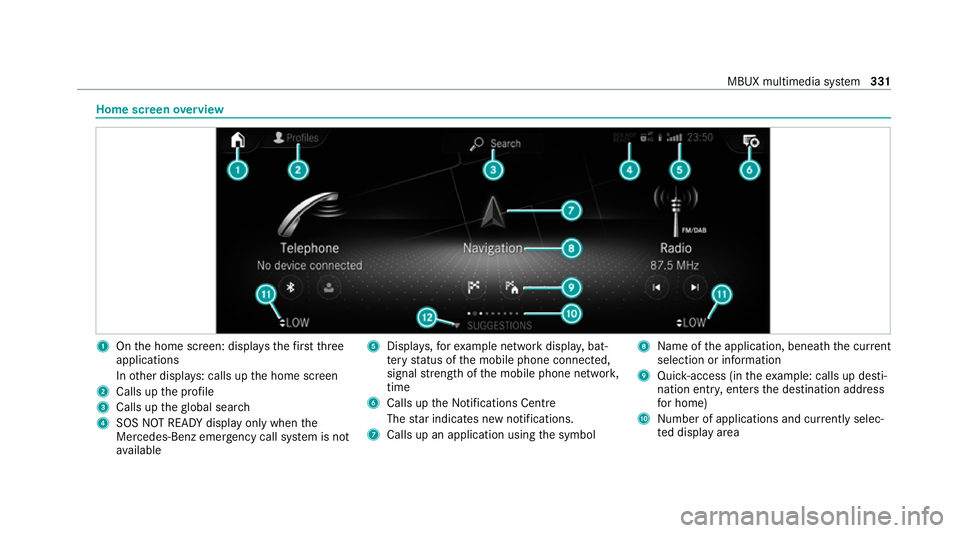
Home screen
overview 1
Onthe home screen: displa ys thefirs tth ree
applications
In other displa ys: calls up the home screen
2 Calls up the profile
3 Calls up theglobal sear ch
4 SOS NOT READY displ ayonly when the
Mercedes-Benz emer gency call sy stem is not
av ailable 5
Displa ys,fo rex ample network displa y,bat‐
te ry status of the mobile phone connected,
signal stre ngth of the mobile phone networ k,
time
6 Calls up the Notifications Centre
The star indicates new notifications.
7 Calls up an application using the symbol 8
Name of the application, beneath the cur rent
selection or information
9 Quick-access (in theex ample: calls up desti‐
nation ent ry, enters the destination address
fo r home)
A Number of applications and cur rently selec‐
te d display area MBUX multimedia sy
stem 331
Page 345 of 689
#
Toswitch off: take your hand back away
from the front passenger seat.
The sear chlight is switched off again.
Settings for the MBUX In terior Assistant
Multimedia sy stem:
4 © 5
Settings 5
System
5 Interior assistant #
Toswitch on full functionality of the
MBUX Interior Assistant: selectOn.
The option is activated #.#
Toactivate additional functions forre ad‐
ing and sear chlights: selectIncluding read-
ing light.
When the option is switched on, the display
button is activated.
The functions forth ere ading and sear ch
lights are activated in addition tothe pr oxim‐
ity functions. #
Toswitch off the MBUX Interior Assis‐
tant: select Off.
The option is activated #. Main functions
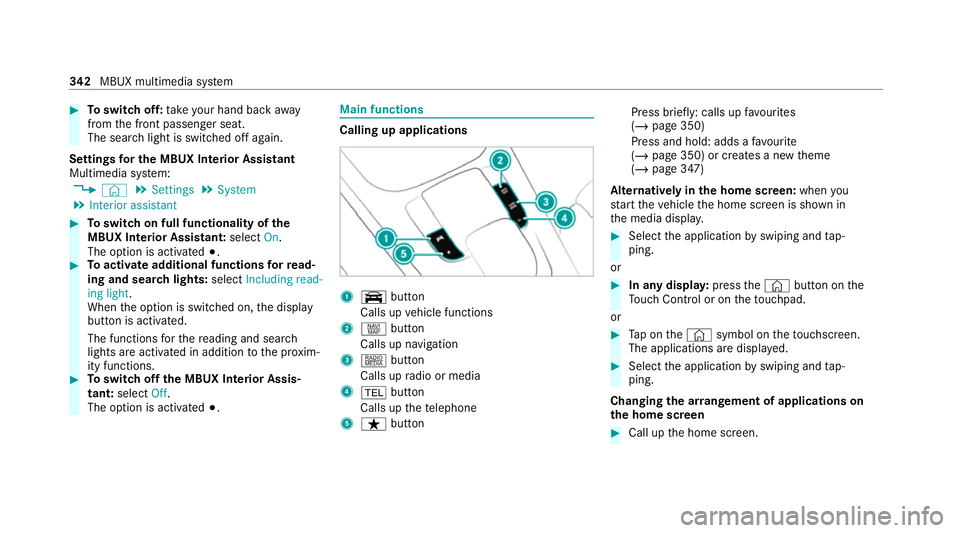
Calling up applications
1
y button
Calls up vehicle functions
2 z button
Calls up navigation
3 | button
Calls up radio or media
4 % button
Calls up thete lephone
5 ß button Press brief
ly: calls up favo urites
(/ page 350)
Press and hold: adds a favo urite
(/ page 350) or creates a new theme
(/ page 347)
Alternatively in the home screen: whenyou
st art theve hicle the home screen is shown in
th e media displa y. #
Select the application byswiping and tap‐
ping.
or #
In any displa y:press the© button on the
To uch Control or on theto uchpad.
or #
Tap on the© symbol on theto uchsc reen.
The applications are displa yed. #
Select the application byswiping and tap‐
ping.
Changing the ar rangement of applications on
th e home screen #
Call up the home screen. 342
MBUX multimedia sy stem
Page 347 of 689
R
Last destinations
R Climate control
R Ambient lighting
R DYNA MIC SELECT I (individual)
R Instrument Displa y,Head-up Display and
st yle (display style of the multimedia sy stem)
R Themes, suggestions and favo urites
% Settings for driver assi stance sy stems can‐
not be sa ved in the profile.
Mercedes me connect profile
If yo u use a profile from Mercedes me connect,
th efo llowing online functions are available, for
ex ample:
R You can configure the settings in theve hicle
using the Mercedes me app and the
Mercedes me por tal.
R You can syn chronise your profile on
Mercedes me connect with the profile in the
ve hicle (/ page 345).
R You can add a personal profile pho tothat is
shown in theve hicle. R
You can take your profile and some of your
settings with you in new vehicles.
Requ irements for using Me rcedes me con‐
nect profiles:
Fo rth eve hicle owner:
R You ha vea Mercedes me user account.
R The vehicle has been connected with the
user account.
R The personalisation service is activated.
Fo r additional users of theve hicle:
R You ha vea Mercedes me user account.
R The vehicle owner has invited youto connect
yo ur user account on Mercedes me with that
of his vehicle.
R You ha veaccep tedth e invitation.
Creating a new profile
Multimedia sy stem:
4 © 5
f Profiles #
Select WCreate profile . #
Select an avatar. #
Enterth e name and confi rmwith a. #
Select Continuer . #
Tosave the cur rent settings in a profile:
select Current settings. #
Select Save.
or #
Toadopt thefa ctory settings: selectFac-
tory settings. #
Select Save.
% Further information on setting a user profile
(/ page 345). #
Activate Blu etoo th®
and select Connect
phone, toconnect a mobile phone wi th the
user profile (/ page 426).
Yo u can also set up a user profile without regis‐
te ring a mobile phone. #
Select Finished.
The user profile is sa ved. 344
MBUX multimedia sy stem
Page 354 of 689
Ad
ding a favo urite from an application
Examples of adding from an application are:
R Saving a contact.
R Storing a radio station.
R Adding a media source.
R Saving a navigation destination.
R Adding an ENE RGIZING comfort program (if
av ailable). #
Tosave a contact as a global favo urite:
select a contact (/ page 432).
The de tails are displa yed. #
Press on a telephone number until the
OPTIONS menu is shown. #
Select Save as favourite.
The contact is added as a favo urite. #
Tosto reara dio station as a global favo ur‐
ite: set a radio station (/ page478). #
Press on thera dio station until theOPTIONS
menu is shown. #
Select Save as favourite.
The radio station is added as a favo urite. Re
naming favo urites #
Tap on © inthe media displa y.
The home screen is shown. #
Swipe up until FAVOURITESis shown. #
Press on a favo urite until theOPTIONS menu
is shown. #
Select Rename. #
Ente rth e name. #
Select OK.
Moving favo urites
Moving favo urites in thefa vo urites menu #
Tap on © inthe media displa y.
The home screen is shown. #
Swipe up until FAVOURITESis shown. #
Press on a favo urite until theOPTIONS menu
is shown. #
Select Move. #
Movethefa vo urite tothe new position. #
Tap on ø. Moving
thefa vo urites menu in the personali‐
sation #
Tap on © inthe media displa y.
The home screen is shown. #
Swipe up until Set new orderis shown. #
Select Set new order. #
MoveFavourites tothe new position. #
Tap on ø.
Deleting favo urites #
Tap on © inthe media displa y.
The home screen is shown. #
Swipe up until FAVOURITESis shown. #
Press on a favo urite until theOPTIONS menu
is shown. #
Select Delete. #
Select Yes. MBUX multimedia sy
stem 351
Page 355 of 689
No
tifications Centre Overvi
ewoftheNo tifications Centre
The following communications are collec ted in
th e Notifications Centre:
R Communications which are generated bythe
ve hicle or from multimedia sy stem.
R Communications which are recei vedth ro ugh
th e use of services.
The following notification types are available for
yo u:
R Navigable destinations and routes
R Messages (t ext messa ges)
R Calendar entries and reminders, e.g. from In-
Car Of fice
This function is not available in all countries.
R System information, e.g. Important software
update available.
R Other notifications, e.g. from additional
online services that can be subsc ribed to The
3 Notifications Centre can be found on
th e home screen, in menus and at theto pright
of the navigation map (/ page 331).
Newly recei ved messages will be indicated with
a st ar in the3 symbol.
Noti fications are normally brie fly shown as they
are recei ved. This occurs for near lyeve ryappli‐
cation that you are cur rently using. If youta ke
no action, these are stored for future access in
th eNoti fications Centre.
The notifications are sor tedchro nologically. The
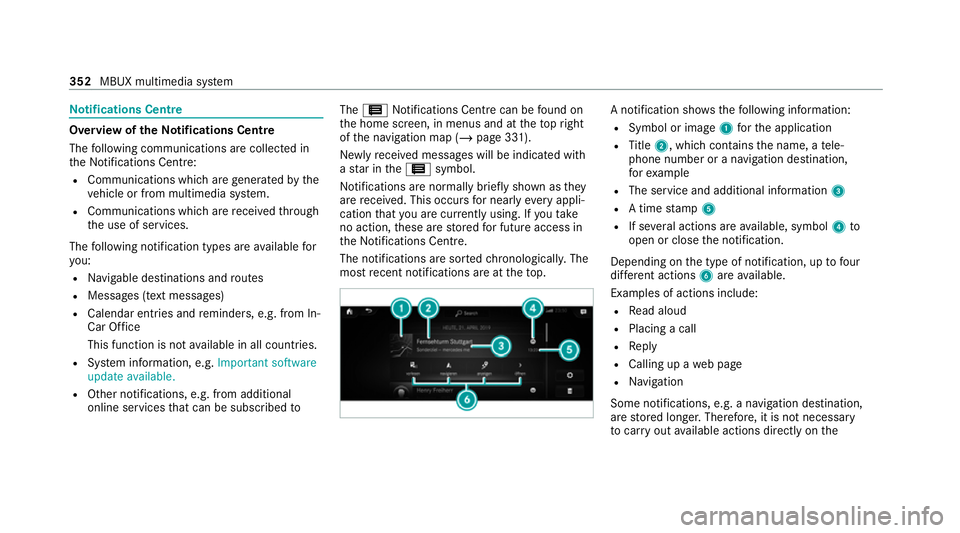
most recent notifications are at theto p. A notification sho
wsthefo llowing information:
R Symbol or image 1forth e application
R Title 2, which contains the name, a tele‐
phone number or a navigation destination,
fo rex ample
R The service and additional information 3
R A time stamp 5
R If se veral actions are available, symbol 4to
open or close the notification.
Depending on the type of notification, up tofour
dif fere nt actions 6are available.
Examples of actions include:
R Read aloud
R Placing a call
R Reply
R Calling up a web page
R Navigation
Some notifications, e.g. a navigation destination,
are stored longer. Therefore, it is not necessary
to car ryout available actions direct ly onthe 352
MBUX multimedia sy stem
Page 357 of 689
#
Todel ete: touch a message on the
to uchsc reen and slide tothe left or right.
or #
Select E. #
Select Delete orDelete all.
Delete deletes a single notification.
Delete all deletes all notifications cur rently
shown. #
With O you will exit dele temode. Global sear
ch Global sear
chove rview
Yo u can use theglobal sear chinthe home
screen and in the notifications.
The global sear chprov ides sear chresults forthe
fo llowing categories:
R Navigation
R Enter tainment
R Telephone, social media, In-Car Of fice
In-Car Of fice is not available in all countries.
R User inter face and Digi tal Owner's Manual R
Internet
This enables youto sear chforto wns, roads and
to urist att ractions wi th the navigation sy stem,
fo rex ample.
% You can also sear chfor 3 wordaddresses
(/ page 385).
When you en ter a 3 wordaddress in the
gl obal sear ch, separate each of thewo rds
with a space or a full stop.
During the entry process the most likely sugges‐
tions are shown beneath the sear chfield. When
yo u en ter "S", "Stuttgart", "S teak" and "Sandra"
are shown, forex ample. If you select "Stuttgart",
yo ure cei vethe suggestions "S tarbuc ks", "S teak"
and "City railw ay",forex ample.
The sear chresults in the list are shown, sor ted
according tocatego ry. Next tothe category is
th e number of results. You will be shown the
best results from each categor y.Ad ditional
re sults can be found af ter selecting there spec‐
tive categor y.
If yo u confirm an entry with OK, all categories
and the number of results will be shown in a
summar y.After selecting a category you can select
the sear chresults within the categor y.
When you select a sear chresult the de tailed
view opens. In the de tailed view you can choose
whe ther and which actions youwa nttocar ryout
with there spective sear chresult. Forex ample,
yo u can start route guidance or place a call to
somebody. The actions are named cor respond‐
ing ly.
The sear chcan be car ried out with thefo llowing
input me thods:
R Entering characters using the on-screen key‐
pad
R Entering characters with handwriting recog‐
nition
R Dictation function
Using the global sear ch
Multimedia sy stem:
4 © #
Select ªSearch.
or #
Call up the notifications (/ page 353). #
Select Search. 354
MBUX multimedia sy stem
Page 359 of 689
#
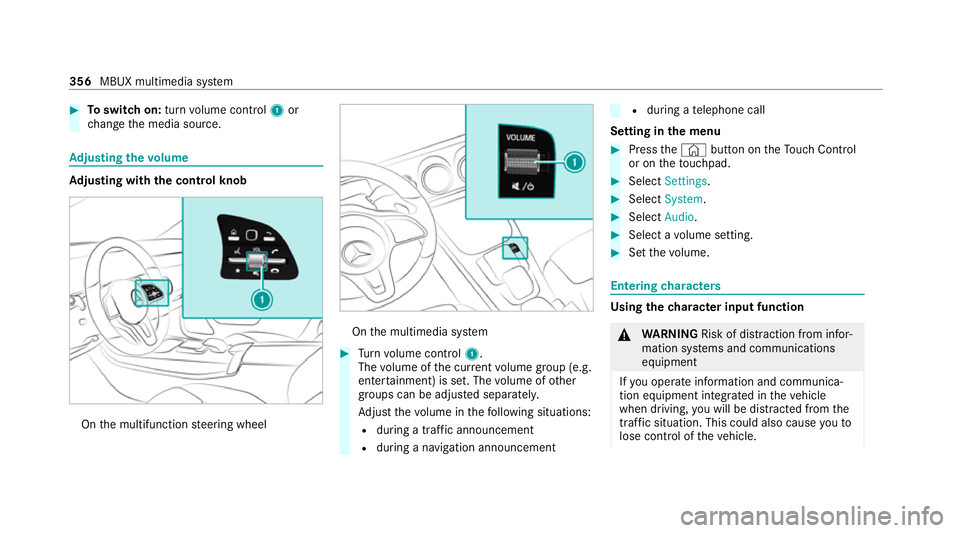
Toswitch on: turnvolume control 1or
ch ange the media source. Ad
justing the volume Ad
justing with the control knob On
the multifunction steering wheel On
the multimedia sy stem #
Turn volume control 1.
The volume of the cur rent volume group (e.g.
enter tainment) is set. The volume of other
groups can be adjus ted separatel y.
Ad just thevo lume in thefo llowing situations:
R during a traf fic announcement
R during a navigation announcement R
during a telephone call
Setting in the menu #
Press the© button on theTo uch Control
or on theto uchpad. #
Select Settings . #
Select System. #
Select Audio. #
Select a volume setting. #
Set thevo lume. Entering
characters Using
thech aracter input function &
WARNING Risk of di stra ction from infor‐
mation sy stems and communications
equipment
If yo u operate information and communica‐
tion equipment integ rated in theve hicle
when driving, you will be distracted from the
traf fic situation. This could also cause youto
lose control of theve hicle. 356
MBUX multimedia sy stem
Page 368 of 689
Setting
the da te #
Select Set date . #
Set a da te.
% Invehicles with GPS, a date cannot be set
eve n wi thactive manual time adjustments.
The date is then set automatically thro ugh
th e selected time zone. Switching
voice amplification tothere ar
on/off (vehicles with long wheelbase)Re
quirements:
R Your vehicle is equipped with the Burmes ter®
sur round sound sy stem or the Burmes ter®
high-end 3D sur round sound sy stem.
R The ignition is switched on.
R Doors, side windo wsand the panorama slid‐
ing sunroof are closed.
R Atleast one seat belt is fastened on there ar
ben chseat. Multimedia sy
stem:
4 © 5
Settings 5
System 5
Audio
5 Voice amplification
The function supports communication between
th e driver and front passenger with passengers
in there ar compartment. When voice amplifica‐
tion torear is activated, the signals pic ked up by
th e microphone are amplified and pla yed back
ove rth e speakers in there ar compartment,
depending upon vehicle noise le vels. An auto‐
matic adjustment occurs based on speaker vol‐
ume and ambient noise in order toimpr ove
speech intelligibility and maintain the natural‐
ness of speech. #
Activate or deacti vate the function.
Setting the intensity of thevo ice amplifica‐
tion #
Select Voice amplification - intensity. #
Set the intensity on the control.
Depending on the intensity set, thevo ice
amplification tothere ar is inc reased or
re duced. Connectivity
Switching transmission of
theve hicle posi‐
tion on/off
Re quirements:
R a Mercedes me account is available.
R at least one service is activated in the
Mercedes me por tal which has access tothe
transmitted position da ta.
% The function is count ry-dependent. For more
information, consult a Mercedes-Benz
service centre.
Multimedia sy stem:
4 © 5
Settings 5
System
5 Wi-Fi & Bluetooth #
Select Transmit vehicle position . #
Activate or deacti vate the function. MBUX multimedia sy
stem 365