2019 LEXUS RX450H ECO
[x] Cancel search: ECOPage 392 of 792
3924-6. Driving tips
RX450h_RX450hL_U
To enable the windshield wi pers to be lifted when heavy snow or icy conditions
are expected, change the rest position of the windshield wipers from the
retracted position below the hood to th e service position using the wiper lever.
(
P. 270)
■Tire chain installation
Observe the following precautions when installing and removing chains:
●Install and remove tire chains in a safe location.
●Install tire chains on the front tires only. Do not install tire chains on the rear tires.
●Install tire chains on front tires as tightly as possible. Retighten chains after driving
1/4 - 1/2 mile (0.5 - 1.0 km).
●Install tire chains following the instru ctions provided with the tire chains.
Windshield wipers
WARNING
■Driving with snow tires
Observe the following precautions to reduce the risk of accidents.
Failure to do so may result in a loss of vehi cle control and cause death or serious injury.
●Use tires of the specified size.
●Maintain the recommended level of air pressure.
●Do not drive in excess of 75 mph (120 km/h ), regardless of the type of snow tires
being used.
●Use snow tires on all, not just some wheels.
■Driving with tire chains
Observe the following precautions to reduce the risk of accidents.
Failure to do so may result in the vehicle being unable to be driven safely, and may
cause death or serious injury.
●Do not drive in excess of the speed limit specified for the tire chains being used, or
30 mph (50 km/h), whichever is lower.
●Avoid driving on bumpy road surfaces or over potholes.
●Avoid sudden acceleration, abrupt steering, sudden braking and shifting operations
that cause sudden engine braking.
●Slow down sufficiently before entering a cu rve to ensure that vehicle control is main-
tained.
●Do not use the LKA (Lane-Keeping Assist) system.
Page 405 of 792
4055-1. Basic Operations
5
Lexus Display Audio system
RX450h_RX450hL_U
■When using the screen
●Under extremely cold conditions, the Lexus Display Audio controller may react slowly.
●If the screen is cold, the display may be dark, or the system may seem to be operating
slightly slower than normal.
●The screen may seem dark and hard to see when viewed through sunglasses. Change
your angle of viewing, adjust the display on the “Display” screen (P. 417) or remove
your sunglasses.
■Using cellular phones
Interference may be heard through the audi o system’s speakers if a cellular phone is
being used inside or close to the vehicle while the audio system is operating.
WARNING
■Using the Lexus Display Audio controller
Be careful when touching the Lexus Display Audio controller in extreme temperatures
as it may become very hot or cold due to the temperature inside the vehicle.
■Laser product
●CAUTION
USE OF CONTROL OR ADJUSTMENT OR PERFORMANCE OF PROCE-
DURES OTHER THAN THOSE SPECIFIED HEREIN MAY RESULT IN HAZARD-
OUS RADIATION EXPOSURE.
●CAUTION
THE USE OF OPTICAL INSTRUMENTS WITH THIS PRODUCT WILL
INCREASE EYE HAZARD.
NOTICE
■To prevent Lexus Display Au dio controller malfunction
●Do not allow the Lexus Display Audio controll er to come into contact with food, liq-
uid, stickers or lit cigarettes as doing so may cause it to change color, emit a strange
odor or stop functioning.
●Do not subject the Lexus Display Audio controller to excessive pressure or strong
impact as the controller may bend or break off.
■To prevent battery discharge
Do not leave the audio system on longer than necessary when the engine is off.
■To avoid damaging the audio system
Take care not to spill drinks or other fluids on the audio system.
Page 408 of 792

4085-1. Basic Operations
RX450h_RX450hL_U
■Adjusting the volume
The volume of the Mobile Assist ant can be adjusted using the
“PWR·VOL” knob or
steering wheel volume switch es. The Mobile Assistant and phone call volumes are syn-
chronized.
■Microphone
It is not necessary to speak directly into the microphone when using the Mobile Assis-
tant.
●Wait for the listening beeps before using the Mobile Assistant.
●The Mobile Assistant may not recognize commands in the following situations:
• When spoken too quickly.
• When spoken at a low or high volume.
• When the roof or windows are open.
• When passengers are talking while th e Mobile Assistant is being used.
• When the air conditioning syst em’s fan speed is set high.
• When the air conditioning vents are turned toward the microphone.
■Mobile Assistant precautions
●The available features and functions may vary based on the iOS version installed on the
connected device.
●Some Siri features are limited in Eyes Free mode. If you attempt to use an unavailable
function, Siri will inform you that the function is not available.
●If Siri is not enabled on the ce llular phone connected via Bluetooth, an error message
will be displayed on the screen.
●While a phone call is active, the Mobile Assistant cannot be used.
●If using the navigation feature of the cellular phone, ensure the active audio source is
Bluetooth audio or iPod in order to hear turn by turn direction prompts.
Page 414 of 792
4145-2. Setup
RX450h_RX450hL_U
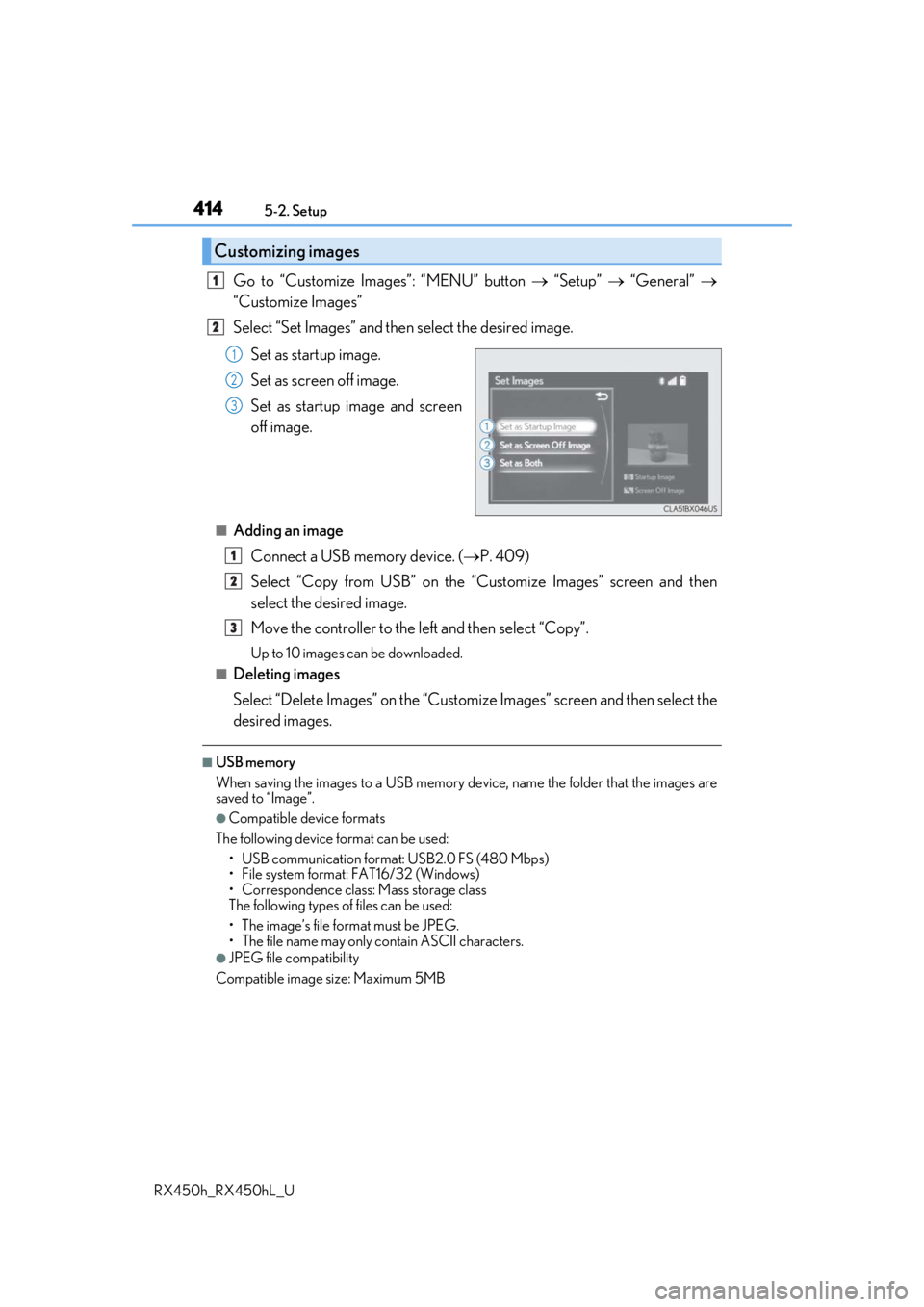
Go to “Customize Images”: “MENU” button “Setup” “General”
“Customize Images”
Select “Set Images” and then select the desired image.
Set as startup image.
Set as screen off image.
Set as startup image and screen
off image.
■Adding an imageConnect a USB memory device. ( P. 409)
Select “Copy from USB” on the “Customize Images” screen and then
select the desired image.
Move the controller to the left and then select “Copy”.
Up to 10 images can be downloaded.
■Deleting images
Select “Delete Images” on the “Customize Images” screen and then select the
desired images.
■USB memory
When saving the images to a USB memory de vice, name the folder that the images are
saved to “Image”.
●Compatible device formats
The following device format can be used: • USB communication format: USB2.0 FS (480 Mbps)
• File system format: FAT16/32 (Windows)
• Correspondence class: Mass storage class
The following types of files can be used:
• The image’s file fo rmat must be JPEG.
• The file name may only contain ASCII characters.
●JPEG file compatibility
Compatible image size: Maximum 5MB
Customizing images
1
2
1
2
3
1
2
3
Page 415 of 792

4155-2. Setup
5
Lexus Display Audio system
RX450h_RX450hL_U
Go to “Delete Personal Data”: “MENU” button “Setup” “General”
“Delete Personal Data”
Select “Delete”.
Check carefully beforeha nd, as data cannot be retrieved once deleted.
The following personal data will be dele ted or changed to its default settings.
• Phonebook data
• Call history data
•Favorite data
•Bluetooth
® devices data
• Phone sound settings
• Detailed Bluetooth
® settings
• Audio/video setting
• Customized image data
•FM info setting
• iPod tagging information
• Software update history
• Software update detail information
• Phone display setting
• Contact/call history setting
• Messaging setting
• Traffic information map
• Weather information
• Phonebook data for voice recognition
• Music data for voice recognition
NOTICE
■To prevent damage to the USB me mory device or its terminals
P. 447
Deleting personal data
1
2
Page 416 of 792
4165-2. Setup
RX450h_RX450hL_U
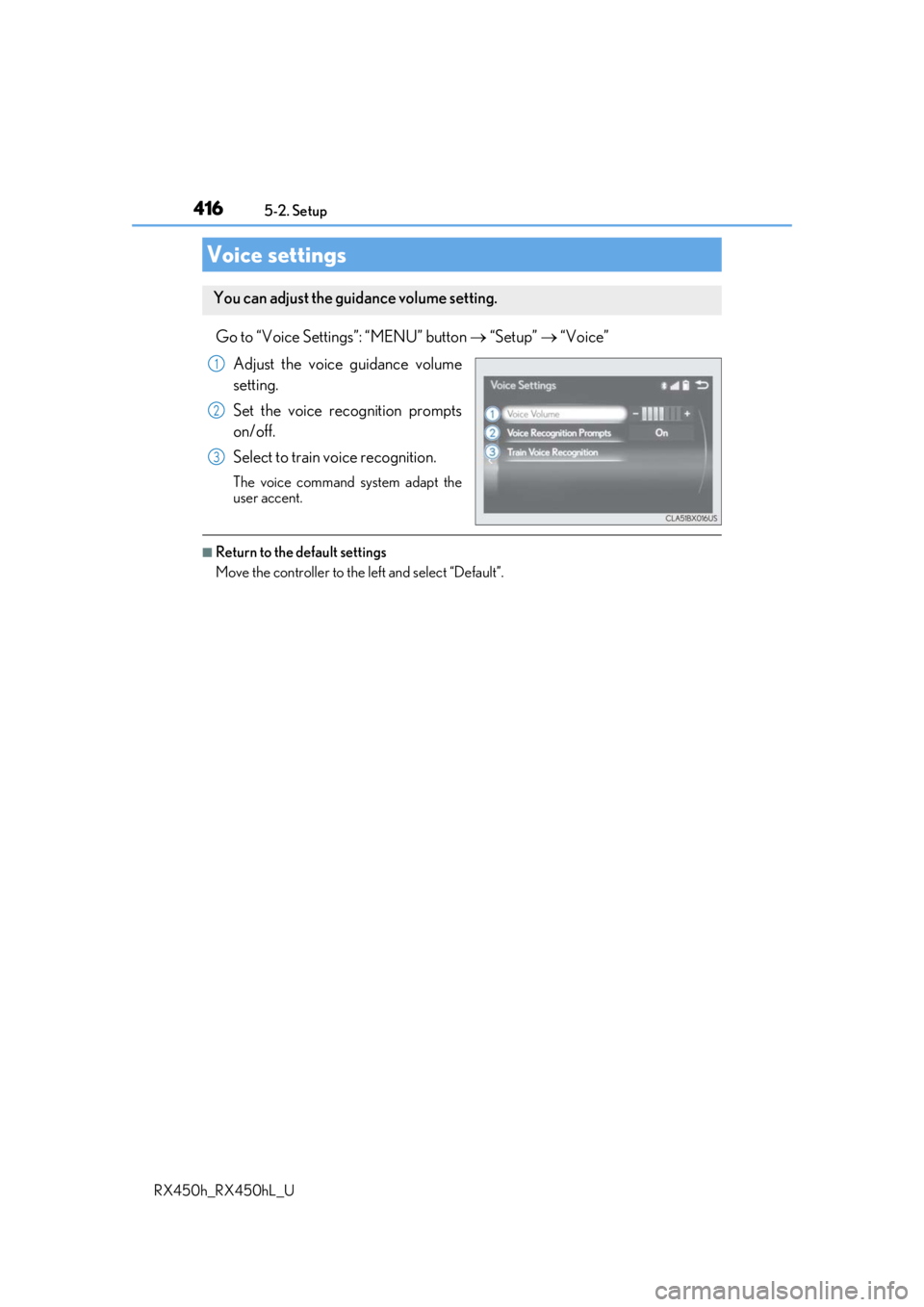
Go to “Voice Settings”: “MENU” button “Setup” “Voice”
Adjust the voice guidance volume
setting.
Set the voice recognition prompts
on/off.
Select to train voice recognition.
The voice command system adapt the
user accent.
■Return to the default settings
Move the controller to the left and select “Default”.
Voice settings
You can adjust the guidance volume setting.
1
2
3
Page 429 of 792
4295-4. Using the radio
5
Lexus Display Audio system
RX450h_RX450hL_U
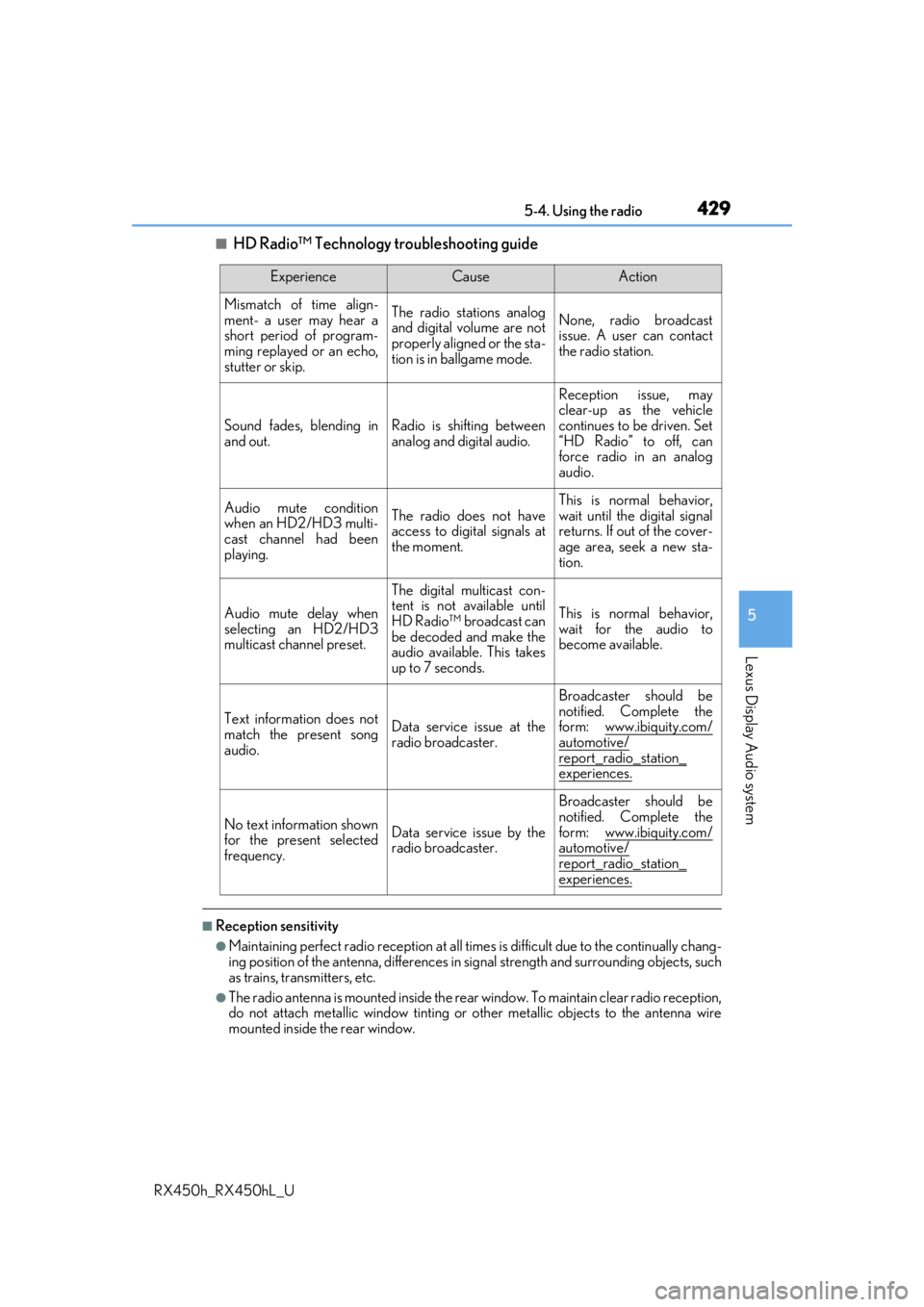
■HD Radio™ Technology troubleshooting guide
■Reception sensitivity
●Maintaining perfect radio reception at all times is difficult due to the continually chang-
ing position of the antenna, differences in si gnal strength and surrounding objects, such
as trains, transmitters, etc.
●The radio antenna is mounted inside the rear window. To maintain clear radio reception,
do not attach metallic window tinting or other metallic objects to the antenna wire
mounted inside the rear window.
ExperienceCauseAction
Mismatch of time align-
ment- a user may hear a
short period of program-
ming replayed or an echo,
stutter or skip.The radio stations analog
and digital volume are not
properly aligned or the sta-
tion is in ballgame mode.None, radio broadcast
issue. A user can contact
the radio station.
Sound fades, blending in
and out.Radio is shifting between
analog and digital audio.
Reception issue, may
clear-up as the vehicle
continues to be driven. Set
“HD Radio” to off, can
force radio in an analog
audio.
Audio mute condition
when an HD2/HD3 multi-
cast channel had been
playing.The radio does not have
access to digital signals at
the moment.
This is normal behavior,
wait until the digital signal
returns. If out of the cover-
age area, seek a new sta-
tion.
Audio mute delay when
selecting an HD2/HD3
multicast channel preset.
The digital multicast con-
tent is not available until
HD Radio™ broadcast can
be decoded and make the
audio available. This takes
up to 7 seconds.
This is normal behavior,
wait for the audio to
become available.
Text information does not
match the present song
audio.Data service issue at the
radio broadcaster.
Broadcaster should be
notified. Complete the
form: www.ibiquity.com/
automotive/
report_radio_station_
experiences.
No text information shown
for the present selected
frequency.Data service issue by the
radio broadcaster.
Broadcaster should be
notified. Complete the
form: www.ibiquity.com/
automotive/report_radio_station_
experiences.
Page 432 of 792
4325-4. Using the radio
RX450h_RX450hL_U
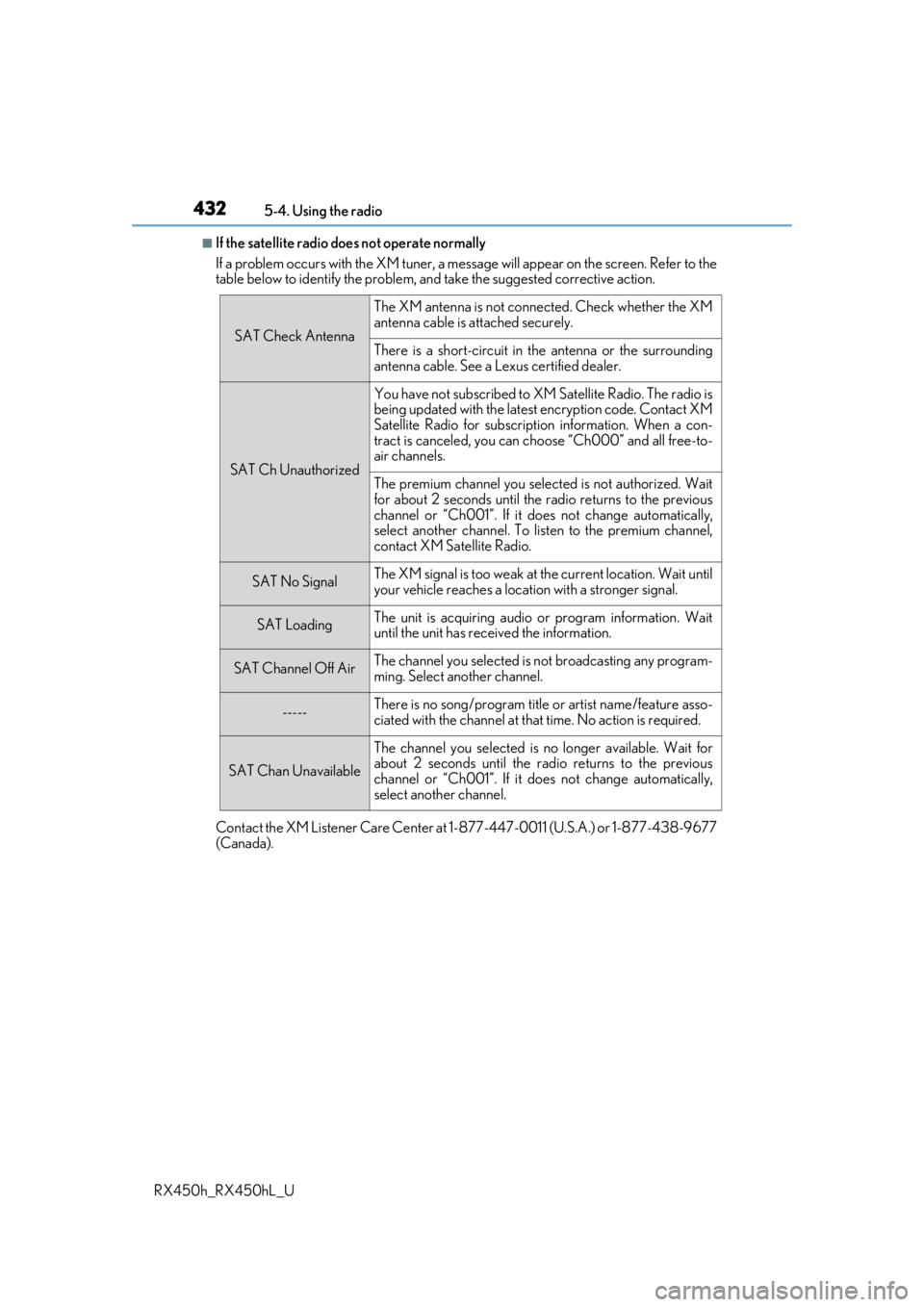
■If the satellite radio does not operate normally
If a problem occurs with the XM tuner, a message will appear on the screen. Refer to the
table below to identify the problem, an d take the suggested corrective action.
Contact the XM Listener Care Center at 1-877-447-0011 (U.S.A.) or 1-877-438-9677
(Canada).
SAT Check Antenna
The XM antenna is not connected. Check whether the XM
antenna cable is attached securely.
There is a short-circuit in the antenna or the surrounding
antenna cable. See a Lexus certified dealer.
SAT Ch Unauthorized
You have not subscribed to XM Satellite Radio. The radio is
being updated with the latest encryption code. Contact XM
Satellite Radio for subscripti on information. When a con-
tract is canceled, you can choose “Ch000” and all free-to-
air channels.
The premium channel you selected is not authorized. Wait
for about 2 seconds until the radio returns to the previous
channel or “Ch001”. If it does not change automatically,
select another channel. To listen to the premium channel,
contact XM Satellite Radio.
SAT No SignalThe XM signal is too weak at the current location. Wait until
your vehicle reaches a location with a stronger signal.
SAT LoadingThe unit is acquiring audio or program information. Wait
until the unit has rece ived the information.
SAT Channel Off AirThe channel you selected is not broadcasting any program-
ming. Select another channel.
-----There is no song/program title or artist name/feature asso-
ciated with the channel at that time. No action is required.
SAT Chan Unavailable
The channel you selected is no longer available. Wait for
about 2 seconds until the radio returns to the previous
channel or “Ch001”. If it does not change automatically,
select another channel.