2019 DODGE CHALLENGER lock
[x] Cancel search: lockPage 75 of 532
IconDescription
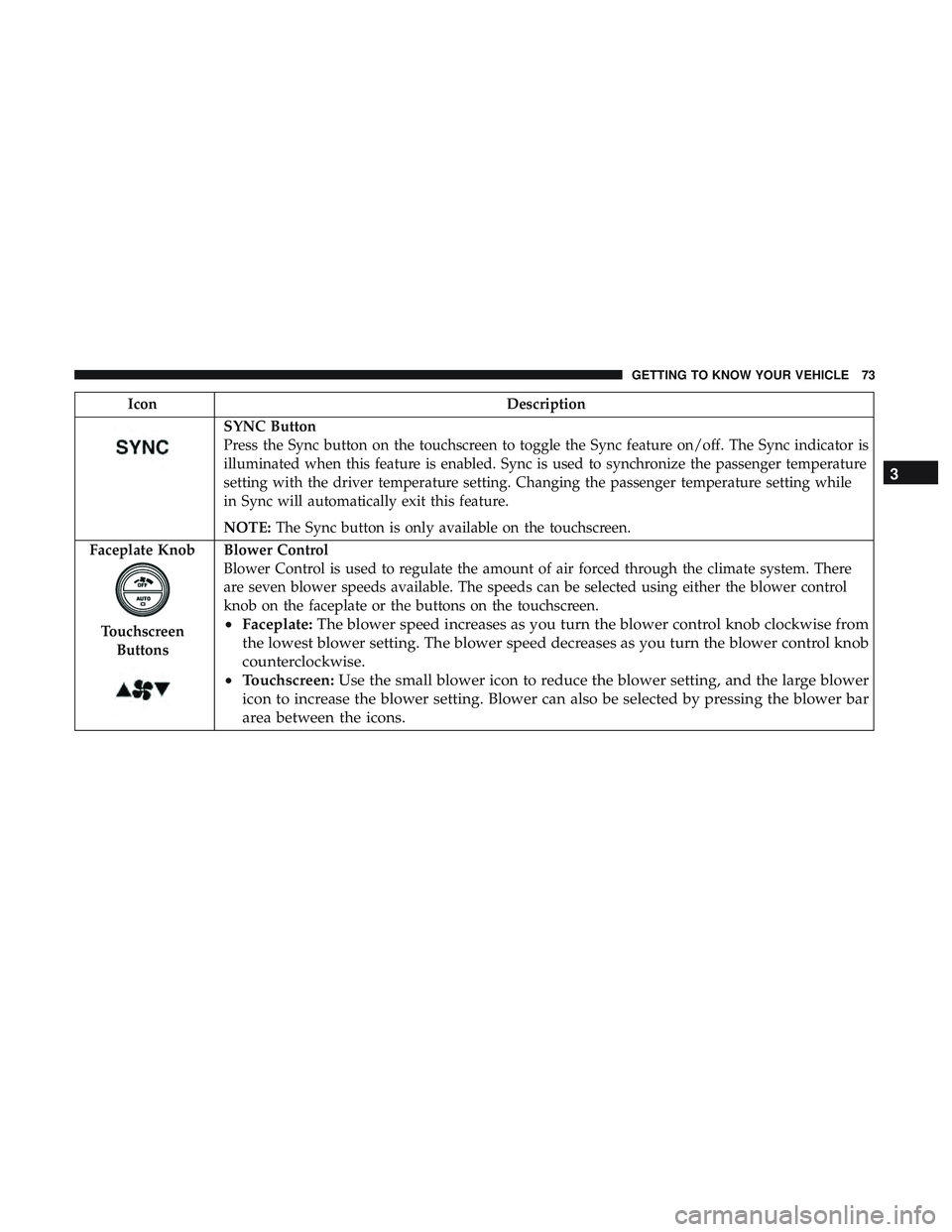
SYNC Button
Press the Sync button on the touchscreen to toggle the Sync feature on/off. The Sync indicator is
illuminated when this feature is enabled. Sync is used to synchronize the passenger temperature
setting with the driver temperature setting. Changing the passenger temperature setting while
in Sync will automatically exit this feature.
NOTE:The Sync button is only available on the touchscreen.
Faceplate Knob
Touchscreen Buttons
Blower Control
Blower Control is used to regulate the amount of air forced through the climate system. There
are seven blower speeds available. The speeds can be selected using either the blower control
knob on the faceplate or the buttons on the touchscreen.
• Faceplate: The blower speed increases as you turn the blower control knob clockwise from
the lowest blower setting. The blower speed decreases as you turn the blower control knob
counterclockwise.
• Touchscreen: Use the small blower icon to reduce the blower setting, and the large blower
icon to increase the blower setting. Blower can also be selected by pressing the blower bar
area between the icons. 3
GETTING TO KNOW YOUR VEHICLE 73
Page 82 of 532
Auto-Down Feature
The driver and, in some models, passenger power window
switches have an Auto-Down feature. Push the window
switch to the second detent, release, and the window will
go down automatically.
To open the window part way, push the window switch to
the first detent and release it when you want the window
to stop.
To stop the window from going all the way down during
the Auto-Down operation, pull up on the switch briefly.
Wind Buffeting
Wind buffeting can be described as the perception of
pressure on the ears or a helicopter-type sound in the ears.
Your vehicle may exhibit wind buffeting with the windows
down, or the sunroof (if equipped) in certain open or
partially open positions. This is a normal occurrence and
can be minimized. If the buffeting occurs with the rear
windows open, open the front and rear windows together
to minimize the buffeting. If the buffeting occurs with the
sunroof open, adjust the sunroof opening to minimize the
buffeting or open any window.
POWER SUNROOF — IF EQUIPPED
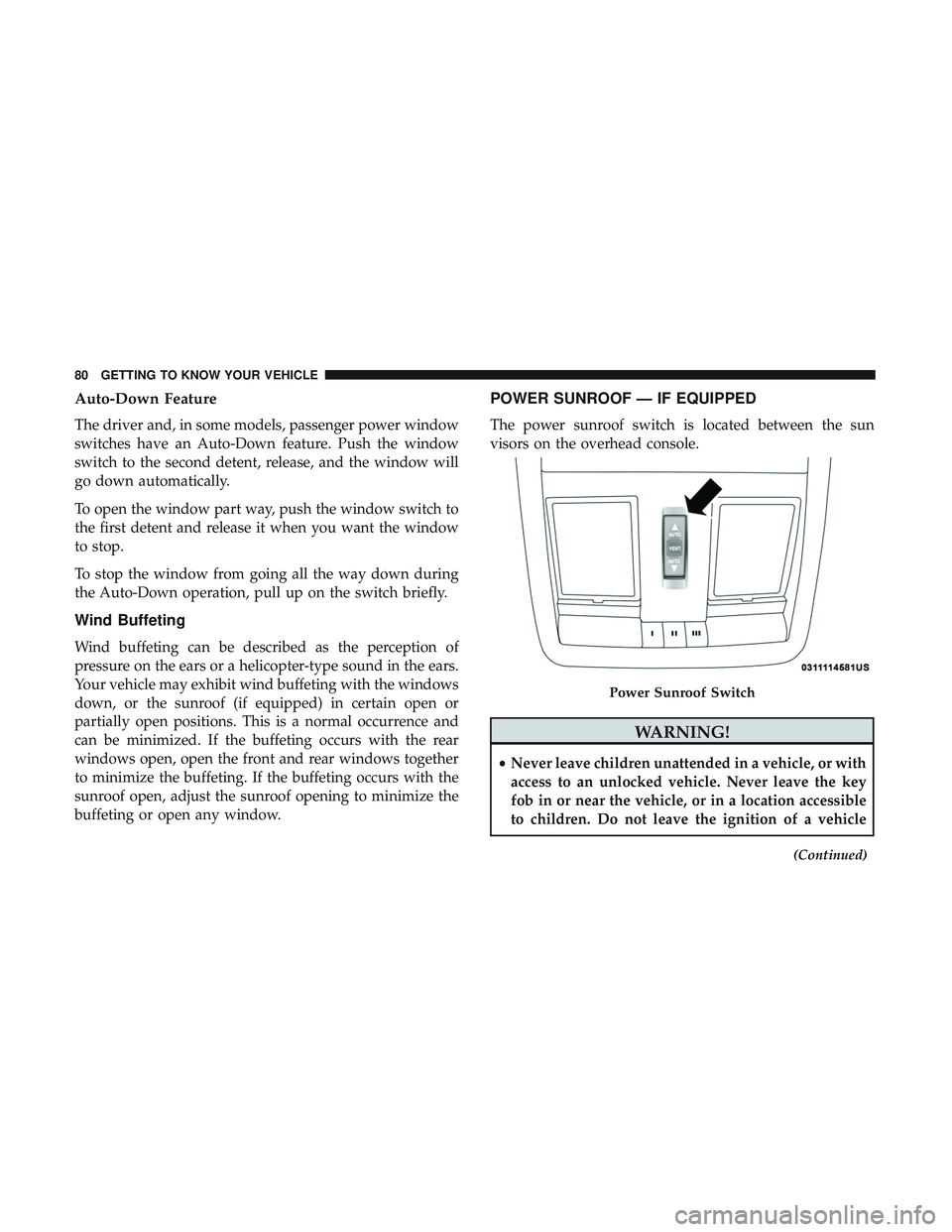
The power sunroof switch is located between the sun
visors on the overhead console.
WARNING!
•Never leave children unattended in a vehicle, or with
access to an unlocked vehicle. Never leave the key
fob in or near the vehicle, or in a location accessible
to children. Do not leave the ignition of a vehicle
(Continued)
Power Sunroof Switch
80 GETTING TO KNOW YOUR VEHICLE
Page 86 of 532
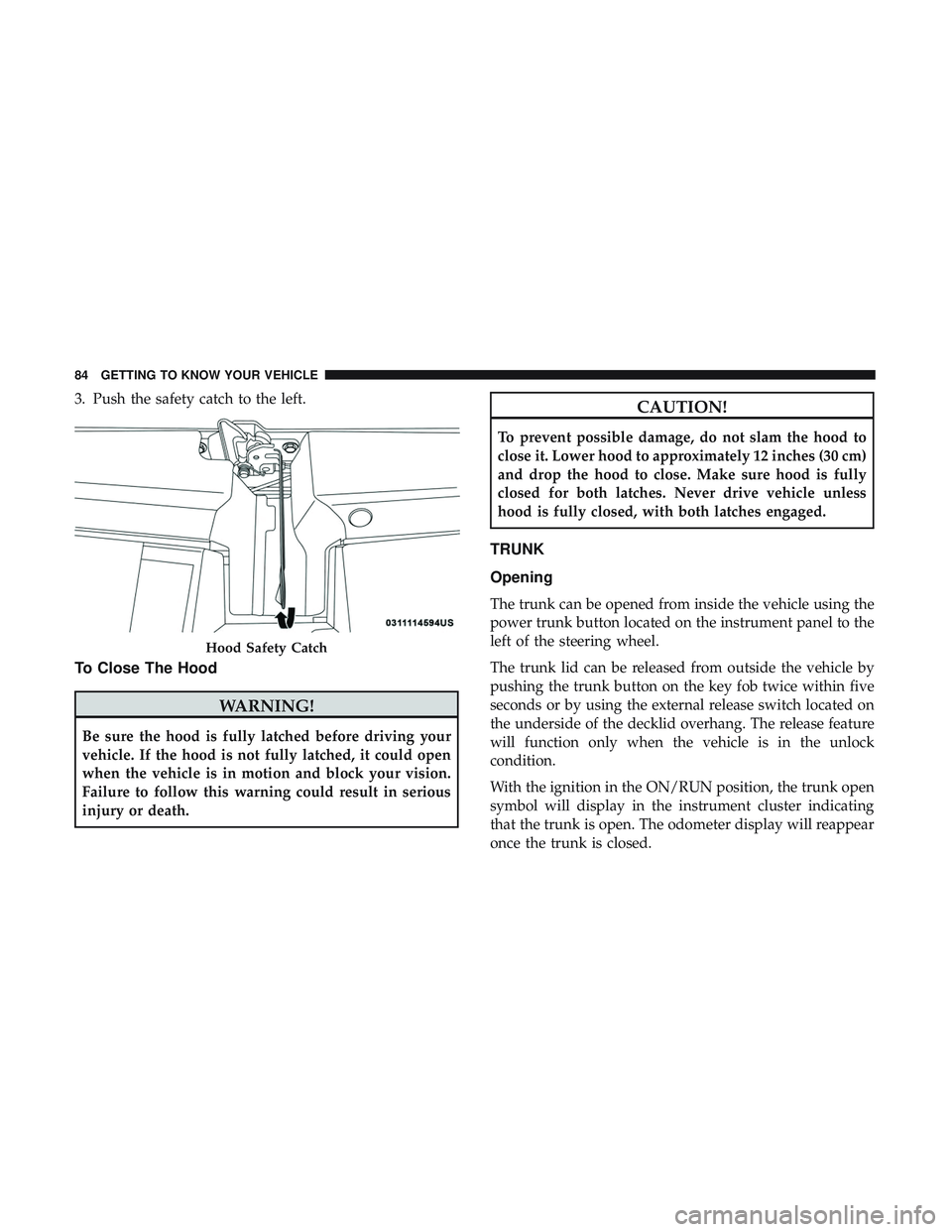
3. Push the safety catch to the left.
To Close The Hood
WARNING!
Be sure the hood is fully latched before driving your
vehicle. If the hood is not fully latched, it could open
when the vehicle is in motion and block your vision.
Failure to follow this warning could result in serious
injury or death.
CAUTION!
To prevent possible damage, do not slam the hood to
close it. Lower hood to approximately 12 inches (30 cm)
and drop the hood to close. Make sure hood is fully
closed for both latches. Never drive vehicle unless
hood is fully closed, with both latches engaged.
TRUNK
Opening
The trunk can be opened from inside the vehicle using the
power trunk button located on the instrument panel to the
left of the steering wheel.
The trunk lid can be released from outside the vehicle by
pushing the trunk button on the key fob twice within five
seconds or by using the external release switch located on
the underside of the decklid overhang. The release feature
will function only when the vehicle is in the unlock
condition.
With the ignition in the ON/RUN position, the trunk open
symbol will display in the instrument cluster indicating
that the trunk is open. The odometer display will reappear
once the trunk is closed.
Hood Safety Catch
84 GETTING TO KNOW YOUR VEHICLE
Page 87 of 532
With the ignition in the OFF position, the trunk open
symbol will display until the trunk is closed.
NOTE:Refer to “Keyless Enter-N-Go — Passive Entry” in
”Doors” in “Getting To Know Your Vehicle” for further
information on trunk operation with the Passive Entry
feature.
Opening From Inside The Vehicle
Interior Power Trunk Release
The trunk can be opened from inside the
vehicle using the power trunk release
button located on the instrument panel
to the left of the steering wheel.
NOTE:The transmission must be in
PARK before the button will operate.
Opening From Outside The Vehicle
To Unlock/Open The Trunk
The trunk may be unlocked/opened using either of the
following methods:
• Key Fob Trunk Release Button
• Passive Entry Button Key Fob Trunk Release Button
Push the power trunk button on the key fob
twice within five seconds to release the trunk.
Passive Entry Button
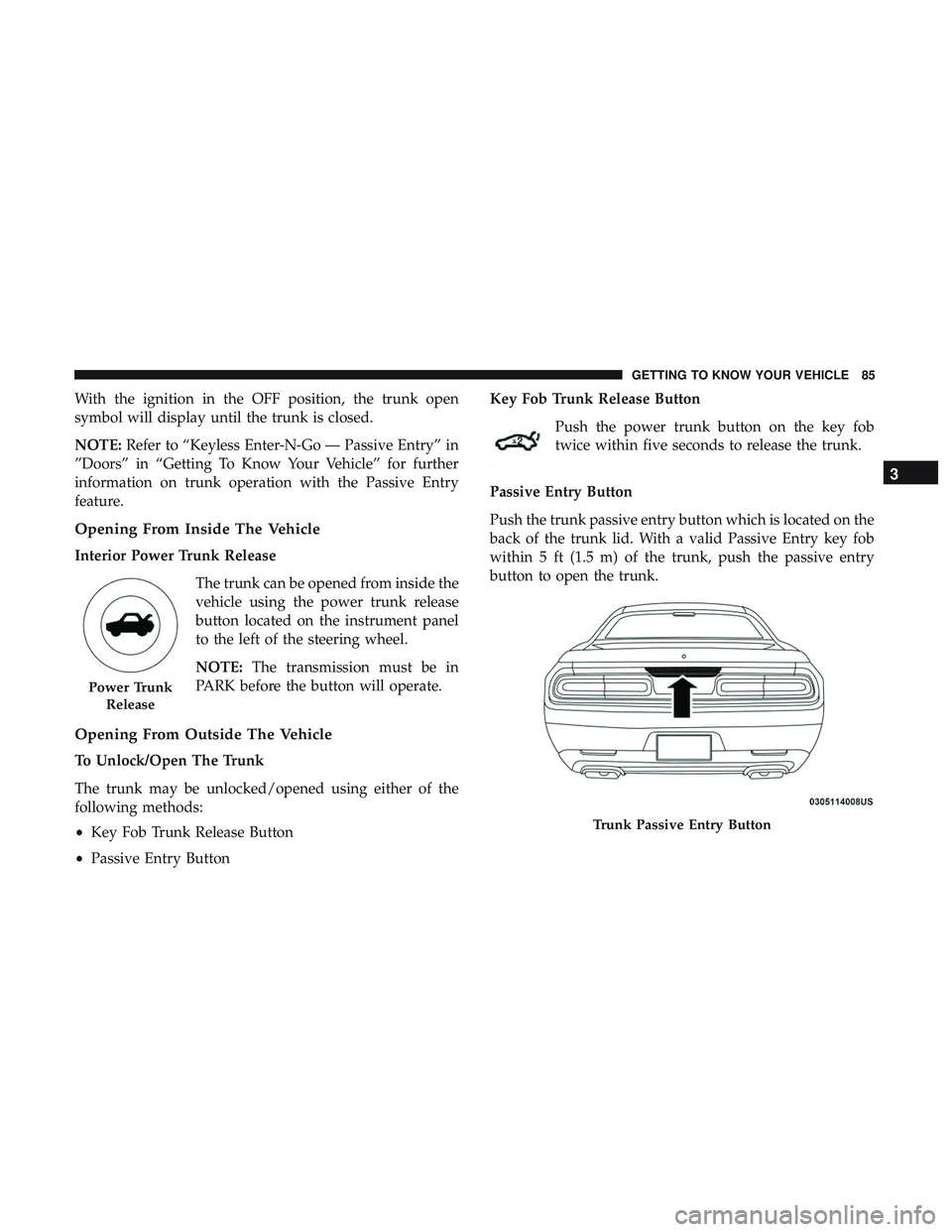
Push the trunk passive entry button which is located on the
back of the trunk lid. With a valid Passive Entry key fob
within 5 ft (1.5 m) of the trunk, push the passive entry
button to open the trunk.
Power Trunk Release
Trunk Passive Entry Button
3
GETTING TO KNOW YOUR VEHICLE 85
Page 88 of 532
Closing
With one or more hands placed on the outside trunk
surface push the trunk lid down until you hear the trunk
lock latch into place.
NOTE:Before closing the trunk lid make sure your key fob
isn’t inside the trunk area. The trunk will latch then
automatically unlock if the key fob is sensed not allowing
the key fob to be locked in the trunk area.
Trunk Safety
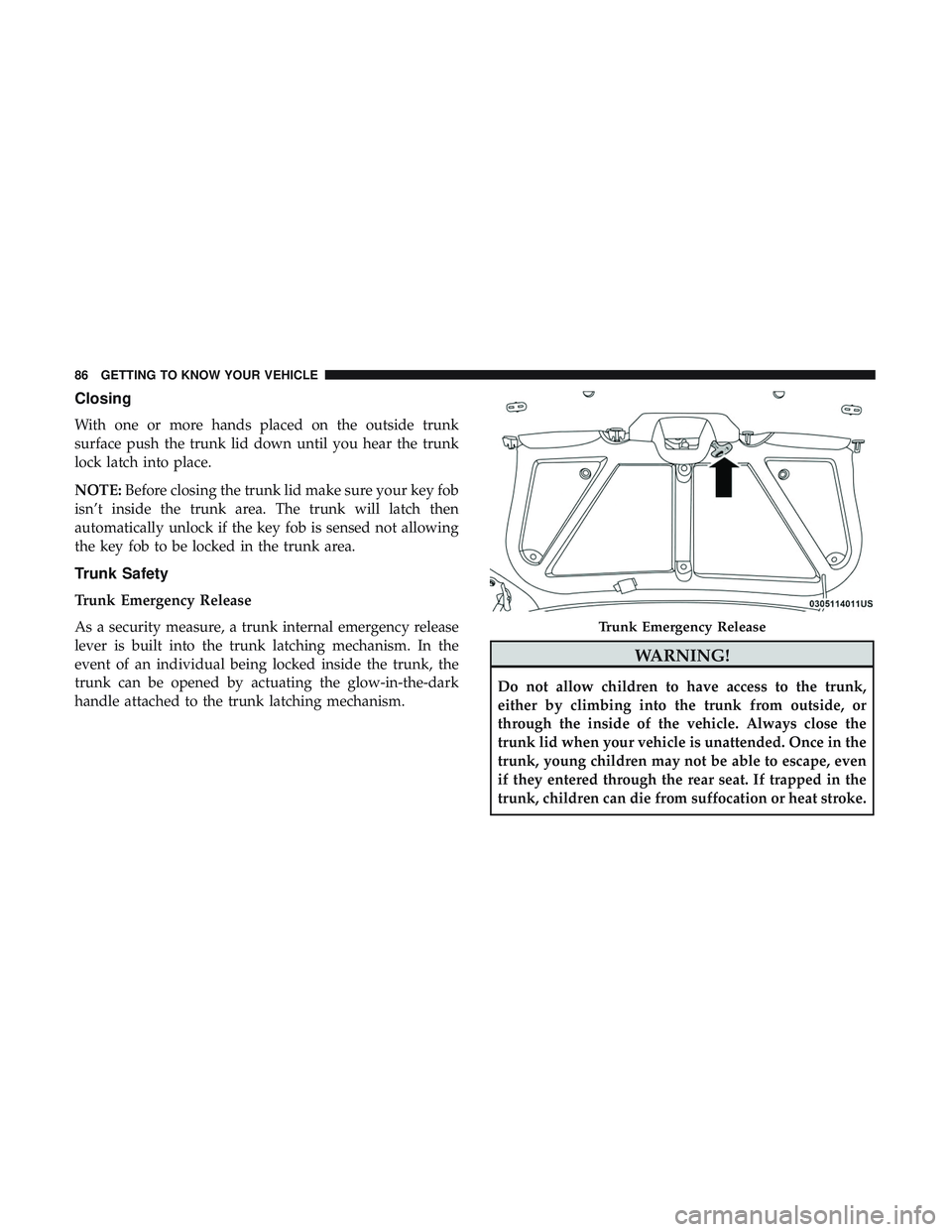
Trunk Emergency Release
As a security measure, a trunk internal emergency release
lever is built into the trunk latching mechanism. In the
event of an individual being locked inside the trunk, the
trunk can be opened by actuating the glow-in-the-dark
handle attached to the trunk latching mechanism.
WARNING!
Do not allow children to have access to the trunk,
either by climbing into the trunk from outside, or
through the inside of the vehicle. Always close the
trunk lid when your vehicle is unattended. Once in the
trunk, young children may not be able to escape, even
if they entered through the rear seat. If trapped in the
trunk, children can die from suffocation or heat stroke.
Trunk Emergency Release
86 GETTING TO KNOW YOUR VEHICLE
Page 93 of 532

•To program the two remaining HomeLink buttons,
repeat each step for each remaining button. DO NOT
erase the channels.
If you unplugged the garage door opener/device for
programming, plug it back in at this time.
Reprogramming A Single HomeLink Button (Canadian/
Gate Operator)
To reprogram a channel that has been previously trained,
follow these steps:
1. Cycle the ignition to the ON/RUN position.
2. Press and hold the desired HomeLink button until the indicator light begins to flash after 20 seconds. Do not
release the button.
3. Without releasing the button, proceed with “Canadian/ Gate Operator Programming” step 2 and follow all
remaining steps.
Using HomeLink
To operate, push and release the programmed HomeLink
button. Activation will now occur for the programmed
device (i.e. garage door opener, gate operator, security sys-
tem, entry door lock, home/office lighting, etc.). The hand-
held transmitter of the device may also be used at any time.
Security
It is advised to erase all channels before you sell or turn in
your vehicle.
To do this, push and hold the two outside buttons for 20
seconds until the orange indicator flashes. Note that all
channels will be erased. Individual channels cannot be
erased.
The HomeLink Universal Transceiver is disabled when the
Vehicle Security Alarm is active.
Troubleshooting Tips
If you are having trouble programming HomeLink, here
are some of the most common solutions:
•Replace the battery in the Garage Door Opener hand-
held transmitter.
• Push the LEARN button on the Garage Door Opener to
complete the training for a Rolling Code.
• Did you unplug the device for programming and re-
member to plug it back in?
If you have any problems, or require assistance, please call
toll-free 1-800-355-3515 or, on the Internet at
HomeLink.com for information or assistance.
3
GETTING TO KNOW YOUR VEHICLE 91
Page 101 of 532
on the wireless charging pad face up. The charging indi-
cator on your phone will light up indicating that your
phone is charging.
NOTE:The charging pad is safe to the touch. However, if
metallic items are placed on the charging surface while in
use, the device will turn off. Clean all spills immediately
and allow to dry before using.
For phones that already have built-in wireless charging
capability (Samsung, Apple iPhone 8, 8 Plus and X
Phones), a Qi Adapter is available to charge your phone
using the Open Dot wire-free phone charging surface.
Simply place the Qi Adapter (dot side down) on the
charging surface and then place your built-in charging
capable phone face up on top of the Qi Adapter. This
product may not be compatible with all vehicle/Open Dots
compatible wire-free phone charging surface combina-
tions.CAUTION!
The key fob should not be placed on the charging pad
or within 15 cm (150 mm) of it. Doing so can cause
excessive heat buildup and damage to the fob. Placing
the fob in close proximity of the charging pad blocks
the fob from being detected by the vehicle and pre-
vents the vehicle from starting.
To get your free aftermarket phone case or Qi Adapter, go
to http://invehiclewirelesscharging.com. You will need
your vehicle/voucher identification number (located in
your vehicle’s glove box). If you have any questions or are
not sure if you need a phone case or the Qi Adapter, please
call our customer support line for assistance: 877–360–7702
3
GETTING TO KNOW YOUR VEHICLE 99
Page 110 of 532

Secondary Method Of Resetting Engine Oil Life
1. Without pressing the brake pedal, push the ENGINESTART/STOP button and place the ignition to the
ON/RUN position (do not start the engine).
2. Fully press the accelerator pedal, slowly, three times within ten seconds.
3. Without pushing the brake pedal, push the ENGINE START/STOP button once to return the ignition to the
OFF/LOCK position.
NOTE: If the indicator message illuminates when you start
the vehicle, the oil change indicator system did not reset. If
necessary, repeat this procedure.
Performance Shift Indicator (PSI) — If Equipped
The Performance Shift Indicator (PSI) is enabled on ve-
hicles with manual transmission, or when a vehicle with
automatic transmission is in manual shift mode. The PSI
provides the driver with a visual indication within the
instrument cluster display when the driver configured gear
shift point has been reached and the driver is still acceler-
ating. This indication notifies the driver to change gear
corresponding to the configured RPMs in the head unit.
Instrument Cluster Display Selectable Menu Items
Push and release the upordown arrow button until the
desired Selectable Menu item is displayed in the instru-
ment cluster display.
Follow the Menu or submenu prompts as desired.
Speedometer
Push and release the upordown arrow button until the
speedometer menu is displayed in the instrument cluster
display. Push and release the OKbutton to toggle units
(km/h or MPH) of the speedometer.
Vehicle Info
Push and release the upordown arrow button until the
“Vehicle Info” menu is displayed in the instrument cluster
display. Push and release the rightorleft arrow button to
scroll through the sub menus items of “Vehicle Info.”
Follow the directional prompts to access or reset any of the
following “Vehicle Info” sub menu items:
Tire Pressure Monitor
If tire pressure is OKfor all tires, a vehicle ICON is
displayed with tire pressure values in each corner of the
ICON.
108 GETTING TO KNOW YOUR INSTRUMENT PANEL