Page 403 of 492
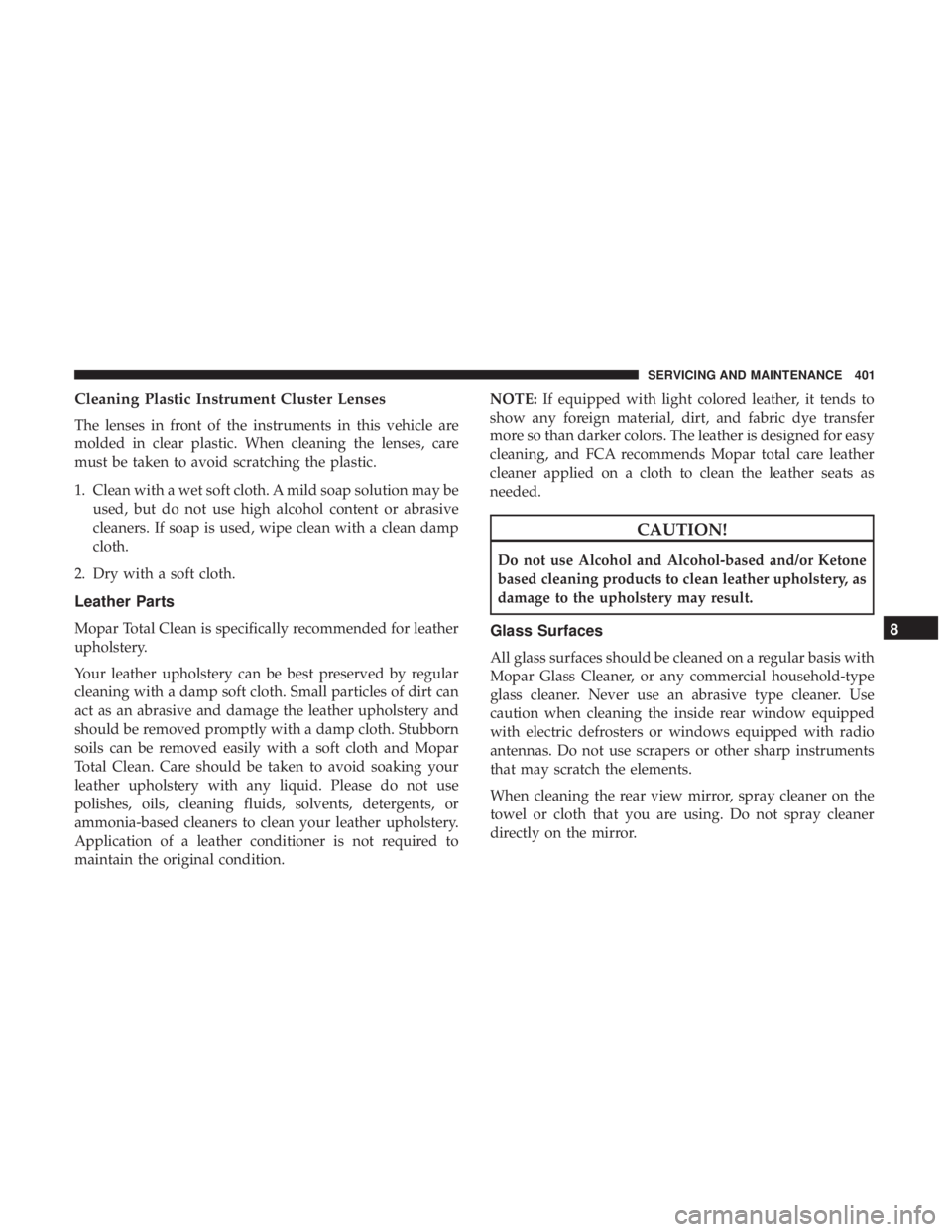
Cleaning Plastic Instrument Cluster Lenses
The lenses in front of the instruments in this vehicle are
molded in clear plastic. When cleaning the lenses, care
must be taken to avoid scratching the plastic.
1. Clean with a wet soft cloth. A mild soap solution may beused, but do not use high alcohol content or abrasive
cleaners. If soap is used, wipe clean with a clean damp
cloth.
2. Dry with a soft cloth.
Leather Parts
Mopar Total Clean is specifically recommended for leather
upholstery.
Your leather upholstery can be best preserved by regular
cleaning with a damp soft cloth. Small particles of dirt can
act as an abrasive and damage the leather upholstery and
should be removed promptly with a damp cloth. Stubborn
soils can be removed easily with a soft cloth and Mopar
Total Clean. Care should be taken to avoid soaking your
leather upholstery with any liquid. Please do not use
polishes, oils, cleaning fluids, solvents, detergents, or
ammonia-based cleaners to clean your leather upholstery.
Application of a leather conditioner is not required to
maintain the original condition. NOTE:
If equipped with light colored leather, it tends to
show any foreign material, dirt, and fabric dye transfer
more so than darker colors. The leather is designed for easy
cleaning, and FCA recommends Mopar total care leather
cleaner applied on a cloth to clean the leather seats as
needed.
CAUTION!
Do not use Alcohol and Alcohol-based and/or Ketone
based cleaning products to clean leather upholstery, as
damage to the upholstery may result.
Glass Surfaces
All glass surfaces should be cleaned on a regular basis with
Mopar Glass Cleaner, or any commercial household-type
glass cleaner. Never use an abrasive type cleaner. Use
caution when cleaning the inside rear window equipped
with electric defrosters or windows equipped with radio
antennas. Do not use scrapers or other sharp instruments
that may scratch the elements.
When cleaning the rear view mirror, spray cleaner on the
towel or cloth that you are using. Do not spray cleaner
directly on the mirror.
8
SERVICING AND MAINTENANCE 401
Page 421 of 492
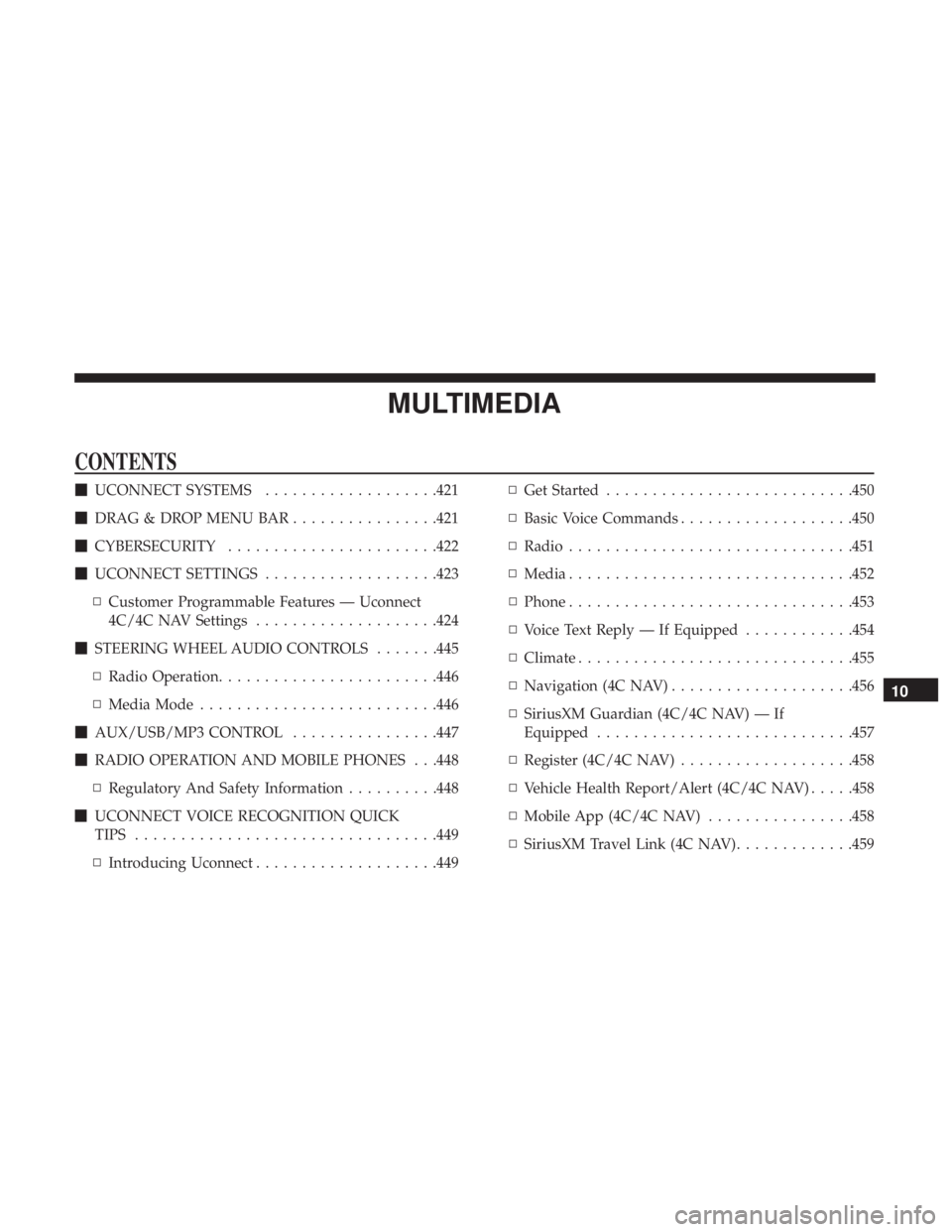
MULTIMEDIA
CONTENTS
�UCONNECT SYSTEMS ...................421
� DRAG & DROP MENU BAR ................421
� CYBERSECURITY ...................... .422
� UCONNECT SETTINGS ...................423
▫ Customer Programmable Features — Uconnect
4C/4C NAV Settings ....................424
� STEERING WHEEL AUDIO CONTROLS .......445
▫ Radio Operation ....................... .446
▫ Media Mode ......................... .446
� AUX/USB/MP3 CONTROL ................447
� RADIO OPERATION AND MOBILE PHONES . . .448
▫ Regulatory And Safety Information ..........448
� UCONNECT VOICE RECOGNITION QUICK
TIPS ................................ .449
▫ Introducing Uconnect ....................449 ▫
Get Started .......................... .450
▫ Basic Voice Commands ...................450
▫ Radio .............................. .451
▫ Media .............................. .452
▫ Phone .............................. .453
▫ Voice Text Reply — If Equipped ............454
▫ Climate ............................. .455
▫ Navigation (4C NAV) ....................456
▫ SiriusXM Guardian (4C/4C NAV) — If
Equipped ........................... .457
▫ Register (4C/4C NAV) ...................458
▫ Vehicle Health Report/Alert (4C/4C NAV) .....458
▫ Mobile App (4C/4C NAV) ................458
▫ SiriusXM
Travel Link (4C NAV) .............459
10
Page 430 of 492
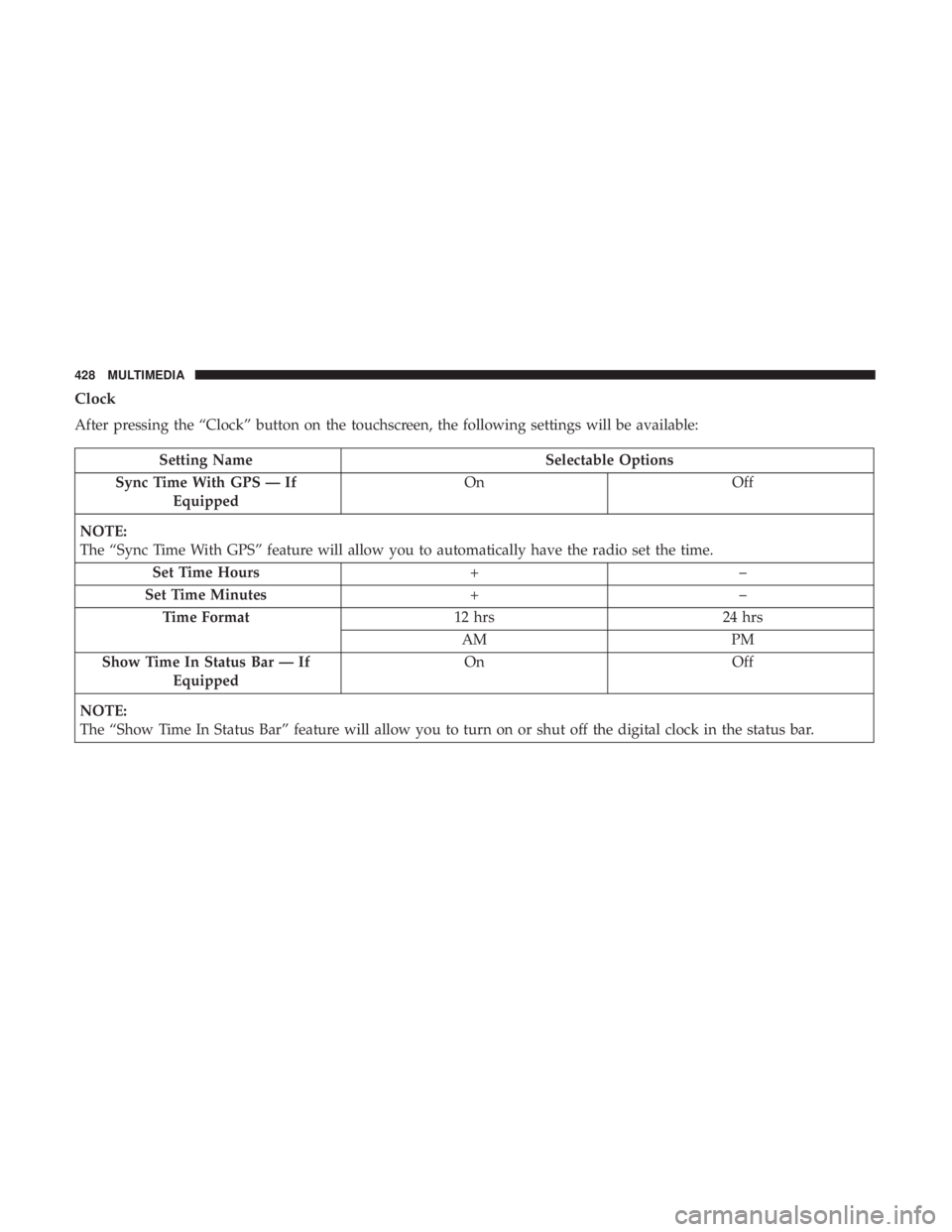
Clock
After pressing the “Clock” button on the touchscreen, the following settings will be available:
Setting NameSelectable Options
Sync Time With GPS — If Equipped On
Off
NOTE:
The “Sync Time With GPS” feature will allow you to automatically have the radio set the time. Set Time Hours +–
Set Time Minutes +–
Time Format 12 hrs24 hrs
AM PM
Show Time In Status Bar — If Equipped On
Off
NOTE:
The “Show Time In Status Bar” feature will allow you to turn on or shut off the digital clock in the status bar.
428 MULTIMEDIA
Page 435 of 492
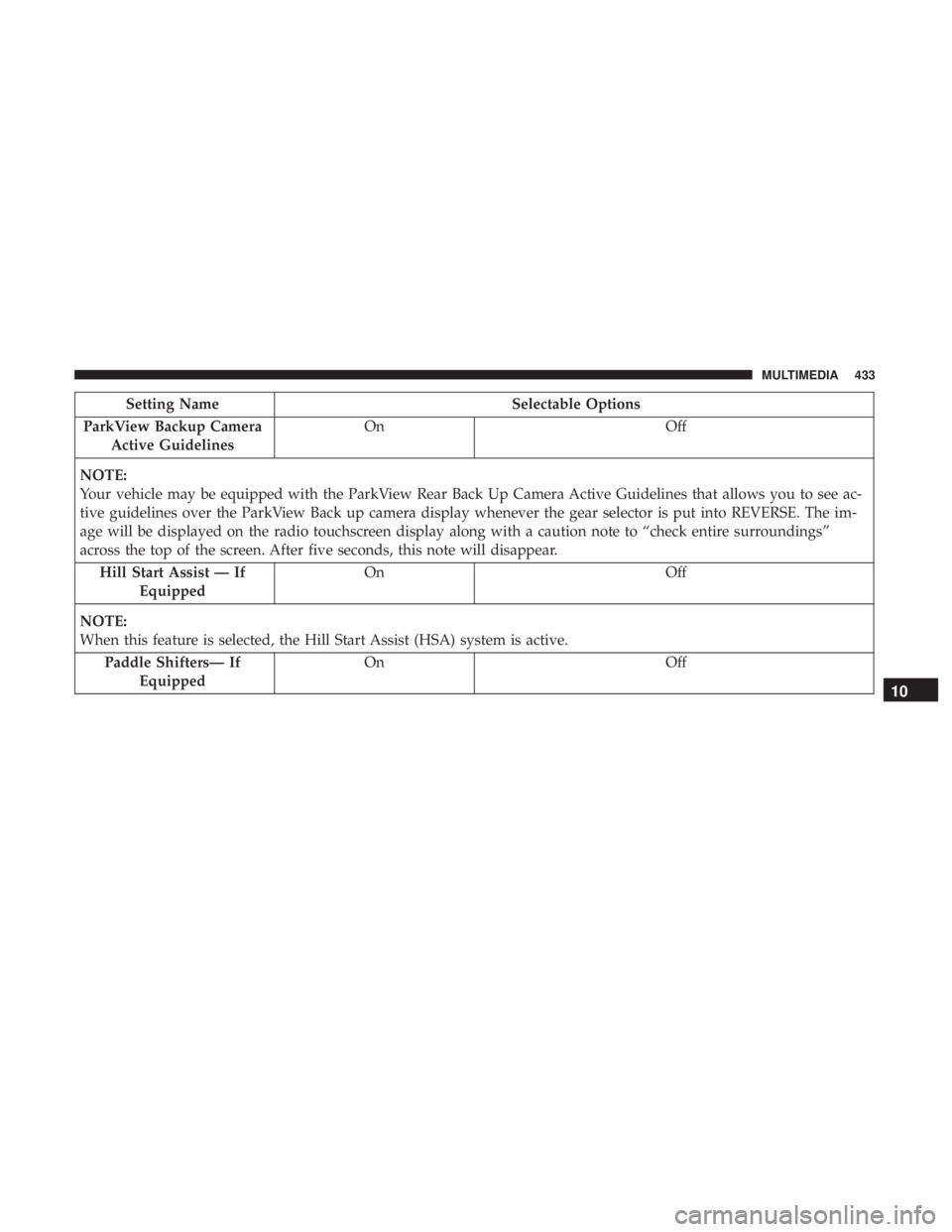
Setting NameSelectable Options
ParkView Backup Camera Active Guidelines On
Off
NOTE:
Your vehicle may be equipped with the ParkView Rear Back Up Camera Active Guidelines that allows you to see ac-
tive guidelines over the ParkView Back up camera display whenever the gear selector is put into REVERSE. The im-
age will be displayed on the radio touchscreen display along with a caution note to “check entire surroundings”
across the top of the screen. After five seconds, this note will disappear. Hill Start Assist — If Equipped On
Off
NOTE:
When this feature is selected, the Hill Start Assist (HSA) system is active. Paddle Shifters— If Equipped On
Off
10
MULTIMEDIA 433
Page 440 of 492
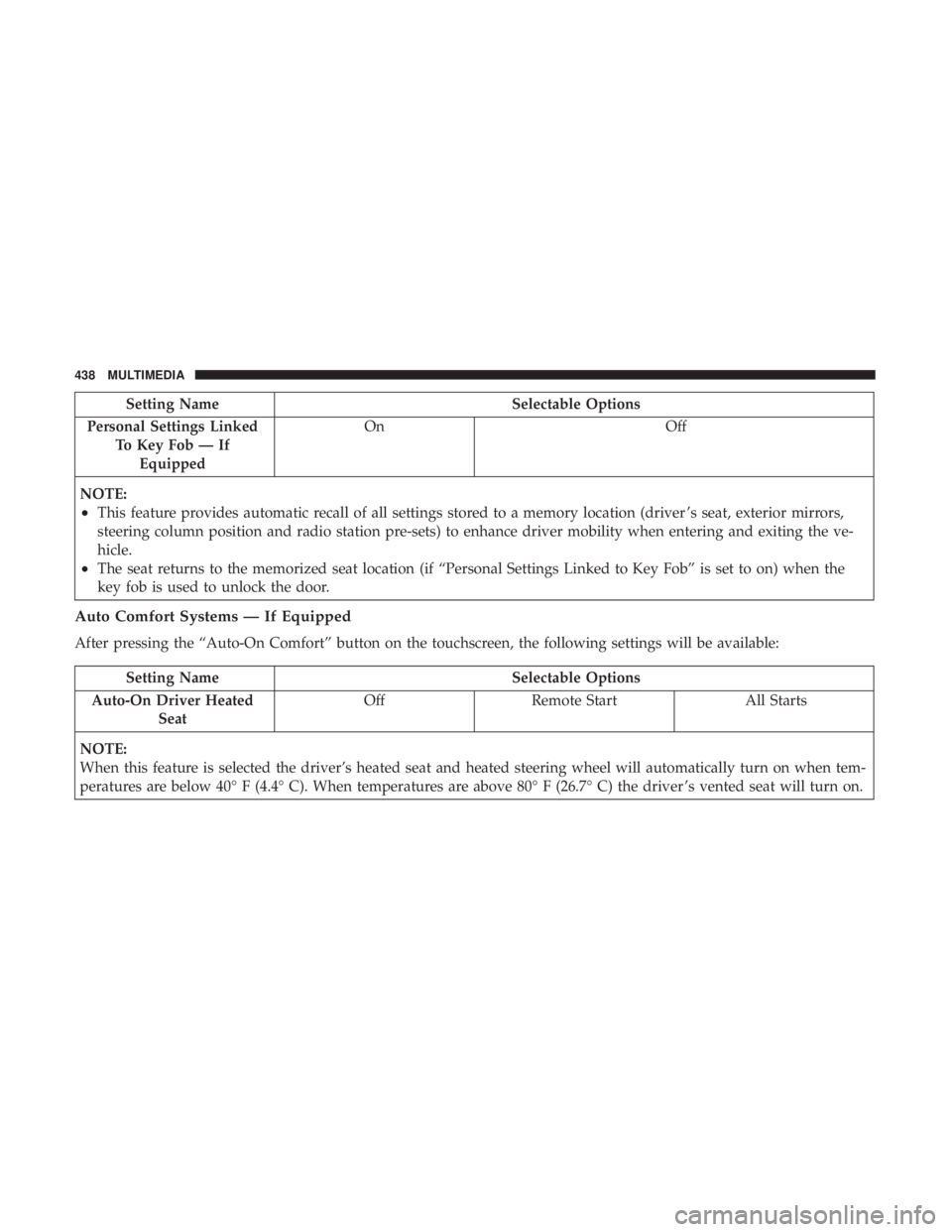
Setting NameSelectable Options
Personal Settings Linked To Key Fob — IfEquipped On
Off
NOTE:
•This feature provides automatic recall of all settings stored to a memory location (driver ’s seat, exterior mirrors,
steering column position and radio station pre-sets) to enhance driver mobility when entering and exiting the ve-
hicle.
•The seat returns to the memorized seat location (if “Personal Settings Linked to Key Fob” is set to on) when the
key fob is used to unlock the door.
Auto Comfort Systems — If Equipped
After pressing the “Auto-On Comfort” button on the touchscreen, the following settings will be available:
Setting Name Selectable Options
Auto-On Driver Heated Seat Off
Remote Start All Starts
NOTE:
When this feature is selected the driver’s heated seat and heated steering wheel will automatically turn on when tem-
peratures are below 40° F (4.4° C). When temperatures are above 80° F (26.7° C) the driver ’s vented seat will turn on.
438 MULTIMEDIA
Page 441 of 492
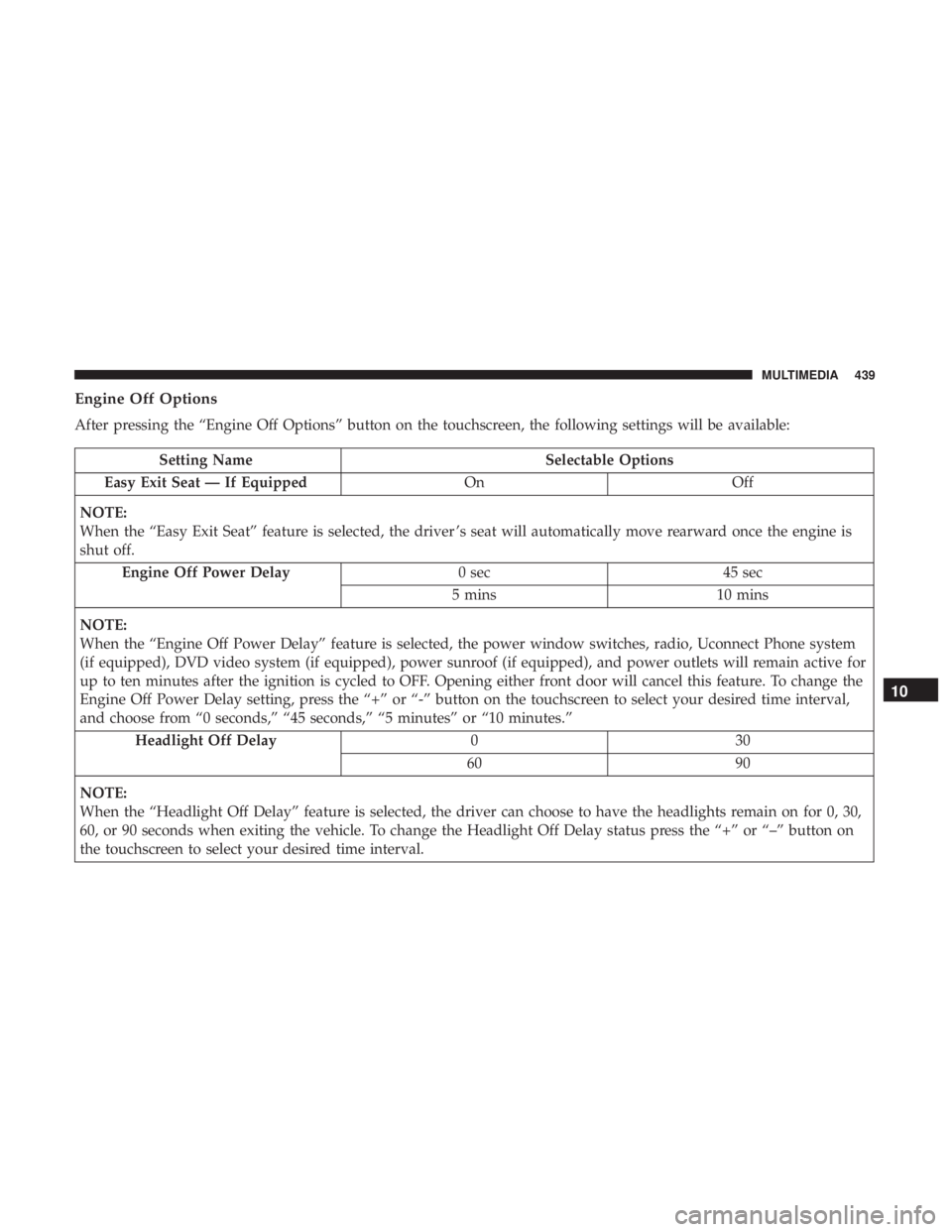
Engine Off Options
After pressing the “Engine Off Options” button on the touchscreen, the following settings will be available:
Setting NameSelectable Options
Easy Exit Seat — If Equipped OnOff
NOTE:
When the “Easy Exit Seat” feature is selected, the driver ’s seat will automatically move rearward once the engine is
shut off. Engine Off Power Delay 0 sec45 sec
5 mins 10 mins
NOTE:
When the “Engine Off Power Delay” feature is selected, the power window switches, radio, Uconnect Phone system
(if equipped), DVD video system (if equipped), power sunroof (if equipped), and power outlets will remain active for
up to ten minutes after the ignition is cycled to OFF. Opening either front door will cancel this feature. To change the
Engine Off Power Delay setting, press the “+” or “-” button on the touchscreen to select your desired time interval,
and choose from “0 seconds,” “45 seconds,” “5 minutes” or “10 minutes.” Headlight Off Delay 030
60 90
NOTE:
When the “Headlight Off Delay” feature is selected, the driver can choose to have the headlights remain on for 0, 30,
60, or 90 seconds when exiting the vehicle. To change the Headlight Off Delay status press the “+” or “–” button on
the touchscreen to select your desired time interval.
10
MULTIMEDIA 439
Page 445 of 492
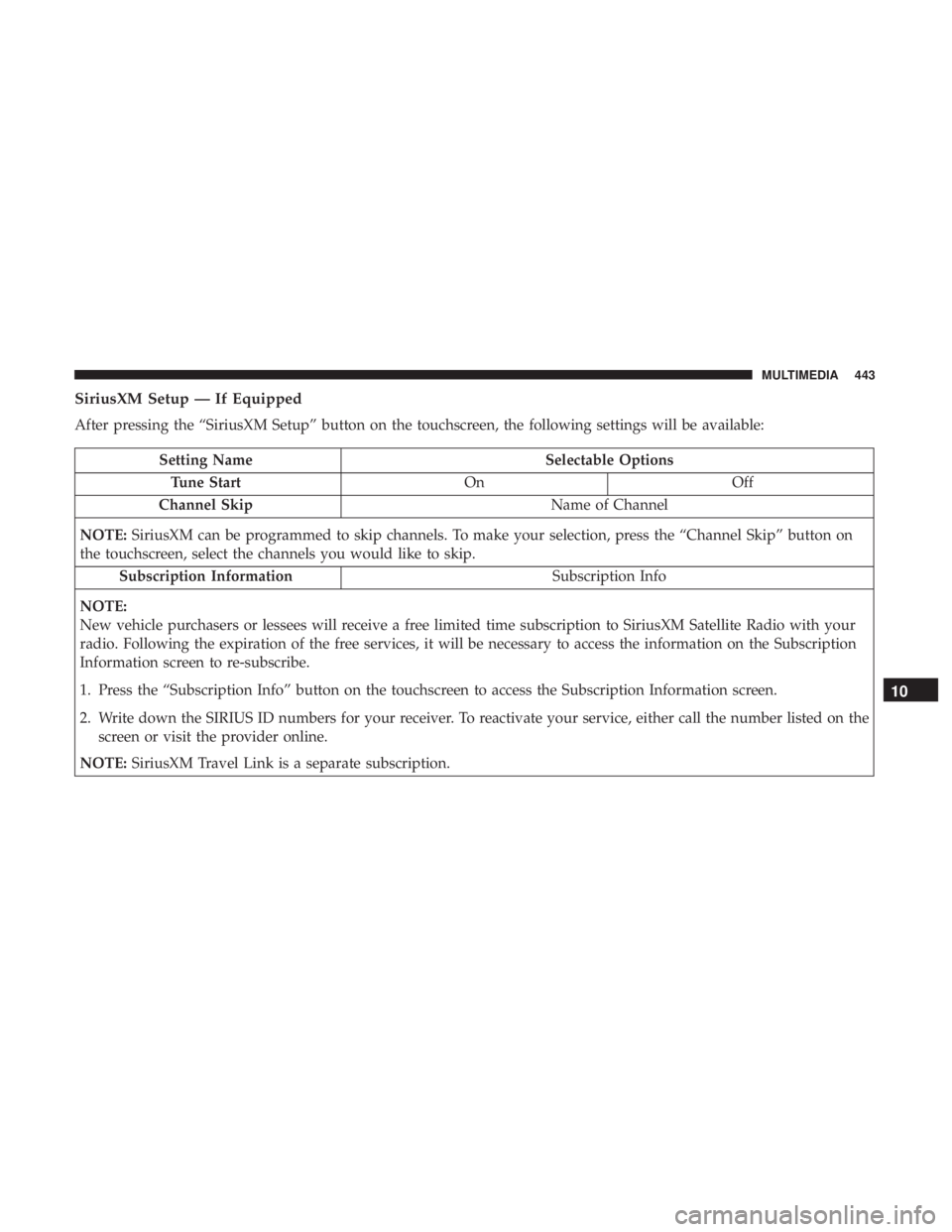
SiriusXM Setup — If Equipped
After pressing the “SiriusXM Setup” button on the touchscreen, the following settings will be available:
Setting NameSelectable Options
Tune Start OnOff
Channel Skip Name of Channel
NOTE: SiriusXM can be programmed to skip channels. To make your selection, press the “Channel Skip” button on
the touchscreen, select the channels you would like to skip.
Subscription Information Subscription Info
NOTE:
New vehicle purchasers or lessees will receive a free limited time subscription to SiriusXM Satellite Radio with your
radio. Following the expiration of the free services, it will be necessary to access the information on the Subscription
Information screen to re-subscribe.
1. Press the “Subscription Info” button on the touchscreen to access the Subscription Information screen.
2. Write down the SIRIUS ID numbers for your receiver. To reactivate your service, either call the number listed on the screen or visit the provider online.
NOTE: SiriusXM Travel Link is a separate subscription.
10
MULTIMEDIA 443
Page 448 of 492

The right-hand control is a rocker-type switch with a
push-button in the center and controls the volume and
mode of the sound system. Pushing the top of the rocker
switch will increase the volume, and pushing the bottom of
the rocker switch will decrease the volume.
Pushing the center button will make the radio switch
between the various modes available (AM/FM/SXM/
AUX/VES, etc.).
The left-hand control is a rocker-type switch with a push-
button in the center. The function of the left-hand control is
different depending on which mode you are in.
The following describes the left-hand control operation in
each mode.Radio Operation
Pushing the top of the switch will “Seek” up for the next
listenable station and pushing the bottom of the switch will
“Seek” down for the next listenable station.
The button located in the center of the left-hand control
will tune to the next preset station that you have pro-
grammed in the radio preset button.
Media Mode
Pushing the top of the switch once goes to the next track on
the selected media (AUX/USB/Bluetooth). Pushing the
bottom of the switch once goes to the beginning of the
current track, or to the beginning of the previous track if it
is within eight seconds after the current track begins to
play.
446 MULTIMEDIA