2019 AUDI TT ROADSTER phone
[x] Cancel search: phonePage 159 of 304
8S8012721BA
Media
— The loading times for the audio data depend
on the media player used and the number of
files
that it contains.
—A maximum of 2,000 entries per directory
are displayed in the MMI.
— Songs downloaded for offline use using mu-
sic streaming services are stored on your
mobile device (such as a smartphone) and
may be DRM protected. The Wi-Fi audio
player will not play DRM protected files.
— Contact an authorized Audi dealer or au-
thorized Audi Service Facility for additional
information on the Wi-Fi audio player.
Online media and
Internet radio
Applies to: vehicles with Audi connect
You can playback and operate various online me-
dia services and Internet radio using the MMI.
>» Press the [MEDIA] button. Press the left control
button until the sources overview > page 160,
fig. 138 is displayed.
Applies to: using online media and Internet radio
Requirement:
— The myAudi app must be installed and open on
your mobile device.
— You must be logged in to your myAudi account
in the myAudi app and you must have selected
your vehicle.
— The Wi-Fi function on the mobile device and on
the MMI must be switched on.
— If necessary, check in the connection manager
=> page 172 if the mobile device you connected
is selected under the MMI connect app ().
— The MMI must be connected to the network.
— The symbol for the Online media* source
=> page 160, fig. 138 is shown in the MMI.
Applies to: using online media
Additional requirement:
— A supported online media service must be avail-
able in the country where the vehicle is being
operated.
— You must have an account with a supported on-
line media service.
— Depending on the online media service, you
may need to install and open an app on your
mobile device.
Starting Online media
— Press the [MEDIA] button. Press the left control
button until the sources overview > page 160 is
displayed.
— Select and confirm an online media service.
Starting Internet radio
— Press the [MEDIA] button. Press the left control
button until the sources overview > page 160 is
displayed.
— Select and confirm Internet radio. The Internet
radio browser or the last station that was play-
ing is shown.
— Selecting the station: if necessary, select and
confirm a category in the Internet radio Brows-
er > a station.
Online media and Internet radio:: additional op-
tions
— Press the right control button.
The following options may be available, depend-
ing on the information shown (such as the sta-
tion/track that is currently playing):
— Sound settings: see > page 175.
— Wi-Fi settings: see > page 130, Wi-Fi settings.
— Connection manager: see > page 172.
— Additional options may be available, depending
on the active online media service or Internet
radio.
ZA WARNING
— It is only safe to use tablets, laptops, mobile
devices and other similar devices when the
vehicle is stationary because, like all loose
objects, they could be thrown around the in-
side of the vehicle in a crash and cause seri-
ous injuries. Store these types of devices se-
curely while driving.
— Do not use any Wi-Fi devices within range of
the airbags while driving. Also read the
warnings in the chapter > page 189. >
157
Page 160 of 304
Always follow the information found in >@ in
General information on page 125.
@ Tips
— Depending on the Internet connection and
network traffic, the connection may discon-
nected when online media sources are play-
ing.
— Online media and Internet radio usage de-
pends on the service availability of the third
party provider.
— Audi AG simply makes the access to online
media services possible through the MMI
and does not take any responsibility for the
contents of the online media services.
— Always read the chapter > page 125, Audi
connect.
— Depending on the mobile device being used,
there may be interruptions during media
playback and when using the myAudi app.
To prevent interruptions when using a mo-
bile device, do not lock the screen on your
mobile device and keep the myAudi app in
the foreground.
— Contact an authorized Audi dealer or au-
thorized Audi Service Facility for additional
information about online media.
158
Multimedia connections
USB adapter for Audi music interface or
USB charging port
Depending on the vehicle equipment, you can
connect your mobile devices (such as a smart-
phone or MP3 player) to the Audi music interface
or a USB charging port using a special USB
adapter.
[RAH-9203]
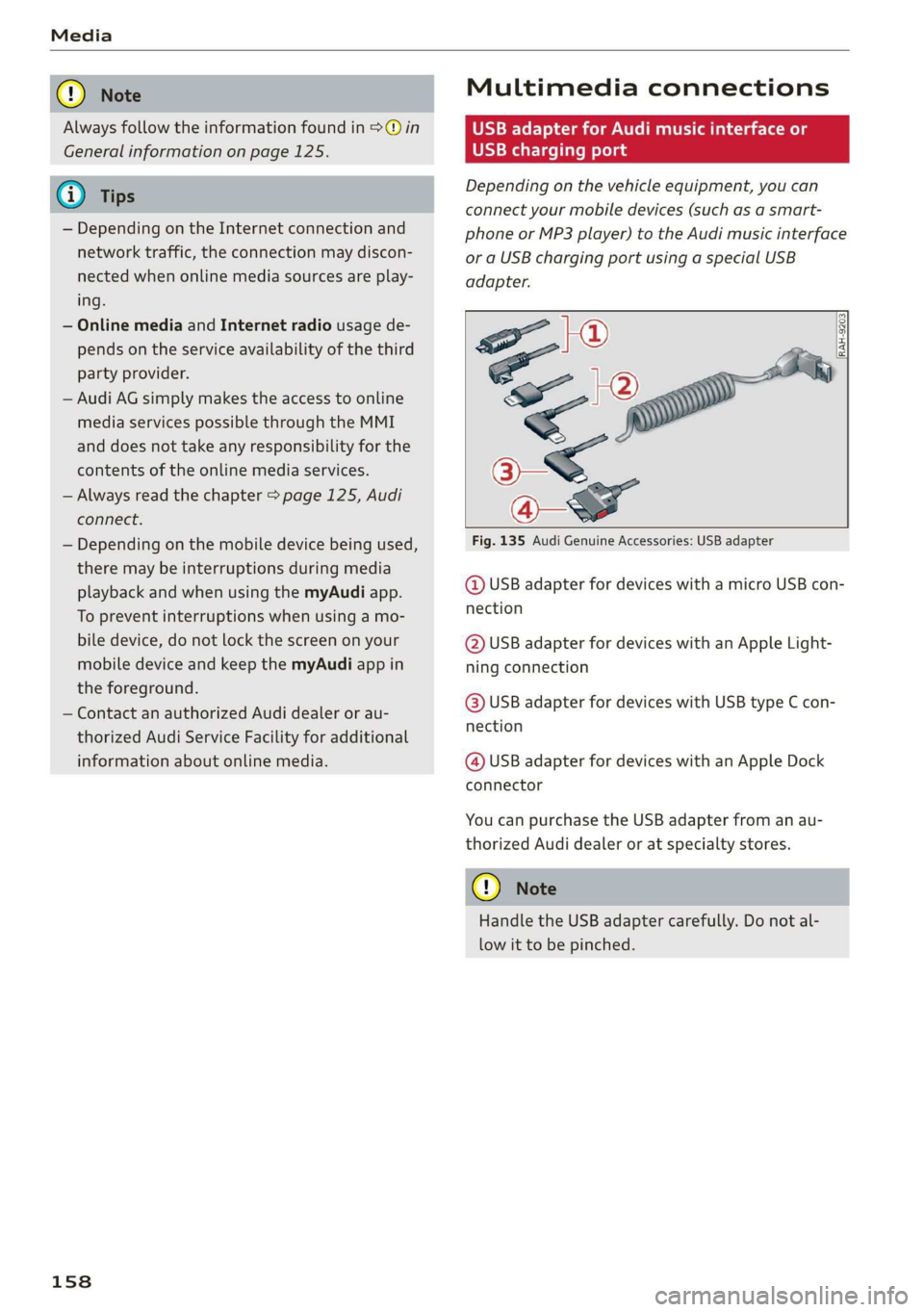
Fig. 135 Audi Genuine Accessories: USB adapter
@ USB adapter for devices with a micro USB con-
nection
@ USB adapter for devices with an Apple Light-
ning connection
@ USB adapter for devices with USB type C con-
nection
@ USB adapter for devices with an Apple Dock
connector
You can purchase the USB adapter from an au-
thorized Audi dealer or at specialty stores.
C) Note
Handle the USB adapter carefully. Do not al-
low it to be pinched.
Page 161 of 304
8S58012721BA
Media
ONT ale)
Applies to: vehicles with Audi music interface
Connect your mobile devices to the Audi music
interface in order to operate them through the
MMI and charge the battery.
put © on the Audi music interface and then to
the mobile device @) (such as an MP3 player or
smartphone).
— Disconnecting a mobile device from the AUX
input: remove the cable G) > fig. 136 from the
Audi music interface.
— Operation: select and confirm the External au-
dio player source G) > page 160, fig. 137. The
media are started and operated through the
mobile device @) fig. 136.
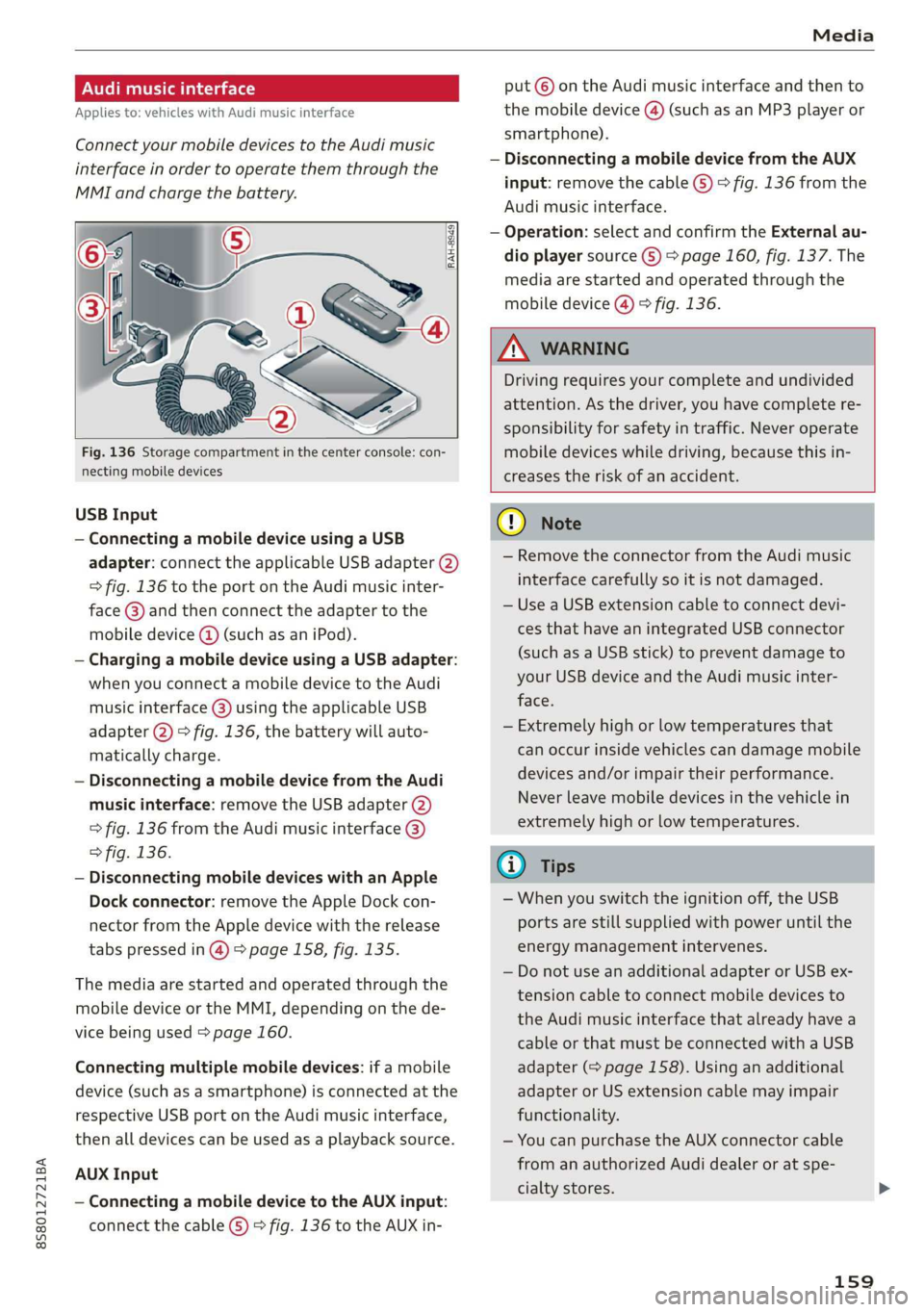
Fig. 136 Storage compartment in the center console: con-
necting mobile devices
USB Input
— Connecting a mobile device using a USB
adapter: connect the applicable USB adapter (2)
=> fig. 136 to the port on the Audi music inter-
face @) and then connect the adapter to the
mobile device @ (such as an iPod).
— Charging a mobile device using a USB adapter:
when you connect a mobile device to the Audi
music interface @) using the applicable USB
adapter @) > fig. 136, the battery will auto-
matically charge.
— Disconnecting a mobile device from the Audi
music interface: remove the USB adapter (2)
> fig. 136 from the Audi music interface @)
> fig. 136.
— Disconnecting mobile devices with an Apple
Dock connector: remove the Apple Dock con-
nector from the Apple device with the release
tabs pressed in @) > page 158, fig. 135.
The media are started and operated through the
mobile device or the MMI, depending on the de-
vice being used > page 160.
Connecting multiple mobile devices: if a mobile
device (such as a smartphone) is connected at the
respective USB port on the Audi music interface,
then all devices can be used as a playback source.
AUX Input
— Connecting a mobile device to the AUX input:
connect the cable (G) > fig. 136 to the AUX in-
Z\ WARNING
Driving requires your complete and undivided
attention. As the driver, you have complete re-
sponsibility for safety in traffic. Never operate
mobile devices while driving, because this in-
creases the risk of an accident.
G) Note
— Remove the connector from the Audi music
interface carefully so it is not damaged.
— Use a USB extension cable to connect devi-
ces that have an integrated USB connector
(such as a USB stick) to prevent damage to
your USB device and the Audi music inter-
face.
— Extremely high or low temperatures that
can occur inside vehicles can damage mobile
devices and/or impair their performance.
Never leave mobile devices in the vehicle in
extremely high or low temperatures.
@ Tips
—When you switch the ignition off, the USB
ports are still supplied with power until the
energy management intervenes.
— Do not use an additional adapter or USB ex-
tension cable to connect mobile devices to
the Audi music interface that already have a
cable or that must be connected with a USB
adapter (> page 158). Using an additional
adapter or US extension cable may impair
functionality.
— You can purchase the AUX connector cable
from an authorized Audi dealer or at spe-
cialty stores.
159
Page 162 of 304
Media
— Audi recommends setting the volume of a
mobile device connected to the AUX input to
approximately 70% of the maximum vol-
ume.
— Functionality is not guaranteed for mobile
devices that do not conform to the USB 2.0
specification.
— USB hubs are not supported.
— Some versions of the iPod such as the iPod
shuffle cannot be connected to the USB
adapter
for devices with Apple Dock connec-
tor. Connect these devices using a AUX con-
nector cable.
— Video playback through the Audi music in-
terface is only supported if the connected
device is recognized as a USB storage device
(for example a USB stick). Apple devices and
MTP devices (such as smartphones) are not
recognized as USB storage devices.
— iPod or iPhone malfunctions also affect the
operation of the MMI. Reset your iPod or
iPhone if this happens.
— For important information on operating
your iPod or iPhone, refer to the user guide
for the device. Audi recommends updating
the iPod or iPhone software to the latest
version.
— For more information about the Audi music
interface and supported devices, check the
Audi database for mobile devices at www.
audiusa.com/mp3 or contact an authorized
Audi dealer or authorized Audi Service Fa-
cility.
Playing media
Accessing media
You can start and operate various media through
the MMI control panel.
Ue @@ | Jukebox
©— SD card
[RAH-8519]
@—§ Audi music interface
er audio player
y-
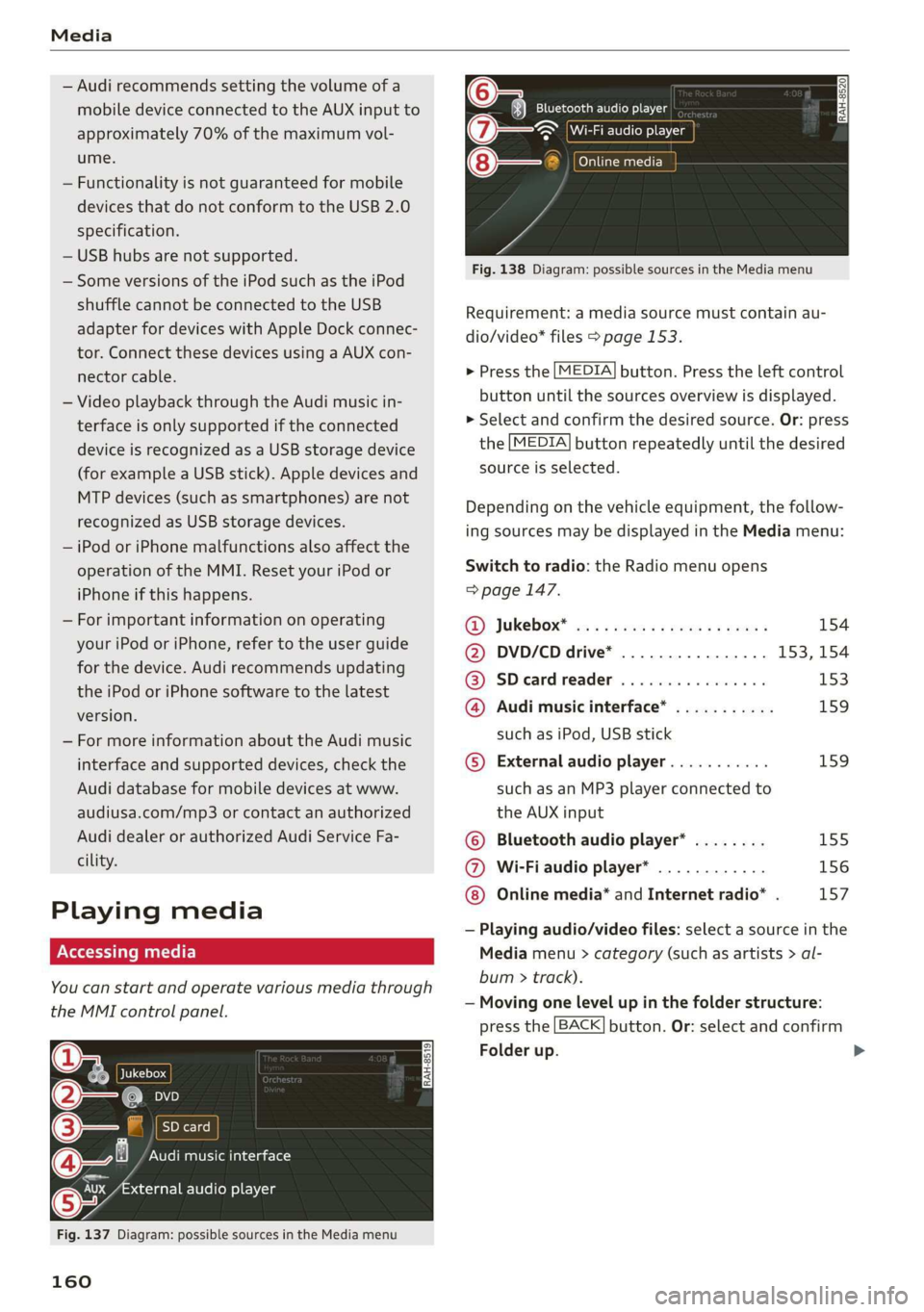
Fig. 137 Diagram: possible sources in the Media menu
160
RAH-8520 Bluetooth audio player
= ~ Wi-Fi audio player
Online media
Fig. 138 Diagram: possible sources in the Media menu
Requirement: a media source must contain au-
dio/video* files > page 153.
> Press the [MEDIA] button. Press the left control
button until the sources overview is displayed.
> Select and confirm the desired source. Or: press
the [MEDIA] button repeatedly until the desired
source is selected.
Depending on the vehicle equipment, the follow-
ing sources may be displayed in the Media menu:
Switch to radio: the Radio menu opens
=> page 147.
RD) JUKEDOX® wes: ss sere memes v2 eee 154
@ DVD/CD drive* ................ 153, 154
@ SDeardreader ................ 153
@ Audi music interface* ........... 159
such as iPod, USB stick
©® External audio player........... 159
such as an MP3 player connected to
the AUX input
© Bluetooth audio player* ........ 155
@ Wi-Fi audio player* ............ 156
Online media* and Internet radio* . 157
— Playing audio/video files: select a source in the
Media menu > category (such as artists > al-
bum > track).
— Moving one level up in the folder structure:
press the [BACK] button. Or: select and confirm
Folder up.
>
Page 163 of 304
8S8012721BA
Media
— Selecting the previous or next track/chapter
:
press the On/Off knob on the MMI control
panel briefly to the left Kd or right DDI.
— Fast-forwarding and rewinding audio/video
files: press and hold the On/Off knob on the
MMI control panel to the left Kd or right Pel for
a longer time.
— Pausing or resuming playback: press the
On/Off knob on the MMI control panel briefly.
@) Tips
— You can scroll through long lists quickly by
turning the control knob quickly. The scroll-
ing speed depends on the number of list en-
tries.
— For safety reasons, the video image is only
displayed when the vehicle is stationary. On-
ly the sound from the video plays while driv-
ing.
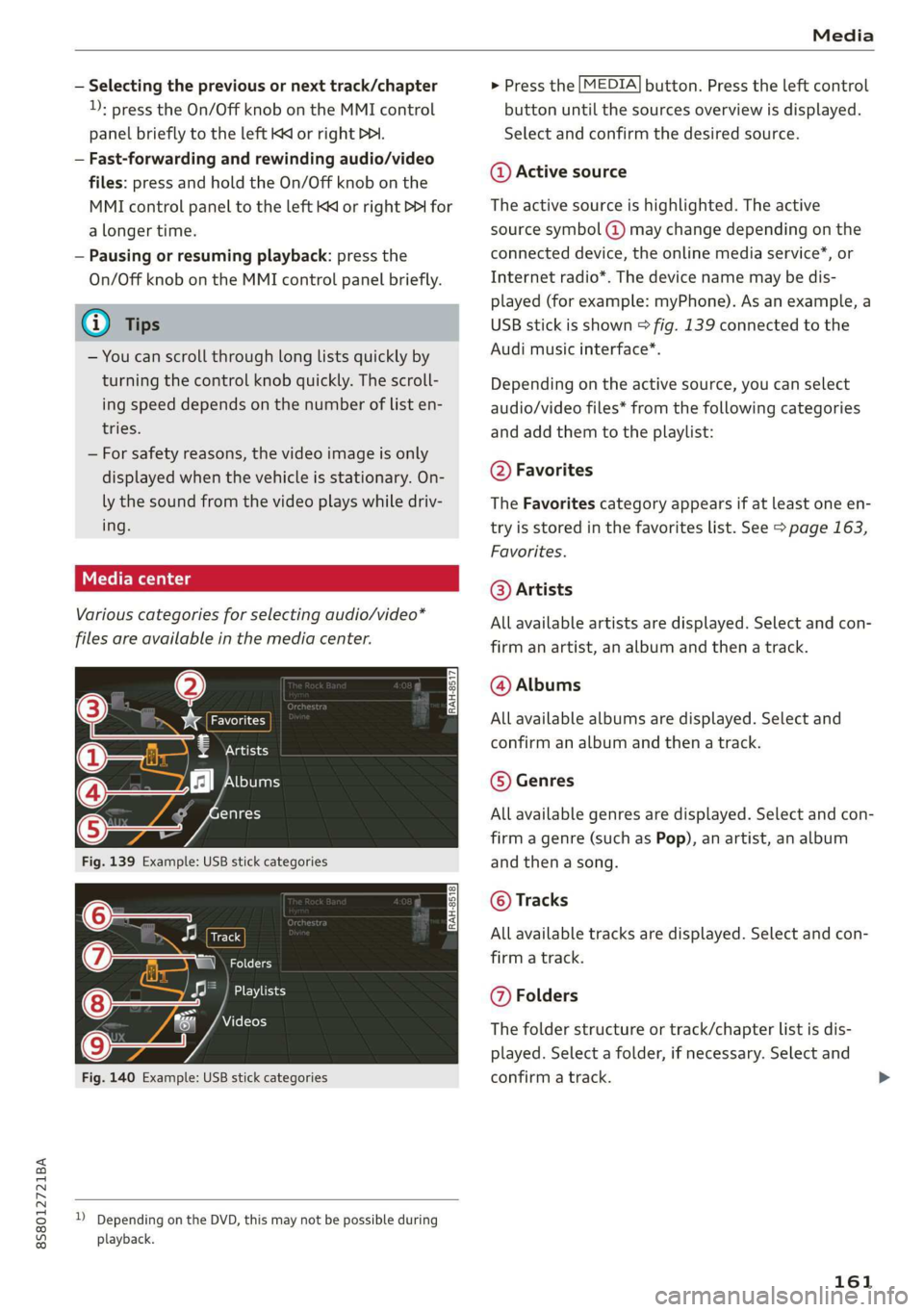
Various categories for selecting audio/video*
files are available in the media center.
Obs Le
7 Artists
A het T aa
enres
Track
(7) ja RZ
EME}
Videos
Fig. 140 Example: USB stick categories
)) Depending on the DVD, this may not be possible during
playback.
> Press the [MEDIA] button. Press the left control
button until the sources overview is displayed.
Select and confirm the desired source.
@ Active source
The active source is highlighted. The active
source symbol (@) may change depending on the
connected device, the online media service*, or
Internet radio*. The device name may be dis-
played (for example: myPhone). As an example, a
USB stick is shown > fig. 139 connected to the
Audi music interface*.
Depending on the active source, you can select
audio/video files* from the following categories
and add them to the playlist:
@ Favorites
The Favorites category appears if at least one en-
try is stored in the favorites list. See > page 163,
Favorites.
@ Artists
All available artists are displayed. Select and con-
firm an artist, an album and then a track.
@ Albums
All available albums are displayed. Select and
confirm an album and then a track.
© Genres
All available genres are displayed. Select and con-
firm
a genre (such as Pop), an artist, an album
and then a song.
© Tracks
All available tracks are displayed. Select and con-
firm
a track.
@ Folders
The folder structure or track/chapter list is dis-
played. Select a folder, if necessary. Select and
confirm a track.
161
Page 166 of 304
Media
Rewind/Fast forward
Turn the control knob to the left or right. Or:
move your finger on the MMI touch control pad
from the left to the right.
Shuffle!)
With the function switched on, all files in the
playlist are played and shown in random order.
Repeat track!)
When the function is switched on ¥, the current
track repeats.
Back to 'Playback'
The options menu is closed. The track currently
playing appears in the playlist > page 163,
fig. 142.
Play
similar music*
The track currently playing is quickly analyzed for
features such as artist, genres, mood, and beat,
and a smart playlist with similar tracks will be
shown.
Play more...
A smart playlist is shown based on the track cur-
rently playing. You can select between a playlist
with more tracks by this artist, from this album
or of this genre.
Set as ringtone*2)
Requirement: a mobile device must be connected
to the MMI. The track currently playing must be
in the Jukebox* > page 154.
The selected track will be used as the ringtone
for incoming calls.
Gracenote online database*
Requirement: the MMI must be connected to the
Internet.
Depending on availability, various information
will load about the track currently playing when
this function is switched on.
) The function automatically switches off when the source is
changed.
2) This function is not available for all cell phones.
164
Copy to jukebox
See > page 154, Adding files to the Jukebox.
Favorites
See > page 163.
Additional options
Requirement: the vehicle must be stationary and
a video file* or a DVD* must be playing.
Parental control*
Playback of video DVDs can be restricted using
parental control.
Enter the password for parental control. Pass-
word set at the factory: 1234. You have the fol-
lowing options:
— Protection level: select and confirm the protec-
tion level (for example, Level 5). Eight different
protection levels can be set for parental con-
trol. If you set the parental control level at Lev-
el 5, all DVDs from levels 1-5 can be played.
Video DVDs with a higher level will not play. Se-
lect Unrestricted to remove all of the restric-
tions.
— Change password: edit the current password.
Switch to full screen
The video image is displayed. Turn the control
knob to display the playlist. Or: press the [BACK
button.
Replay video
When this function is switched on M, the current
video will replay.
Show DVD menu
Selecting a menu item: select and confirm a
menu item. Or: move your finger on the MMI
touch control pad* and press the control knob. >
Page 170 of 304
Media
Problem Solution
Audi music interface*: the portable
device is not recognized as a source.
For many cell phones or mobile devices, playback is not possi-
ble when the battery level is too low (less than 5% of its ca-
pacity). The mobile device will only be recognized as a media
source in the MMI after connecting if the battery charge level
is sufficient.
Audi music interface*: malfunctions
during audio playback through an
iPod/iPhone.
The Bluetooth audio player function is switched on. Switch
this function off > page 174 when you are not using the Blue-
tooth audio player.
AUX input: there is static when con-
necting and disconnecting the AUX
connection cable.
When connecting and disconnecting, the External audio play-
er source is already selected. Before connecting or disconnect-
ing the mobile device, either mute the device (see
=> page 175) or switch to a different audio source (for exam-
ple > page 147, Opening the radio).
Bluetooth audio player*/Wi-Fi audio
player*: audio playback interference.
Only one interface should be actively used at a time to ensure
problem-free playback.
Wi-Fi audio player*: audio playback
interference.
Audio playback interference can occur on some cell phones if
the Internet connection in the vehicle was not established
through the SIM card reader* on the MMI control panel and
the mobile data option on the cell phone is switched on. De-
activate the mobile data option on your cell phone.
Jukebox®*: tracks on the imported
playlist are grayed out.
When importing playlists, all of the files themselves must be
imported.
Jukebox*: imported tracks cannot be
played or found.
If you cannot find imported tracks in the media center, they
may not be supported. Only copy supported files > page 166
to the Jukebox.
Wi-Fi audio player*: multiple devices
are connected to the Wi-Fi hotspot. A
media player (such as a smartphone)
appears as the media source and can-
not be changed.
Close the myAudi app on the connected devices (such as
smartphones) that are not being used as the Wi-Fi audio play-
er*. Likewise, close the UPnP server apps or the media permis-
sions on the integrated UPnP/DLNA server. Connect the de-
sired device as a Wi-Fi audio player* > page 156.
Online media*: connection failed be-
tween the MMI and the myAudi app.
To establish a connection to the MMI, the MMI connection
switch must be switched on in the myAudi app status screen.
Bluetooth audio player": interference
with track display and audio playback.
Playback interference can occur when using the Bluetooth au-
dio player if a music player app from a third party provider is
open. Audi recommends using the integrated media player on
your Bluetooth device (such as a smartphone).
Wi-Fi hotspot*: your Wi-Fi device is
disconnected from the Wi-Fi hotspot.
Make sure the network optimization functions are switched
off in the Wi-Fi settings or in the network settings for your
Wi-Fi device. For additional information refer to the user
guide for your Wi-Fi device.
168
Page 171 of 304
8S8012721BA
Audi smartphone interface
Audi smartphone
interface
Setup
Applies to: vehicles with Audi smartphone interface
You can connect your smartphone to the MMI us-
ing the Audi smartphone interface. Certain con-
tent on your smartphone is adapted to the Info-
tainment system display while driving and can
be operated through the MMI control panel.
Requirement:
The vehicle must be stationary and the ignition
must be switched on.
iPhone generation 5 or higher with Lightning
connector and iOS 7.1.2 operating system or
higher. Or:
A smartphone with the Android Auto app and An-
droid 5.0 Lollipop operating system or higher is
required.
> Connect your smartphone to the Audi music in-
terface > page 159 using the applicable USB
adapter > page 158, fig. 135.
> Select and confirm Activate Apple CarPlay or
Activate Android Auto now.
> Follow the system instructions.
> Pay attention to any additional system prompts
on your smartphone, if applicable.
If you chose not to use Apple CarPlay or Android
Auto when connecting your smartphone for the
first time, you can start the Audi smartphone in-
terface later on using the Connection manager.
> Select: [MENU] button > Audi smartphone in-
terface > Change to connection manager.
> Connect your smartphone to the Audi music in-
terface > page 159 using the applicable USB
adapter > page 158, fig. 135.
>» Select and confirm Audi smartphone interface
in the Connection manager > page 172. You
can select your smartphone in the list of devi-
ces that are already paired > page 173.
> Follow the system instructions.
) In preparation at the time of printing.
ZA WARNING
Driving requires your complete and undivided
attention. As the driver, you have complete re-
sponsibility for safety in traffic. Never operate
mobile devices while driving, because this in-
creases the risk of an accident.
@) Note
Always follow the information found in >@ in
General information on page 125.
@ Tips
— The functions that can be used depend on
the following factors, among others:
—The brand of your smartphone
~The version of the operating system in
your smartphone
— The software version of the app used
— The USB adapter cable and correct connec-
tion
— Your cell phone service provider
— The customized settings on your smart-
phone
— One of the factors above or a combination
of any of them could cause your smart-
phone to be incompatible with the Audi
smartphone interface. Compatibility cannot
be guaranteed for all types of smartphones.
For more information and assistance, refer
to the user guide and the manufacturer of
your smartphone.
— If the connected smartphone has voice con-
trol, you can operate your smartphone using
the external voice recognition system*
=> page 109.
— The menu language shown in the MMI is
based on the settings in your smartphone.
— The time displayed in the MMI is based on
the settings in your smartphone.
— Some MMI functions are not available when
Apple CarPlay or Android Auto is active.
— You cannot connect any mobile devices via
Bluetooth when an Apple CarPlay connec-
tion is active.
169