Page 114 of 632
1142. Instrument cluster
YARIS_HV_OM_Europe_OM52J66E
Gauges and meters (vehicles with mono-
chrome display)
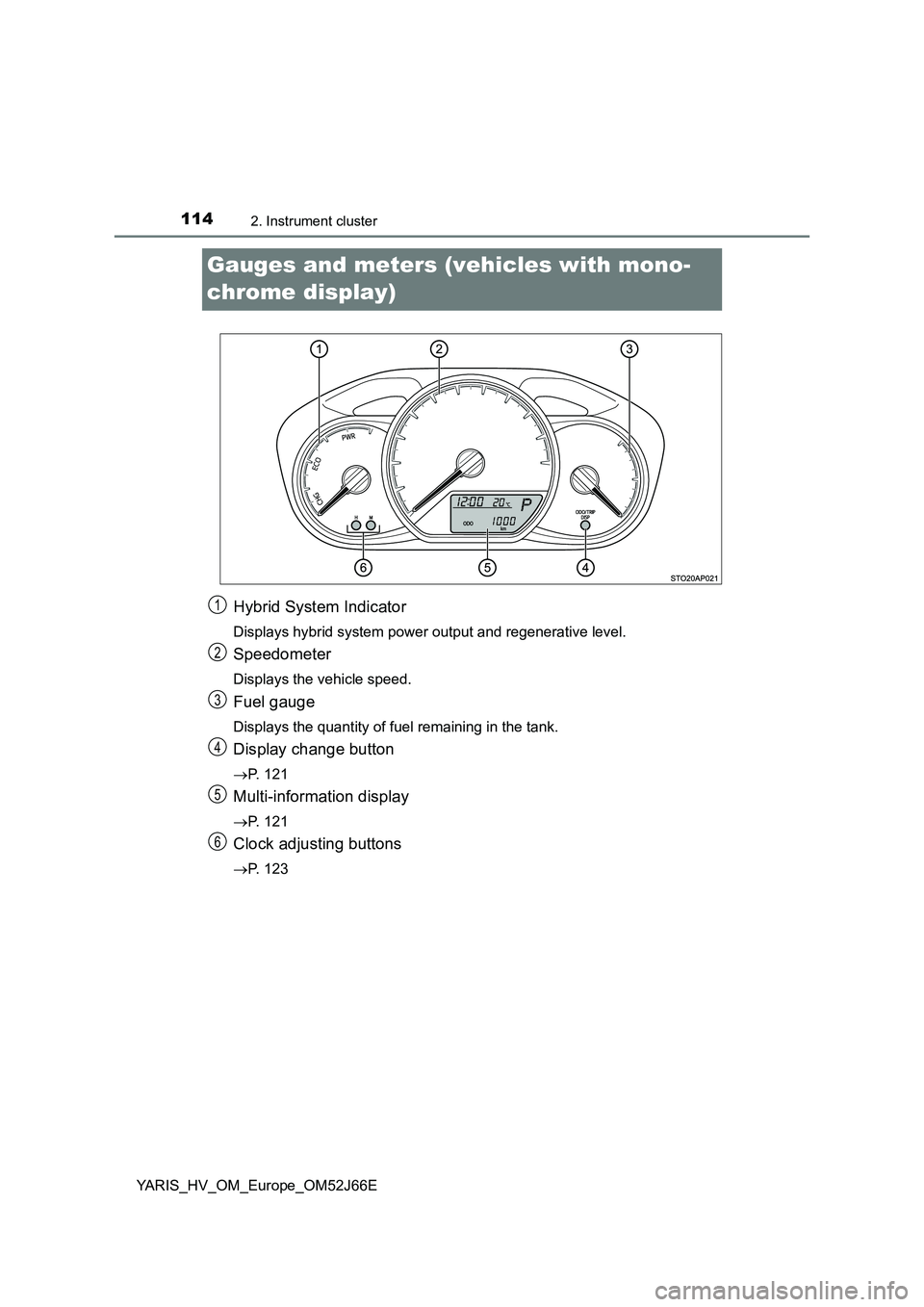
Hybrid System Indicator
Displays hybrid system power output and regenerative level.
Speedometer
Displays the vehicle speed.
Fuel gauge
Displays the quantity of fuel remaining in the tank.
Display change button
P. 121
Multi-information display
P. 121
Clock adjusting buttons
P. 123
1
2
3
4
5
6
Page 117 of 632
117
2
2. Instrument cluster
Instrument cluster
YARIS_HV_OM_Europe_OM52J66E
Gauges and meters (vehicles with color
display)
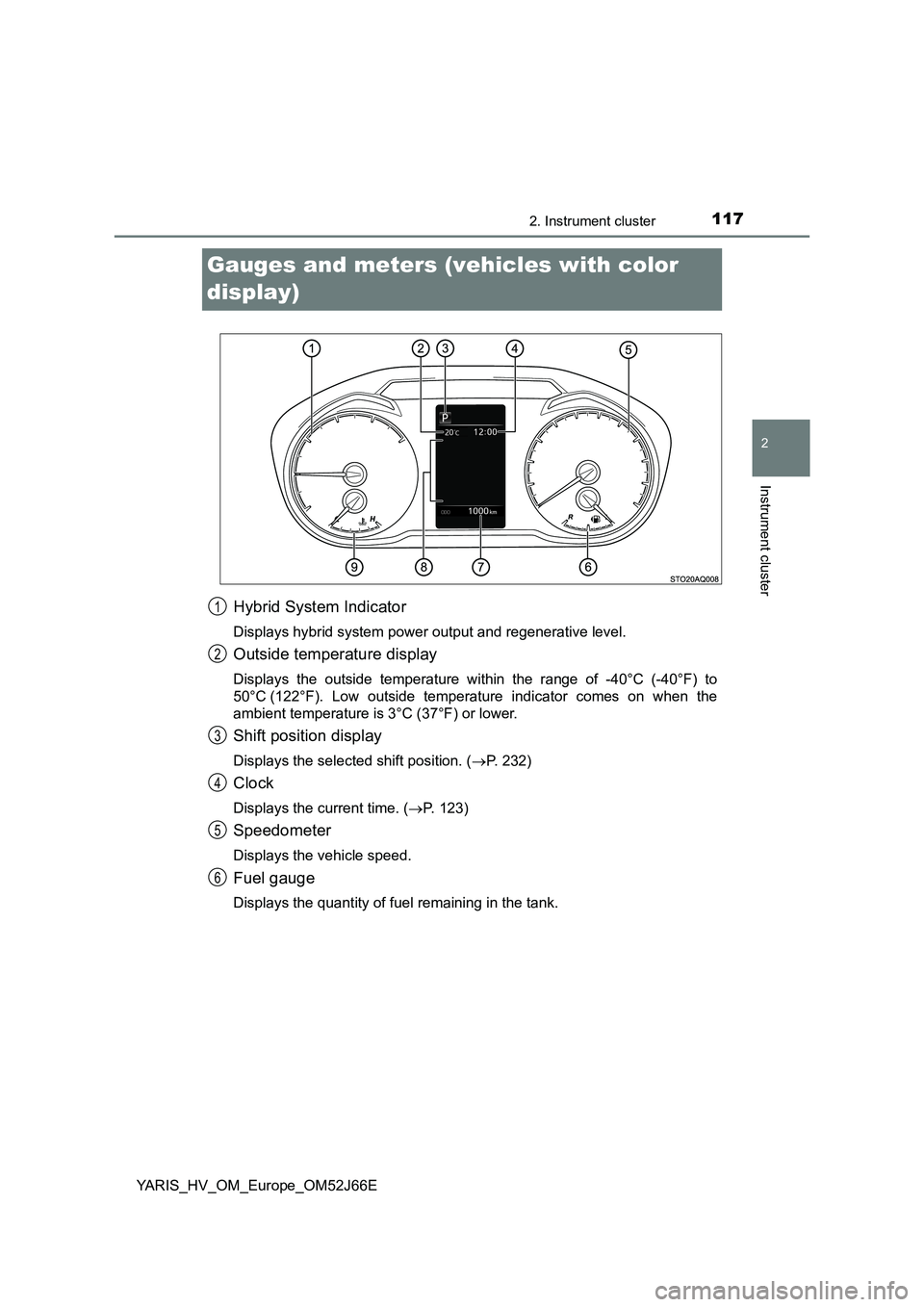
Hybrid System Indicator
Displays hybrid system power output and regenerative level.
Outside temperature display
Displays the outside temperature within the range of -40°C (-40°F) to
50°C (122°F). Low outside temperature indicator comes on when the
ambient temperature is 3°C (37°F) or lower.
Shift position display
Displays the selected shift position. ( P. 232)
Clock
Displays the current time. (P. 123)
Speedometer
Displays the vehicle speed.
Fuel gauge
Displays the quantity of fuel remaining in the tank.
1
2
3
4
5
6
Page 121 of 632
121
2
2. Instrument cluster
Instrument cluster
YARIS_HV_OM_Europe_OM52J66E
Multi-information display (vehicles with
monochrome display)
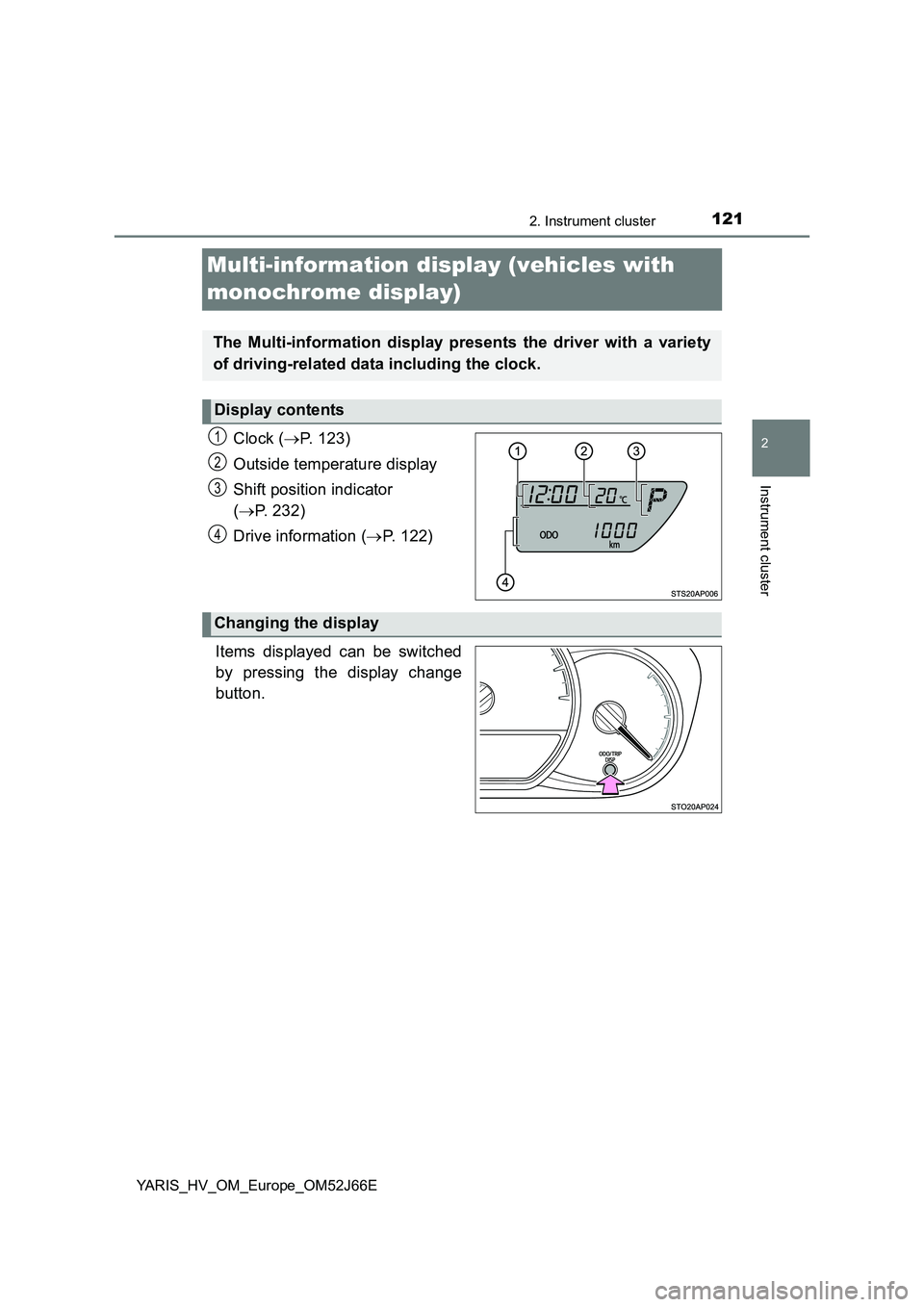
Clock ( P. 123)
Outside temperature display
Shift position indicator
( P. 232)
Drive information ( P. 122)
Items displayed can be switched
by pressing the display change
button.
The Multi-information display presents the driver with a variety
of driving-related data including the clock.
Display contents
1
2
3
4
Changing the display
Page 123 of 632
1232. Instrument cluster
2
Instrument cluster
YARIS_HV_OM_Europe_OM52J66E
EV indicator can be activated or deactivated by pressing the display
change button when the EV indicator customization display is dis-
played.
To change the EV indicator customization display, display the odometer
and press and hold the display change button until the display changes.
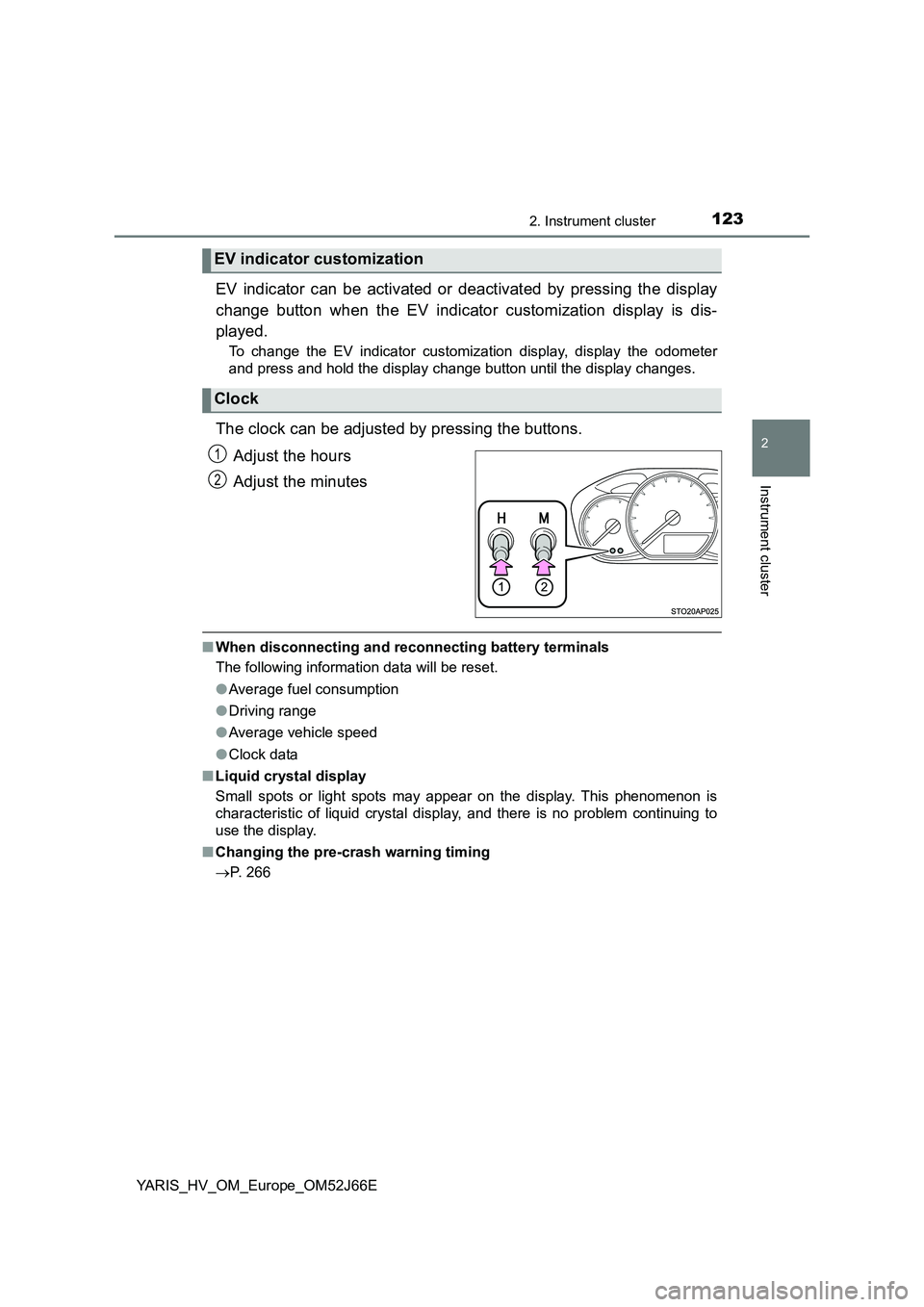
The clock can be adjusted by pressing the buttons.
Adjust the hours
Adjust the minutes
■ When disconnecting and reconnecting battery terminals
The following information data will be reset.
● Average fuel consumption
● Driving range
● Average vehicle speed
● Clock data
■ Liquid crystal display
Small spots or light spots may appear on the display. This phenomenon is
characteristic of liquid crystal display, and there is no problem continuing to
use the display.
■ Changing the pre-crash warning timing
P. 266
EV indicator customization
Clock
1
2
Page 129 of 632
1292. Instrument cluster
2
Instrument cluster
YARIS_HV_OM_Europe_OM52J66E
●Clock
Adjusts the hour and minute, and switches between 12-hour and
24-hour display of the clock. ( P. 130)
● Settings
Select the menu to set up the following items.
• Language
Select to change the language on the display.
•Units
Select to change the unit of measure for the multi-information display.
• (EV indicator) setup
Select to activate/deactivate the EV indicator on/off.
• Drive information
Select to select up to 2 items that will be displayed on a Drive informa-
tion screen.
• Pop-up display
Select to set the pop-up displays*2, which may appear in some situa-
tions, on/off.
• Default settings
Registered or changed meter settings will be deleted or returned to their
default setting.
*1: If equipped
*2: Incoming call display of the hands-free phone system (if equipped).
Page 130 of 632
1302. Instrument cluster
YARIS_HV_OM_Europe_OM52J66E
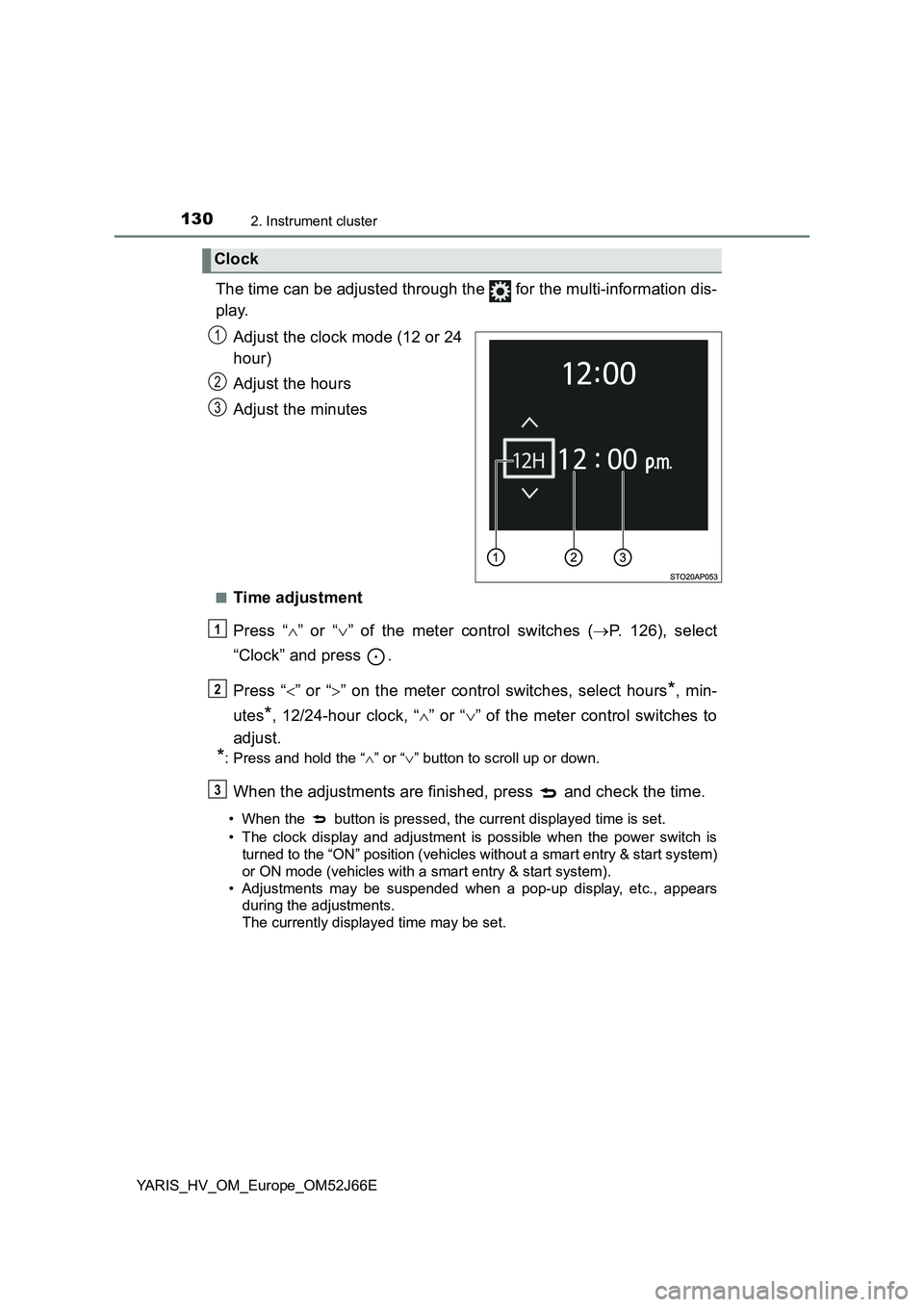
The time can be adjusted through the for the multi-information dis-
play.
Adjust the clock mode (12 or 24
hour)
Adjust the hours
Adjust the minutes
■Time adjustment
Press “ ” or “” of the meter control switches (P. 126), select
“Clock” and press .
Press “ ” or “” on the meter control switches, select hours*, min-
utes*, 12/24-hour clock, “ ” or “” of the meter control switches to
adjust.
*: Press and hold the “ ” or “” button to scroll up or down.
When the adjustments are finished, press and check the time.
• When the button is pressed, the current displayed time is set.
• The clock display and adjustment is possible when the power switch is
turned to the “ON” position (vehicles without a smart entry & start system)
or ON mode (vehicles with a smart entry & start system).
• Adjustments may be suspended when a pop-up display, etc., appears
during the adjustments.
The currently displayed time may be set.
Clock
1
2
3
1
2
3
Page 131 of 632
1312. Instrument cluster
2
Instrument cluster
YARIS_HV_OM_Europe_OM52J66E
■Pop-up display
In some situations, such as when a switch operation is performed, a pop-up
display will be temporarily display ed on the multi-information display.
The pop-up display function can be set on/off.
■ Setting display automatic cancelation
“Settings” item in settings display is not selectable during driving and cannot
be operated.
Also, the settings screen is temporarily canceled in the following situations.
● A warning message is displayed.
● The vehicle starts off.
■ Liquid crystal display
Small spots or light spots may appear on the display. This phenomenon is
characteristic of liquid crystal displays, and there is no problem continuing to
use the display.
■ When disconnecting and reconnecting 12-volt battery terminals
The drive information and clock data will be reset.
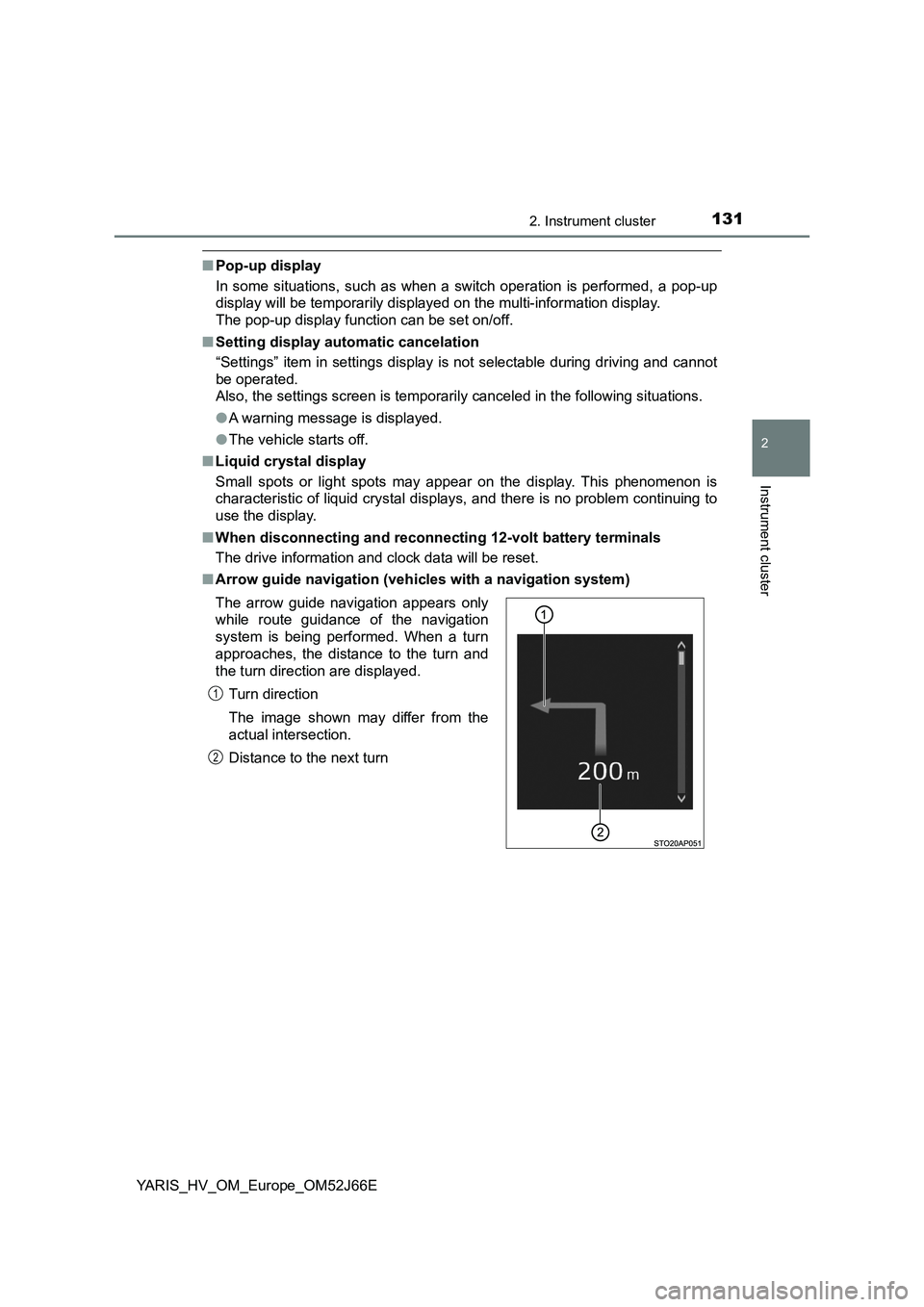
■ Arrow guide navigation (vehicles with a navigation system)
The arrow guide navigation appears only
while route guidance of the navigation
system is being performed. When a turn
approaches, the distance to the turn and
the turn direction are displayed.
Turn direction
The image shown may differ from the
actual intersection.
Distance to the next turn
1
2
Page 340 of 632
3405-5. Using an external device
YARIS_HV_OM_Europe_OM52J66E
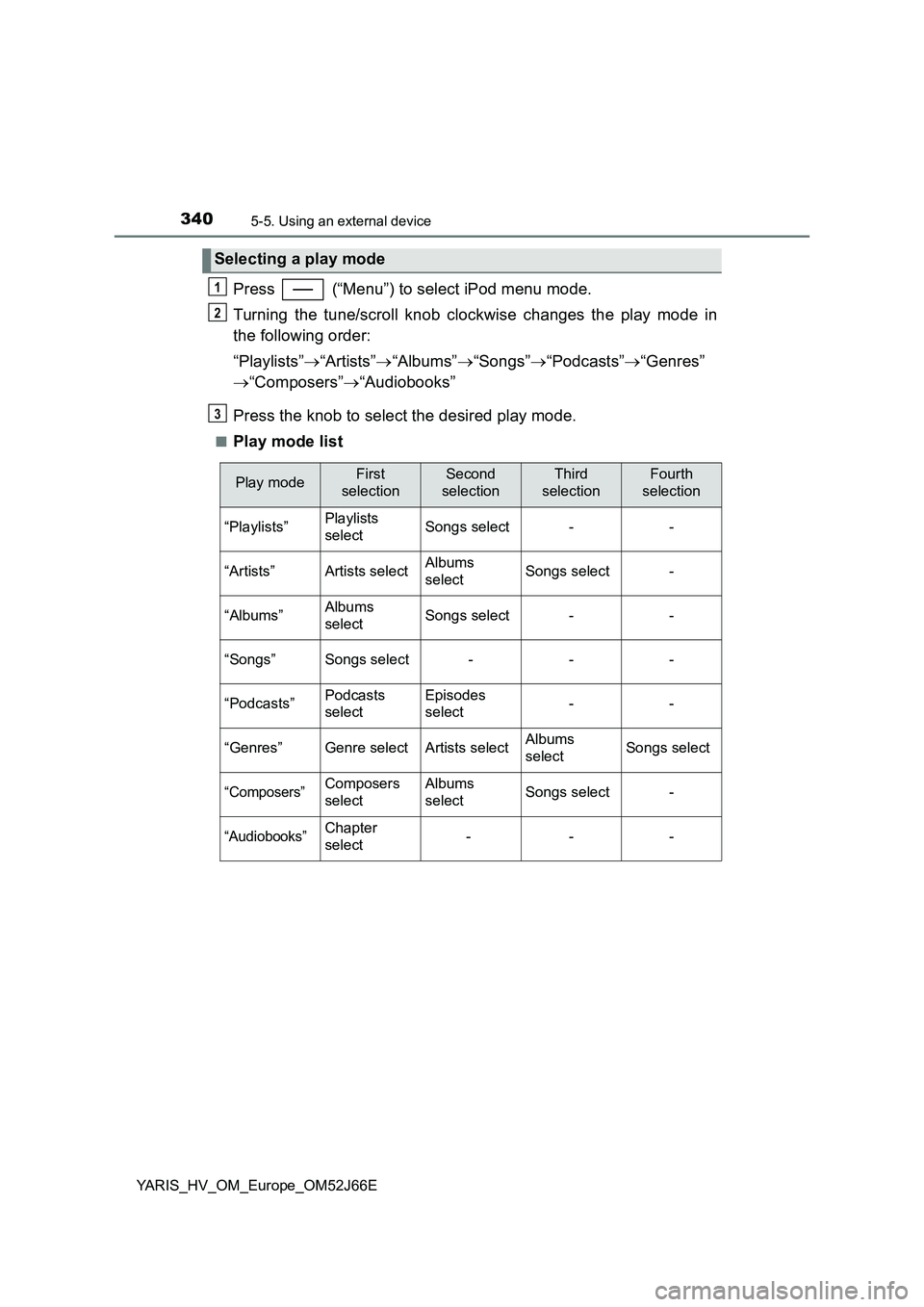
Press (“Menu”) to select iPod menu mode.
Turning the tune/scroll knob clockwise changes the play mode in
the following order:
“Playlists” “Artists”“Albums”“Songs”“Podcasts”“Genres”
“Composers”“Audiobooks”
Press the knob to select the desired play mode.
■Play mode list
Selecting a play mode
1
2
3
Play modeFirst
selection
Second
selection
Third
selection
Fourth
selection
“Playlists”Playlists
selectSongs select--
“Artists”Artists selectAlbums
selectSongs select-
“Albums”Albums
selectSongs select--
“Songs”Songs select---
“Podcasts”Podcasts
select
Episodes
select--
“Genres”Genre selectArtists selectAlbums
selectSongs select
“Composers”Composers
select
Albums
selectSongs select-
“Audiobooks”Chapter
select---