Page 361 of 516
361
1
1
1
1
17
18
8
11
9
12
10
13
16
14
15
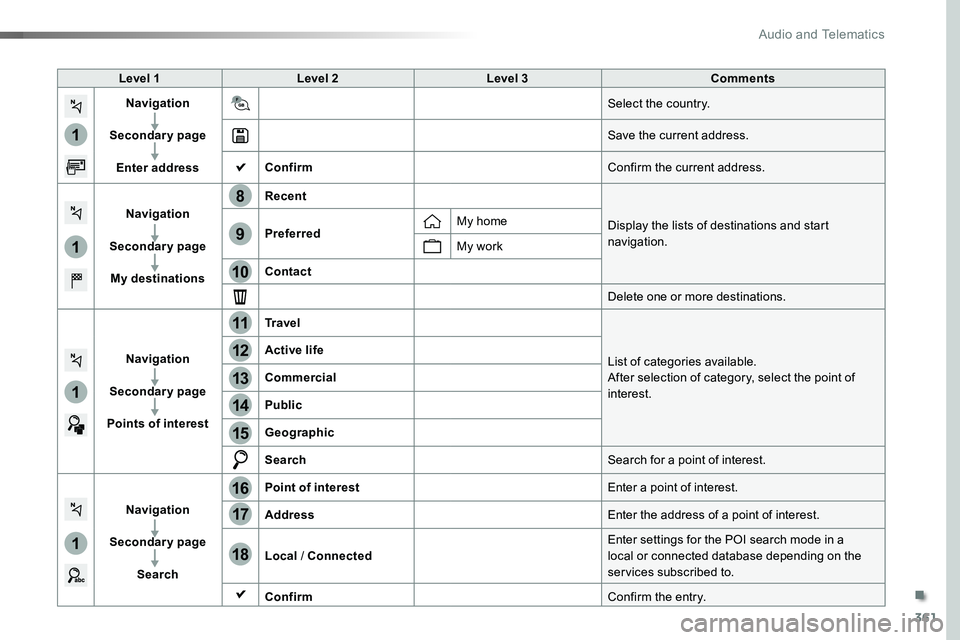
Level 1Level 2Level 3Comments
Navigation
Secondary page
Enter address
Select the country.
Save the current address.
ConfirmConfirm the current address.
Navigation
Secondary page
My destinations
Recent
Display the lists of destinations and start navigation.PreferredMy home
My work
Contact
Delete one or more destinations.
Navigation
Secondary page
Points of interest
Tr a v e l
List of categories available.After selection of category, select the point of interest.
Active life
Commercial
Public
Geographic
SearchSearch for a point of interest.
Navigation
Secondary page
Search
Point of interestEnter a point of interest.
AddressEnter the address of a point of interest.
Local / ConnectedEnter settings for the POI search mode in a local or connected database depending on the services subscribed to.
ConfirmConfirm the entry.
.
Audio and Telematics
Page 363 of 516
363
1
1
1
19
21
20
23
22
24
25
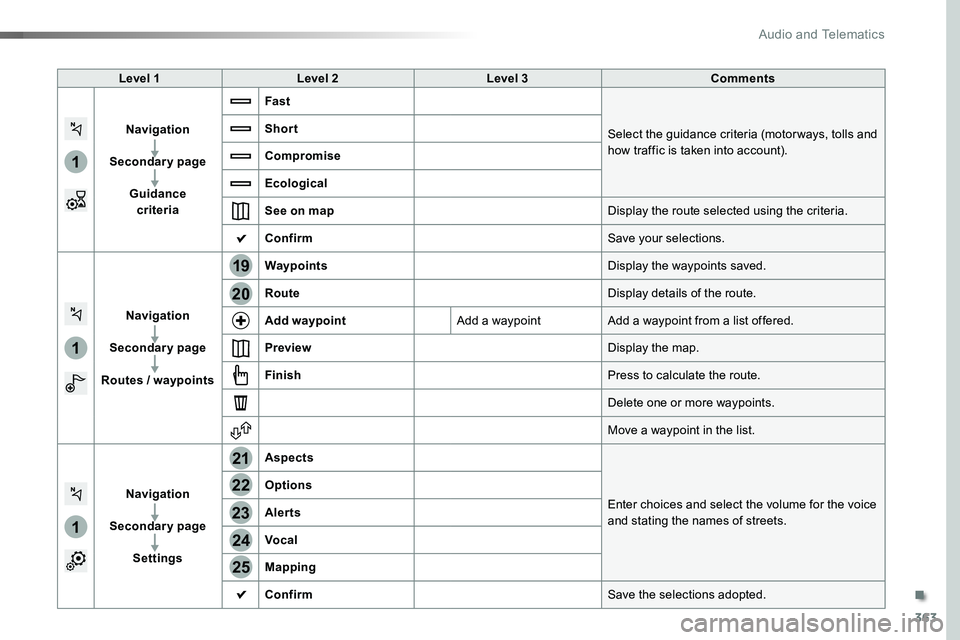
Level 1Level 2Level 3Comments
Navigation
Secondary page
Guidance criteria
Fast
Select the guidance criteria (motor ways, tolls and how traffic is taken into account).
Short
Compromise
Ecological
See on mapDisplay the route selected using the criteria.
ConfirmSave your selections.
Navigation
Secondary page
Routes / waypoints
WaypointsDisplay the waypoints saved.
RouteDisplay details of the route.
Add waypointAdd a waypointAdd a waypoint from a list offered.
PreviewDisplay the map.
FinishPress to calculate the route.
Delete one or more waypoints.
Move a waypoint in the list.
Navigation
Secondary page
Settings
Aspects
Enter choices and select the volume for the voice and stating the names of streets.
Options
Alerts
Vocal
Mapping
ConfirmSave the selections adopted.
.
Audio and Telematics
Page 364 of 516

364
1
1
8
Choosing a new destination
Select "Enter address".
Select "See on map" to select the "Guidance criteria".
Select the "Country".
Press "Confirm" to select the "Guidance criteria".
Press "Confirm" to start navigation.
Press "Confirm" to start navigation.
And / Or
Press Navigation to display the primary page.
Press the "MENU" button to go to the
secondary page.
Towards a new destinationTowards a recent destination
Select "My destinations".
Press Navigation to display the primary page.
Press the "MENU" button to go to the secondary page.
Enter the "City", the "Street" and the "Number" and confirm by pressing on the suggestions displayed.
Select the "Recent" tab.
Select the address chosen in the list to display the "Guidance criteria".
To use the navigation system, it is necessary to enter the "City", the "Street" and the "Number" using the virtual keypad, or to take them from the list of "Contacts" or from the "History" of addresses.
Without confirmation of the street number, you will be guided to one end of the street.
Select "Position" to see the point of arrival geographically.
Audio and Telematics
Page 365 of 516
365
1
10
1
1
9
Or
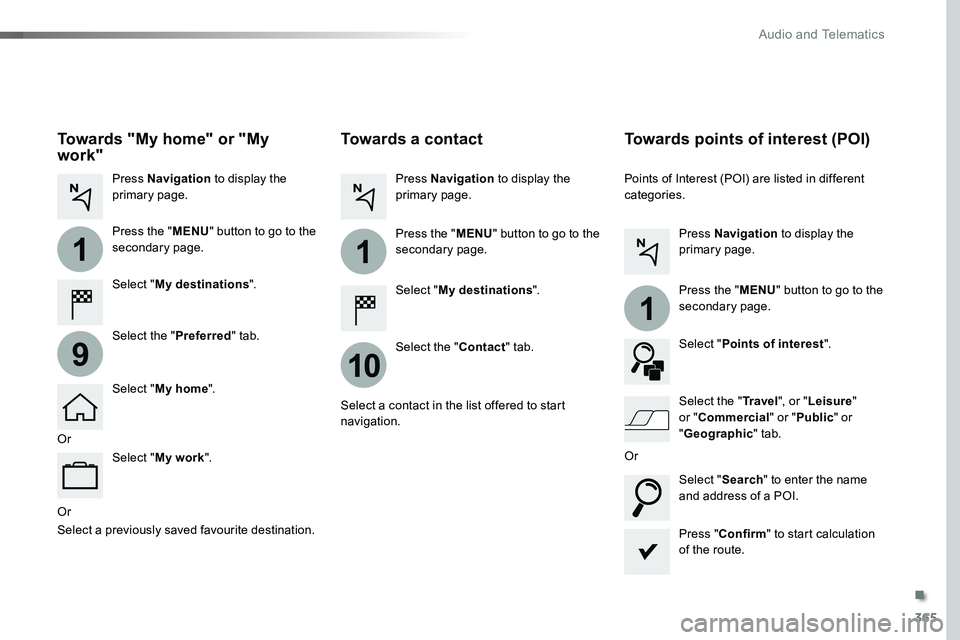
Towards a contact
Select "My destinations".
Select the "Contact" tab.
Press Navigation to display the primary page.
Press the "MENU" button to go to the secondary page.
Select a contact in the list offered to start navigation.
Press "Confirm" to start calculation of the route.
Towards points of interest (POI)
Points of Interest (POI) are listed in different categories.
Press Navigation to display the primary page.
Press the "MENU" button to go to the secondary page.
Select "Points of interest".
Select "Search" to enter the name and address of a POI.
Select the "Tr a v e l", or "Leisure" or "Commercial" or "Public" or
"Geographic" tab.Or
Or
Towards "My home" or "My work"
Select "My destinations".
Press Navigation to display the primary page.
Press the "MENU" button to go to the secondary page.
Select the "Preferred" tab.
Select "My home".
Select "My work".
Select a previously saved favourite destination.
.
Audio and Telematics
Page 369 of 516

369
As a safety measure and because it requires sustained attention by the driver, using a smartphone when driving is prohibited.All operations must be done with the vehicle stationary.
Connected navigation services
The principles and standards are constantly changing. For communication between your smartphone and the system to operate correctly, we recommend that you keep your smar tphone's operating system up to date, and the time and date on your smar tphone and the system correct.
The services offered with connected navigation are as follows.A connected services pack:- Weather,- Filling stations,- Car park,- Tr a f f i c ,- POI, local search.A Danger area pack.
Activate the Bluetooth function on the telephone and ensure that it is visible to all (see the "Connectivity" section).
Connect the USB cable.The smartphone is in charge mode when connected by USB cable.
In order to enable the navigation connected services, please ensure to create a Toyota account at my.toyota.eu.
When this "TOMTOM TR AFFIC" logo appears, the services are available.
For access to connected navigation, you can use the connection provided by the vehicle using your smartphone as a modem.Activate and enter settings for sharing the smartphone connection.Restrictions of use:- With MirrorLinkTM, connection sharing is only with a USB connection.
The quality of services depends on the quality of the network connection.
Select a Wi-Fi connection found by the system and connect to it (see the "Connectivity" section).
USB connection
Network connection provided by the user
Bluetooth connection
Wi-Fi connection
.
Audio and Telematics
Page 376 of 516
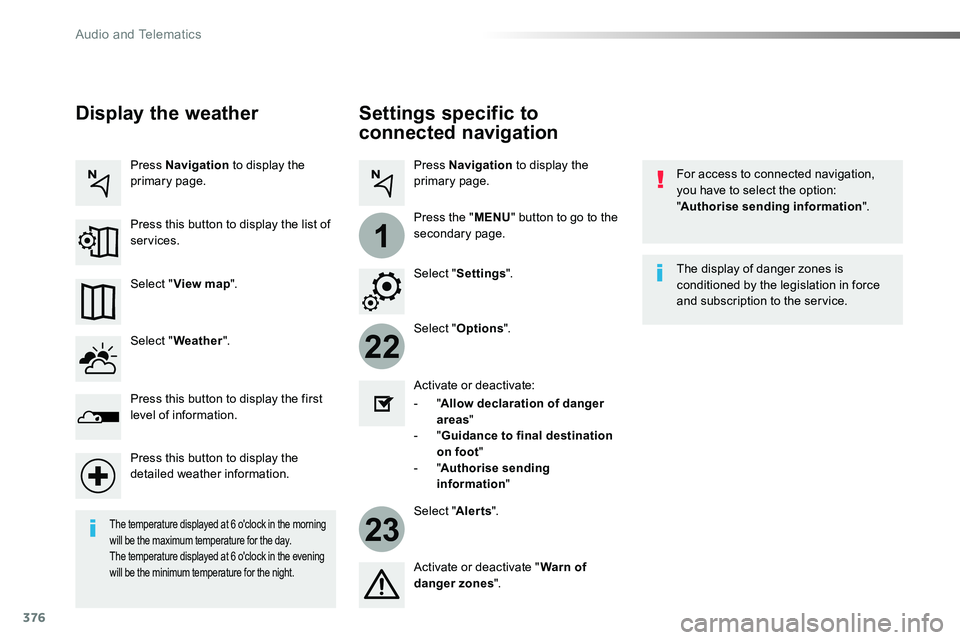
376
22
23
1
Settings specific to
connected navigation
For access to connected navigation, you have to select the option: "Authorise sending information".
Select "Options".
Select "Alerts".
- "Allow declaration of danger areas"
- "Guidance to final destination on foot"- "Authorise sending information"
Activate or deactivate:
Activate or deactivate "Warn of danger zones".
The display of danger zones is conditioned by the legislation in force and subscription to the service.
The temperature displayed at 6 o'clock in the morning will be the maximum temperature for the day.The temperature displayed at 6 o'clock in the evening will be the minimum temperature for the night.
Select "Settings".
Press Navigation to display the primary page.
Press the "MENU" button to go to the
secondary page.
Display the weather
Select "Weather".
Press this button to display the first level of information.
Press this button to display the detailed weather information.
Select "View map".
Press Navigation to display the primary page.
Press this button to display the list of services.
Audio and Telematics
Page 379 of 516
379
1
1
1
6
7
8
2
3
4
5
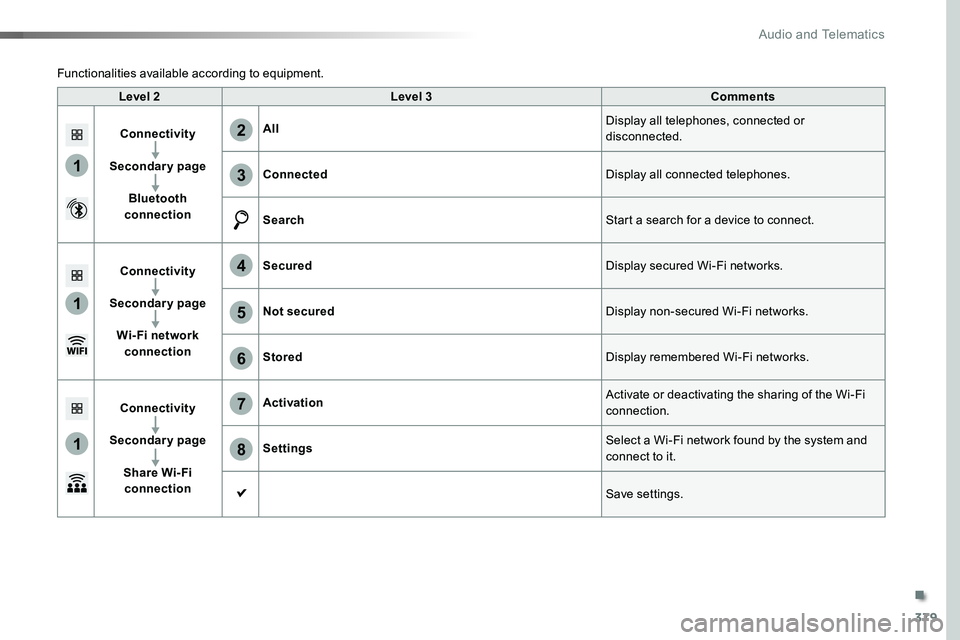
Level 2Level 3Comments
Connectivity
Secondary page
Bluetooth connection
AllDisplay all telephones, connected or disconnected.
ConnectedDisplay all connected telephones.
SearchStart a search for a device to connect.
Connectivity
Secondary page
Wi- Fi network connection
SecuredDisplay secured Wi-Fi networks.
Not securedDisplay non-secured Wi-Fi networks.
StoredDisplay remembered Wi-Fi networks.
Connectivity
Secondary page
Share Wi- Fi connection
ActivationActivate or deactivating the sharing of the Wi-Fi connection.
SettingsSelect a Wi-Fi network found by the system and connect to it.
Save settings.
Functionalities available according to equipment.
.
Audio and Telematics
Page 380 of 516

380
1
Bluetooth® connection
Procedure from the systemConnection sharing
Press on "Telephone" to display the secondary page.
Press on "Bluetooth connection".
Select "Search".The list of detected telephones is displayed.
If the pairing procedure fails, it is recommended that you deactivate and then reactivate the
"Bluetooth" function in your telephone.
The "Mobile internet data" profile must be activated for connected navigation (where the vehicle does not have "Emergency and assistance call" services), having first activated sharing of this connection on your smartphone.
The system offers to connect the telephone with 3 profiles:- "Telephone" (hands-free kit, telephone only),- "Streaming" (wireless play of audio files on the telephone),- "Mobile internet data".
Select the name of the chosen telephone in the list.Press on "Confirm".
Select one or more profiles.
Press on the "OPTIONS" button to go to the secondary page.
As a safety measure and because it requires sustained attention by the driver, the pairing of a Bluetooth mobile telephone with the Bluetooth hands-free system of your audio system must
be done with the vehicle stationary and the ignition on.
Procedure from the telephone
Select the name of the system in the
list of devices detected.
In the system, accept the connection request from the telephone.
Activate the Bluetooth function on the telephone and ensure that it is "visible to all" (telephone configuration).
To complete the pairing, whichever procedure used (from the telephone or from the system), ensure that the code is the same in the system and in the
telephone.
Depending on the type of telephone, you may be asked to accept or not the
transfer of your contacts and messages.
Audio and Telematics