Page 203 of 232
17
Voice interaction can be quickly used if
these buttons are pressed during a voice
message from the system; it allows
a
voice command to be issued directly.
For example, if the system is speaking
a
voice help message and if you know
the command to give the system, by
pressing these buttons, the voice
message is interrupted and the desired
voice command can be spoken directly (so
avoiding the need to listen to the complete
voice help message).
When the system is waiting for a
voice
command from the user, pressing these
buttons closes the voice session.
Every time a
button is pressed, a "beep"
(audible signal) is produced and the
screen displays a
page of suggestions
asking the user to speak a
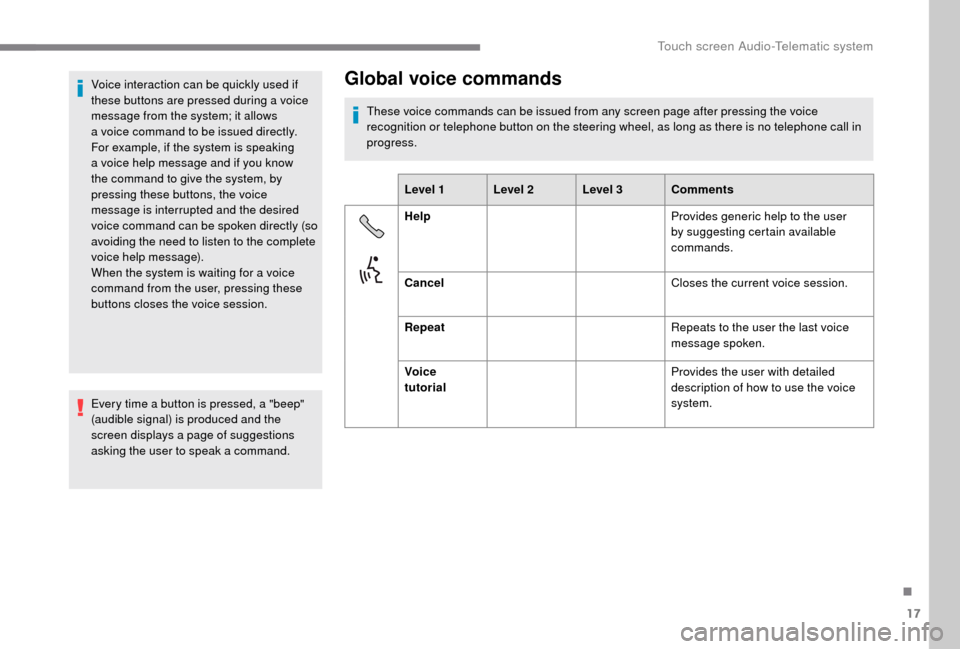
command.Global voice commands
These voice commands can be issued from any screen page after pressing the voice
recognition or telephone button on the steering wheel, as long as there is no telephone call in
progress.Level 1 Level 2 Level 3 Comments
Help Provides generic help to the user
by suggesting certain available
commands.
Cancel Closes the current voice session.
Repeat Repeats to the user the last voice
message spoken.
Voice
tutorial Provides the user with detailed
description of how to use the voice
system.
.
Touch screen Audio-Telematic system
Page 204 of 232

18
"Telephone " voice commands
If a telephone is connected to the system, these voice commands can be issued from any main screen page after pressing the telephone button
o n the steering wheel, as long as there is no telephone call in progress.
If there is no telephone connected, a voice message announces "No telephone is connected. Please connect a
telephone and try again" and the
voice session will be closed.
Level 1 Level 2 Level 3 Comments
Call * Henri Dupont Dials the telephone number associated with contact Henri Dupont.
Call * Henri Dupont Mobile phoneDials the telephone number labelled Mobile phone associated with contact Henri Dupont.
Call number 0123 4 5 6789 Calls the number 0123456789.
Call again Calls the number or contact of the last call made.
Call back Calls the number or contact of the last call received.
Recent calls * Displays the complete list of recent calls: outgoing, missed and incoming.
Calls made * Displays the list of outgoing calls.
Missed calls * Displays the list of missed calls.
*
T
his function is only available if the telephone connected to the system supports downloading of the phonebook and recent calls and if the download
has been done.
Touch screen Audio-Telematic system
Page 205 of 232
19
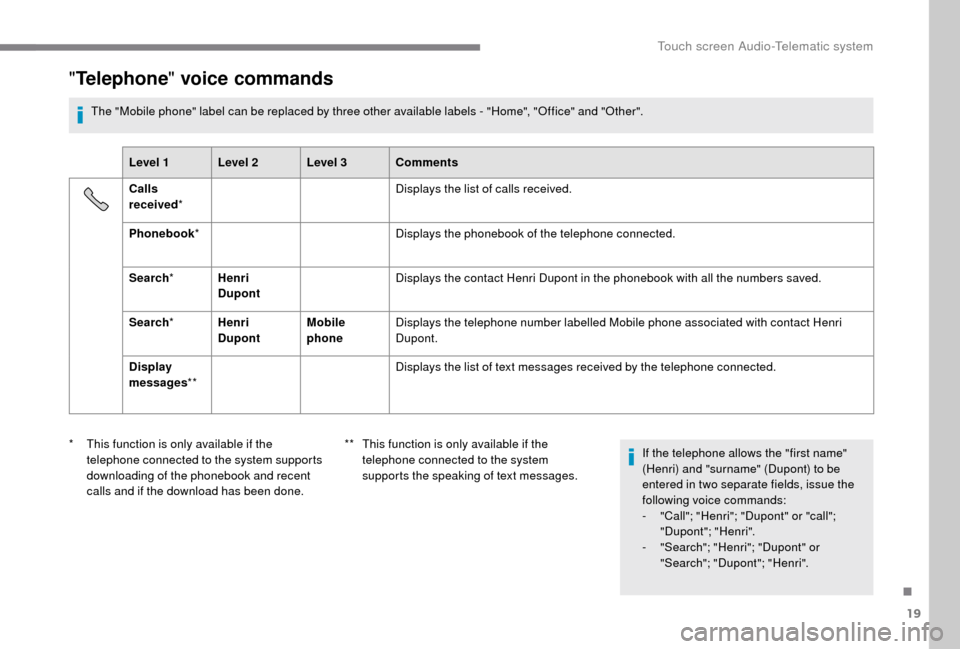
"Telephone " voice commands
The "Mobile phone" label can be replaced by three other available labels - "Home", "Office" and "Other".
Level 1 Level 2 Level 3 Comments
Calls
received * Displays the list of calls received.
Phonebook * Displays the phonebook of the telephone connected.
Search * Henri
Dupont Displays the contact Henri Dupont in the phonebook with all the numbers saved.
Search * Henri
Dupont Mobile
phoneDisplays the telephone number labelled Mobile phone associated with contact Henri
Dupont.
Display
messages ** Displays the list of text messages received by the telephone connected.
*
T
his function is only available if the
telephone connected to the system supports
downloading of the phonebook and recent
calls and if the download has been done. **
T
his function is only available if the
telephone connected to the system
supports the speaking of text messages. If the telephone allows the "first name"
(Henri) and "surname" (Dupont) to be
entered in two separate fields, issue the
following voice commands:
-
"
Call"; "Henri"; "Dupont" or "call";
"Dupont"; "Henri".
-
"
Search"; "Henri"; "Dupont" or
"Search"; "Dupont"; "Henri".
.
Touch screen Audio-Telematic system
Page 207 of 232
21
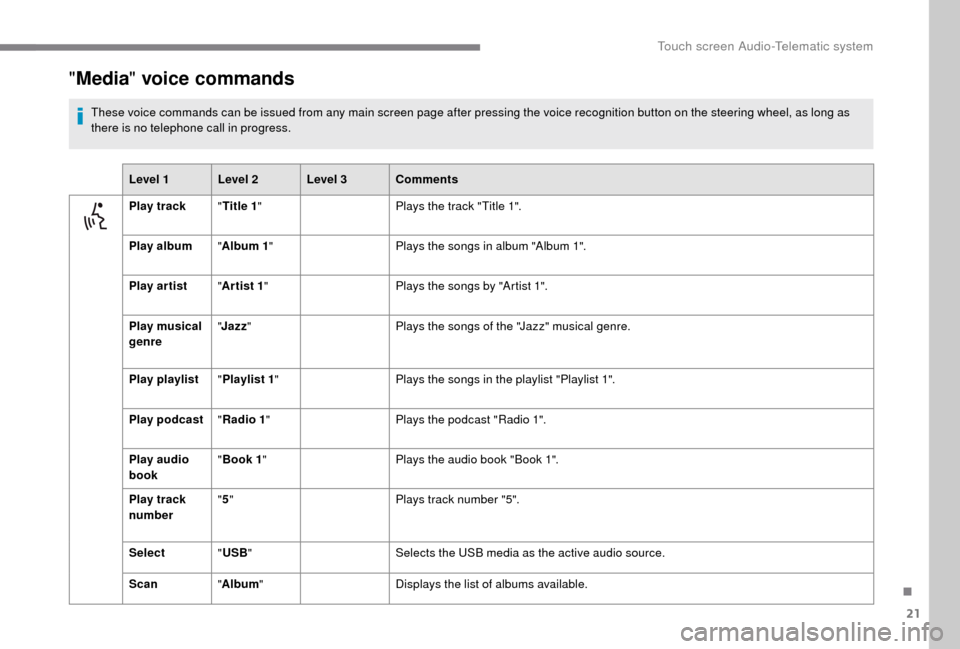
"Media " voice commands
These voice commands can be issued from any main screen page after pressing the voice recognition button on the steering wheel, as long as
there is no telephone call in progress.
Level 1 Level 2 Level 3 Comments
Play track "Title 1 " Plays the track "Title 1".
Play album "Album 1 " Plays the songs in album "Album 1".
Play ar tist "Ar tist 1 " Plays the songs by "Artist 1".
Play musical
genre "
Jazz " Plays the songs of the "Jazz" musical genre.
Play playlist "Playlist 1 " Plays the songs in the playlist "Playlist 1".
Play podcast "Radio 1 " Plays the podcast "Radio 1".
Play audio
book "
Book 1 " Plays the audio book "Book 1".
Play track
number "
5 " Plays track number "5".
Select "USB " Selects the USB media as the active audio source.
Scan "Album " Displays the list of albums available.
.
Touch screen Audio-Telematic system
Page 208 of 232
22
"Navigation " voice commands
These voice commands can be issued from any main screen page after pressing the voice recognition button on the steering wheel, as long as
there is no telephone call in progress.
Level 1 Level 2 Level 3 Comments
Go home Displays the route home.
2D mode Changes to 2D mode.
3D mode Changes to 3D mode.
Delete route Deletes the route displayed.
Add
a
favourite Displays the favourites screen page.
Repeat the
instruction Repeats the last voice message spoken.
Touch screen Audio-Telematic system
Page 209 of 232
23
"Text message " voice commands
These voice commands can be issued from any main screen page after pressing the telephone button on the steering wheel, as long as there is
no telephone call in progress.
Level 1 Level 2 Level 3 Comments
Send a
text
to 0123 4 5 6789
Starts the voice procedure for sending a
pre-defined text message using the system.
Send a
text
to Henri Dupont
Mobile phone
Display text Henri DupontMobile phoneDisplays the message box downloaded from the telephone.
.
Touch screen Audio-Telematic system
Page 211 of 232
1
Audio system
Multimedia audio system –
Bluetooth® telephone
Contents
First steps
1
S
teering wheel mounted controls
2
R
adio
2
M
edia
4
T
elephone
5
S
ettings
6
V
oice commands
6T
he system is protected in such a way that
it will only operate in your vehicle.
For safety reasons, the vehicle must
always be stationary for the driver to
perform operations that require close
attention.
When the engine is switched off and to
prevent discharging of the battery, the
system switches off after activation of
energy economy mode.
First steps
On/off, volume setting.
Select FM and AM wavebands.
Select USB or AUX source.
Display the list of connected
telephones.
Rotate: scroll through a
list or adjust
radio station.
Press: confirm the option displayed
in the screen.
Information on the current radio
station or media.
Select pre-set stations.
FM-A, FM-B, FM- C, AM-A, AM-B,
AM-C.
Display the menu and set the
options.
.
Audio system
Page 213 of 232

3
Press the "RADIO" button to select
the FM or AM waveband.
Briefly press one of the buttons to
carry out an automatic search down/
up for radio stations.
Turn the dial to carry out a
manual
search down/up for radio stations.
Press the dial to display the list of
stations received locally.
Turn the dial to choose a
radio
station then press to select it.
Pre-setting a station
Press the " RADIO" button to select
the FM or AM waveband.
Press the " A-B-C" button to select
one of the three sets of pre-set
stations. Press and hold one of the buttons to
pre-set the current radio station.
The name of the station is displayed
and an audible signal confirms the
pre-set.
Press "
INFO" to display information
on the current radio station.
RDS
The RDS, if displayed, continues to
listen to a same station by monitoring the
frequency. However, in some conditions,
an RDS station may not cover the entire
country; as the radio stations do not cover
the entire territory, the frequency switches
to a
regional station when reception is
p o o r.
Press the " MENU" button.
Select " Regional" then press to
switch RDS on or off.
Alternative frequencies (AF)
Select " Alternative frequencies
(AF)" then press to activate or
deactivate the frequency.
When the " Regional" function is on, the
system can then search for a
stronger
frequency at any time.
Listening to TA messages
The TA (Traffic Announcement) function
gives priority to TA alert messages.
To be active, this function requires
good reception of a
radio station that
broadcasts this type of message. As soon
as traffic information is broadcast, the
media playing is interrupted automatically
to broadcast the TA message. The media
starts to play again normally after the
message has been issued.
Press the " MENU" button.
Select " Traffic information
( TA ) " then press to switch traffic
announcements on or off.
.
Audio system