Page 38 of 324

36
"Driving functions" tab
FunctionsComments
" Park Assist " Activation/deactivation of the function.
" Automatic headlamp dip "Activation/deactivation of the function.
" Stop & Star t " Activation/deactivation of the function.
" Blind spot sensors " Activation/deactivation of the function.
" Traction control" Activation/deactivation of the function.
" Parking sensors " Activation/deactivation of the function.
"
Under-inflation initialisation "Reinitialisation of the under-inflation detection system.
" Adjusting Speeds " Memorisation of speed settings for the speed limiter or
programmable cruise control.
" Diagnostic " Summary of current alerts.
" Active Lane Keeping Assistance "Activation/deactivation of the function.
For more information on one of these
functions, refer to the corresponding
section.
Settings
PEUGEOT Connect Nav
The functions available through the
upper menu bar are detailed in the
table below.
Buttons Comments
Select a theme.
Audio settings (sound ambience,
sound distribution, sound level,
voice volume, ringtone volume).
Switch off the screen.
Settings for the touch screen
and the digital instrument panel.
Instruments
Page 248 of 324
12
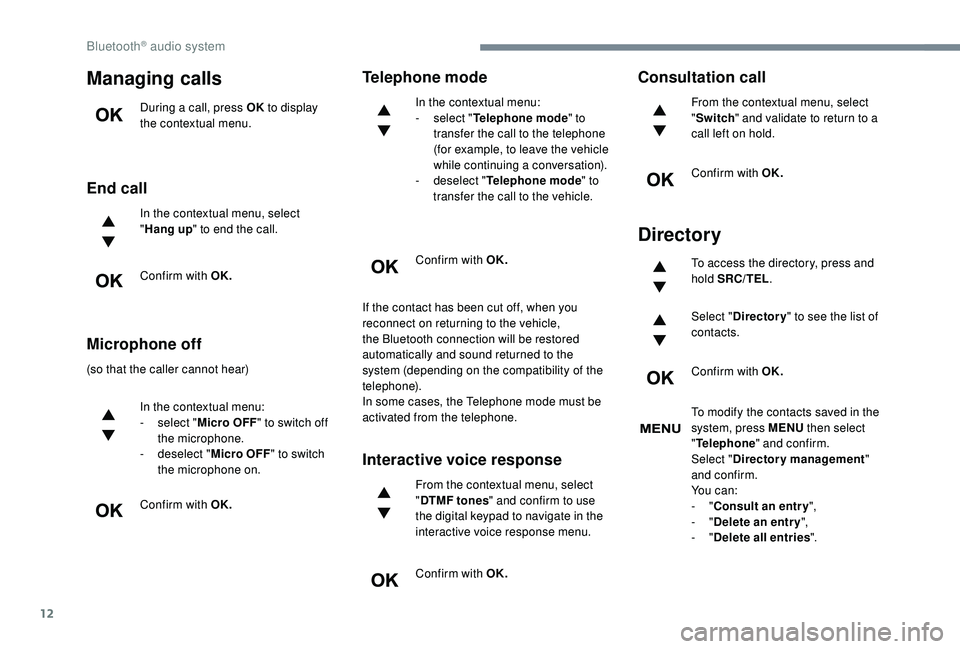
Managing calls
During a call, press OK to display
the contextual menu.
End call
In the contextual menu, select
" Hang up " to end the call.
Confirm with OK.
Microphone off
(so that the caller cannot hear) In the contextual menu:
-
s
elect "Micro OFF " to switch off
the microphone.
-
d
eselect "Micro OFF " to switch
the microphone on.
Confirm with OK.
Telephone mode
In the contextual menu:
- s elect " Telephone mode " to
transfer the call to the telephone
(for example, to leave the vehicle
while continuing a conversation).
-
d
eselect " Telephone mode " to
transfer the call to the vehicle.
Confirm with OK.
If the contact has been cut off, when you
reconnect on returning to the vehicle,
the Bluetooth connection will be restored
automatically and sound returned to the
system (depending on the compatibility of the
telephone).
In some cases, the Telephone mode must be
activated from the telephone.
Interactive voice response
From the contextual menu, select
" DTMF tones " and confirm to use
the digital keypad to navigate in the
interactive voice response menu.
Confirm with OK.
Consultation call
From the contextual menu, select
" Switch " and validate to return to a
call left on hold.
Confirm with OK.
Directory
To access the directory, press and
hold SRC/TEL .
Select " Directory " to see the list of
contacts.
Confirm with OK.
To modify the contacts saved in the
system, press MENU then select
" Telephone " and confirm.
Select " Directory management "
and confirm.
Yo u c a n :
-
"Consult an entr y ",
-
"Delete an entry ",
-
"Delete all entries ".
Bluetooth® audio system
Page 280 of 324
6
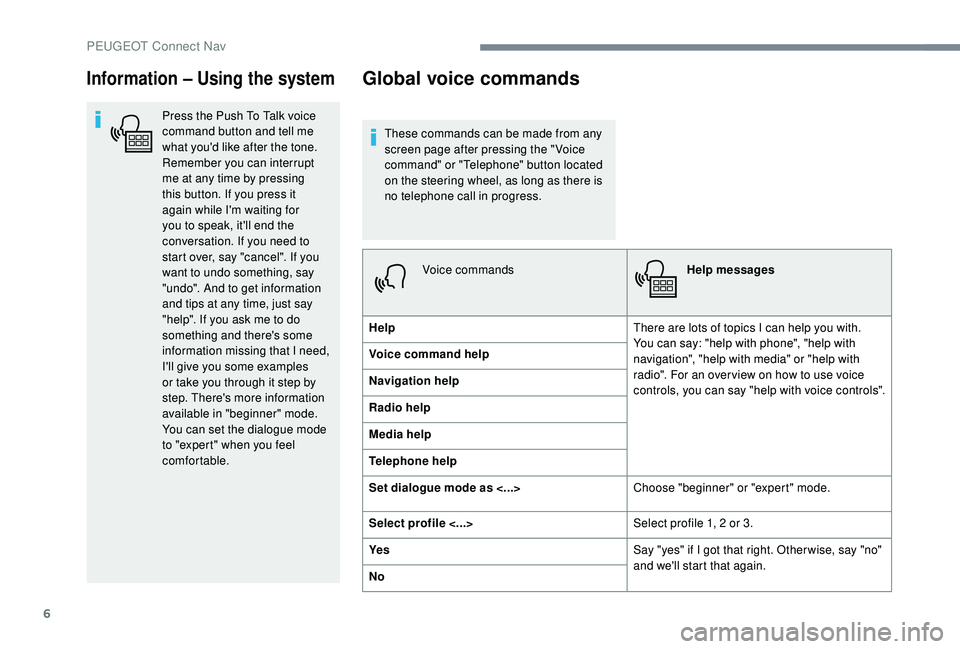
Information – Using the system
Press the Push To Talk voice
command button and tell me
what you'd like after the tone.
Remember you can interrupt
me at any time by pressing
this button. If you press it
again while I'm waiting for
you to speak, it'll end the
conversation. If you need to
start over, say "cancel". If you
want to undo something, say
"undo". And to get information
and tips at any time, just say
"help". If you ask me to do
something and there's some
information missing that I need,
I'll give you some examples
or take you through it step by
step. There's more information
available in "beginner" mode.
You can set the dialogue mode
to "expert" when you feel
comfortable.
Global voice commands
These commands can be made from any
screen page after pressing the " Voice
command" or "Telephone" button located
on the steering wheel, as long as there is
no telephone call in progress.Voice commands Help messages
Help There are lots of topics I can help you with.
You can say: "help with phone", "help with
navigation", "help with media" or "help with
radio". For an over view on how to use voice
controls, you can say "help with voice controls".
Voice command help
Navigation help
Radio help
Media help
Telephone help
Set dialogue mode as <...>
Choose "beginner" or "expert" mode.
Select profile <...> Select profile 1, 2 or 3.
Ye s Say "yes" if I got that right. Other wise, say "no"
and we'll start that again.
No
PEUGEOT Connect Nav
Page 303 of 324
29
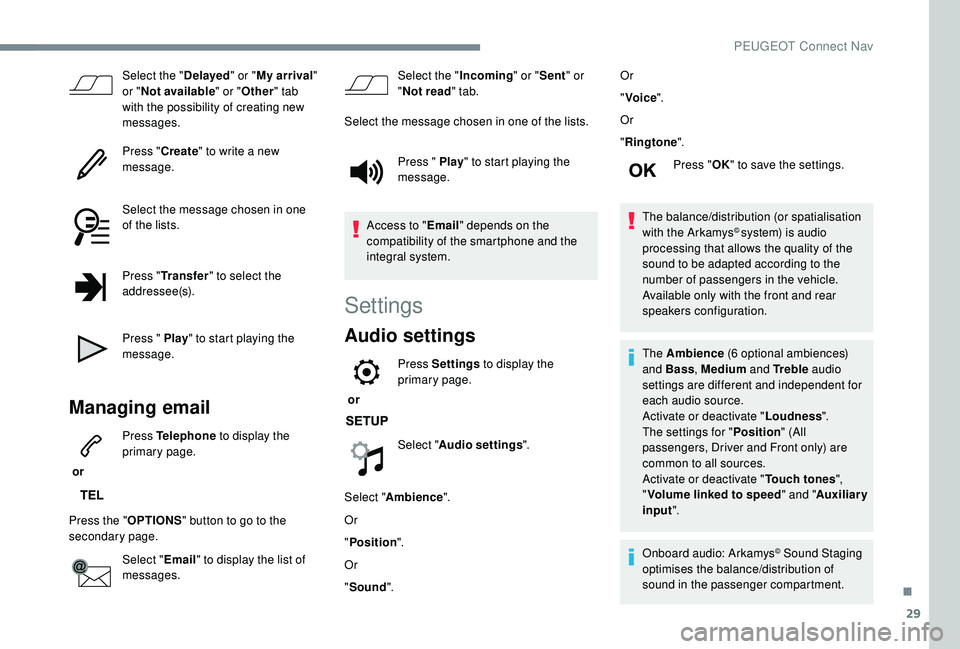
Select the "Delayed" or "My arrival "
or " Not available " or "Other " tab
with the possibility of creating new
messages.
Press " Create" to write a new
message.
Select the message chosen in one
of the lists.
Press " Transfer " to select the
addressee(s).
Press " Play " to start playing the
message.
Managing email
or Press Telephone
to display the
primary page.
Press the " OPTIONS" button to go to the
secondary page.
Select "Email" to display the list of
messages. Select the "
Incoming" or "Sent " or
" Not read " tab.
Select the message chosen in one of the lists.
Press " Play " to start playing the
message.
Access to " Email" depends on the
compatibility of the smartphone and the
integral system.
Settings
Audio settings
or Press Settings
to display the
primary page.
Select " Audio settings ".
Select " Ambience ".
Or
" Position ".
Or
" Sound ". Or
"
Voice ".
Or
" Ringtone ".
Press " OK" to save the settings.
The balance/distribution (or spatialisation
with the Arkamys
© system) is audio
processing that allows the quality of the
sound to be adapted according to the
number of passengers in the vehicle.
Available only with the front and rear
speakers configuration.
The Ambience (6 optional ambiences)
and Bass , Medium and Tr e b l e audio
settings are different and independent for
each audio source.
Activate or deactivate " Loudness".
The settings for " Position" (All
passengers, Driver and Front only) are
common to all sources.
Activate or deactivate " Touch tones",
" Volume linked to speed " and "Auxiliary
input ".
Onboard audio: Arkamys
© Sound Staging
optimises the balance/distribution of
sound in the passenger compartment.
.
PEUGEOT Connect Nav
Page 304 of 324
30
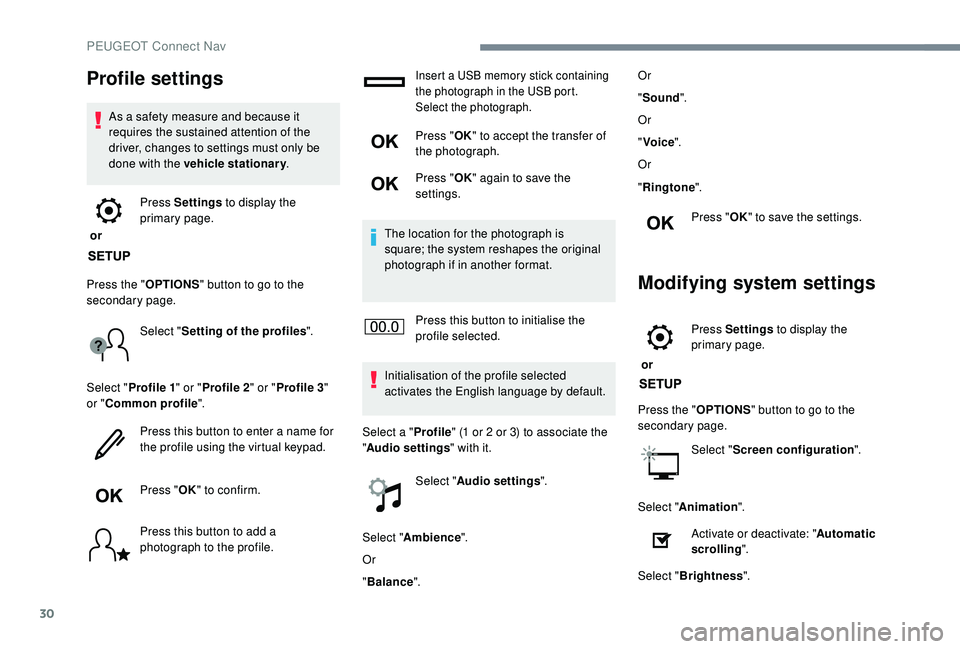
Profile settings
As a safety measure and because it
requires the sustained attention of the
driver, changes to settings must only be
done with the vehicle stationary.
or Press Settings
to display the
primary page.
Press the " OPTIONS" button to go to the
secondary page.
Select "Setting of the profiles ".
Select " Profile 1 " or "Profile 2 " or "Profile 3 "
or " Common profile ".
Press this button to enter a name for
the profile using the virtual keypad.
Press " OK" to confirm.
Press this button to add a
photograph to the profile.
Insert a USB memory stick containing
the photograph in the USB port.
Select the photograph.
Press " OK" to accept the transfer of
the photograph.
Press " OK" again to save the
settings.
The location for the photograph is
square; the system reshapes the original
photograph if in another format.
Press this button to initialise the
profile selected.
Initialisation of the profile selected
activates the English language by default.
Select a " Profile" (1 or 2 or 3) to associate the
" Audio settings " with it.
Select " Audio settings ".
Select " Ambience ".
Or
" Balance ". Or
"
Sound ".
Or
" Voice ".
Or
" Ringtone ".
Press " OK" to save the settings.
Modifying system settings
or Press Settings
to display the
primary page.
Press the " OPTIONS" button to go to the
secondary page.
Select "Screen configuration ".
Select " Animation ".
Activate or deactivate: " Automatic
scrolling ".
Select " Brightness ".
PEUGEOT Connect Nav