2018 Peugeot 308 USB
[x] Cancel search: USBPage 6 of 324
4
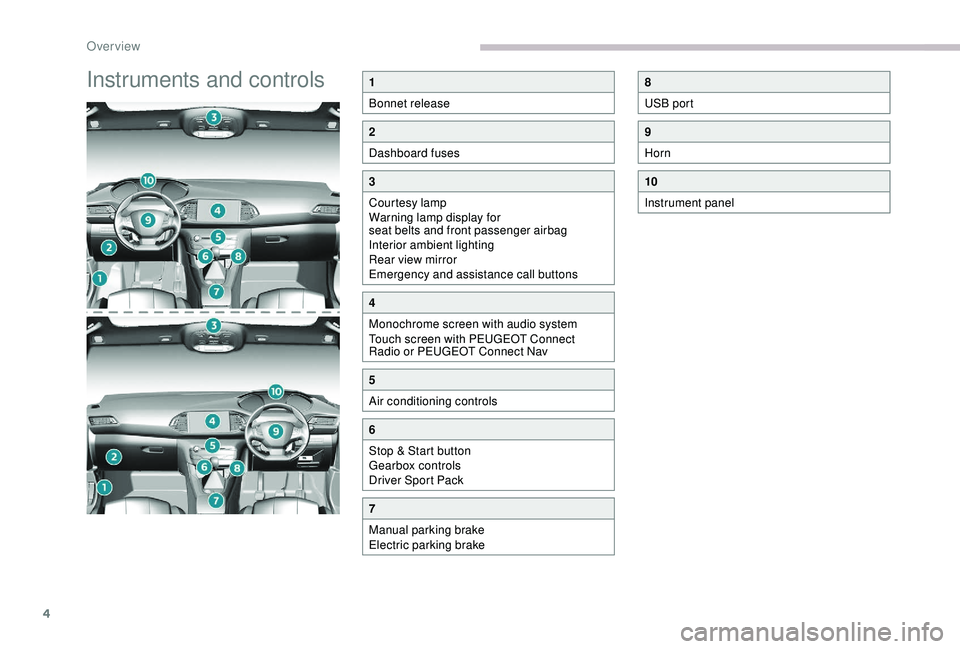
Instruments and controls1
Bonnet release
2
Dashboard fuses
3
Courtesy lamp
Warning lamp display for
seat belts and front passenger airbag
Interior ambient lighting
Rear view mirror
Emergency and assistance call buttons
4
Monochrome screen with audio system
Touch screen with PEUGEOT Connect
Radio or PEUGEOT Connect Nav
5
Air conditioning controls
6
Stop & Start button
Gearbox controls
Driver Sport Pack
7
Manual parking brake
Electric parking brake
8
USB port
9
Horn
10
Instrument panel
Over view
Page 61 of 324
59
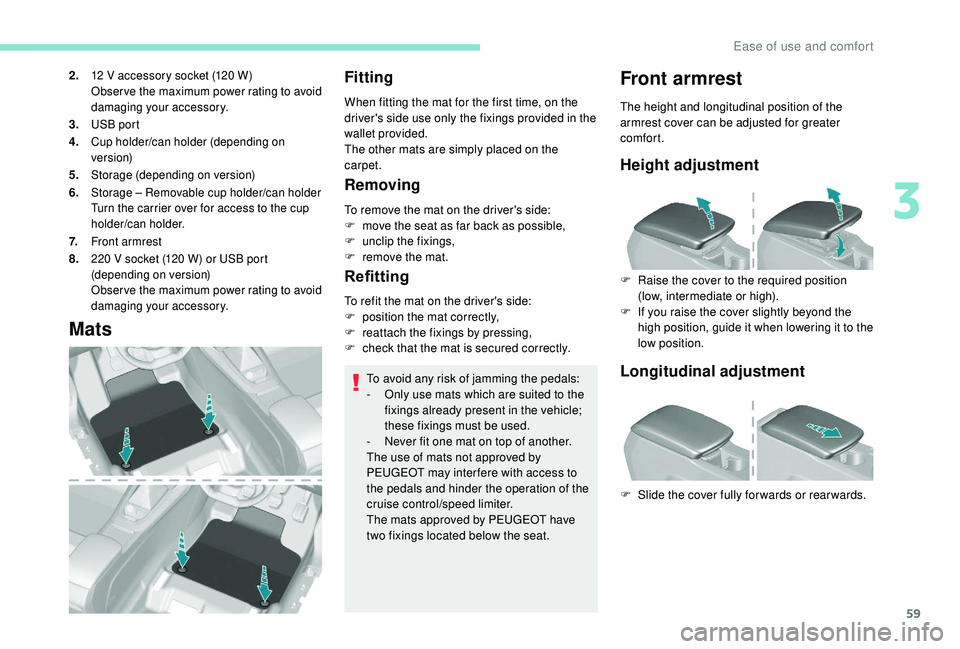
2.12 V accessory socket (120 W)
O bser ve the maximum power rating to avoid
damaging your accessory.
3.USB port
4.Cup holder/can holder (depending on
ve r s i o n)
5.Storage (depending on version)
6.Storage – Removable cup holder/can holder
Turn the carrier over for access to the cup
holder/can holder.
7.Front armrest
8.220 V socket (120 W) or USB port
( depending on version)
Obser ve the maximum power rating to avoid
damaging your accessory.
Mats
Fitting
When fitting the mat for the first time, on the
driver's side use only the fixings provided in the
wallet provided.
The other mats are simply placed on the
carpet.
Removing
To remove the mat on the driver's side:
F m ove the seat as far back as possible,
F
un
clip the fixings,
F
r
emove the mat.
Refitting
To avoid any risk of jamming the pedals:
- O nly use mats which are suited to the
fixings already present in the vehicle;
these fixings must be used.
-
N
ever fit one mat on top of another.
The use of mats not approved by
PEUGEOT may inter fere with access to
the pedals and hinder the operation of the
cruise control/speed limiter.
The mats approved by PEUGEOT have
two fixings located below the seat.
Front armrest
The height and longitudinal position of the
armrest cover can be adjusted for greater
comfort.
Height adjustment
F Raise the cover to the required position (low, intermediate or high).
F
I
f you raise the cover slightly beyond the
high position, guide it when lowering it to the
low position.
To refit the mat on the driver's side:
F
p
osition the mat correctly,
F
r
eattach the fixings by pressing,
F
c
heck that the mat is secured correctly.
Longitudinal adjustment
F Slide the cover fully for wards or rear wards.
3
Ease of use and comfort
Page 62 of 324

60
Storage
12 V accessory socket USB ports
Obser ve the maximum power rating to
avoid damaging your accessory. The connection of an electrical device
not approved by PEUGEOT, such as a
USB charger, may adversely affect the
operation of vehicle electrical systems,
causing faults such as poor radio
reception or inter ference with displays in
the screens.
When the USB port is used, the portable
device charges automatically.
While charging, a message is displayed
if the power consumption of the portable
device exceeds the amperage supplied by
the vehicle.
For more information on how to use this
equipment, refer to the Audio equipment
and telematics
section.
F
Ra
ise the paddle.
F
R
aise the cover fully.
F
T
o connect a 12 V accessory (maximum
power: 120 watts), lift the cover and plug in
the correct adapter.
220 V/50 Hz socket
A 220 V/50 Hz socket (max. power: 120 W) is
f itted in the rear storage box.
This socket works with the engine running, as
well as in STOP mode of Stop & Start.
These allow the connection of a portable
device, such as an iPod
® type digital audio
player, to recharge the device.
F
O
pen the storage box.
The USB port located at the front
also allows a smartphone to be
connected by MirrorLink
TM, Android
Auto® or CarPlay®, so that certain
applications on the smartphone can
be used on the touch screen.
You can manage these applications using the
steering mounted controls or the audio system.
Ease of use and comfort
Page 238 of 324

2
First steps
Press: On/Off.
Rotate: adjust volume.
Short press: change audio source
(radio; USB; AUX (if equipment
connected); streaming).
Long press: display the Telephone
menu (if a telephone is connected).
Adjust audio options:
Front/rear fader; left/right balance;
bass/treble; loudness; audio
ambience.
Activation/Deactivation of automatic
volume adjustment (linked to the
speed of the vehicle).
Radio:
Short press: display the list of radio
stations.
Long press: update the list.
Media:
Short press: display the list of
folders.
Long press: display the available
sorting options.Select the screen display mode,
between:
Date; Audio functions; Trip
computer; Telephone.
Confirm or display contextual menu.
Buttons 1 to 6.
Short press: select the preset radio
station.
Long press: preset a radio station.
Radio:
Automatic step by step search up/
down for radio stations.
Media:
Select previous/next USB,
streaming track.
Fast scroll in a list.
Radio:
Manual step by step search up/down
for radio stations.
Select previous/next MP3 folder.
Media:
Select previous/next folder/genre/
artist/playlist on the USB device.
Fast scroll in a list.Abandon the current operation.
Go up one level (menu or folder).
Access to the main menu.
Activate/Deactivate TA function
(traffic announcements).
Long press: select type of
announcement.
Selection of FM/DAB/AM
wavebands.
Steering mounted controls
Steering mounted controls
– Type 1
Radio:
Select the previous/next preset radio
station.
Select the previous/next item in a
menu or a list.
Media:
Select the previous/next track.
Select the previous/next item in a
menu or a list.
Bluetooth® audio system
Page 239 of 324

3
Radio:
Short press: display the list of radio
stations.
Long press: update the list.
Media:
Short press: display the list of
folders.
Long press: display the available
sorting options.
Other than telephone call:
Short press: changing audio source
(radio; USB; AUX (if equipment
connected); streaming), confirmation
if the "Telephone " menu is open.
Long press: open the " Telephone"
menu.
In the event of a telephone call:
Short press: accept the call.
Long press: reject the call.
During a telephone call:
Short press: open the contextual
telephone menu.
Long press: end the call.
Confirm a selection.
Increase volume. Decrease volume.
Mute/Restore sound by
simultaneously pressing the
increase and decrease volume
buttons.
Steering mounted controls
– Type 2
Access to the main menu.
Increase volume.
Mute/Restore the sound.
Decrease volume.
Other than telephone call:
Short press: changing audio source
(radio; USB; AUX (if equipment
connected); streaming), confirmation
if the "
Telephone " menu is open.
Long press: open the " Telephone"
menu.
In the event of a telephone call:
Short press: accept the call.
Long press: reject the call.
During a telephone call:
Short press: open the contextual
telephone menu.
Long press: end the call.
Start voice recognition on your
smartphone via the system.
Radio:
Short press: display the list of radio
stations.
Long press: update the list.
Media:
Short press: display the list of
folders.
Long press: display the available
sorting options.
.
Bluetooth® audio system
Page 241 of 324

5
The RDS, if activated, enables you to
continue listening to the same station
by automatic retuning to alternative
frequencies. However, in certain conditions,
coverage of an RDS station may not be
assured throughout the entire country as
radio stations do not cover 100% of the
territory. This explains the loss of reception
of the station during a journey.
Short procedure
In "Radio " mode, press the OK button to
activate or deactivate RDS directly.
Long procedure
Press the MENU button.
Select " Audio functions ".
Press OK.
Select the " FM waveband
preferences " function.
Press OK. Select "
Frequency tracking
(RDS) ".
Press OK , RDS is displayed on the
screen.
Playing TA messages
The TA (Traffic Announcement) function
gives priority to TA alert messages.
To be active, this function requires
good reception of a radio station that
broadcasts this type of message. As
soon as traffic information is broadcast,
the media playing (radio, USB, etc.) is
interrupted automatically to issue the
TA message. Normal play of the media
is restored after the message has been
issued.
Take care when increasing the volume
while listening to TA messages. The
volume may prove too high on return to
the original audio source.
Press the TA button to activate or
deactivate traffic messages.
Playing INFO messages
The INFO function gives priority to alert
messages. To operate, this function
needs good reception of a radio station
transmitting this type of message. When a
message is transmitted, the current audio
source (radio, CD, etc.) is interrupted
automatically to play the INFO message.
Normal playback resumes at the end of
the transmission of the message.
Make a long press on this button to
display the list of categories.
Select or deselect categories.
Activate or deactivate the reception
of the corresponding messages.
Displaying TEXT INFOS
Radio text is information transmitted by
the radio station related to the station's
current programme or song.
.
Bluetooth® audio system
Page 243 of 324
7
DAB/FM station tracking
"DAB" does not have 100% coverage of
the country.
When the digital signal is weak,
"DAB / FM auto tracking" allows you to
continue listening to the same station,
by automatically switching to the
corresponding analogue FM station (if it
ex i st s).
When the "DAB
/ FM auto tracking" is
active, the DAB station will be selected
automatically.
Press the MENU button.
Select " Multimedia " and confirm.
Select " DAB
/ FM auto tracking"
and confirm.
If "DAB
/ FM auto tracking" tracking is
enabled, there is a lag of a few seconds
when the system switches to the analogue
FM station sometimes with a change in
volume. If the "DAB" station you are listening to
is not available on FM ("
DAB/FM" option
struck out), or if "DAB / FM auto tracking"
is not enabled, the sound will be cut when
the digital signal is too weak.
Media
USB port
To protect the system, do not use a USB
hub.
Insert the USB memory stick into the USB port
or connect the USB device to the USB port
using a suitable cable (not supplied).
The system changes automatically to "USB"
source. Any additional equipment connected to
the system must conform to the standard
of the product or standard IEC 60950 -1.
The system builds playlists (in temporary
memory), an operation which can take from
a few seconds to several minutes at the first
connection.
Reduce the number of non-music files and the
number of folders to reduce the waiting time.
Playlists are updated every time a new USB
memory stick is connected. When the USB port is used, the portable
device charges automatically.
Play mode
The play modes available are:
- No rmal: the tracks are played in order,
depending on the classification of the
selected files.
-
Ra
ndom: the tracks in an album or folder
are played in a random order.
-
R
andom on all media: all of the tracks
saved in the media are played in random
o r d e r.
-
R
epeat : the tracks played are only those
from the current album or folder.
.
Bluetooth® audio system
Page 244 of 324

8
Press this button to display the
contextual menu for the Media
function.
Press this button to select the
chosen play mode.
Press this button to confirm.
The choice made is displayed at the top of the
screen.
Choosing a track to play
Press one of these buttons to go to
the previous/next track.
Press one of these buttons to go to
the previous/next folder.
File classification
Make a long press on this button to
display the different classifications.
Select by " Folder"/ "Artist "/ "Genre "
/" Playlist ".
Depending on availability and type
of device used. Press OK
to select the desired
classification, then press OK again
to confirm.
Playing files
Make a short press on this button to
display the chosen classification.
Navigate in the list using the left /
right and up/down buttons.
Confirm the selection by pressing
OK.
Press one of these buttons to go to
the previous/next track in the list.
Press and hold one of these buttons
for fast for ward or rewind.
Press one of these buttons to go to
the previous/next " Folder"/ "Artist "/ "
Genre "/ "Playlist "* in the list.
*
D
epending on availability and the type of
device used.
Auxiliary socket (AUX)
(depending on model/depending on equipment)
Any additional equipment connected to
the system must conform to the standard
of the product or standard IEC 60950 -1. Press the SOURCE button several
times in succession and select
" AUX ".
First adjust the volume on your portable device
(to a high level). Then adjust the volume of your
audio system. Display and management of the
controls are via the portable device.
Do not connect a device to both the Jack
auxiliary socket and the USB port at the
same time.
Connect a portable device (MP3 player, etc.)
to the Jack socket using an audio cable (not
supplied).
Bluetooth® audio system