2018 PEUGEOT 108 display
[x] Cancel search: displayPage 145 of 180
15
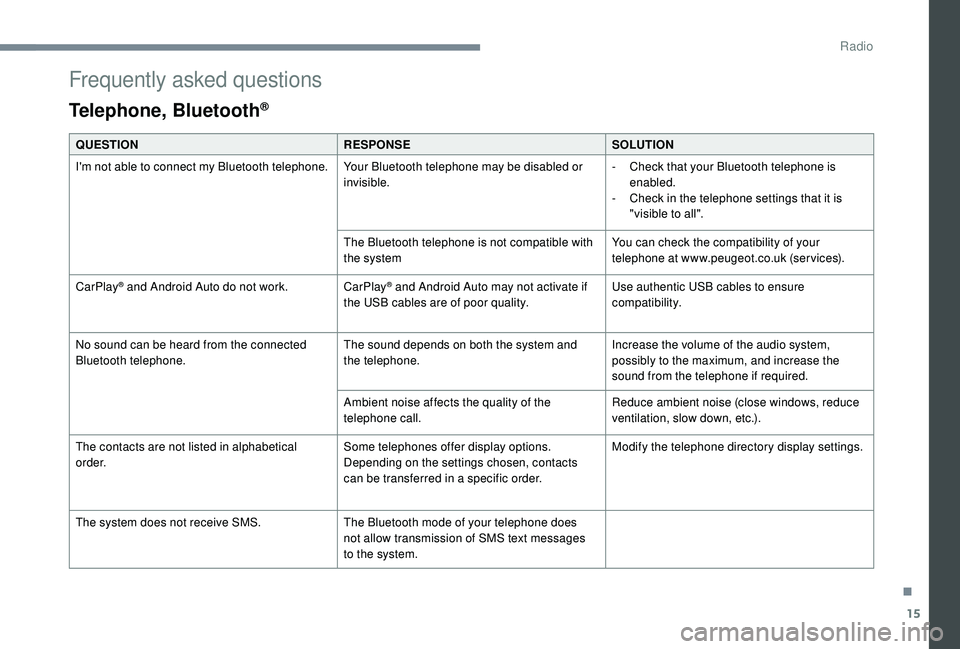
Frequently asked questions
Telephone, Bluetooth®
QUESTIONRESPONSESOLUTION
I'm not able to connect my Bluetooth telephone. Your Bluetooth telephone may be disabled or
invisible.-
C
heck that your Bluetooth telephone is
enabled.
-
C
heck in the telephone settings that it is
"visible to all".
The Bluetooth telephone is not compatible with
the system You can check the compatibility of your
telephone at www.peugeot.co.uk (services).
CarPlay
® and Android Auto do not work. CarPlay® and Android Auto may not activate if
the USB cables are of poor quality. Use authentic USB cables to ensure
compatibility.
No sound can be heard from the connected
Bluetooth telephone. The sound depends on both the system and
the telephone.Increase the volume of the audio system,
possibly to the maximum, and increase the
sound from the telephone if required.
Ambient noise affects the quality of the
telephone call. Reduce ambient noise (close windows, reduce
ventilation, slow down, etc.).
The contacts are not listed in alphabetical
o r d e r. Some telephones offer display options.
Depending on the settings chosen, contacts
can be transferred in a
specific order. Modify the telephone directory display settings.
The system does not receive SMS. The Bluetooth mode of your telephone does
not allow transmission of SMS text messages
to the system.
.
Radio
Page 146 of 180
16
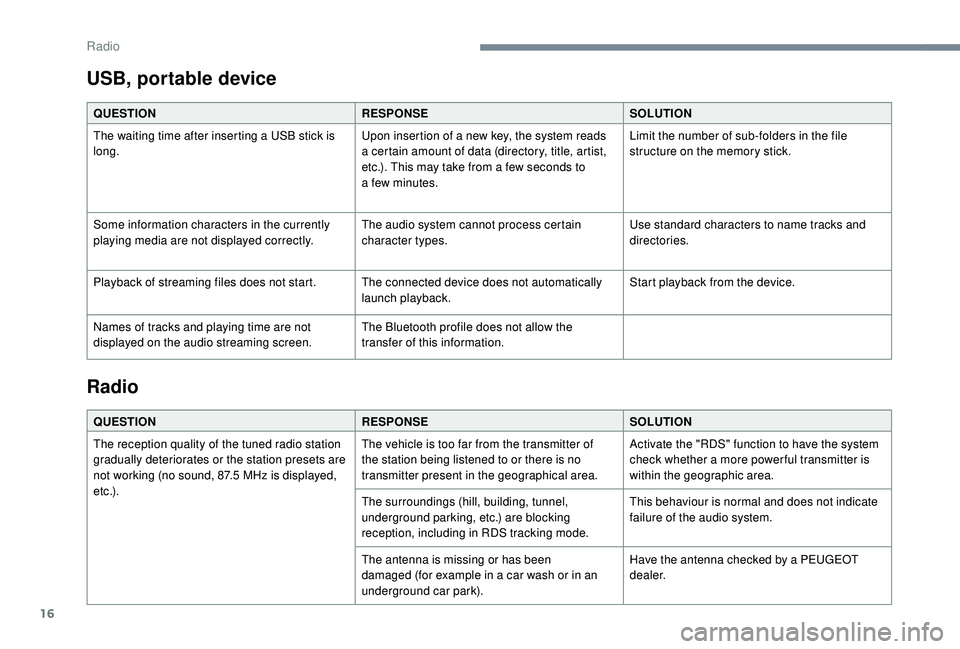
USB, portable device
QUESTIONRESPONSESOLUTION
The waiting time after inserting a USB stick is
long. Upon insertion of a
new key, the system reads
a
certain amount of data (directory, title, artist,
etc.). This may take from a
few seconds to
a
few minutes.Limit the number of sub-folders in the file
structure on the memory stick.
Some information characters in the currently
playing media are not displayed correctly. The audio system cannot process certain
character types.Use standard characters to name tracks and
directories.
Playback of streaming files does not start. The connected device does not automatically launch playback.Start playback from the device.
Names of tracks and playing time are not
displayed on the audio streaming screen. The Bluetooth profile does not allow the
transfer of this information.
Radio
QUESTION
RESPONSESOLUTION
The reception quality of the tuned radio station
gradually deteriorates or the station presets are
not working (no sound, 87.5
MHz is displayed,
e t c .) . The vehicle is too far from the transmitter of
the station being listened to or there is no
transmitter present in the geographical area.
Activate the "RDS" function to have the system
check whether a
more power ful transmitter is
within the geographic area.
The surroundings (hill, building, tunnel,
underground parking, etc.) are blocking
reception, including in RDS tracking mode. This behaviour is normal and does not indicate
failure of the audio system.
The antenna is missing or has been
damaged (for example in a
car wash or in an
underground car park). Have the antenna checked by a
PEUGEOT
dealer.
Radio
Page 150 of 180

2
First steps
* Depending on equipment
In ACC mode or on starting the vehicle, the
system starts up.
A press will mute the sound and
activate the sleep mode (displaying
time and shortcuts).
A long press resets the system.
Volume adjustment by turning (each
source is independent).
Press to access the menu carousel,
then press the virtual buttons in the
touch screen.
A second press allows you to return
to the last source activated.
Turn the knob to access a
list or
higher or lower range. Smartphone voice commands via
the system.
Pressing this button activates the
voice commands function.
In prolonged sunshine and extremely
hot conditions, the system may go into
stand-by for protection (screen and sound
completely off) for a
period of at least
5
minutes.
The return to normal takes place when
the temperature in the passenger
compartment drops.
Pressing with more than one finger is not
recognised.
The touch screen is of the "capacitive"
type.
To clean the screen, we recommend
using a
soft non-abrasive cloth (e.g. a
spectacles cloth) without any additional
products, or a
damp cloth.
Do not use sharp objects on the screen.
Do not touch the screen with wet hands. Selecting the audio source (depending on
version):
-
"
FM "/ "AM "/ " DAB*" radio.
-
"
USB" players.
-
T
elephone connected via Bluetooth and
Bluetooth multimedia broadcast (streaming).
-
M
edia player connected via the auxiliary
socket (jack, cable not supplied).
Shortcuts: Certain information is displayed
in the left-hand bar of the touch screen. It is
possible to directly access the media, the
telephone functions, the "Mirror Screen
®" mode
or the choice of the sound source.
7-inch touch screen tablet
Page 153 of 180
5
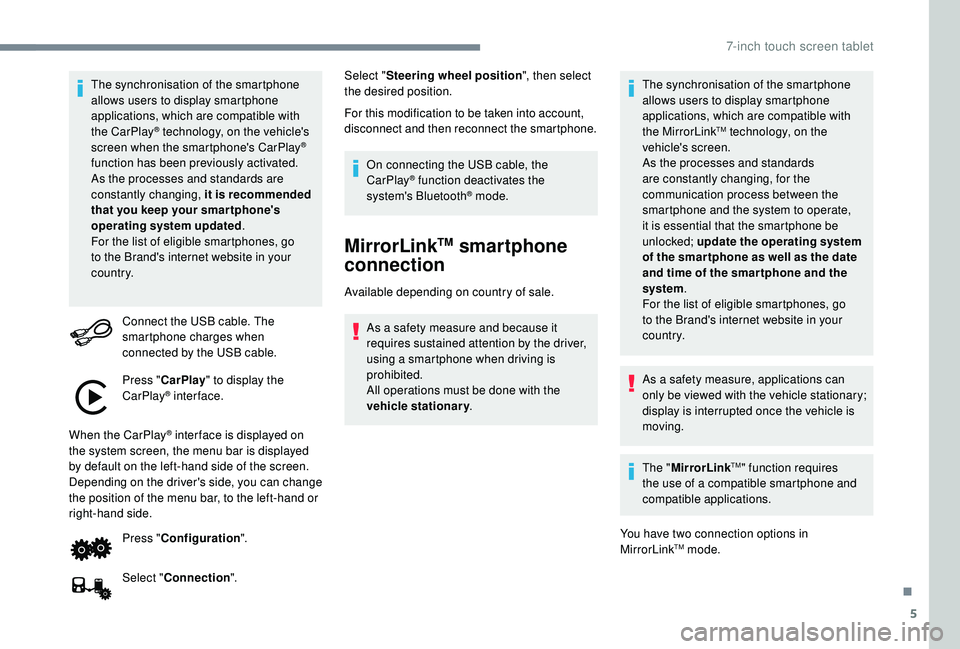
The synchronisation of the smartphone
allows users to display smartphone
applications, which are compatible with
the CarPlay
® technology, on the vehicle's
screen when the smartphone's CarPlay®
function has been previously activated.
As the processes and standards are
constantly changing, it is recommended
that you keep your smar tphone's
operating system updated .
For the list of eligible smartphones, go
to the Brand's internet website in your
c o u nt r y.
Connect the USB cable. The
smartphone charges when
connected by the USB cable.
Press " CarPlay " to display the
CarPlay
® inter face.
When the CarPlay
® inter face is displayed on
the system screen, the menu bar is displayed
by default on the left-hand side of the screen.
Depending on the driver's side, you can change
the position of the menu bar, to the left-hand or
right-hand side.
Press "Configuration ".
Select " Connection ". Select "
Steering wheel position ", then select
the desired position.
For this modification to be taken into account,
disconnect and then reconnect the smartphone.
On connecting the USB cable, the
CarPlay® function deactivates the
system's Bluetooth® mode.
MirrorLinkTM smartphone
connection
Available depending on country of sale.
As a safety measure and because it
requires sustained attention by the driver,
using a
smartphone when driving is
prohibited.
All operations must be done with the
vehicle stationary . The synchronisation of the smartphone
allows users to display smartphone
applications, which are compatible with
the MirrorLink
TM technology, on the
vehicle's screen.
As the processes and standards
are constantly changing, for the
communication process between the
smartphone and the system to operate,
it is essential that the smartphone be
unlocked; update the operating system
of the smar tphone as well as the date
and time of the smar tphone and the
system .
For the list of eligible smartphones, go
to the Brand's internet website in your
c o u nt r y.
As a
safety measure, applications can
only be viewed with the vehicle stationary;
display is interrupted once the vehicle is
moving.
The " MirrorLink
TM" function requires
the use of a
compatible smartphone and
compatible applications.
You have two connection options in
MirrorLink
TM mode.
.
7-inch touch screen tablet
Page 154 of 180
6
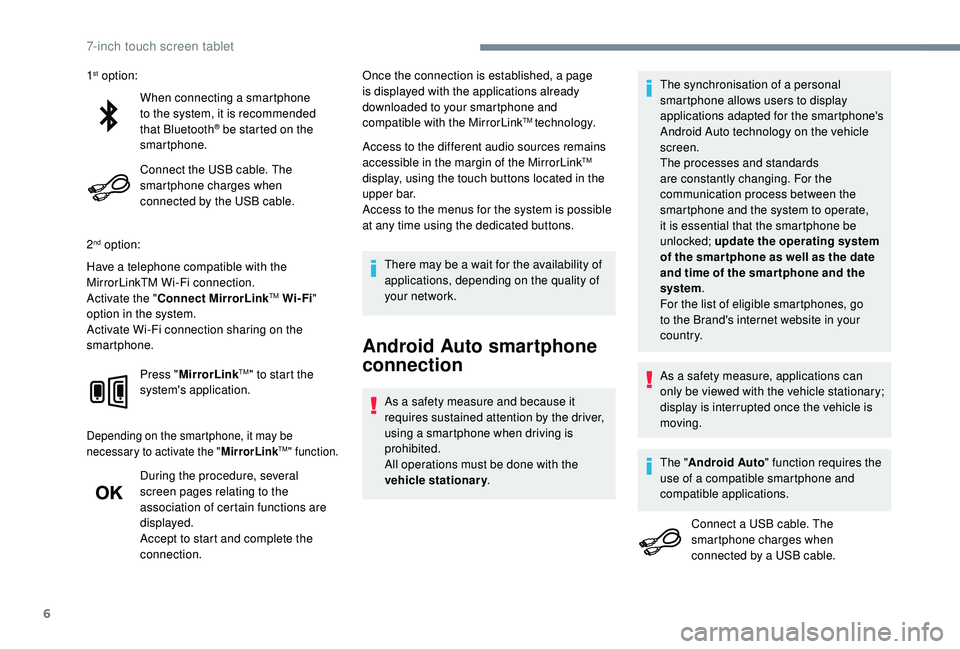
When connecting a smartphone
t o the system, it is recommended
that Bluetooth
® be started on the
smartphone.
Connect the USB cable. The
smartphone charges when
connected by the USB cable.
2
nd option:
Have a telephone compatible with the
MirrorLinkTM Wi-Fi connection.
Activate the " Connect MirrorLink
TM Wi-Fi"
option in the system.
Activate Wi-Fi connection sharing on the
smartphone.
Press "MirrorLink
TM" to start the
system's application.
Depending on the smartphone, it may be
necessary to activate the " MirrorLinkTM" function.
During the procedure, several
screen pages relating to the
association of certain functions are
displayed.
Accept to start and complete the
connection. Once the connection is established, a page
is displayed with the applications already
downloaded to your smartphone and
compatible with the MirrorLink
TM technology.
Access to the different audio sources remains
accessible in the margin of the MirrorLink
TM
display, using the touch buttons located in the
u p p e r b a r.
Access to the menus for the system is possible
at any time using the dedicated buttons.
There may be a
wait for the availability of
applications, depending on the quality of
your network.
Android Auto smartphone
connection
As a safety measure and because it
r equires sustained attention by the driver,
using a
smartphone when driving is
prohibited.
All operations must be done with the
vehicle stationary . The synchronisation of a
personal
smartphone allows users to display
applications adapted for the smartphone's
Android Auto technology on the vehicle
screen.
The processes and standards
are constantly changing. For the
communication process between the
smartphone and the system to operate,
it is essential that the smartphone be
unlocked; update the operating system
of the smar tphone as well as the date
and time of the smar tphone and the
system .
For the list of eligible smartphones, go
to the Brand's internet website in your
c o u nt r y.
1
st option:
As a safety measure, applications can
only be viewed with the vehicle stationary;
display is interrupted once the vehicle is
moving.
The " Android Auto " function requires the
use of a
compatible smartphone and
compatible applications.
Connect a
USB cable. The
smartphone charges when
connected by a
USB cable.
7-inch touch screen tablet
Page 155 of 180
7
Press "Android Auto " to start the
application in the system.
During the procedure, several
screen pages relating to certain
functions are displayed.
Accept to start and complete the
connection.
Different audio sources remain accessible in
the margin of the Android Auto display, using
touch buttons in the upper bar.
Access to the menus for the system is possible
at any time using the dedicated buttons.
There may be a
wait for the availability of
applications, depending on the quality of
your network.
Radio
Selecting a station
Press " Audio source " to show the
rolling display of audio sources.
Select " FM". Select the "
Station" tab then
select a station among the stations
received.
Select " FM radio configuration "
then " Update the list of stations "
to refresh the list.
If necessary, select a change of
source by pressing the short cut
" Audio source " in the upper bar.
Select " AM" or " DAB" (depending on
equipment).
The external environment (hills, buildings,
tunnels, multi-storey or basement car
parks, etc.) may block reception, including
RDS tracking. This behaviour is normal
in the propagation of radio waves and
does not indicate any failure of the audio
system.
Changing a frequency
Press "Audio source " to show the
rolling display of audio sources. Select "
FM".
Select the " Manual" tab to search
for a
station.
Press the buttons step by step to
per form a frequency search up or
down.
OR Press the automatic buttons to
per form a frequency search up or
down.
OR Turn the button at the bottom right of
the screen to search for a lower or
higher frequency.
Presetting a station
Select a station or frequency (refer
t o the "Changing a frequency"
section).
Select the " Presets" tab, then make
a
long press on one of the numbered
locations.
.
7-inch touch screen tablet
Page 156 of 180
8
12
3
45
6
8
9
107
Activating/Deactivating RDS
Press "Audio source " to show the
rolling display of audio sources.
Select " FM".
Select the " FM radio
configuration " tab.
Activate/deactivate " Change
regional code ".
RDS, if activated, allows you to continue
listening to the same station by automatically
retuning to alternative frequencies. However, in
certain conditions, coverage of an RDS station
may not be assured throughout the entire
country as radio stations do not cover 100% of
the territory. This explains the loss of reception
of a
station that can occur during a journey.
DAB (Digital Audio
Broadcasting) radio
Digital radio
Digital radio provides higher quality
reception and also the display of additional
information (album sleeve, etc.) about the
station being listened to. Select "DAB" on
the rolling display of audio sources.
The different "multiplex/ensemble"
ser vices offer a choice of radio stations
arranged in alphabetical order.
Press " Audio source " to show the
rolling display of audio sources.
Select " DAB".
Select the " DAB radio configuration "
tab
Activate " L- Band".
Select the " Station" tab then
select a
station among the stations
received.
Select the " Manual" tab to search
for a
station. If the "DAB" station being listened to is not
available, the "FM" band display appears
on the screen.
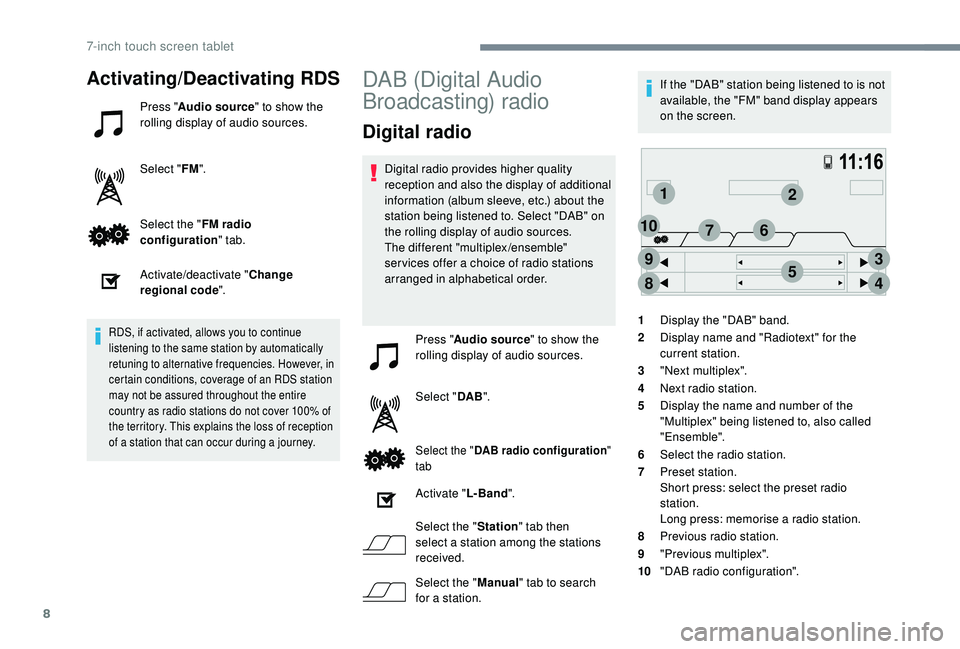
1 Display the "DAB" band.
2 Display name and "Radiotext" for the
current station.
3 "Next multiplex".
4 Next radio station.
5 Display the name and number of the
"Multiplex" being listened to, also called
"Ensemble".
6 Select the radio station.
7 Preset station.
Short press: select the preset radio
station.
Long press: memorise a
radio station.
8 Previous radio station.
9 "Previous multiplex".
10 "DAB radio configuration".
7-inch touch screen tablet
Page 157 of 180

9
DAB/FM tracking
Digital radio does not cover 100% of the
c o u nt r y.
When the quality of the digital signal is
poor, the "Alternative DAB frequency "
option allows you to continue listening
to the same station by automatically
switching to the corresponding FM
analogue radio station (if it exists).
Press " Audio source " to show the
rolling display of audio sources.
Select " DAB".
Select the " DAB radio configuration "
tab.
Activate " Alternative DAB
frequency ".
If " Alternative DAB frequency " tracking
is enabled, there is a
lag of a few seconds
while the system switches to analogue
radio, sometimes with a
change in volume.
Once the digital signal quality becomes
good again, the system automatically
changes back to "DAB". If the "DAB" station being listened to is not
available, or if "
L- Band" is not enabled,
the sound cuts out when the quality of the
digital signal becomes too weak.
Media
USB port
Insert the USB memory stick in the USB port or
connect the USB device to the USB port using
a
suitable cable (not supplied). The system builds playlists (in temporary
memory), an operation which can take
from a
few seconds to several minutes at
the first connection.
Reduce the number of non-music files
and the number of folders to reduce the
waiting time.
The playlists are updated every time the
ignition is switched off or a USB stick is
connected. However, the audio system
saves these lists and loading time will be
reduced if they have not been changed.
Auxiliary socket (A/V),
audio and video
Audio player
Connect the portable device (MP3 player, etc.)
to the JACK socket using an audio cable.
Video player
.
7-inch touch screen tablet