2018 LINCOLN NAVIGATOR change wheel
[x] Cancel search: change wheelPage 225 of 649

When climbing a steep slope or hill, start ina lower gear rather than downshifting to alower gear from a higher gear once theascent has started. This reduces strain onthe engine and the possibility of stalling.
If your vehicle stalls, do not try to turn aroundbecause this could cause vehicle roll over.It is better to reverse back to a safe location.
Apply just enough power to the wheels toclimb the hill. Too much power causes thetires to slip, spin or lose traction, resulting inloss of vehicle control.
Descend a hill in the same gear you woulduse to climb up the hill to avoid excessivebrake application and brake overheating. Donot descend in neutral. Disengage overdriveor move the transmission selector lever to alower gear. When descending a steep hill,avoid sudden hard braking as you could losecontrol. The front wheels have to be turningin order to steer your vehicle.
If your vehicle has anti-lock brakes, apply thebrakes steadily. Do not pump the brakes.
Driving on Snow and Ice
WARNING: If you are driving inslippery conditions that require tire chainsor cables, then it is critical that you drivecautiously. Keep speeds down, allow forlonger stopping distances and avoidaggressive steering to reduce the chancesof a loss of vehicle control which can leadto serious injury or death. If the rear endof your vehicle slides while cornering, steerin the direction of the slide until you regaincontrol of your vehicle.
Note:Excessive tire slippage can causetransmission damage.
Four-wheel drive vehicles have advantagesover two-wheel drive vehicles in snow andice but can skid like any other vehicle.Should you start to slide when driving onsnowy or icy roads, turn the steering wheelin the direction of the slide until you regaincontrol.
Avoid sudden applications of power andquick changes of direction on snow and ice.Apply the accelerator slowly and steadilywhen starting from a full stop.
Avoid sudden braking. Although a four-wheeldrive vehicle may accelerate better than atwo-wheel drive vehicle in snow and ice, itdoes not stop any faster as braking occursat all four wheels. Do not becomeoverconfident in any road condition.
Make sure you allow sufficient distancebetween you and other vehicles for stopping.Drive slower than usual and consider usingone of the lower gears. In emergencystopping situations, apply the brake steadily.Do not pump the brake pedal. See Hints onDriving With Anti-Lock Brakes (page 226).
222
Navigator (TB9) Canada/United States of America, enUSA, Edition date: 201708, Third-Printing-
Four-Wheel Drive (If Equipped)E143949
Page 236 of 649

PRINCIPLE OF OPERATION
WARNING: Vehicle modificationsinvolving braking system, aftermarket roofracks, suspension, steering system, tireconstruction and wheel and tire size maychange the handling characteristics of yourvehicle and may adversely affect theperformance of the electronic stabilitycontrol system. In addition, installing anystereo loudspeakers may interfere withand adversely affect the electronic stabilitycontrol system. Install any aftermarketstereo loudspeaker as far as possible fromthe front center console, the tunnel, andthe front seats in order to minimize the riskof interfering with the electronic stabilitycontrol sensors. Reducing theeffectiveness of the electronic stabilitycontrol system could lead to an increasedrisk of loss of vehicle control, vehiclerollover, personal injury and death.
WARNING: Remember that evenadvanced technology cannot defy the lawsof physics. It’s always possible to losecontrol of a vehicle due to inappropriatedriver input for the conditions. Aggressivedriving on any road condition can causeyou to lose control of your vehicleincreasing the risk of personal injury orproperty damage. Activation of theelectronic stability control system is anindication that at least some of the tireshave exceeded their ability to grip theroad; this could reduce the operator’sability to control the vehicle potentiallyresulting in a loss of vehicle control, vehiclerollover, personal injury and death. If yourelectronic stability control system activates,SLOW DOWN.
The system automatically turns on each timeyou switch the ignition on.
If a fault occurs in either the stability controlor the traction control system, you mayexperience the following conditions:
•The stability and traction control lightilluminates steadily.
•The stability control and traction controlsystems do not enhance your vehicle'sability to maintain traction of the wheels.
If a driving condition activates either thestability control or the traction control systemyou may experience the following conditions:
•The stability and traction control lightflashes.
•Your vehicle slows down.
•Reduced engine power.
•A vibration in the brake pedal.
•The brake pedal is stiffer than usual.
•If the driving condition is severe and yourfoot is not on the brake, the brake pedalmay move as the system applies higherbrake force.
The stability control system has severalfeatures built into it to help you maintaincontrol of your vehicle:
233
Navigator (TB9) Canada/United States of America, enUSA, Edition date: 201708, Third-Printing-
Stability Control
Page 237 of 649

Electronic Stability Control
The system enhances your vehicle’s abilityto prevent skids or lateral slides by applyingbrakes to one or more of the wheelsindividually and, if necessary, reducingengine power.
Roll Stability Control
The system enhances your vehicle’s abilityto prevent rollovers by detecting yourvehicle’s roll motion and the rate at which itchanges by applying the brakes to one ormore wheels individually.
Traction Control
The system enhances your vehicle’s abilityto maintain traction of the wheels bydetecting and controlling wheel spin. SeeUsing Traction Control (page 232).Vehicle without stability controlskidding off its intended route.A
Vehicle with stability controlmaintaining control on a slipperysurface.
B
USING STABILITY CONTROL
Stability Control and Traction Controlwith Roll Stability Control™ (RSC™)
The system automatically activates when youstart your engine. When the transmission isin reverse (R), they are disabled. You canswitch off the traction control portion of thesystem independently. See Using TractionControl (page 232).
234
Navigator (TB9) Canada/United States of America, enUSA, Edition date: 201708, Third-Printing-
Stability ControlE72903A
AA
B
BB
B
Page 245 of 649

WARNING: Active park assist doesnot apply the brakes under anycircumstances.
WARNING: You are responsible forcontrolling your vehicle at all times. Thesystem is designed to be an aid and doesnot relieve you of your responsibility todrive with due care and attention. Failureto follow this instruction could result in theloss of control of your vehicle, personalinjury or death.
Active park assist is a multi-step process andmay require you to shift the transmissionmultiple times. Follow the onscreeninstructions until the parking maneuver iscomplete.
If you are uncomfortable with the proximityto any vehicle or object, you may choose tooverride the system by grabbing the steeringwheel, or by taking full control of your vehicleafter pressing the active park assist button.
Keep your hands, hair, clothing and anyloose items clear of the steering wheel whenusing active park assist.
The sensors are on the front and rearbumpers.
Note:Keep the sensors free from snow, iceand large accumulations of dirt.
Note:Do not cover up the sensors.
Note:Do not clean the sensors with sharpobjects.
Note:The sensors may not detect objectswith surfaces that absorb ultrasonic waves.The sensors may falsely detect objects dueto ultrasonic interference caused bymotorcycle exhausts, truck air brakes orhorns, for example.
Note:If you change any tires, the systemmust recalibrate and may not correctlyoperate for a short time.
The system may not correctly operate in anyof the following conditions:
•You use a spare tire or a tire that issignificantly worn more than the othertires.
•One or more tires are incorrectly inflated.
•You try to park on a tight curve.
•Something passes between the frontbumper and the parking space. Forexample, a pedestrian or cyclist.
•The edge of the neighboring parkedvehicle is high off the ground. Forexample, a bus, tow truck or flatbedtruck.
•The weather conditions are poor. Forexample, during heavy rain, snow, fog,high humidity and high temperatures.
Do not use the system if:
•You have attached an add-on accessoryclose to the sensors on the front or rearof your vehicle. For example, a bike rackor trailer.
•You have attached an overhangingobject to the roof. For example, asurfboard.
•The front bumper, rear bumper or theside sensors are damaged.
•The correct tire size is not in use on yourvehicle. For example, a mini-spare tire.
242
Navigator (TB9) Canada/United States of America, enUSA, Edition date: 201708, Third-Printing-
Parking Aids
Page 255 of 649

Fixed guideline: Yellow zoneD
Fixed guideline: Red zoneE
Rear bumperF
Active guidelines are only shown with fixedguidelines. To use active guidelines, turnthe steering wheel to point the guidelinestoward an intended path. If you change thesteering wheel position while reversing, yourvehicle might deviate from the originalintended path.
The fixed and active guidelines fade in andout depending on the steering wheelposition. The active guidelines do notdisplay when the steering wheel position isstraight.
Always use caution while reversing. Objectsin the red zone are closest to your vehicleand objects in the green zone are fartheraway. Objects are getting closer to yourvehicle as they move from the green zoneto the yellow or red zones. Use the side viewmirrors and rear view mirror to get bettercoverage on both sides and rear of thevehicle.
Obstacle Distance Indicator (If Equipped)
The system will provide an image of yourvehicle and the sensor zones. The zones willhighlight green, yellow and red when theparking aid sensors detect an object in thecoverage area.
Manual Zoom
WARNING: When manual zoom ison, the full area behind your vehicle maynot show. Be aware of your surroundingswhen using the manual zoom feature.
Note:Manual zoom is only available whenthe transmission is in reverse (R).
Note:When you enable manual zoom, onlythe centerline is shown.
Selectable settings for this feature are Zoomin (+) and Zoom out (-). Press the symbol inthe camera screen to change the view. Thedefault setting is Zoom OFF.
This allows you to get a closer view of anobject behind your vehicle. The zoomedimage keeps the bumper in the image toprovide a reference. The zoom is only activewhile the transmission is in reverse (R).
Rear Camera Delay
Selectable settings for this feature are ONand OFF.
252
Navigator (TB9) Canada/United States of America, enUSA, Edition date: 201708, Third-Printing-
Parking AidsE190459
Page 259 of 649

PRINCIPLE OF OPERATION
Cruise control lets you maintain a set speedwithout keeping your foot on the acceleratorpedal. You can use cruise control when yourvehicle speed is greater than 20 mph(30 km/h).
USING CRUISE CONTROL (IF EQUIPPED)
WARNING: Do not use cruise controlon winding roads, in heavy traffic or whenthe road surface is slippery. This couldresult in loss of vehicle control, seriousinjury or death.
WARNING: When you are goingdownhill, your vehicle speed couldincrease above the set speed. The systemdoes not apply the brakes.
Note:Cruise control disengages if thevehicle speed decreases more than 10 mph(16 km/h) below the set speed when drivinguphill.
The cruise controls are on the steeringwheel.
Switching Cruise Control On
Press ON.
The indicator appears in theinformation display.
Setting the Cruise Speed
1. Drive to desired speed.
2. Press SET+ or SET-.
3.Take your foot off the accelerator pedal.
Note:The indicator changes color.
Changing the Set Speed
Note: If you accelerate by pressing theaccelerator pedal, the set speed will notchange. When you release the acceleratorpedal, your vehicle returns to the speed thatyou previously set.
•Press SET+ or SET- to change the setspeed in small increments.
•Press the accelerator or brake pedal untilyou reach the desired speed. Press SET+or SET-.
•Press and hold SET+ or SET-. Releasethe control when you reach the desiredspeed.
Canceling the Set Speed
Press CAN or tap the brake pedal. The setspeed does not erase.
256
Navigator (TB9) Canada/United States of America, enUSA, Edition date: 201708, Third-Printing-
Cruise ControlE221071 E71340
Page 270 of 649

WARNING: The system may notcorrectly operate if your vehicle is fittedwith a suspension kit not approved by us.
Note:The system works above 40 mph(64 km/h).
Note:The system works as long as thecamera can detect one lane marking.
Note:When you select aid or alert and aidmode and the system detects no steeringactivity for a short period, the system alertsyou to put your hands on the steering wheel.The system may detect a light grip or touchon the steering wheel as hands off driving.
Note:The system may not function if thecamera is blocked, or if the windshield isdamaged or dirty.
When you switch the system on and itdetects an unintentional drift out of your laneis likely to occur, the system notifies orassists you to stay in your lane through thesteering system and information display. InAlert mode, the system provides a warningby vibrating the steering wheel. In Aid mode,the system provides steering assistance bygently counter steering your vehicle backinto the lane.
When the system is functioning in thecombined Alert and Aid mode, the systemfirst provides steering assistance by gentlycounter steering your vehicle back into thelane, followed by a warning that vibrates thesteering wheel if the vehicle is still out of thelane markings.
Switching the System On and Off
Note:The system on or off setting is storeduntil it is manually changed, unless a MyKey™is detected. If the system detects a MyKey™,it defaults to on and the mode is set to alert.
Press the button on the direction indicatorstalk to switch the system on or off.
267
Navigator (TB9) Canada/United States of America, enUSA, Edition date: 201708, Third-Printing-
Driving AidsE249505 E132099
Page 272 of 649
Intensity: This setting affects the intensity ofthe steering wheel vibration used for the alertand alert and aid modes. This setting doesnot affect the aid mode.
•Low.
•Medium.
•High.
System Display
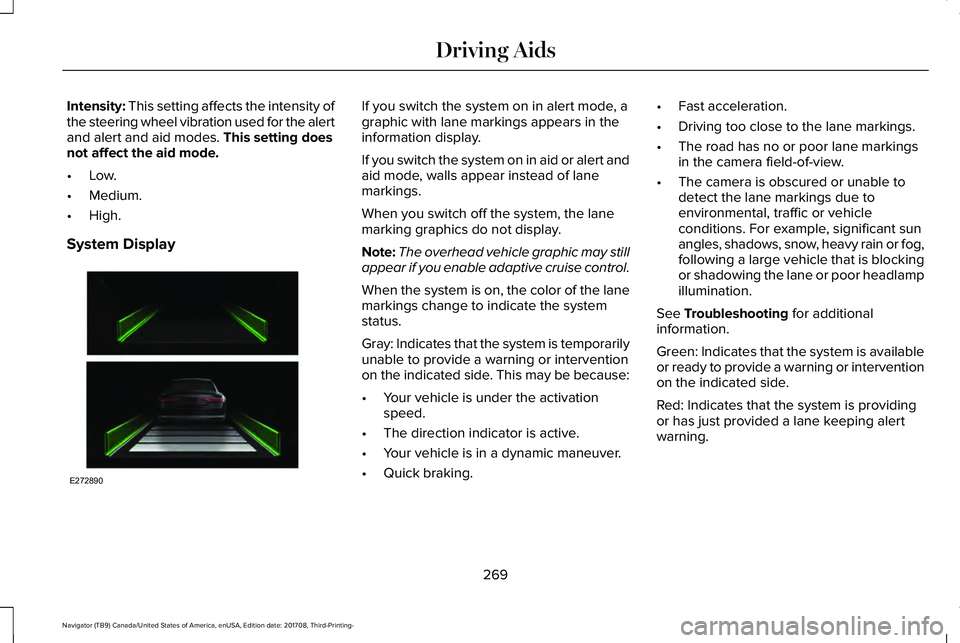
If you switch the system on in alert mode, agraphic with lane markings appears in theinformation display.
If you switch the system on in aid or alert andaid mode, walls appear instead of lanemarkings.
When you switch off the system, the lanemarking graphics do not display.
Note:The overhead vehicle graphic may stillappear if you enable adaptive cruise control.
When the system is on, the color of the lanemarkings change to indicate the systemstatus.
Gray: Indicates that the system is temporarilyunable to provide a warning or interventionon the indicated side. This may be because:
•Your vehicle is under the activationspeed.
•The direction indicator is active.
•Your vehicle is in a dynamic maneuver.
•Quick braking.
•Fast acceleration.
•Driving too close to the lane markings.
•The road has no or poor lane markingsin the camera field-of-view.
•The camera is obscured or unable todetect the lane markings due toenvironmental, traffic or vehicleconditions. For example, significant sunangles, shadows, snow, heavy rain or fog,following a large vehicle that is blockingor shadowing the lane or poor headlampillumination.
See Troubleshooting for additionalinformation.
Green: Indicates that the system is availableor ready to provide a warning or interventionon the indicated side.
Red: Indicates that the system is providingor has just provided a lane keeping alertwarning.
269
Navigator (TB9) Canada/United States of America, enUSA, Edition date: 201708, Third-Printing-
Driving AidsE272890