2018 LINCOLN CONTINENTAL fuel
[x] Cancel search: fuelPage 425 of 615
Note:Before setting this feature on, makesure that you read the 911 Assist PrivacyNotice later in this section for importantinformation.
Note:If any user sets 911 Assist to on or off,that setting applies for all paired phones. If911 Assist is switched off and the phone isconnected to SYNC, an icon displays on thestatus bar.
Note:Every phone operates differently.While SYNC 911 Assist works with mostcellular phones, some may have troubleusing this feature.
If a crash deploys an airbag (excluding kneeairbags and rear inflatable safety belts [ifequipped]) or activates the fuel pumpshut-off, your SYNC-equipped vehicle maybe able to contact emergency services bydialing 911 through a paired and connectedBluetooth-enabled phone. You can learnmore about the 911 Assist feature, by visiting:
Website
www.owner.lincoln.comwww.syncmyride.ca
Website
www.syncmaroute.ca
For important information about airbagdeployment and the fuel pump shut-offplease see the Supplementary Restrains andRoadside Emergencies sections of yourowner manual.
To switch 911 Assist on and off please viewthe settings information. See Settings (page480).
To make sure that 911 Assist works correctly:
•SYNC must be powered and workingproperly at the time of the incident andthroughout feature activation and use.
•The 911 Assist feature must be set onbefore the incident.
•You must pair and connect aBluetooth-enabled and compatible cellphone to SYNC.
•A connected Bluetooth-enabled phonemust have the ability to make andmaintain an outgoing call at the time ofthe incident.
•A connected Bluetooth-enabled phonemust have adequate network coverage,battery power and signal strength.
•The vehicle must have battery power andbe located in the U.S., Canada or in aterritory in which 911 is the emergencynumber.
In the Event of a Crash
Not all crashes will deploy an airbag oractivate the fuel pump shut-off (the triggersfor 911 Assist). If a connected cell phonesustains damage or loses its connection toSYNC during a crash, SYNC will search forand try to connect to a previously paired cellphone; SYNC will then attempt to call theemergency services.
422
Continental (CPL) Canada/United States of America, enUSA, Edition date: 201706, Second-Printing
SYNC™ 3
Page 426 of 615
Before making the call:
•SYNC provides a short window of time(about 10 seconds) to cancel the call. Ifyou fail to cancel the call, SYNC attemptsto dial 911.
•SYNC says the following, or a similarmessage: "SYNC will attempt to call 911,to cancel the call, press Cancel on yourscreen or press and hold the phonebutton on your steering wheel."
If you do not cancel the call, and SYNCmakes a successful call, a pre-recordedmessage plays for the 911 operator, and thenthe occupant(s) in your vehicle is able to talkwith the operator. Be prepared to provideyour name, phone number and locationimmediately, because not all 911 systems arecapable of receiving this informationelectronically.
911 Assist May Not Work If
•Your cellular phone or 911 Assisthardware sustains damage in a crash.
•The vehicle's battery or the SYNC systemhas no power.
•The phone(s) thrown from your vehicleare the ones paired and connected tothe system.
911 Assist Privacy Notice
When you switch on 911 Assist, it maydisclose to emergency services that yourvehicle has been in a crash involving thedeployment of an airbag or activation of thefuel pump shut-off. Certain versions orupdates to 911 Assist may also be capableof electronically or verbally disclosing to 911operators your vehicle location or otherdetails about your vehicle or crash to assist911 operators to provide the most appropriateemergency services. If you do not want todisclose this information, do not switch thefeature on.
Safety Information
WARNING: Driving while distractedcan result in loss of vehicle control, crashand injury. We strongly recommend that youuse extreme caution when using any devicethat may take your focus off the road. Yourprimary responsibility is the safe operationof your vehicle. We recommend against theuse of any hand-held device while drivingand encourage the use of voice-operatedsystems when possible. Make sure you areaware of all applicable local laws that mayaffect the use of electronic devices whiledriving.
•Do not attempt to service or repair thesystem. Have an authorized dealercheck your vehicle.
•Do not operate playing devices if thepower cords or cables are broken, splitor damaged. Place cords and cables outof the way, so they do not interfere withthe operation of pedals, seats,compartments or safe driving abilities.
423
Continental (CPL) Canada/United States of America, enUSA, Edition date: 201706, Second-Printing
SYNC™ 3
Page 428 of 615
Restricted features
Connecting to a new Wi-Fi network.
Sports Scores, Sports Schedule and Sports Headlines are not available when driving.Sirius Travel Link
Viewing received text messages.Text Messages
Using the keyboard to enter a destination.Navigation
Adding or editing Navigation Favorites entries or Avoid Areas.
Creating a SYNC Owner Account
Why do I need a SYNC owner account?
•Essential for keeping up with the latestsoftware and connected features.
•Access to customer support for anyquestions you may have.
•Maintain account permissions.
Visit the website to sign up and register.
Website
www.owner.lincoln.comwww.syncmyride.ca
Website
www.syncmaroute.ca
Lincoln Connect with Lincoln Way
With a Lincoln Connect-equipped vehicle,you can use Lincoln Way® to track yourvehicle’s location and remotely accessvehicle features such as start, lock andunlock and vehicle status including fuel leveland approximate mileage. You can alsoschedule specific times to remotely start your
vehicle so it’s ready to hit the road as soonas you are. Lincoln Way® is available througha free download via the Apple App Store®or Google Play™. Message and data ratesmay apply. Services may be limited by mobilephone network coverage area.
•FCC: LHJ-FAN
•IC: 2807E-FAN
Updating Your System
You can choose to download the updateonto a USB drive or use Wi-Fi to deliverautomatic updates.
425
Continental (CPL) Canada/United States of America, enUSA, Edition date: 201706, Second-Printing
SYNC™ 3
Page 442 of 615
You can say the following commands to access SiriusXM Traffic and Travel Link:
DescriptionVoice command
Displays a list of traffic incidents.Show Traffic
Displays the current weather map.Show Weather Map
Displays a list of fuel prices.Show Fuel Prices
Displays the 5 day weather forecast.Show 5 Day Forecast
Help
Voice Settings Commands
You can say the following commands to access the voice settings:
DescriptionVoice command
Allows you to enter the voice settings functionality.Voice Settings
Sets standard prompting with longer prompts.Interaction Mode Standard
Sets advanced prompting with shorter prompts.Interaction Mode Advanced
Allows the system to confirm before making a phone call.Call Confirmation On
439
Continental (CPL) Canada/United States of America, enUSA, Edition date: 201706, Second-Printing
SYNC™ 3
Page 470 of 615

Mute: Press to mute the audionavigation guidance. Press thebutton again to un-mute theguidance.
Points of Interest (POI) groupingicon: You can choose up to threePOI icons to display on the map. Ifthe chosen POIs are located closetogether or are at the same location a box isused to display a single category icon
instead of repeating the same icon, in orderto reduce clutter. When you select the boxon the map, a pop-up appears indicating howmany POIs are in this location. Select the popup to see a list of the available POIs. You canscroll through and select POIs from this list.
If your vehicle is low on charge or fuel,station icons automatically display on themap.
If you have subscribed to SiriusXM Trafficand Travel Link (where available), traffic flowwill be indicated on the map by green (clear),yellow (slowing), and red (stopped) roadhighlights. Traffic flow is indicated where theinformation is available and varies across theUS.
You can choose to display traffic icons onthe map representing twelve different typesof incidents. See Settings (page 480).
You can set a destination by hovering abovea location and selecting:
Button
Start
Destination Mode
To set a destination, press:
DescriptionMenu Item
Destination
Enter a navigation destination in any of the following formats:
Street AddressSearch
467
Continental (CPL) Canada/United States of America, enUSA, Edition date: 201706, Second-Printing
SYNC™ 3E251780 E251779 E207754
Page 473 of 615
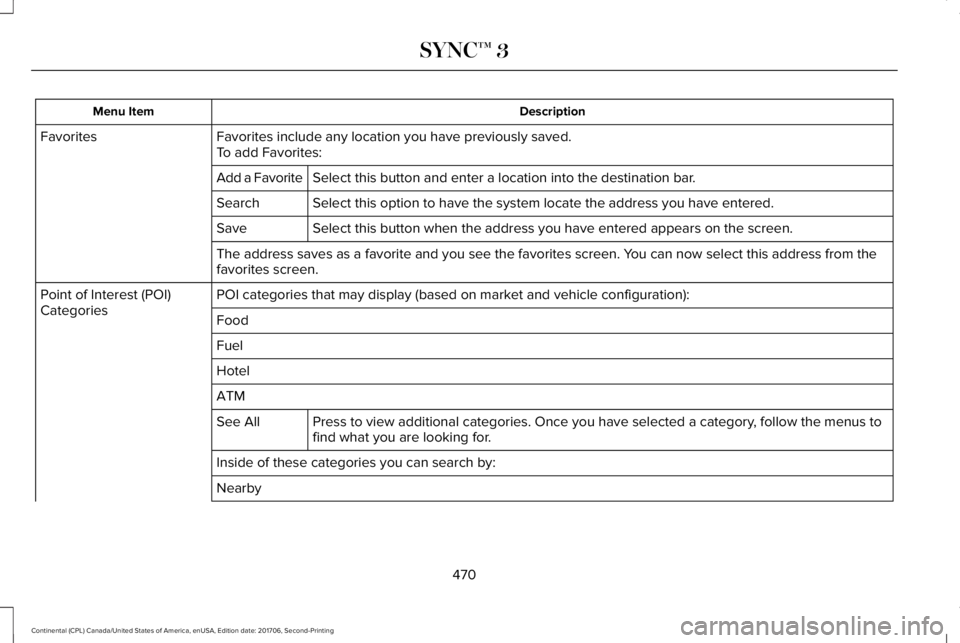
DescriptionMenu Item
Favorites include any location you have previously saved.FavoritesTo add Favorites:
Select this button and enter a location into the destination bar.Add a Favorite
Select this option to have the system locate the address you have entered.Search
Select this button when the address you have entered appears on the screen.Save
The address saves as a favorite and you see the favorites screen. You can now select this address from thefavorites screen.
POI categories that may display (based on market and vehicle configuration):Point of Interest (POI)CategoriesFood
Fuel
Hotel
ATM
Press to view additional categories. Once you have selected a category, follow the menus tofind what you are looking for.See All
Inside of these categories you can search by:
Nearby
470
Continental (CPL) Canada/United States of America, enUSA, Edition date: 201706, Second-Printing
SYNC™ 3
Page 474 of 615
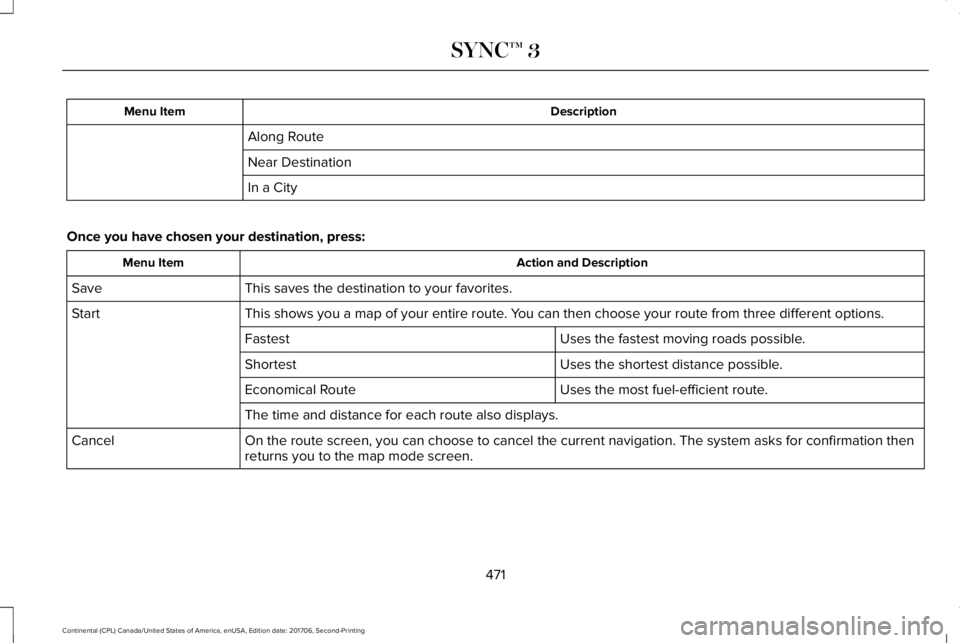
DescriptionMenu Item
Along Route
Near Destination
In a City
Once you have chosen your destination, press:
Action and DescriptionMenu Item
This saves the destination to your favorites.Save
This shows you a map of your entire route. You can then choose your route from three different options.Start
Uses the fastest moving roads possible.Fastest
Uses the shortest distance possible.Shortest
Uses the most fuel-efficient route.Economical Route
The time and distance for each route also displays.
On the route screen, you can choose to cancel the current navigation. The system asks for confirmation thenreturns you to the map mode screen.Cancel
471
Continental (CPL) Canada/United States of America, enUSA, Edition date: 201706, Second-Printing
SYNC™ 3
Page 476 of 615
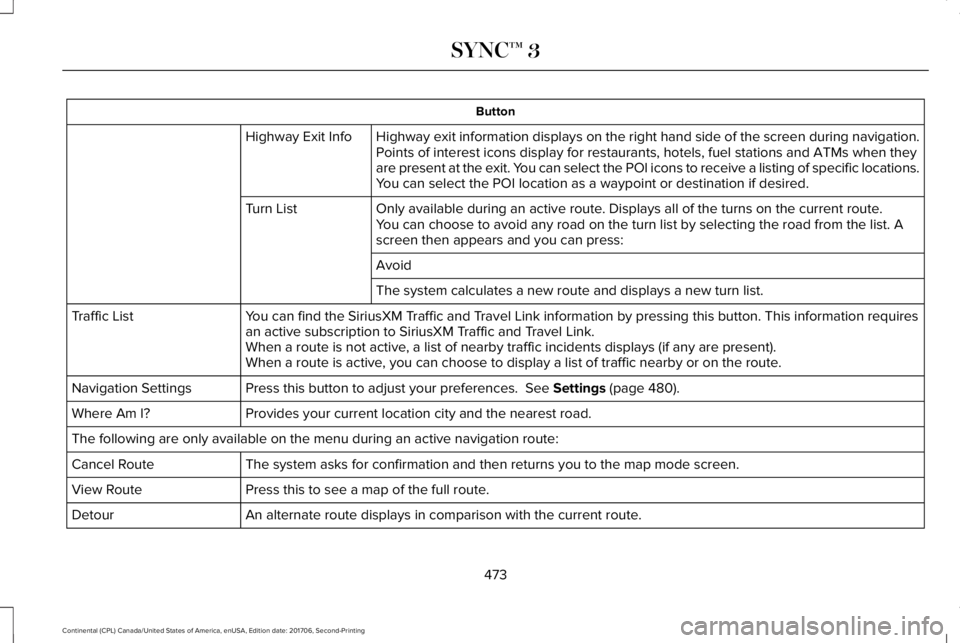
Button
Highway exit information displays on the right hand side of the screen during navigation.Highway Exit InfoPoints of interest icons display for restaurants, hotels, fuel stations and ATMs when theyare present at the exit. You can select the POI icons to receive a listing of specific locations.You can select the POI location as a waypoint or destination if desired.
Only available during an active route. Displays all of the turns on the current route.Turn ListYou can choose to avoid any road on the turn list by selecting the road from the list. Ascreen then appears and you can press:
Avoid
The system calculates a new route and displays a new turn list.
You can find the SiriusXM Traffic and Travel Link information by pressing this button. This information requiresan active subscription to SiriusXM Traffic and Travel Link.Traffic List
When a route is not active, a list of nearby traffic incidents displays (if any are present).When a route is active, you can choose to display a list of traffic nearby or on the route.
Press this button to adjust your preferences. See Settings (page 480).Navigation Settings
Provides your current location city and the nearest road.Where Am I?
The following are only available on the menu during an active navigation route:
The system asks for confirmation and then returns you to the map mode screen.Cancel Route
Press this to see a map of the full route.View Route
An alternate route displays in comparison with the current route.Detour
473
Continental (CPL) Canada/United States of America, enUSA, Edition date: 201706, Second-Printing
SYNC™ 3