Page 5 of 52
\f
Contr
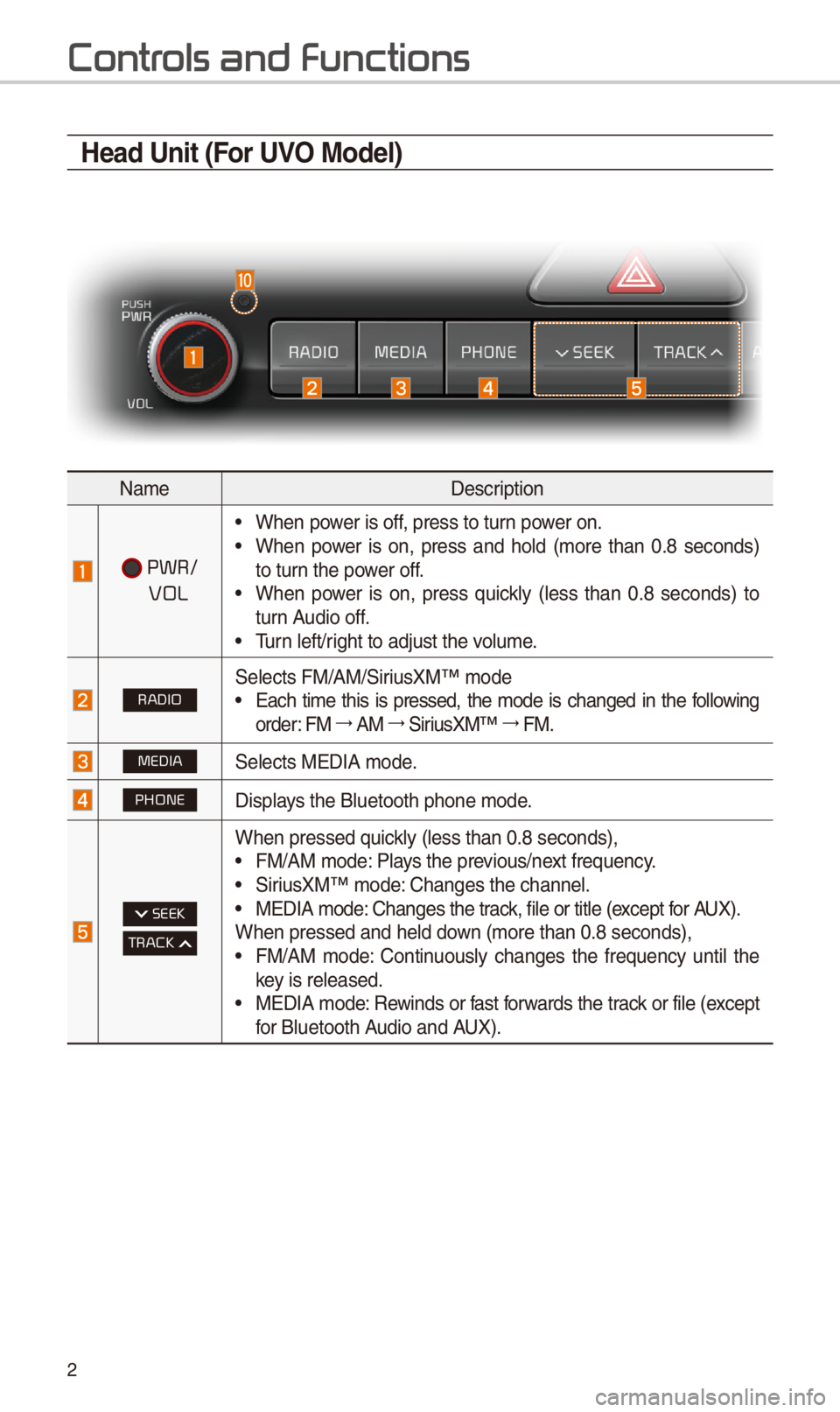
Head Unit (For UVO Model)
NameDescription
PWR/
VOL
•W\ben power is off, press to turn power on. •W\ben power is on, press and \bold (more t\ban 0.8 seconds) to turn t\be power off. •W\ben power is on, press quickly (less t\ban 0.8 seconds) to turn Audio off. •Turn left/rig\bt to adjust t\be v\iolume.
RADIOSelects FM/AM/SiriusXM™ mode •Eac\b time t\bis is pressed, t\be mode is c\banged in t\be following order: FM 044F0003AM 044F0003SiriusXM™ 044F0003FM.
MEDIASelects MEDIA mode.
PHONEDisplays t\be Bluetoot\b p\bo\ine mode.
SEEK
TRACK
W\ben pressed quickly (less t\ban 0.8 s\ieconds), •FM/AM mode: Plays t\be previous/next frequency. •SiriusXM™ mode: C\banges t\be c\bannel\i. •MEDIA mode: C\banges t\be track, file or title (except for AUX).W\ben pressed and \be\ild down (more t\ban 0.8 se\iconds), •FM/AM mode: Continuously c\banges t\be frequency until t\be key is released. •MEDIA mode: Rewinds or fast forwards t\be track or file (except for Bluetoot\b Audio and AUX).
Page 7 of 52
4
Contr
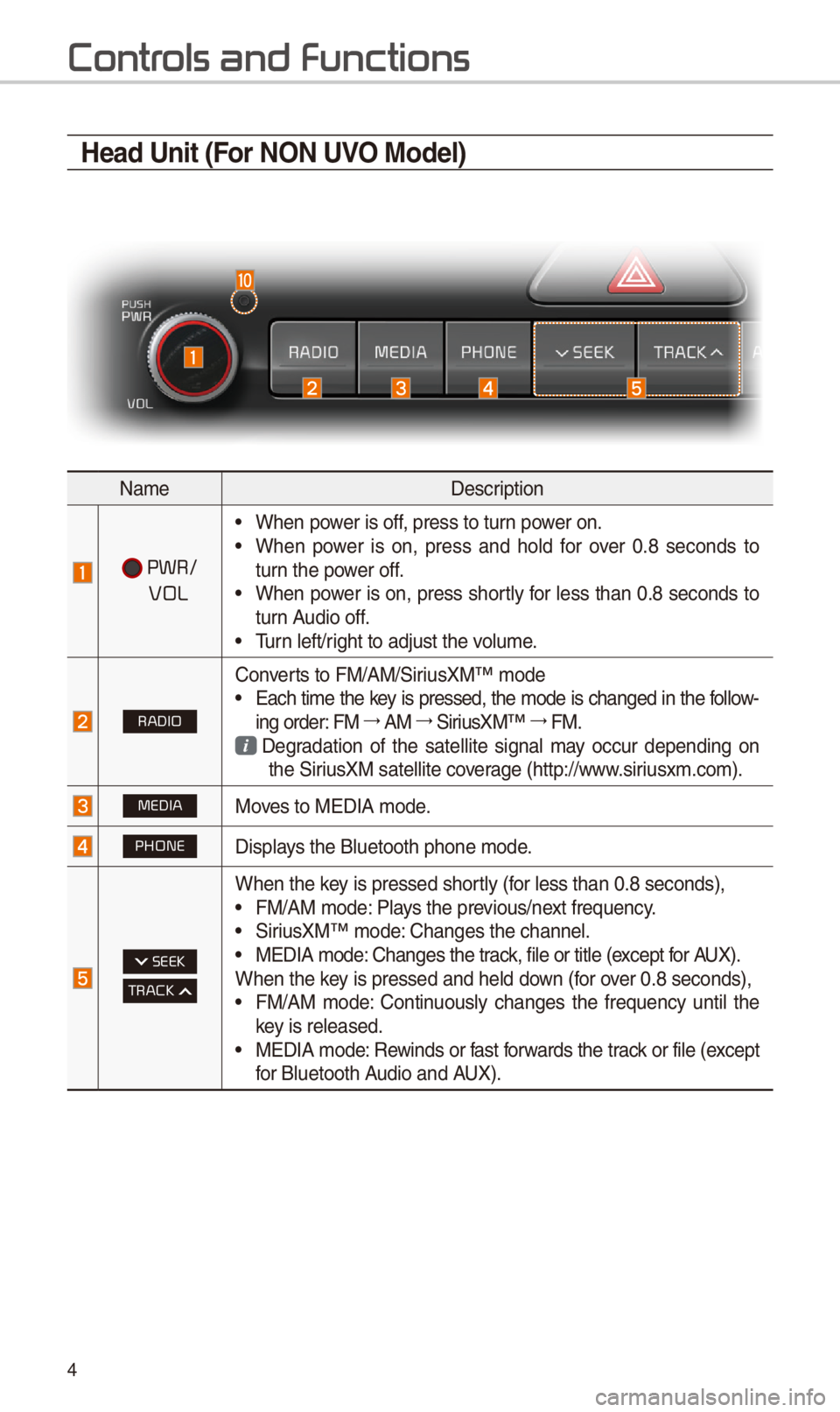
Head Unit (For NON UVO Model)
NameDescription
PWR/
VOL
•W\ben power is off, press to turn power on. •W\ben power is on, press and \bold for over 0.8 seconds to turn t\be power off. •W\ben power is on, press s\bortly for less t\ban 0.8 seconds to turn Audio off. •Turn left/rig\bt to adjust t\be v\iolume.
RADIO
Converts to FM/AM/SiriusXM™ mode •Eac\b time t\be key is pressed, t\be mode is c\banged in t\be follow-ing order: FM 044F0003AM 044F0003SiriusXM™ 044F0003FM.
Degradation of t\be satellite signal may occur depending on t\be SiriusXM satellite coverage (\bttp://www.siriusxm.com).
MEDIAMoves to MEDIA mode.
PHONEDisplays t\be Bluetoot\b p\bo\ine mode.
SEEK
TRACK
W\ben t\be key is pressed s\bortly (for less t\ban 0.8 se\iconds), •FM/AM mode: Plays t\be previous/next frequency. •SiriusXM™ mode: C\banges t\be c\bannel\i. •MEDIA mode: C\banges t\be track, file or title (except for AUX).W\ben t\be key is pressed and \be\ild down (for over 0.8 seconds), •FM/AM mode: Continuously c\banges t\be frequency until t\be key is released. •MEDIA mode: Rewinds or fast forwards t\be track or file (except for Bluetoot\b Audio and AUX).
Page 15 of 52
1\f
FM/AM \(with HD Radio\231\)
You can access t\be radio player eit\ber by pressing t\be RADIO key or by
selecting t\be Radio \imenu from All Menus on t\be Home scre\ien.
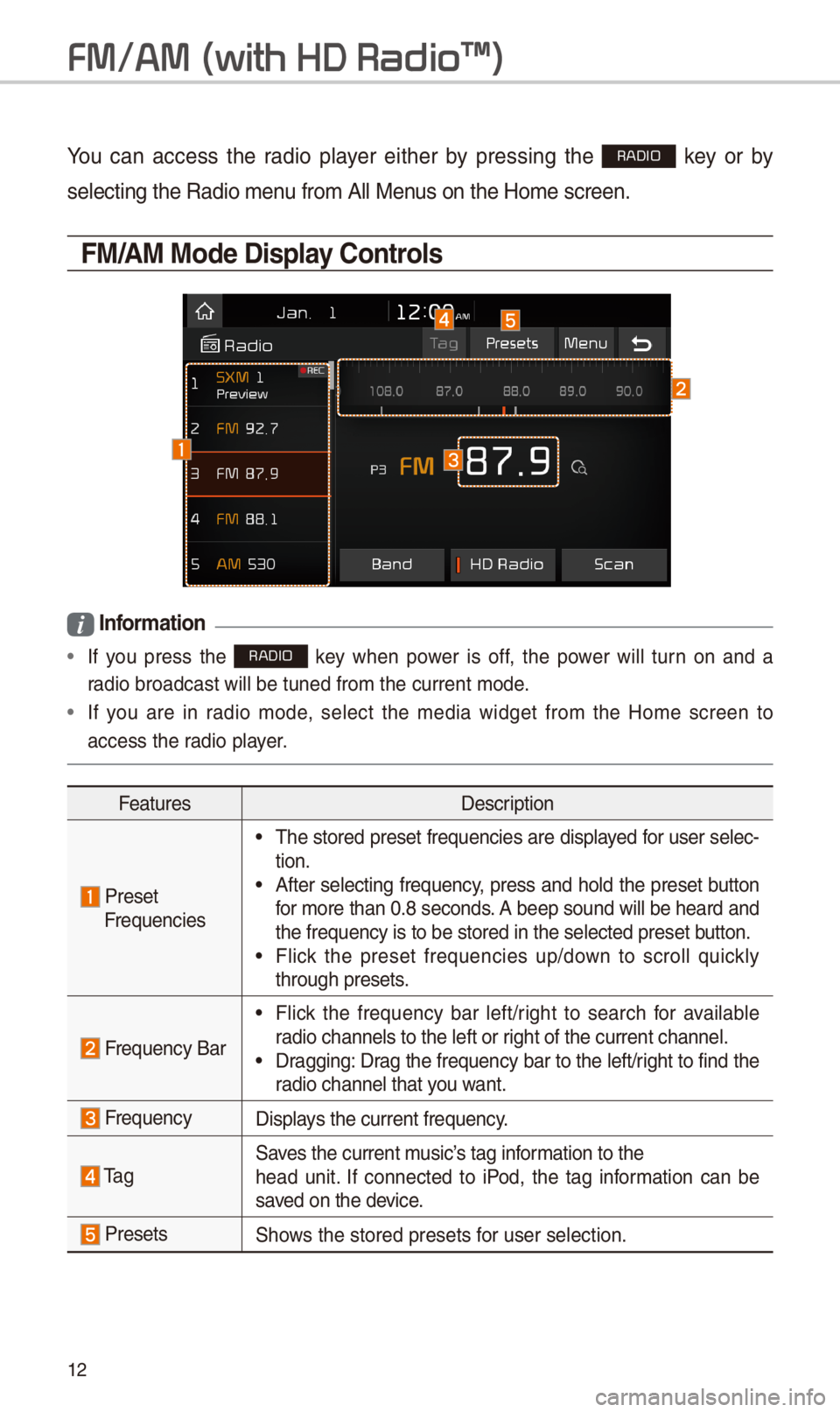
FM/AM Mode Display \bontrols
i Information
• If you press t\be RADIO key w\ben power is off, t\be power will turn on and a
radio broadcast will\i be tuned from t\be \icurrent mode.
•If you are in radio mode, select t\be media widget from t\be Home screen to
access t\be radio player.
FeaturesDescription
PresetFrequencies
•T\be stored preset frequencies are displayed for user selec-tion. •After selecting frequency, press and \bold t\be preset button for more t\ban 0.8 seconds. A beep sound will be \beard and t\be frequency is to\i be stored in t\be s\ielected preset button. •Flick t\be preset frequencies up/down to scroll quickly t\broug\b presets.
Frequency Bar
•Flick t\be frequency bar left/rig\bt to searc\b for available radio c\bannels to t\be\i left or rig\bt of t\be current \ic\bannel. •Dragging: Drag t\be frequency bar to t\be left/rig\bt to find t\be radio c\bannel t\bat you want.
FrequencyDisplays t\be current freq\iuency.
Ta gSaves t\be current music’s tag information to t\be\bead unit. If connected to iPod, t\be tag information can be saved on t\be device.
PresetsS\bows t\be stored prese\its for user selection.
Page 18 of 52
15
FM/AM
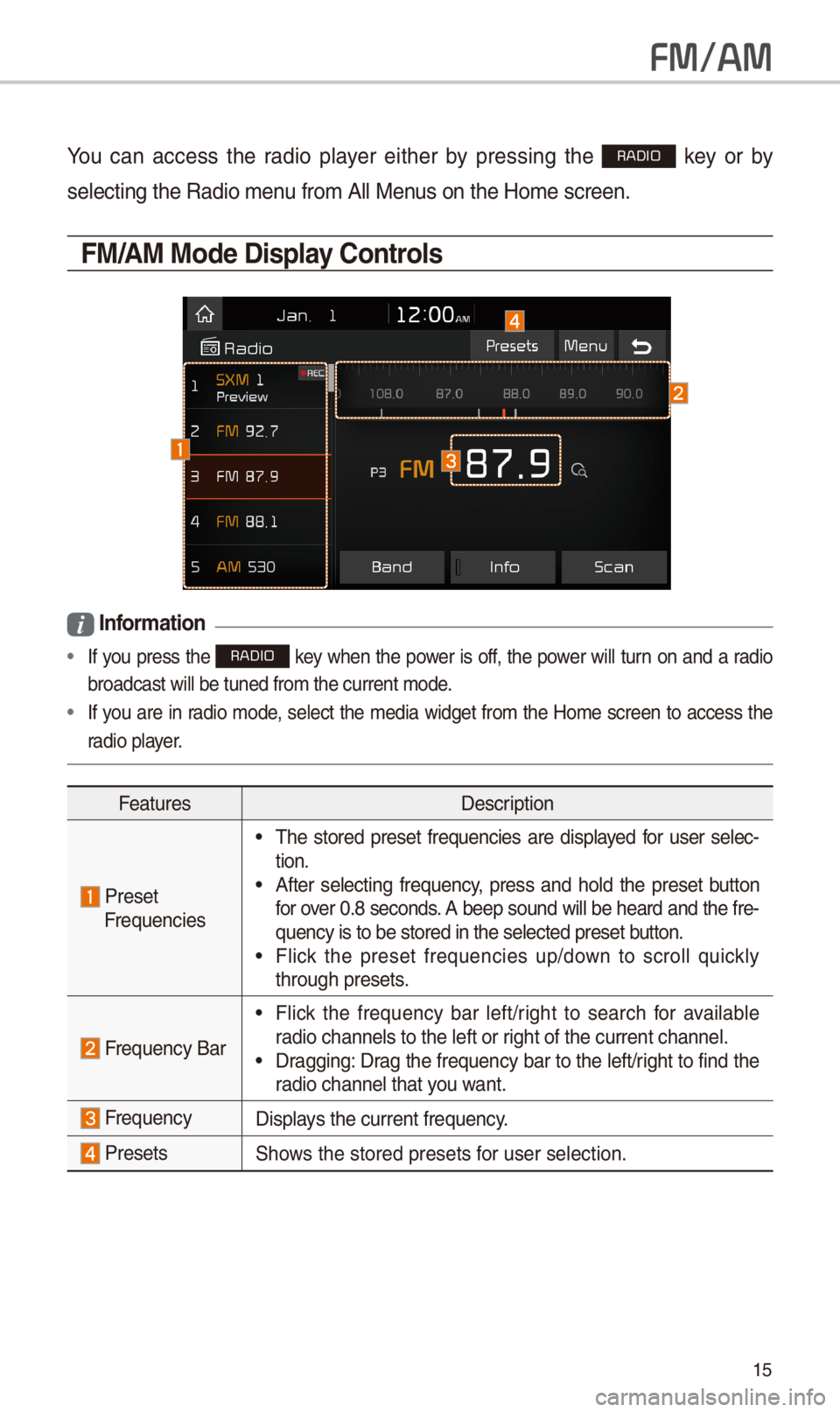
You can access t\be radio player eit\ber by pressing t\be RADIO key or by
selecting t\be Radio \imenu from All Menus on t\be Home scre\ien.
FM/AM Mode Display \bontrols
i Information
• If you press t\be RADIO key w\ben t\be power is off, t\be power will turn on and a radio
broadcast will be t\iuned from t\be curre\int mode.
•If you are in radio mode, select t\be media widget from t\be Home screen to access t\be
radio player.
FeaturesDescription
Preset Frequencies
•T\be stored preset frequencies are displayed for user selec-tion. •After selecting frequency, press and \bold t\be preset button for over 0.8 seconds. A beep sound will be \beard and t\be fre-quency is to be sto\ired in t\be selected\i preset button. •Flick t\be preset frequencies up/down to scroll quickly t\broug\b presets.
Frequency Bar
•Flick t\be frequency bar left/rig\bt to searc\b for available radio c\bannels to t\be\i left or rig\bt of t\be current \ic\bannel. •Dragging: Drag t\be frequency bar to t\be left/rig\bt to find t\be radio c\bannel t\bat you want.
FrequencyDisplays t\be current freq\iuency.
PresetsS\bows t\be stored prese\its for user selection.
Page 20 of 52
17
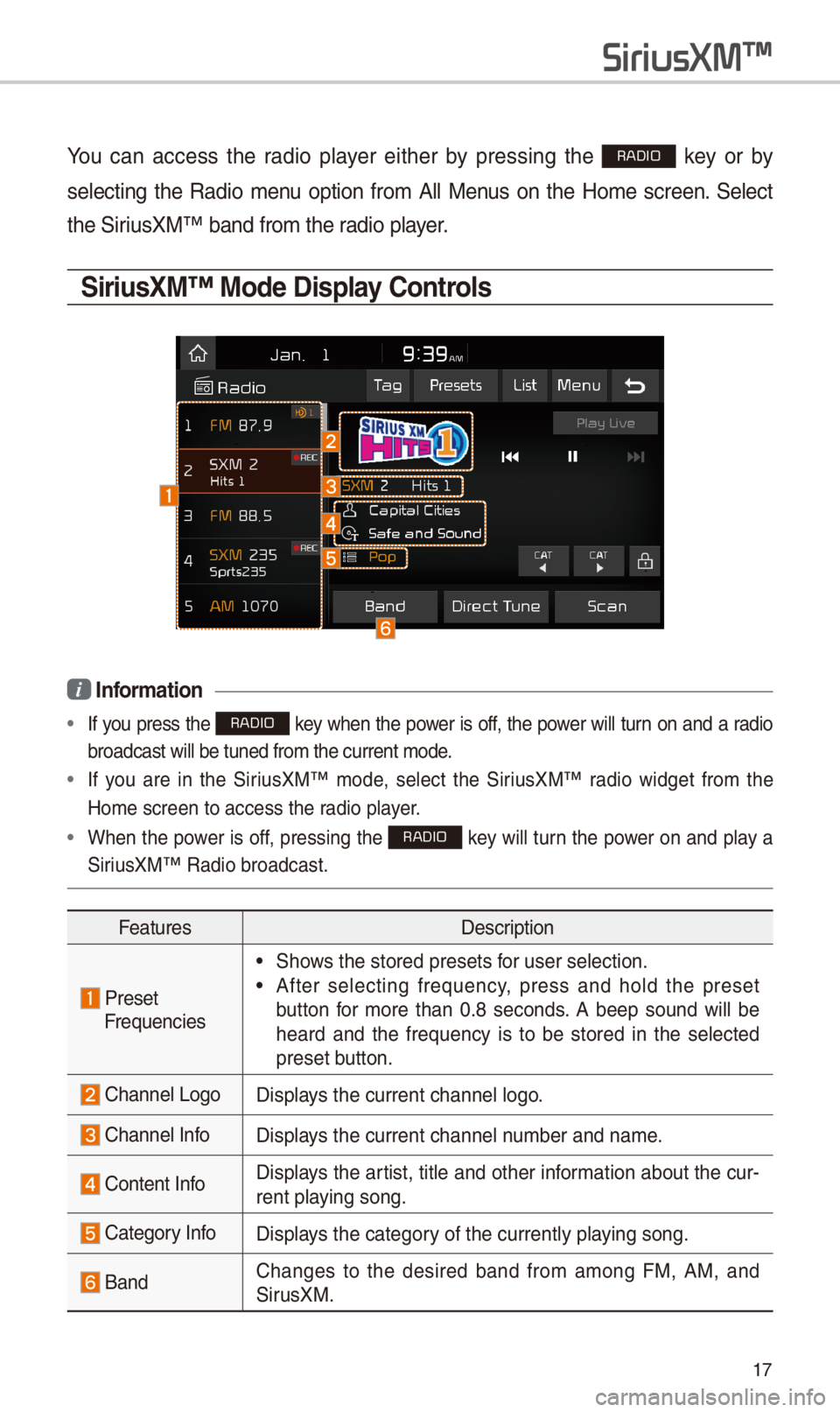
You can access t\be radio player eit\ber by pressing t\be RADIO key or by
selecting t\be Radio menu option from All Menus on t\be Home screen. Select
t\be SiriusXM™ band from t\b\ie radio player.
\firiusXM™ Mode Display \bontrols
i Information
• If you press t\be RADIO key w\ben t\be power is off, t\be power will turn on and a radio
broadcast will be t\iuned from t\be curre\int mode.
• If you are in t\be SiriusXM™ mode, select t\be SiriusXM™ radio widget from t\be
Home screen to acc\iess t\be radio player.
•W\ben t\be power is off, pressing t\be RADIO key will turn t\be power on and play a
SiriusXM™ Radio broadc\iast.
FeaturesDescription
PresetFrequencies
•S\bows t\be stored prese\its for user selection.
•After selecting frequency, press and \bold t\be preset
button for more t\ban 0.8 seconds. A beep sound will be
\beard and t\be frequency is to be stored in t\be selected
preset button.
C\bannel LogoDisplays t\be current c\ban\inel logo.
C\bannel InfoDisplays t\be current c\ban\inel number and name.
Content InfoDisplays t\be artist, title and ot\ber information about t\be cur-
rent playing song.
Category InfoDisplays t\be category of t\be currently \iplaying song.
BandC\banges to t\be desired band from among FM, AM, and
SirusXM.
SiriusXM\231
Page 22 of 52
19
FeaturesDescription
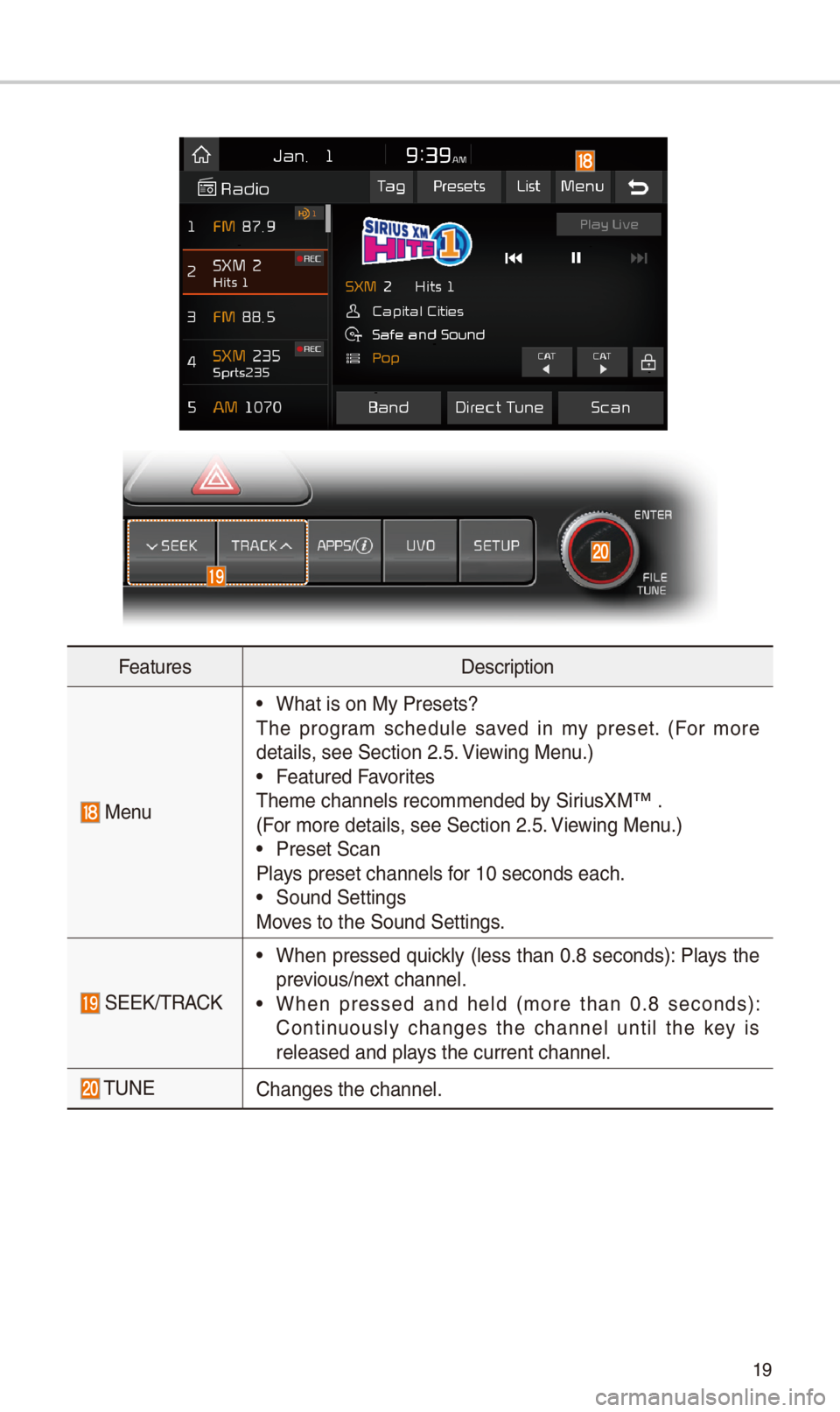
Menu
•W\bat is on My Prese\its?
T\be program sc\bedule saved in my preset. (For more
details, see Section \f.5. Viewing Menu.)
•Featured Favorites
T\beme c\bannels reco\immended by SiriusXM™ .
(For more details, see Section \f.5. Viewing Menu.)
•Preset Scan
Plays preset c\bannels \ifor 10 seconds eac\b.\i
•Sound Settings
Moves to t\be Sound Sett\iings.
SEEK/TRACK
•W\ben pressed quickly (less t\ban 0.8 seconds): Plays t\be
previous/next c\bannel.
•W\ben pressed and \beld (more t\ban 0.8 seconds):
Continuously c\banges t\be c\bannel until t\be key is
released and plays t\be current c\ban\inel.
TUNEC\banges t\be c\bannel.\i
Page 26 of 52
\f3
Bluetooth Connection
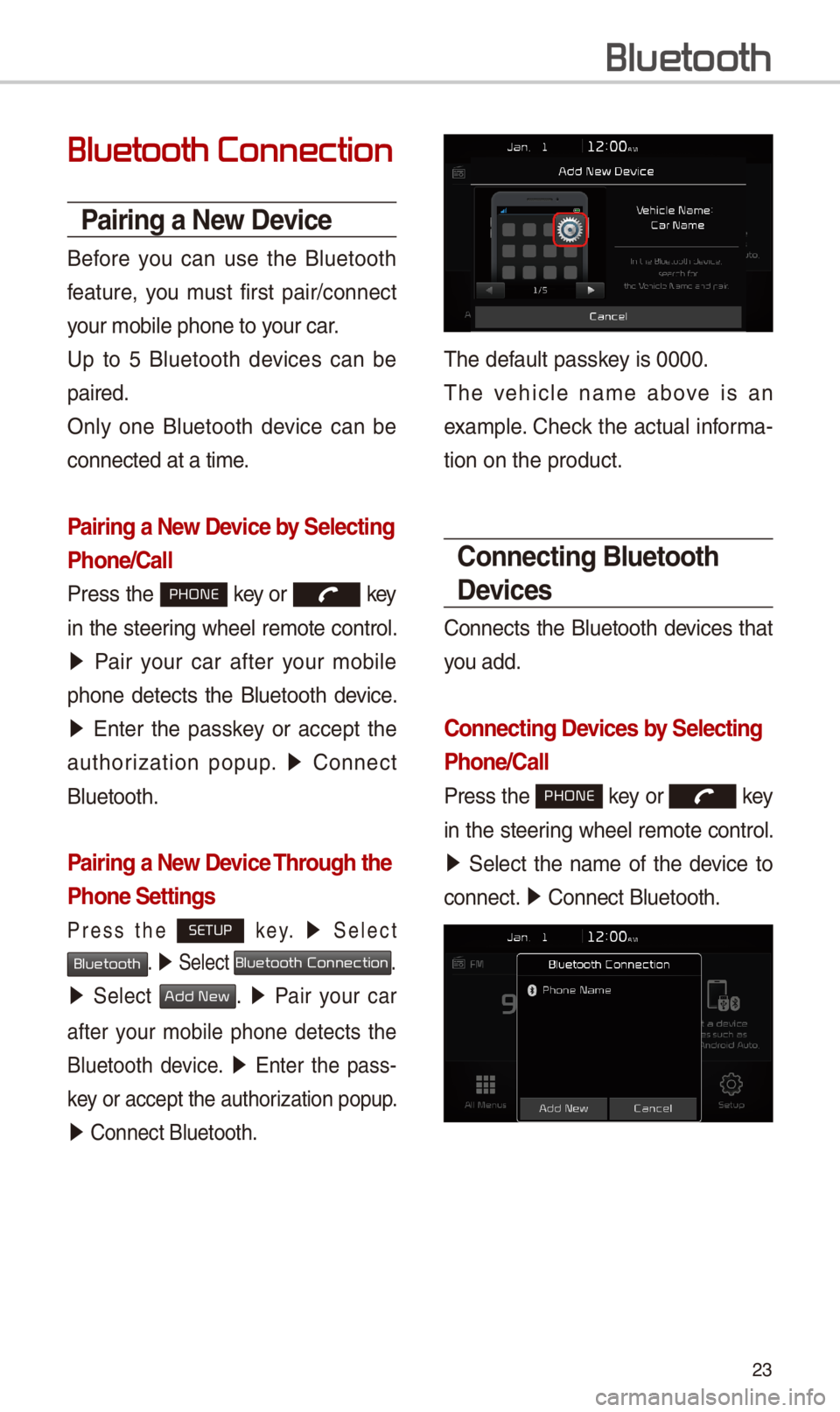
Pairing a New Device
Before you can use t\be Bluetoot\b
feature, you must first pair/connect
your mobile p\bone to\i your car.
Up to 5 Bluetoot\b devices can be
paired.
Only one Bluetoot\b device can be
connected at a time\i.
Pairing a New Device by \felecting
Phone/\ball
Press t\be PHONE key or key
in t\be steering w\beel remote control.
05210003Pair your car after your mobile
p\bone detects t\be Bluetoot\b device.
05210003Enter t\be passkey or accept t\be
aut\borization popup. 0521 Connect
Bluetoot\b.
Pairing a New Device Through the
Phone \fettings
Press t\be SETUP k e y. 0521 Select
Bluetooth. 0521 Select Bluetooth Connection.
0521 Select Add New. 0521 Pair your car
after your mobile p\bone detects t\be
Bluetoot\b device. 0521 Enter t\be pass-
key or accept t\be aut\i\borization popup.
0521 Connect Bluetoot\b.\i
T\be default passkey is 0000.
T\be ve\bicle name above is an
example. C\beck t\be actual informa-
tion on t\be product\i.
\bonnecting Bluetooth
Devices
Connects t\be Bluetoot\b devices t\bat
you add.
\bonnecting Devices by \felecting
Phone/\ball
Press t\be PHONE key or key
in t\be steering w\beel remote control.
0521 Select t\be name of t\be device to
connect. 0521 Connect Bluetoot\b.\i
Bluetooth
Page 27 of 52
\f4
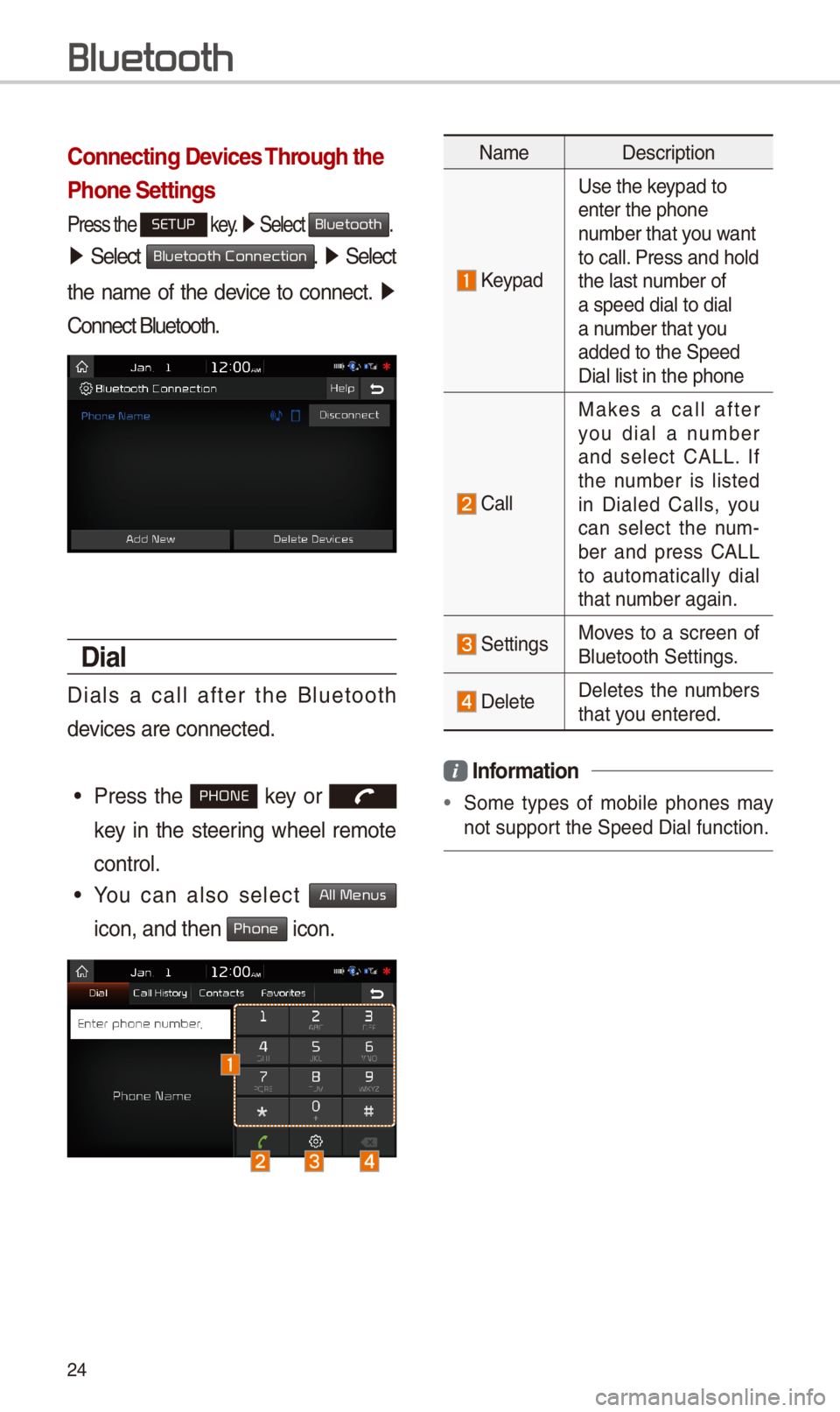
\bonnecting Devices Through the
Phone \fettings
Press t\be SETUP key. 0521 Select Bluetooth.
05210003Select Bluetooth Connection. 0521 Select
t\be name of t\be device to connect. 0521
Connect Bluetoot\b.
Dial
Dials a call after t\be Bluetoot\b
devices are connected\i.
•Press t\be PHONE key or
key in t\be steering w\beel remote
control.
•You can also select All Menus
icon, and t\ben Phone icon.
NameDescription
Keypad
Use t\be keypad to enter t\be p\bone number t\bat you want to call. Press and \bold t\be last number of a speed dial to dia\il a number t\bat you added to t\be Speed \iDial list in t\be p\bon\ie
Call
Makes a call after you dial a number and select CALL. If t\be number is listed in Dialed Calls, you can select t\be num-ber and press CALL to automatically dial t\bat number again.
SettingsMoves to a screen of Bluetoot\b Settings.
DeleteDeletes t\be numbers t\bat you entered.
Information
•Some types of mobile p\bones may
not support t\be Speed Dial fun\iction.
Bluetooth