Page 148 of 605
Features of your vehicle
62
4
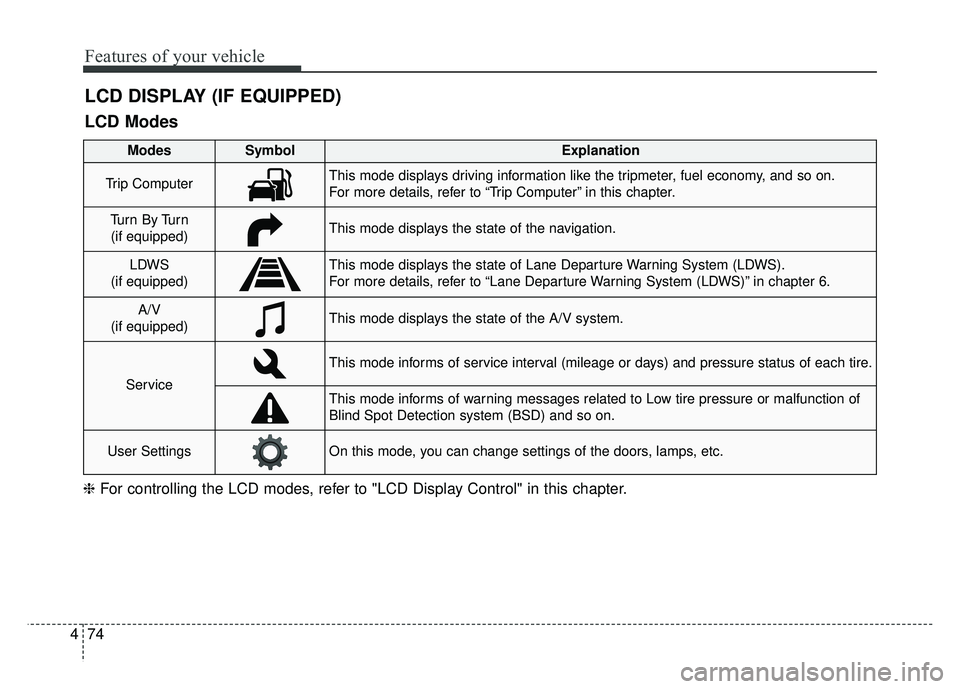
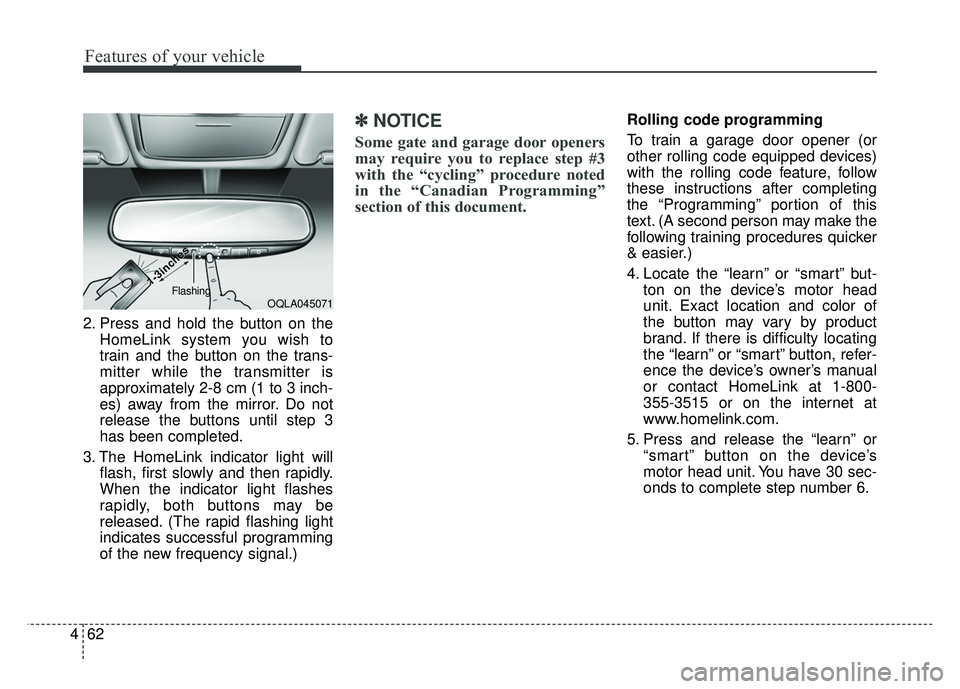
2. Press and hold the button on the
HomeLink system you wish to
train and the button on the trans-
mitter while the transmitter is
approximately 2-8 cm (1 to 3 inch-
es) away from the mirror. Do not
release the buttons until step 3
has been completed.
3. The HomeLink indicator light will flash, first slowly and then rapidly.
When the indicator light flashes
rapidly, both buttons may be
released. (The rapid flashing light
indicates successful programming
of the new frequency signal.)
✽ ✽NOTICE
Some gate and garage door openers
may require you to replace step #3
with the “cycling” procedure noted
in the “Canadian Programming”
section of this document.
Rolling code programming
To train a garage door opener (or
other rolling code equipped devices)
with the rolling code feature, follow
these instructions after completing
the “Programming” portion of this
text. (A second person may make the
following training procedures quicker
& easier.)
4. Locate the “learn” or “smart” but-
ton on the device’s motor head
unit. Exact location and color of
the button may vary by product
brand. If there is difficulty locating
the “learn” or “smart” button, refer-
ence the device’s owner’s manual
or contact HomeLink at 1-800-
355-3515 or on the internet at
www.homelink.com.
5. Press and release the “learn” or “smart” button on the device’s
motor head unit. You have 30 sec-
onds to complete step number 6.
OQLA045071
1-3inc
1-3inc
hes
hesFlashing
Page 149 of 605
463
Features of your vehicle
6. Return to the vehicle and firmlypress and release the pro-
grammed HomeLink button up to
three times. The rolling code
equipped device should now rec-
ognize the HomeLink signal and
activate when the HomeLink but-
ton is pressed. The remaining two
buttons may now be programmed
if this has not previously been
done. Refer to the “Programming”
portion of this text. Operating HomeLink
To operate, simply press the
programmed HomeLink button.
Activation will now occur for the
trained product (garage door, securi-
ty system, entry door lock, estate
gate, or home or office lighting). For
convenience, the hand-held trans-
mitter of the device may also be used
at any time. The HomeLink Wireless
Controls System (once programmed)
or the original hand-held transmitter
may be used to activate the device
(e.g. garage door, entry door lock,
etc.). In the event that there are still
programming difficulties, contact
HomeLink at 1-800-355-3515 or on
the internet at www.homelink.com. Erasing programmed HomeLink
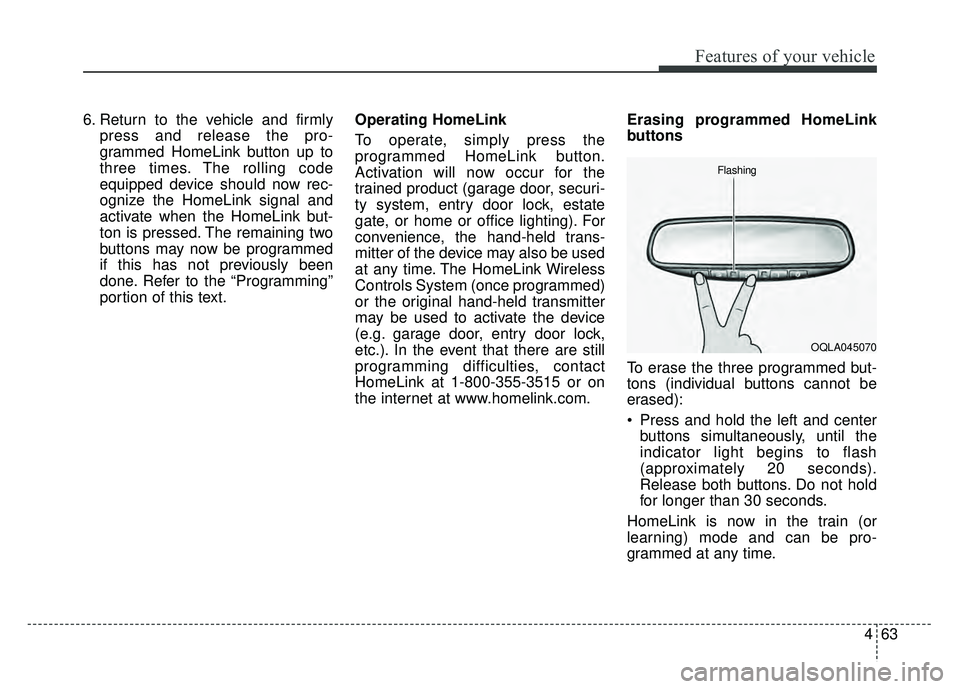
buttons
To erase the three programmed but-
tons (individual buttons cannot be
erased):
Press and hold the left and center
buttons simultaneously, until the
indicator light begins to flash
(approximately 20 seconds).
Release both buttons. Do not hold
for longer than 30 seconds.
HomeLink is now in the train (or
learning) mode and can be pro-
grammed at any time.
OQLA045070
Flashing
Page 150 of 605
Features of your vehicle
64
4
Reprogramming a single
HomeLink button
To program a device to HomeLink
using a HomeLink button previously
trained, follow these steps:
1. Press and hold the desired
HomeLink button. Do NOT release
until step 4 has been completed.
2. When the indicator light begins to flash slowly (after 20 seconds),
position the hand-held transmitter
2-8 cm (1 to 3 inches) away from
the HomeLink surface.
3. Press and hold the hand-held transmitter button (or press and
“cycle” - as described in “Canadian
Programming”).
4. The HomeLink indicator light will flash, first slowly and then rapidly.
When the indicator light begins to
flash rapidly, release both buttons.
The previous device has now been
erased and the new device can be
activated by pushing the HomeLink
button that has just been pro-
grammed. This procedure will not
affect any other programmed
HomeLink buttons. Canadian Programming
Garage & gate openers
During programming, your hand-held
transmitter may automatically stop
transmitting. Continue to press and
hold the HomeLink button (note
steps 2 through 4 in the
“Programming” portion of this text)
while you press and re-press
(“cycle”) your handheld transmitter
every two seconds until the frequen-
cy signal has been learned. The indi-
cator light will flash slowly and then
rapidly after several seconds upon
successful training.
Accessories
If you would like additional informa-
tion on the HomeLink Wireless
Control System, HomeLink compati-
ble products, or to purchase other
accessories such as the HomeLink
®
Lighting Package, please contact
HomeLink at 1-800-355-3515 or on
the internet at www.homelink.com.
Page 160 of 605
Features of your vehicle
74
4
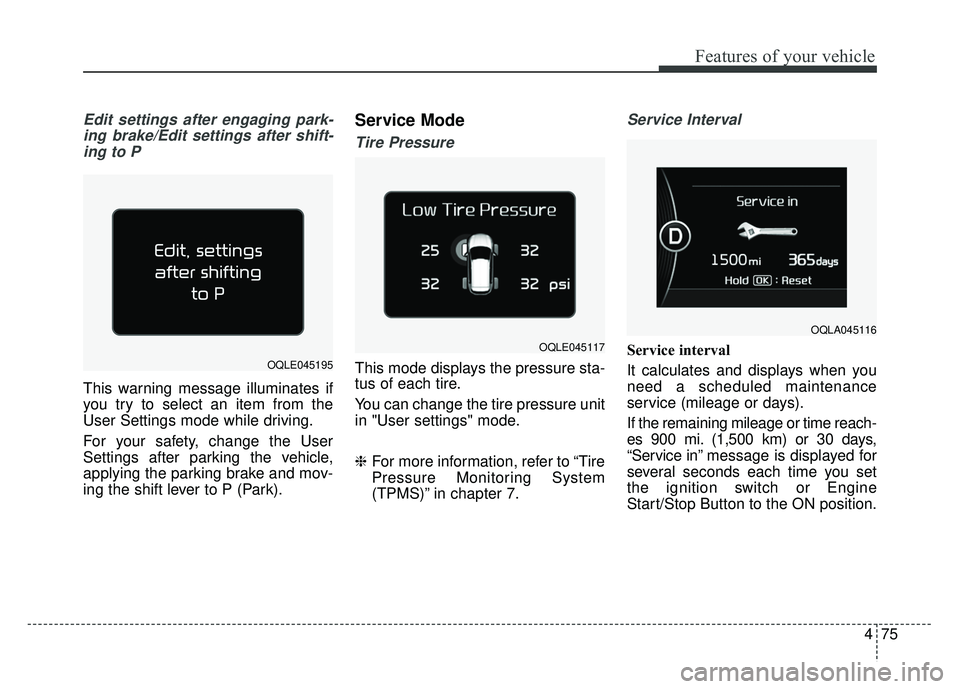
LCD DISPLAY (IF EQUIPPED)
❈ For controlling the LCD modes, refer to "LCD Display Control" in this chapter.
LCD Modes
Modes SymbolExplanation
Trip ComputerThis mode displays driving information like the tripmeter, fuel economy, and so on.
For more details, refer to “Trip Computer” in this chapter.
Tu r n B y Tu r n
(if equipped)This mode displays the state of the navigation.
LDWS
(if equipped)This mode displays the state of Lane Departure Warning System (LDWS).
For more details, refer to “Lane Departure Warning System (LDWS)” in chapter 6.
A/V
(if equipped)This mode displays the state of the A/V system.
Service
This mode informs of service interval (mileage or days) and pressure status of each tire.
This mode informs of warning messages related to Low tire pressure or malfunction of
Blind Spot Detection system (BSD) and so on.
User SettingsOn this mode, you can change settings of the doors, lamps, etc.
Page 161 of 605
475
Features of your vehicle
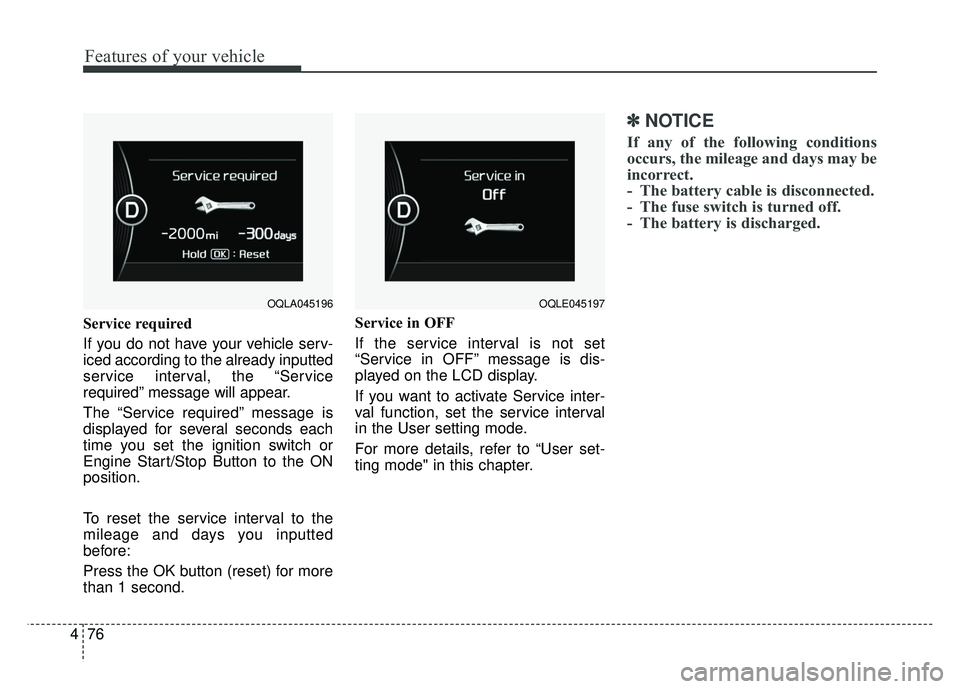
Edit settings after engaging park-ing brake/Edit settings after shift-ing to P
This warning message illuminates if
you try to select an item from the
User Settings mode while driving.
For your safety, change the User
Settings after parking the vehicle,
applying the parking brake and mov-
ing the shift lever to P (Park).
Service Mode
Tire Pressure
This mode displays the pressure sta-
tus of each tire.
You can change the tire pressure unit
in "User settings" mode.
❈ For more information, refer to “Tire
Pressure Monitoring System
(TPMS)” in chapter 7.
Service Interval
Service interval
It calculates and displays when you
need a scheduled maintenance
service (mileage or days).
If the remaining mileage or time reach-
es 900 mi. (1,500 km) or 30 days,
“Service in” message is displayed for
several seconds each time you set
the ignition switch or Engine
Start/Stop Button to the ON position.
OQLA045116
OQLE045195
OQLE045117
Page 162 of 605
Features of your vehicle
76
4
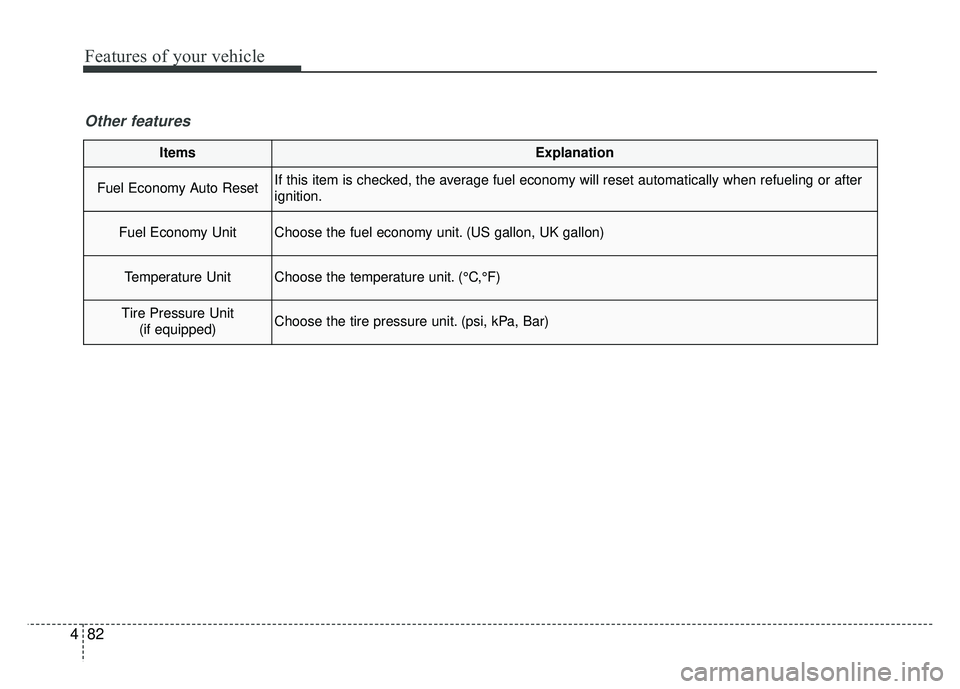
Service required
If you do not have your vehicle serv-
iced according to the already inputted
service interval, the “Service
required” message will appear.
The “Service required” message is
displayed for several seconds each
time you set the ignition switch or
Engine Start/Stop Button to the ON
position.
To reset the service interval to the
mileage and days you inputted
before:
Press the OK button (reset) for more
than 1 second. Service in OFF
If the service interval is not set
“Service in OFF” message is dis-
played on the LCD display.
If you want to activate Service inter-
val function, set the service interval
in the User setting mode.
For more details, refer to “User set-
ting mode" in this chapter.
✽ ✽
NOTICE
If any of the following conditions
occurs, the mileage and days may be
incorrect.
- The battery cable is disconnected.
- The fuse switch is turned off.
- The battery is discharged.
OQLA045196OQLE045197
Page 168 of 605
Features of your vehicle
82
4
ItemsExplanation
Fuel Economy Auto ResetIf this item is checked, the average fuel economy will reset automatically when refueling or after
ignition.
Fuel Economy UnitChoose the fuel economy unit. (US gallon, UK gallon)
Temperature UnitChoose the temperature unit. (°C,°F)
Tire Pressure Unit
(if equipped)Choose the tire pressure unit. (psi, kPa, Bar)
Other features
Page 169 of 605
483
Features of your vehicle
The trip computer is a microcomput-
er-controlled driver information sys-
tem that displays information related
to driving.
✽ ✽NOTICE
Some driving information stored in
the trip computer (for example
Average Vehicle Speed) resets if the
battery is disconnected.
Trip Modes Fuel Economy
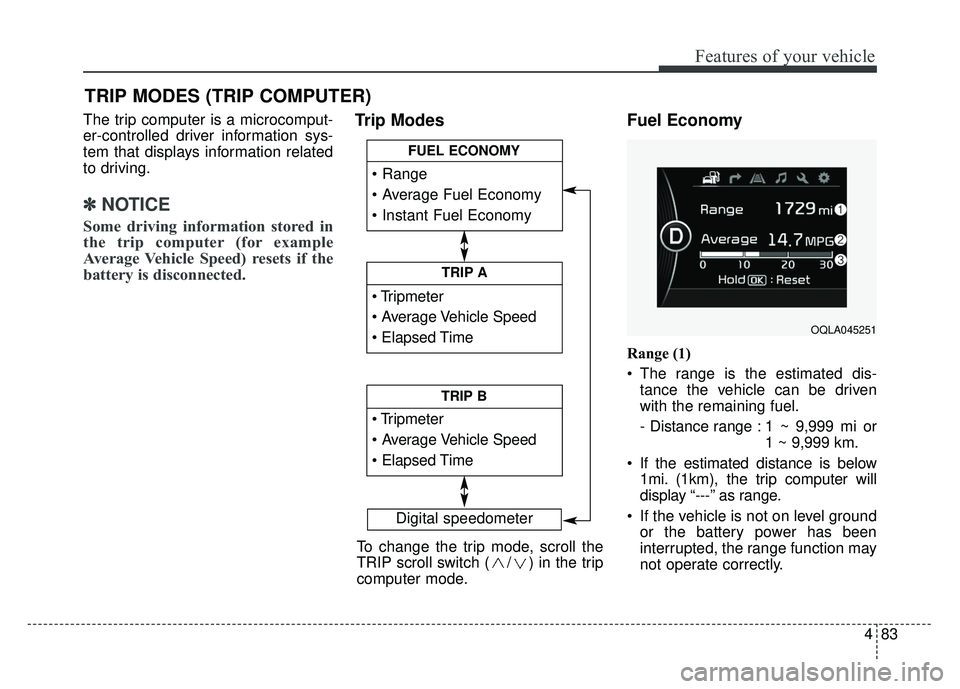
Range (1)
The range is the estimated dis-
tance the vehicle can be driven
with the remaining fuel.
- Distance range : 1 ~ 9,999 mi or 1 ~ 9,999 km.
If the estimated distance is below 1mi. (1km), the trip computer will
display “---” as range.
If the vehicle is not on level ground or the battery power has been
interrupted, the range function may
not operate correctly.
TRIP MODES (TRIP COMPUTER)
Digital speedometer
To change the trip mode, scroll the
TRIP scroll switch ( / ) in the trip
computer mode.
TRIP A
TRIP B
FUEL ECONOMY
OQLA045251