Page 263 of 605

Audio system
Audio System . . . . . . . . . . . . . . . . . . . . . . . . . . . . . . 5-2
• Antenna . . . . . . . . . . . . . . . . . . . . . . . . . . . . . . . . . . . . \
. 5-2
• Steering wheel audio controls. . . . . . . . . . . . . . . . . . . . 5-2
• AUX, USB port . . . . . . . . . . . . . . . . . . . . . . . . . . . . . . . 5-4
• How vehicle audio works . . . . . . . . . . . . . . . . . . . . . . . 5-4
Audio (With Touch Screen) . . . . . . . . . . . . . . . . . . . 5-7
• Features of Your Audio . . . . . . . . . . . . . . . . . . . . . . . . . 5-8
• Radio Mode . . . . . . . . . . . . . . . . . . . . . . . . . . . . . . . . . 5-19
• SiriusXM Radio Mode . . . . . . . . . . . . . . . . . . . . . . . . 5-22
• Media Mode . . . . . . . . . . . . . . . . . . . . . . . . . . . . . . . . . 5-24
• Phone Mode . . . . . . . . . . . . . . . . . . . . . . . . . . . . . . . . . 5-39
• Bluetooth
®Wireless Technology . . . . . . . . . . . . . . . . . 5-40
• Voice Recognition Mode . . . . . . . . . . . . . . . . . . . . . . . 5-47
• Setup Mode . . . . . . . . . . . . . . . . . . . . . . . . . . . . . . . . . 5-55
Declaration of Conformity . . . . . . . . . . . . . . . . . . 5-64
• FCC . . . . . . . . . . . . . . . . . . . . . . . . . . . . . . . . . . . . \
. . . . 5-64
5
Page 280 of 605
Audio system
18
5
✽
✽
NOTICE - Using Voice
Recognition
• When using the voice recognition
feature, only commands listed
within the user’s manual are sup-
ported.
• Be aware that during the opera- tion of the voice recognition sys-
tem, pressing any button other
than the button will terminate
voice recognition mode.
• For optimal voice recognition per- formance, position your head
below the microphone above the
driver’s seat and maintain proper
position when speaking voice com-
mands.
• Within the following situations, voice recognition may not function
properly due to external sound.
- When the windows and sunroofare open
- When the blower AC/heater is set to high
- When entering and passing through tunnels
- When driving on rugged and uneven roads
- During severe rain (heavy rains, windstorms) (Continued)(Continued)
• Phone related voice commands can
be used only when a Bluetooth®
Wireless Technology device is con-
nected.
• When making calls by stating a name, the corresponding contact
must be downloaded and stored
within the audio system.
• After downloading the Bluetooth
®
Wireless Technology phone book,
it takes some time to convert the
phone book data into voice infor-
mation. During this time, voice
recognition may not properly
operate.
• Pronounce the voice commands naturally and clearly as if in a nor-
mal conversation.
Page 301 of 605
Audio system
539
Phone Mode
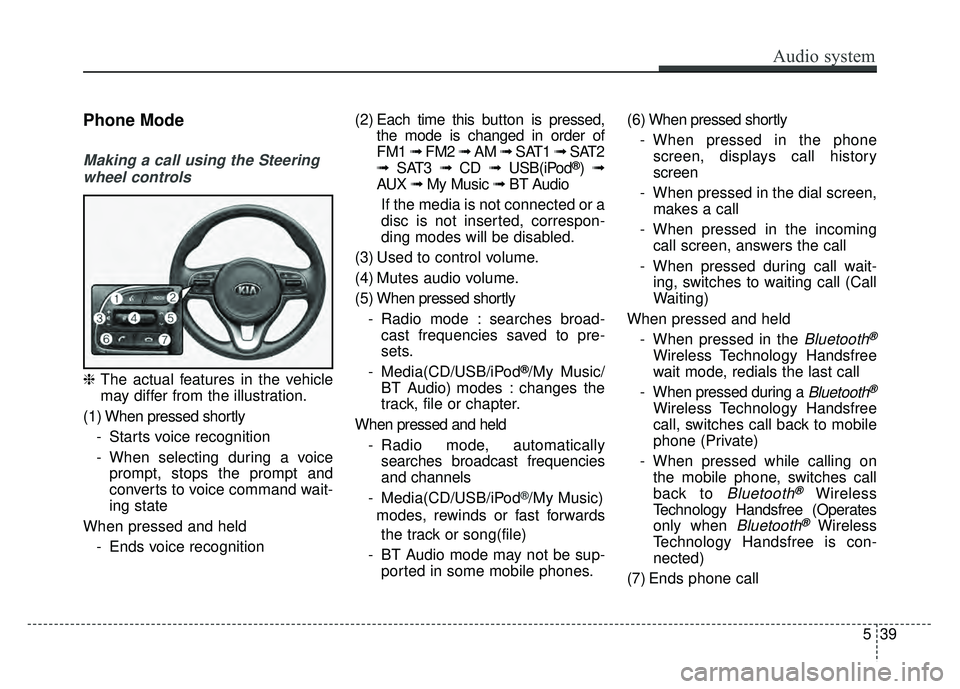
Making a call using the Steeringwheel controls
❈ The actual features in the vehicle
may differ from the illustration.
(1) When pressed shortly - Starts voice recognition
- When selecting during a voiceprompt, stops the prompt and
converts to voice command wait-
ing state
When pressed and held - Ends voice recognition (2) Each time this button is
pressed,
the mode is changed in order of
FM1 ➟ FM2 ➟ AM ➟ SAT1 ➟ SAT2
➟ SAT3 ➟ CD ➟ USB(iPod
®)➟
AUX ➟ My Music ➟ BT Audio
If the media is not connected or a
disc is not inserted, correspon-
ding modes will be disabled.
(3) Used to control volume.
(4) Mutes audio volume.
(5) When pressed shortly - Radio mode : searches broad-cast frequencies saved to pre-
sets.
- Media(CD/USB/iPod
®/My Music/
BT Audio) modes : changes the
track, file or chapter.
When pressed and held - Radio mode, automaticallysearches broadcast frequencies
and channels
- Media(CD/USB/iPod
®/My Music)
modes, rewinds or fast forwards
the track or song(file)
- BT Audio mode may not be sup- ported in some mobile phones. (6) When pressed shortly
- When pressed in the phonescreen, displays call history
screen
- When pressed in the dial screen, makes a call
- When pressed in the incoming call screen, answers the call
- When pressed during call wait- ing, switches to waiting call (Call
Waiting)
When pressed and held - When pressed in the
Bluetooth®
Wireless Technology Handsfree
wait mode, redials the last call
- When pressed during a
Bluetooth®
Wireless Technology Handsfree
call, switches call back to mobile
phone (Private)
- When pressed while calling on the mobile phone, switches call
back to
Bluetooth®Wireless
Technology Handsfree (Operates
only when
Bluetooth®Wireless
Technology Handsfree is con-
nected)
(7) Ends phone call
Page 309 of 605
![KIA SPORTAGE 2018 Owners Manual Audio system
547
Voice Recognition Mode
Using Voice Recognition
Starting Voice Recognition
Shortly press the button on the
steering wheel controls. Say a com-
mand.
If prompt feedback is in [ON], th](/manual-img/2/54576/w960_54576-308.png "KIA SPORTAGE 2018 Owners Manual Audio system
547
Voice Recognition Mode
Using Voice Recognition
Starting Voice Recognition
Shortly press the button on the
steering wheel controls. Say a com-
mand.
If prompt feedback is in [ON], th")
Audio system
547
Voice Recognition Mode
Using Voice Recognition
Starting Voice Recognition
Shortly press the button on the
steering wheel controls. Say a com-
mand.
If prompt feedback is in [ON], then
the system will say “Please say a
command after the beep (BEEP)”
If prompt feedback is in [ON]mode, then the system will only
say “(BEEP)”
To change Prompt Feedback [ON]/[OFF], go to [SETUP] �
[System] �[Prompt Feedback]
For proper recognition, say the com-
mand after the voice instruction and
beep tone.
✽ ✽ NOTICE
Voice Recognition and Phone
Contact Tips
Help your Bluetooth
®Wireless
Technology Voice Recognition per-
formance by making a few simple
changes to your phone contacts:
• Use full names vs. short or single syllable names (“John Smith” vs.
“Dad”, “Smith Residence” vs.
“Home”)
• Avoid using special characters or hyphens (@, &, #, /, -, *, +, etc.)
• Avoid using acronyms (“In Case Emergency" vs. “ICE”)
• Spell words completely, no abbre- viations (“Doctor Goodman” vs.
“Dr. Goodman”)
NOTE: Always wait for the beep
before speaking any commands.
Skipping Prompt Messages
While prompt message is being stat-
ed �Shortly press the button on
the steering wheel controls.
The prompt message is immediately
ended and the beep tone will sound.
After the “Beep”, say the voice com-
mand.
Re-starting Voice Recognition
While system waits for a command
� Shortly press the button on the
steering wheel controls.
The command wait state is immedi-
ately ended and the beep tone will
sound. After the “Beep”, say the
voice command.
Page 310 of 605
Audio system
48
5
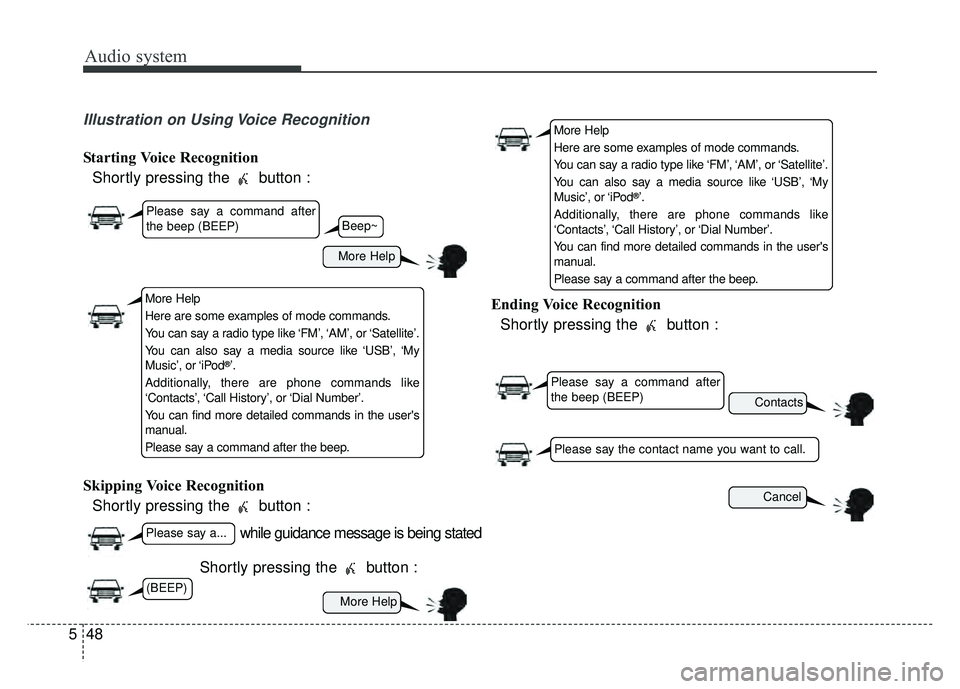
Illustration on Using Voice Recognition
Starting Voice Recognition
Shortly pressing the button :
Skipping Voice Recognition Shortly pressing the button :
Shortly pressing the button : Ending Voice Recognition
Shortly pressing the button :
while guidance message is being stated
More Help
Contacts
Cancel
More Help
Please say a command after
the beep (BEEP)
Please say a...
Please say the contact name you want to call.
Beep~
More Help
Here are some examples of mode commands.
You can say a radio type like ‘FM’, ‘AM’, or ‘Satellite’.
You can also say a media source like ‘USB’, ‘My
Music’, or ‘iPod
®’.
Additionally, there are phone commands like
‘Contacts’, ‘Call History’, or ‘Dial Number’.
You can find more detailed commands in the user's
manual.
Please say a command after the beep.
More Help
Here are some examples of mode commands.
You can say a radio type like ‘FM’, ‘AM’, or ‘Satellite’.
You can also say a media source like ‘USB’, ‘My
Music’, or ‘iPod
®’.
Additionally, there are phone commands like
‘Contacts’, ‘Call History’, or ‘Dial Number’.
You can find more detailed commands in the user's
manual.
Please say a command after the beep.
Please say a command after
the beep (BEEP)
(BEEP)
Page 311 of 605
Audio system
549
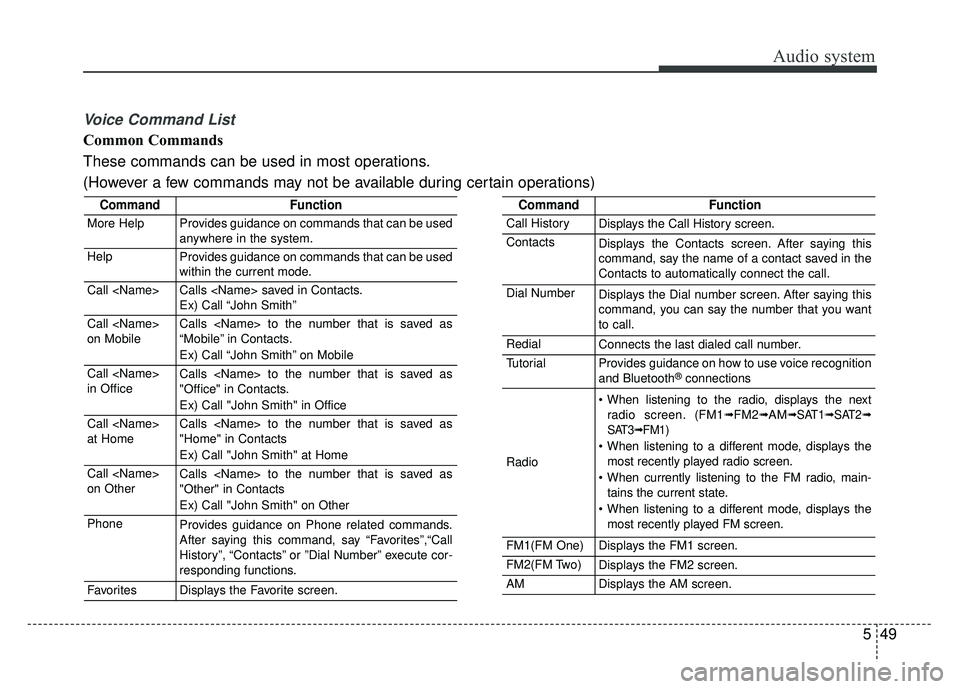
Voice Command List
Common Commands
These commands can be used in most operations.
(However a few commands may not be available during certain operations)
CommandFunction
More HelpProvides guidance on commands that can be used
anywhere in the system.
HelpProvides guidance on commands that can be used
within the current mode.
Call Calls saved in Contacts.
Ex) Call “John Smith”
Call
on MobileCalls to the number that is saved as
“Mobile” in Contacts.
Ex) Call “John Smith” on Mobile
Call
in OfficeCalls to the number that is saved as
"Office" in Contacts.
Ex) Call "John Smith" in Office
Call
at HomeCalls to the number that is saved as
"Home" in Contacts
Ex) Call "John Smith" at Home
Call
on OtherCalls to the number that is saved as
"Other" in Contacts
Ex) Call "John Smith" on Other
PhoneProvides guidance on Phone related commands.
After saying this command, say “Favorites”,“Call
History”, “Contacts” or ”Dial Number” execute cor-
responding functions.
FavoritesDisplays the Favorite screen.
CommandFunction
Call HistoryDisplays the Call History screen.
ContactsDisplays the Contacts screen. After saying this
command, say the name of a contact saved in the
Contacts to automatically connect the call.
Dial NumberDisplays the Dial number screen. After saying this
command, you can say the number that you want
to call.
RedialConnects the last dialed call number.
TutorialProvides guidance on how to use voice recognition
and Bluetooth®connections
Radio
When listening to the radio, displays the nextradio screen. (FM1➟FM2➟AM➟ SAT1➟ SAT2➟
SAT3➟ FM1)
When listening to a different mode, displays the most recently played radio screen.
When currently listening to the FM radio, main- tains the current state.
When listening to a different mode, displays the most recently played FM screen.
FM1(FM One)Displays the FM1 screen.
FM2(FM Two)Displays the FM2 screen.
AMDisplays the AM screen.
Page 318 of 605
Audio system
56
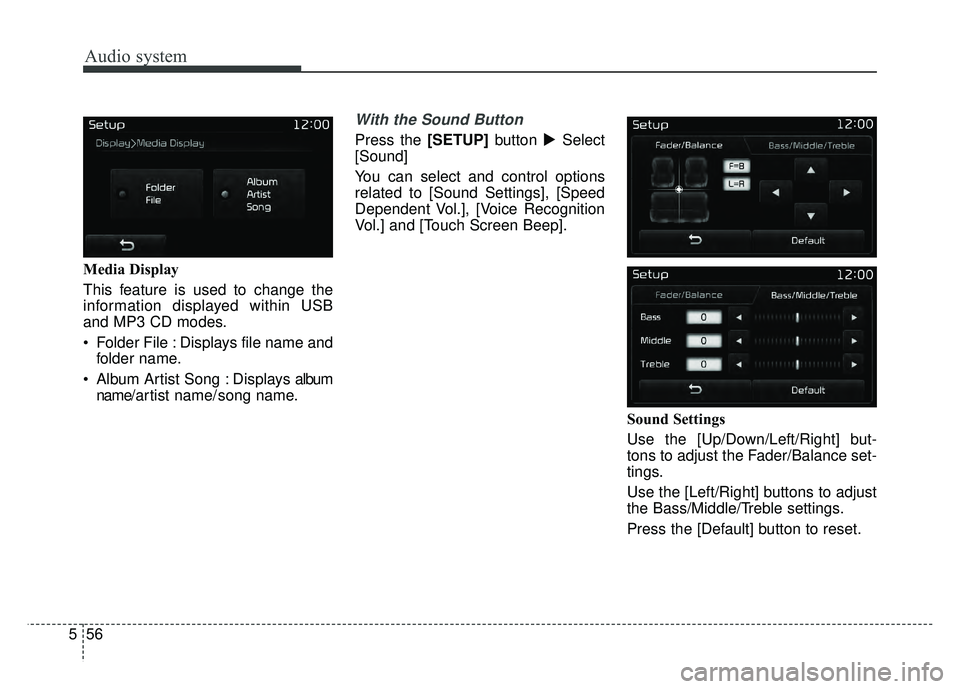
5 Media Display
This feature is used to change the
information displayed within USB
and MP3 CD modes.
Folder File : Displays file name and
folder name.
Album Artist Song : Displays album name/ a r tist name/ song name.
With the Sound Button
Press the [SETUP] button �Select
[Sound]
You can select and control options
related to [Sound Settings], [Speed
Dependent Vol.], [Voice Recognition
Vol.] and [Touch Screen Beep].
Sound Settings
Use the [Up/Down/Left/Right] but-
tons to adjust the Fader/Balance set-
tings.
Use the [Left/Right] buttons to adjust
the Bass/Middle/Treble settings.
Press the [Default] button to reset.
Page 319 of 605
Audio system
557
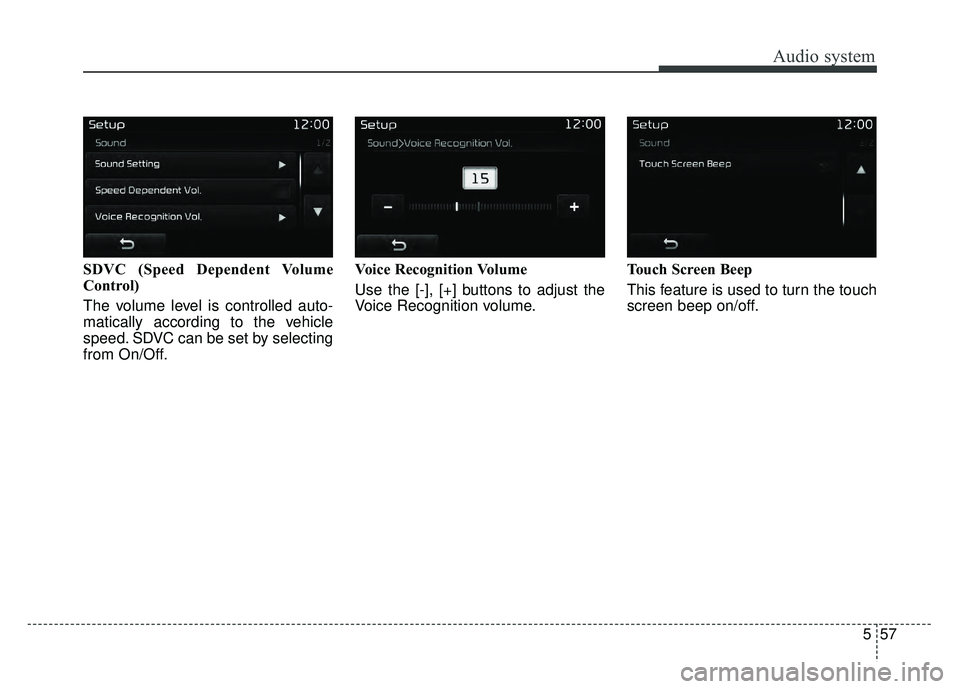
SDVC (Speed Dependent Volume
Control)
The volume level is controlled auto-
matically according to the vehicle
speed. SDVC can be set by selecting
from On/Off.Voice Recognition Volume
Use the [-], [+] buttons to adjust the
Voice Recognition volume.
Touch Screen Beep
This feature is used to turn the touch
screen beep on/off.