Page 298 of 763
uuAudio System Basic Operation uAudio/Information Screen
296
Features
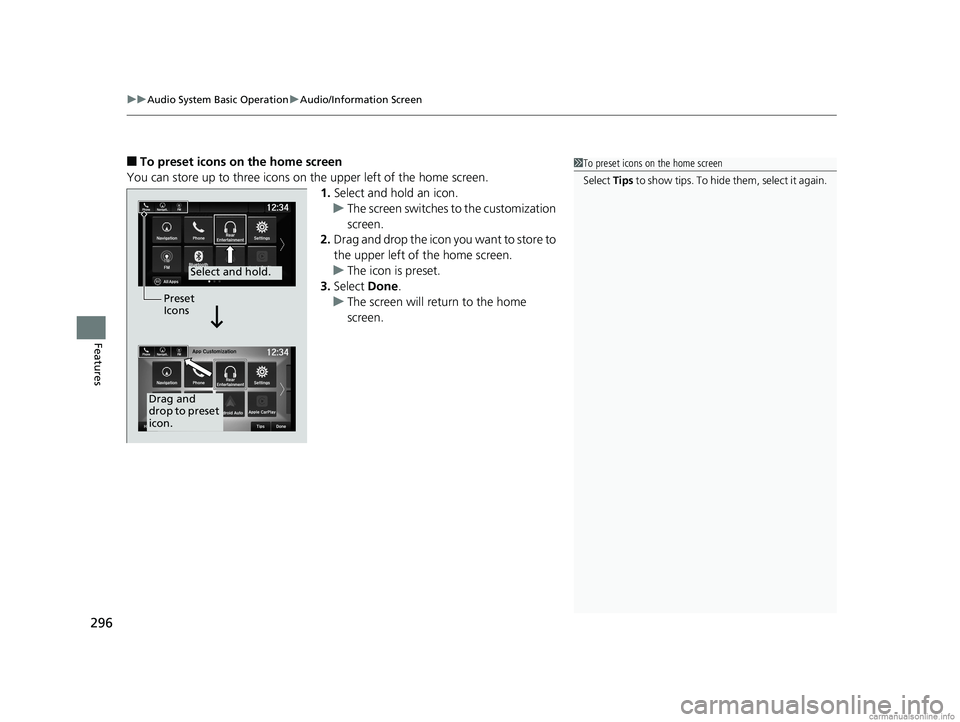
■To preset icons on the home screen
You can store up to three icons on the upper left of the home screen. 1.Select and hold an icon.
u The screen switches to the customization
screen.
2. Drag and drop the icon you want to store to
the upper left of the home screen.
u The icon is preset.
3. Select Done.
u The screen will return to the home
screen.1To preset icons on the home screen
Select Tips to show tips. To hide t h em , s e le c t i t a g ai n .
Select and hold.
Drag and
drop to preset
icon.Preset
Icons
18 US ODYSSEY-31THR6010.book 296 ページ 2018年12月6日 木曜日 午後4時18分
Page 314 of 763
312
uuAudio System Basic Operation uAdjusting the Sound
Features
Adjusting the Sound
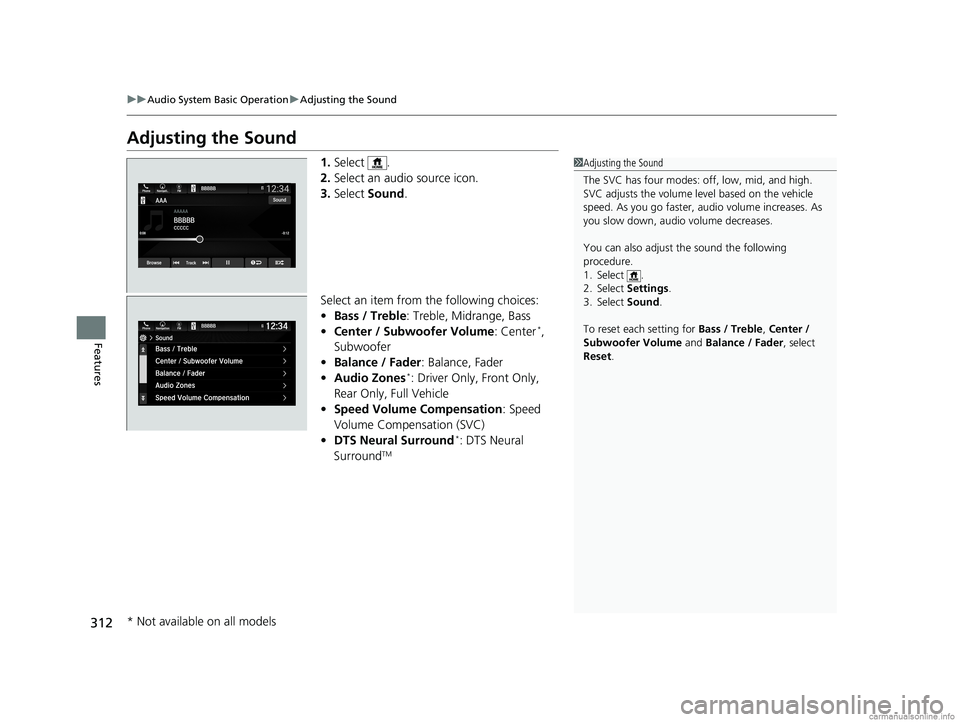
1. Select .
2. Select an audio source icon.
3. Select Sound .
Select an item from the following choices:
• Bass / Treble : Treble, Midrange, Bass
• Center / Subwoofer Volume : Center
*,
Subwoofer
• Balance / Fader : Balance, Fader
• Audio Zones
*: Driver Only, Front Only,
Rear Only, Full Vehicle
• Speed Volume Compensation : Speed
Volume Compensation (SVC)
• DTS Neural Surround
*: DTS Neural
SurroundTM
1 Adjusting the Sound
The SVC has four modes: off, low, mid, and high.
SVC adjusts the volume level based on the vehicle
speed. As you go faster, audio volume increases. As
you slow down, audi o volume decreases.
You can also adjust the sound the following
procedure.
1. Select .
2. Select Settings.
3. Select Sound.
To reset each setting for Bass / Treble, Center /
Subwoofer Volume and Balance / Fader , select
Reset .
* Not available on all models
18 US ODYSSEY-31THR6010.book 312 ページ 2018年12月6日 木曜日 午後4時18分
Page 315 of 763
313
uuAudio System Basic Operation uDisplay Setup
Continued
Features
Display Setup
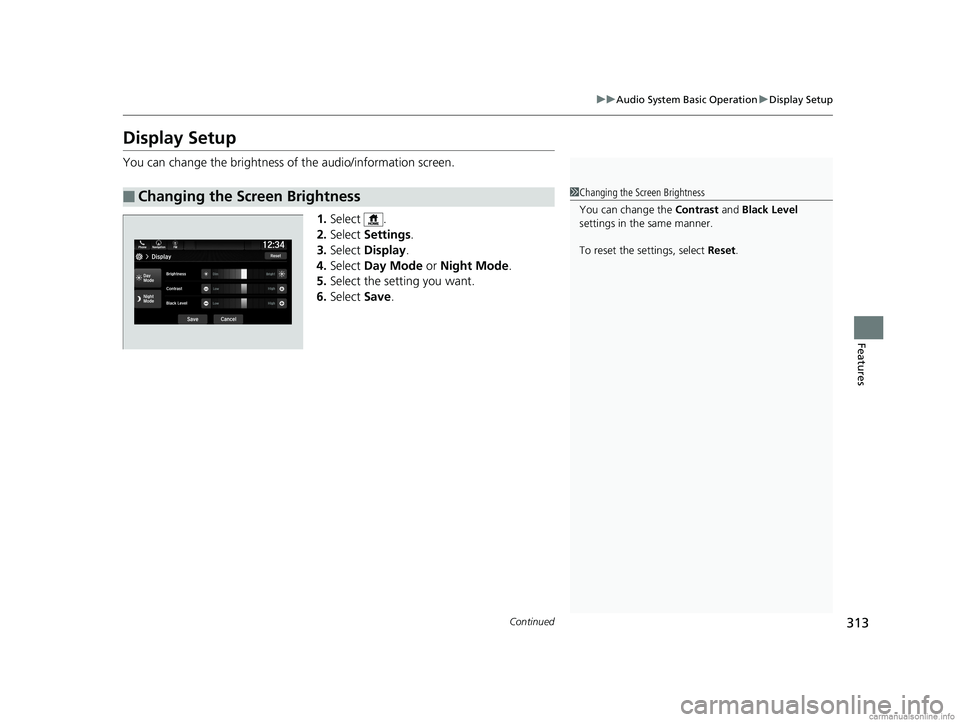
You can change the brightness of the audio/information screen.
1.Select .
2. Select Settings .
3. Select Display .
4. Select Day Mode or Night Mode .
5. Select the setting you want.
6. Select Save.
■Changing the Screen Brightness1Changing the Screen Brightness
You can change the Contrast and Black Level
settings in the same manner.
To reset the settings, select Reset.
18 US ODYSSEY-31THR6010.book 313 ページ 2018年12月6日 木曜日 午後4時18分
Page 320 of 763
318
uuAudio System Basic Operation uPlaying AM/FM Radio
Features
Playing AM/FM Radio
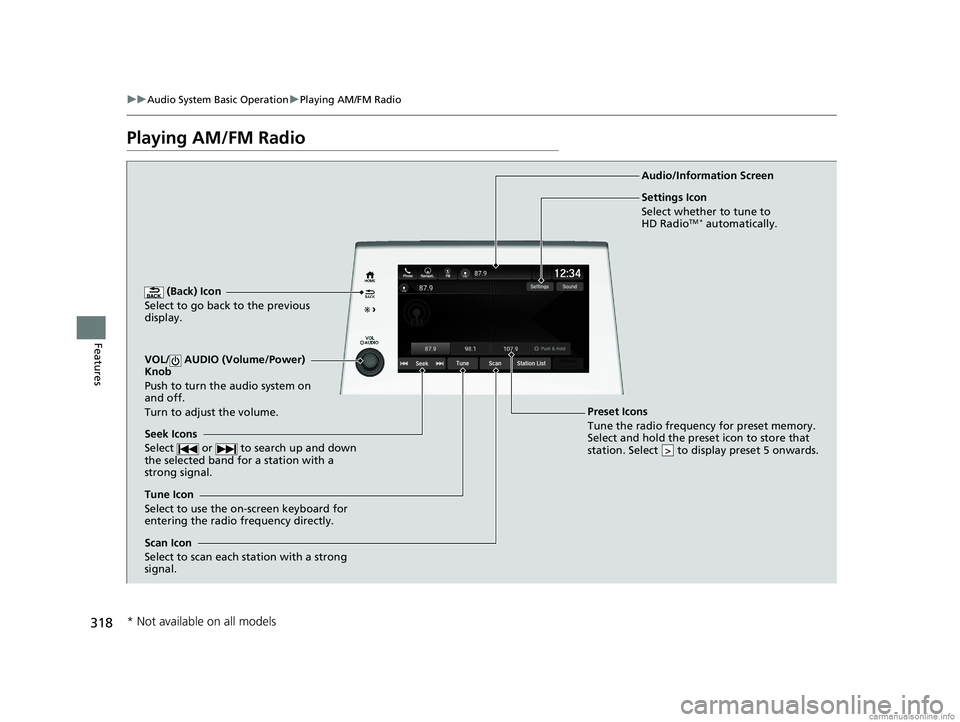
(Back) Icon
Select to go back to the previous
display.
Seek Icons
Select or to search up and down
the selected band for a station with a
strong signal.
VOL/ AUDIO (Volume/Power)
Knob
Push to turn the audio system on
and off.
Turn to adjust the volume.
Tune Icon
Select to use the on-screen keyboard for
entering the radio frequency directly. Audio/Information Screen
Scan Icon
Select to scan each station with a strong
signal.
Preset Icons
Tune the radio frequency for preset memory.
Select and hold the preset icon to store that
station. Select to display preset 5 onwards.
>
Settings Icon
Select whether to tune to
HD Radio
TM * automatically.
* Not available on all models
18 US ODYSSEY-31THR6010.book 318 ページ 2018年12月6日 木曜日 午後4時18分
Page 321 of 763
Continued319
uuAudio System Basic Operation uPlaying AM/FM Radio
Features
To store a station:
1. Tune to the selected station.
2. Select and hold the preset number for the station you want to store.
Lists the strongest stations on the selected band.
1. Select Station List to display a list.
2. Select the station.
■Manual update
Updates your available st ation list at any time.
1. Select Station List to display a list.
2. Select Refresh .
■Preset Memory
■Station List
1Preset Memory
The ST indicator appears on the display indicating
stereo FM broadcasts.
Stereo reproduction in AM is not available.
Switching the Audio Mode
Press the or button on the steering wheel or
select the audio source icon on the screen. 2 Audio Remote Controls P. 264
You can store 12 AM/FM st ations into preset
memory.
HD Radio Technology manufactured under license
from iBiquity Digital Cor poration. U.S. and Foreign
Patents. HD Radio
TM and the HD, HD Radio, and
“Arc” logos are proprietary trademarks of iBiquity
Digital Corp.
34
Models with HD RadioTM feature
18 US ODYSSEY-31THR6010.book 319 ページ 2018年12月6日 木曜日 午後4時18分
Page 324 of 763
322
uuAudio System Basic Operation uPlaying SiriusXM ® Radio*
Features
Playing SiriusXM ® Radio*
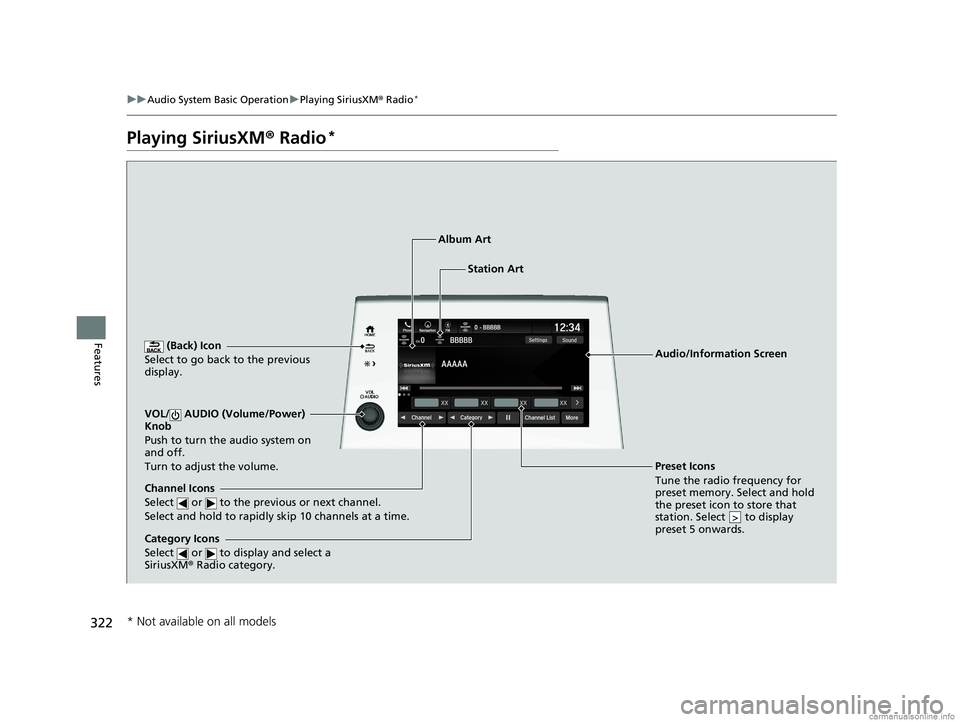
(Back) Icon
Select to go back to the previous
display.
Channel Icons
Select or to the previous or next channel.
Select and hold to rapidly skip 10 channels at a time.
VOL/ AUDIO (Volume/Power)
Knob
Push to turn the audio system on
and off.
Turn to adjust the volume.
Category Icons
Select or to display and select a
SiriusXM ® Radio category.
Audio/Information Screen
Preset Icons
Tune the radio frequency for
preset memory. Select and hold
the preset icon to store that
station. Select to display
preset 5 onwards.
>
Album Art
Station Art
* Not available on all models
18 US ODYSSEY-31THR6010.book 322 ページ 2018年12月6日 木曜日 午後4時18分
Page 326 of 763
uuAudio System Basic Operation uPlaying SiriusXM ® Radio*
324
Features
To store a channel:
1. Tune to the selected channel.
2. Select and hold the preset number for the station you want to store.
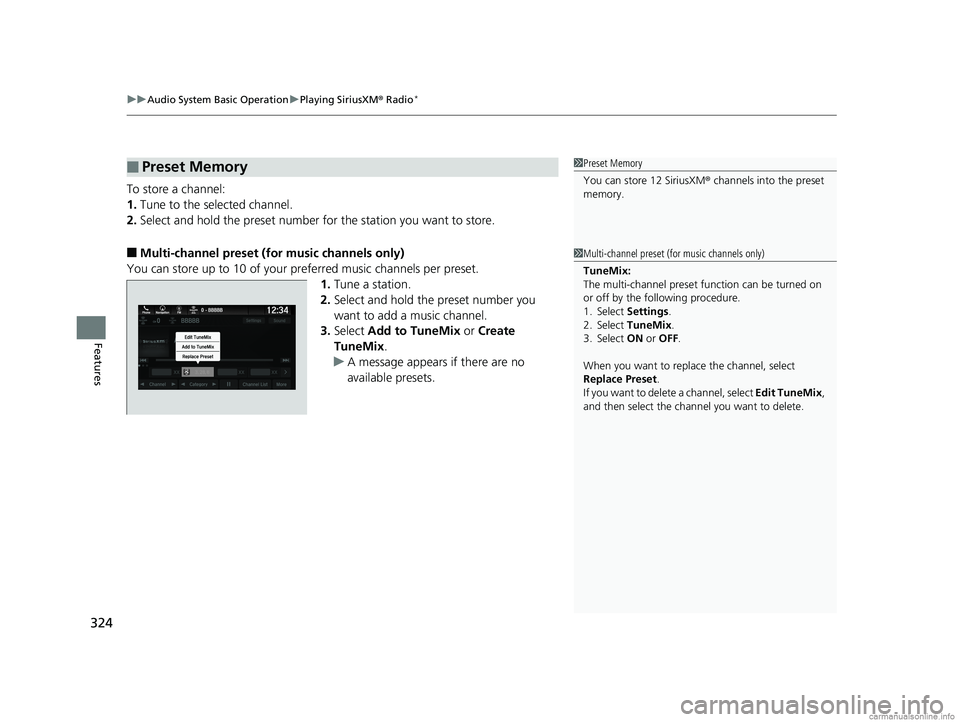
■Multi-channel preset (for music channels only)
You can store up to 10 of your pref erred music channels per preset.
1. Tune a station.
2. Select and hold the preset number you
want to add a music channel.
3. Select Add to TuneMix or Create
TuneMix .
u A message appears if there are no
available presets.
■Preset Memory1Preset Memory
You can store 12 SiriusXM ® channels into the preset
memory.
1 Multi-channel preset (for music channels only)
TuneMix:
The multi-channel preset f unction can be turned on
or off by the following procedure.
1. Select Settings.
2. Select TuneMix.
3. Select ON or OFF .
When you want to replace the channel, select
Replace Preset .
If you want to delete a channel, select Edit TuneMix,
and then select the channel you want to delete.
18 US ODYSSEY-31THR6010.book 324 ページ 2018年12月6日 木曜日 午後4時18分
Page 328 of 763
uuAudio System Basic Operation uPlaying SiriusXM ® Radio*
326
Features
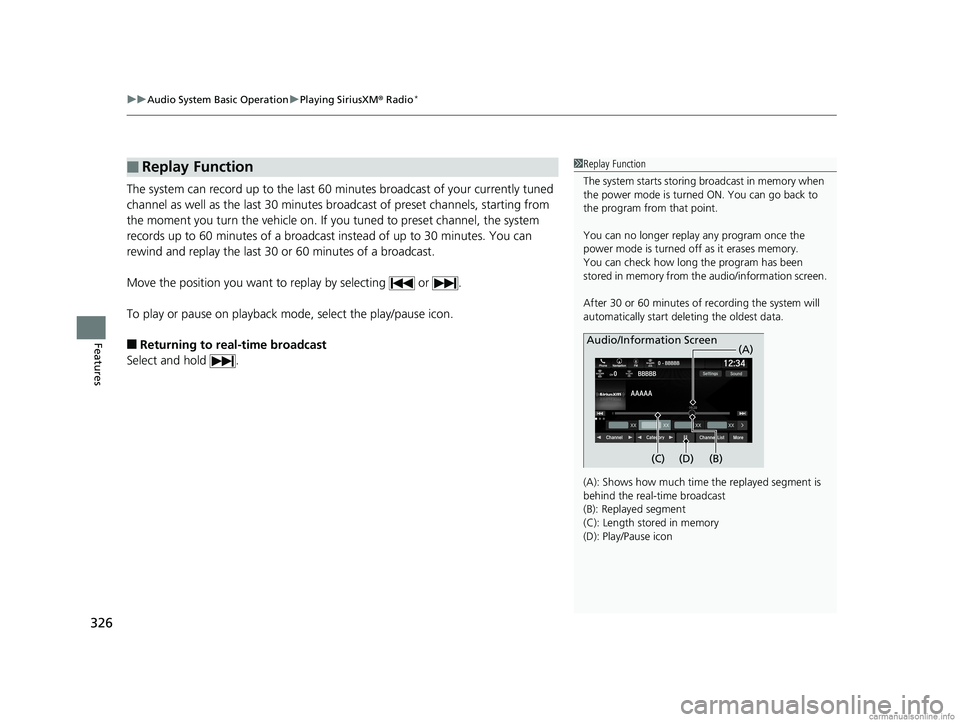
The system can record up to the last 60 minutes broadcast of your currently tuned
channel as well as the last 30 minutes broadcast of preset channels, starting from
the moment you turn the vehicle on. If yo u tuned to preset channel, the system
records up to 60 minutes of a broadcast instead of up to 30 minutes. You can
rewind and replay the last 30 or 60 minutes of a broadcast.
Move the position you want to replay by selecting or .
To play or pause on playback mo de, select the play/pause icon.
■Returning to real-time broadcast
Select and hold .
■Replay Function1 Replay Function
The system starts storing broadcast in memory when
the power mode is turned ON. You can go back to
the program from that point.
You can no longer repl ay any program once the
power mode is turned off as it erases memory.
You can check how long the program has been
stored in memory from th e audio/information screen.
After 30 or 60 minutes of recording the system will
automatically start deleting the oldest data.
(A): Shows how much time the replayed segment is
behind the real-time broadcast
(B): Replayed segment
(C): Length stored in memory
(D): Play/Pause icon
Audio/Information Screen
(C) (B) (A)
(D)
18 US ODYSSEY-31THR6010.book 326 ページ 2018年12月6日 木曜日 午後4時18分