2018 FORD TRANSIT lock
[x] Cancel search: lockPage 337 of 521

Seek up: Press the button to go
to the next station up the radio
frequency band or the next track.
Seek down: Press the button to
go to the next station down the
radio frequency band or the
previous track. In Bluetooth
audio and USB modes, press the
buttons to go to the next or
previous track.
D
Dial and end call:
Press the
button to make or end a call.
D
Numeric keypad:
Press the
button to recall a previously
stored station. To store a
favorite station press and hold
until the sound returns. In Phone
mode, use these keys to dial the
number.
E
Clock:
Press the button to
select clock setup.
F
Information:
Press the button
to access the complete
information if it does not fit the
display.
G
On, Off and Volume:
Press the
button to switch the audio
system on or off. Turn the dial to
adjust the volume.
H
MENU:
: Press the button to
access different audio system
features, depending on which
mode has been selected.
I
Voice Pass-Through
and
Phone: Press the button to say
commands to your cell phone or
to access the Bluetooth phone
feature of the system by
pressing
PHONE then MENU.
When paired further presses of
this button will display phone
name, signal strength and the
battery level.
J MEDIA:
Press the button to
access Bluetooth audio
streaming, USB or Aux input
playback.
K
RADIO:
Press the button to
select different radio bands.
Press to cancel the menu or list
browsing.
L
Cursor up and down:
Press a
button to scroll through
on-screen choices. In radio mode
press to manual tune.
M
OK, Play and Pause:
Press the
button to confirm on-screen
selections. Press to play or pause
during playback with compatible
external devices.
N
Sound Button
This allows you to adjust the sound
settings (for example bass, treble, balance
and fade).
1. Press the
MINbutton.
2. Use the up and down arrow buttons to
select the required level.
Waveband Button
Press the
MINbutton to select from the
wavebands available (AM, FM1,FM2). You
can use the button to return to radio
reception when you have been listening to
another source.
Station Tuning Control
Seek Tuning
Select a waveband and briefly press one
of the seek buttons. The unit stops at the
first station it finds in the direction you
have chosen.
334
2018 Transit (TTH) Canada/United States of America, JK3J 19A321 AA enUSA, Edition date: 201705, Third-Printing- Audio System
Page 342 of 521

AUDIO UNIT - VEHICLES WITH:
AM/FM
WARNING: Driving while distracted
can result in loss of vehicle control, crash
and injury. We strongly recommend that
you use extreme caution when using any
device that may take your focus off the
road. Your primary responsibility is the safe operation of your vehicle. We recommend
against the use of any hand-held device
while driving and encourage the use of
voice-operated systems when possible.
Make sure you are aware of all applicable
local laws that may affect the use of
electronic devices while driving.
Note:
Depending on your vehicle option
package, your system may look different
from what you see here. Display:
Shows the status of
the current mode selected.
A
Clock:
Press to display the
clock.
B
339
2018 Transit (TTH) Canada/United States of America, JK3J 19A321 AA enUSA, Edition date: 201705, Third-Printing- Audio SystemE175058
AB
D
C
G
H
I
J
K
FE
Page 343 of 521

Seek, Fast Forward and
Reverse: In radio mode, select
a frequency band and press
either button. The system stops
at the first station it finds in that
direction. In media mode, press
to select the previous or next
track. Press and hold either
button to move quickly forward
or backward through the current
track.
C
Numeric keypad:
In radio
mode, you can store your
favorite radio stations. To store
a radio station, tune to the
station, then press and hold a
preset button until sound
returns.
D
VOL and Power:
Press to
switch the system on and off.
Turn to adjust the volume.
E MENU: Press to access different
audio system features.
F
SOUND:
Press to access
settings for Treble, Midrange,
Bass, Fade or Balance.
G
AUX:
Press to access the
auxiliary features, it will also
cancel the menu or list browsing.
H
RADIO:
Press this multiple
times to select a radio band.
Press and hold to select the
autostore function. Press to
return to the main screen of the
active radio band.
I
Arrow left and right:
Press to
scroll through the menu choices.
J
Mute:
Press to mute the sound.
K
Clock Button
This allows you to adjust the clock settings.
Press the
Clock button until the following message is displayed. Action and Description
Message
Use the cursor up or down arrow buttons to set the correct
hour.
Set Hour
Press the
Clock button again until the following message is displayed.
Use the cursor up or down arrow buttons to set the correct
minutes.
Set Minutes
340
2018 Transit (TTH) Canada/United States of America, JK3J 19A321 AA enUSA, Edition date: 201705, Third-Printing- Audio System
Page 344 of 521

Setting 24 Hour or 12 Hour Display
Press the Menu button until the following message is displayed.
Action and Description
Message
Use the cursor up or down arrow buttons to select one of the
following:
24 Hour
12 Hour
24 Hour
Note: The default setting is 24 hour.
Station Tuning Buttons
Seek Tuning
Select a frequency band and briefly press
one of the seek buttons. The unit will stop
at the first station it finds in the direction
you have chosen.
Manual Tuning
Use the cursor up or down arrow buttons
to tune up or down the frequency band in
small increments. To increment quickly,
press and hold until you find a station you
want to listen to.
Station Preset Buttons
This feature allows you to store your
favorite stations. They can be recalled by
selecting the appropriate frequency band
and pressing one of the preset buttons.
1. Select a frequency band.
2. Tune to the station required.
3. Press and hold one of the preset buttons. The audio unit will also mute
momentarily as confirmation.
You can repeat this on each frequency
band and for each preset button. Menu Button
This allows you to adjust all of the audio
system settings. Press the button
repeatedly until the required setting is
displayed. Use the cursor up or down arrow
buttons to adjust the following settings:
•
Clock hour.
• Clock minutes.
• 24 hour, 12 hour.
• Bass.
• Treble.
• Balance.
• Fade.
• RDS.
Sound Button
This allows you to adjust the sound
settings for bass, treble, balance or fade.
1. Press the sound button until the required setting is displayed.
2. Use the cursor up or down arrow buttons to select the required level.
Note: Fade settings are only adjustable if
there are speakers in the rear of your vehicle.
AUX Button
Connect your media device to the audio
unit. See
USB Port (page 347).
341
2018 Transit (TTH) Canada/United States of America, JK3J 19A321 AA enUSA, Edition date: 201705, Third-Printing- Audio System
Page 349 of 521
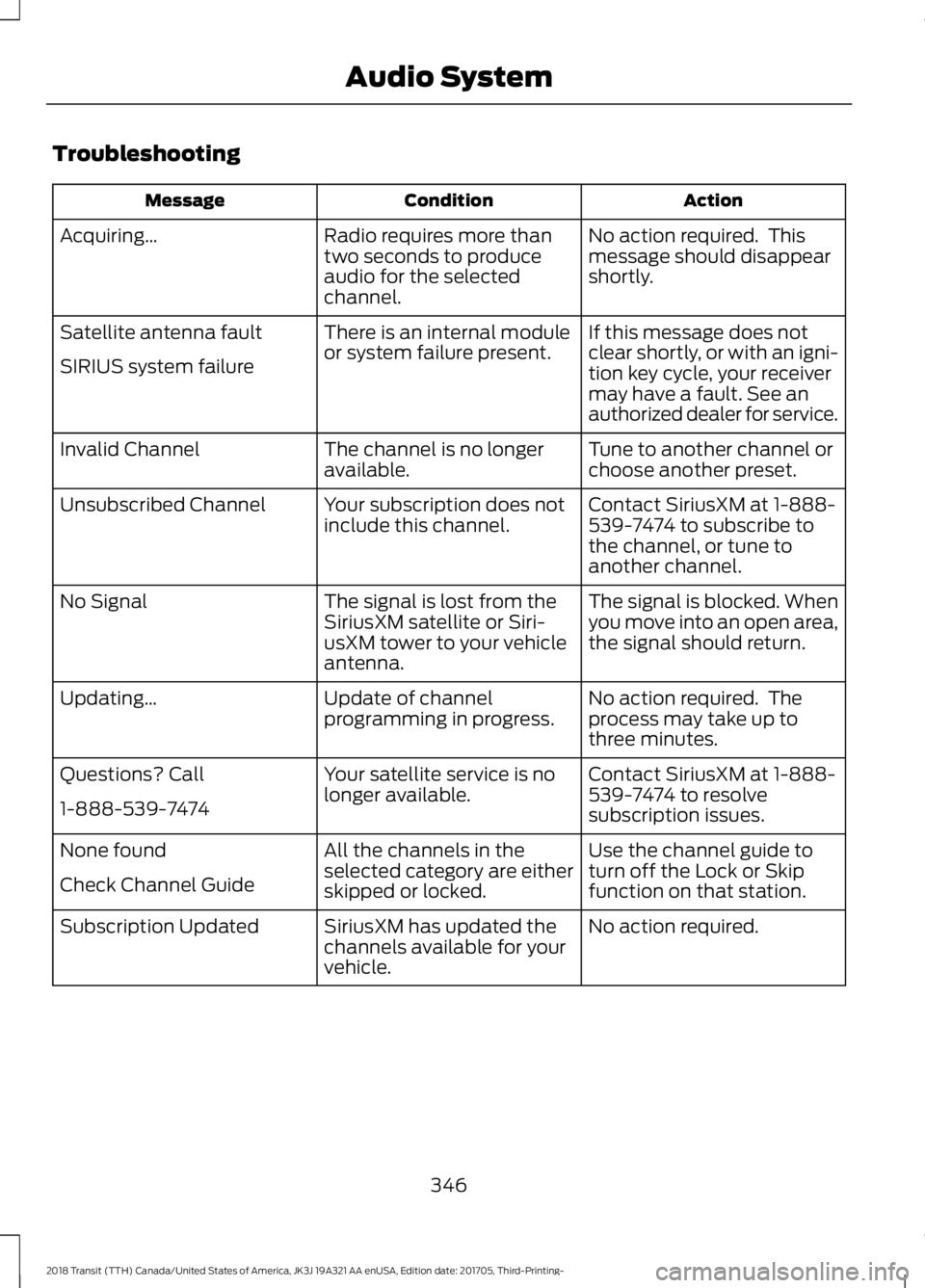
Troubleshooting
Action
Condition
Message
No action required. This
message should disappear
shortly.
Radio requires more than
two seconds to produce
audio for the selected
channel.
Acquiring…
If this message does not
clear shortly, or with an igni-
tion key cycle, your receiver
may have a fault. See an
authorized dealer for service.
There is an internal module
or system failure present.
Satellite antenna fault
SIRIUS system failure
Tune to another channel or
choose another preset.
The channel is no longer
available.
Invalid Channel
Contact SiriusXM at 1-888-
539-7474 to subscribe to
the channel, or tune to
another channel.
Your subscription does not
include this channel.
Unsubscribed Channel
The signal is blocked. When
you move into an open area,
the signal should return.
The signal is lost from the
SiriusXM satellite or Siri-
usXM tower to your vehicle
antenna.
No Signal
No action required. The
process may take up to
three minutes.
Update of channel
programming in progress.
Updating…
Contact SiriusXM at 1-888-
539-7474 to resolve
subscription issues.
Your satellite service is no
longer available.
Questions? Call
1-888-539-7474
Use the channel guide to
turn off the Lock or Skip
function on that station.
All the channels in the
selected category are either
skipped or locked.
None found
Check Channel Guide
No action required.
SiriusXM has updated the
channels available for your
vehicle.
Subscription Updated
346
2018 Transit (TTH) Canada/United States of America, JK3J 19A321 AA enUSA, Edition date: 201705, Third-Printing- Audio System
Page 391 of 521

Action and Description
Menu Item
Item
This bar displays icons and messages pertaining to current
system activities including climate settings, voice
commands and phone functions such as text messages.
Status Bar
A
This button is available on the main screens. Pressing it
takes you to the home screen view.
Home
B
This shows the current time. You can set the clock manually
or have it controlled by the vehicle's GPS location. See
Settings (page 428).
Clock
C
This displays the current outside temperature.
Outside
Temperature
D
You can touch any of the buttons on this bar to select a
feature.
Feature Bar
E
The touchscreen allows you quick access
to all of your comfort, navigation,
communication and entertainment
options. Using the status and feature bar
you can quickly select the feature you want
to use.
Note: Your system is equipped with a
feature that allows you to access and
control audio features for 10 minutes after
you switch the ignition off (and no doors
open). The Status Bar
Additional icons also display in the status
bar depending on market, vehicle options
and current operation. If a feature is not
active, the icon does not display. Certain
icons may move to the left or right
depending on what options are active.
388
2018 Transit (TTH) Canada/United States of America, JK3J 19A321 AA enUSA, Edition date: 201705, Third-Printing- SYNC™ 3
Page 409 of 521
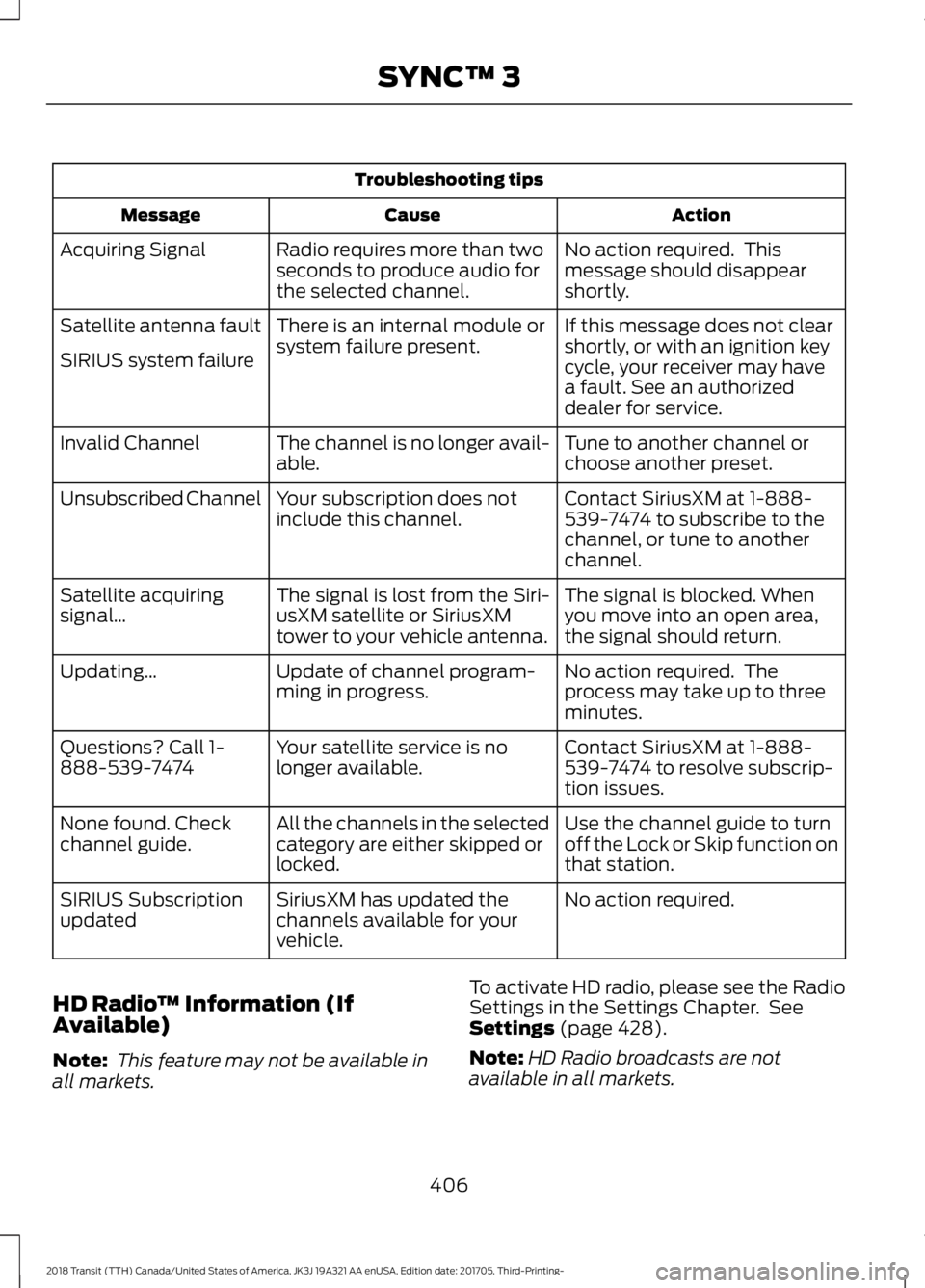
Troubleshooting tips
Action
Cause
Message
No action required. This
message should disappear
shortly.
Radio requires more than two
seconds to produce audio for
the selected channel.
Acquiring Signal
If this message does not clear
shortly, or with an ignition key
cycle, your receiver may have
a fault. See an authorized
dealer for service.
There is an internal module or
system failure present.
Satellite antenna fault
SIRIUS system failure
Tune to another channel or
choose another preset.
The channel is no longer avail-
able.
Invalid Channel
Contact SiriusXM at 1-888-
539-7474 to subscribe to the
channel, or tune to another
channel.
Your subscription does not
include this channel.
Unsubscribed Channel
The signal is blocked. When
you move into an open area,
the signal should return.
The signal is lost from the Siri-
usXM satellite or SiriusXM
tower to your vehicle antenna.
Satellite acquiring
signal…
No action required. The
process may take up to three
minutes.
Update of channel program-
ming in progress.
Updating…
Contact SiriusXM at 1-888-
539-7474 to resolve subscrip-
tion issues.
Your satellite service is no
longer available.
Questions? Call 1-
888-539-7474
Use the channel guide to turn
off the Lock or Skip function on
that station.
All the channels in the selected
category are either skipped or
locked.
None found. Check
channel guide.
No action required.
SiriusXM has updated the
channels available for your
vehicle.
SIRIUS Subscription
updated
HD Radio ™ Information (If
Available)
Note: This feature may not be available in
all markets. To activate HD radio, please see the Radio
Settings in the Settings Chapter. See
Settings (page 428).
Note: HD Radio broadcasts are not
available in all markets.
406
2018 Transit (TTH) Canada/United States of America, JK3J 19A321 AA enUSA, Edition date: 201705, Third-Printing- SYNC™ 3
Page 433 of 521

Action and Description
Menu Item
This allows you to view the version level of the Gracenote Database.
Gracenote® Data-
base Info
This allows you to view the manufacturer and model number of your
media device.
Device Informa-
tion
Erase the stored in media information in order to re-index.
Update Media
Index
Clock
To adjust the time, select the up and down
arrows on either side of the screen. The
arrows on the left adjust the hour and
arrows on the right adjust the minute. You
can then select AM or PM. You can adjust the following features:Action and Description
Menu Item
Select how time displays.
Clock Format
When active, the clock adjusts to time zone changes.
Auto Time Zone
Update This feature is only available in vehicles with navigation.
When selected, the vehicle clock resets to GPS satellite time.
Reset Clock to
GPS Time
The system automatically saves any
updates you make to the settings. Bluetooth
Pressing this button allows you to access
the following: Action
Menu Item
Turning Bluetooth off disconnects all devices and does not permit
new connections.
Bluetooth
You must activate Bluetooth to pair a
Bluetooth-enabled device.
The processes of pairing a Bluetooth
device is the same as pairing a phone. See
Pairing a Device in Phone settings for how
to pair a device and the available options. Phone
Pair your Bluetooth-enabled phone with
the system before using the functions in
hands-free mode.
Switch on Bluetooth on your device to
begin pairing. See your phone
’s manual if
necessary.
430
2018 Transit (TTH) Canada/United States of America, JK3J 19A321 AA enUSA, Edition date: 201705, Third-Printing- SYNC™ 3