2018 FORD FOCUS page 39
[x] Cancel search: page 39Page 315 of 473
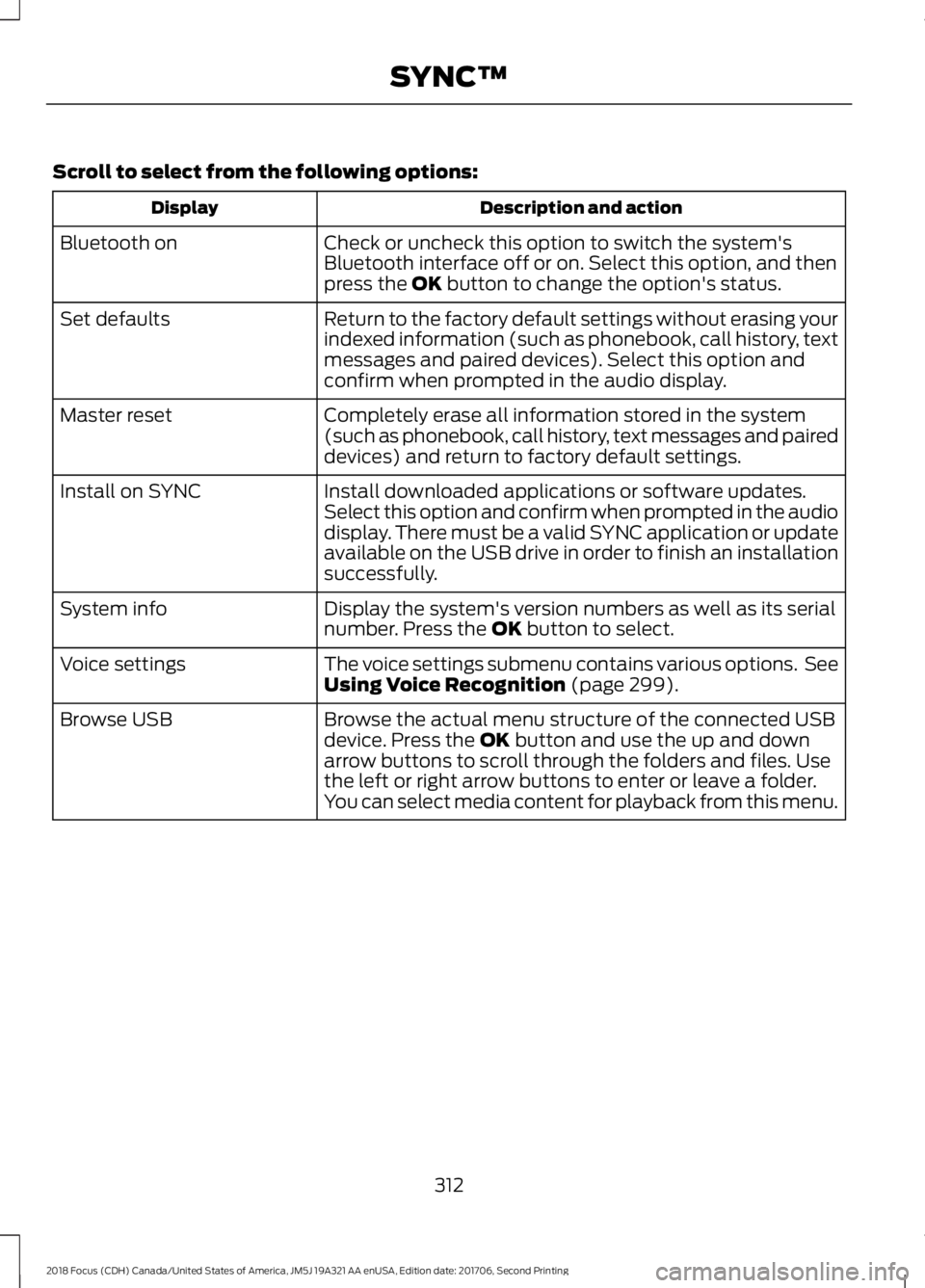
Scroll to select from the following options:
Description and actionDisplay
Check or uncheck this option to switch the system'sBluetooth interface off or on. Select this option, and thenpress the OK button to change the option's status.
Bluetooth on
Return to the factory default settings without erasing yourindexed information (such as phonebook, call history, textmessages and paired devices). Select this option andconfirm when prompted in the audio display.
Set defaults
Completely erase all information stored in the system(such as phonebook, call history, text messages and paireddevices) and return to factory default settings.
Master reset
Install downloaded applications or software updates.Select this option and confirm when prompted in the audiodisplay. There must be a valid SYNC application or updateavailable on the USB drive in order to finish an installationsuccessfully.
Install on SYNC
Display the system's version numbers as well as its serialnumber. Press the OK button to select.System info
The voice settings submenu contains various options. SeeUsing Voice Recognition (page 299).Voice settings
Browse the actual menu structure of the connected USBdevice. Press the OK button and use the up and downarrow buttons to scroll through the folders and files. Usethe left or right arrow buttons to enter or leave a folder.You can select media content for playback from this menu.
Browse USB
3122018 Focus (CDH) Canada/United States of America, JM5J 19A321 AA enUSA, Edition date: 201706, Second PrintingSYNC™
Page 316 of 473
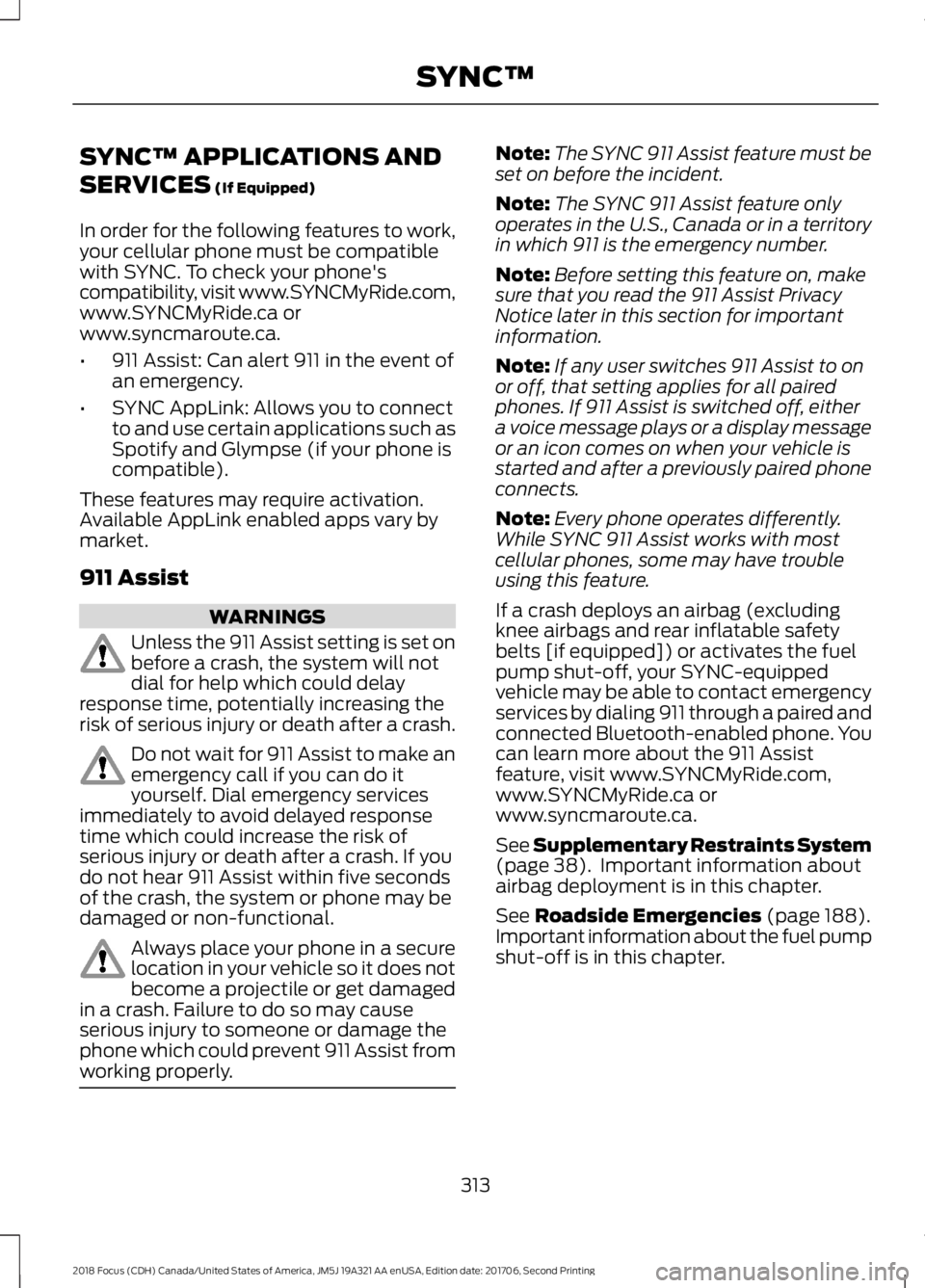
SYNC™ APPLICATIONS AND
SERVICES (If Equipped)
In order for the following features to work,your cellular phone must be compatiblewith SYNC. To check your phone'scompatibility, visit www.SYNCMyRide.com,www.SYNCMyRide.ca orwww.syncmaroute.ca.
•911 Assist: Can alert 911 in the event ofan emergency.
•SYNC AppLink: Allows you to connectto and use certain applications such asSpotify and Glympse (if your phone iscompatible).
These features may require activation.Available AppLink enabled apps vary bymarket.
911 Assist
WARNINGS
Unless the 911 Assist setting is set onbefore a crash, the system will notdial for help which could delayresponse time, potentially increasing therisk of serious injury or death after a crash.
Do not wait for 911 Assist to make anemergency call if you can do ityourself. Dial emergency servicesimmediately to avoid delayed responsetime which could increase the risk ofserious injury or death after a crash. If youdo not hear 911 Assist within five secondsof the crash, the system or phone may bedamaged or non-functional.
Always place your phone in a securelocation in your vehicle so it does notbecome a projectile or get damagedin a crash. Failure to do so may causeserious injury to someone or damage thephone which could prevent 911 Assist fromworking properly.
Note:The SYNC 911 Assist feature must beset on before the incident.
Note:The SYNC 911 Assist feature onlyoperates in the U.S., Canada or in a territoryin which 911 is the emergency number.
Note:Before setting this feature on, makesure that you read the 911 Assist PrivacyNotice later in this section for importantinformation.
Note:If any user switches 911 Assist to onor off, that setting applies for all pairedphones. If 911 Assist is switched off, eithera voice message plays or a display messageor an icon comes on when your vehicle isstarted and after a previously paired phoneconnects.
Note:Every phone operates differently.While SYNC 911 Assist works with mostcellular phones, some may have troubleusing this feature.
If a crash deploys an airbag (excludingknee airbags and rear inflatable safetybelts [if equipped]) or activates the fuelpump shut-off, your SYNC-equippedvehicle may be able to contact emergencyservices by dialing 911 through a paired andconnected Bluetooth-enabled phone. Youcan learn more about the 911 Assistfeature, visit www.SYNCMyRide.com,www.SYNCMyRide.ca orwww.syncmaroute.ca.
See Supplementary Restraints System(page 38). Important information aboutairbag deployment is in this chapter.
See Roadside Emergencies (page 188).Important information about the fuel pumpshut-off is in this chapter.
3132018 Focus (CDH) Canada/United States of America, JM5J 19A321 AA enUSA, Edition date: 201706, Second PrintingSYNC™
Page 327 of 473
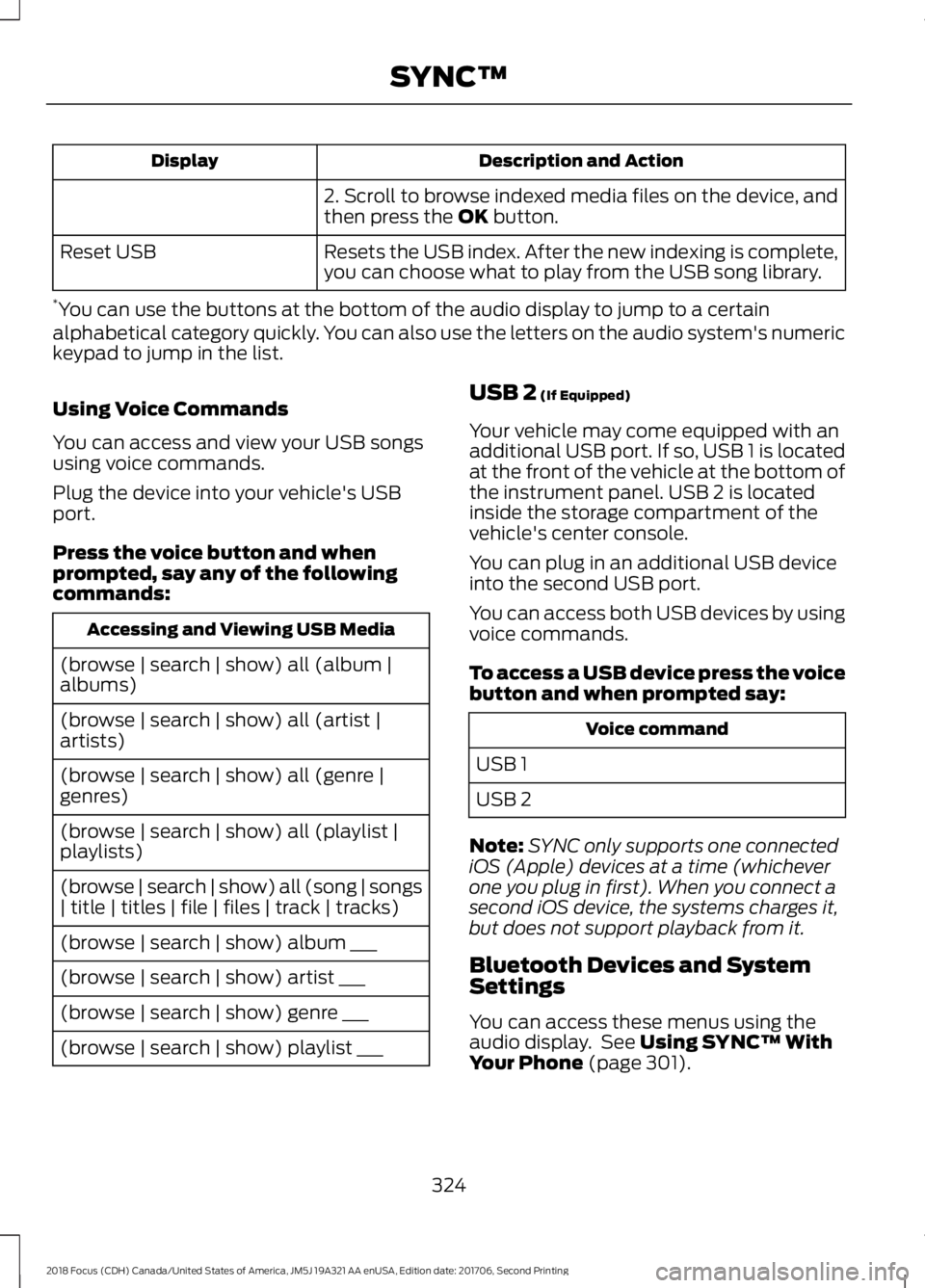
Description and ActionDisplay
2. Scroll to browse indexed media files on the device, andthen press the OK button.
Resets the USB index. After the new indexing is complete,you can choose what to play from the USB song library.Reset USB
*You can use the buttons at the bottom of the audio display to jump to a certainalphabetical category quickly. You can also use the letters on the audio system's numerickeypad to jump in the list.
Using Voice Commands
You can access and view your USB songsusing voice commands.
Plug the device into your vehicle's USBport.
Press the voice button and whenprompted, say any of the followingcommands:
Accessing and Viewing USB Media
(browse | search | show) all (album |albums)
(browse | search | show) all (artist |artists)
(browse | search | show) all (genre |genres)
(browse | search | show) all (playlist |playlists)
(browse | search | show) all (song | songs| title | titles | file | files | track | tracks)
(browse | search | show) album ___
(browse | search | show) artist ___
(browse | search | show) genre ___
(browse | search | show) playlist ___
USB 2 (If Equipped)
Your vehicle may come equipped with anadditional USB port. If so, USB 1 is locatedat the front of the vehicle at the bottom ofthe instrument panel. USB 2 is locatedinside the storage compartment of thevehicle's center console.
You can plug in an additional USB deviceinto the second USB port.
You can access both USB devices by usingvoice commands.
To access a USB device press the voicebutton and when prompted say:
Voice command
USB 1
USB 2
Note:SYNC only supports one connectediOS (Apple) devices at a time (whicheverone you plug in first). When you connect asecond iOS device, the systems charges it,but does not support playback from it.
Bluetooth Devices and SystemSettings
You can access these menus using theaudio display. See Using SYNC™ WithYour Phone (page 301).
3242018 Focus (CDH) Canada/United States of America, JM5J 19A321 AA enUSA, Edition date: 201706, Second PrintingSYNC™
Page 339 of 473

Action and DescriptionMenu ItemItem
This bar displays icons and messages pertaining to currentsystem activities including climate settings, voicecommands and phone functions such as text messages.
Status BarA
This button is available on the main screens. Pressing ittakes you to the home screen view.HomeB
This shows the current time. You can set the clock manuallyor have it controlled by the vehicle's GPS location. SeeSettings (page 379).
ClockC
This displays the current outside temperature.OutsideTemperatureD
You can touch any of the buttons on this bar to select afeature.Feature BarE
The touchscreen allows you quick accessto all of your comfort, navigation,communication and entertainmentoptions. Using the status and feature baryou can quickly select the feature you wantto use.
Note:Your system is equipped with afeature that allows you to access andcontrol audio features for 10 minutes afteryou switch the ignition off (and no doorsopen).
The Status Bar
Additional icons also display in the statusbar depending on market, vehicle optionsand current operation. If a feature is notactive, the icon does not display. Certainicons may move to the left or rightdepending on what options are active.
3362018 Focus (CDH) Canada/United States of America, JM5J 19A321 AA enUSA, Edition date: 201706, Second PrintingSYNC™ 3
Page 342 of 473

Cleaning the Touchscreen
You can remove fingerprints with a dry,clean, soft cloth.
If dirt or fingerprints are still on the screen,apply a small amount of alcohol to thecloth and try to clean it again.
Note: Do not use detergent or any type ofsolvent to clean the touchscreen.
Note:Do not pour or spray alcohol onto thetouchscreen.
Using Voice Recognition
Using voice commands allows you to keepyour hands on the wheel and eyes on theroad. The system provides feedbackthrough audible tones, prompts, questionsand spoken confirmations depending onthe situation and the chosen level ofinteraction (voice settings).
The system also asks short questions(confirmation prompts) when it is not sureof your request or when there are multiplepossible responses to your request.
When using voice commands, words andicons may appear in the status barindicating the status of the voice commandsession. See Using Voice Recognition(page 347).
Using the Steering Wheel Controls
Depending on your vehicle and optionpackage, you can use different controls onyour steering wheel to interact with thetouchscreen system in different ways.
VOL: Control the volume of audio output.
Mute: Mute the audio output.
Voice: Press to start a voice session. Pressagain to stop the voice prompt andimmediately begin speaking. Press andhold to end a voice session.
SEEK NEXT:
•While in radio mode, press to seekbetween memory presets.
•While in USB, Bluetooth Audio or CDmode, press to seek between songs orpress and hold to fast seek.
SEEK PREVIOUS:
•While in radio mode, press to seekbetween memory presets.
•While in USB, Bluetooth Audio or CDmode, press to seek between songs orpress and hold to fast seek.
PHONE ACCEPT: Press to answer a callor switch between calls.
PHONE REJECT: Press to end a call orreject an incoming call.
Note:On some models,SEEK NEXT maybe combined with PHONE REJECT andSEEK PREVIOUS may be combined withPHONE ACCEPT.
M:Touch the control repeatedly to switchbetween media sources (modes).
See Steering Wheel (page 71).
Using Your Bezel Controls
Depending on your vehicle and optionpackage, you may also have these controlson your instrument panel:
•Power: Switch the audio system onand off.
•VOL: Control the volume of playingaudio.
•Seek and Tune: se as you normallywould in audio modes.
•Eject: Eject a CD from the audiosystem.
•SOURCE or MEDIA: Press repeatedlyto advance through available mediamodes.
3392018 Focus (CDH) Canada/United States of America, JM5J 19A321 AA enUSA, Edition date: 201706, Second PrintingSYNC™ 3
Page 343 of 473
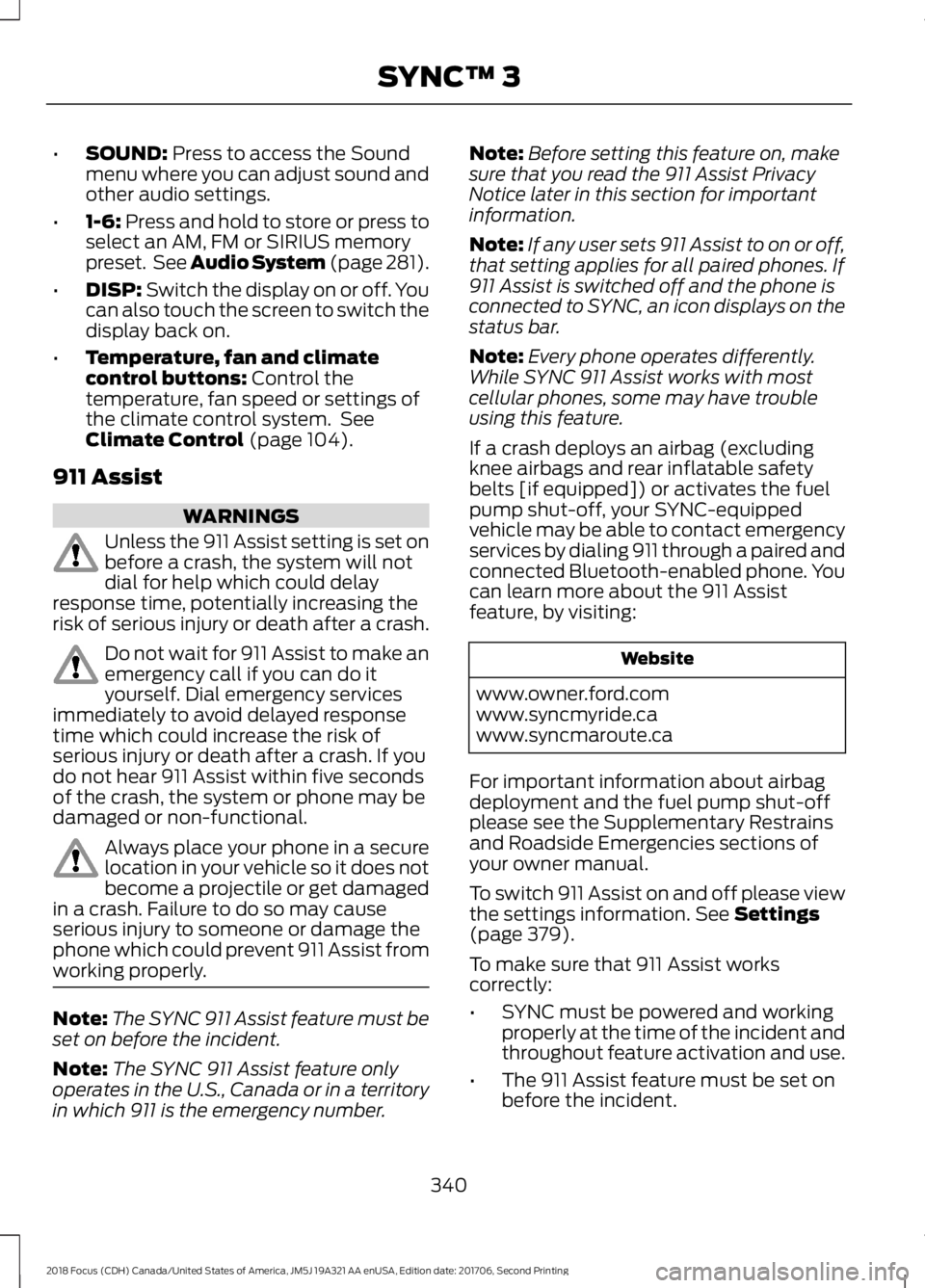
•SOUND: Press to access the Soundmenu where you can adjust sound andother audio settings.
•1-6: Press and hold to store or press toselect an AM, FM or SIRIUS memorypreset. See Audio System (page 281).
•DISP: Switch the display on or off. Youcan also touch the screen to switch thedisplay back on.
•Temperature, fan and climatecontrol buttons: Control thetemperature, fan speed or settings ofthe climate control system. SeeClimate Control (page 104).
911 Assist
WARNINGS
Unless the 911 Assist setting is set onbefore a crash, the system will notdial for help which could delayresponse time, potentially increasing therisk of serious injury or death after a crash.
Do not wait for 911 Assist to make anemergency call if you can do ityourself. Dial emergency servicesimmediately to avoid delayed responsetime which could increase the risk ofserious injury or death after a crash. If youdo not hear 911 Assist within five secondsof the crash, the system or phone may bedamaged or non-functional.
Always place your phone in a securelocation in your vehicle so it does notbecome a projectile or get damagedin a crash. Failure to do so may causeserious injury to someone or damage thephone which could prevent 911 Assist fromworking properly.
Note:The SYNC 911 Assist feature must beset on before the incident.
Note:The SYNC 911 Assist feature onlyoperates in the U.S., Canada or in a territoryin which 911 is the emergency number.
Note:Before setting this feature on, makesure that you read the 911 Assist PrivacyNotice later in this section for importantinformation.
Note:If any user sets 911 Assist to on or off,that setting applies for all paired phones. If911 Assist is switched off and the phone isconnected to SYNC, an icon displays on thestatus bar.
Note:Every phone operates differently.While SYNC 911 Assist works with mostcellular phones, some may have troubleusing this feature.
If a crash deploys an airbag (excludingknee airbags and rear inflatable safetybelts [if equipped]) or activates the fuelpump shut-off, your SYNC-equippedvehicle may be able to contact emergencyservices by dialing 911 through a paired andconnected Bluetooth-enabled phone. Youcan learn more about the 911 Assistfeature, by visiting:
Website
www.owner.ford.comwww.syncmyride.cawww.syncmaroute.ca
For important information about airbagdeployment and the fuel pump shut-offplease see the Supplementary Restrainsand Roadside Emergencies sections ofyour owner manual.
To switch 911 Assist on and off please viewthe settings information. See Settings(page 379).
To make sure that 911 Assist workscorrectly:
•SYNC must be powered and workingproperly at the time of the incident andthroughout feature activation and use.
•The 911 Assist feature must be set onbefore the incident.
3402018 Focus (CDH) Canada/United States of America, JM5J 19A321 AA enUSA, Edition date: 201706, Second PrintingSYNC™ 3
Page 346 of 473
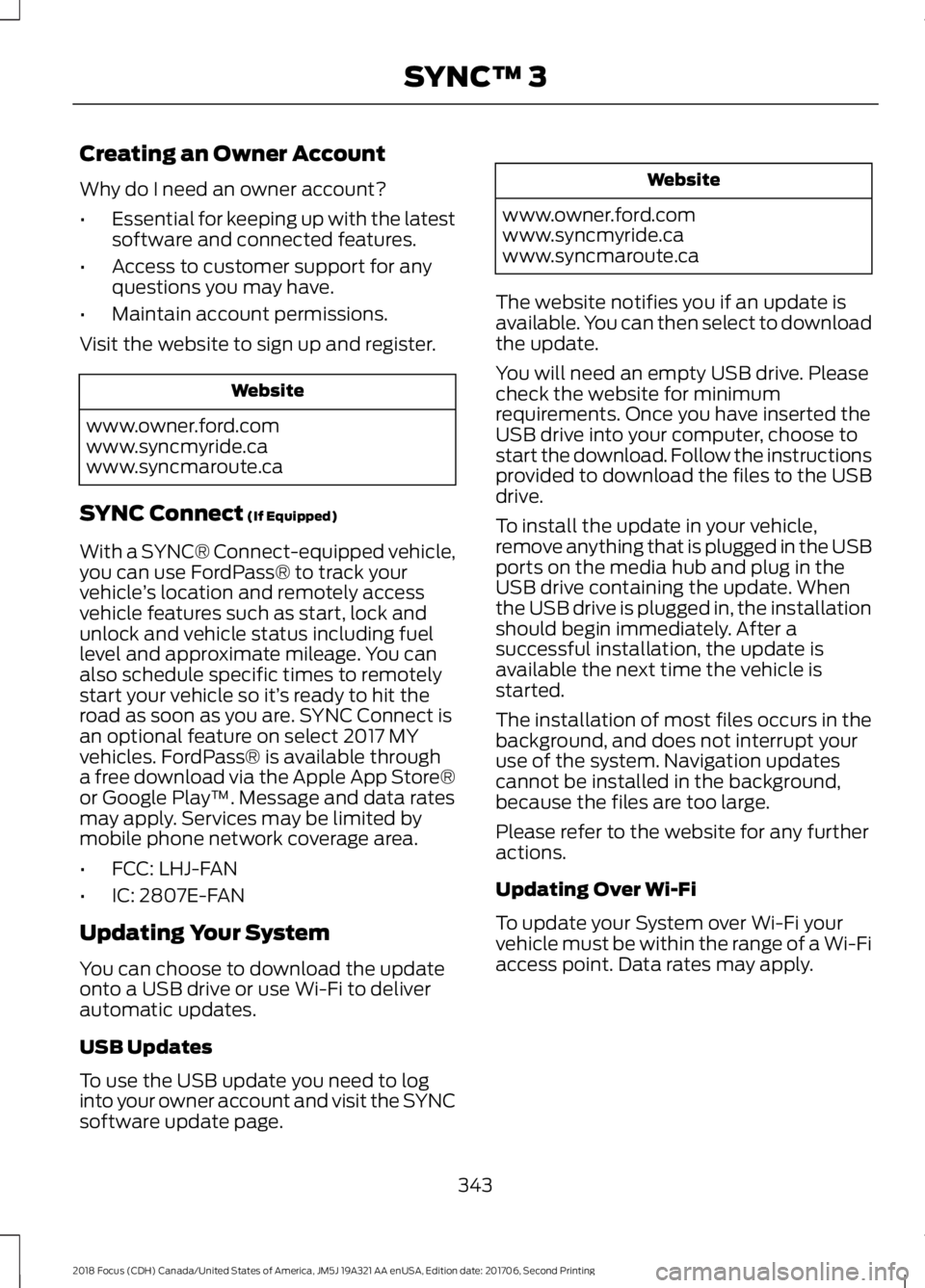
Creating an Owner Account
Why do I need an owner account?
•Essential for keeping up with the latestsoftware and connected features.
•Access to customer support for anyquestions you may have.
•Maintain account permissions.
Visit the website to sign up and register.
Website
www.owner.ford.comwww.syncmyride.cawww.syncmaroute.ca
SYNC Connect (If Equipped)
With a SYNC® Connect-equipped vehicle,you can use FordPass® to track yourvehicle’s location and remotely accessvehicle features such as start, lock andunlock and vehicle status including fuellevel and approximate mileage. You canalso schedule specific times to remotelystart your vehicle so it’s ready to hit theroad as soon as you are. SYNC Connect isan optional feature on select 2017 MYvehicles. FordPass® is available througha free download via the Apple App Store®or Google Play™. Message and data ratesmay apply. Services may be limited bymobile phone network coverage area.
•FCC: LHJ-FAN
•IC: 2807E-FAN
Updating Your System
You can choose to download the updateonto a USB drive or use Wi-Fi to deliverautomatic updates.
USB Updates
To use the USB update you need to loginto your owner account and visit the SYNCsoftware update page.
Website
www.owner.ford.comwww.syncmyride.cawww.syncmaroute.ca
The website notifies you if an update isavailable. You can then select to downloadthe update.
You will need an empty USB drive. Pleasecheck the website for minimumrequirements. Once you have inserted theUSB drive into your computer, choose tostart the download. Follow the instructionsprovided to download the files to the USBdrive.
To install the update in your vehicle,remove anything that is plugged in the USBports on the media hub and plug in theUSB drive containing the update. Whenthe USB drive is plugged in, the installationshould begin immediately. After asuccessful installation, the update isavailable the next time the vehicle isstarted.
The installation of most files occurs in thebackground, and does not interrupt youruse of the system. Navigation updatescannot be installed in the background,because the files are too large.
Please refer to the website for any furtheractions.
Updating Over Wi-Fi
To update your System over Wi-Fi yourvehicle must be within the range of a Wi-Fiaccess point. Data rates may apply.
3432018 Focus (CDH) Canada/United States of America, JM5J 19A321 AA enUSA, Edition date: 201706, Second PrintingSYNC™ 3
Page 347 of 473
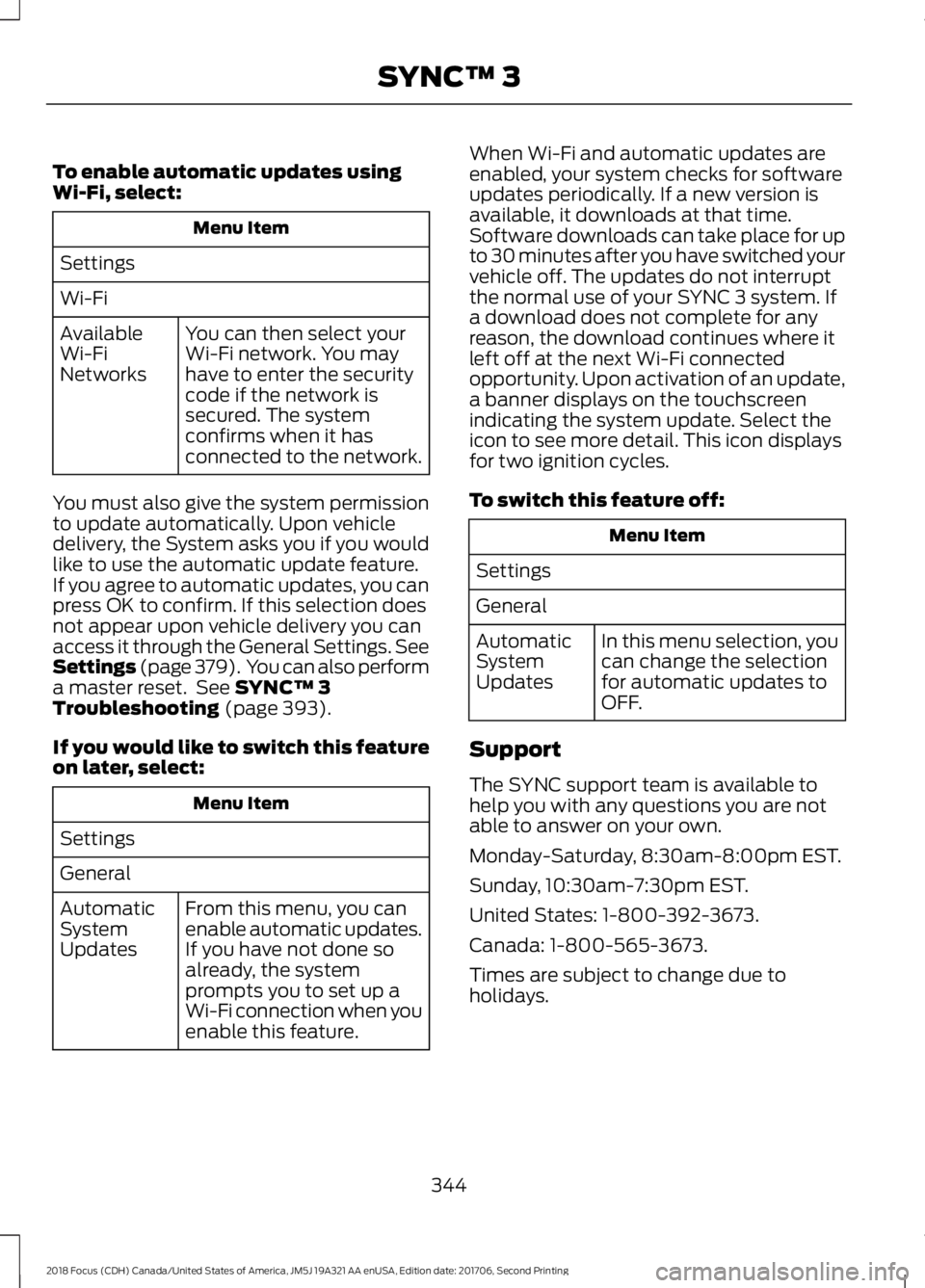
To enable automatic updates usingWi-Fi, select:
Menu Item
Settings
Wi-Fi
You can then select yourWi-Fi network. You mayhave to enter the securitycode if the network issecured. The systemconfirms when it hasconnected to the network.
AvailableWi-FiNetworks
You must also give the system permissionto update automatically. Upon vehicledelivery, the System asks you if you wouldlike to use the automatic update feature.If you agree to automatic updates, you canpress OK to confirm. If this selection doesnot appear upon vehicle delivery you canaccess it through the General Settings. SeeSettings (page 379). You can also performa master reset. See SYNC™ 3Troubleshooting (page 393).
If you would like to switch this featureon later, select:
Menu Item
Settings
General
From this menu, you canenable automatic updates.If you have not done soalready, the systemprompts you to set up aWi-Fi connection when youenable this feature.
AutomaticSystemUpdates
When Wi-Fi and automatic updates areenabled, your system checks for softwareupdates periodically. If a new version isavailable, it downloads at that time.Software downloads can take place for upto 30 minutes after you have switched yourvehicle off. The updates do not interruptthe normal use of your SYNC 3 system. Ifa download does not complete for anyreason, the download continues where itleft off at the next Wi-Fi connectedopportunity. Upon activation of an update,a banner displays on the touchscreenindicating the system update. Select theicon to see more detail. This icon displaysfor two ignition cycles.
To switch this feature off:
Menu Item
Settings
General
In this menu selection, youcan change the selectionfor automatic updates toOFF.
AutomaticSystemUpdates
Support
The SYNC support team is available tohelp you with any questions you are notable to answer on your own.
Monday-Saturday, 8:30am-8:00pm EST.
Sunday, 10:30am-7:30pm EST.
United States: 1-800-392-3673.
Canada: 1-800-565-3673.
Times are subject to change due toholidays.
3442018 Focus (CDH) Canada/United States of America, JM5J 19A321 AA enUSA, Edition date: 201706, Second PrintingSYNC™ 3