Page 397 of 696
Turning LaneSense On Or Off
The LaneSense button is located on the switch
panel below the Uconnect display.
To turn the LaneSense system on, push the LaneSense
button (LED turns off). A “LaneSense On” message is
shown in the instrument cluster display.
To turn the LaneSense system off, push the LaneSense
button again (LED turns on). NOTE:
The LaneSense system will retain the last system
state on or off from the last ignition cycle when the ignition
is changed to the ON/RUN position.
LaneSense Warning Message
The LaneSense system will indicate the current lane drift
condition through the instrument cluster display.
Instrument Cluster Display
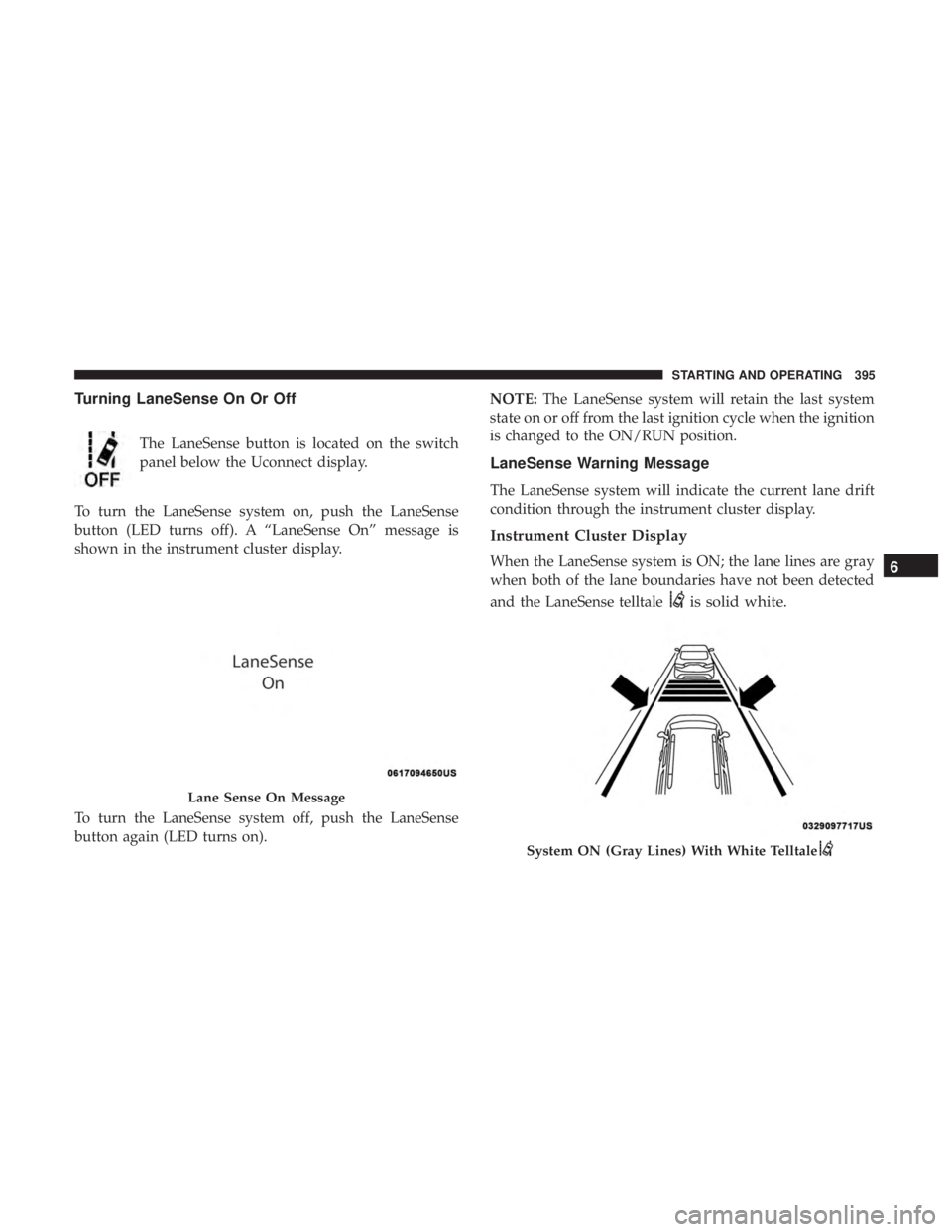
When the LaneSense system is ON; the lane lines are gray
when both of the lane boundaries have not been detected
and the LaneSense telltale
is solid white.
Lane Sense On Message
System ON (Gray Lines) With White Telltale
6
STARTING AND OPERATING 395
Page 400 of 696
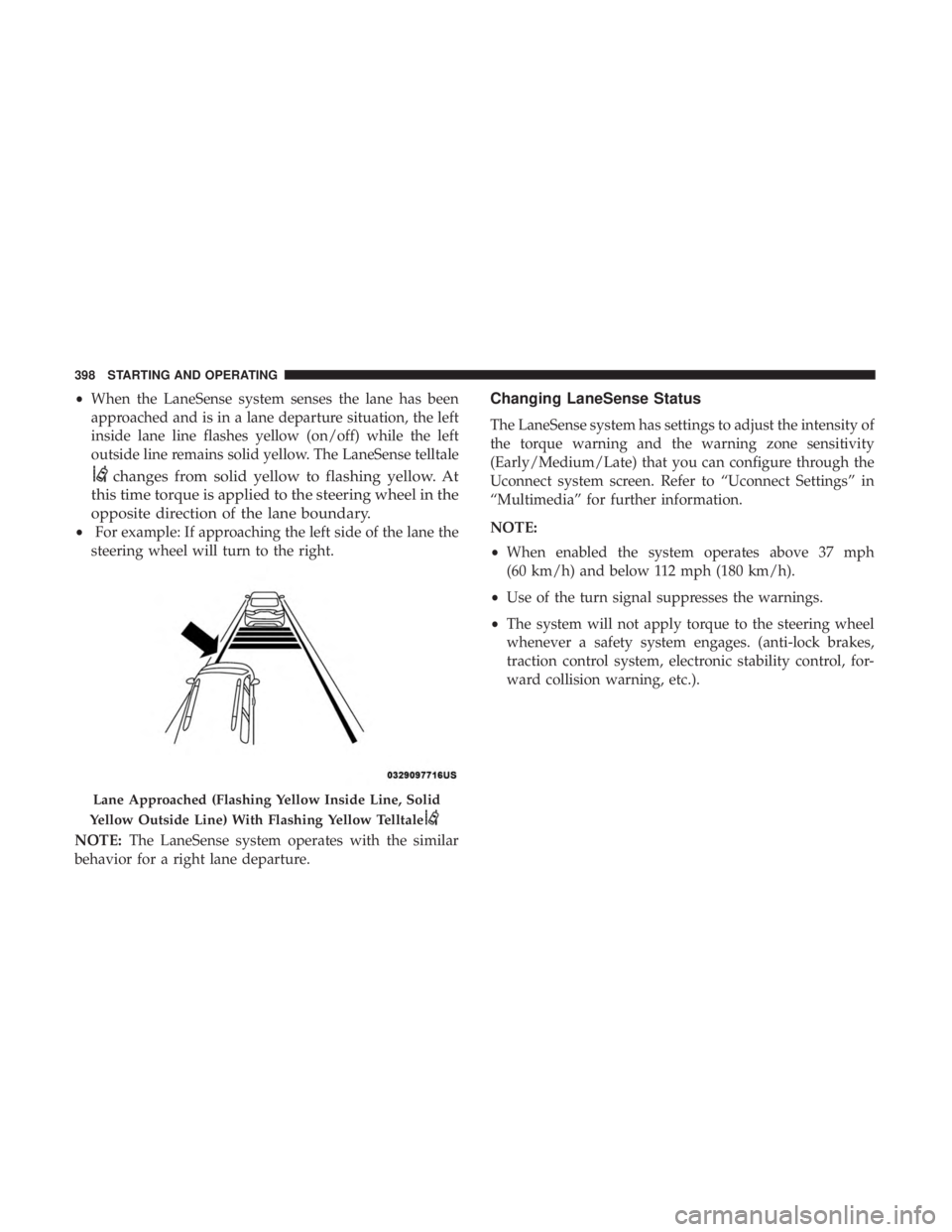
•When the LaneSense system senses the lane has been
approached and is in a lane departure situation, the left
inside lane line flashes yellow (on/off) while the left
outside line remains solid yellow. The LaneSense telltale
changes from solid yellow to flashing yellow. At
this time torque is applied to the steering wheel in the
opposite direction of the lane boundary.
• For example: If approaching the left side of the lane the
steering wheel will turn to the right.
NOTE: The LaneSense system operates with the similar
behavior for a right lane departure.
Changing LaneSense Status
The LaneSense system has settings to adjust the intensity of
the torque warning and the warning zone sensitivity
(Early/Medium/Late) that you can configure through the
Uconnect system screen. Refer to “Uconnect Settings” in
“Multimedia” for further information.
NOTE:
• When enabled the system operates above 37 mph
(60 km/h) and below 112 mph (180 km/h).
• Use of the turn signal suppresses the warnings.
• The system will not apply torque to the steering wheel
whenever a safety system engages. (anti-lock brakes,
traction control system, electronic stability control, for-
ward collision warning, etc.).
Lane Approached (Flashing Yellow Inside Line, Solid
Yellow Outside Line) With Flashing Yellow Telltale
398 STARTING AND OPERATING
Page 401 of 696

PARKVIEW REAR BACK UP CAMERA — IF
EQUIPPED
Your vehicle may be equipped with the ParkView Rear
Back Up Camera that allows you to see an on-screen image
of the rear surroundings of your vehicle whenever the gear
selector is put into REVERSE. The image will be displayed
on the touchscreen display along with a caution note
“Check Entire Surroundings” across the top of the screen.
After five seconds, this note will disappear. The ParkView
Rear Back Up Camera is located on the rear of the vehicle
above the rear license plate.
NOTE:The ParkView Rear Back Up Camera has program-
mable modes of operation that may be selected through the
Uconnect System. Refer to “Uconnect Settings” in “Multi-
media” for further information. When the vehicle is shifted out of REVERSE (with camera
delay turned off), the rear camera mode is exited and the
navigation or audio screen appears again.
When the vehicle is shifted out of REVERSE (with camera
delay turned on), the camera image will continue to be
displayed for up to 10 seconds after shifting out of RE-
VERSE unless the vehicle speed exceeds 8 mph (13 km/h),
the vehicle is shifted into PARK or the ignition is switched
to the OFF position.
ParkView Camera Location
6
STARTING AND OPERATING 399
Page 403 of 696
SURROUND VIEW CAMERA SYSTEM — IF
EQUIPPED
Your vehicle may be equipped with the Surround View
Camera System that allows you to see an on-screen image
of the surroundings and top view of your vehicle when-
ever the gear selector is put into REVERSE or a different
view is selected through the�on screen soft buttons�. The
top view of the vehicle will show which doors are open.
The image will be displayed on the touchscreen display
along with a caution note “Check Entire Surroundings”
across the top of the screen. After five seconds, this note
will disappear. The Surround View Camera System is
comprised of four sequential cameras located in the front
grille, rear liftgate and side mirrors.
NOTE: The Surround View Camera System has program-
mable settings that may be selected through the Uconnect
System. Refer to “Uconnect Settings” in “Multimedia” for
further information.
When the vehicle is shifted into REVERSE, the rear camera
view and top view is the default view of the system.
When the vehicle is shifted out of REVERSE (with camera
delay turned on), the camera image will continue to be
displayed for up to 10 seconds after shifting out of RE-
VERSE unless the vehicle speed exceeds 8 mph (13 km/h), the vehicle is shifted into PARK or the ignition is switched
to the OFF position. There is a touch screen button (X) to
disable the display of the camera image.
When the vehicle is shifted out of REVERSE (with camera
delay turned off), the surround view camera mode is exited
and the last known screen appears again.
When enabled, active guide lines are overlaid on the image
to illustrate the width of the vehicle, including the side
view mirrors and its projected backup path based on the
steering wheel position.
Different colored zones indicate the distance to the rear of
the vehicle.
The following table shows the approximate distances for
each zone:
Zone Distance To The Rear Of The Vehicle
Red 0-1ft(0-30cm)
Yellow 1 ft - 6.5 ft (30 cm - 2 m)
Green 6.5 ft or greater (2 m or greater)
6
STARTING AND OPERATING 401
Page 404 of 696
Modes Of Operation
“Manual” activation of the Rear View display is selected by
pressing the Back Up Camera soft key located in the
“Controls” screen within the Uconnect system.
Top View
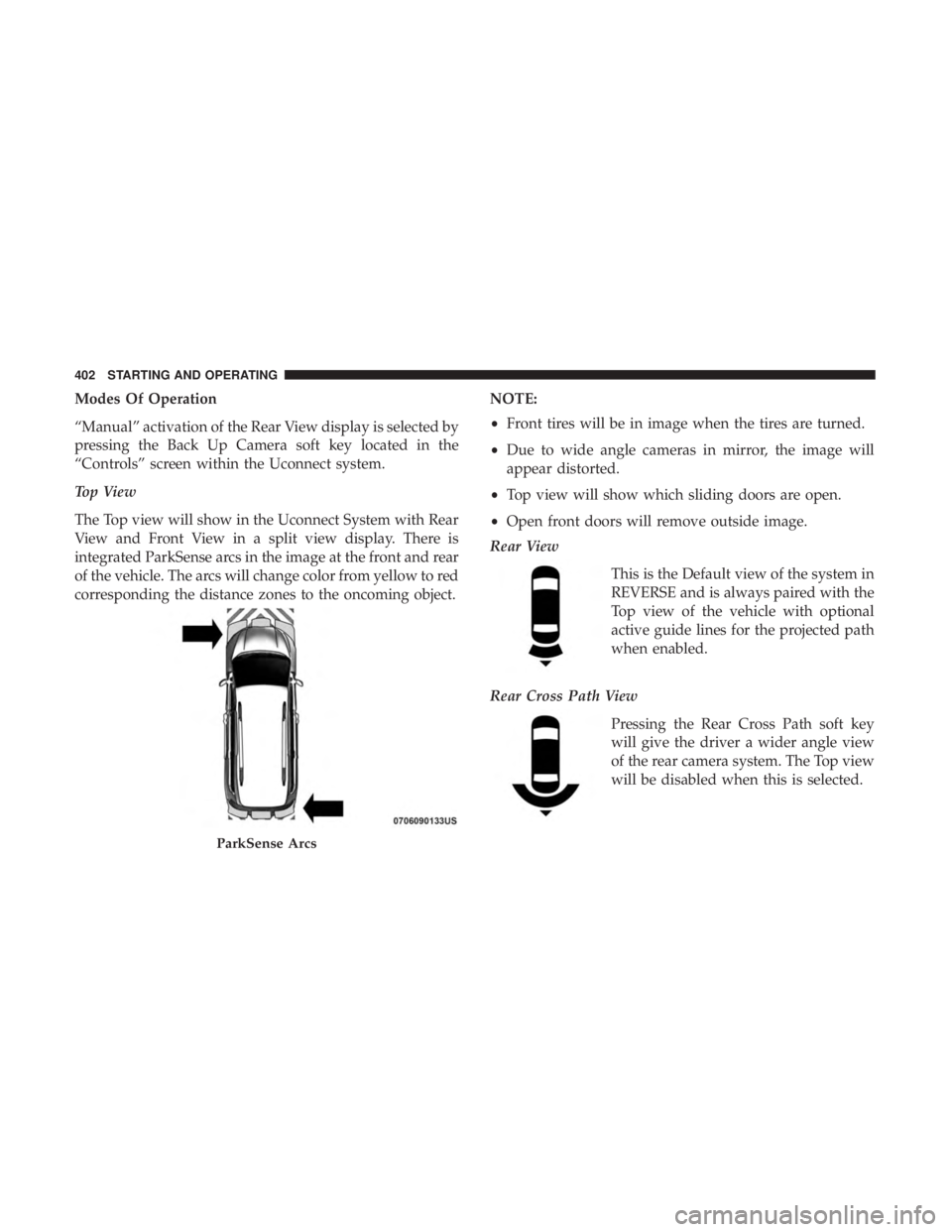
The Top view will show in the Uconnect System with Rear
View and Front View in a split view display. There is
integrated ParkSense arcs in the image at the front and rear
of the vehicle. The arcs will change color from yellow to red
corresponding the distance zones to the oncoming object.NOTE:
•
Front tires will be in image when the tires are turned.
• Due to wide angle cameras in mirror, the image will
appear distorted.
• Top view will show which sliding doors are open.
• Open front doors will remove outside image.
Rear View
This is the Default view of the system in
REVERSE and is always paired with the
Top view of the vehicle with optional
active guide lines for the projected path
when enabled.
Rear Cross Path View Pressing the Rear Cross Path soft key
will give the driver a wider angle view
of the rear camera system. The Top view
will be disabled when this is selected.
ParkSense Arcs
402 STARTING AND OPERATING
Page 405 of 696
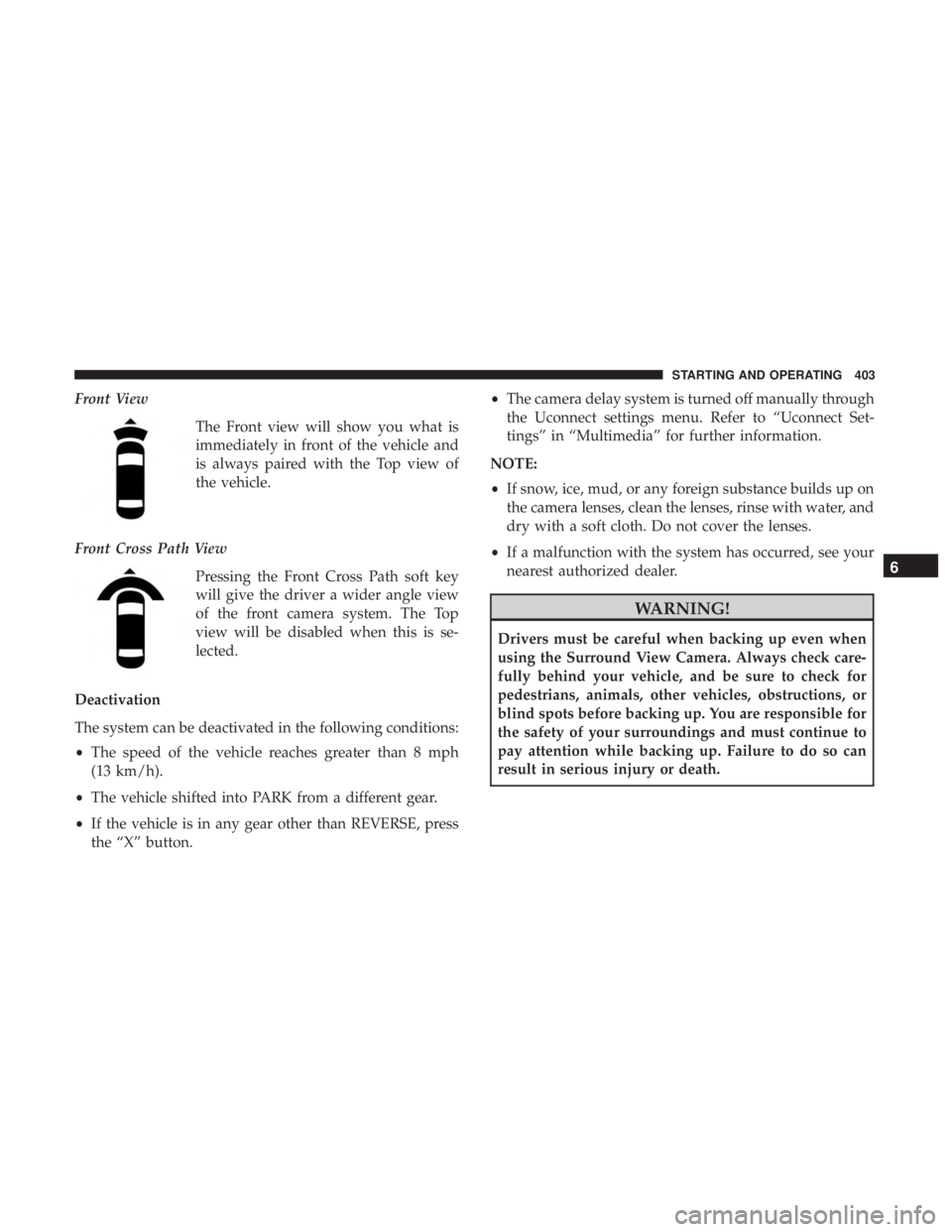
Front ViewThe Front view will show you what is
immediately in front of the vehicle and
is always paired with the Top view of
the vehicle.
Front Cross Path View Pressing the Front Cross Path soft key
will give the driver a wider angle view
of the front camera system. The Top
view will be disabled when this is se-
lected.
Deactivation
The system can be deactivated in the following conditions:
• The speed of the vehicle reaches greater than 8 mph
(13 km/h).
• The vehicle shifted into PARK from a different gear.
• If the vehicle is in any gear other than REVERSE, press
the “X” button. •
The camera delay system is turned off manually through
the Uconnect settings menu. Refer to “Uconnect Set-
tings” in “Multimedia” for further information.
NOTE:
• If snow, ice, mud, or any foreign substance builds up on
the camera lenses, clean the lenses, rinse with water, and
dry with a soft cloth. Do not cover the lenses.
• If a malfunction with the system has occurred, see your
nearest authorized dealer.
WARNING!
Drivers must be careful when backing up even when
using the Surround View Camera. Always check care-
fully behind your vehicle, and be sure to check for
pedestrians, animals, other vehicles, obstructions, or
blind spots before backing up. You are responsible for
the safety of your surroundings and must continue to
pay attention while backing up. Failure to do so can
result in serious injury or death.
6
STARTING AND OPERATING 403
Page 420 of 696
RECREATIONAL TOWING (BEHIND MOTORHOME, ETC.)
Towing This Vehicle Behind Another Vehicle
Towing ConditionWheel OFF The Ground All Models
Flat Tow NONENOT ALLOWED
Dolly Tow FrontOK
Rear NOT ALLOWED
On Trailer ALLOK
NOTE:
• To avoid inadvertent Electric Park Brake engagement,
you must ensure that the Auto Park Brake feature is
disabled before towing this vehicle (if rear wheels are on
the ground). The Auto Park Brake feature is enabled or
disabled via the customer programmable features in the
Uconnect Settings.
• When towing your vehicle, always follow applicable
state and provincial laws. Contact state and provincial
Highway Safety offices for additional details.
• If your vehicle is disabled and in need of commercial
towing service, please refer to “Towing A Disabled
Vehicle” in “In Case Of Emergency”.
Recreational Towing — All Models
DO NOT flat tow this vehicle. Damage to the drivetrain
will result.
CAUTION!
• DO NOT flat tow this vehicle. Damage to the drive-
train will result. If this vehicle requires towing,
make sure the drive wheels are OFF the ground.
• Ensure that the Electric Park Brake is released, and
remains released, while being towed.
• Towing this vehicle in violation of the above require-
ments can cause severe transmission damage. Dam-
age from improper towing is not covered under the
New Vehicle Limited Warranty.
418 STARTING AND OPERATING
Page 428 of 696
WARNING!
ALWAYS obey traffic laws and pay attention to the
road. ALWAYS drive safely with your hands on the
steering wheel. You have full responsibility and as-
sume all risks related to the use of the features and
applications in this vehicle. Only use the features and
applications when it is safe to do so. Failure to do so
may result in an accident involving serious injury or
death.
NOTE:
• Your vehicle may be transmitting data as authorized by
the subscriber.
• The SOS and ASSIST buttons will only function if you
are connected to an operable LTE (voice/data) or 4G
(data) network. Other Uconnect services will only be
operable if your SiriusXM Guardian service is active and
you are connected to an operable LTE (voice/data) or 4G
(data) network. ASSIST Call
The ASSIST Button is used to automatically connect you to
any one of the following support centers:
•
Roadside Assistance – If you get a flat tire, or need a tow,
just push the ASSIST button and you’ll be connected to
someone who can help. Roadside Assistance will know
what vehicle you’re driving and its location. Additional
fees may apply for roadside assistance.
• SiriusXM Guardian Customer Care – In-vehicle support
for SiriusXM Guardian.
• Vehicle Customer Care – Total support for all other
vehicle issues.
SOS Call
1. Push the SOS Call button on the Rearview Mirror.
NOTE: In case the SOS Call button is pushed in error, there
will be a ten second delay before the SOS Call system
initiates a call to a SOS operator. To cancel the SOS Call
connection, push the SOS call button on the Rearview
Mirror or press the cancellation button on the Device
Screen. Termination of the SOS Call will turn off the green
LED light on the Rearview Mirror.
426 IN CASE OF EMERGENCY