Page 574 of 696
Clock
After pressing the “Clock” button on the touchscreen, the
following settings will be available:
Setting NameSelectable Options
Sync Time With GPS — If Equipped On
Off
Set Time Hours +-
NOTE:
The “Set Time Hours” feature will allow you to adjust the hours. The “Sync time with GPS” button on the touch-
screen must be unchecked. Set Time Minutes +-
NOTE:
The “Set Time Minutes” feature will allow you to adjust the minutes. The “Sync time with GPS” button on the touch-
screen must be unchecked. Set Time and Format 12 hr24 hr
AM PM
NOTE:
Within the “Set Time and Format” setting, press the corresponding arrow buttons on the touchscreen to adjust to the
correct time.
572 MULTIMEDIA
Page 586 of 696
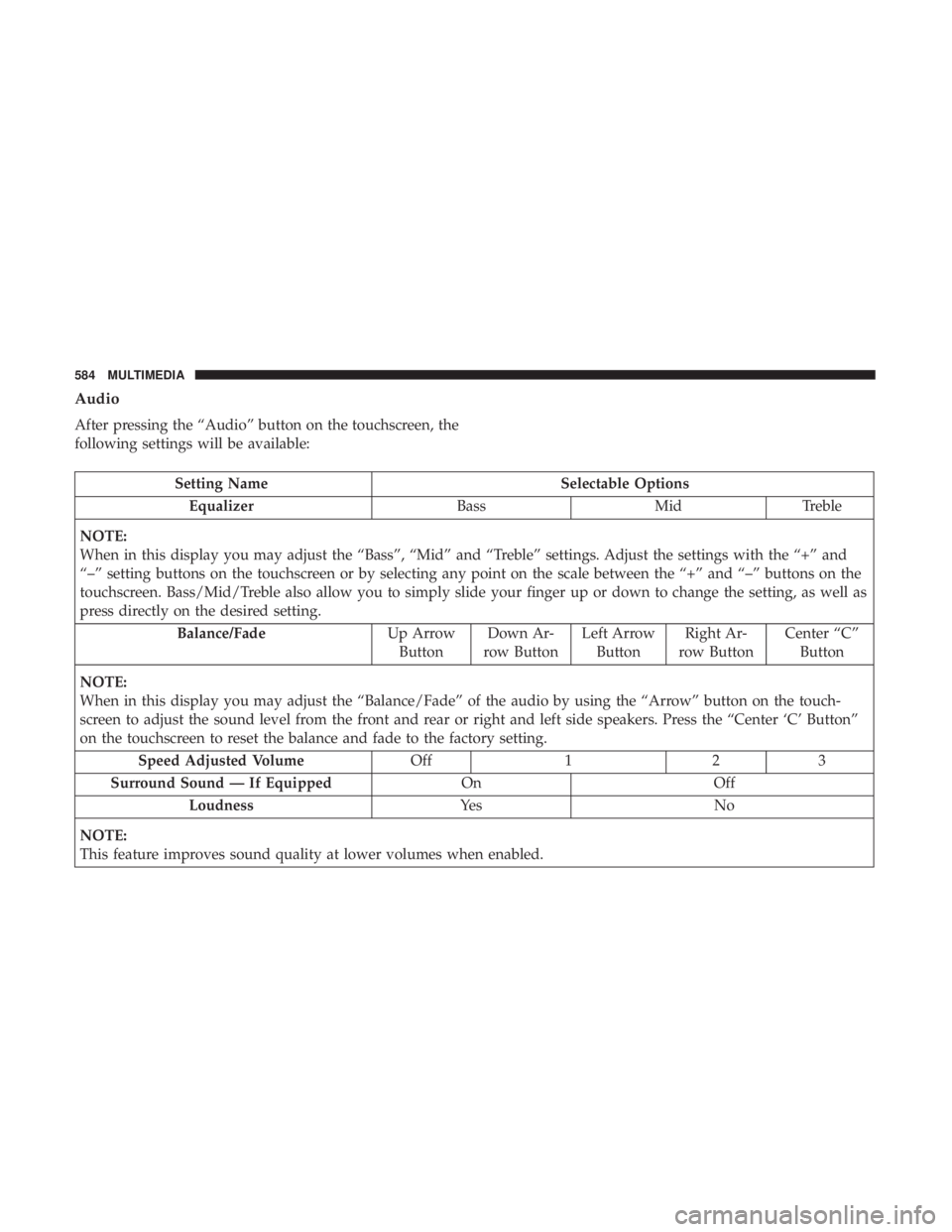
Audio
After pressing the “Audio” button on the touchscreen, the
following settings will be available:
Setting NameSelectable Options
Equalizer BassMidTreble
NOTE:
When in this display you may adjust the “Bass”, “Mid” and “Treble” settings. Adjust the settings with the “+” and
“–” setting buttons on the touchscreen or by selecting any point on the scale between the “+” and “–” buttons on the
touchscreen. Bass/Mid/Treble also allow you to simply slide your finger up or down to change the setting, as well as
press directly on the desired setting. Balance/Fade Up Arrow
Button Down Ar-
row Button Left Arrow
Button Right Ar-
row Button Center “C”
Button
NOTE:
When in this display you may adjust the “Balance/Fade” of the audio by using the “Arrow” button on the touch-
screen to adjust the sound level from the front and rear or right and left side speakers. Press the “Center ‘C’ Button”
on the touchscreen to reset the balance and fade to the factory setting. Speed Adjusted Volume Off123
Surround Sound — If Equipped OnOff
Loudness Ye sN o
NOTE:
This feature improves sound quality at lower volumes when enabled.
584 MULTIMEDIA
Page 593 of 696
Customer Programmable Features — Uconnect
4C/4C NAV Settings
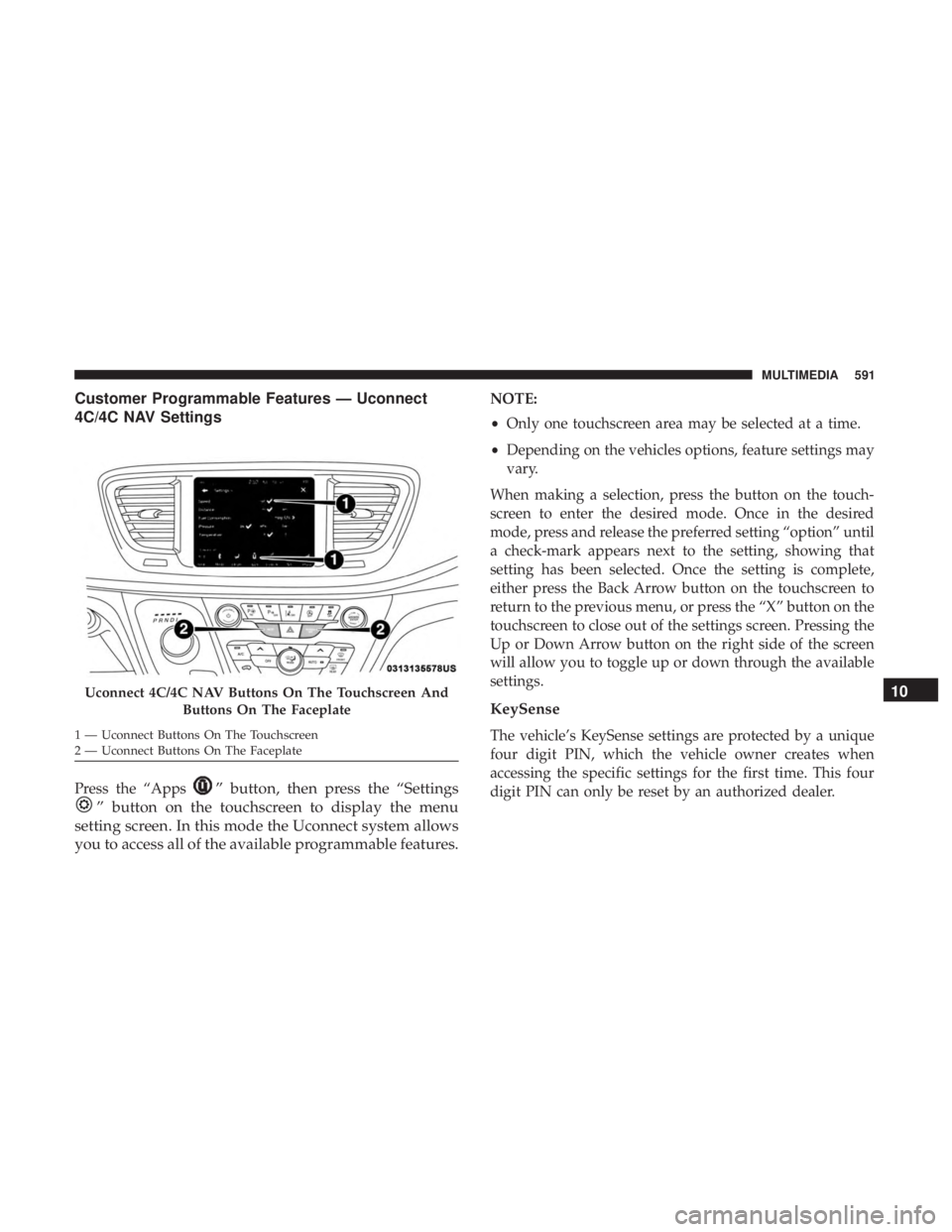
Press the “Apps” button, then press the “Settings
” button on the touchscreen to display the menu
setting screen. In this mode the Uconnect system allows
you to access all of the available programmable features.
NOTE:
• Only one touchscreen area may be selected at a time.
• Depending on the vehicles options, feature settings may
vary.
When making a selection, press the button on the touch-
screen to enter the desired mode. Once in the desired
mode, press and release the preferred setting “option” until
a check-mark appears next to the setting, showing that
setting has been selected. Once the setting is complete,
either press the Back Arrow button on the touchscreen to
return to the previous menu, or press the “X” button on the
touchscreen to close out of the settings screen. Pressing the
Up or Down Arrow button on the right side of the screen
will allow you to toggle up or down through the available
settings.
KeySense
The vehicle’s KeySense settings are protected by a unique
four digit PIN, which the vehicle owner creates when
accessing the specific settings for the first time. This four
digit PIN can only be reset by an authorized dealer.
Uconnect 4C/4C NAV Buttons On The Touchscreen And Buttons On The Faceplate
1 — Uconnect Buttons On The Touchscreen
2 — Uconnect Buttons On The Faceplate
10
MULTIMEDIA 591
Page 612 of 696
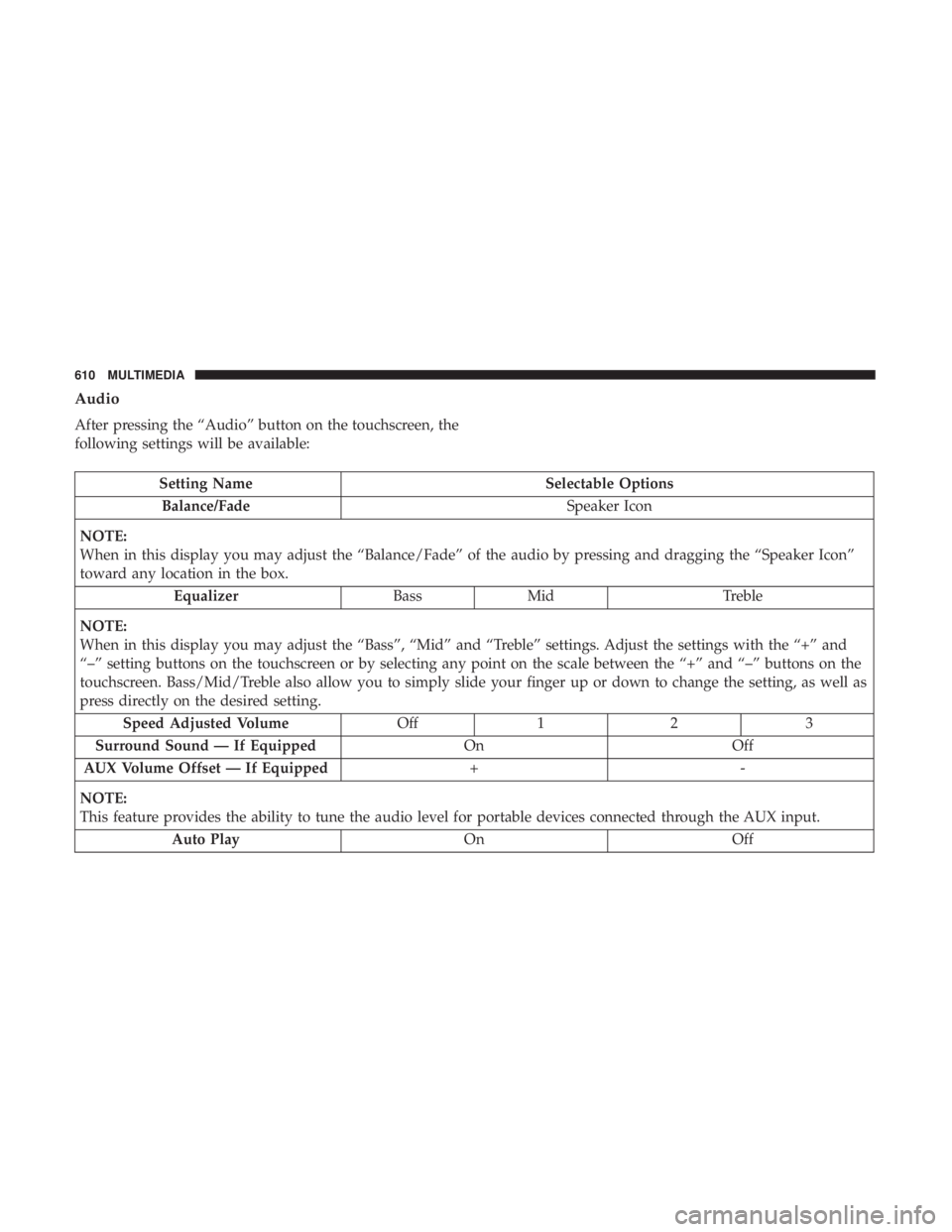
Audio
After pressing the “Audio” button on the touchscreen, the
following settings will be available:
Setting NameSelectable Options
Balance/Fade Speaker Icon
NOTE:
When in this display you may adjust the “Balance/Fade” of the audio by pressing and dragging the “Speaker Icon”
toward any location in the box. Equalizer BassMid Treble
NOTE:
When in this display you may adjust the “Bass”, “Mid” and “Treble” settings. Adjust the settings with the “+” and
“–” setting buttons on the touchscreen or by selecting any point on the scale between the “+” and “–” buttons on the
touchscreen. Bass/Mid/Treble also allow you to simply slide your finger up or down to change the setting, as well as
press directly on the desired setting. Speed Adjusted Volume Off12 3
Surround Sound — If Equipped OnOff
AUX Volume Offset — If Equipped +-
NOTE:
This feature provides the ability to tune the audio level for portable devices connected through the AUX input. Auto Play OnOff
610 MULTIMEDIA
Page 626 of 696
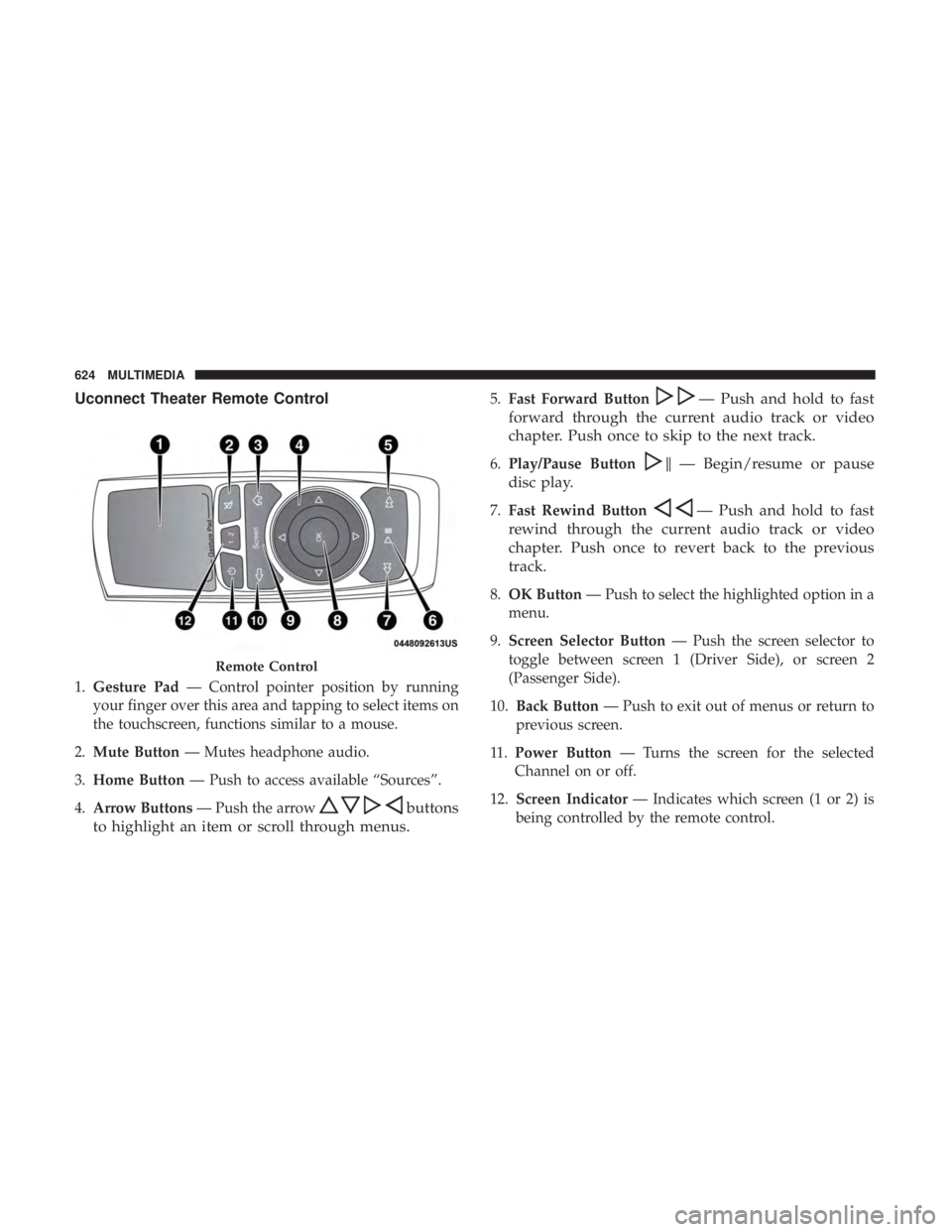
Uconnect Theater Remote Control
1.Gesture Pad — Control pointer position by running
your finger over this area and tapping to select items on
the touchscreen, functions similar to a mouse.
2. Mute Button — Mutes headphone audio.
3. Home Button — Push to access available “Sources”.
4. Arrow Buttons — Push the arrow
buttons
to highlight an item or scroll through menus.
5. Fast Forward Button— Push and hold to fast
forward through the current audio track or video
chapter. Push once to skip to the next track.
6. Play/Pause Button�— Begin/resume or pause
disc play.
7. Fast Rewind Button— Push and hold to fast
rewind through the current audio track or video
chapter. Push once to revert back to the previous
track.
8. OK Button — Push to select the highlighted option in a
menu.
9. Screen Selector Button — Push the screen selector to
toggle between screen 1 (Driver Side), or screen 2
(Passenger Side).
10. Back Button — Push to exit out of menus or return to
previous screen.
11 . Power Button — Turns the screen for the selected
Channel on or off.
12. Screen Indicator — Indicates which screen (1 or 2) is
being controlled by the remote control.
Remote Control
624 MULTIMEDIA
Page 632 of 696
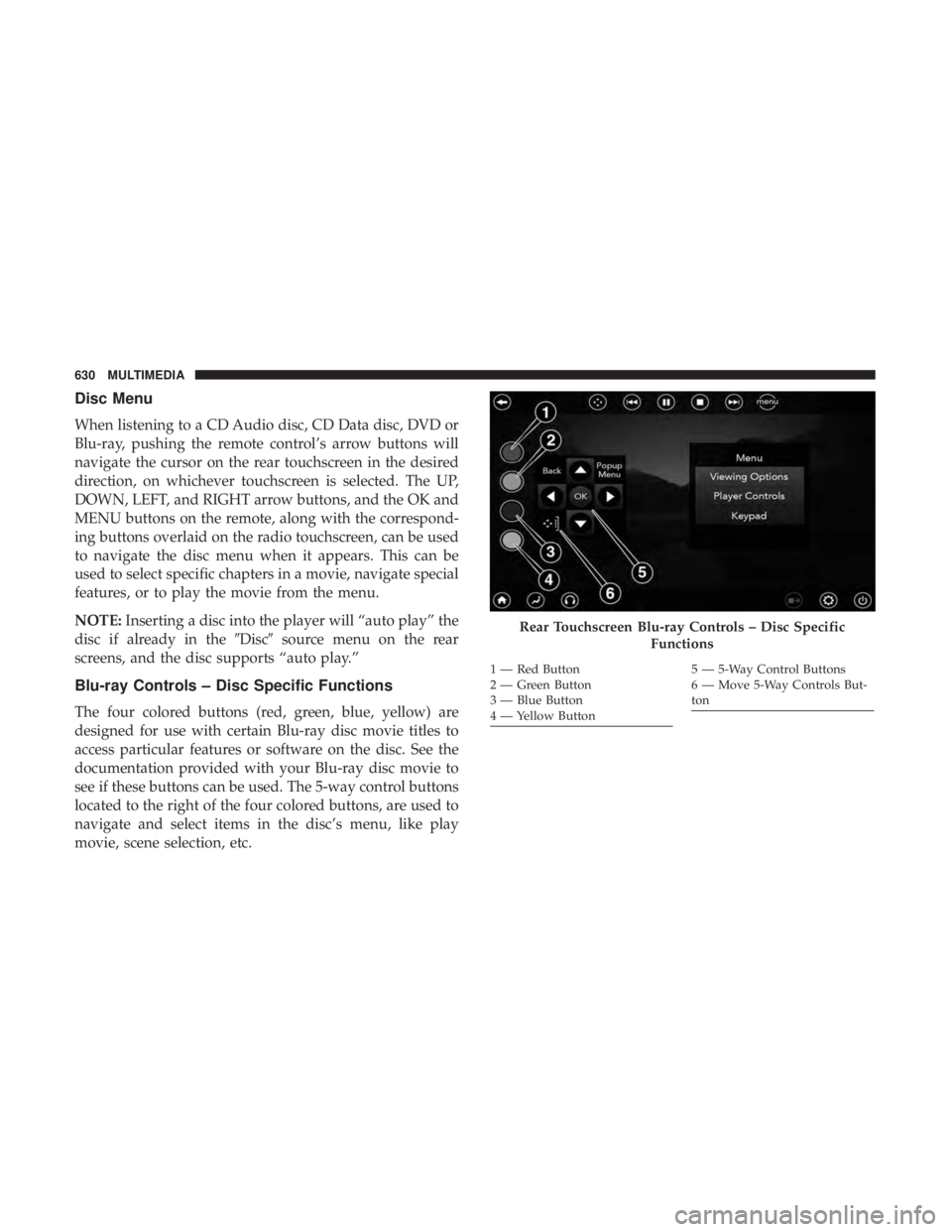
Disc Menu
When listening to a CD Audio disc, CD Data disc, DVD or
Blu-ray, pushing the remote control’s arrow buttons will
navigate the cursor on the rear touchscreen in the desired
direction, on whichever touchscreen is selected. The UP,
DOWN, LEFT, and RIGHT arrow buttons, and the OK and
MENU buttons on the remote, along with the correspond-
ing buttons overlaid on the radio touchscreen, can be used
to navigate the disc menu when it appears. This can be
used to select specific chapters in a movie, navigate special
features, or to play the movie from the menu.
NOTE:Inserting a disc into the player will “auto play” the
disc if already in the �Disc�source menu on the rear
screens, and the disc supports “auto play.”
Blu-ray Controls – Disc Specific Functions
The four colored buttons (red, green, blue, yellow) are
designed for use with certain Blu-ray disc movie titles to
access particular features or software on the disc. See the
documentation provided with your Blu-ray disc movie to
see if these buttons can be used. The 5-way control buttons
located to the right of the four colored buttons, are used to
navigate and select items in the disc’s menu, like play
movie, scene selection, etc.
Rear Touchscreen Blu-ray Controls – Disc Specific
Functions
1 — Red Button
2 — Green Button
3 — Blue Button
4 — Yellow Button5 — 5-Way Control Buttons
6 — Move 5-Way Controls But-
ton
630 MULTIMEDIA
Page 634 of 696
NOTE:To exit a game, push “Exit Button” then “Back
Arrow,” or “Home Button” on the touchscreen.
Are We There Yet? — Uconnect 4C NAV When a navigation route has been set from the Uconnect
system, the second row passengers can use “Are We There
Yet?” for an animated screen showing distance and time
remaining on navigation routes, as well as the estimated
time of arrival with pop-up notifications. Notifications and
their frequency can be set up for route information by
using the arrow buttons, and can be turned on and off
using the “Notifications” button on the “Are We There
Yet?” App. Estimated time of arrival notifications pop-up
at the bottom center of the screen.
Are We There Yet? App
1 — Decrease Timing Between Notifications Button
2 — Notifications ON/OFF Button
3 — Increase Timing Between Notifications Button
4 — Arrival Time
5 — Time Remaining Until Destination Is Reached
6 — Distance Remaining 632 MULTIMEDIA
Page 637 of 696
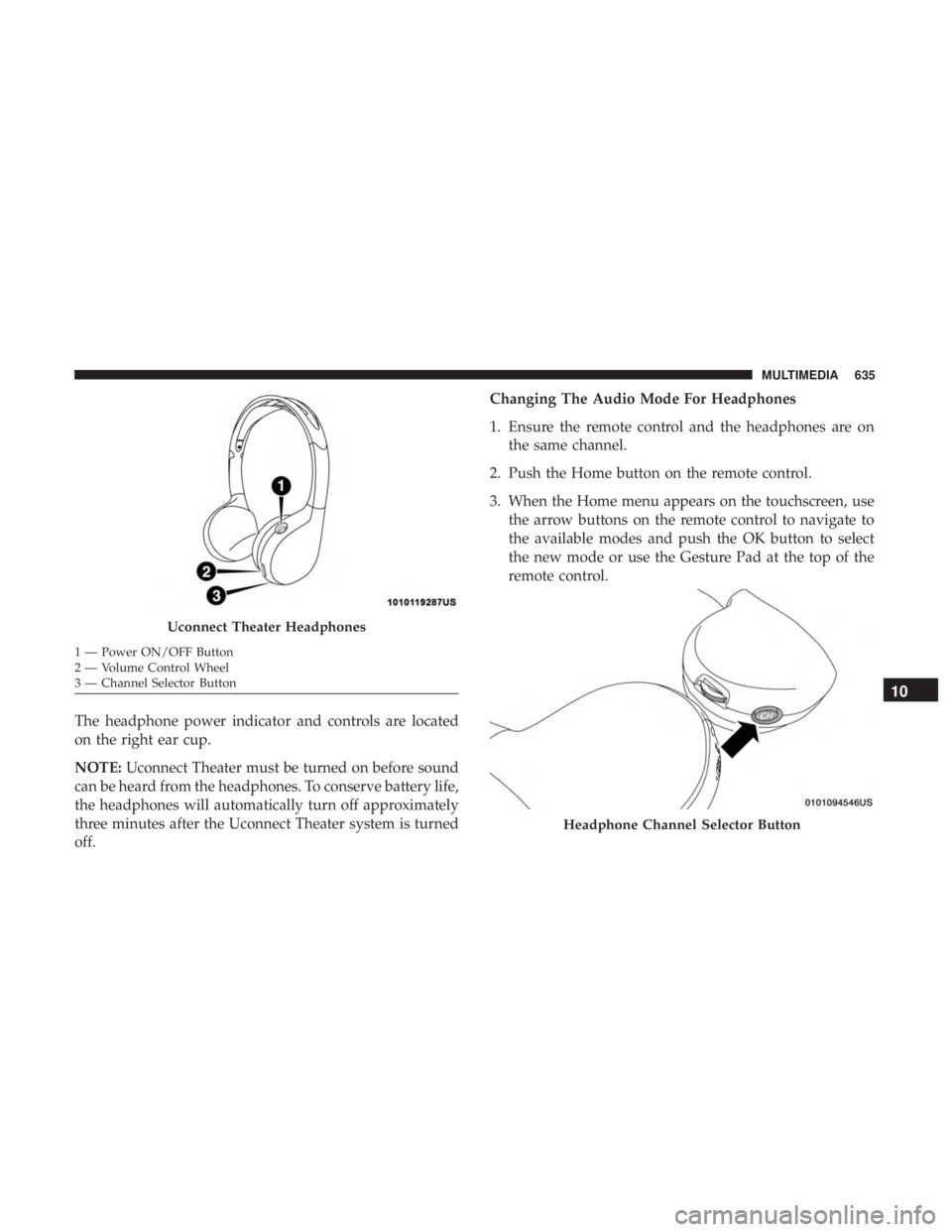
The headphone power indicator and controls are located
on the right ear cup.
NOTE:Uconnect Theater must be turned on before sound
can be heard from the headphones. To conserve battery life,
the headphones will automatically turn off approximately
three minutes after the Uconnect Theater system is turned
off. Changing The Audio Mode For Headphones
1. Ensure the remote control and the headphones are on
the same channel.
2. Push the Home button on the remote control.
3. When the Home menu appears on the touchscreen, use the arrow buttons on the remote control to navigate to
the available modes and push the OK button to select
the new mode or use the Gesture Pad at the top of the
remote control.
Uconnect Theater Headphones
1 — Power ON/OFF Button
2 — Volume Control Wheel
3 — Channel Selector Button
Headphone Channel Selector Button
10
MULTIMEDIA 635