Page 641 of 696
IconDescription
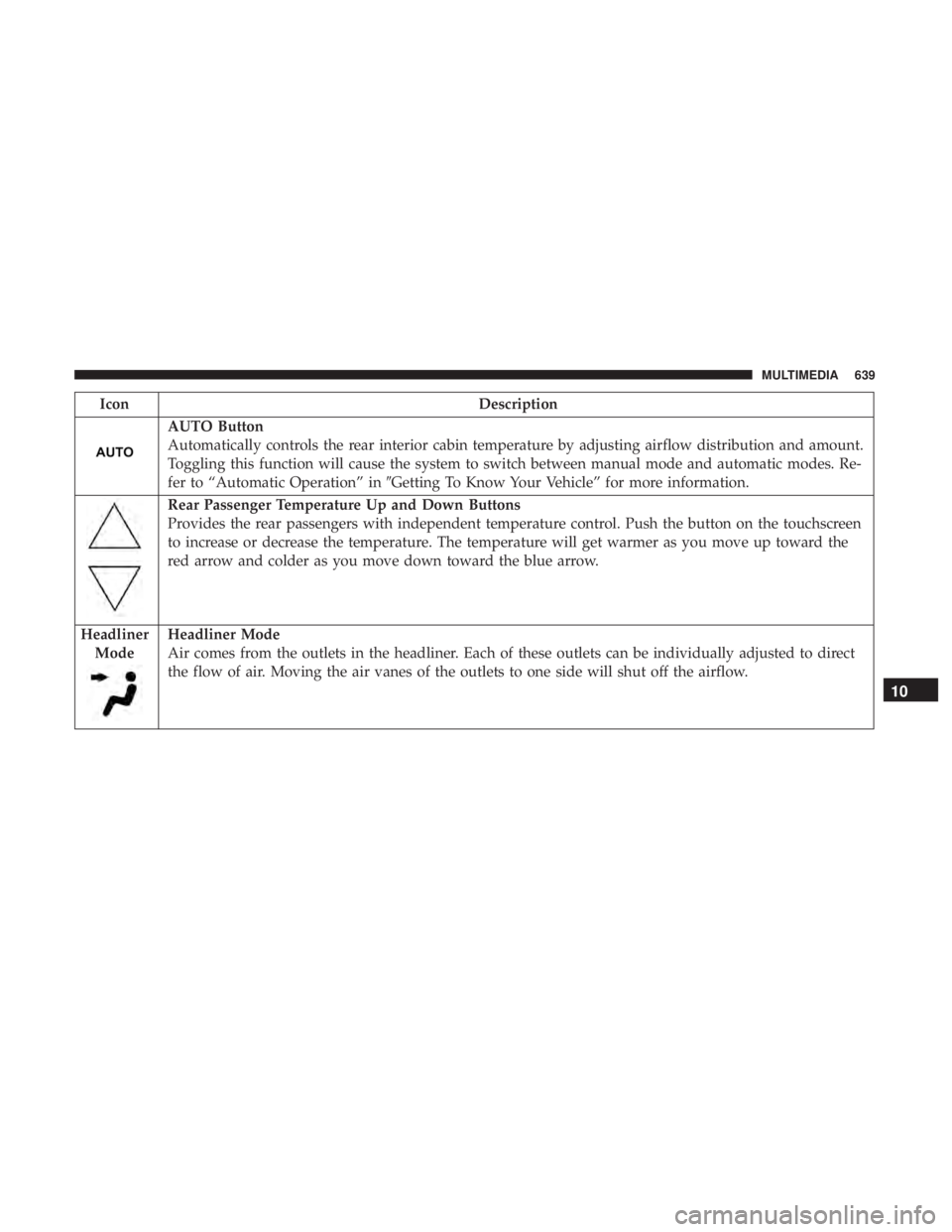
AUTO Button
Automatically controls the rear interior cabin temperature by adjusting airflow distribution and amount.
Toggling this function will cause the system to switch between manual mode and automatic modes. Re-
fer to “Automatic Operation” in�Getting To Know Your Vehicle” for more information.
Rear Passenger Temperature Up and Down Buttons
Provides the rear passengers with independent temperature control. Push the button on the touchscreen
to increase or decrease the temperature. The temperature will get warmer as you move up toward the
red arrow and colder as you move down toward the blue arrow.
Headliner Mode
Headliner Mode
Air comes from the outlets in the headliner. Each of these outlets can be individually adjusted to direct
the flow of air. Moving the air vanes of the outlets to one side will shut off the airflow.
10
MULTIMEDIA 639
Page 647 of 696
•Other compression formats such as MP3 Pro, Ogg
Vorbis, and ATRAC3 will not play. The Blu-ray player
will automatically skip the file and begin playing the
next available file.
• If you are creating your own files, the recommended
fixed bit rate for MP3 files is between 32 and 320Kbps
and the recommended fixed bit rate for WMA files is
between 16 and 192Kbps. Variable bit rates are also
supported. For both formats, the recommended sample
rate is either 44.1kHz or 48kHz.
• To change the current file, use the remote control “Seek
Forward” or “Seek Back” buttons to return to the start of
the current or previous file.
• AAC (MPEG-4 AAC, Low Complexity Profile) support.
• AAC HE v1 (AAC High Efficiency v1 aka. AAC/
MPEG4v2 AAC+) support.
• HE-AAC v1, v2 support.
Disc Errors
If the Blu-ray Disc player is unable to read the disc, a �Disc
Error� message is displayed on the rear screen and Radio
displays. A dirty, damaged, or incompatible disc format are
all potential causes for a �Disc Error�message. If a disc has a damaged track which results in audible or
visible errors that persists for two seconds, the Blu-ray Disc
player will attempt to continue playing the disc by skip-
ping forward one to three seconds at a time. If the end of
the disc is reached, the Blu-ray Disc player will return to
the beginning of the disc and attempt to play the start of
the first track.
The Blu-ray Disc player may shut down during extremely
hot conditions, such as when the vehicle’s interior tem-
perature is above 140° F (60.0° C). When this occurs, the
player will display
�High Temp�and will shut off the Rear
Seat displays until a safe temperature is reached. This
shutdown is necessary to protect the optics of the Blu-ray
Disc player.
Product Agreement
Open Source Software
The software built into this product, are composed of
multiple software components, and there are the copy-
rights of our company or third parties in each software
component. Also, in this product, the following open
source software has been installed.
• The licensed software for our company is based on GNU
GENERAL PUBLIC LICENSE V2.0 (�GPL�).10
MULTIMEDIA 645
Page 654 of 696
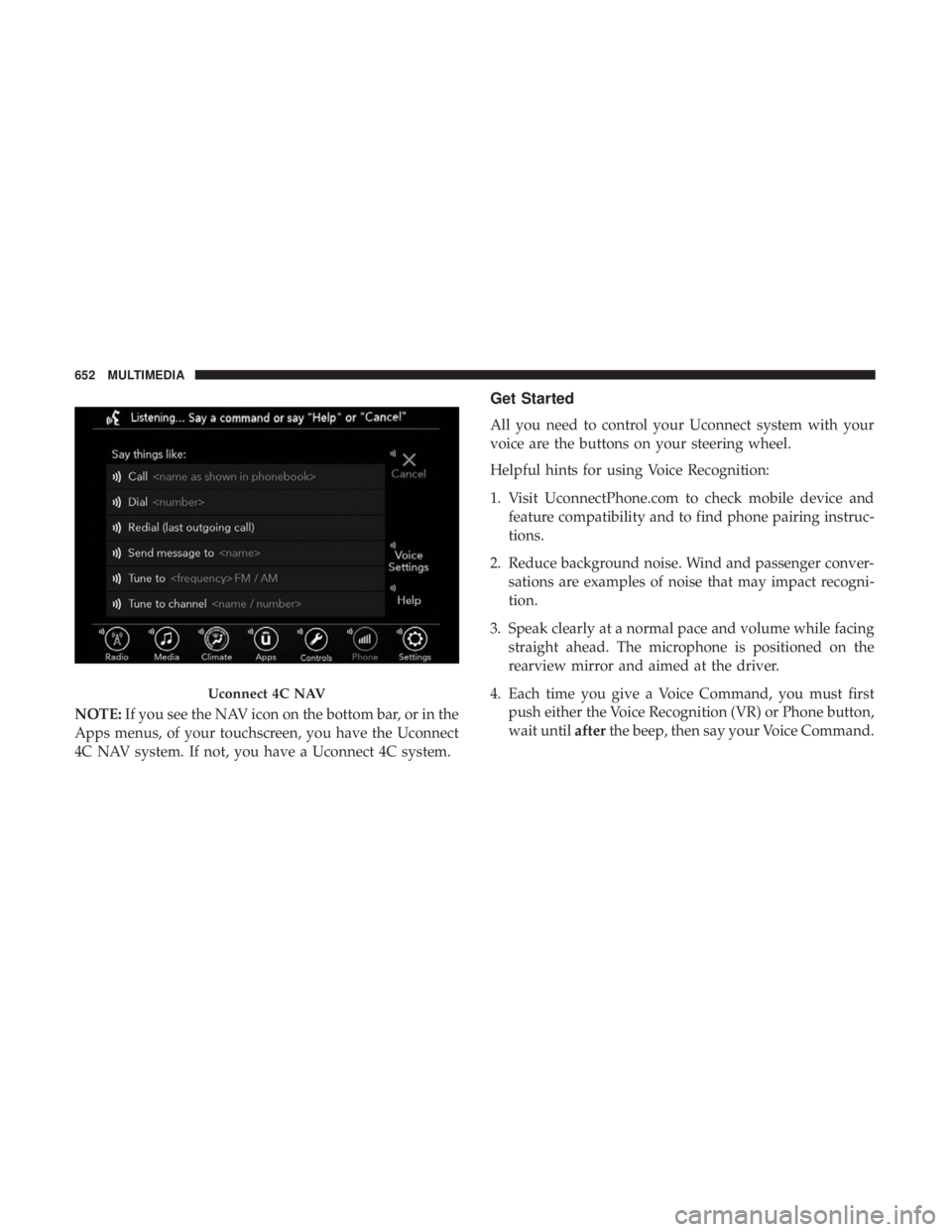
NOTE:If you see the NAV icon on the bottom bar, or in the
Apps menus, of your touchscreen, you have the Uconnect
4C NAV system. If not, you have a Uconnect 4C system.
Get Started
All you need to control your Uconnect system with your
voice are the buttons on your steering wheel.
Helpful hints for using Voice Recognition:
1. Visit UconnectPhone.com to check mobile device and feature compatibility and to find phone pairing instruc-
tions.
2. Reduce background noise. Wind and passenger conver- sations are examples of noise that may impact recogni-
tion.
3. Speak clearly at a normal pace and volume while facing straight ahead. The microphone is positioned on the
rearview mirror and aimed at the driver.
4. Each time you give a Voice Command, you must first push either the Voice Recognition (VR) or Phone button,
wait until afterthe beep, then say your Voice Command.
Uconnect 4C NAV
652 MULTIMEDIA
Page 655 of 696
5. You can interrupt the help message or system promptsby pushing the VR or Phone button and saying a Voice
Command from current category.Basic Voice Commands
The basic Voice Commands below can be given at any
point while using your Uconnect system.
Push the VR button
. After the beep, say:
•“Cancel” to stop a current voice session
• “Help” to hear a list of suggested Voice Commands
• “Repeat” to listen to the system prompts again
Notice the visual cues that inform you of your voice
recognition system’s status. Cues appear on the touch-
screen.
Radio
Use your voice to quickly get to the AM, FM or SiriusXM
Satellite Radio stations you would like to hear. (Subscrip-
tion or included SiriusXM Satellite Radio trial required.)
Push the VR button
. After the beep, say:
• “Tune to ninety-five-point-five FM”
• “Tune to Satellite Channel Hits 1”
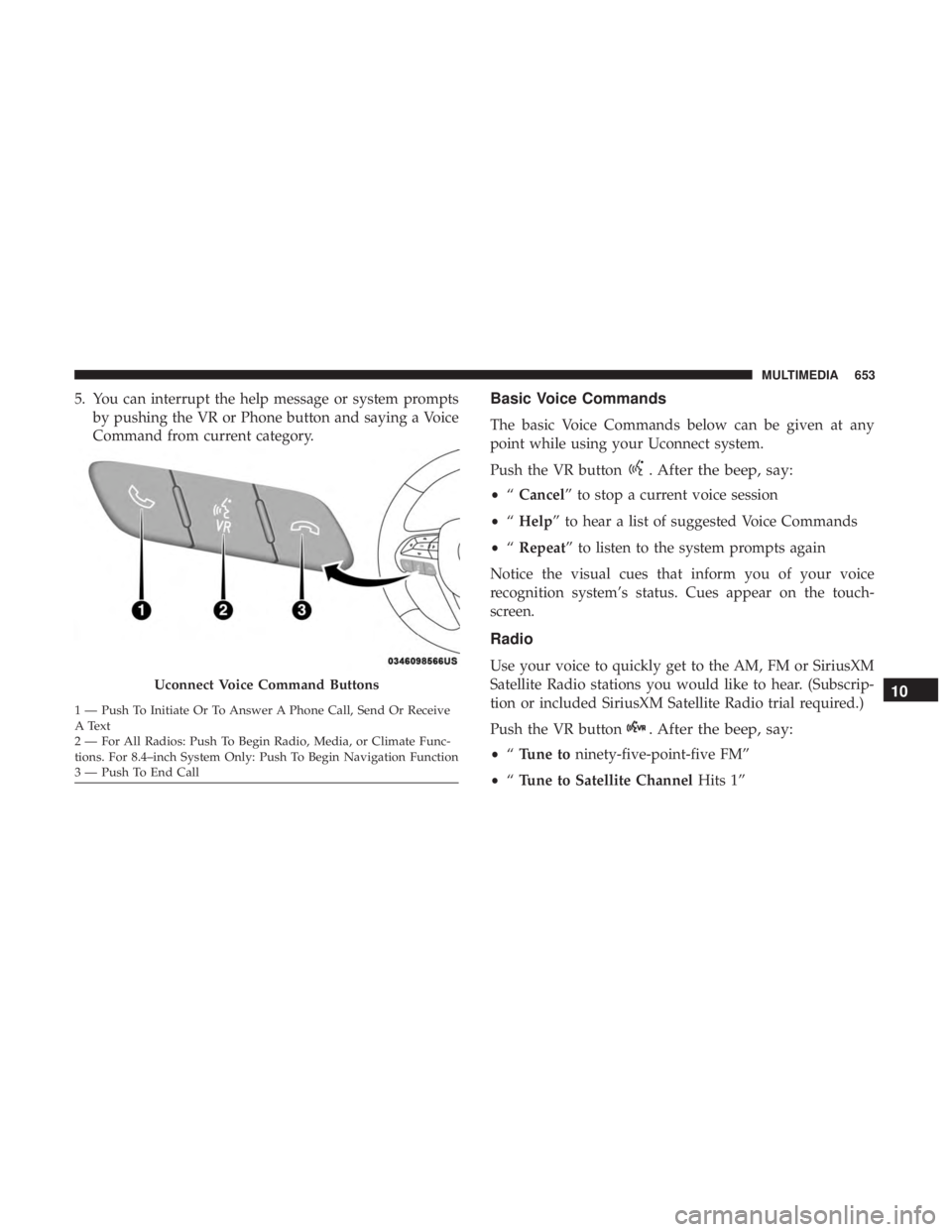
Uconnect Voice Command Buttons
1 — Push To Initiate Or To Answer A Phone Call, Send Or Receive
A Text
2 — For All Radios: Push To Begin Radio, Media, or Climate Func-
tions. For 8.4–inch System Only: Push To Begin Navigation Function
3 — Push To End Call
10
MULTIMEDIA 653