Page 613 of 696
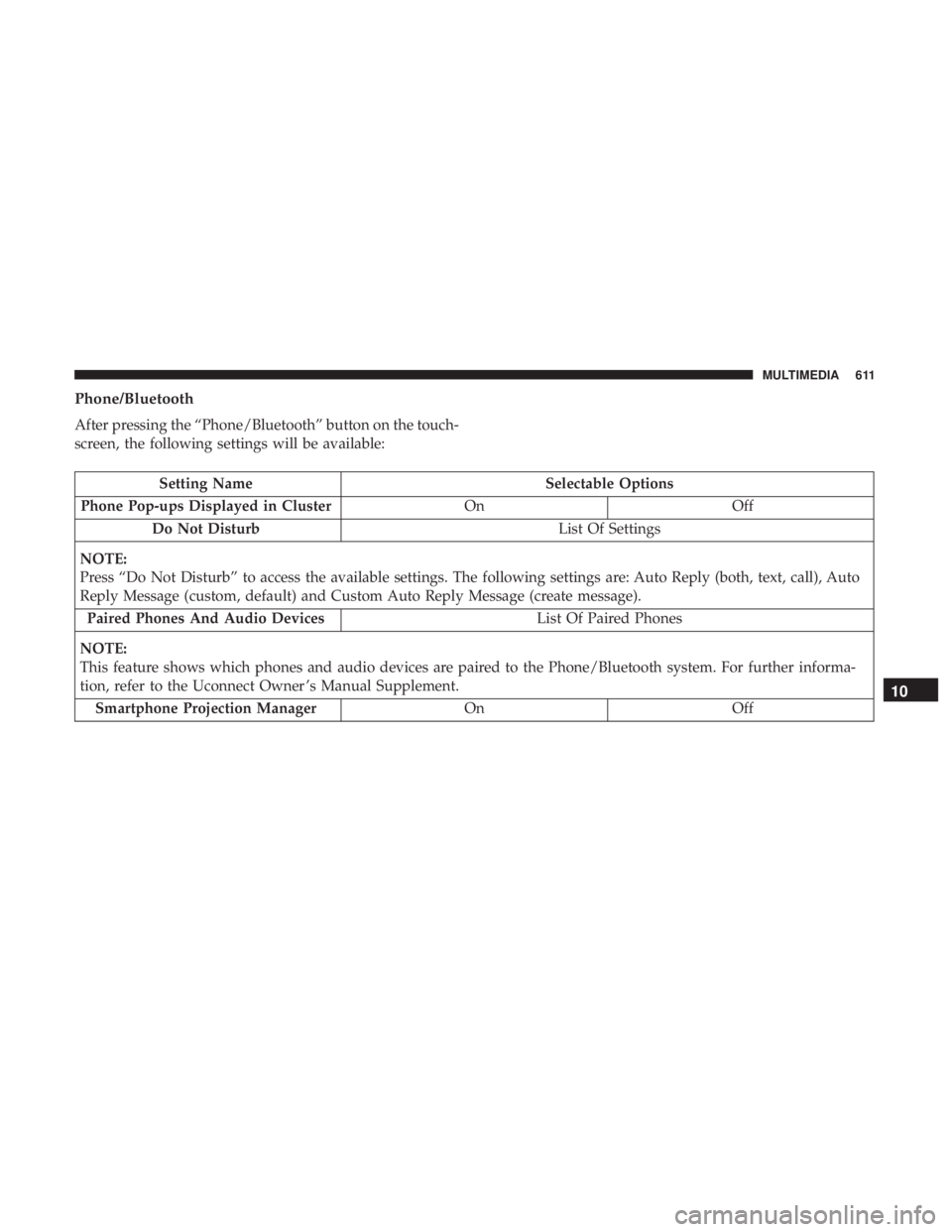
Phone/Bluetooth
After pressing the “Phone/Bluetooth” button on the touch-
screen, the following settings will be available:
Setting NameSelectable Options
Phone Pop-ups Displayed in Cluster OnOff
Do Not Disturb List Of Settings
NOTE:
Press “Do Not Disturb” to access the available settings. The following settings are: Auto Reply (both, text, call), Auto
Reply Message (custom, default) and Custom Auto Reply Message (create message). Paired Phones And Audio Devices List Of Paired Phones
NOTE:
This feature shows which phones and audio devices are paired to the Phone/Bluetooth system. For further informa-
tion, refer to the Uconnect Owner ’s Manual Supplement. Smartphone Projection Manager OnOff
10
MULTIMEDIA 611
Page 616 of 696
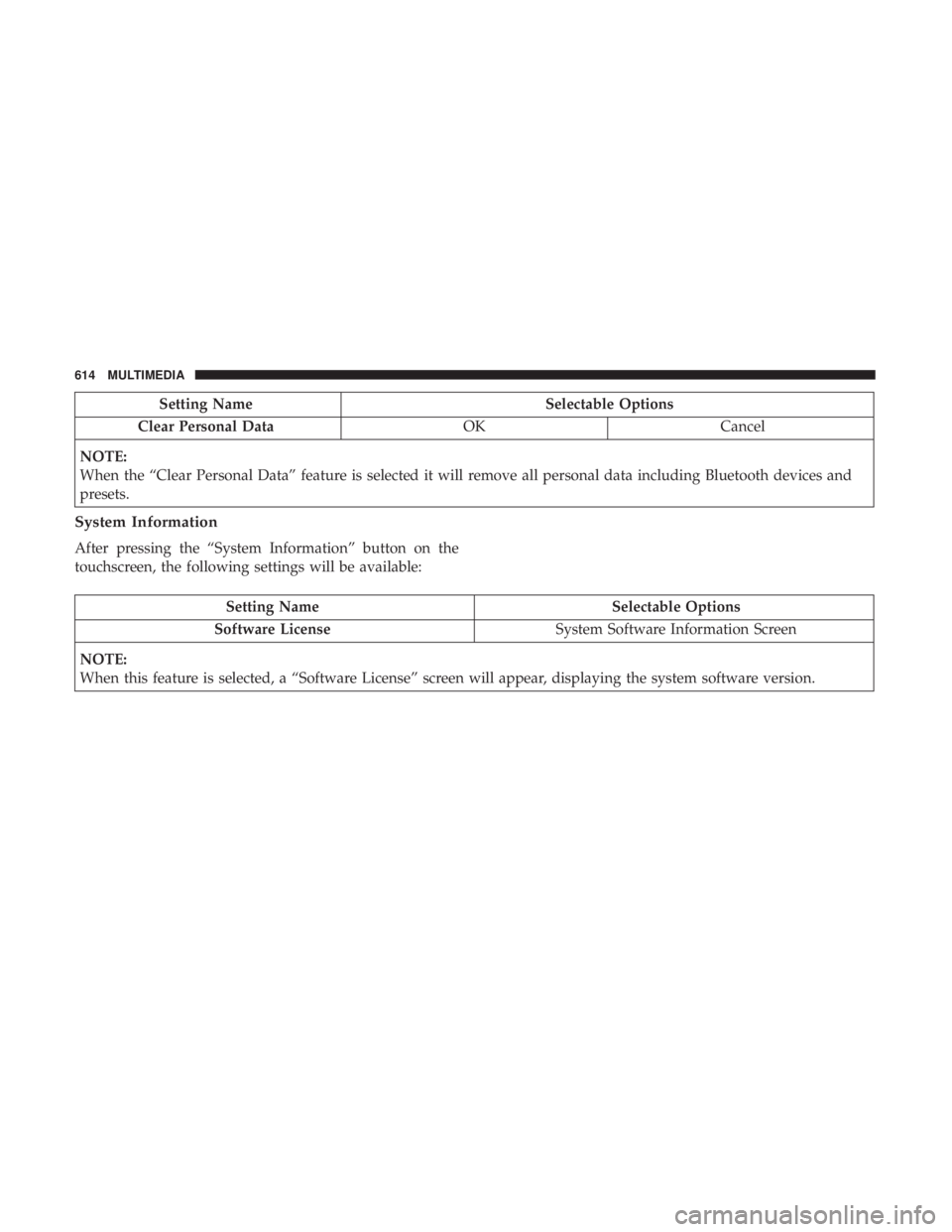
Setting NameSelectable Options
Clear Personal Data OKCancel
NOTE:
When the “Clear Personal Data” feature is selected it will remove all personal data including Bluetooth devices and
presets.
System Information
After pressing the “System Information” button on the
touchscreen, the following settings will be available:
Setting Name Selectable Options
Software License System Software Information Screen
NOTE:
When this feature is selected, a “Software License” screen will appear, displaying the system software version.
614 MULTIMEDIA
Page 628 of 696

You can choose sources such as HDMI, USB, Apps, or
Blu-ray. You may also view content of the opposite screen
in one step by choosing the “View Screen” source card.
NOTE:
•Source card order can be changed by pressing the
Settings button on the touchscreen and scrolling down
to �Source Card Order�.
• Use the “View Screen” function to pull content from one
screen to the other in a single press of a button. Doing
this however will disable and gray out certain player
controls on the screen viewing the other screen’s content. General Settings
To change source card order, select “Source Card Reorder”,
then press and hold source card on the touchscreen, and
drag and drop in desired order.
You can also adjust settings such as:
•
Brightness
• Media port lighting on and off
• Clock on and off
NOTE: System information can also be displayed under
General Settings.
Remote Settings
Under this setting, you can access the following:
• Manage Remotes (this allows you to unpair remotes)
• Pair Remote
• Remote sensitivity (This adjusts the speed and sensi-
tivity of cursor on screen when using gesture pad)
Source Card Selection
626 MULTIMEDIA
Page 639 of 696
What Does This Warranty Not Cover?This warranty does
not cover any damage or defect that results from misuse,
abuse or modification of the Product other than by Aptiv.
Foam earpieces, which will wear over time through normal
use, are specifically not covered (replacement foam is
available for a nominal charge). APTIV IS NOT LIABLE
FOR ANY INJURIES OR DAMAGES TO PERSONS OR
PROPERTY RESULTING FROM THE USE OF, OR ANY
FAILURE OR DEFECT IN, THE PRODUCT, NOR IS AP-
TIV LIABLE FOR ANY GENERAL, SPECIAL, DIRECT,
INDIRECT, INCIDENTAL, CONSEQUENTIAL, EXEM-
PLARY, PUNITIVE OR OTHER DAMAGES OF ANY
KIND OR NATURE WHATSOEVER. Some states and
jurisdictions may not allow the exclusion or limitation of
incidental or consequential damages, so the above limita-
tion may not apply to you. This warranty gives you specific
legal rights. You may also have other rights, which vary
from jurisdiction to jurisdiction.
What Will Aptiv Do? Aptiv, at its option, will repair or
replace any defective Product. Aptiv reserves the right to
replace any discontinued Product with a comparable
model. THIS WARRANTY IS THE SOLE WARRANTY
FOR THIS PRODUCT, SETS FORTH YOUR EXCLUSIVE
REMEDY REGARDING DEFECTIVE PRODUCTS, AND IS
IN LIEU OF ALL OTHER WARRANTIES (EXPRESS OR IMPLIED), INCLUDING ANY WARRANTY FOR MER-
CHANTABILITY OR FITNESS FOR A PARTICULAR PUR-
POSE.
If you have any questions or comments regarding your
Aptiv wireless headphones, or to register your wireless
headphones, please phone:
1-248-724-5900
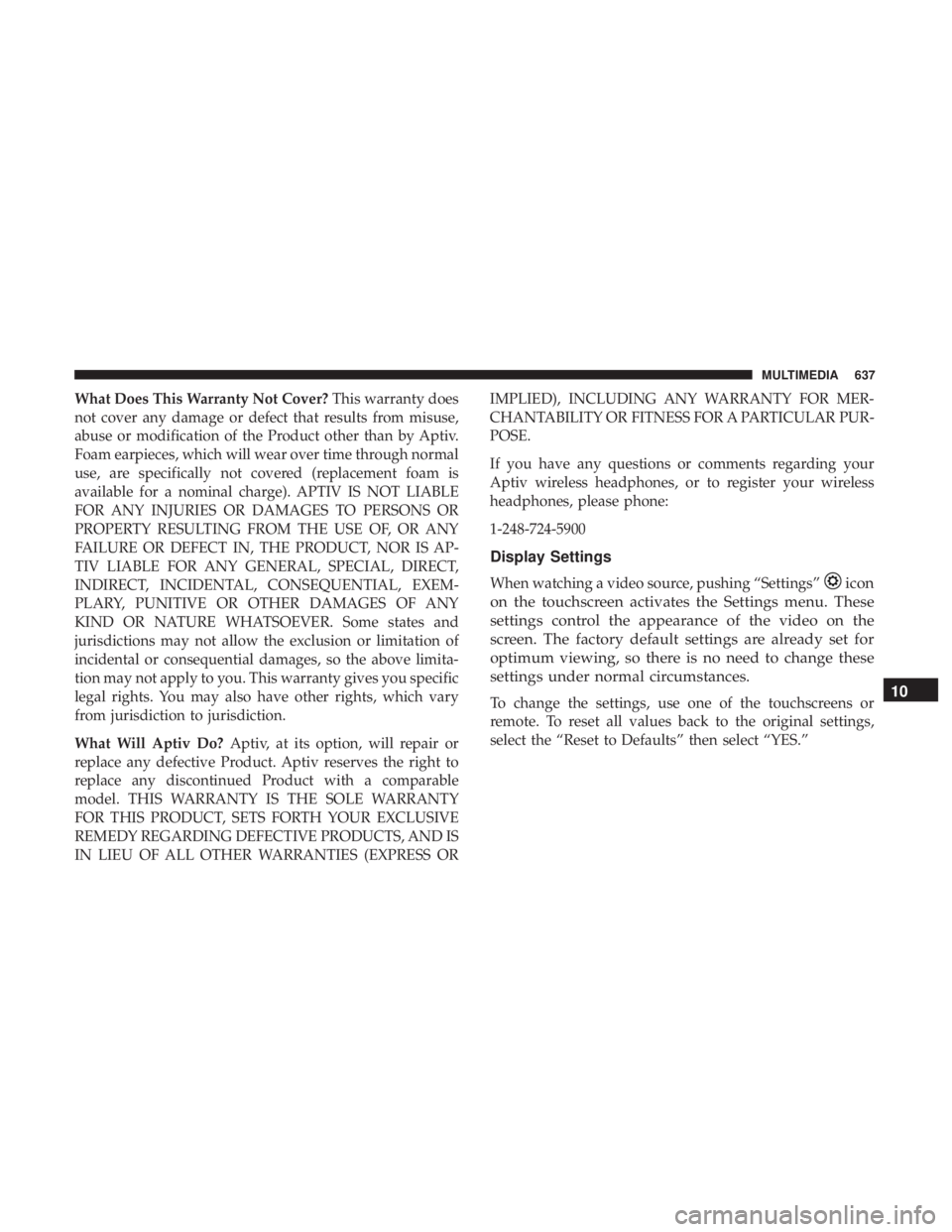
Display Settings
When watching a video source, pushing “Settings”icon
on the touchscreen activates the Settings menu. These
settings control the appearance of the video on the
screen. The factory default settings are already set for
optimum viewing, so there is no need to change these
settings under normal circumstances.
To change the settings, use one of the touchscreens or
remote. To reset all values back to the original settings,
select the “Reset to Defaults” then select “YES.”10
MULTIMEDIA 637
Page 640 of 696
Listening To Audio With The Screen Closed
To listen to only audio portion of the channel with the
screen closed:
•Set the audio to the desired source and channel.
• Close the video screen.
• When the screen is reopened, the video screen will
automatically turn back on and show the appropriate
display menu or media.
If the screen is closed and there is no audio heard, verify
that the headphones are turned on (the ON indicator is
illuminated) and the headphone selector switch is on the
desired channel. If the headphones are turned on, push the
remote control’s power button to turn audio on. If audio is
still not heard, check that fully charged batteries are
installed in the headphones.
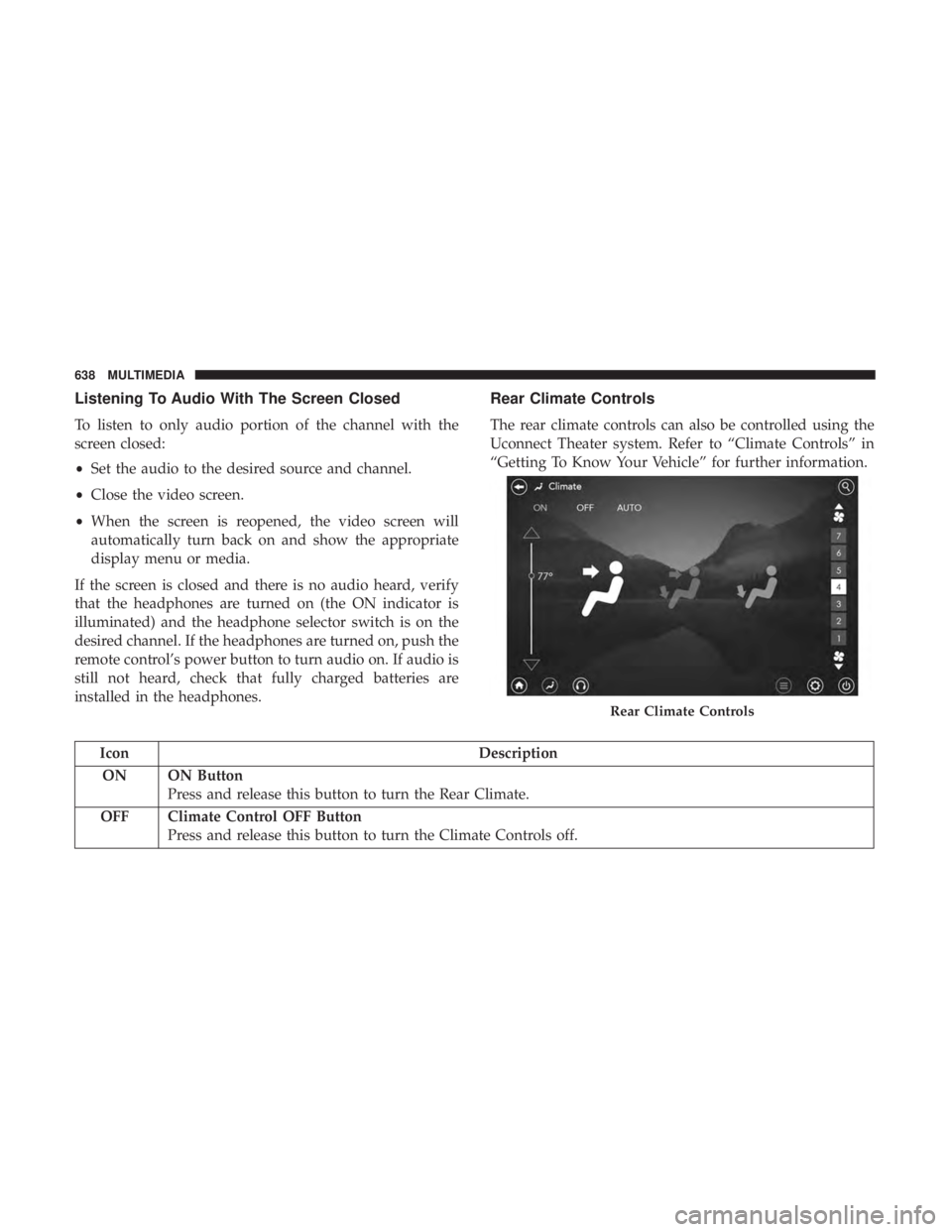
Rear Climate Controls
The rear climate controls can also be controlled using the
Uconnect Theater system. Refer to “Climate Controls” in
“Getting To Know Your Vehicle” for further information.
Icon Description
ON ON Button Press and release this button to turn the Rear Climate.
OFF Climate Control OFF Button Press and release this button to turn the Climate Controls off.
Rear Climate Controls
638 MULTIMEDIA
Page 647 of 696
•Other compression formats such as MP3 Pro, Ogg
Vorbis, and ATRAC3 will not play. The Blu-ray player
will automatically skip the file and begin playing the
next available file.
• If you are creating your own files, the recommended
fixed bit rate for MP3 files is between 32 and 320Kbps
and the recommended fixed bit rate for WMA files is
between 16 and 192Kbps. Variable bit rates are also
supported. For both formats, the recommended sample
rate is either 44.1kHz or 48kHz.
• To change the current file, use the remote control “Seek
Forward” or “Seek Back” buttons to return to the start of
the current or previous file.
• AAC (MPEG-4 AAC, Low Complexity Profile) support.
• AAC HE v1 (AAC High Efficiency v1 aka. AAC/
MPEG4v2 AAC+) support.
• HE-AAC v1, v2 support.
Disc Errors
If the Blu-ray Disc player is unable to read the disc, a �Disc
Error� message is displayed on the rear screen and Radio
displays. A dirty, damaged, or incompatible disc format are
all potential causes for a �Disc Error�message. If a disc has a damaged track which results in audible or
visible errors that persists for two seconds, the Blu-ray Disc
player will attempt to continue playing the disc by skip-
ping forward one to three seconds at a time. If the end of
the disc is reached, the Blu-ray Disc player will return to
the beginning of the disc and attempt to play the start of
the first track.
The Blu-ray Disc player may shut down during extremely
hot conditions, such as when the vehicle’s interior tem-
perature is above 140° F (60.0° C). When this occurs, the
player will display
�High Temp�and will shut off the Rear
Seat displays until a safe temperature is reached. This
shutdown is necessary to protect the optics of the Blu-ray
Disc player.
Product Agreement
Open Source Software
The software built into this product, are composed of
multiple software components, and there are the copy-
rights of our company or third parties in each software
component. Also, in this product, the following open
source software has been installed.
• The licensed software for our company is based on GNU
GENERAL PUBLIC LICENSE V2.0 (�GPL�).10
MULTIMEDIA 645
Page 650 of 696
device setup menu. DivX, DivX Certified and associated
logos are trademarks of DivX, LLC and are used under
license.
Cinavia
�Cinavia Notice This product uses Cinavia technology to
limit the use of unauthorized copies of some commercially-
produced film and videos and their soundtracks. When a
prohibited use of an unauthorized copy is detected, a
message will be displayed and playback or copying will be
interrupted. More information about Cinavia technology is
provided at the Cinavia Online Consumer Information
Center at http://www.cinavia.com. To request additional
information about Cinavia by mail, send a postcard with
your mailing address to: Cinavia Consumer Information
Center, P.O. Box 86851, San Diego, CA, 92138, USA.” “This
product incorporates proprietary technology under license
from Verance Corporation and is protected by U.S. Patent
7,369,677 and other U.S. and worldwide patents issued and
pending as well as copyright and trade secret protection for
certain aspects of such technology. Cinavia is a trademark
of Verance Corporation. Copyright 2004-2012 Verance
Corporation. All rights reserved by Verance. Reverse engi-
neering or disassembly is prohibited.
CAUTION!
Use of controls or adjustments or performance of
procedures other than those specified herein may re-
sult in hazardous radiation exposure.
General Information
The following regulatory statement applies to all Radio
Frequency (RF) devices equipped in this vehicle:
This device complies with Part 15 of the FCC Rules and
with Industry Canada license-exempt RSS standard(s).
Operation is subject to the following two conditions:
1. This device may not cause harmful interference, and
2. This device must accept any interference received, in-cluding interference that may cause undesired opera-
tion.
NOTE: Changes or modifications not expressly approved
by the party responsible for compliance could void the
user ’s authority to operate the equipment.
648 MULTIMEDIA
Page 657 of 696
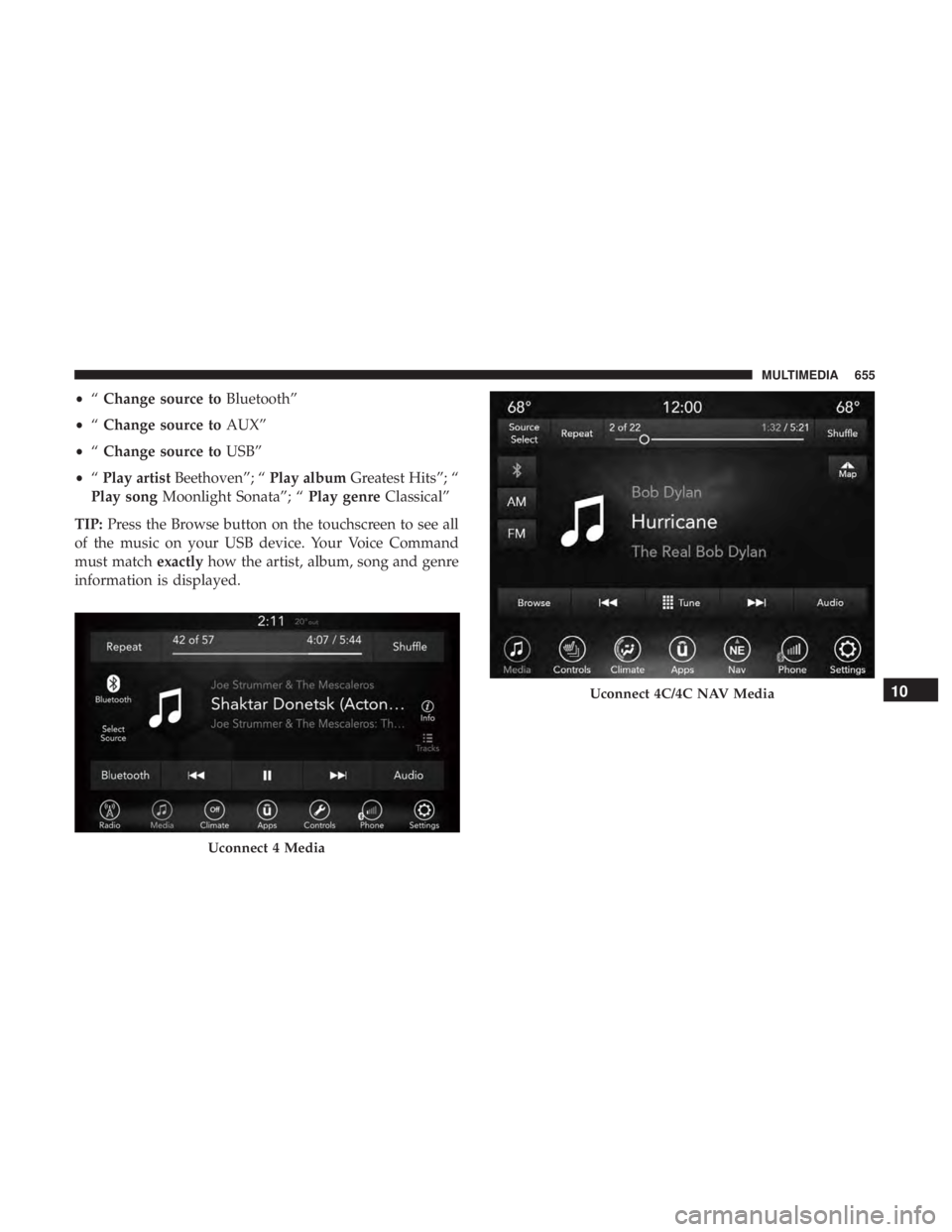
•“Change source to Bluetooth”
• “Change source to AUX”
• “Change source to USB”
• “Play artist Beethoven”; “ Play albumGreatest Hits”; “
Play song Moonlight Sonata”; “ Play genreClassical”
TIP: Press the Browse button on the touchscreen to see all
of the music on your USB device. Your Voice Command
must match exactlyhow the artist, album, song and genre
information is displayed.
Uconnect 4 Media
Uconnect 4C/4C NAV Media10
MULTIMEDIA 655