Page 112 of 492
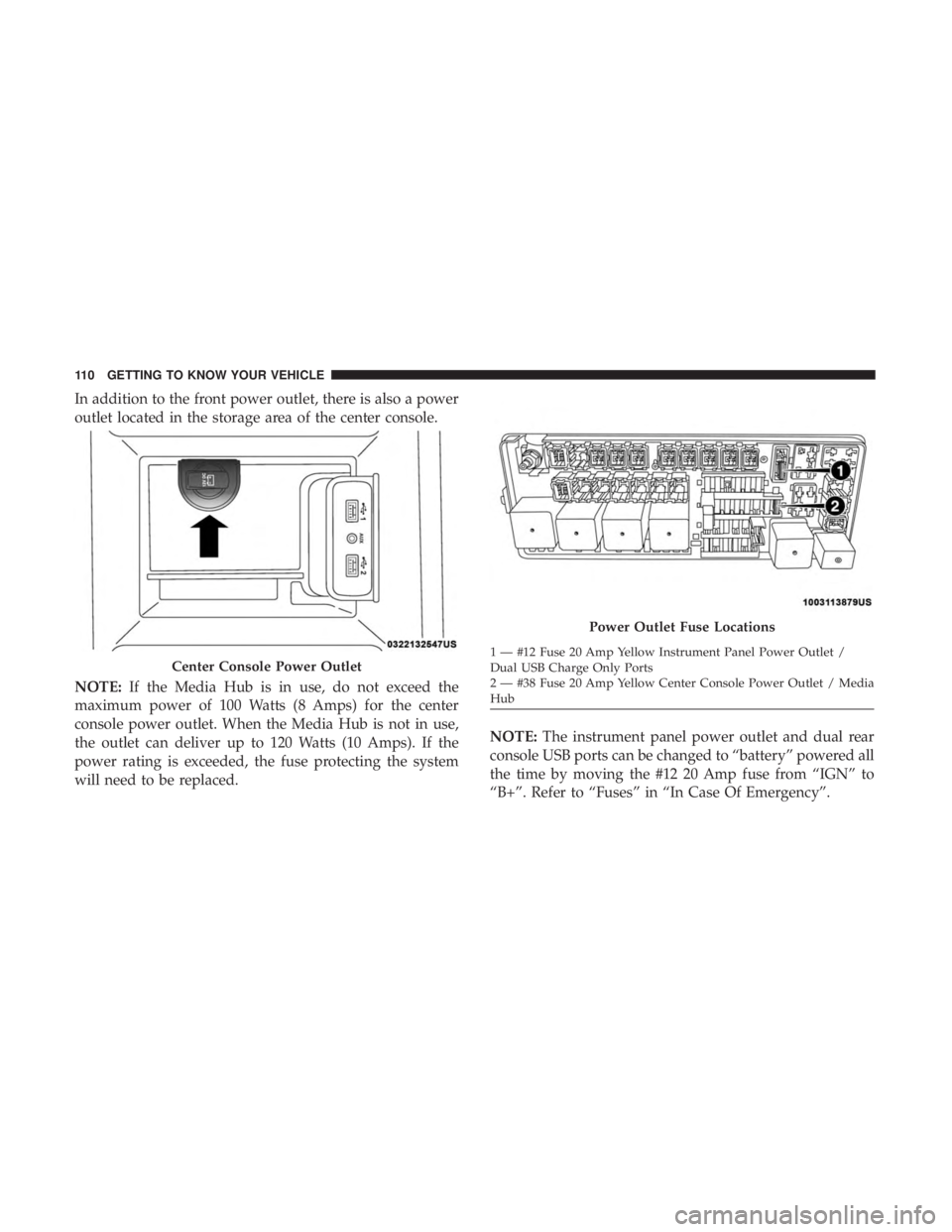
In addition to the front power outlet, there is also a power
outlet located in the storage area of the center console.
NOTE:If the Media Hub is in use, do not exceed the
maximum power of 100 Watts (8 Amps) for the center
console power outlet. When the Media Hub is not in use,
the outlet can deliver up to 120 Watts (10 Amps). If the
power rating is exceeded, the fuse protecting the system
will need to be replaced. NOTE:
The instrument panel power outlet and dual rear
console USB ports can be changed to “battery” powered all
the time by moving the #12 20 Amp fuse from “IGN” to
“B+”. Refer to “Fuses” in “In Case Of Emergency”.
Center Console Power Outlet
Power Outlet Fuse Locations
1 — #12 Fuse 20 Amp Yellow Instrument Panel Power Outlet /
Dual USB Charge Only Ports
2 — #38 Fuse 20 Amp Yellow Center Console Power Outlet / Media
Hub
110 GETTING TO KNOW YOUR VEHICLE
Page 126 of 492
The electrical loads that may be switched off (if equipped),
and vehicle functions which can be affected by load
reduction:
•Heated Seat/Vented Seats/Heated Wheel
• Heated/Cooled Cup Holders — If Equipped
• Rear Defroster And Heated Mirrors
• HVAC System
• 115V AC Power Inverter System
• Audio and Telematics System
Loss of the battery charge may indicate one or more of the
following conditions:
• The charging system cannot deliver enough electrical
power to the vehicle system because the electrical loads
are larger than the capability of charging system. The
charging system is still functioning properly.
• Turning on all possible vehicle electrical loads (e.g.
HVAC to max settings, exterior and interior lights,
overloaded power outlets +12V, 115V AC, USB ports)
during certain driving conditions (city driving, towing,
frequent stopping). •
Installing options like additional lights, upfitter electri-
cal accessories, audio systems, alarms and similar de-
vices.
• Unusual driving cycles (short trips separated by long
parking periods).
• The vehicle was parked for an extended period of time
(weeks, months).
• The battery was recently replaced and was not charged
completely.
• The battery was discharged by an electrical load left on
when the vehicle was parked.
• The battery was used for an extended period with the
engine not running to supply radio, lights, chargers,
+12V portable appliances like vacuum cleaners, game
consoles and similar devices.
124 GETTING TO KNOW YOUR INSTRUMENT PANEL
Page 127 of 492
What to do when an electrical load reduction action
message is present (“Battery Saver On” or “Battery Saver
Mode”)
During a trip:
•Reduce power to unnecessary loads if possible:
– Turn off redundant lights (interior or exterior)
– Check what may be plugged in to power outlets +12V, 115V AC, USB ports
– Check HVAC settings (blower, temperature)
– Check the audio settings (volume)
After a trip:
• Check if any aftermarket equipment was installed (ad-
ditional lights, upfitter electrical accessories, audio sys-
tems, alarms) and review specifications if any (load and
Ignition Off Draw currents).
• Evaluate the latest driving cycles (distance, driving time
and parking time).
• The vehicle should have service performed if the mes-
sage is still present during consecutive trips and the
evaluation of the vehicle and driving pattern did not
help to identify the cause.WARNING LIGHTS AND MESSAGES
The warning/indicator lights will illuminate in the instru-
ment panel together with a dedicated message and/or
acoustic signal when applicable. These indications are
indicative and precautionary and as such must not be
considered as exhaustive and/or alternative to the infor-
mation contained in the Owner ’s Manual, which you are
advised to read carefully in all cases. Always refer to the
information in this chapter in the event of a failure indica-
tion. All active telltales will display first if applicable. The
system check menu may appear different based upon
equipment options and current vehicle status. Some tell-
tales are optional and may not appear.
Red Warning Lights
— Air Bag Warning Light
This light indicates a fault with the air bag, and will turn on
for four to eight seconds as a bulb check when the ignition
is placed in the ON/RUN or ACC/ON/RUN position.
This light will illuminate with a single chime when a fault
with the air bag has been detected, it will stay on until the
fault is cleared. If the light is either not on during startup,
stays on, or turns on while driving, have the system
inspected at an authorized dealer as soon as possible.
4
GETTING TO KNOW YOUR INSTRUMENT PANEL 125
Page 419 of 492

MULTIMEDIA
CONTENTS
�UCONNECT SYSTEMS ...................419
� DRAG & DROP MENU BAR ................419
� CYBERSECURITY ...................... .420
� UCONNECT SETTINGS ...................421
▫ Customer Programmable Features — Uconnect
4C/4C NAV Settings ....................422
� STEERING WHEEL AUDIO CONTROLS .......445
▫ Radio Operation ....................... .446
▫ Media Mode ......................... .446
� AUX/USB/MP3 CONTROL ................447
� RADIO OPERATION AND MOBILE PHONES . . .447
▫ Regulatory And Safety Information ..........448
� UCONNECT VOICE RECOGNITION
QUICK TIPS .......................... .449
▫ Introducing Uconnect ....................449 ▫
Get Started .......................... .450
▫ Basic Voice Commands ...................451
▫ Radio .............................. .451
▫ Media .............................. .452
▫ Phone .............................. .453
▫ Voice Text Reply ...................... .453
▫ Climate ............................. .455
▫ Navigation (4C NAV) ....................456
▫ SiriusXM Guardian (4C/4C NAV)— If Equipped.457
▫ Register (4C/4C NAV) ...................457
▫ Vehicle Health Report/Alert (4C/4C NAV) .....458
▫ Mobile App (4C/4C NAV) ................458
▫ SiriusXM Travel Link (4C NAV) .............459
▫ Siri
Eyes Free — If Equipped ..............459
10
Page 423 of 492

NOTE:
•FCA US LLC or your dealer may contact you directly
regarding software updates.
• To help further improve vehicle security and minimize
the potential risk of a security breach, vehicle owners
should:
• Routinely check www.driveuconnect.com/support/
software-update.html (U.S. Residents) or www.driveu-
connect.ca (Canadian Residents) to learn about avail-
able Uconnect software updates.
• Only connect and use trusted media devices (e.g.
personal mobile phones, USBs, CDs).
Privacy of any wireless and wired communications cannot
be assured. Third parties may unlawfully intercept infor-
mation and private communications without your consent. For further information, refer to “Data Collection & Pri-
vacy” in your Uconnect Owner ’s Manual Supplement or
“Onboard Diagnostic System (OBD II) Cybersecurity” in
“Getting To Know Your Instrument Panel”.
UCONNECT SETTINGS
The Uconnect system uses a combination of buttons on the
touchscreen and buttons on the faceplate located on the
center of the instrument panel that allows you to access
and change the customer programmable features.
10
MULTIMEDIA 421
Page 449 of 492
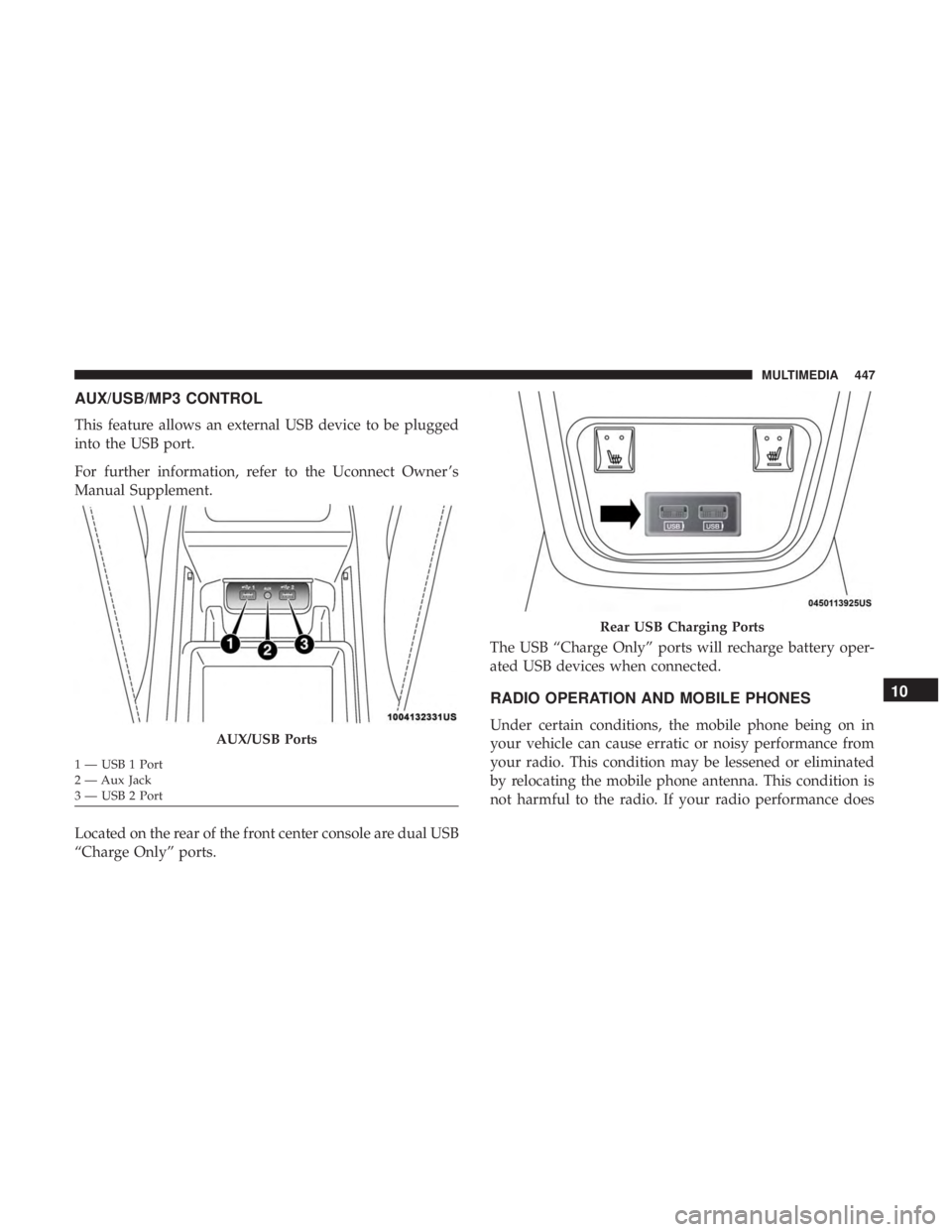
AUX/USB/MP3 CONTROL
This feature allows an external USB device to be plugged
into the USB port.
For further information, refer to the Uconnect Owner ’s
Manual Supplement.
Located on the rear of the front center console are dual USB
“Charge Only” ports.The USB “Charge Only” ports will recharge battery oper-
ated USB devices when connected.
RADIO OPERATION AND MOBILE PHONES
Under certain conditions, the mobile phone being on in
your vehicle can cause erratic or noisy performance from
your radio. This condition may be lessened or eliminated
by relocating the mobile phone antenna. This condition is
not harmful to the radio. If your radio performance doesAUX/USB Ports
1 — USB 1 Port
2 — Aux Jack
3 — USB 2 Port
Rear USB Charging Ports
10
MULTIMEDIA 447
Page 454 of 492
Media
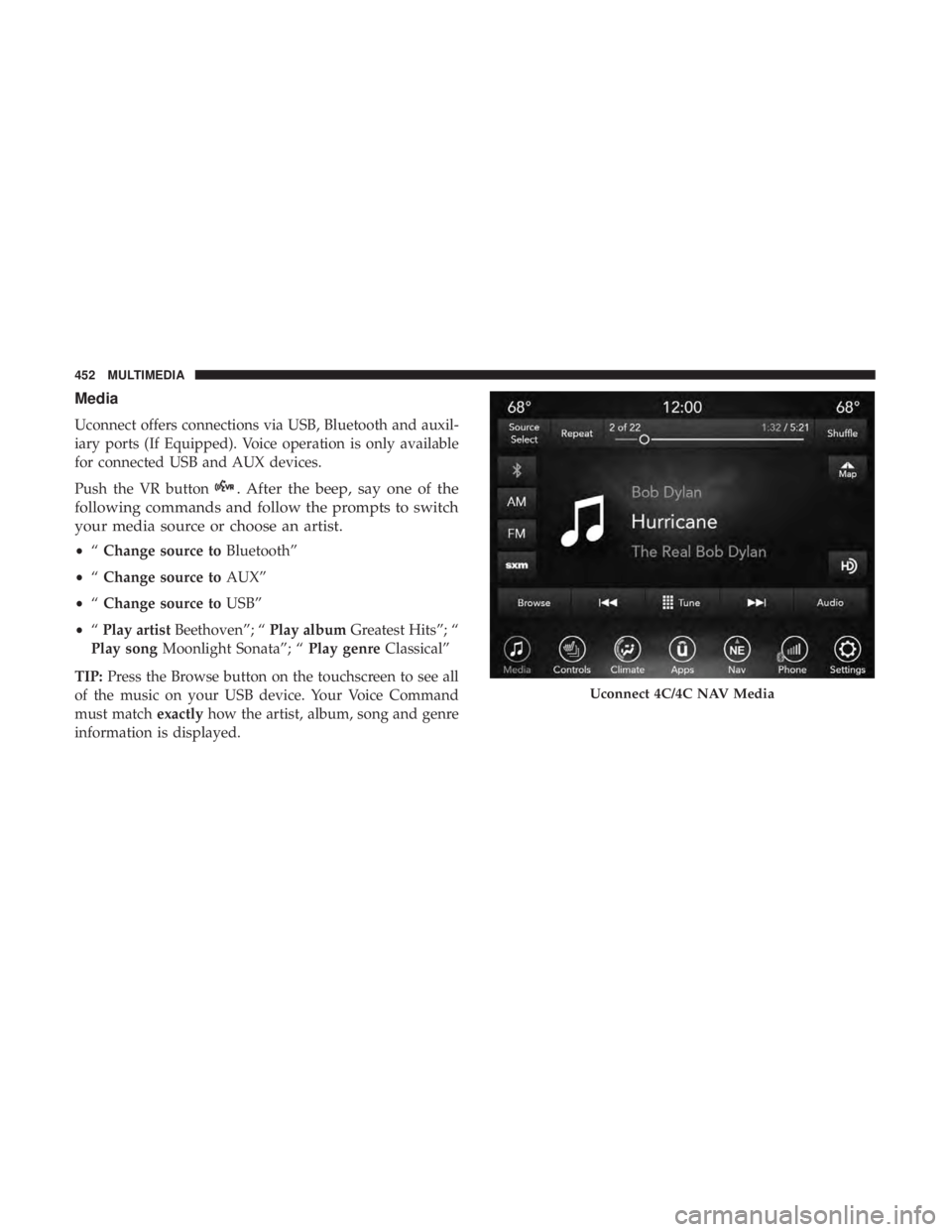
Uconnect offers connections via USB, Bluetooth and auxil-
iary ports (If Equipped). Voice operation is only available
for connected USB and AUX devices.
Push the VR button
. After the beep, say one of the
following commands and follow the prompts to switch
your media source or choose an artist.
• “Change source to Bluetooth”
• “Change source to AUX”
• “Change source to USB”
• “Play artist Beethoven”; “ Play albumGreatest Hits”; “
Play song Moonlight Sonata”; “ Play genreClassical”
TIP: Press the Browse button on the touchscreen to see all
of the music on your USB device. Your Voice Command
must match exactlyhow the artist, album, song and genre
information is displayed.
Uconnect 4C/4C NAV Media
452 MULTIMEDIA
Page 463 of 492
NOTE:
•Reply with text message is not compatible with iPhones.
• Auto reply with text message is only available on
phones that support Bluetooth MAP.
Android Auto — If Equipped
NOTE: Feature availability depends on your carrier and
mobile phone manufacturer. Some Android Auto features
may or may not be available in every region and/or
language.
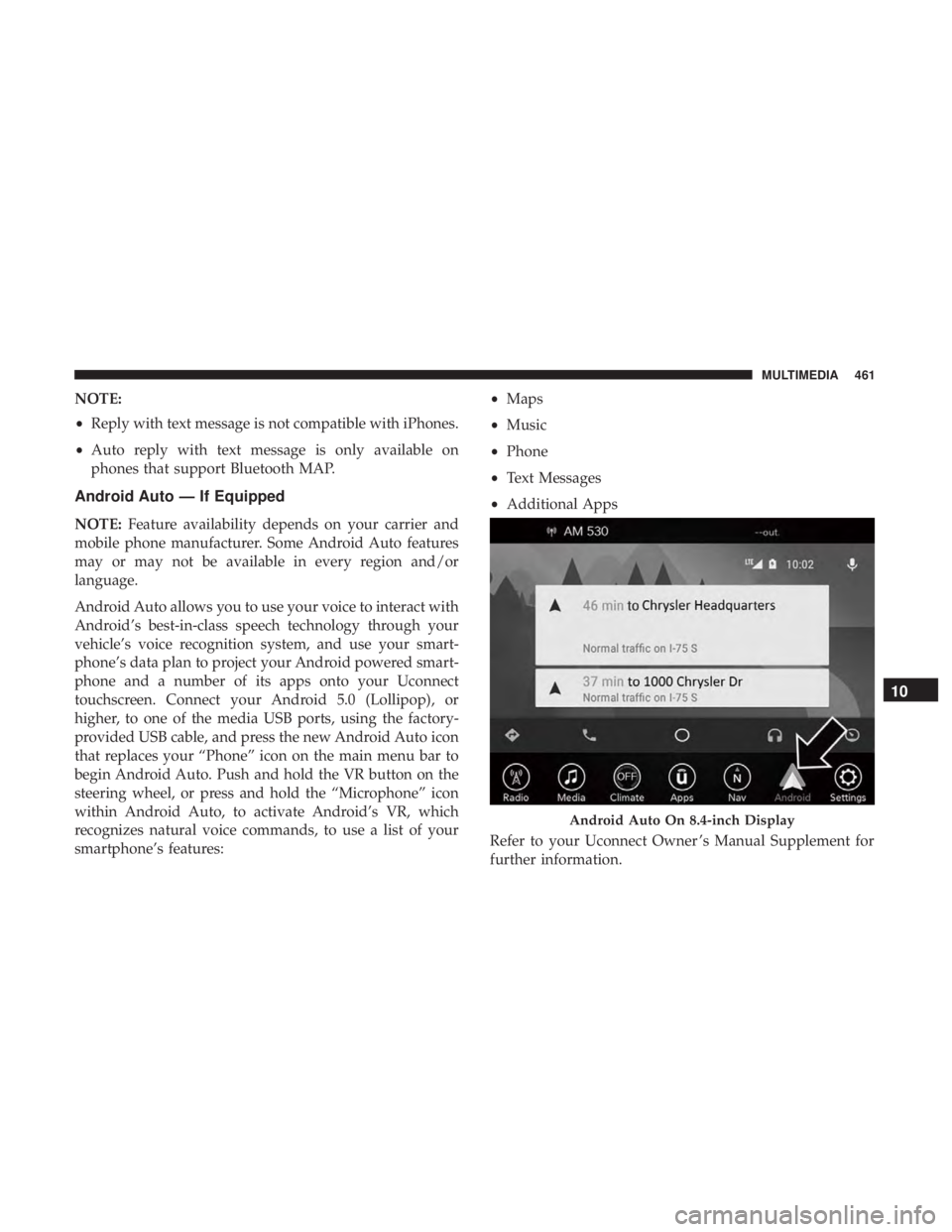
Android Auto allows you to use your voice to interact with
Android’s best-in-class speech technology through your
vehicle’s voice recognition system, and use your smart-
phone’s data plan to project your Android powered smart-
phone and a number of its apps onto your Uconnect
touchscreen. Connect your Android 5.0 (Lollipop), or
higher, to one of the media USB ports, using the factory-
provided USB cable, and press the new Android Auto icon
that replaces your “Phone” icon on the main menu bar to
begin Android Auto. Push and hold the VR button on the
steering wheel, or press and hold the “Microphone” icon
within Android Auto, to activate Android’s VR, which
recognizes natural voice commands, to use a list of your
smartphone’s features: •
Maps
• Music
• Phone
• Text Messages
• Additional Apps
Refer to your Uconnect Owner ’s Manual Supplement for
further information.
Android Auto On 8.4-inch Display
10
MULTIMEDIA 461