2018 AUDI TT ROADSTER display
[x] Cancel search: displayPage 134 of 310

Audi connect
-Using Audi connect services requires a mini
SIM card with data options and, when using L TE*, it also requires L TE options.
-Usage of Audi connect services depends on
the availability of services through third par
ty providers .
-Also read the information in the chapter
¢page 111, Telephone.
-Audi connect is designed for use only with
the provided SIM card. Receiving data pack
ets from the Internet will quickly increase
the volume of data used. For more informa
tion, contact Audi connect customer service
at 1 (877) SOS -AUDI (2834) .
-The Audi connect services are available in
the USA. Audi connect services are currently not available in Canada or in Mexico.
-Availability, scope, providers, screen display
and costs of services may vary depending on
the country, model, model year, end device
and rates . For additional information, visit
www.audiusa.com.
-An initial registration/activation on the
myAudi platform at www.audiusa.com/
myaudi is required to use individual serv
ices. You can contact an authorized Audi
dealer or Audi connect customer service at
877-SOS-AUDI (2834) to receive informa
tion on options for expanding your usage
and any costs that may result.
-It is only possible to use Audi connect serv
ices with a valid Audi connect SIM card.
- To ensure all of the Audi connect features
work correctly, Audi recommends setting up
data service and a Wi-Fi package with your
network service provider. Your network
service provider can be authorized by law,
through a judicial order or other lawful in
structions, to disclose the position of your
vehicle. Additional information on your cell phone service provider's privacy policies can
be found in their Terms of Use.
-The Audi connect services are a Wi-Fi/lnter
net-based system. If the system does not
function correctly even though all of the re
quirements are met, please try again later
or contact Audi connect customer service at
877-SOS-AUDI (2834).
132
-Additional information for Audi connect and
the applicable terms of use are found at
www.audiusa.com.
Data protection
App lies to : vehicles wit h Aud i connect
(D Tips
- You can find additional information in your
MMI in the options menu
¢ page 94 for the
selected Audi connect service and also on
line at www.audiusa .com.
- Your privacy is important to us.
- AUDI AG collects, processes, shares and
transmits your personal information in ac
cordance with legal regulations in order to
ensure proper function and availability of
the individual Audi connect services. You
can view the complete, current and valid
Audi connect data protection policy in your
MMI. The myAudi website is available for to
you to activate additional Audi connect serv
ices and to transfer data with your vehicle,
among other services. A one-time registra
tion is required to establish a connection to
your vehicle . For this purpose, AUDI AG col
lects, processes, transmits and uses your re
quired personal information as required for
you to use the services provided by AUDI
AG. Your information is not distributed to
third parties. Using your cell phone with the
help of your myAudi platform, you can
transfer information for Audi connect serv
ices functions to your vehicle and allow spe
cific information to be transmitted from
your vehicle .
- By activating special information services
that are part of your Audi connect portfolio,
you can use these functions directly in your
vehicle by entering data to confirm your
identity (to use social networks, for exam
ple). To do this, the identification informa
tion you provided is forwarded with the re
quest to the respective service provider.
Then you can access your personal content using a secure connection. This content is
displayed in the vehicle for your use. Your
personal content is not stored within Audi
.,..
Page 136 of 310

Navigation
Navigation
Opening navigation
Applies to: vehicles with navigation system
The navigation system directs you to your destination, around traffic incidents and on alternative
routes, if desired.
F ig. 122 Diagram: Ente r dest inat io n menu
~ Press the I NAV/MAPI button .
The
Enter destination menu is displayed after
opening navigation
¢ fig . 122. The following in
formation can be displayed in the Infotainment
system display:
@ Input field for free text search r:::;, page 135
@ Home address c;,poge 136
@ Last destinations r:::;, page 135
© Stored favor ites r:::;, page 136
As soon as you select an entry from the list (de
pending on the vehicle equipment), the corre
spond ing destination displays as a map preview*
@ c;,fig .122.
If you have connected a cell phone to the MMI,
your directory contacts will also be listed if they
have navigation data assigned to them .
The
Favorites © menu item as well as the direc
tory/contacts are only shown in the
Enter desti·
nation
menu if you have entered one or more
characters using the input field.
Switching between the destination entry and
the map
134
-Press the I NAV/MAPI button repeatedly until
the map is displayed .
Or: select the left control
button
> Switch to map.
& WARNING
-The demands of traffic require your full at
tention . A lways read the chapter
c;, page 93,
Traffic safety information.
-Obey all traffic laws when driving.
-The route calculated by the navigation sys-
tem is a recommendation for reaching your
destination . Obey traffic lights, stopp ing re
strictions, one-way streets, lane change re
strictions, etc.
(D Note
-If the driving directions conflict with traffic
laws, obey the traffic laws.
-To reduce the risk of an accident, adjust the
vol um e of the navigation system so that sig
nals from outside the vehicle, such as police
and fire sirens, can be heard easily at all
t imes.
-
Page 137 of 310

Cl 00 ... N r--N ... 0 r--Vl 00
(D Tips
-You can find information about importing a
map update to your MMI using an
SD card
at www.audiusa.com/myaudi.
- Snow and obstructions on the GPS antenna
or interference caused by trees and large
buildings can impair satellite reception and
affect the system's ab ility to determine the
vehicle position . Several deact ivated or mal
funct ion ing satellites can also inte rrupt GPS
r eception and affect t he system's ab ility to
dete rm ine the ve hicle position.
- Because st reet names sometimes change,
t h e names stored in the M MI may in ra re
c a ses differ from the ac tual street name.
Entering a destination
Free text search for destinations
App lies to: ve hicles with navigation system
Using the MMI touch contro l pad, you can enter
the data for a navigation dest ination all at once
in any orde r (for example, Los Angeles,
20 Main St .) . Likewise, you can search for points
of interest, contacts, p revious dest inat io ns or fa
vor ites to n avigate to the desired address .
.,. Press the I NAV/MAPI button repeatedly until
the
Ent er de stination menu is displayed
c=>page 134, fig . 122.
.,. Keep turning the contro l knob to t he left unti l
the input fie ld appears.
- E nte r o ne or mo re search te rms into t he i nput
field.
- If avai lab le, confirm the input suggestion* to
complete the entry or a word suggest ion*. See
c=>
page 99, Letter/number speller.
- T urn the cont rol knob to the rig ht to change
the results list.
- Se lect and confirm a destination from the re-
s ul ts l ist .
- Se lect and conf irm
Start rou te guidanc e.
The route is displayed as an overview in the map
and the route guidance is already active .
Navigation
Narrowing the s earch area
All co unt ries/states are selec ted at the factory
f or the free text sea rch.
- Select the right cont rol button
> Countr y/state
s el ec tion
in the input field (D c:> page 134,
fig. 122.
- Select the cou ntry or state (. ) th at sho uld be
searched fo r in t he free text sea rch in o rder to
na rrow the number of results and increase t he
search speed. The se lected entry in the coun
try/state selection is stored.
Or : select All
c ount rie s/ s tates .
All co untries/states are selected at the factory
f or the free text search. Using the
Countr y/state
s election ,
you can deselect the irrelevant coun
tries/states to increase the search speed and nar
row the results list.
(D Tips
- Th e M MI inp ut suggestions depend on the
last nav igated dest inat ions.
- Up to SO entries can be stored in the last
destinations list .
-Additiona l information on free text sea rches
can be fo und under
c:> page 101.
Loading previous destinations
Applies to: vehicles wit h navigat ion system
Your last destinations are automatically stored
and can be loaded directly as a destination .
Requirement: a destinat io n was already navigat
ed to .
.,. Press the INAV/MAPI button repeatedly unti l
t he
Enter des tination menu is disp layed
c=> page 134, fig. 122 .
Your last destinations will be listed d irectly in the
En ter d estination menu and a re marked with the
symbol @c=>page
134, fig. 122.
-Select and confirm one of the last destinations
from the list .
- Select and confirm
Start route guid ance.
Deleting pre vio us de stination s
-Select one of the last destinations from the list . .,.
135
Page 138 of 310

Navigat ion
-Se lect: rig ht contro l button > Delete de stina
tion
> Delete thi s la st de stination or Delete all
last dest inations .
The selected des tination o r all last destinations
is/are de leted and no longer displayed in the
En
ter de stination
menu.
Entering an address
A pp lies to: ve hicles w ith navigation system
As an alternative to free text search, you can al
so enter an address in stages .
.,. Press the I NAV/MAPI button repeated ly until
the
Enter de stina tion menu is displayed
¢ page 134, fig. 122 .
.,. Select: left control button > Ente r addr ess .
-Se lect and confirm a line (s uch as Street , Hou se
numb er or Count ry/state )
and enter t he de
sired information.
- Se lect and confirm
Start route guidan ce .
Setting a destination from the map
A pp lies to: ve hicles w ith naviga tion system
A point on the map can be used as the destina
tion.
.,. P ress the I NAV/MAPI button repeatedly until
t h e map is d isp layed.
- Adju st ing th e sca le: turn the control knob to
the left o r right .
-Acti vating crosshair s: press the control knob.
The crosshairs are shown on the map .
-Mo ving the crosshair s: move the crosshairs to
the destination using the MMI touch control pad .
-Hiding the cro sshairs : press the I BACKI butto n.
- Setting as destinat ion : press the control knob
when the crosshairs are shown. If necessary,
select and confirm
Add as stopover and then
Start route guidance .
Additional in fo rmat ion about the location of
the crosshai rs :
if you select map content with
crosshairs, the available information is d isplayed
(such as the name of the c ity or points of inter
est) @¢ page 142, fig . 12 7 .
136
Setting a home address/favorite as the
destination
App lies to : vehicles wi th navigat ion sys te m
You can quickly and easily start route guidance
to your home address using the home address
function. Favorites allow easier access to fre
quently used destinations.
.,. Press the I NAV/MAPI button repeatedly u nti l
the
En ter d estination me nu i s displayed
¢page 134, fig . 122 .
Setting a home address as the d estination
Requirement: a home address must be stored
¢ page 140.
Your Home address is shown directly in the Ente r
d es tination
menu @¢page 134, fig. 122 .
-Select: Home address > St art route g uidance .
Setting a favorite a s the destination
Requireme nt: a dest inat io n m ust be stored as a
favorite ¢ page 140 .
-Enter one o r more lette rs into the free text
searc h in put fie ld. The favo rit es that are found
are shown in the Infota inment system display
and marked w ith the
symbol ©¢ page 134,
fig. 122 .
-Select and confirm the des ired favor ite.
- Sele ct and confirm
Start route guidance .
(D Tips
-Add itiona l setti ngs for the home add ress
can be fo und
u nder¢ page 140 .
-Add itional setti ngs for the favor ites can be
found
unde r¢ page 140 .
Page 139 of 310
Cl 00 .-< N r-N .-< 0 r-Vl 00
Transferring a destination from the
directory
Applies to: vehicles with navigation system
You can navigate directly to destinations in the
directory.
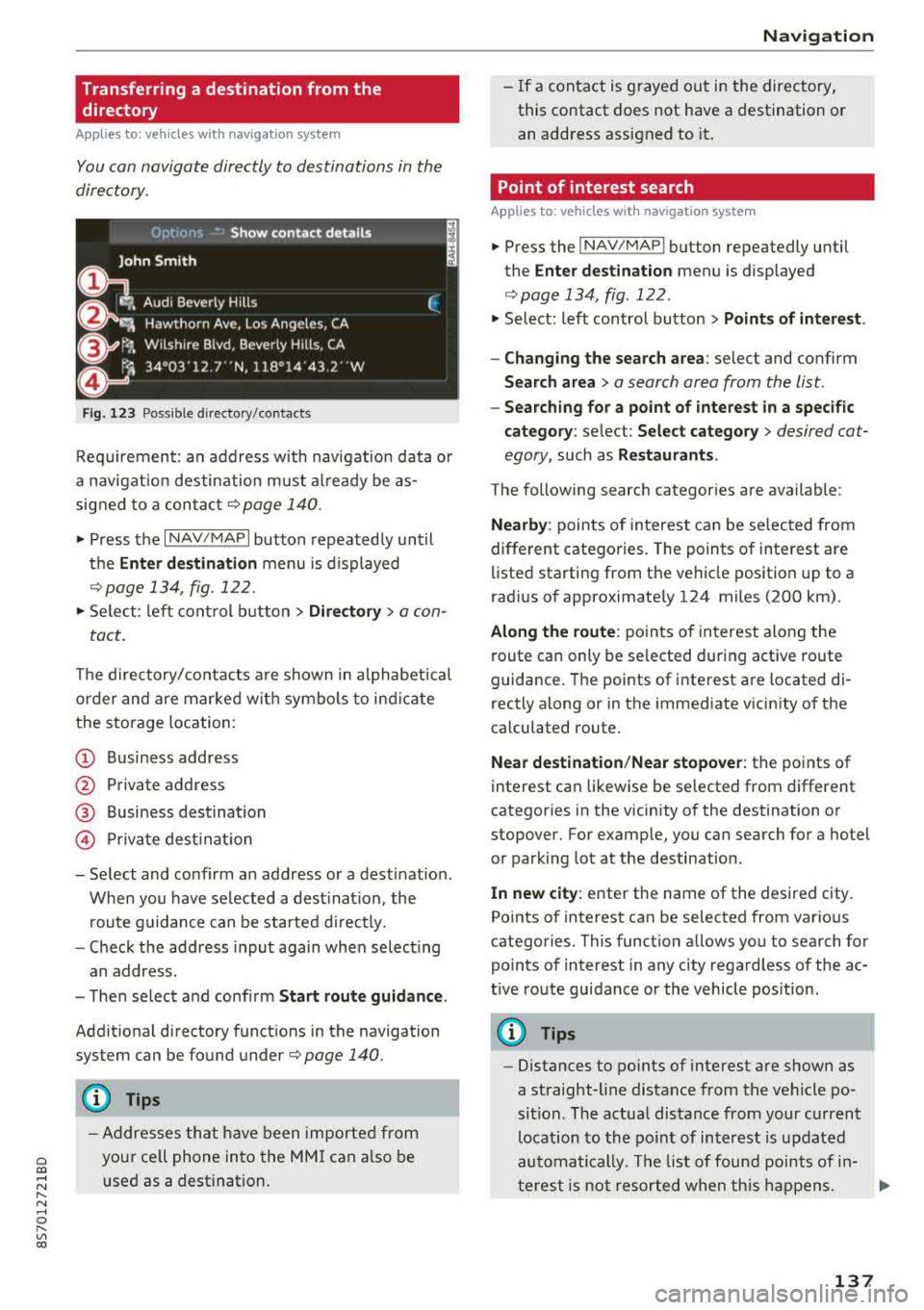
F ig . 123 Possible directory/ contacts
Req uirement: an address w ith navigat ion data o r
a nav igat io n desti nation must al ready be as
signed to a con ta ct
r=;, page 140 .
.,. Press the I NAV/MAPI button repeated ly until
t h e
Enter destination menu is displayed
¢ page 13 4, fig . 122.
.,. Se lect : le ft cont rol b utt o n > Directory > a con-
tact.
The directory/contacts a re shown i n alphabet ica l
order and are mar ke d wit h symbo ls to ind ic a te
the sto rage location :
(D Business address
@ Private address
@ Business dest ination
© Pr iva te dest inat ion
-Select and conf irm an address o r a destinat ion .
When you have se lected a dest inat ion , the
r oute g uidance can be started d irect ly.
-Check the address input aga in whe n select ing
an address.
-T he n select and conf irm Start route guidan ce .
Addit ion al directory f unct ions in the navigation
system can be found under
r=;, page 140.
(D Tips
-A ddresses th at h ave been importe d from
you r ce ll phone into the MM I can a lso be
u sed as a destination .
Na vigation
-If a contact is g rayed ou t in the directory,
this contact does not have a destination o r
an address assigned to it .
Point of interest search
Applies to : vehicles with navigation system
.,. P ress the ! NAV /MAP I button repeatedly until
the
Enter dest ination menu is disp layed
r=;, page 134, fig . 122 .
.,. Select: left control button > Points of intere st .
-Changing the search area : select and confirm
Search area > a search area from the list .
-Searching for a point of interest in a specific
category :
select : Select category > desired cat
egory,
such as Restaurants .
The following searc h categor ies are available:
Nearby : points of in terest can be se lected from
different catego ries. The points of interest are
li sted starting from the ve hicle position up to a
rad ius o f approximate ly 124 miles (200 km) .
Along the route : poin ts of in terest along the
route can only be se lected du ring active route
guidance . The points of interest a re located di
rectly a long or in the immediate v icin ity o f th e
ca lculated route.
Near destination /Near stopover : the points of
interest can likewise be se lected from differe nt
catego ries in the vicinity of the destination o r
stopover. For examp le, you can search for a hotel
o r par king lot at the desti nat ion.
In new city: enter the name of the desired city .
Po ints o f interest can be selected from various
categories . This function a llows you to sea rch for
po ints of interest in any city rega rd less of the ac
t ive route guidance or the vehicle pos it ion .
(D Tips
-Distances to po ints of inte rest a re shown as
a straight-line distance from the vehicle po
si tion. The actua l dis tance from your c urrent
location to the po in t of in terest is u pdated
automa tically . T h e list of foun d poi nts of in
t erest is n ot r esorted w hen th is h app ens.
137
Page 140 of 310

Navigation
-There may be e ntries in t he list that cannot
b e di sp layed com plete ly due to thei r lengt h.
If yo u se lect these list e ntr ies using the con
tro l knob, deta ile d i nfo rmat io n about the
se lected list entry w ill be shown automati
ca lly a fter severa l se conds .
Online point of interest search (online
search)
Applies to: vehicles with navigation system and Audi connect
You can search for points of interest on the In
ternet.
Req uirement: the requirements fo r Audi connect
services m ust be
met ¢ page 124.
"'Press the I N AV/MAPI but ton repeated ly until
the
Enter destination menu is displayed
¢ page 134, fig . 122 .
"' Select: left con trol b utton > Online search . The
search area las t set is shown in the inp ut field .
-Changing the search area : select and confi rm
Search area > a search area from the list .
-Searching for online destinations in these
lected search area :
enter a new city if necessa
ry . E nte r a s ea rch t erm s uch as restauran t. Se
le ct and co nfirm an on line destination . Se lect
and co nfirm
Start route guidance .
-Searching for an online destination in a specif
ic category:
sel ect: Select category > desir ed
ca teg ory,
such as Hotels .
Find which search areas a re available under
Q page 137, Point of int erest s earch .
You can sea rch fo r onli ne dest inat io ns usin g the
voice recogniti on
system ¢ table on page 108.
(D Tips
Always read t he chapte r¢ page 131.
Accessing destinations from your myAudi
account
Applies to: vehicles with navigation system and Audi connect
Import destinations from your myAudi account
into the MMI.
Requir ement: you must have a registere d myAudi
acco unt at www .aud iusa.com/mya udi. You must
138
have a ve hicl e s to re d in yo ur myA udi accoun t and
yo u m ust have a dest inat ion sto re d.
"'P ress the I NAV/MA PI butto n repeate dly u ntil
t he
Enter destination me nu i s displ ayed
¢ page 13 4, fig . 122 .
"' Select: left control button > myAudi contacts.
"' If n ecessa ry, e nter yo ur myAu di user data or
your myA udi PI N. The contacts store d in myA u
di are d is pl ayed.
-Select an d co nfirm a contact > desired destina
tion .
-Select an d confirm Start route guidance.
(D Tips
-You only need to ent er t he myA ud i u se r data
on e t ime.
-You can rece iv e y ou r m yAud i PIN if you have
se t up a my Audi accou nt.
-For ad dit ional info rmat ion, see
www. audiusa.com /m yaud i.
Entering a destination using geo
coordinates
Applies to: vehicles with navigation system
"'Press the I NAV/MAPI bu tton repeatedly unti l
the
Enter destination me nu i s displayed
¢page 134, fig . 122 .
"' Select: le ft con trol bu tton > Geographical coor
dinates .
-Select and confirm ei ther Latitude or Longi
tude .
-Tur n t he control knob to change t he latit ude/
longitude .
-Press the contro l knob to confirm your i nput.
-Select an d co nfirm Start route guidance.
Page 141 of 310

Cl co .... N ,....
N ...... 0 ,....
Vl co
Adding a stopover
Applies to: ve hicles with navigation system
You can enter an additional destination when
route guidance is active.
Fig. 124 Example: active route g uidan ce w ith stopover
Requirement: route guidance must already be ac
tive .
.. Press the I NAV/MAPI button repeatedly until
the
Enter destination menu is displayed
<=:> page 134 , fig . 122 .
Entering a destination as a stopover
-Ente r a destination in the input line (D
<=:>page 134, fig . 122.
- Select and confirm a destination from the re-
sults list.
- Select and confirm
Add as stopover .
Deleting a stopover
- Push the control knob up . Free text search and
active route guidance are displayed.
Or: turn
the control knob to the left until the active
route guidance is shown.
- Select and confirm
Delete stopover c::> fig. 124
under the stopover (D.
- T he stopove r is deleted.
Cancel route guidance
A pp lies to: ve hicles with navigation system
Requirement : route gu idance must be active.
.,. Press the I NAV/MAPI button repeatedly until
the
Enter destination menu is displayed
<=:>page 134, fig . 122.
.,. Turn the control knob to the left until the active
route guidance is shown.
l) This fun ctio n is not off ered in Mex ic o .
Navigation
.,. Select and confirm Cancel route guidance
c::> page 139, fig . 124. The destination is delet
ed .
Or : select the right contro l button> Cancel
route guidance .
Additional options when entering a
destination
App lies to: vehicles wit h navigat ion system
.. Press the right control button.
Depending on the selected function, the fo llow
ing options may be ava ilable when enter ing a
dest ination:
Cancel route guidance: Requirement: route guid
ance must be active . Route guidance is canceled .
For additional information, see
c::> page 139 .
Map settings : see c::> page 144.
Navigation settings : see c::> page 140.
Voice guidance: see c::> page 141.
Route criteria: see c::> page 141 .
Show location on map : Requirement: you must
have selected a destination from the results list.
The destination entered is displayed on the map .
Parking at this location: Requirement: you must
have selected a destination from the results list.
All parking opt ions near the selected location are
displayed in the Infotainment system.
POis along the route : all points of interest in the
area around the vehicle will be displayed when
route guidance is active.
Delete: the selected entry is deleted. You can de
lete individual entries or all entries (for example,
favorites or last destinations) .
Audi connect at this location1>: Requirement:
you must have selected a destination from the
results list. Allows you to search for items in the
vicinity of the selected location, such as
City
events or Travel information .
Online traffic data *:
receiving online traffic infor-
mation
c::> page 146 can be switched on or off . ..,.
139
Page 142 of 310

Navigation
Country/state selection:
see ¢ page 135, Nar
rowing the search area.
Store as favorite : see¢ page 140.
Home address
App lies to: ve hicles w ith navigat ion system
"' Press t h e I N AV/MAP I button repeated ly until
t h e
Enter destination m enu is dis played
¢page 13 4, fig. 1 22.
Storing a home address
-Select and co nfirm Home address @
¢ page 134, fig . 122 . After open ing the home
address for the first time, yo u w ill be asked to
cr eat e a home a ddress.
-Sel ect and co nfir m Create now .
-Ente r a desti nat ion or select a des tina tion from
the lis t.
Or :
-Select: a destination> r ight control b utton>
Store as home address .
Editing the home address
-Se lect Home address @¢ page 134, fig. 122.
-Select: rig ht contro l butto n > Edit home ad-
dress.
-Se lect and confirm a new desti nat ion as the
home address .
T he se le cted des tina tion is s to re d a s the new
home address .
Favorites
App lies to : ve hicles w ith naviga tion sys tem
"' Press t h e I N AV/MAP I button r epeatedl y un til
th e
Enter destination menu is dis played
¢ page 13 4, fig. 1 22 .
-Storing a destination as a favorite : search for
th e desir ed des tina tion usin g th e input field.
Or : select a desti nat ion from t he lis t. Selec t:
rig ht cont ro l button >
Store as favorite.
-Renaming a favorite : select the le ft con trol
button >
Favorites > a favorite from the list >
r ig ht cont ro l button >
Rename favorite.
-Move favorite : selec t a favori te from the lis t>
rig ht cont ro l button > Move favorite . Select
140
an d con firm the loca tion of the se lected favor
ite.
-Deleting a favorite : select a favorite from the
list>
rig ht cont rol button > Delete favorite >
Delete this favorite or Delete all favorites.
Directory contacts
App lies to : vehicles wi th navigat ion sys te m
Two addresses (private/business) can be as
signed as destinations for each contact in the di
rectory.
"' Press the I NAV/ MAPI bu tton repeate dly u nti l
the
Enter destination me nu i s displayed
¢page 134, fig. 122 .
Storing a destination as a contact in the
directory
Requirement: a cell phone must be connected to
the MMI.
-Select: a destination > right contro l button >
Add destination to contact.
-Sele ct and confirm Add business destination or
Add private destination.
-En ter a name . Or: sele ct an d con fir m a direc to
ry contact from the list .
-Select and c onfirm Save business card .
Additional settings
Navigation settings
Applies to: vehicles wit h navigat ion syste m
"'Press the I NAV/M API button repeatedly u nti l
t he
Enter destination me nu i s displaye d
¢page 134, fig. 122 .
"'Sele ct: rig ht con trol butt on> Navigation set-
tings .
Depend ing o n the selec te d fun ction, t he follow
i ng settings can b e selected :
Show alternative routes
Up to three route suggestions and their p roper
ties are d isp layed o n the overv iew map w hen t he
func tion is switched
on~-See ¢ page 141, Al
ternativ e rout es.
...