2018 AUDI TT ROADSTER display
[x] Cancel search: displayPage 83 of 310

Cl co .... N ,....
N .... 0 ,....
Vl co
Rear parking system
Description
A pplies to: ve hicles with rear park ing system
The rear parking system is an audible parking
aid .
Desc ripti on
There is a sensor in the rear bumper cover. If
these detect an obstacle, audible signals warn
you .
Make sure the sensors are not covered by stick
ers, deposits or any other obstructions as it may
impair the sensor function. For informat ion on
cleaning, see
c::;.page 266 .
The range at which the sensors begin to measure
is approximately:
side 3 ft (0.90 m)
rear
center 5.2 ft (1.60 m)
The closer you get to the obstacle, the shorter
the interval between the audible signals . A con
tinuous tone sounds when the obstacle is less
than approximately 1 foot (0.30 meters) away.
Do not cont inue back ing up
c::;. &. in General infor
mation on page 80,
c::;. @ in General information
on page 80!
If the distance to an obstacle remains constant,
the volume of the distance warning gradually
drops after about four seconds (this does not ap ply in the continuous tone range).
Acti vat ing
The rear parking assist activates a utomatically
when the reverse gear is engaged. A brief confir
mat ion tone will sound.
Parking systems
Parking system plus
Description
App lies to: vehicles wit h parking system pl us
Parking system plus provides audio and visual
signals when parking.
Fig . 86 Illust rat io n:
Sensors are located in the front and rear bump
ers. If these detect an obstacle, audib le and visu
al signals warn you .
Make s ure the sensors are not covered by st ick
ers, deposi ts or any other obstruc tions as it may
impa ir the se nsor function. For information on
cleaning, see
c::;. page 266 .
The display fie ld beg ins approx ima tely at:
CD 4 ft (1.20 m)
0 3 ft (0.90 m)
® 5.2 ft (1.60 m)
© 3 ft (0.90 m)
T he close r you get to the obstacle, the shorter
t h e i nte rval be twee n the audible signa ls . A con
t in u ous tone sounds when the obs tacle is less
than appro ximately 1 foot (0.30 meters) away.
Do not continue dr iving forward or in reverse
c::;. &. in General information on page 80, c::;. (D in
General information on page 80!
If the distance to an obstacle remains constant,
the volume of the distance warn ing gradua lly
drops after about four seconds (this does not ap
ply in the continuous tone range).
81
Page 84 of 310

Parking systems
Switching on/off
Applies to: ve hicles w ith pa rking system p lus
F ig. 87 Center console: parking aid button
Fig. 88 opt ical distance display
Switching on
• Shift into reverse, or
.. Press the PwA button in the center console
c> fig. 87. A short confirmat ion tone sounds and
the LED in the button turns on .
Switch ing off
.. Drive faster than 6 mph (10 km/h), or
• Press the P,, ,A button, or
.. Switch the ignition off.
Activating automatically
The parking aid is activated automatically at
speeds less than 6 mph (10 km/h) and when ap
proaching an obstacle from approximately 3.1 ft (95 cm) away. There are audible signals when ap
proximately 1.6
ft (SO cm) away from the obsta
cle .
If you press the p,,1.I! button to switch the park
ing a id off, it can only be reactivated automati
cally when one of the following conditions is met :
- The vehicle speed exceeds 6 mph (10 km/h).
- The ignition is switched off and back on again.
- The parking brake is set and then re leased.
82
- The selector lever must be in the "P " position.
Segments in the visual display
The segments in front of and behind the vehicle
(vehicles with parking system plus*)
c> fig. 88
help you to determine the distance between your
vehicle and an obstacle. The red lines mark the
expected direction of travel according to the
steering ang le. A white segment indicates an
identified obstacle that is outside of the vehicle's
path. Red segments show identified obstacles
that are in your vehicle's path. As your vehicle comes closer to the obstacle, the segments move
closer to the vehicle . The collision area has been
reached when the next to last segment is dis
played. Obstacles in the collision a rea, including
those outside of the vehicle 's path, are shown in
red. Do not continue driving forward or in reverse
c> .& in General information on page 80, c>(D in
General information on page
80!
Rearview camera
Introduction
App lies to: vehicles wit h rearv iew camera
Fig. 89 Diagram: lines to ai d in parking
The rearview camera helps you to park or maneu
ver using the orientation lines .
Page 85 of 310
Cl co .... N ,....
N ...... 0 ,....
Vl co
General information
Applies to: ve hicles with rearview camera
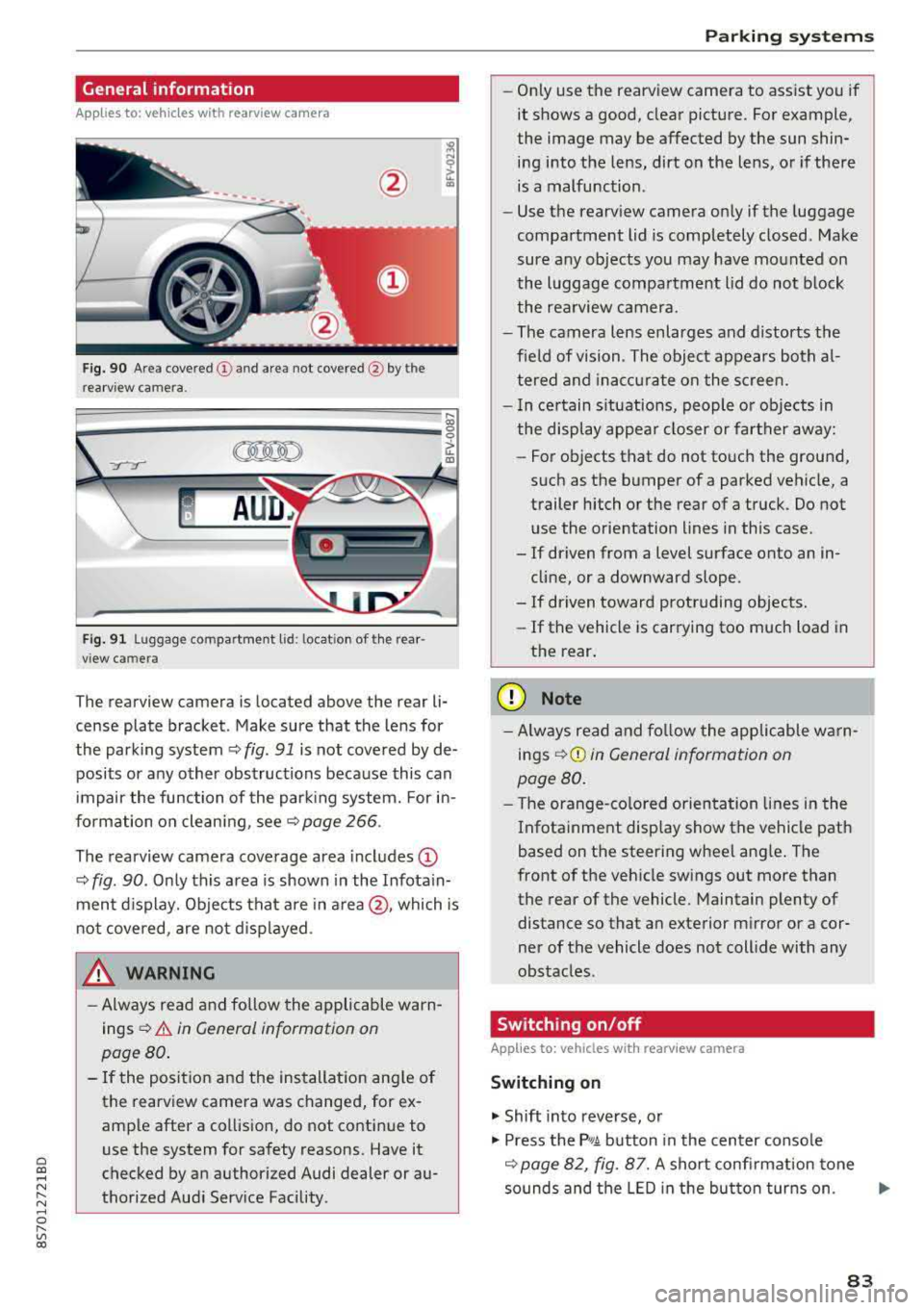
Fig . 90 Area covered (!) and area not covered @ by the
rea rview camera.
:;,
~;..------: :.·~- ---~ _.,- ,.,,.--------g
(Jo00oD ~
Fig. 91 Luggag e compartment lid: locat ion of the rear
view camera
The rearview camera is located above the rear li
cense plate bracket. Make sure that the lens for
the parking system¢
fig. 91 is not covered by de
posits or any other obstructions because this can
impair the function of the parking system. For in
formation on cleaning, see¢
page 266 .
The rearview camera coverage area includes
(D
¢ fig. 90. Only this area is shown in the Infotain
ment display. Objects that are in
area @, which is
not covered, are not displayed.
A WARNING
-Always read and follow the applicable warn
ings ¢
A in General information on
page 80.
- If the position and the installation angle of
the rearv iew camera was changed, for ex
ample after a collision, do not continue to
use the system for safety reasons. Have it
checked by an authorized Audi dealer or au
thorized Audi Service Facility .
Parking systems
-Only use the rearview camera to assist you if
it shows a good, clear picture. For example,
the image may be affected by the sun shin
ing into the lens, dirt on the lens, or if there
is a malfunction.
- Use the rearview camera only if the luggage
compartment lid is completely closed. Make
sure any objects you may have mounted on
the luggage compartment lid do not block
the rearview camera.
- The camera lens enlarges and distorts the
field of vision. The object appears both al
tered and inaccurate on the screen.
- In certain situations, people or objects in
the display appear closer or farther away:
- For objects that do not touch the ground,
such as the bumper of a parked vehicle, a
trailer hitch or the rear of a truck. Do not use the orientation lines in this case.
- If driven from a level surface onto an in cline, or a downward slope .
- If driven toward protruding objects.
- If the vehicle is carrying too much load in
the rear.
(D Note
-Always read and follow the applicable warn
ings
¢ (D in General information on
page 80.
- The orange-colored orientation lines in the
Infotainment display show the vehicle path
based on the steering wheel angle. The
front of the vehicle swings out more than
the rear of the vehicle. Maintain plenty of
distance so that an exterior mirror or a cor
ner of the vehicle does not collide with any
obstacles.
Switching on/off
App lies to : vehicles wi th rearv iew camera
Switching on
.,. Shift into reverse, or
.,. Press the P,q.A button in the center console
¢ page 82, fig. 87. A short confirmation tone
sounds and the LED in the button turns on.
..,.
83
Page 86 of 310

Parking systems
Switching off
~ Drive faster than 6 mph (10 km/h), or
~ Press the P"'il button, or
~ Switch the ignition off .
(D Tips
-The visual display in the left part of the dis
play should help you detect the critical vehi
cle areas .
- You can change the volume of the signals
and the display
¢page 84.
Perpendicular parking
Applies to: vehicles with rearview camera
This view may be used when parking in a garage
or in a parking space.
F ig. 92 Info ta in ment system: a im ing at a park ing space
Fig. 93 Infota inme nt system: aligning the vehicle
~ Turn the Infota inment system on and shift into
reverse gear.
~ The orange orientation lines (D show the vehi
cle's d irection of travel. Turn the steering wheel
until the orange or ientat ion lines appear in the
parking space
¢ fig. 92. Use the markings @to
help you estimate the distance to an obstacle.
Each marking represents app roximate ly 3 ft (1
m). The blue area represents an extension of
84
the vehicle 's out line by approximately 16 ft (5
meters) to the rear.
~ Wh ile driving in reverse gear, adjust the steer
ing wheel angle to fit the parking space using
the orange orientation lines for assistance
¢ .&. in General information on page 83, ¢(D
in General information on page 83. ® repre
sents the rear bumper. At the very latest, stop
the vehicle when the red or ientat ion
line @
borders an object.
Adjusting the display
and the warning tones
Applies to: vehicles with parking system plus
The display and warning tones can be adjusted in
the Infotainment.
~ Select in the Infotainment system : IMENU! but
ton
> Vehicle > left control button > Driver as
sistance> Parking aid.
Signal tones
Front volume -
volume for the front area
Rear volume -volume for the rear area
Entertainment fader -the volume of the audio/
video source is lowered when the parking system
i s turned on.
The new value is given briefly during the adjust ment.
{!) Tips
The settings are automat ically stored and as
signed to the remote control key that is in
use.
Error messages
App lies to: vehicles with rear park ing system/parking system
plus
Rear park assist: malfunction! Obstacles cannot
be detected
Park assist: malfunction! Obstacles cannot be
detected
There is a system malfunction if the LED in the
P'1
1 .ll button blin ks when switc hing on the system .
If the error is not corrected before you switch off Ill-
Page 87 of 310

Cl 00 .-< N r-N .-< 0 r-Vl 00
the ignition, the LED in the P•1~ button will blink
the next time you switch on the parking system
by shifting into reverse. As long as the error is ac
tive, you can display the error messages in the
second tab of the dr iver information system.
Parking system plus*
If a sensor or speaker is fau lty, t he J;l4 symbol
will appear in front of/behind the vehicle in the Infotainment disp lay. If a rear sensor is faulty,
only obstacles that are in areas
(D and @
¢ page 81, fig. 86 are shown. If a front sensor is
faulty, only obstacles that are in areas ®
and@
are shown .
Drive to an authorized Aud i dea ler or authorized
Aud i Service Facility immediately to have the
malfunct ion corrected.
Parking systems
85
Page 96 of 310
Multi Media Interface
A WARNING
Adjust the volume of the audio system so that signals from outside the vehicle, such as po
lice and fire sirens, can be heard easily at all
times .
(j) Tips
The MMI switches off automatically if the en
gine is not running and the vehicle battery is
low .
MMI operation
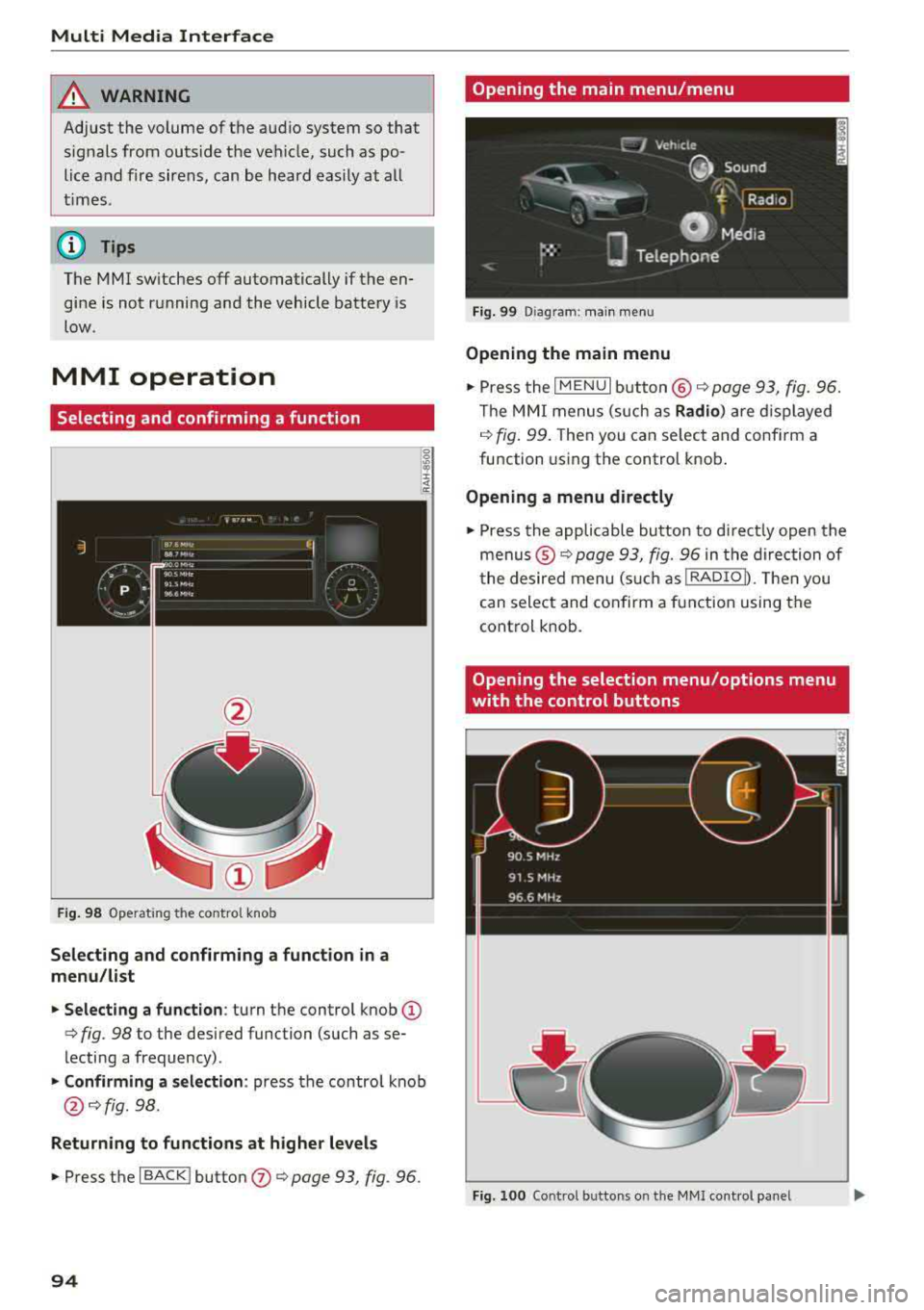
Selecting and confirming a function
Fig . 98 Operat ing the control knob
Selecting and confirming a function in a
menu/list
.. Selecting a function : turn the control knob (D
c> fig. 98 to the desired function (such as se
lecting a frequency) .
.. Confirming a selection : press the contro l knob
@ c>fig . 98.
Returning to functions at higher levels
.. Press the I BACK ! button (J) c> page 93, fig. 96.
94
Opening the main menu/menu
Fig. 99 Diagram: main menu
Opening the main menu
.,. Press the I MENU I button @ c> page 93, fig. 96.
Th e MMI menus (such as
Radio) are displayed
c>fig. 99. Then you can select and conf irm a
function using the control knob.
Opening a menu directly
.. Press the applicable button to directly open the
menus ®
c> page 93, fig. 96 in the direction of
the desired menu (such as
!RADIOD. Th en you
can select and confirm a function using the
control knob.
Opening the selection menu/options menu
with the control buttons
Fig. 100 Control butto ns on the MMI cont rol panel
Page 97 of 310

Cl co .... N ,-... N ...... 0 ,-... Vl co
Selection menu: through the selection menu,
you can open additional functions within a men u
i tem (such as
Radio ).
Req uireme nt: the select io n menu symbol mus t
be disp layed in the In fota inment system display
¢ fig . 100 .
Opening /closing the selection menu : press the
l eft contro l bu tton
¢ fig. 100 . Then you c an se
lect and conf irm a function usi ng the control
knob.
Options menu : using the opt io ns menu, you can
se lec t a nd con firm con tex t-depen den t fu nct ions
as we ll as settings within a men u item (such as
Radio ).
Re qui rement : the options menu symbol G must
be disp layed in the In fota inme nt system di splay
¢ fig . 100 .
Opening /closing the options menu : press the
right contr ol
bu tton ¢ fig. 100. Then yo u can se
lec t an d con firm a func tion usi ng the cont rol
knob.
Information about menu paths
T his guide shows you a t a glan ce the path s for
opening a desired menu and its se ttings and
functions.
Example of a path
"' Se lect : I RADIO ! bu tton> left cont rol bu tton>
FM .
Following the path
"'Press th e I RADIO I button .
"' Press the left control button .
"'Turn the con trol knob to the FM menu item to
sele ct i t.
"'P ress th e c ont rol knob to confi rm the se le cte d
FM me nu item .
"'The selected and conf irmed funct ion is execut
ed . In this e xam ple, the
FM frequency band is
set .
Multi Media Inte rface
MMI touch
MMI touch control pad
App lies to: vehicles wi th MMI to uch
You can enter data using handwri ting recogni
tion on the
MMI touch control pad .
Fig . 10 1 En ter ing a nav igatio n destin atio n
The M MI touch cont rol pa d@ ¢ page 93, fig . 96
is located on the contro l kno b (D ¢ page 93,
fig . 96 .
Entering letters, numbers and symbols
App lies to : vehicles wit h MMI to uch
The MMI touch allows you to enter data on the
MMI touch control pad using handwriting recog
nition.
Fig. 102 Disp la y when MMI to uch is act ive
95
Page 98 of 310

Multi Media Interface
Requirement: it must be possible to enter text or
numbers and the
symbol @<=:> fig. 102 must ap
pear in the Infotainment system display.
-Initial entry: write an individua l upper case or
lower case letter or number/symbol on the
MMI touch control pad using your finger . A
symbol that is recognized clearly by the system
is displayed in the Infotainment system display
@ c:::> page 95, fig. 101, confirmed with an audi
ble signal if necessary, and transferred to the
input field.
-Entering spaces : move your finger across the
MMI touch control pad from left to right .
-Deleting characters: move your finger across
the MMI touch control pad from right to left.
-Deleting characters quickly: move your finger
quick ly across the MMI touch control pad from
right to left .
-Selecting the input suggestion : press the con
trol knob .
-Switching directly to the results list: turn the
control knob to the right
- Opening the speller: select the right control
button>
Open speller . Text or numbers are en
tered using the speller
c:::> page 99 .
96
Moving the crosshairs
Applies to: vehicles with MMI touch
l.
Fig. 103 Moving the cro ssha irs
Requirement: a map must be displayed
c:::> page 142, fig. 12 7.
-Showing/hiding the crosshairs: press the con
trol knob to show the crosshairs
©¢fig . 103 .
Press the I BACKI button (!) c:::> page 93, fig. 96
to hide the crosshairs again .
-Moving the crosshairs on a map : move the
crosshairs shown in the desired direction using
your finger on the MMI touch control pad
c:::> fig. 103.
-Moving the crosshairs quickly : when the cross
ha irs are
visible © c:::> fig. 103, slide your finger
quickly ac ross the
MMI touch control pad in the
desired direction
c:::> fig. 103. The crosshairs will
come to a stop after several seconds .