2018 AUDI TT ROADSTER CD player
[x] Cancel search: CD playerPage 163 of 310
Cl co ..... N ,....
N ..... 0 ,....
Vl co
Audi music interface
Applies to: ve hicles with Audi m usic in terface
Connect your mobile devices to the Audi music
interface in order to operate them through the
MMI and charge the battery.
'" •.I 'I'
1 .
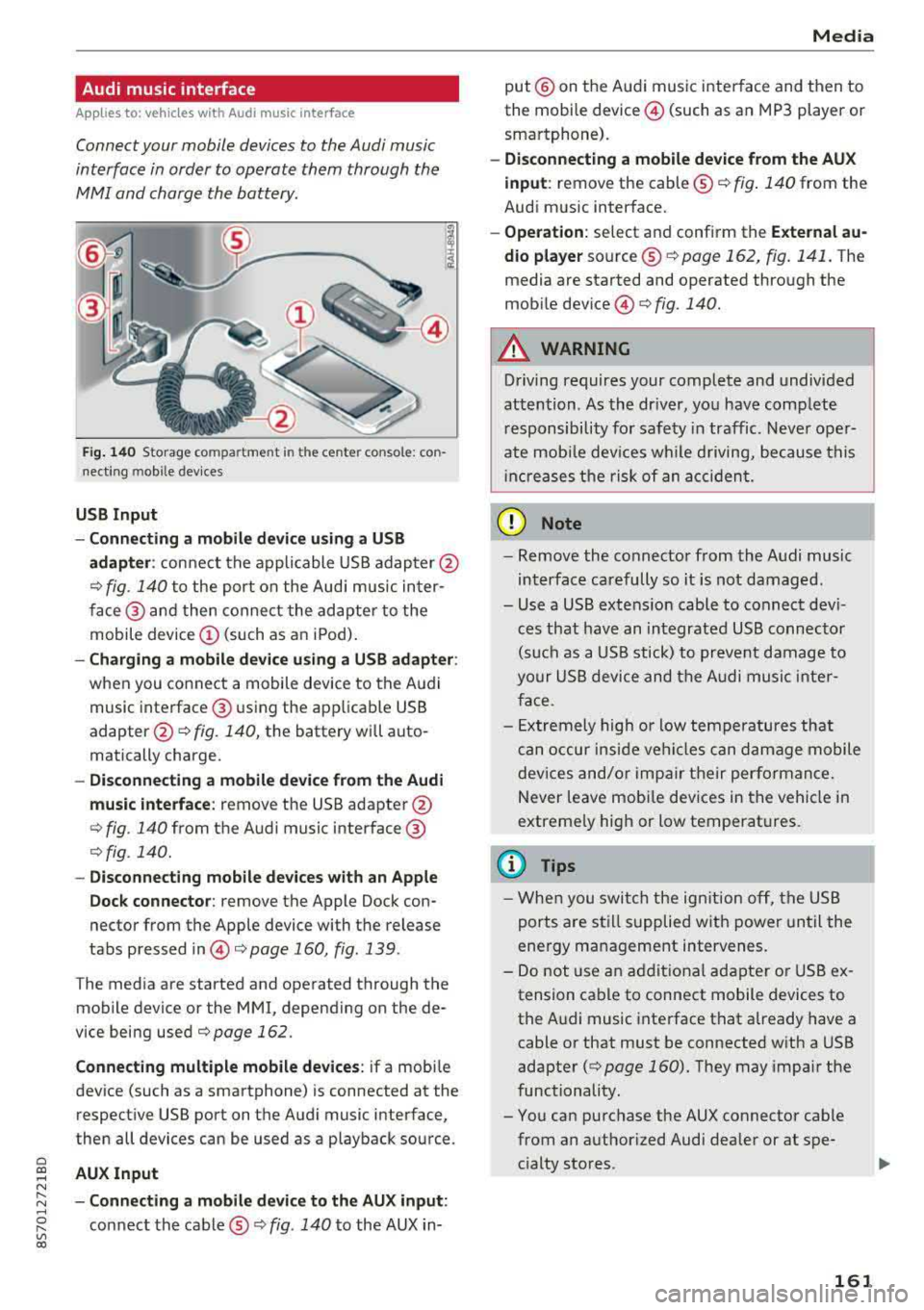
Fig. 140 S torage co mpa rtment in the ce nte r conso le: co n
nect ing m ob ile dev ices
USB Input
- Connecting a mobile device using a
USB
adapter : connect the applicable USB adap ter @
¢ fig. 140 to the port on the Audi music inter
face @ and then connect the adapter to the
mobile device
(D (such as an iPod).
-Charging a mobile device using a USB adapter :
when you connect a mobile device to the Audi
music interface @ using the app licab le USB
adapter @¢ fig. 140, the battery will auto
matically charge .
-Disconnecting a mobile device from the Audi
music interface :
remove the USB adapter @
¢ fig. 140 from the Audi music interface @
¢fig . 140.
-Disconnecting mobile devices with an Apple
Dock connector:
remove the Apple Dock con
nector from the Apple device with the release
tabs pressed
in @ ¢page 160, fig .139 .
The media are started and operated through the
mobile device or the MMI , depending on the de
vice being used
¢page 162 .
Connecting multiple mobile devices: if a mobile
device (such as a smartphone) is connected at the respect ive USB port on the Audi music interface,
then all devices can be used as a playback source .
AUX Input
-Connecting a mobile device to the AUX input:
connect the cable®¢ fig. 140 to the AUX in-
Media
put @ on the Audi music interface and then to
the mobile
device @ (such as an MP3 player or
smartphone).
- Disconnecting a mobile device from the AUX
input :
remove the cable ®¢ fig. 140 from the
Audi music interface.
- Operation : select and confirm the External au
dio player
source ®¢ page 162, fig . 141. The
media are started and operated through the
mob ile
device @) ¢fig. 140.
A WARNING
-
Driving requires your complete and undivided
attention . As the driver, you have complete
responsibility for safety in traffic. Never oper
ate mobile devices wh ile d riving, because this
i nc reases the risk of an accident.
(D Note
-Remove the connector from the Audi music
interface carefully so it is not damaged.
- Use a USB extens ion cable to connect devi
ces that have an integrated USB connector
(such as a USB stick) to prevent damage to
your USB device and the Audi music inter
face .
- E xtremely high or low temperatures that
can occur inside vehi cles can damage mobile
devices and/or impair their performance.
Never leave mobi le dev ices in the vehicle in
extreme ly high or low temperat ures.
@ Tips
- When you switch the ignitio n off, the USB
ports are still supplied with power until the
energy management intervenes.
- Do not u se an additional adapter or USB ex
tension cable to connect mobile devices to
the Audi music interface that already have a
cable or that must be connected with a USB
adapter
( ¢ page 160). They may impair the
functionality.
- You can purchase the AUX connector cable from an authorized Audi dealer or at spe
cialty stores .
161
Page 164 of 310

Media
-Audi recommends setting the volume of a
mobil e device connected to the AUX input to
approximately 70% of the maximum vol
ume .
- Functionality is not guaranteed for mobile
devices that do not conform to the USB 2.0
spec ification.
- USB hubs are not supported .
- Some ve rsions of the iPod such as the iPod
shuffle cannot be connected to the USB
adapter for devices w ith App le Dock connec
tor. Connect these dev ices using a AUX con
nector cable .
- Video p layback through the Audi music in
terface is only supported if the connected
device is recognized as a USB storage device
(for example a USB stick) . Apple devices and
MT P devices (such as smartphones) a re not
r ecogni zed as USB storage devices .
- i Pod/iPhone malfunct ions also affect the
operation of the MMI. Reset your iPod/
i Phone if this happens.
- For important information on operating
your iPod/iPhone, refer to the user guide for
the dev ice. Audi recomme nds updat ing the
i Pod/iPhone so ftwa re to the latest ve rsion.
- Fo r more information about the Audi music
i nte rface and supporte d devices, check the
A udi databa se fo r mobile devices at
www.audiusa.com/mp3 or contact an au
thorized Audi dealer or authorized Audi
Service Fac ility.
162
Playing media
Accessing media
You can start and operate various media
through the
MMI control panel .
Fig. 1 41 Diagram: possible source s in t he Me dia menu
F ig . 142 Dia gr am: pos sible sour ces in the Med ia m enu
Requireme nt: a media so urce mus t contain au
dio/video* files
c:> page 155.
.,. Press the I M EDIA i button . Press the left cont rol
button unti l the sources overv iew is d isplayed .
.,. Select and confirm the des ired so urce. Or :
press the !MEDIA ! button repeatedly unti l th e
d esired sourc e is s elected.
Depend ing o n the vehicle equipmen t, the follow
i ng sou rces may be d isplayed in the
Media menu :
Switch to radio : the Radio menu opens
c:> page 149.
CD Jukebox* ....................
@ DVD /CD dri ve* .. .. .... . ..... .
® SD ca rd re ader .. .. ... ... ... ..
© Audi mu sic interface * ..........
s u ch as iPod , USB stick
® E xternal audio player . . . . . . . . . .
1S6
1 5S, 156
155
161
161 ...
Page 165 of 310

Cl co .... N ,....
N .... 0 ,....
Vl co
®
0
®
such as an MP3 player connected to
the AUX input
Bluetooth audio player*
Wi-Fi audio player* .......... .
Online media*
and Internet radio*
157
158
159
-Playing audio/video files: select a source in the
Media menu > category (such as artists > al
bum
> track) .
-Moving one level up in the folder structure:
press the I BACK I button. Or: select and confirm
Folder up.
- Selecting the previous or next track/chapter
1): press the On/Off knob on the MMI control
panel briefly to the left
l
-Fast-forwarding and rewinding audio/video
files :
press and hold the On/Off knob on the
MMI control panel to the left l
a longer time.
-Pausing or resuming playback: press the On/
Off knob on the MMI control panel briefly.
@ Tips
-You can scroll through long lists quickly by
turning the control knob quickly. The scroll
i ng speed depends on the number of list en
tries.
-For safety reasons, the video image is only
displayed when the vehicle is stationary. On ly the sound from the v ideo plays while driv
i ng .
Media center
Various categories for selecting audio/video*
files are available in the media center .
Fig. 143 Example: USB stick catego ries
1l Depe ndi ng o n th e DVD, t his may not be possible during
playba ck .
Media
Fi g. 144 Example: USB stick categories
... Press the I MEDIA! button. Press the left control
button until the sources overview is displayed.
Select and confirm the desired source.
(D Active source
The active source is highlighted . The active
source symbol
(D may change depending on the
connected device, the online media service* or
Internet radio*. The device name may be dis
played (for example: myPhone). As an example, a
USB stick is shown
c:> fig. 143 connected to the
Audi music interface* .
Depending on the active source, you can select
audio/video fi les* from the follow ing categories
and add them to the playlist:
@ Favo rites
The Favorites category appears if at least one en
try is stored in the favorites list. See
c:> page 165,
Favorites.
@ Artists
All available artists are displayed. Select and con
firm an a rtist, an album and then a track .
@Albums
All availab le albums are displayed. Select and
confirm an album and then a track .
® Genres
All available genres are displayed. Select and
confirm a genre (such as
Pop ), an artist, an al
bum and then a song .
163
Page 170 of 310

Media
Supported media and file formats
Overview
The following audio/video files are supported by the DVD drive, the Jukebox*, the SO card reader and
the connection for USB storage devices:
Supported
medi a
File system
Metadat a
Format
File e xten-
s ion
Pla ylist s
C haracter is -
ti cs
Numbe r of
file s
(D Tips Audio files
Video files*
S D /S DH C/S DXC/MM C mem 1or y ca rds:
with a capacity up to 128 GB
DVD dri ve : audio CDs (up to 80 m in .) with CD text (artist, album, song)*, CD-ROMs with
a capacity up to 700 MB; DVD±R/RW; DVD v ideo; DVD aud io with audio tracks that a re
compatible with a DV D video player
Audi mu sic interface : mobi le devices ~page 160 such as iPods and MTP players, USB
storage devices in "USB Device Subclass 1 and
6" th at con form to USB 2.0: USB stic ks,
USB MP3 players (P lug-and -P lay cap.ab le), external USB flash drives and hard drives
Memory card s: exFAT, FAT, FAT32, NTFS
USB storage d evices: FAT, FAT32, NTFS
USB storage de vice partiti ons: 2 per USB connection
CD /DVD fil e sy stem s: 1S09660, Jo liet, UD F
Album co ver : GIF, JPG, PNG with max.
800x800 px . The album cover from the
medium or from Gracenote is displayed,
depending on availability .
MPEG Windows MPEG F
LAC
MPEG MPEG4 Windows Media Vid
-
1/2 Media 2/4 1/2
AVC eo 9
Layer-3 Audio 9 (H.264)
and 10
.mp3 .wma .
m4a;
.flac .mpg; .mp4; .wmv;
. m4b;
.mpeg .m4v; .asf
. aac .mov;
. avi
.M3U; .PLS; .WPL; .M3U8; .ASX
up to maximum 320 kb it/s and 48 kHz up to maximum 2,000 kb it/s and
48 k Hz sampling frequencies sampling 720x576 px. at max imum 25 fps
frequen-
cy
DVD drive *: max. 1,000 files per medium
Jukebo x*: approximate ly 10 GB storage space; max. 3,000 files can be imported
USB storage de vices and memo ry card s: max. 10,000 files per medium; max. 1,000
fi les pe r playlist/ directory
showing the remain ing p lay time may differ
for MP3 files with variab le bit rate.
- The med ia drives do not support the W in
dows Media Audio 9 Voice format . -
Special characters (s uch as those in ID3 tag
information) display differently depending
on the system language and cannot always
be guaran teed .
-
To comp ress MP3 f iles, a bit rate of at least
160 kb it/s is recommended. The display
16 8
Page 171 of 310

Cl 00 ... N r-N ... 0 r-Vl 00
Media
-The manufactu rer of the stora ge device can
provide information about its "USB Device
Subclass" . -Some MTP p laye r fu nct ions are not s upport
ed, s uch as rating music tracks and video
playback.
CD drive
App lies to: ve hicles with a CD d rive
The following audio file properties are supported by the CD drive:
Audio files
Supported
Audio CDs (up to 80 min) with CD tex t (artist, a lbum, t rack) *, CD -ROMs with a capac i-
media ty of up to 700 MB
File system CD file system: IS09660, Joliet, UDF
Metadata Album cover : GIF, JPG, PNG wit h max. 800x800 px. The album cover from the medi -
um may be d isp layed, depend ing on avai lab ility.
Format M PE G 1/ 2 Windows Media A u- M PEG 2/4 FLAC
Layer -3 dio 9 and 10
File extension .mp3 .wma .m4a; .flac
. m4b;
. aac
Playlists .M3U; .PLS ; .WPL; .M3U8; .ASX
Characteristics up to maximum 3 20 kb it/s and 48 k Hz sampli ng freque ncies 48 k Hz sampling
frequency
Number of M aximum 1,000 files pe r med ium
files
(D Tips
-To comp ress MP3 files, a bit rate of at least
160 kb it/s is recommended. The display
showing the remaining p lay t ime may d iffer
fo r MP3 f iles w it h va riable bi t rate.
-Special cha racters (s uch as those in 1D3 tag
information) display differently depend ing
on the system language a nd cannot always
be guaranteed .
Troubleshooting
Problem Solution
Audi music interface */Bluetooth au-
Read the ins truc tions in the chapter q page 160, Multimedia
dio player *: mobile dev ice is not sup-c onne ctions/ 9 page 157, Bluetooth audio player. You can
porte d. learn abo ut supporte d mo bile dev ices in the A udi da tabase fo r
mo bile dev ices a t www.audius a.com/blue tooth.
Audi music interface */AU X input: the Ad just the volume of the mobile device to approximate ly 70%
vol ume is too h igh/too low w hen of the max imum ou tp ut
9page 165, Input level.
sta rting playback th rough the AUX in-
pu t.
169
Page 172 of 310

Media Problem Solution
Audi music interface* :
the portable For many cell phones or mobile devices, playback is not possi-
device is not recognized as a source. ble when the battery level is too low (less than 5% of its ca-
pacity) . The mobile device w ill only be recognized as a media
source in the MMI after connecting if the battery charge level
is sufficient .
Audi music interface* : malfunctions
The Bluetooth audio player function is switched on . Switch
dur ing audio p layback throug h an this
funct ion off
i::> page 175 when you are not using the
iPod/ iPhone.
Bluetooth audio player.
AUX input :
there is stat ic when con- When connecting and disconnecting, the External audio play-
necting and disconnect ing the AUX er source is al ready selected . Before connecting or disconnect-
connection cable. ing
the mobi le device, either m ute the device (see
<=:>page 177) or switch to a different audio source (for exam -
ple
i::> page 149, Opening the radio) .
Bluetooth audio player* /Wi-Fi audio Only one interface should be act ive ly used at a time to ensu re
player *: audio playback interfe re nc e. problem -free playback.
Wi-Fi audio player* : audio playback Aud io playback interference can occur on some cell phones if
interference. the Internet connection in the ve hicle was no t established
through the SIM card reader* on the MMI control panel and
the
mobile data option on the cell phone is sw itched on . De-
activate the
mobile data option on your cell phone.
Jukebox* : tracks on the imported When importing playlists, all of the files themselves must be
playlist are grayed out. imported
.
Jukebox*: imported tracks cannot be If you cannot find imported tracks in the media center, they
played or found. may not be supported. Only copy supported files
i::> page 168
to the Jukebox .
Wi-Fi audio player *: multiple devices Close the Audi MMI connect app on the connected devices
are connected to the Wi-Fi hotspot. A (for example, smartphones) that are not being used as the
media pla ye r (suc h as a smartphone) Wi-Fi audio player*. Likewise , close the UPn P serve r apps or
appears as the media source and can- t he media permissions on the integ rated UPnP/DLNA server.
not be changed. Connect the desired device as a Wi-Fi audio player*
<=:> page 158.
Online media *: connection fa iled be- To establish a connection to the MMI, the MMI connection
tween the MMI and the
Audi MMI switch must be switched on in the Audi MMI connect app sta-
connect app. tus screen .
Bluetooth audio player *: interference Playback interference can occur when using the Bluetooth au-
with track d isplay and audio p layback. dio player if a music player app from a third party provider is
open . Audi recommends using the integrated media player on
your Bluetoo th device (such as a smartphone) .
Wi-Fi hotspot*: your Wi-Fi device is
Make sure the network optimization functions are switched
disconnected from the Wi-Fi hotspot. off in the Wi- Fi settings or in the network settings for your
Wi-Fi device. For additiona l information refer to the user
guide for your W i-F i dev ice.
170
Page 176 of 310

System settings
delete the programmed voice training with the
Reset individual speech training function .
Factory settings
The follo wing funct ions can be reset to the facto
ry default settings :
-Sound settings
- Radio
- Media settings
- Jukebox*
- Directory*
- Telephone *
- Bluetooth and Wi-Fi*
- Navigation settings *
- Navigation and online memory *
- Voice recognition system*
- Message settings *
-Apps*
-Tool tips
-Audi connect *
You can select the desired functions individually
or all at once with the option
Select all entries .
Select and confirm Restore factory settings.
(D Tips
-Make sure that not only t he settings were
deleted but also the stored data, if appl ica
ble.
- Please note that the
voice recognit ion sys
tem* is not available in Cabriolets that do
not have a factory- insta lled safety belt mi
crophone .
174
Connection manager
Introduction
The connection manager gives you an overview
of your connected devices and their network sta
tus.
Settings Connection manager
I • Prima hone : M_Phone C,
t MyPhone ~
• Secondary phone : Not connected
• Data connect,on: Not connected
• MMI connect App: Not connected
• w,- F, aud ,o player: Not connected
Fig . 147 Co nnect ion manager
.,.. Select: !MENUI button> Settings > left control
button
> MMI settings > Connection manager.
.,.. Select and confirm a menu it em.
If a mobile device was already connected and you
select and co nfirm the corresponding menu item,
the device name and connect ion status are dis
played under the menu item.
You can individually
Connect(~) or Disconnect
(0) a pa ired device.
Requirement:
- Th e vehicle m ust be stationary and the ignition
m ust be switched on .
- Th e Bluetooth settings will open on your mo
bile device during the connection setup .
- Th e Bluetooth function and visibility of the MMI
c::> page 175 and mobile device must be switch
ed on.
- Th e mobile device to be connected m ust not be
connected to any other B luetooth dev ice .
Primary phone
App lies to: vehicles wi th telepho ne
- Connect new device: search for and connect a
cell phone.
- List of devices already paired: select your cell
phone from the list of all the devices that are
already paired.
Page 177 of 310

Cl 00 .-< N r--N .-< 0 r--Vl 00
Secondary phone
Applies to: vehicles with telephone
-Connect new device : search for and connec t a
c e ll phone.
- List of devices already paired : selec t your cell
p hone fro m the lis t of all the devices t hat are
al re ad y p aired.
Data connection
Applies to: vehicles with Audi connect
-Connect new device : search for and connec t a
mobile device (s uch as a smartp hone) .
-List of devices already paired : selec t your cell
p hone from the list of all the devices t hat are
al ready pa ired .
Or : insert a mini SI M card into
the S IM ca rd
reader* c> page 124.
({;D) Note
Always follow t he i nfo rmat ion foun d in c> (0) in
W i-F i hotspot on page 130 .
MMI connect app
Applies to: vehicles with Audi connect
Requirement: the Audi MMI connect app m ust
be i nstalled and open on your mobile device.
- Connect new device : search for and connect a
mobile device (s uch as a smartp hone) .
-List of devices already paired : select your mo
b ile device from the list of a ll the devices that
are already paired.
Audio player
Applies to vehicles with Bluetooth or Wi-Fi audio player
Bluetooth player
Requirement: the Bl uetooth funct ion and v is ibi li
ty must be sw itched on in the MMI
c> page 175
and on the B luetoot h aud io player.
- Connect new device : press the control knob.
Se lect
Bluetooth audio player . Search fo r and
connect a mobile device .
-List of devices already paired : select a Bl ue
tooth device from the list of a ll the devices that
are already paired.
System settings
Wi-Fi audio player
Re quiremen t: th e W i-Fi h otspo t on the M MI
c> page 1 29 an d the Wi -Fi on you r W i-Fi audio
player m ust be switched on .
-Connect new device : pres s t he co ntrol knob.
Se arch for and conne ct a Wi-Fi ca pabl e dev ice.
- Disconnect Wi-Fi audio player: deactivate t he
Wi-Fi on you r W i-Fi capa ble dev ice. The devi ce
w ill be au tom atic a lly removed from the lis t.
@ Note
Alway s follow the infor mation foun d in c> @ in
W i-F i ho tspo t on p age 130.
Directory
Applies to: vehicles with telephone
Display contacts from a cell phone (or an addi
tiona l cell phone).
Requirement: cell phones must not be connected
to the M MI t hro ugh the Blue too th remote SI M
ac cess profi le or throug h th e
Handsfree p ro file.
- Connect new device: search for and connect a
new ce ll phone .
-List of devices already paired : select yo ur cell
p ho ne from the list of all the cell phones that
are a lready paired .
Audi smartphone
Applies to: vehicles with Audi smartphone interface
-Con nect yo ur cell phone to the A udi music in
t erfa ce
c> p age 161 using a USB a dap ter
c> page 160, fig. 139 .
-Sele ct your cell p ho ne fro m th e list of cell
p hon es th at h ave alread y bee n connec ted.
Additional options
D epen ding o n the sele cte d fu nction, yo u can use
t h e right contro l button to access the avai la bl e
additional opt ions in t he connection mana ger.
Bluetooth settings
- Bluetooth:
selec t and co nfi rm a s etti ng for the
Bl uetoo th conne ct ion visib ility. Se lec t
Visible
for the MM I to be visib le to othe r devices . ..,.
175