2018 AUDI S3 SEDAN led
[x] Cancel search: ledPage 199 of 404

u. 00 .-< N l' N .-< 0 N > 00
myaudi is required to use individual serv
ices . You can contact an authorized Audi
dealer or Audi connect (Infotainment) cus
tomer service at (877) SOS-AUDI (2834) to receive information on options for expand
i ng your usage and any costs that may re
sult .
- The Audi connect Infotainment services are
a W i-F i/lnternet-based system . If the sys
tem does not function co rrectly even
though all of the requirements a re met,
please try again later or contact Audi con
ne ct (Infota inment) customer service a t
(8 77) SOS -AU DI (2834) .
- Fo r detailed information on Audi connect
(Infotainment) and the Terms of Use, refer
to www .audiusa .com .
Data protection
Applies to vehicles with Aud i connect (Infotainment)
(D Tips
- Your privacy is important to us.
-AUDI AG collects, processes, shares and
transmits your persona l information in ac
cordance with legal regulations in order to
ensure proper function and availability of
the individual Audi connect Infota inment
services . You can view the complete, current
and val id Audi connect (Infotainment) data
prote ction poli cy in your MMI. The myAudi
platfo rm is available fo r to yo u to activate
additional Audi connect Infotainment serv
ices and to transfer data to your vehicle,
among other services. A one-time registra
tion is required to establish a connection to
your vehicle. For this purpose, AUDI AG col
l ects, processes, transmits and uses your re
quired personal informat ion as requ ired for
you to use the services provided by AUDI
AG. Your information is not dist ributed to
th ird parties. Us ing you r ce ll phone with Audi conn
ect (Inf otainment )
your myAudi p latform allows you to trans
mit data for your Audi connect Infotain
ment serv ices functions to your vehicle and
you can allow specific vehicle data to be transmitted from your vehicle.
- By activating special information services that are part of your Aud i connect (Infotain
ment) portfolio, you can use these functions
directly in your vehicle by entering data to
confirm you r identity (to use soc ial net
works, for example). To do this, the ident ifi
cat ion info rmation you provided is forward
ed with the request to the respec tive service
prov ider. Then you can access yo ur persona l
content using a sec ure connection . This con
tent is displayed in the vehicle for your use .
Your personal content is not stored w ith in
Audi AG. The necessary connection informa tion is processed and used for prov iding
serv ices and the proper funct ion of the serv
ices in accordance with applicable legal
guide lines.
- You can find additional info rmation in your
MMI in the options menu for the selected
Audi connect Infotainment service and a lso
online at www.a udiusa.com.
- By p roviding Aud i connect Infotainment
serv ices, Audi of Ameri ca is au thori zed to
c ollec t, p rocess, transmi t and transfer info r
mation about you and your vehicle . Addi
tional information can also be found in your
MMI in the options menu for the selected
Audi connect Infotainment service.
- Information on o ur data protection meas
ures in conjunct ion with the mob ile Audi
connect (Infotainment) app lication can be
found in the applicat ion's privacy policy. For
add itiona l information about the
www.aud iusa.com/myaudi webs ite or other
applications, websites or on line services
connected to Audi, v is it www.aud iusa.com/
pr ivacy.
197
Page 200 of 404
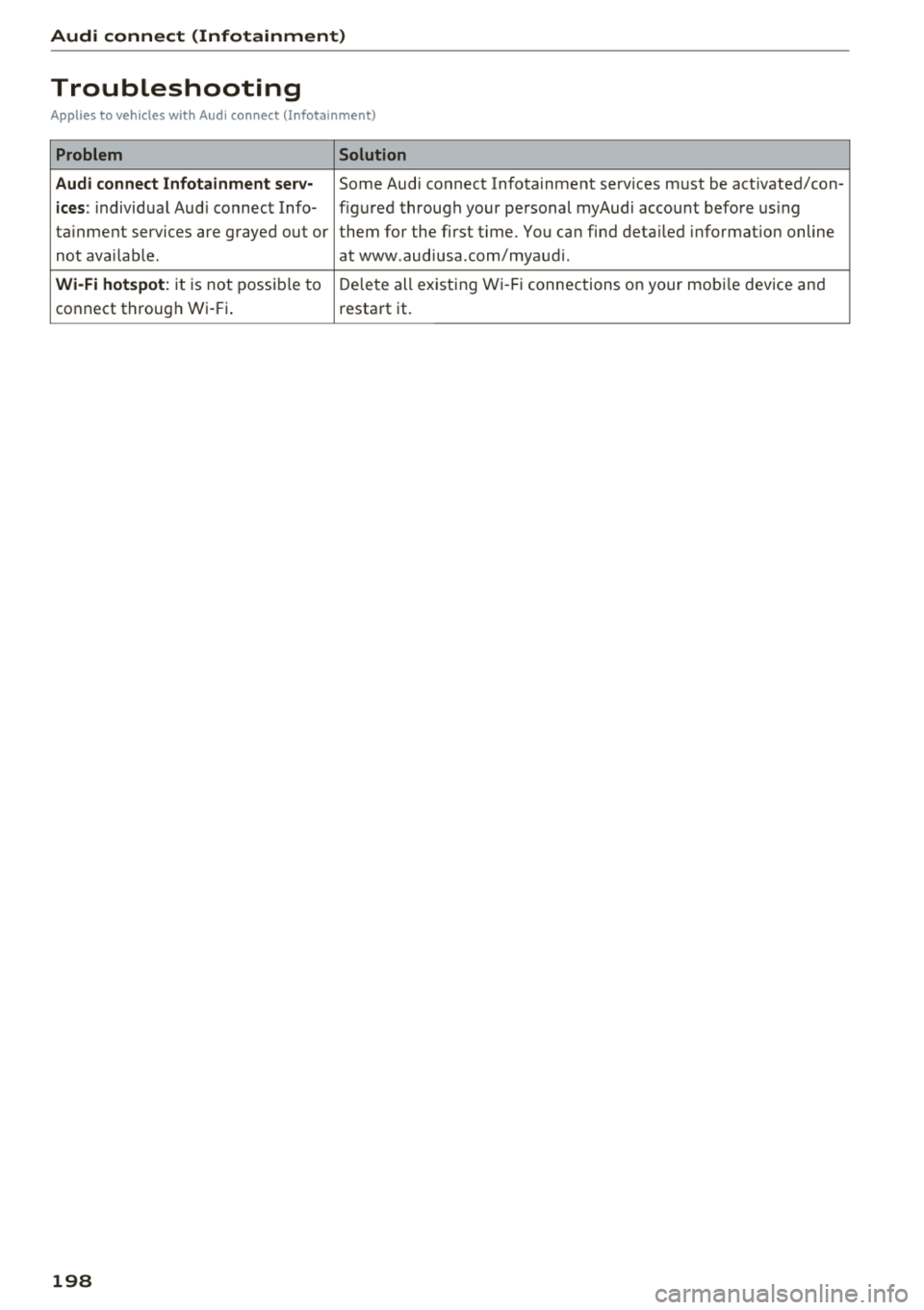
Audi connect (Infotainment)
Troubleshooting
Applies to vehicles with Audi connect (Infotainment)
Problem Solution
Audi connect Infotainment serv·
Some Audi connect Infotainment services must be activated/con-
ices: individual Audi connect Info- figured through your personal myAudi account before using
ta inment serv ices are grayed out or them for the first time. You can find deta iled information on line
not available . atwww.audiusa.com/myaudi.
Wi-Fi hotspot : it is not possible to Delete all existing Wi-Fi connections on your mobi le device and
connect through Wi-Fi. restart it.
198
Page 206 of 404

Navigat ion
-If a contact is grayed out in the directory,
this contact has neither a destination nor an
address assigned to them.
Point of interest search
Applies to: ve hicles w ith navigation system
.. Press the I NAV /MAPI bu tton repeatedly until
t he
E nte r d estination menu is displayed
¢page 201 , fig . 1 82 .
.. Select : left cont rol button > Point s of intere st.
-C hanging the search area : select and confirm
Sear ch ar ea > a search area from the list .
The following search categories are avai lab le:
Nearb y: points o f interes t can be sele cted from
different categories . The points o f interest are
list ed starting from the immediate vicinity of the
vehicle up to a radi us of approximate ly 124
miles (200 km).
Along the route: points of inte rest a long the
route can on ly be select ed during active rout e
gu idance. The points of interest are located d i
rect ly along or in the immediate vicinity of the
calcul ated route. The points of interest can like
wise be selected from various categor ies . For ex
ample, you can search for a hotel or park ing lot
at the destination .
Near destin ation /Near stopo ver : po ints of inter
est near a destination or a stopover can only be
selected dur ing active route guidance . T he poi nts
of interest can likewise be se lected from va rious
ca tegor ies. For examp le, you ca n search fo r a ho
tel or parking lot a t the destination.
In new city : select a country/state or searc h in a
new c ity . Ente r the name of the des ired c ity .
P oints of i nte rest can be selected from var ious
ca tegor ies. Th is f unction allows you to searc h for
points of interes t in any ci ty regardless of the ac
tive route guidance or the vehicle position.
-Sea rch for a p oint of inter est name in these
lec ted search are a:
en ter the name of the po int
of inte rest .
-Sear ching f or a poin t of inter est in a specifi c
ca tegory :
select Select cat egory . Select and
confirm a ca tegory such as
Restaurant s.
204
(D Tips
-Distances to points of interest are displayed
as a stra ight -line d istance from your current
location. The actual d istance from your cur
rent location to the point of interest is up
dated automatically. The list of found
points of interest is not resorted when this
happens.
-T here may be entr ies in the l ist that cannot
be displayed comp letely due to t heir length .
Select the cor respond ing ent ry from the
list. Select: r ight cont rol b utton> Show des
ti na tion det ails. De tailed informa tion fo r
the se lected entry in the list is then dis
played .
Online point of interest search (online
search)
App lies to: vehicles wit h a navigation system and Audi co n
nect (Infota inment)
You can search for points of interest on the In
t e rnet .
Requirement: the requirements for Aud i connect
(Infotai nment) must be met
¢ page 190 .
.. Press the I NAV/MAPI button repeatedly until
the
Enter des tination me nu is displayed
~ page 201, fig. 182 .
.. Select: left control button > Online sear ch . Th e
searc h area last set is displayed in the inpu t
fie ld .
-C hanging the search area : select: right cont rol
bu tton >
S elect sear ch are a.
-Searching for onlin e destinations in thes e
l ec ted search ar ea :
ente r a new c ity/state if
necessary. En ter the search term, such as hotel.
Press the contro l knob. Se lect and confirm an
online destination from the list.
-Sea rching for online de stinations in a specific
categor y:
se lect and confirm Sele ct category.
Select and confirm a category such as Re stau
rants .
Find w hich search areas are avai lab le under
¢ page 204 , Point of interest search .
You can search for online destinations using the
vo ice recog nitio n
sys tem ¢ table on page 173. .,..
Page 208 of 404

Navigation Cancel route guidance
App lies to: vehicles with navigation system
Requirement: route guidance must be active.
.,. Press the I NAV/MAPI button repeatedly until
the
Enter destination menu is displayed
c:::> page201, fig .182 .
.,. Turn the control knob to the left until the active
route gui dance is shown
c:::> page 205, fig. 184 .
.,. Select and confirm Cancel route guidance (D
c:::> page 205, fig. 184 . The destination is delet
ed.
Or : select the right control button > Cancel
route guidance .
Additional options when entering a
destination
Applies to: vehicles with navigation system
.,. Press the right control button .
Depending on the selected function, the follow
ing options may be available when entering a
destination:
Cancel route guidance : Requirement: route guid
ance must be active. Route guidance is canceled. For addit ional information, see
c:::> page 206 .
Country information: you can d isp lay the appli
cable urban and rural speed limits for any coun
try/state. If this function is activated, the infor
mat ion will be automatically shown to you in the
route information
(z) c:::> page 210, fig . 189 when
the speed limit is exceeded
c:::> page 212 .
Country/state selection: see c::> page 202, Nar
rowing the search area.
Route criteria: see c:::> page 209, Route criteria.
Show location on map : Requirement: you must
have se lected a destination from the results list.
The destination entered is displayed on the map .
Parking at this lo cation *: Requirement: you
m ust have selected a destination from the re
sults list . All parking options near the selected
location are displayed in the Infotainment sys
tem .
Delete : th e selected en try is deleted. You can de
lete individua l entries or all entries (for example,
favorites or last destinations).
206
Audi connect at this location* : Requirement: yo u
must have se lected a destination from the re
su lts list. A llows you to search for items in the v i
cinity of the selected location, such as
Travel in
formation.
Online traffic data *:
the on line traffic informa
tion
c:::> page 216 can be sw itched on or off .
Add destination to contact: see c:::> page 208.
Store as favorite: see c:::> page 208 .
Voice guidance : see c:::> page 210.
Navigation settings: see c:::> page 209.
(D Tips
Information on on line traff ic data* can also
be found on line at www.audiusa .com .
Personal route
assistance
Applies to: vehicles with navigation system and personal
ro ute assistance
Your MMI con learn the routes that you drive fre
quently and, depending on the current vehicle
position, suggest route guidance (for example,
your daily commute to work and back).
Fig. 185 E xample : personal route disp lay
Fig. 186 Info rmation o n personal route
Page 215 of 404

LL co .... N
" N .... 0 N > co
or can be minimized on the display of upcoming maneuvers.
Automatic zo om
On : the map scale is adapted a utomat ica lly de
pending on the type of road being trave led (ex
pressway, hig hway, other roads) so that you al
ways have an optimal overview o f the road ahead.
The sca le is also automatica lly adapted when
there are upcoming maneuvers to provide a bet ter detailed view.
Inter section : when route guidance is active, the
map temporarily zooms in to a detailed scale
when there are upcom ing maneuvers so that you
can see the street or turn better.
Off: the map sca le you have chosen is main
tained.
M ap content
Map content such as weathe r, traff ic information
or favorites can be displayed or hidden .
The weather forecast* is d isplayed o n a 3 m i (5
km) scale on the map ¢
page 208, fig. 187.
Satellite map
Appl ies to: ve hicles with a nav igatio n system an d Audi con
nect (I nfotainment)
You can display the navigation map with satel
lite images .
Fig. 191 Example: satellite map
Requirement: the requirements for Audi connect
(Infotainment) must be met
¢ page 190.
1> Prov ider at time of printing .
2> AUDI AG provides access to se rvices from th ird party pro ·
v iders . Pe rman ent ava ilability cannot be guaran teed , be
c ause that depe nds on th e th ird party provider.
Na viga tion
.. Press the !NAV/MAPI button repeatedly until
the map is displayed.
.. Select: r ight control b utton > M ap settings >
Map displa y> Google Earth ll2l_
T he map v iew is based on data packets received
from the Internet in the form of satellite images,
which are then combined with the roadways from
the
Standard map view. There are two gigabytes
of memory space in the MMI memory that can be
u sed to temporarily store the map or nav igat io n
data that was received . This is roughly the
amount requ ired for the map/navigation data for
a 2, 485 m ile ( 4,000 km) ro ute. As long as the
sate llite images loaded for route guidance are
stored, you can use them witho ut having a n ac
tive data connection .
(D Tips
- The sto red sa tell ite map2> d ata can be de
leted in
Factory setting s> Navigation and
online memory ¢
page 244.
- The s atellite map2> is updated regularly
whenever the function is opened . The proc
ess may take several seconds.
- When the satellite map d isplay
2> is switch
ed on with the 30 position map, the map
display automatically sw itches to the 20
map type when driving through tunnels.
- Always read the chapter¢
page 196, Audi
connect (Infotainment) general informa tion .
-For add itiona l information, v is it
www.audiusa.com.
Map update
Introduction
Applies to: vehicles wi th navigat ion syste m
The re are mu ltip le opt io ns avai lab le for updat ing
yo ur map mate rial:
- Map updates through the
online map upd ate *
¢page 214 . ..,_
213
Page 216 of 404

Navigation
-Import map updates from the SO card* to your
MMI. You can find additional information on
li ne at www.audiusa.com/myaudi.
-Map update at an authorized Audi dealer or au
thorized Audi Service Facility. This can result in
additional costs.
Online map update
Applies to: vehicles with a navigation system and Audi con
nect (Infotainment)
Using the online map update, you can update
the map material in your navigation system di
rectly from your vehicle.
Fig. 192 Exa mple: disp lay of a new onl ine map update
Fig. 193 Example : select ion of a country package
Requirement:
The requirements for Audi connect Infotainment
services must be met
r=> page 190.
You must have a myAudi account and have as
signed your vehicle to it.
Using your vehicle position, the MMI identifies
regions which you are frequently in. Based on
this, the MMI suggests update packages for
these regions, if they are avai lable .
• Select @Start download c> fig. 192 if the mes
sage for a new map update appears in the Info
tainment system display.
Or :
214
.. Select !MENUI button> Settings> left control
button >
System maintenance > System up
date > Online update.
A selec tion with the available update packages
appears in the Infotainment system display
¢fig. 193.
Selecting the online map update
-Sele ct an update package from the list(~) @
r=>fig. 193.
-Confirm your select ion w ith the ! BACK I button
and go back to the select ion.
-The number and amount of data for the se lect
ed update package are now displayed in the In
fotainment system.
Starting the download
-Select and confirm Start download .
-Confirm the security prompt by selecting Start
download
again.
The update packages begin to download and the
status of the down load progress is shown in the
Infotainment system display.
Installation of online map updates
The downloaded map material installs after you
stop your vehicle. The new update packages in
stall on ly after you switch
off the ign ition. After
restarting the MMI, the Infotainment system dis
play indicates if the updates installed successful
ly.
-Confirm the successful update with OK.
The new map material can now be used for navi
gation.
{i) Tips
-Th e amount of available on line map up
dates in the vehicle is limited. To update
more regions, use the map update via SD
card at www.audiusa.com/myaudi .
-Always read the chapter c> page 196, Audi
connect (Infotainment) general informa
tion.
Page 217 of 404

Accessing traffic information
Traffic information (TMC)
Appl ies to: vehicles with navigation system
.,. Press the I NAV /MAPI button repeatedly until
the map is displayed .
.,. Select : left control button > Traffic messages .
An overview of all the traffic messages is dis
p layed in the Infotainment system. Traffic inci
dents on your route are shown in the upper sec
tion of the list, sorted according to distance.
-Displaying all traffic messages for a street/
highway :
select and confirm the[] symbo l. A
li st of a ll the traffic messages for the selected
street/h ighway is displayed.
-Opening a detailed view of traffic information :
select and confirm the traffic information from
the list.
-Displaying the selected traffic information on
the map :
select the right control button >
Show on map . The shaded line shows the
street and the length of the traffic jam.
-Displaying the next traffic message on the
map:
press the control knob.
Traffic information display
Colored warning symbols:
traffic incidents on
your route are shown in the upper section of the
list and are sorted according to distance.
Warning symbols with~: avoided traffic inci
dents.
Grayed out warning symbols: traffic incidents
that are not on yo ur route. They are sorted ac
cording to road type (expressway, hig hway, othe r
road), country and name.
(D Tips
-Critical traffic informa tion, such as warn
ings about wrong- way drivers, is automati
ca lly displayed . To hide the traffic informa
tion, press the
I BACK I button or the control
u. knob. 00 .-< ~ -TMC traffic reports are not avai lab le in Can -
~ ada. For more information, please contact 0
~ Sirius Canada. 00
Navigation
Better route
Applies to: vehicles with navigation system
By receiving traffic information through TMC,
your MMI calculates a better route -if available -
and the possible time saved for the current route
guidance. You can decide yourself which route
you would like to use.
.,. Press the INAV/MAPI button repeatedly until
the map is displayed.
Requirement: route guidance must be active.
If your MMI has ca lculated a better route than
the current route guidance, the message
A better
route is available.
appears for several seconds
along with the time that may be saved . A better
route is ind icated in the map view by the symbol
rS ~page 210, fig. 190 .
Apply better route
-Press the right control button.
-Select and confirm the better route. Or: select
and confirm
Details to display details about the
optimized route. You can zoom in or out on the
map using the MMI touch control pad. Require
ment : there must be more than one opt im ized
route calculated. Press the control knob to
sw itch to the next route in the detailed view.
Closing the detailed view: press the I BACKI
button.
-The better route is used for the remaining
route guidance and the route is recalcu lated.
215
Page 225 of 404

u. 00 .-< N l' N .-< 0 N > 00
Media
Introduction
There are various media drives and connections
avai lab le in the MMI. For example, you can play
audio/video* fi les from t he Jukebox* or connect
your mobi le device to the Audi mus ic interface*
and operate it through the MMI.
Notes
General
Media and format re strictions :
the MM I (includ
ing the SD card reader and the USB storage de
vice connection *) was tested wit h a variety of
products and media on the market. However,
there may be cases where ind ividual devices or
media and audio/video files* may not be recog
n ized, may play on ly w ith restrictions, or may not
play at all.
Digital Rights Management : please note that
the audio/video* files are subjec t to copyright
protection .
The med ia drives do not play f iles that are pro
tected by
ORM and that are ident ified with the
symbol
rfl.
Data secu rity : never store important data on SD
cards, the Jukebox*, CDs/DVDs or mobile devices .
Aud i AG is not responsib le for damaged or lost
f il es and media .
Loading times : th e more files/fo lders/p lay lists
that are on a storage medium, the longer it will
take to load the audio/v ideo* files . Audi recom
mends using storage med ia tha t on ly conta in au
d io/video files* . To decrease the t ime it takes to
l oad audio/v ideo f iles*, create subfolders (fo r ex
ample, fo r th e a rt ist o r album). The loading time
will also increase when importing fi les.
Additional information : when playing, audio
f iles are automatically displayed with any add i
tional informat ion that is sto red (such as the ar
tis t, trac k and albu m cover). If this informa tion is
n o t availa ble o n the sto rage med ium, t he
M MI
will check the Grace note metadata database .
Media
However, in some cases, the additional in fo rma
tion may not be displayed.
Re stri cted functionality : reset the Media set
tings
t o the fac to ry defau lt settings if func tional
ity is restr icted
¢ page 244.
If fu nctionali ty is rest ricted, reset the Jukebox *
to the fa ctory default se tt ings ¢ page 244.
For information about the propert ies of s upport
ed med ia and fi le formats , see
¢ page 237 .
@ Note
Always fo llow the information fo und in ¢ @ in
Wi-Fi hotspot on page 195 .
CD/DVD operation
CD /DVD and format restrictions :
the funct iona li
ty of individ ua l st orage media may be limited due
to the v ariety of b lank CDs/DVDs avai lab le and
t h e various capacities. Audio C Ds or video DV Ds
with copy p rotection, CDs/DVDs that do not con
fo rm to the standard and multi session CDs may
have limit ed playback or may not play at a ll. Audi
recommends finaliz ing the recording process
whe n creat ing mult isess io n CDs . Mult isess ion is
not supported for DVDs .
Using CDs/DVDs , the CD dr ive or the DVD drive :
to ensure correct, hig h-quality playback and to
prevent damage to the dr ive or d isc read ing er
rors, always store CDs/DVDs in a protective
sleeve and do not expose t hem to direct sunlight .
Do
not u se:
- Damaged, dirty or scratched CDs/DVDs
- Sing le CDs/DVDs with 3 in (8 cm) d iameter
- CD/DVDs that a re not round
- CDs/DVDs w it h labe ls
- Protec tive rings
- Clea ning CDs
Thermal protection switch : CD/DVD playback
may be temporarily unavailab le if outs ide tem
peratures a re extremely hot or co ld . A thermal
pro tect io n sw itch is insta lled to p rotect the C D/
D VD and the laser.
La ser devi ce s: lase r devices a re divided i nto safe -
ty classes 1 to 4 in acco rdance w ith DIN I EC 76
.,.
223