2018 AUDI S3 SEDAN led
[x] Cancel search: ledPage 226 of 404
Media
(CO) 6/VDE 0837. The optical readers that are in
stalled conform to safety class
1. Lasers in this
class are very weak and well shielded, so there is no danger if used correctly.
Media drives
SO card reader
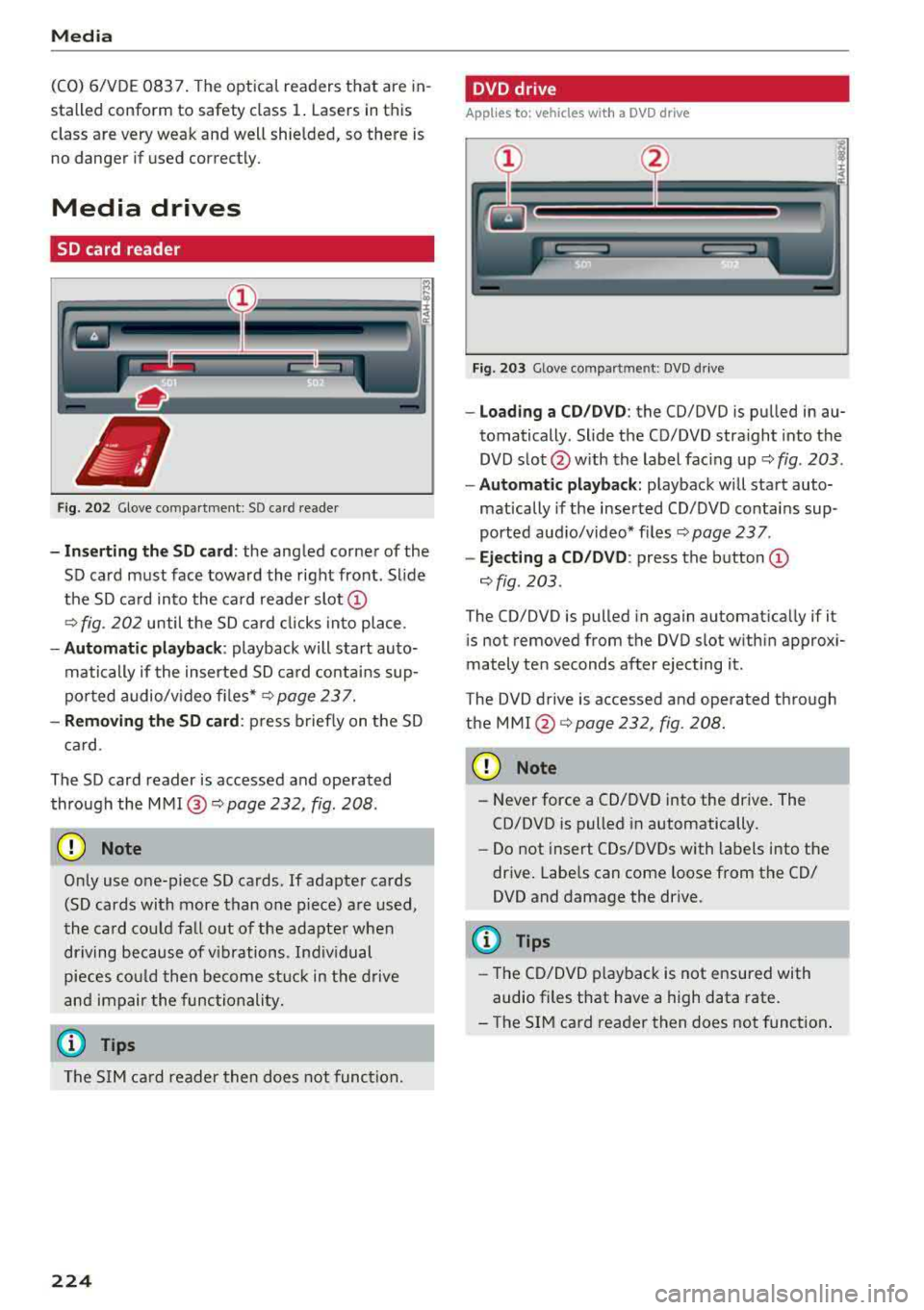
Fig. 202 Glove compa rtment : SD ca rd reader
-I n se rt in g th e S D card : the angled corner of the
SD card must face toward the right front . Sl ide
the SD ca rd into the card reader
slot @
9fig. 202 until the SD ca rd cli cks into place .
-Automatic pla yback : playback will start auto
matically if the inserted SD ca rd contains sup
po rted audio/v ideo fi les*
r:::.> page 23 7.
-Remo vin g the SD card : press briefly on the SD
ca rd.
The SD card reader is accessed and operated
through the
MMI @9 page 232, fig . 208 .
(D Note
Only use one-piece SD cards. If adapter cards
(SD cards with more than one piece) are used,
the card cou ld fa ll out of the adapter when
driving because of v ibrations . Ind ividual
pieces cou ld then become s tuck in the d rive
and impair the func tionality.
(D Tips
The S IM ca rd reader then does not func tion.
224
DVD drive
App lies to : vehicles with a DVD dr ive
Fig. 2 03 Glove comp art m en t: DVD d riv e
-Loading a CD /DVD : the CD/DVD is pu lled in au
tomatically . Slide the CD/DVD straight into the
DVD s lot @ with the label fac ing up
9 fig. 203 .
-Automa tic playback: playback w ill start auto
matically if the inserted CD/DVD conta ins sup
ported aud io/video* f iles
r:::.> page 23 7 .
-Ej ect ing a CD /DVD : press the button @
r:::.>fig . 203 .
The CD/DVD is pulled in again automat ica lly if it
is not removed from the DVD slot w ith in approx i
mately ten seconds after ejecting it.
T he DVD drive is accessed and operated through
the
MMI @r:::.>page 232 , fig . 208.
(D Note
-N ever force a CD/DVD into the drive. The
CD/DVD is pulled in automatically .
-Do not insert CDs/DVDs with labels into the
drive. Labe ls can come loose from the CD/
DVD and damage the drive.
(D Tips
-T he CD/DVD p layback is not ensured with
audio files that have a high data rate.
-T he SIM card reader then does not function .
Page 227 of 404

u. 00 .-< N l' N .-< 0 N > 00
CD drive
App lies to: ve hicles wit h a CD drive
Fig. 204 G love co mpart m en t: CD driv e
-Load ing a CD : the CD is pulled in automatically .
S lide the CD straight into the CD
slot @
ca:> fig. 2 04 wit h the label fac ing up .
- Automatic playback : playback will start auto
matically if the inserted CD conta ins sup port ed
a u dio files
ca:> pag e 238, CD driv e.
- Ejecting a CD : press t he b utton (D <=:> fig . 204 .
The CD is pulled in again automatically if it is not
removed from t he slot w it hi n ten seconds of
e j ecting it .
T h e CD drive is accessed and operate d th ro ug h
the M MI
<=:> page 232, Playing m edia.
{Ll) Note
- Neve r for ce a CD into t he dr ive . The CD is
pull ed in auto matically .
- D o no t in se rt CDs w ith la b els in to the dri ve.
La bels can come loose from the CD and
d ama ge the drive .
(D Tips
CD play back c anno t be guaran teed wit h audio
fi les t hat have a high d ata rate .
Media
Jukebox
Applies to : veh icles w it h Jukebox
After you have filled the Jukebo x with music and/
or videos, for example from your SD card , you
can play th ese fil es dir ectly from the Jukebo x.
T he Jukebox me mory capa city is approximately
1 0 GB .
.,. Press th e I M EDIA ! button . Press the left cont rol
bu tton unt il the sources
overv iew <=:> page 232
is displayed. Se le ct and co nfir m Jukebox .
Adding files to the Jukebox
- Press th e I MEDIA ! button. Press t he left cont rol
button unt il the sources
overv iew <=:> page 23 2
is displayed . Select one of the follow ing so urces
t o copy to t he Ju kebox: SD c ard*, CD-R OM* ,
DVD -ROM *, US B stor age devi ce*.
Requirem ent: the media center (for examp le ,
t racks, albums) m ust be o pen .
-Selecting an entry : selec t an e ntry fr om the
media cente r. Se lect : rig ht contro l butto n
>
Copy to Jukebox > This entry or Entire list.
Requiremen t: th e pla yli st mus t be open. See
<=:> page 234.
- Selecting a track : select the track that is cur
rent ly p layi ng . Selec t: right control b utton
>
Copy to jukebox > This track or Entire album
or This artist .
Requirement: a v ideo file must be playing .
- Sele ct: r ig h t con trol button
> Copy to Jukebox .
The copying process begins . T he stat us of the
copy ing process is shown i n the MMI.
- Hiding the importing process : select and co n
fi rm
Continue copying in background . Theim
porti ng process is hid den .
-Canceling the importing process: selec t and
confirm
Cancel copying : Or: remove t he source
that is be ing i mported . Files al rea dy copied re
ma in.
R equirement: the copy in g pr ocess m ust be a ctive
in the bac kg ro un d.
-Showing the copying process : select: right
con trol b utton
> Copying in progress .
225
Page 229 of 404

u. 00 ... N l' N ... 0 N > 00
The media is started and operated through the
mobile device or the
MMI, depending on the de
vice being used.
(D Tips
-Check for any connection requests on your
Bluetooth device.
-Multiple Bluetooth audio players can be
connected to the
MMI, but only one mobile
device can be active.
-Bluetooth protocols AVRCP (1.0/1.3/1.4)
and A2DP are supported.
-Note the volume setting on your Bluetooth
device. Audi recommends setting your mo
bile device to the maximum volume when
using it as a Bluetooth audio player.
-The supported media functions (such as
shuffle) depend on the Bluetooth device be
ing used.
-For more information on the supported de
vices, visit www.audiusa.com/bluetooth or
contact an authorized Audi dealer or author ized Audi Service Facility.
Wi-Fi audio player
Appl ies to: ve hicles with Wi-F i audio playe r
Using the Wi -Fi audio player media source on the
MMI, you can connect and operate your Wi-Fi-ca
pable media player (such as a smartphone) to
wirelessly play music from your media player
li
brary. The media player is connected through the
vehicle's Wi-Fi hotspot. A UPnP Server opp or an
integrated UPnPIDLNA server on your media
player is required to access your media player
li
brary.
Requirement: the Wi-Fi function on your media
player must be switched on. The
Audi MMI con
nect
app or a UPnP server app must be installed
on your media player .
Or: you must be using a
media player with an integrated UPnP/DLNA
server.
-Connecting a media player: press the I MEDIA !
button. Press the left control button until the
sources overview
c::;, page 232 is displayed. Se
lect and confirm
Wi-Fi audio player 0
c::;,page 232, fig . 209 .
Media
-If necessary, select and confirm Wi-Fi turned
off> Turn on Wi-Fi
to activate Wi-Fi in the
MMI. Select
Wi-Fi settings, if necessary. Select
the same settings on the wireless media player
that are used for the Wi-Fi hotspot.
-Starting the Wi-Fi audio player: start the Audi
MMI connect
app or a UPnP server app, or set
media permissions on your media player.
Operating the media player: the media player is
operated through the MMI.
-Press the left control button repeatedly until
the
Folders menu item appears. Select and con
firm
Folders.
-Playing music from the media player: select
and confirm
Media center .
Web radio:
see c::;, page 228 .
A WARNING
-
-As the driver, do not allow usage of the Wi
Fi hotspot to distract you from driving, as
this could increase the risk of an accident.
-It is only safe to use tablets, laptops, mo
bile devices and other similar devices when
the vehicle is stationary because, like all
loose objects, they could be thrown around
the inside of the vehicle in a crash and cause
serious injuries. Store these types of devices
securely while driving.
-Do not use any wireless devices on the front
seats within range of the airbags while driv
ing. Also read and follow the warnings in
c::;, page 2 73, Front airbags.
@ Note
Always follow the information found in ¢@ in
Wi-Fi hotspot on page 195.
(D Tips
-Always read the chapter c::;, page 196, Audi
connect (Infotainment) general informa
tion.
-Please note that a Wi-Fi connection does
not automatically make it possible to use
the Internet. For additional information,
see
c::;, page 190.
227
Page 230 of 404

Media
- To avoid interruptions during playback, de
activate the power saving function on the
media player or connect it to a charger.
- The loading times for the audio data depend
on the media player used and the number of
files that it contains.
- A maximum of 2,000 entries per directory
are displayed in the MMI.
- Songs downloaded for offline use using mu
sic streaming services are stored on your mobile device (such as a smartphone) and
may be DRM protected. The Wi-Fi audio
player will not play ORM protected files.
- Contact an authorized Audi dealer or au thorized Audi Service Facility for additional
information on the Wi-Fi audio player .
Online media and
Internet radio
A pp lies to veh icles with A udi co nnect (Infotainment)
You con playback and operate various online me
dia services and Internet radio using the MMI.
Fig. 205 Online media
.,. Press the I MEDIAi button. Press the left control
button until the sources
overview ¢ fig. 205 is
displayed.
A ppl ies to: using o nline me dia an d Internet radi o
Requirement:
- The
Audi MMI connect app must be installed
and open on your mobile device.
- You must be logged into your myAudi account
in the
Audi MMI connect app and you must
have selected your veh icle.
- The Wi-Fi function on the mobile device and on
the MMI must be switched on.
- If necessary, check in the connection manager
¢
page 244 if the mobile device you connected
is selected under the
MMI connect app (~).
228
-The MMI must be connected to the network.
- The symbol for the
Online media source @
¢ fig. 205 is shown in the MMI.
Applies to: usin g on line media
Additional requirement:
- A supported online media service must be avail
able in your country.
- You must have an account with a supported on
line media service.
- Depending on the online media service, you
must install and open an app on your mobile
device.
Starting Online media
-Press the IM EDIA I button . Press the left control
button until the sources
overview ¢ page 232
is displayed .
- Select and confirm an online media service.
Start ing Internet radio
-Press the IM EDIA I button . Press the left control
button until the sources
overv iew ¢ page 232
is displayed .
- Select and confirm
Internet radio. The Internet
radio browser or the last station that was play
ing is shown .
-Selecting the station : if necessary, select and
confirm a category in the Internet radio
Brows
er>
a station.
Online media and Internet radio: additional op
tions
- Press the right control button.
The following options may be available , depend
i ng on the information shown (such as the sta
tion/t rack that is currently playing):
-Sound settings: see ¢ page 247 .
-Wi-Fi settings: see ¢ page 195, Wi -Fi hotspot.
- Connection manager: see ¢ page 244.
-Add itional options may be available, depending
on the active online media service or Internet
radio .
,&. WARNING
-It is on ly safe to use tablets, laptops, mo
bile devices and other similar devices when
the vehicle is stationary because, like all
loose objects, they could be thrown around
-
Page 238 of 404

Media
Gracenote onlin e datab ase*
Req uirement: the M MI mus t be connected to the
I n ternet.
Depending on availability , va rious informat io n
w ill load about the track cur rently play ing when
t his func tion is sw itched on
!;1.
Favorit es
See ~ page 234 .
Addition al options
Requirement: the vehicle must be stationary and
a video file* or a DVD* must be p lay ing .
Child safety loc k*
Playback o f video DVDs can be restric ted using
parental control.
E nter the password fo r parenta l control. Pass
wo rd set at t he f actory:
12 34 . Yo u have the fol
lowing options:
- Prot ection level: select and confirm the protec
t ion level (fo r example , Leve l 5). Eight diffe rent
pro tect io n leve ls c an be set fo r parenta l
cona
tro l. If you set the parental con trol leve l at Lev
el 5, a ll DVDs from level 1 -5 can be played . Vid
eo DVDs with a higher leve l will not play . Se lect
Un restri cted to remove all of the restrictions.
- Change pa ssword: edit the current password .
Switch to full screen
The video image is displayed. Turn the cont rol
knob to disp lay the playl ist.
Or : press the I BACKI
button.
Replay video1>
When th is function is sw itched on !;1, the current
video w ill replay .
Show DVD menu
The DVD main menu opens in the Infotainment
system display.
1> Th e fun ctio n au to m ati ca lly swi tches o ff when th e source
i s c ha nge d.
2> Depe nding o n th e DVD, th is may not be poss ib le dur ing
p layba ck.
236
- Selecting a menu item: select and confirm a
menu item.
Or : move your finger on the MMI
to uch control pad * and press the contro l knob .
Audio track2
)
Yo u can ma nually se t the aud io t rack (lang uage
and audio format). The lang uage and audio for
mat options depend on the video DVD .
Subtitles2>
You can set subtitles for playback manually. The
l anguages availab le depend o n the DVD.
Aspect
Audi recommends the Automati c setting for the
picture format . You can set the picture format
depend ing on the act ive file or source (for exam
ple v ideo fi le*, DVD*).
Picture for-
Description
mat
Automati c
The M MI detects the pict ure for-
mat of the so urce and displays the
i mage in the opt imum rat io. Black
bars may appea r on the sides of
the disp lay, depending on the
source format and the Infotain -
ment system display that is insta l-
led.
Z oo m The image is e nlarged to fi ll the
entire In fotainment system dis -
play. Switch the function off if the
image is distorted .
Cinema-Use this setting for fi lms in cinema
sc ope fo rmat 2 1:9. B lack bars are s hown
i n t he upper and lower edges of the
Infotainment system d isplay .
Origin al The image is d isplayed in the ratio
of the so urce fo rmat. Select this
opt ion if the image is disto rted or a
section of the image is cut off
when
Au to is selected.
Page 242 of 404
Media
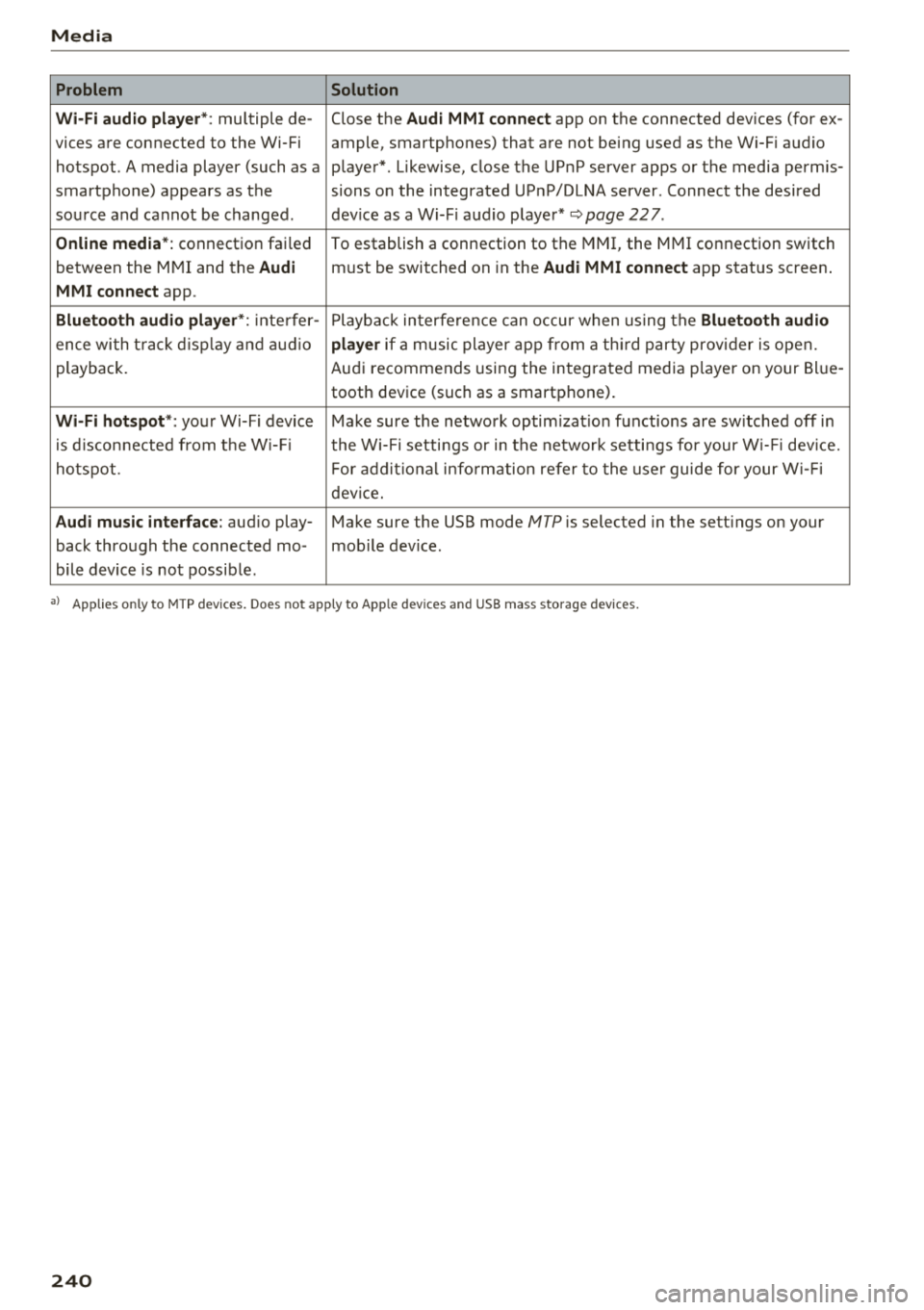
Problem Solution
Wi-Fi audio playe r*:
multiple de- Close the Audi MMI connect app on the connected devices (for ex -
vices are connected to the Wi-Fi ample, smartphones) that are not being used as the Wi-Fi audio
hotspot. A media player (such as a player*. Likewise, close the UPnP server apps or the media permis-
smartphone) appears as the sions on the integrated UPnP/DLNA server. Connect the desired
source and cannot be changed. dev ice as a Wi-F i aud io player*
~page 227.
Online media*: connection failed
To establish a connection to the MMI, the MMI connection switch
between the MMI and the
Audi must be switched on in the Audi MMI connect app status screen .
MMI connect app.
Bluetooth audio player *: inte rfer -Playback interfere nce can occur when us ing the Bluetooth audio
ence wi th t rack d isp lay and audio player if a music player app from a third party provider is open.
playback. Audi recommends using the integrated media p layer on your Bl ue-
tooth device (such as a smartphone).
Wi-Fi hotspot *: your Wi-Fi device Make sure the network optim izat ion functions are sw itched off in
is disconnected from the W i- Fi the Wi-Fi setti ngs or in the network settings for your W i- Fi dev ice.
ho tspot. For additional information refer to the user guide for your Wi-Fi
device.
Audi music interface: aud io play- Make sure the USB mode MTP is selected in the sett ings on your
back through the connected mo- mob ile device.
bile device is not possible .
a) Applies only to MTP devices. Does not app ly to Apple dev ices and USB m ass storage dev ices.
240
Page 244 of 404

Audi smartphone interface
Opening a menu item
Select and confirm a menu item using the MMI
control panel.
Troubleshooting
Applies to: vehicles with Audi smartphone interface
Problem Solution
Audi smartphone
Check the charge level of your smartphone battery.
interface cannot be Check the USB cable and use a different one if necessary
.
opened. Check if Android Auto or Apple CarPlay is available in your country.
Android Auto : check if the Android Auto app is installed on you r smartphone .
Connecting the Check if you are using the correct USB adapter and if the USB adapter is connect-
smartphone to the ed correctly to your smartphone and the Aud i mus ic
interface ¢ page 229.
MMI failed . Apple CarPlay: check if App le CarPlay is activated on your sma rtphone .
Android Auto: check in the And raid Auto app if Android Auto permits new
veh icles .
T he smartphone is Check if you are using the correct USB adapter and
if the USB adapter is connect -
not automatically ed correctly to your smartphone and the Audi music
interface
¢ page 229.
detected. Check if the requirements needed to connect a smartphone have been met.
242
Page 247 of 404

u. 00 ... N l' N ... 0 N > 00
Secondary phone
Applies to: vehicles with telephone
-Connect new device : search for and connec t a
c e ll phone.
- List of devices already paired : selec t your cell
p hone fro m the lis t of all the devices t hat are
al re ad y p aired.
Data connection
Applies to vehicles with Audi connect (Infotainment)
- T he data conne ct ion is made using the em bed
ded SIM car d
ll i=>page 190. You do not need to
adjust a ny a ddit io n al sett ings.
{Ll) Note
Always follow t he inf ormat ion foun d in i=> @ in
Wi-Fi hotspot on page 195 .
MMI connect app
Applies to vehicles with Audi connect (Infotainment)
Requirement: the Audi MMI connect app m ust
be installed and open on your mobile device.
- Connect new device : search for and connect a
mobile device (s uch as a smartp hone) .
-List of devices already paired : selec t your mo
bile device from the list of a ll the devices that
are already paire d.
Audio player
Applies to vehicles with Bluetooth or Wi-Fi audio player
Bluetooth player*
Requirement: the Bluetooth funct ion and v is ibili
ty must be sw itched on in the MMI
i=> page 246
and on the B luetoot h aud io player.
- Connect new device : press the control knob.
Se lect
Bluetooth audio player . Search fo r and
connect a mobile device .
-List of devices already paired : select a Bl ue
tooth device from the list of a ll the devices that
are already paire d.
ll SIM card inst alle d in t he v eh icle at the fa ctory.
System settings
Wi-Fi audio player*
R eq uiremen t: th e W i-Fi h otspo t* on the M MI
i=> page 195 an d on yo ur Wi -Fi audio playe r must
be switched o n.
-Connect new device: press the co ntrol knob.
Se arch for and conne ct a W i-Fi ca pabl e dev ice.
- Disconnect Wi-Fi audio player: de activate t he
W i-Fi on you r W i-Fi capa ble dev ice. The devi ce
w ill be au tom atic a lly removed from the lis t.
@ Note
Alway s follo w the inf ormat ion foun d in i=> @ in
W i-F i h ots pot on p age 195.
Directory
Applies to: vehicles with telephone
Display contacts from a cell phone (or an addi
tiona l cell phone).
Requirement: no ce ll phones can be connec ted to
the MMI using the
Handsfree pro file.
- Connect new device: search for and connect a
new ce ll phone .
-List of devices already paired : select yo ur cell
phone from t he list of all the cell phones that
are a lready paired .
Audi smartphone
Applies to: vehicles with Audi smartphone interface
-Connect yo ur cell phone to the A udi music in
t erface
i=> page 230 using a USB adap ter
i=> page 22 9, fig. 2 06.
- Sel ect your cell p ho ne from t he list of cell
p ho nes th at h ave already bee n con nec ted.
Additional options
D epen ding on the sele cted fun ct ion, yo u ca n use
t h e righ t contro l bu tton to access the ava ila bl e
additional options in t he connection mana ger .
.,.
245