2017 VOLVO XC90 T8 ad blue
[x] Cancel search: ad bluePage 447 of 580

INFOTAINMENT
* Option/accessory.445
Phone settings
The following settings can be made for a paired and connected cell phone.
Cell phones
–Pull down the center display's Top view and tap
SettingsCommunicationPhoneand choose among the following settings: •
Ringtones: select a ring tone (tones from
the cell phone or the vehicle can be used). Not all cell phones are fully com-patible and it may not be possible to usetheir ring tones in the vehicle. Go towww.volvocars.com for additional informa-tion.
•
Sort order for contacts: select sort cri-
teria for the phone book (list of contacts).
To show call notifications in the head-up dis- play *, see the article "Head-up display."
Related information
• Text message settings (p. 445)
• Bluetooth settings (p. 460)
• Phone (p. 438)
• Handling phone calls (p. 441)
• Head-up display (HUD)
* (p. 120)
Text message settings
The following settings can be made for text mes- sages received through a paired and connectedcell phone.
Text message settings
–Pull down the center display's Top view and tap
SettingsCommunicationText
Messages and choose among the following
settings:
•
Notification in center display: shows
text messages in the center display's sta- tus bar.
•
Notification in driver display: shows
text messages in the instrument panel. With this alternative active, incoming mes-sages can be handled from the right-sidesteering wheel keypad.
•
Text message tone: select an audible
signal for incoming text messages.
Related information
• Connecting/disconnecting a cell phone (p. 440)
• Pairing a cell phone (p. 439)
• Handling text messages (p. 444)
Connecting a Bluetooth ®
device
Bluetooth ®
-enabled devices can be paired and
connected to the infotainment system to stream media and in some cases connect to the Inter-net.
Many cell phones and other devices currently on the market offer wireless Bluetooth ®
technology.
Consult your Volvo retailer or go to support.volvocars.com for any questions regar-ding a device's compatibility with the vehicle'sinfotainment system. The procedure for pairing and connecting a Bluetooth ®
-enabled device is the same as for a
cell phone. See the articles "Pairing a cell phone" and "Connecting/disconnecting a cell phone" fordetails.
Related information
• Pairing a cell phone (p. 439)
• Connecting/disconnecting a cell phone(p. 440)
Page 448 of 580

INFOTAINMENT
* Option/accessory.
446
Connecting a device via the AUX/USB socket
External audio sources such as an iPod ®
or mp3
player can be connected to the infotainment sys- tem via the AUX and USB sockets in the tunnelconsole. Route the cable out under the front edge to help avoid pinching it when the cover is closed.
If there are two USB sockets, the one with a white frame should be used to connect aniPhone to Apple CarPlay.
AUX/USB sockets in the tunnel console
Related information
• Apple CarPlay (p. 447)
• Playing media (p. 452)
• Media player technical data (p. 457)
• Media player (p. 446)
Media player
The media player can play audio from a CD *,
from external media devices connected to the USB/AUX sockets or it can stream audio froman external device connected to the infotainmentsystem through a Bluetooth connection. Video can also be viewed from devices con- nected to the USB socket. If the vehicle is connected to the Internet, it may also be possible to listen to web radio, audiobooks and to use various music services throughapps.
The media player is controlled from the center display but cer-tain functions can also be con-trolled from the right-sidesteering wheel keypad or byusing voice commands.
Related information
• Playing media (p. 452)
• Voice control for radio and media (p. 125)
• Radio (p. 424)
Page 449 of 580

INFOTAINMENT
}}
* Option/accessory.447
•
Apps (applications) (p. 422)
• CD (media) player
* (p. 451)
• Playing media through the AUX/USB sock- ets (p. 454)
Apple CarPlay
Apple CarPlay helps make it possible to listen to music, make phone calls, get directions to adestination, send/receive text messages and useSiri while focusing on driving. Apple CarPlayfunctions with certain Apple devices.
If the vehicle is not already equipped with Apple CarPlay, it can be retro-fitted. Contact aVolvo retailer. Information about the apps supported and com- patible cell phones is available from Apple at:www.apple.com/ios/carplay/.
NOTE
• Using apps that are not compatible with Apple CarPlay may sometimes result in abroken connection between an iPhoneand the vehicle.
• Please be aware that Volvo has no con-trol over the content of the Apple CarPlayapp.
• Apple CarPlay can only be used ifBluetooth is disabled. Therefore, a cellphone or a media player connected viaBluetooth will not be accessible whileApple CarPlay is active.
• To connect the vehicle to the Internetwhile Apple CarPlay is active, use Wi-Fior the vehicle's integrated modem.
If navigation guidance is being provided by Apple CarPlay, this will only be shown on the center display (not on the head-up display
* or the
instrument panel). The Apple CarPlay apps can be controlled from the center display or voice-controlled using Siri(the same as for a cell phone). Certain functionscan also be controlled from the right-side steer- ing wheel keypad. Press and hold the
button
to activate Siri. If Siri cuts off too soon, press and hold the
button.
By using Apple CarPlay you acknowledge the following: Apple CarPlay is a service
Page 452 of 580

||
INFOTAINMENT
* Option/accessory.
450
NOTE
• Please be aware that Volvo has no con- trol over the content of the Android Autoapp.
• If a cell phone or a media player is con-nected via Bluetooth, it will not be acces-sible while Android Auto is activebecause Bluetooth will be disabled. Toconnect the vehicle to the Internet, useWi-Fi or the vehicle's integrated modem.
If navigation guidance is being provided by Android Auto, this will only be shown on the cen- ter display (not on the head-up display
* or the
instrument panel). The Android Auto apps can be controlled from the center display or voice-controlled (the sameas for a cell phone). Certain functions can also becontrolled from the right-side steering wheel key- pad. Press and hold the
button to activate
voice control. Press briefly to deactivate.
By using Android Auto, you acknowledge the following: Android Auto is a serviceprovided by Google Inc. under its terms andconditions. Volvo Cars is not responsible forAndroid Auto or its features or applications.When you use Android Auto, your cartransfers certain information (including itslocation) to your connected Android phone. You are fully responsible for your and anyother person
Page 454 of 580
INFOTAINMENT
452
Playing media The media player can controlled from the right- side steering wheel keypad, the center display orby using voice commands. The radio is also controlled from the media player. See the articles relating to the radio.
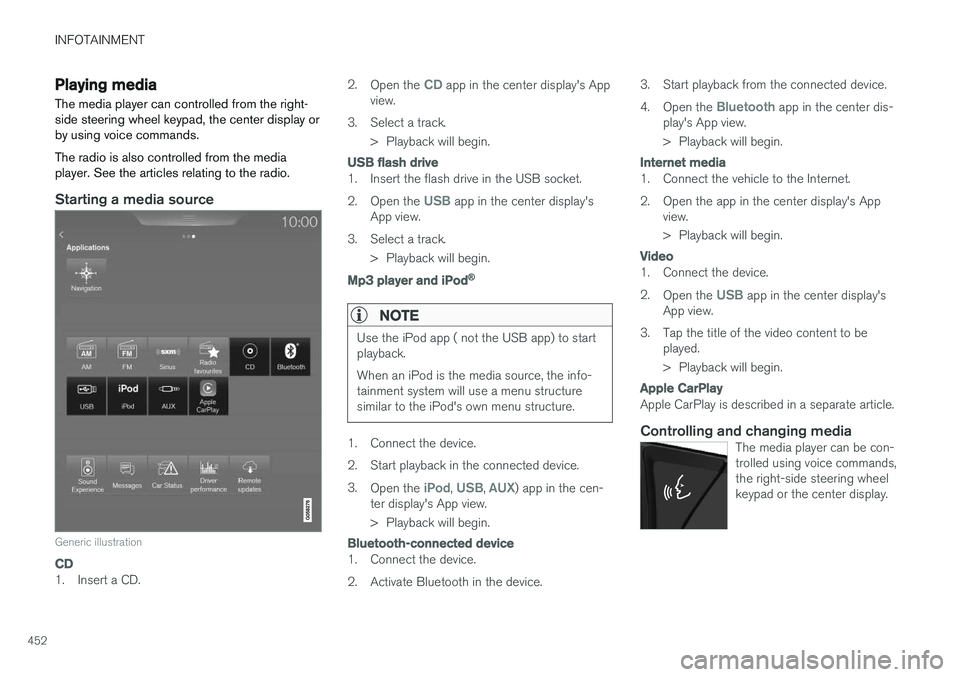
Starting a media source
Generic illustration
CD
1. Insert a CD.2.
Open the
CD app in the center display's App
view.
3. Select a track. > Playback will begin.
USB flash drive
1. Insert the flash drive in the USB socket. 2.Open the
USB app in the center display's
App view.
3. Select a track. > Playback will begin.
Mp3 player and iPod®
NOTE
Use the iPod app ( not the USB app) to start playback. When an iPod is the media source, the info- tainment system will use a menu structuresimilar to the iPod's own menu structure.
1. Connect the device.
2. Start playback in the connected device.3.
Open the
iPod, USB, AUX) app in the cen-
ter display's App view.
> Playback will begin.
Bluetooth-connected device
1. Connect the device.
2. Activate Bluetooth in the device. 3. Start playback from the connected device.4.
Open the
Bluetooth app in the center dis-
play's App view.
> Playback will begin.
Internet media
1. Connect the vehicle to the Internet.
2. Open the app in the center display's App view.
> Playback will begin.
Video
1. Connect the device. 2.Open the
USB app in the center display's
App view.
3. Tap the title of the video content to be played.
> Playback will begin.
Apple CarPlay
Apple CarPlay is described in a separate article.
Controlling and changing mediaThe media player can be con- trolled using voice commands,the right-side steering wheelkeypad or the center display.
Page 455 of 580

INFOTAINMENT
* Option/accessory.453
Volume: use the buttons on the right-side
steering wheel keypad or turn the control under the center display to raise or lower the volume. Play/pause: tap the track's image, press the
symbol on the keypad or press the button under the center display. Change tracks: tap the desired track on the cen- ter display, press the
buttons under the
center display or on the right-side steering wheel keypad. Fast forward/reverse, move within a track: pressthe time axis on the center display and drag from side to side, press and hold the
buttons
under the center display or on the right-side steering wheel keypad. Change media source: Tap a media source under
Recents, tap the desired app in the center dis-
play's App view or use the
button on the
right-side steering wheel keypad.
Library: tap to play a track from the library.
Shuffle: tap to play tracks in random order.
Similar: tap to use Gracenote to search for simi-
lar music on the USB device and create a playlist based on the results. The playlist can contain upto 50 tracks.
Change device: tap to toggle between USB
devices if more than one is connected.
Video settings
The following can be adjusted with the video player in full screen or by opening the center dis- play's Top view and tapping
SettingsVideo:Audio Language, Off and Subtitle Language.
Play DivX®
This DivX device must be registered in order to play purchased DivX Video-on-Demand (VOD)movies.
1. Open the center display's Top view and tap
SettingsVideoDivX
® VOD to get a
registration code.
2. Go to vod.divx.com for additional information and to complete the registration process.
Related information
• CD (media) player
* (p. 451)
• Media player (p. 446)
• Voice control for radio and media (p. 125)
• Apps (applications) (p. 422)
• Connecting a Bluetooth ®
device (p. 445)
• Connecting a device via the AUX/USB socket (p. 446)
• Gracenote (p. 456)
• Connecting to the Internet (p. 459)
• Media searches (p. 454)
• Video (p. 456)
• Apple CarPlay (p. 447)
Page 457 of 580

INFOTAINMENT
* Option/accessory.455
Streaming media through a Bluetooth connection The media player is equipped with Bluetooth ®
for streaming audio files from external Bluetooth ®
-enabled devices.
Related information
• Connecting a Bluetooth ®
device (p. 445)
• Playing media (p. 452)
• Voice control for radio and media (p. 125)
• Media player (p. 446)
• Ignition modes (p. 389)
• Media player technical data (p. 457)
Media sound settings
Sound settings for the media player can be per- sonalized.
Concert hall sound setting
1. Tap Settings in the center display's Top
view.
2. Tap
Sound and select among the following:
•
Sound Experience* : this feature offers sev-
eral ways of adapting media sound settings to replicate e.g., a concert hall or a recordingstudio. These settings override any of theones below that may have been adjusted.
•
Tone: personal settings for bass, treble,
equalizer, etc.
•
Balance: adjust the front/rear and left/right
sound settings in the passenger compart- ment.
System volumes for mediaOpen the center display's Top view and tap
SettingsSoundSystem Volumes:
•
AUX: an external device (e.g., an mp3 player,
an iPod, etc.) connected to the AUX socket may have a different volume level than theone set for the infotainment system (e.g., forthe radio). This setting enables you to adjustthe AUX socket's volume. Please note that ifthis volume is set too high, sound quality maybe affected.
•
Speed and Volume Compensation: the
infotainment system will compensate for dis- rupting noises in the passenger compart-ment by increasing media volume in relationto the vehicle's speed. This can be set to oneof several different levels.
Related information
• Playing media (p. 452)
• Sound settings (p. 423)
Page 460 of 580

||
INFOTAINMENT
* Option/accessory.
458
Max. number
Tracks in a playlist 1,000
Subfolders No limit
USB socket
• Type A socket
• Version 2.0
• Voltage 5 V
• Max. current 2.1 A
Related information
•
CD (media) player
* (p. 451)
Internet connected vehicle
Connecting to the Internet makes it possible to e.g., use certain navigation services, listen toweb radio, stream music using apps, contact aretailer and download software.
The vehicle can connect to the Internet using Bluetooth, Wi-Fi or via the integrated modem. When connected, it is possible to share (tether) a Wi-Fi-hotspot to allow other devices to use the connection 6
.
Connection status is shown in the center dis- play's status bar.
Related information
• Connecting to the Internet (p. 459)
• Apps (applications) (p. 422) •
Booking service and repairs (p. 502)
• System updates (p. 500)
• Volvo ID (p. 32)
• Symbols in the center display status bar (p. 48)
• Tethering (Wi-Fi sharing) (p. 462)
6
This does not apply to Wi-Fi connections.