2017 VOLVO V90 radio
[x] Cancel search: radioPage 452 of 594

||
AUDIO AND MEDIA
* Option/accessory.
450
TV guide
A programme guide is available with information about TV programmes for up to 48 hours.
–Tap on Guide to show information about TV
programmes.
NOTE
If the car is moved within the country, e.g. from city to city, it is not certain that
Favourites are available since the frequency
may have changed.
Change the format of the TV picture
Tapping on Picture format enables you to
choose which format the TV picture should be shown in. 1.
Auto - The TV picture is shown in the image
format being transmitted.
2.
Auto fill - The TV picture is maximised with-
out cropping.
Settings for TVThe option to make certain settings is available, both in the top view or when TV-viewing takesplace in full screen mode. With the video player in full screen mode, or by opening the top view and pressing
Settings
MediaTV, the following can be adjusted: •
Subtitle Language
•Audio Language
Related information
•
TV
* (p. 449)
• Voice recognition control of radio and media (p. 118)
• Media playback (p. 443)
• Navigating in the centre display's views(p. 40)
• License agreement for audio and media(p. 470)
Apple CarPlay
*
Apple CarPlay gives you the option to listen to music, make phone calls, get directions, send/receive messages and use Siri, all while you stayfocused on your driving. Apple CarPlay workswith selected Apple devices.
If the car is not already equipped with Apple CarPlay then it is possible to install it after-wards. Contact a Volvo dealer to installApple CarPlay. Information about which apps are supported and which phones are compatible is available onApple's website: www.apple.com/ios/carplay/.Using apps that are not compatible withApple CarPlay may sometimes mean that theconnection between an iPhone and the car isbroken. Please note that Volvo is not responsiblefor the content in Apple CarPlay.
Page 465 of 594
AUDIO AND MEDIA
}}
* Option/accessory.463
Settings for text messages
Settings for text messages on connected phone.
Message1. Press Settings in top view.
2. Press
CommunicationText Messagesand select settings:
•
Notification in centre display - shows
message notifications in the centre dis- play's status bar.
•
Notification in driver display - shows
notifications in the driver display. When notifications in the driver display areactive, it is possible to manage incomingmessages with the steering wheel's right-hand keypad.
•
Text message tone - select tone for
incoming text message.
Related information
• Phone (p. 456)
• Connect phone (p. 457)
• Managing text messages (p. 461)
• Settings for phone (p. 462)
Bluetooth settings
Settings for Bluetooth-connected phone.
Bluetooth1. Press Settings in top view.
2. Press
CommunicationBluetooth
Devices and select settings:
•
Previously paired devices - lists con-
nected devices.
Remove device - removes the connected
device.
Allowed services for this device - phone
usage options: calling, sending/receiving messages, streaming media and as Internetconnection.
•
Internet connection - option for connecting
the car to the Internet via the device's Bluetooth connection.
•
Add device - starts the pairing of a new
device.
Related information
• Online car
* (p. 463)
• Phone (p. 456)
• Connect phone (p. 457)
• Media player (p. 442)
Online car
*
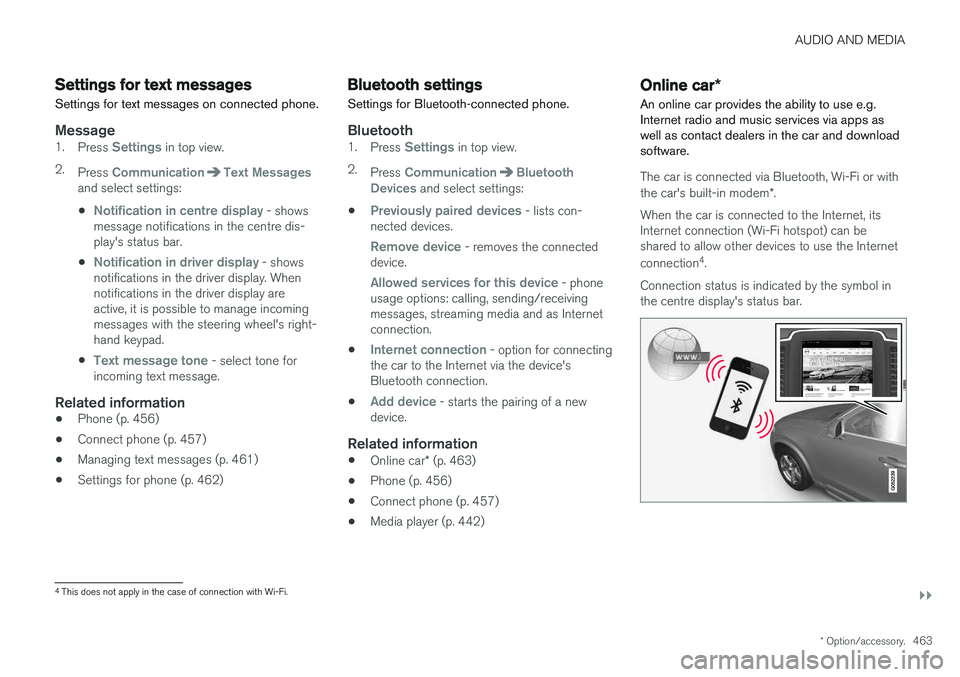
An online car provides the ability to use e.g. Internet radio and music services via apps aswell as contact dealers in the car and downloadsoftware.
The car is connected via Bluetooth, Wi-Fi or with the car's built-in modem *.
When the car is connected to the Internet, its Internet connection (Wi-Fi hotspot) can beshared to allow other devices to use the Internet connection 4
.
Connection status is indicated by the symbol in the centre display's status bar.
4 This does not apply in the case of connection with Wi-Fi.
Page 470 of 594
AUDIO AND MEDIA
* Option/accessory.
468
Settings for car modem *8
The car is equipped with a modem that can be used to connect the car to the Internet. It is alsopossible to share the Internet connection viaWi-Fi.
1. Press Settings in top view.
2. Press
CommunicationCar Modem
Internet and select settings:
•
Car modem Internet - select whether to
use the car modem as Internet connection.
•
Data usage - tap on Reset resets the
counters for received and sent data volume.
•
Network Select network operator
- automatic or
manual selection of network operator.
Data roaming - if the box is ticked, the car
modem will attempt to connect to the Inter- net when the car is abroad and outside itshome network. Note that this may result inheavy costs. Check your roaming agreementfor data traffic abroad with your network pro-vider in your home country.
•
SIM card PIN Change PIN
- a maximum of 4 digits can be
entered.
Disable PIN - select whether the PIN code
shall be required for access to the SIM card. •
Send request code — used e.g. to top up
or check the balance on a prepaid card. Functionality depends on the provider.
Related information
• Online car
* (p. 463)
• Sharing Internet via Wi-Fi hotspot (p. 465)
Downloading, updating and uninstalling apps
When the car is online there is the option to download new apps, keep existing apps upda-ted or uninstall apps.
NOTE
Data download may affect other services that transmit data, e.g. Internet radio. If the effecton other services is experienced as disruptivethen the download can be interrupted. Alter-natively, it may be appropriate to switch off orinterrupt other services.
The apps are managed viaDownload Centre in applica-
tion view. To be able to download, update or uninstall apps, the car mustbe online.
Downloading an app
1. Open the app Download Centre.
2. Select
New apps in order to open a list of
apps that are available but not installed in the car.
8 Only cars with Volvo On Call.
Page 471 of 594

AUDIO AND MEDIA
* Option/accessory.469
3. Tap anywhere on the row for an app in order
to expand in the list and get more informa- tion about the app.
4. Select
Install in order to start the download
and installation of the desired app.
> The status of the download and installa- tion is shown while it is in progress. A message is shown if a download cannot be started for the moment. The app willremain in the list and it is possible to try tostart a download again.
Cancelling a download
–Tap on Abort to cancel a download in pro-
gress.
Note that only the download can be cancelled — installation cannot be cancelled once it hasbegun.
Updating appsIf an app is being used during an ongoing update,it will be restarted in order for the installation tobe completed.
Update all
1. Open the app Download Centre.
2. Select
Install all.
> Updating is started.
Update some
1. Open the app Download Centre. 2.
Select
Application updates in order to
open a list of all available updates.
3. Locate the desired app and select
Install.
> Updating is started.
Uninstalling an appAn app that is being used must be closed in order for the uninstallation to be completed. 1. Open the app
Download Centre.
2. Select
Application updates in order to
open a list of all installed apps.
3. Locate the desired app and select
Uninstallin order to start the uninstallation of the app.
> When the app has been uninstalled, it dis-
appears from the list.
Related information
• Online car
* (p. 463)
• Radio (p. 436)
• Media player (p. 442)
• System updates (p. 510)
Page 512 of 594

MAINTENANCE AND SERVICE
* Option/accessory.
510
System updates
System updates are intended for the Internet- connected and infotainment components of thecar. If system software updates are available, theupdates can be made all at once or one at atime.
System updates are handled via the Download Centre app
in the centre display's applica- tion view. A tap on the buttonstarts a download application inthe home view's bottom sub-view. If no search for available
updates has been performed since the last timethe infotainment system was started, a search isperformed. No search is performed if a softwareinstallation is in progress. An icon in the down- load application's button
System updatesshows how many updates are available. A tap on the button shows a list of updates that can beinstalled in the car. For more information andanswers to common questions regarding functionand to download certain system updates, go in tosupport.volvocars.com. For system updates to be possible, the car must be connected to the Internet, see section "Onlinecar".
Searching for software updates is activated when the car is supplied from the factory.
NOTE
Data download may affect other services that transmit data, e.g. Internet radio. If the effecton other services is experienced as disruptivethen the download can be interrupted. Alter-natively, it may be appropriate to switch off orinterrupt other services.
NOTE
An update can be interrupted when the igni- tion is switched off and the car is left. However, the update does not have to be completed before the car is left, this isbecause the update is resumed the next timethe car is used.
Update all system software
–Select Install all at the bottom of the list.
If no list is desired, then
Install all can be
selected at the System updates button instead.
Update individual system software
programs
–Select Install for the software required.
Cancelling the download
–Tap on X in the activity indicator that has replaced the button Install at the start of the
download. Note that only the download can be cancelled, when the installation phase has started, this can-not be cancelled.
Background search for software
updates
The function can be deactivated via the centredisplay: 1. Press
Settings in the top view.
2. Press
SystemDownload Centre.
3. Deselect
Auto Software Update.
If an update is available, the message
New
software updates available is shown in the
centre display's status bar. A tap on the message starts a download application in the home view'sbottom subview. As soon as the download appli-cation has started, an icon in the download appli- cation's button
System updates shows how
many updates are available.
Related information
• Online car
* (p. 463)
• Downloading, updating and uninstalling apps (p. 468)
• Remote updates (p. 509)
Page 581 of 594

ALPHABETICAL INDEX
579
Centre display
change settings 45
cleaning 553
climate control 187
messages 106
operation 36, 40
overview 33
symbols in status bar 45
Checking the engine oil level 517
Child safety 71
Child safety locks 261
Child seat 71 integrated booster cushion 82
i-Size/ISOFIX mounting points 77
lower mounting points 74
positioning/fitting 71
table for location 75
table of i-Size 81
table of ISOFIX 78
Upper mounting points 73
Cigarette lighter 224 City Safety ™330, 332, 333, 335, 336,
337, 339
Cleaning automatic car wash 549
car washing 549
centre display 553
Fabric upholstery 552
rims 551
seatbelts 553
upholstery 552
Clean Zone Interior Package 185
Climate control 182, 186 auto-regulation 189
centre display 187
experienced temperature 183
fan control 193
Parking 206
rear seat 188
sensors 183
temperature control 190
voice control 119
zones 182
Clock, adjustment 99 CO 2 emissions 572
Collision 56, 59, 63, 69
Collision warning 330Collision warning system Pedestrian detection 333
Radar sensor 318
Colour code, paint 554
Combined instrument panel 90 settings 94
Compass 156 calibration 157
Condensation in headlamps 549Controls lighting 135
Coolant 570
Coolant, filling 518Cooling system overheating 414
Cornering lights 142
Corner Traction Control 273Cover cargo area 230
Crash, see Collision 56
Cruise control 284 deactivate 287
managing speed 284, 285
temporary deactivation 286
CTA 343, 344, 345
Cyclist detection 333
CZIP (Clean Zone Interior Package) 185
D
DAB Radio 440 Data recording 22
transfer between car and workshop 511
Data link connector 23
Daytime running lights 137
Page 582 of 594

ALPHABETICAL INDEX
580Deadlock 246
deactivation 246
Defrosting 194
Diesel 420 run out of fuel 420
Diesel particle filter 421
Digital radio (DAB) 440
Dimensions 561 Towing bracket 425
dipped beam 137
Dipstick, electronic 517
Direction indicator 144
Direction indicators 144
direction of rotation 483
Disengaging the gear selector inhibitor 394
Display lighting 135
Distance Warning 288, 289 Limitations 290
Door mirrors 153 automatic dimming 154
resetting 154
Drive-E Environmental philosophy 25
Driver Alert Control 352 operation 353
Driver display
application menu 105
messages 106
Driver performance 168
Driver profile 174, 175, 176, 177 edit 175
import/export from/to USB 177
select 174
Drivetrain Gearbox 389
Driving cooling system 414
with a tailer 426
Driving economy 422
Driving in water 413
Driving mode 400Driving with a trailer towball load 564
towing capacity 564
E
ECO mode 402
Economical driving 402, 422
ECO pressure 484, 574
Electrical socket 220
Electrical system 530
Electric parking brake 409low battery voltage 411
Emergency equipment first aid kit 501
warning triangle 500
Emergency puncture repair 490, 494 action 491
inflating the tyres 494
rechecking 491
Emergency puncture repair kit 491 location 490
overview 491
sealing fluid 490
Emissions of carbon dioxide 572 Engine deactivate 387
overheating 414
start 386
Start/Stop 396
Engine compartment coolant 518
Engine oil 516
overview 515
Engine drag control 273
Engine oil 516, 569 adverse driving conditions 569
Page 587 of 594

ALPHABETICAL INDEX
585
Position lamp 136
Power operated tailgate 253, 256
Power panorama roof 158
Power save mode 415
Power seat 121, 123
Power windows 151
resetting 153
PPS (Pedestrian Protection System) 58
Preconditioning 206 start/shut-off 207
Timer 208
Protective grille 233
Pump up tyre 494
Puncture 490
Q
Queue Assist 304, 309, 316
Queue assistance 304, 309, 316
R
Radar sensor 290 Limitations 319
Radio 436 change and search for radio station 436
DAB 440
settings 441
voice control 118
Rain sensor 149
Raising the car 512Rear door sun blind 153
Rear seat 128 Climate control 187, 188
Fan 193
head restraint 128
heating 203
lowering the backrest 130
Temperature 190
Rearview and door mirrors compass 156, 157
door 153
electrically retractable 155
heating 194
interior 155
rear window
heating 194
Washers 151
Wiper 151
Recommendations during driving 415
Recovery 432
Red Key 239
Refrigerant 520
Refuelling 417
Regeneration 421 Remote control, HomeLink ®
programmable 162
Remote control immobiliser 260
Remote control key 176, 236, 239, 243 battery replacement 257
connect to driver profile 176
detachable key blade 250
loss 236
range 238
Remote control key system, type approval 265
Remote updates 509
Resetting, trip meter 166
Resetting the door mirrors 154
Resetting the power windows 153
Restore settings 179
Retractable power door mirrors 155